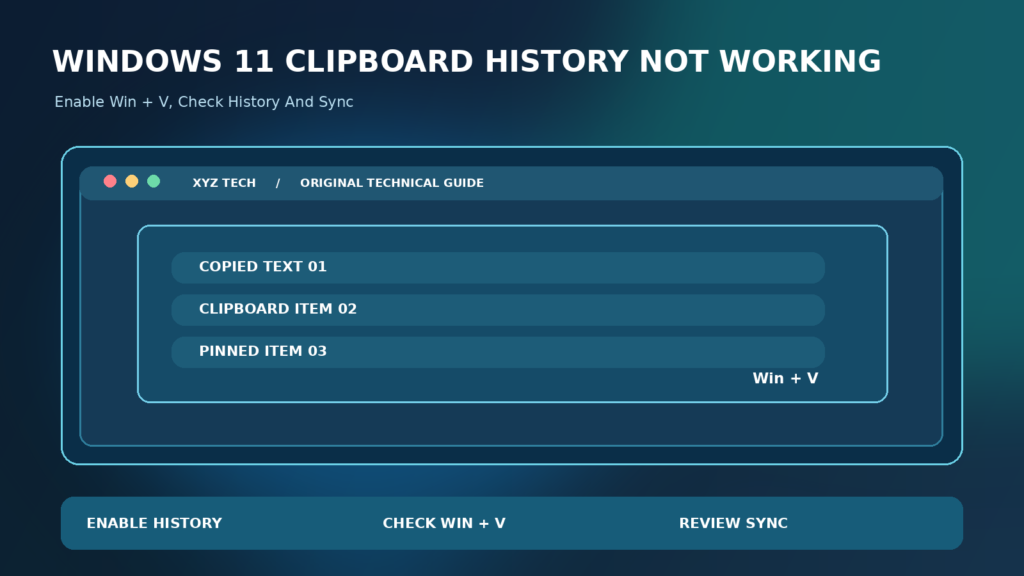

This guide distinguishes missing history, ordinary copy/paste errors, keyboard shortcuts, sync and privacy.
What Clipboard History Does
Windows clipboard history stores multiple recent copied items so you can choose what to paste rather than only the most recent selection. Press Windows + V to open the supported history interface. A missing panel can mean the feature is disabled, a keyboard shortcut is not working, or a policy restricts history.
Clipboard history is not the same thing as ordinary Ctrl + C and Ctrl + V. Basic copying can work even if history has been turned off. Begin by testing whether a normal short piece of text can be pasted into Notepad before focusing on the Windows + V feature.
Microsoft’s Using The Clipboard guide explains history, pinning and optional synchronization. Do not assume it permanently stores every kind of copied content or replaces a secure notes application.
Quick Answer: Turn History On
Open Settings > System > Clipboard and enable Clipboard history. Then copy a harmless short sentence and press Windows + V. If the panel is empty, copy a fresh item after enabling the feature; earlier clipboard entries may not have been retained.
If the shortcut does not open the panel, test the Windows key using another known shortcut and check whether keyboard software or administrator policy is involved. Microsoft’s Windows shortcut reference documents Windows + V.
Do not clear every clipboard item or reset Windows as a first fix. Most users can start with the supported feature switch, a new copy and a simple shortcut test.
Confirm Basic Copy And Paste Works
Clipboard history builds on the ordinary clipboard. Copy a word from a non-sensitive document and paste it into Notepad using Ctrl + V. If basic paste fails, the underlying application, selected content, keyboard, or remote-session configuration may be the actual problem.
Try copying text between two local applications. If it works but Windows + V remains blank, the problem is more specific to clipboard history. If it fails only in one app, inspect that application’s restrictions before changing system-wide preferences.
Some password fields and secure apps intentionally prevent copying or sharing sensitive contents. Do not try to bypass these protections to make clipboard history display a secret.
Open The Clipboard Settings Page
Windows 11 provides Clipboard settings under Settings > System > Clipboard on supported releases. Check the Clipboard history control and note whether it is disabled or unavailable. If it is controlled by an organization, a lock or policy message may appear.
Enable history for a personal computer if you want the feature. A managed work computer may disallow storing copied content for confidentiality reasons. Respect that decision and ask the administrator if the legitimate workflow requires a change.
Avoid applying registry tweaks advertised as shortcuts to force the feature on. A built-in supported setting is safer and makes it easier to understand whether the problem is user configuration or policy.
Test Windows + V With New Text
After enabling history, copy a new short harmless sentence. Press Windows + V and look for that item in the history panel. This creates a repeatable test without relying on older content that was copied before the feature started storing history.
If the panel opens and shows the new sentence, the basic function is working. If it opens empty, confirm the source application really placed content on the clipboard. If it fails to open, investigate the shortcut separately.
Do not paste confidential information into third-party troubleshooting sites to test whether history works. A local text editor is enough to establish the behavior.
Check Whether The Windows Key Works
If Windows + V does nothing, test Windows + E or another safe Windows shortcut. A keyboard’s gaming mode, firmware remapping or specialized input utility may disable the Windows key. Some remote or virtual environments also intercept combinations.
If several Windows shortcuts fail, troubleshoot keyboard configuration instead of blaming clipboard storage. Our Keyboard Shortcuts Not Working guide explains related causes.
Do not assume the copied text was lost simply because the history panel did not open. You may still be able to paste the current clipboard item normally with Ctrl + V.
Restart The Affected Application
Some applications maintain their own clipboards or prevent copying certain data. If history fails only in one program, close that program safely after saving work and try a fresh copy from a standard text editor.
If Notepad copies into Windows history but another application does not, the issue may be an application setting or content restriction. Check that application’s support documentation before reinstalling Windows or changing the history feature.
Do not force-terminate programs that contain unsaved work. A careful comparison with a second app usually provides more useful evidence than random service restarts.
Restart Windows When The Panel Is Stuck
A normal restart can recover from a temporary Windows shell or clipboard service problem. Save open documents first, restart from the supported Power menu and copy a new harmless item after signing in.
If history works immediately after restarting but fails again when a particular app is launched, record that correlation. It may indicate an app conflict rather than an operating-system setting that needs to be permanently disabled.
Avoid repeatedly power-cycling the PC without saving work. A reproducible test before and after a restart is more informative than performing several unrelated fixes at once.
Understand Pinned Clipboard Items
Clipboard history supports pinning certain entries so they can remain available under supported conditions. Pinning is for frequently reused nonsensitive snippets, not a secure password vault. Microsoft’s clipboard guidance describes this feature.
To verify pinning, copy a harmless phrase, open Windows + V and choose Pin where supported. Later confirm whether the item behaves as documented. Do not pin account tokens, banking data or confidential personal information.
The existence of pinned entries does not guarantee every copied image, file or rich-content format will be retained permanently. Use an appropriate document or password manager for data that needs secure long-term storage.
Distinguish Clipboard History From Cloud Sync
Clipboard history can be enabled locally without automatically synchronizing every item across computers. Cloud clipboard features depend on supported account, configuration, edition and policy. An empty history on a second PC does not prove the first computer failed to capture text.
Open the Clipboard settings and review the available sync controls only if cross-device use is intended. Check whether both devices use an eligible account and whether the organization permits synchronization. Microsoft’s clipboard documentation explains automatic and manual sync options.
Do not enable clipboard synchronization casually on a shared or work computer. Moving copied text across devices can create privacy risks, especially when users copy credentials or business documents.
Check Clipboard Sync Account Identity
Users may sign into Windows with a different account from their work apps or another PC. A cross-device clipboard feature that depends on a supported account may not function when identities and policies differ.
Confirm the legitimate sign-in account and supported sync setting in Windows. Do not post account identifiers in public support discussions. If the feature is managed, ask the administrator what type of data may be synchronized.
Test synchronization with a non-sensitive sentence, not passwords or personal messages. If the devices have incompatible or restricted setups, local clipboard history may still function normally.
Review Privacy And Clipboard Data Exposure
Copied text can include account numbers, private messages, personal addresses and credentials. Clipboard history increases the amount of previously copied content potentially visible to someone with access to the current Windows session.
Before enabling the feature on a shared PC, consider who can access the session and whether the computer is managed. Pin only nonsensitive text and use supported clear controls when you no longer need history. A password manager should be used for secrets.
Do not upload screenshots of clipboard history without inspecting the items. A simple troubleshooting image can accidentally reveal confidential data that is unrelated to the technical problem.
What Kinds Of Content History Supports
Clipboard history is not a guarantee that every copied format, file object, enormous selection or protected item is stored. Some applications place complex data or proprietary formats on the clipboard that cannot be represented in the ordinary history panel.
Test with short plain text first. Once that works, compare the type of content you actually want to retain. A failure involving a specific rich-text or file operation may reflect supported format limitations rather than a broken Windows panel.
Do not rely on clipboard history as an archival system. Our File System Explanation describes persistent file storage, which is different from transient copied data.
Check Clipboard History After A Windows Update
An update may change shell behavior or a bug may affect the history panel temporarily. Microsoft has documented past clipboard history fixes in update notes. If the problem began after a specific update, record the Windows build and whether ordinary paste still works.
Check Windows Update through Settings and apply supported corrections when appropriate. Avoid installing random standalone clipboard patches. Our Windows Update Stuck guide covers related update trouble.
Do not promise that a single Windows update resolves every clipboard issue. Test the exact problem after the update and preserve the original configuration for comparison.
Investigate Remote Desktop Clipboard Behavior
Remote Desktop can redirect clipboard content between local and remote computers under certain settings and policies. A problem copying into a remote session is not necessarily a failure of Windows + V on the local PC.
Check clipboard redirection only through authorized Remote Desktop settings or IT guidance. Test copying locally on each computer separately before testing across the session. This determines which side is malfunctioning.
Do not bypass business policies restricting clipboard transfers. Such restrictions can be deliberate safeguards against moving sensitive information between systems.
Clear History Only When Appropriate
Windows provides a method to clear clipboard history when needed. That may be useful for privacy or for eliminating stale items, but clearing history discards previously retained content and should not be an automatic first troubleshooting step.
Before clearing, copy any harmless text you genuinely want to keep into a proper document. Check what the supported Clear control will remove and whether any pinned entries are treated differently in your version.
After clearing, copy a new test sentence and open Windows + V. If the new content appears, the history mechanism is functioning, although the operation does not explain why a previous item failed.
What A Greyed-Out Clipboard Toggle Means
If the Clipboard history switch is disabled or indicates management by an organization, there may be an administrative policy. A user should not assume the control is broken or try to bypass management with downloaded scripts.
Record the exact message and consult workplace IT if legitimate work requires the feature. A managed computer may intentionally disable history or cloud sync to protect business data.
A personal Windows account and a managed Windows account can behave differently. Verify the device’s ownership and policies before suggesting broad changes to Windows security settings.
Check Whether A Third-Party Clipboard Manager Interferes
Some clipboard utilities watch copied content, replace shortcuts or apply their own storage and synchronization rules. If Windows + V stopped working after installing such a program, compare its settings and supported hotkeys.
Temporarily close the utility through its normal interface, then test Windows + V with a harmless text item. Avoid forcefully deleting configuration files or disabling antivirus protections to make the test work.
If the conflict is reproducible, choose a different shortcut or update the utility from its official developer. Do not run multiple unknown clipboard monitoring apps at once.
Distinguish File Copying From Text History
Copying an entire file in File Explorer is not equivalent to copying a sentence into a text editor. Users sometimes expect file operations to appear as ordinary entries in Windows + V, but history primarily handles supported clipboard content types and has limitations.
If you need a persistent list of files to transfer, manage them in File Explorer or a reliable file transfer workflow. Our File Explorer Slow guide addresses file browsing separately.
Test text history first, then check whether your specific content type is supported. Avoid describing a normal format limitation as a lost or damaged file.
Try A New Windows User Profile Only When Justified
A clipboard problem limited to one Windows account can sometimes differ from an issue affecting the entire PC. Testing in an authorized temporary user profile may help separate profile configuration from operating-system behavior.
Do not create unnecessary accounts or copy private files into a test profile without permission. Ask an administrator on shared or managed devices. Preserve existing data before any profile repair or migration.
If the feature works in one profile but not another, document that result rather than immediately deleting the affected profile. Changing a user profile can have broader consequences than toggling clipboard history.
A Diagnostic Comparison Table
Several symptoms are easy to confuse: Windows + V not opening, a blank panel, cross-device sync failure, and ordinary Ctrl + V not working. Each case points toward a different starting check.
Use the table below and change one condition at a time. A new local text item is an effective baseline because it avoids complications from rich content, remote sessions or protected app formats.
Keep notes about settings and Windows version. The goal is to restore the intended function, not merely make a menu appear briefly after a reset.
| Symptom | First Check |
|---|---|
| Windows + V Does Not Open | History Toggle And Windows Key |
| Panel Is Empty | Copy A Fresh Supported Item |
| Ctrl + V Fails | Basic Clipboard Or App Issue |
| Second PC Has No Items | Sync Controls And Account |
| Toggle Greyed Out | Managed Device Policy |
Verify The Fix With A Repeatable Test
Copy three short harmless sentences from Notepad one at a time, press Windows + V and verify whether the expected recent entries appear. Select an item for pasting and confirm that the receiving application receives the intended text.
Repeat after a normal restart when the original problem involved repeated failures. If cloud sync was also involved, test that separately with an authorized second device. Never use real passwords or confidential records as test content.
A working panel with several recent entries is stronger evidence of a successful fix than the appearance of the Clipboard settings toggle alone.
When To Contact Official Support
Escalate when the history toggle is locked, the shortcut fails despite normal keyboard behavior, or the panel repeatedly breaks after supported updates. Record the Windows build, steps tried, whether basic copy/paste works and whether a third-party clipboard tool is installed.
For a workplace computer, use the organization’s support channel. Do not send screenshots containing private clipboard history to an unknown person or a public forum. A summary of the symptom is usually sufficient for initial support.
Avoid replacing the entire Windows installation for a single clipboard history issue without a documented reason. Targeted settings, app conflict checks and supported updates should come first.
Keep Clipboard History Reliable And Private
Use Windows + V for supported text snippets, keep the feature enabled only when it serves your workflow, and avoid pinning sensitive information. Update Windows through official channels and review third-party utilities that register competing keyboard shortcuts.
For long-term storage, save important content as actual documents rather than relying on history retention. For cross-device sharing, check privacy and organizational requirements before enabling synchronization.
A practical clipboard setup should be predictable and respectful of sensitive data. Fixing the shortcut is valuable, but preserving privacy is equally important.
Frequently Asked Questions
How Do I Enable Clipboard History In Windows 11?
Open Settings > System > Clipboard and enable Clipboard history, then copy a new text item and press Windows + V.
What Is The Shortcut For Clipboard History?
Windows + V opens the Clipboard history panel on supported Windows 11 systems.
Why Is Windows + V Not Working?
Clipboard history may be disabled, the Windows key may be intercepted, or organizational policy may restrict it. Test a new local text item and another Windows shortcut.
Does Ctrl + V Work Without Clipboard History?
Yes. Ordinary paste can work even when history is disabled.
Why Is My Clipboard History Empty?
The feature may have been recently enabled or the copied item may not be supported. Copy a new short sentence and check again.
Can Clipboard History Sync Across Computers?
Supported settings and accounts can allow cloud clipboard synchronization, subject to organizational restrictions. It is distinct from local history.
Can I Store Passwords In Clipboard History?
Avoid using it as a password vault. History can expose recent copied content to someone with access to your session.
Does Clipboard History Remember Every File I Copy?
No. It has supported content types and limitations; file operations are not equivalent to short text entries.
Should I Clear Clipboard History To Fix It?
Only when appropriate. Clearing discards saved entries and is not the first step for a disabled feature.
What If The Clipboard History Toggle Is Greyed Out?
Check whether the PC is managed by an organization and consult the administrator before attempting policy changes.


