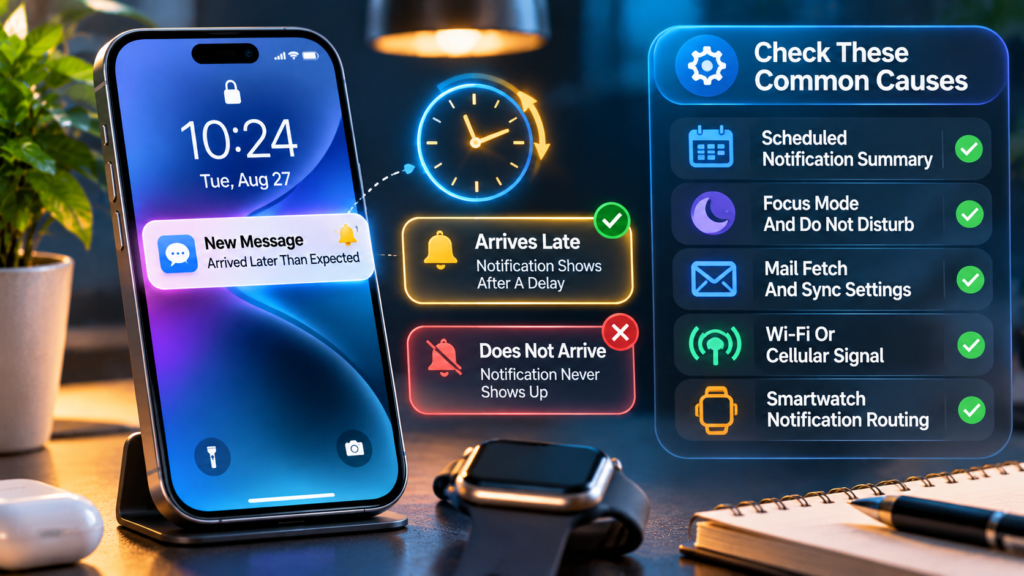

This is a timing-focused troubleshooting guide. For alerts that never appear, read our separate missing iPhone notifications guide. The menu paths below follow Apple’s supported documentation; options can vary by iOS release and app.
Delayed Notifications Vs Missing Notifications
An iPhone notification can be late for several different reasons. The app may receive new information late, the server may send its push alert late, Apple’s notification system may deliver or process it after a delay, or the phone may receive it promptly but keep it quiet until a scheduled presentation time. The important diagnostic question is not just whether an alert arrived. It is when the underlying event occurred, when the app displayed the information and when the Lock Screen or banner became visible.
This guide focuses on delayed timing rather than the broader case of alerts that never appear. If an app has stopped showing notifications altogether, begin with our iPhone Notifications Not Working guide. For intermittent delay, use the repeatable test below to separate notification delivery from presentation, mail polling, connectivity and paired-device routing. Do not reset a working phone simply because one banner appeared later than expected.
Run A Controlled Two-Phone Timing Test
Use two devices or ask a trusted person to send a harmless test message. Record the time the sender taps Send, the time the message becomes available when you open the receiving app, and the time any banner or Lock Screen alert appears. Repeat the test while the iPhone is locked, then again while you are using it. Keep the same sender and app where possible so you are not confusing several unrelated services.
Repeat the test a few times on Wi-Fi and cellular data if both are available. Do not expose private messages in screenshots or troubleshooting logs. If the message is already visible inside the app but the notification appears later, the next checks should focus on notification presentation and app behavior. If the message itself does not appear until later, look at the service, connectivity and, for Mail, account fetch settings.
Record Observed Time
Record Observed Time
Record Observed Time
Read The Symptom Before Changing Settings
Distinguish four cases: a banner appears late, all alerts appear together at predictable times, one app stays quiet until it is opened, or the phone remains silent while the paired Apple Watch alerts normally. Each pattern suggests a different starting point. A regular midday cluster, for example, is a better reason to inspect Scheduled Summary than to replace a router.
Make a short table of the affected apps and the circumstances. Note whether delay occurs only when the screen is locked, during a particular Focus, while mobile data is weak, or after the phone has been offline. Do not treat one delayed event as proof that Apple’s push service has a widespread outage. The diagnostic value comes from a reproducible pattern rather than a single screenshot.
Check Scheduled Summary And Immediate Delivery
Open Settings > Notifications and examine Scheduled Summary if that feature is enabled. Apple lets users group eligible notifications for selected times, which can make a perfectly functioning app seem late. Where a supported iOS version exposes a per-app delivery option, choose Immediate Delivery for an app whose alerts you need promptly. Apple describes these controls in its notification settings guide.
Only adjust the affected app rather than disabling a carefully configured summary for every other notification. Not every alert or application has the same delivery options, and some time-sensitive communications receive different treatment. Run the same harmless test again after the change. If the timing improves only for that app, you have found a presentation setting, not evidence of a slow internet connection.
Investigate Focus And Do Not Disturb Schedules
Focus can silence or otherwise change the presentation of notifications based on the current mode, people, apps and schedules. Open Settings > Focus, inspect the active mode and check any schedule or automatic activation. Apple documents how a Focus can turn on by time, location or app in its Focus instructions. A notification being silenced is not necessarily the same thing as its underlying message arriving late.
For a controlled test, briefly disable only the relevant Focus or allow one intended person or app, then compare the behavior. Restore your normal concentration settings afterward if you need them. If Share Across Devices is enabled, a Focus on another Apple device can influence what you experience on the iPhone. Avoid switching off important safety or emergency configurations just to make a general-purpose app more noticeable.
Understand Priority, Time Sensitive And Critical Alerts
Some apps and iOS versions provide time-sensitive notification settings. A few apps can use critical alerts under specific permissions and capabilities. These categories are intended for particular situations, not a general switch that makes all communication instantaneous. Apple’s notification overview explains available alert types and settings, which can vary by device, region and release.
Do not enable broad interruption privileges without considering the app’s purpose. A shopping promotion and a medical-device alert have different urgency requirements. Prioritization can influence when something draws your attention, but it cannot guarantee that a remote server sent a notification on time or that the device had a usable connection. Test the actual behavior and use supported app controls.
Separate Push Notifications From App Data Refresh
Apple’s Push Notification service, or APNs, carries remote notifications from application servers toward devices. Background App Refresh is a separate mechanism used by applications to update content in the background. Confusing the two leads to unhelpful advice such as claiming that enabling Background App Refresh fixes every delayed push alert. Apple notes that remote notification delivery is attempted promptly but not guaranteed in its User Notifications documentation.
If a messaging alert is delayed while background content updates are limited, the app’s actual implementation matters. Some applications use a notification mainly to tell the user something happened, then load details when opened. Others synchronize content through additional background activity. Investigate the affected app’s support guidance before drawing conclusions from one background setting.
When Low Power Mode Can Matter
Low Power Mode reduces certain background activities to conserve battery. Apple documents that it can turn off Background App Refresh and affect Mail fetch behavior in its Low Power Mode guidance. This can be relevant when the app depends on periodic background updates or an email account is configured to fetch, but it does not mean every visible push notification is universally disabled.
If your delays occur only when the battery indicator shows Low Power Mode, charge the phone and compare one short test with normal power settings. Do not keep a battery-saving setting disabled indefinitely solely to change one uncertain timing result. If the problem persists, look at the notification service, app account, connectivity or delivery settings. Our iPhone Battery Drains Quickly guide discusses general battery behavior separately from notification timing.
Mail Notifications: Check Push Vs Fetch
Mail is a special case because an email account can use Push when supported or fetch updates according to an interval or system conditions. Apple documents the Mail controls under the settings for Mail accounts and the Fetch New Data interface in its cannot receive email guidance. If Push is unavailable for an account, Fetch can explain why the Mail app reports a new message later than a sender expected.
Check the account’s fetch and notification settings, and whether the affected mailbox is included. The automatic fetch mode has conditions, including background fetching when charging and connected to Wi-Fi as described by Apple. That behavior is different from a chat app sending an immediate remote push. Changing account settings can affect battery and data usage, so choose a schedule appropriate to your needs rather than selecting every possible option without review.
Mail Categories And Notification Visibility
A person can perceive an email notification as missing or late when Mail has assigned the message to a different category or the badge reflects only certain unread messages. Apple’s Mail notifications instructions describe how notification settings and available categories affect what appears. This is not always a delay in the delivery of email itself.
Open Mail and verify whether the new message is present before interpreting the Lock Screen. If the message exists but an expected banner or badge is absent, examine the mailbox-specific notification setting. If the message is not present yet, inspect fetch, account connectivity or the email provider’s status. Do not delete and recreate the account until you understand how its messages are stored and whether you have safe sign-in credentials.
Check Wi-Fi And Mobile Data Separately
A remote notification cannot be delivered normally if the device has no usable network path. Test a simple webpage and the affected app while connected to Wi-Fi, then compare on cellular data if available and permitted by your mobile plan. Repeating the same test can reveal whether the delay follows a specific network. Network connectivity can also fluctuate between a weak access point, a mobile carrier and a VPN connection.
Do not conclude that high download speed proves reliable notifications. Consistent connectivity, reachability to a service and server behavior matter more than one throughput figure. Our Network Latency Guide explains why waiting time and raw bandwidth differ, while Wi-Fi Works On Phone But Not Laptop covers a different comparison scenario.
Check Whether A VPN Or Network Filter Is Involved
A VPN, managed network, content filter or restrictive Wi-Fi connection can change which remote services are reachable or how traffic is routed. This does not mean using a VPN automatically delays notifications. To test a connection-related hypothesis, compare a small harmless notification with and without a legitimate VPN connection, following any workplace security requirements and avoiding exposure on public Wi-Fi.
If the delay is reproducible only on one managed network, contact its administrator instead of changing protective settings. Do not install unknown profiles, certificates or network utilities marketed as a push-notification accelerator. Our VPN Explanation clarifies what a VPN changes and what it cannot guarantee.
Do Not Misdiagnose Apple Watch Notification Routing
When an iPhone is paired with an Apple Watch, notification behavior can differ depending on which device is unlocked or being worn. Apple explains that many notifications appear on either the Watch or iPhone rather than both simultaneously in its Apple Watch notification guide. A prompt alert on your wrist and an absent iPhone banner may be normal routing rather than the phone receiving the event late.
During a controlled test, note whether the Watch is unlocked and on your wrist. Review the intended app under the Watch app’s Notifications settings. Do not unpair the Watch as an early troubleshooting step. First confirm whether the event arrived on the paired device and whether your goal is an alert on the phone, wrist or both.
What A Delayed Push Can Mean On The Server Side
Remote notifications travel through multiple systems: an app provider generates the event, its server sends an appropriate request to APNs, Apple attempts delivery, and the device decides how to present the notification. A delay at any of those stages can change the time you see an alert. Apple’s remote notification server guidance also notes that when notifications cannot be delivered promptly for some conditions, they may be combined or handled according to service rules.
For a regular consumer, the practical implication is that one app can be late while other apps work normally. No iPhone-wide setting can make an app provider send its events sooner. Check the app’s official status page and support channel, and provide non-sensitive timing examples. A network speed test cannot establish whether an application’s own server generated its alert late.
If Notifications Arrive Only When You Open The App
If the message becomes visible only after launching the app, begin by checking whether the app was disconnected, logged out, restricted by its own settings, or unable to communicate with its provider. Confirm that the app’s notification permission is enabled under Settings > Notifications, then review in-app alert preferences. A service may distinguish chat messages, group alerts, account notices and promotional notifications, so permission at the operating-system level may not be the whole story.
Test an ordinary message after signing in and reconnecting. If it still appears only after the app opens, check the developer’s current support resources. Avoid repeatedly deleting the application or resetting the phone, because doing so can remove locally stored information or sign you out of accounts without fixing a server-side issue. Preserve account recovery methods before any significant reinstall.
When Restarting And Updating Are Reasonable
After you have established a repeatable delay and checked the relevant settings, restarting the affected iPhone can be a reversible diagnostic step. Updating iOS and the app to a currently supported release can resolve known compatibility problems. Apple’s iPhone update instructions describe the supported software update workflow through Settings > General > Software Update.
Back up important data before major system changes. Do not install unsigned iOS packages, third-party notification repair profiles or applications requiring unusual device-management privileges. When a problem began immediately after an update, document the iOS and app versions and look for official fixes. A software update is a reasonable maintenance action, but it is not a guarantee of solving every network or server delay.
Avoid Resetting Network Settings As A First Fix
Reset Network Settings changes saved connection configuration and can remove network-related settings that a person relies on. That is a disproportionately broad step for a case that may be caused by Scheduled Summary or a single email account’s fetch interval. Investigate the targeted controls first and preserve Wi-Fi and VPN credentials before considering any reset suggested by official support.
Similarly, Reset All Settings is not a harmless substitute for knowing the cause. It can alter many preferences. A factory reset is even more disruptive and should not be proposed as a routine fix for a late banner. If the phone needs advanced repair, involve Apple Support or a trusted professional and make sure you understand the backup and account-recovery implications.
How To Read Alert Timestamps Carefully
Time displayed inside a message thread may represent when the sender created a message or when the service recorded it, not the moment an iPhone received the push event. The moment you first notice a banner is also not necessarily its exact delivery timestamp. This is why a controlled test is helpful: it captures several observable moments without pretending to see an internal APNs delivery log.
Record the sender’s time, arrival in the app, appearance of the notification and whether the iPhone was locked or on a different network. If the phone’s date and time settings are incorrect, synchronize them through supported iOS settings before comparing clocks. Keep in mind that two people’s devices may not be perfectly synchronized. Avoid publishing screenshots showing personal identifiers or message contents.
A Repeatable Troubleshooting Worksheet
Use a table with the affected app, message type, network, phone locked or unlocked, Focus mode, Scheduled Summary status, Low Power Mode status, Apple Watch status, time the event was sent and time it became visible. Change one factor at a time. If five changes are applied before the next test, you will not know which one mattered.
Perform at least a couple of trials under the same conditions. Different events or remote services may behave differently, so one test should not establish a universal delay. A record of reproducible behavior is also more useful when contacting the app developer. Do not record private conversations, one-time passwords or sensitive notification previews in a public support ticket.
| Test Field | What To Write Down | Why It Helps |
|---|---|---|
| Affected App | Exact App And Version | Separates App-Specific Behavior |
| Event Time | Sender Or Server Timestamp | Provides A Starting Reference |
| Available In App | First Confirmed Viewable Time | Distinguishes Data Arrival |
| Alert Seen | Banner Or Lock Screen Observation | Measures Presentation Delay |
| Settings | Focus, Summary, Power Mode, Watch | Controls Presentation Variables |
| Connection | Wi-Fi Or Cellular | Isolates Network Conditions |
Why Turning Everything On Is Not A Good Fix
It can be tempting to disable every Focus, permanently turn off Low Power Mode, allow all app notifications and give every service special interruption permissions. That strategy increases distraction and battery usage without proving what caused the problem. It may also weaken personal privacy choices or workplace policies. The better approach is to identify the particular app and the condition that changes its behavior.
If an app needs immediate alerts, move it out of Scheduled Summary where supported and use an appropriate app-specific delivery configuration. Keep Focus for the times you want it, allow exceptions only when necessary and preserve suitable account security settings. A properly configured phone should respect your notification preferences while delivering important information in a way you can understand.
Special Cases: Travel, Roaming And Intermittent Connectivity
During travel, roaming policies, captive portals, weak mobile service and transitions between Wi-Fi and cellular networks can affect when remote information reaches the phone. An app may later synchronize events together after connectivity returns. That can look like several notifications arriving simultaneously and should be distinguished from a Scheduled Summary configured to appear at a known hour.
Check whether the affected service behaves normally on a stable trusted network. If roaming restrictions or data caps apply, respect them and avoid bypassing a carrier’s terms. For intermittent coverage, the realistic goal may be reliable delivery when the connection becomes available rather than instantaneous alerts in every location. A temporary network interruption cannot be eliminated by a notification sound setting.
How To Escalate An App-Specific Delay
When only one app is affected and your controlled tests rule out obvious presentation settings, contact the app developer’s official support channel. Provide the app version, iOS version, broad network type, approximate time and timezone, whether it was locked and whether a paired Watch was involved. Explain what you observed rather than asserting that APNs or an ISP is at fault without evidence.
Never supply your Apple Account password, one-time verification codes or private messages merely to diagnose a late alert. If the problem affects many unrelated apps even on stable connections, use Apple Support and explain the repeated results. This division helps specialists investigate the component they can actually control instead of having users cycle through unnecessary reinstallations and resets.
A Short Checklist For Getting Timely Alerts
Check whether the event itself arrived late or only its banner. Turn off Scheduled Summary for the one app when immediate presentation is important. Inspect Focus schedules, paired Watch routing and Mail fetch when dealing with email. Compare Wi-Fi and cellular connectivity, then record results before changing software. If an issue is confined to one provider, check its service status and support documentation.
Finally, keep the device updated through official channels and test changes one at a time. There is no universal iPhone switch that guarantees every remote notification will arrive immediately. Timely presentation is partly a device preference, but timely delivery also depends on servers, a usable network and operating-system behavior. The goal is to make a reliable diagnosis rather than promise a fix that cannot be guaranteed.
Frequently Asked Questions
Why Are My iPhone Notifications Arriving Late?
Possible causes include Scheduled Summary, Focus presentation rules, delayed Mail fetch, connectivity interruptions or the app provider’s notification service. Test whether the message itself arrives late or only its alert.
How Do I Stop Scheduled Summary Delaying An App?
Open Settings > Notifications and review Scheduled Summary. Where supported, move the affected app to immediate delivery or remove it from the summary, then test again.
Can Focus Mode Delay Notifications?
Focus can silence or change how notifications are presented. Inspect active modes and schedules, and compare a controlled test with the relevant Focus temporarily disabled.
Does Low Power Mode Block All Push Notifications?
No universal rule says it blocks all normal push notifications. It can restrict background activity and Mail fetch; the effect on a particular app depends on its design and settings.
Why Does My Mail Alert Arrive Much Later Than The Email?
The account may use scheduled fetching rather than Push, or the notification setting may not alert for that mailbox. Verify the Mail account’s Fetch New Data and notification settings.
Why Do Notifications Show On Apple Watch But Not My iPhone?
Apple commonly routes a notification to either the Watch or phone according to device state. Check which device is unlocked and the Watch notification configuration.
Will Enabling Background App Refresh Fix Every Delay?
No. Background App Refresh and Apple Push Notification service are distinct functions. Test the app’s behavior instead of treating that switch as a universal fix.
Can A VPN Make My iPhone Alerts Late?
A VPN or network filter can affect a connection in some environments, but it is not automatically the cause. Compare a safe test on the same service with and without it when permitted.
Should I Reset My iPhone To Fix Late Notifications?
Not as a first response. Start with targeted settings, network comparisons, app updates and non-destructive tests. A reset can have broader consequences.
What Should I Tell Support About Delayed Alerts?
Provide the app and iOS versions, event time and timezone, network type, Focus or summary state, and whether the phone was locked or paired with a Watch. Avoid sharing private messages or passwords.


