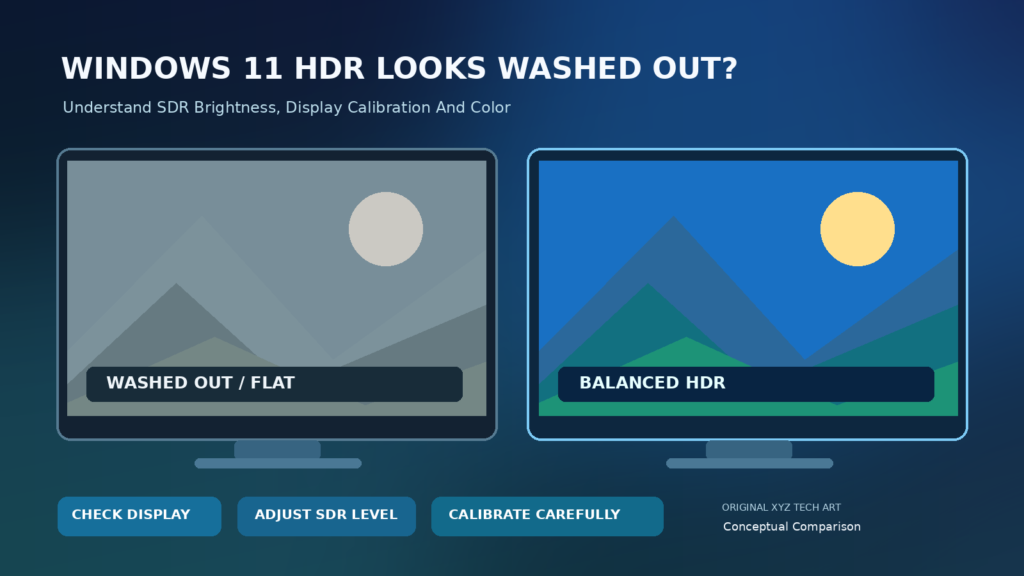

If Windows 11 HDR looks washed out, open Settings > System > Display > HDR, select the correct monitor and adjust the SDR content brightness setting on a supported external display. If a game or video alone looks wrong, check its own HDR settings and supported calibration. Built-in laptop displays can behave differently, so make changes one at a time.
This Microsoft-sourced troubleshooting guide covers SDR brightness, Windows HDR Calibration, external monitors, laptops, cables, graphics drivers and supported content, with safe reversible checks.
Why HDR Can Make Windows Look Pale
HDR, or High Dynamic Range, describes content and displays that can represent a greater range of luminance and color than typical Standard Dynamic Range material. Enabling HDR on a Windows 11 computer does not convert every app into genuine HDR. Ordinary desktop windows remain SDR content that Windows must map into the display’s HDR output mode. Depending on the display and controls, that mapping can make familiar colors look pale, grey or overly bright. The problem may be the balance setting rather than a hardware failure.
Start by identifying what actually looks wrong. Does the desktop look washed out immediately after enabling HDR? Are movies fine while browser windows are pale? Does only one game show strange blacks or highlights? A different symptom can have a different cause. Microsoft’s HDR Settings In Windows explains why SDR content can appear too bright or dark on HDR displays and why the fix depends on the panel.
The Difference Between HDR Content And SDR Desktop Apps
HDR video and games can include greater brightness and color information than ordinary SDR windows. An HDR-capable monitor must interpret those signals according to its capabilities, while the Windows desktop may still contain SDR material. When the output remains in HDR mode, Windows uses a balance between SDR and HDR brightness. That is why moving the slider can improve desktop readability without changing the original HDR movie file at all.
A high screen-brightness number is not automatically a more accurate picture. Making all SDR content very bright can reduce perceived contrast, while excessively dim settings may make text uncomfortable. Judge the same familiar photograph, document and HDR sample at stable room lighting. If SDR content looks naturally balanced with HDR disabled, it may be reasonable to switch modes according to the content you actually use.
Record A Baseline Before Changing Settings
Open Settings > System > Display, then select the screen that looks wrong. With multiple monitors, verify that the intended screen is highlighted before opening HDR. Note the current Use HDR setting, any available SDR content brightness balance and the relevant monitor’s own picture mode. This short record lets you reverse an adjustment that does not help. The menus can vary with hardware and Windows updates.
Do not begin by resetting the entire graphics driver, editing the Windows registry, or installing an unknown color tool. Instead, compare the same application and scene after one reversible change. Avoid relying on a screenshot viewed on a non-HDR phone or another monitor to decide whether the HDR display is accurate. The picture may have been tone-mapped when saved or displayed somewhere else.
Fix 1: Select The Right Monitor In Windows
If two displays are attached, use Settings > System > Display to identify the HDR monitor or laptop panel that requires adjustment. Choose the correct display and open its HDR section. The Settings window should be viewed on the target monitor when evaluating brightness. Microsoft specifically recommends selecting the relevant HDR screen before making HDR versus SDR brightness changes.
Each monitor may have a different panel, firmware, color mode, and brightness capability. Matching all slider values across different displays is not a useful goal. If an external monitor looks wrong but the laptop screen looks fine, work on the external screen first. Do not make unrelated changes to a second display simply because they are connected to the same computer.
Fix 2: Adjust SDR Content Brightness On External Displays
For an external HDR monitor, open Settings > System > Display > HDR and locate SDR content brightness or a similar available balance control. Adjust it gradually while viewing a familiar ordinary Windows application. Microsoft’s HDR guidance explains that on external HDR screens this setting changes the brightness of SDR content relative to HDR content. It is a sensible first adjustment for a pale-looking desktop.
If the whole desktop is washed out, reducing relative SDR brightness may help restore a more comfortable contrast. Start close to the existing or default value and move in small increments. Examine dark text, white backgrounds, photographs and taskbar visibility before deciding. A value that looks attractive on another person’s monitor cannot guarantee the same result on your hardware, so do not copy a numeric recommendation blindly.
Fix 3: Understand Built-In Laptop HDR Brightness
A supported laptop panel may use different brightness behavior than an external HDR monitor. Microsoft’s documentation explains that the standard brightness slider and HDR content brightness setting can both influence HDR content on built-in displays, while SDR brightness may be controlled separately or automatically. This is why a Windows tip for an external television may not change the picture on a built-in laptop as expected.
On the laptop screen, test the ordinary brightness setting in moderate lighting and use any dedicated HDR video calibration option that appears for your device. Microsoft’s brightness and color guidance describes controls and automatic adjustments on supported PCs. Do not disable every adaptive or power-saving feature without checking which one actually affects the problem.
Fix 4: Run Official Windows HDR Calibration
Windows 11 provides a dedicated Windows HDR Calibration app for supported displays. Microsoft’s official instructions describe how its patterns help determine visible dark detail, bright detail and maximum brightness. The app also provides color-saturation control on supported configurations. Obtain it through the Microsoft Store, not an anonymous download mirror or a third-party installer.
Follow the test patterns rather than simply making the picture as vivid as possible. Increasing saturation too far can change natural skin tones and make ordinary colors inaccurate. Likewise, choosing incorrect brightness clipping values can hide highlight detail. Many good HDR-certified displays may work acceptably without user calibration. If your system does not meet the app’s requirements, do not assume that an unsupported utility can create missing hardware capabilities.
Fix 5: Use Built-In HDR Video Calibration When Appropriate
Some built-in displays support HDR video playback but not the full HDR games-and-apps configuration. Microsoft provides a separate Display calibration for HDR video workflow in supported Windows configurations, under Settings > System > Display > HDR. Its sample scene helps balance bright snow and details inside darker buildings. Microsoft’s built-in display calibration guidance explains how to adjust and restore the controls.
This is a video playback adjustment, not a universal fix for every app or external monitor. If the setting is missing, confirm the prerequisites rather than forcing a guide’s screenshot onto your system. When testing, look for both highlight and shadow detail. A brighter picture that removes texture from white areas is not necessarily an improvement over a slightly dimmer but better balanced presentation.
Fix 6: Check The Monitor’s Own HDR Picture Mode
An external monitor or TV can have its own settings for picture preset, tone mapping, contrast, black level, peak brightness, local dimming and color temperature. Some displays change those options automatically when HDR input is detected. Check the exact monitor’s manual and record the current preset before making adjustments. A Windows SDR brightness slider cannot always compensate for a television set to an unsuitable picture mode.
Avoid turning every enhancement to maximum. Dynamic contrast and aggressive color presets may initially look exciting but can erase shadow or highlight detail. Compare real HDR material and normal SDR applications after one change at a time. If the panel has limited contrast or no meaningful local dimming, software may improve the presentation but cannot transform the hardware into a high-end HDR display.
Fix 7: Inspect HDMI, DisplayPort, USB-C And Docks
HDR output depends on more than the display itself. The graphics adapter, its output port, connecting cable, optional dock or converter, and receiving monitor must support the requested combination of resolution, refresh rate and signal capabilities. A weak or incompatible link can reduce available display modes or introduce other symptoms. Microsoft’s external-monitor troubleshooting recommends checking cables and trying appropriate known-good alternatives.
Test a compatible direct connection if you suspect that a dock or adapter is restricting the signal. Consult the specifications of every device in the path instead of assuming all cables marked USB-C or HDMI behave identically. When a new cable fixes the problem, that supports a connection issue, but color appearance may still depend on HDR calibration and the panel. The test isolates one cause rather than proving all settings are correct.
Fix 8: Check Resolution And Refresh Rate
Open Settings > System > Display > Advanced display and select the intended monitor. Review the displayed resolution and refresh rate against the manufacturer specifications. Windows presents supported refresh rates rather than guaranteeing every rate at every resolution or connection format. Microsoft’s refresh rate guide explains how to inspect and select available values.
Changing refresh rate can be a useful diagnostic when the connection does not expose an expected HDR mode. However, lowering a gaming monitor’s refresh rate is not a universal cure for washed-out colors and may unnecessarily reduce responsiveness. Record the original mode and test one supported alternative only when there is a reason. A color problem in just one streaming app may be unrelated to the refresh rate.
Fix 9: Update Graphics Drivers Safely
A graphics driver helps Windows identify display capabilities and communicate with the hardware. A damaged or outdated driver can contribute to display errors, although a washed-out image alone does not prove the driver is responsible. Use Windows Update or the official graphics and computer manufacturer’s support site to identify a compatible driver. Microsoft’s driver update guide provides the supported Device Manager procedure.
Our Windows 11 Driver Guide covers trustworthy download sources, and What Is A Device Driver explains what the software does. Avoid unsigned driver packs and third-party boosters promising better HDR with one click. If a change made the display worse, investigate the vendor’s supported rollback instructions before making additional alterations.
Fix 10: Test The Video Player And Streaming App
If a browser or player shows washed-out HDR video while ordinary apps look acceptable, troubleshoot that application separately. Not every video is genuine HDR, and playback support varies with the app, operating system, hardware and content service. Microsoft documents display and app requirements in Stream HDR Video On Windows.
Try a known supported HDR sample using the same display. Confirm that the player and service can deliver HDR in the chosen configuration, then compare an ordinary SDR clip. Avoid blaming the GPU for a video that never used HDR in the first place. Our Codec Guide explains digital video compression and decoding, which is related to playback support but separate from the monitor’s color and luminance calibration.
Fix 11: Check The Game’s HDR Settings
Games can have their own brightness, paper-white, peak-luminance and black-level settings. A game may support native HDR, run in SDR, or use Windows Auto HDR under supported conditions. If one game looks pale or has clipped highlights, review its in-game controls and official support notes before changing system-wide settings. Test a consistent scene and write down the values you change.
Microsoft’s Auto HDR guidance explains what the feature is intended to do. Our Frames Per Second Explainer covers game responsiveness, which is different from image brightness and color. A higher frame rate does not correct an HDR tone-mapping problem, and a vivid HDR scene does not prove a game is performing smoothly.
Fix 12: Review Color Profiles Without Risky Tweaks
Color management can affect how applications and Windows describe display color. On advanced-color systems, ICC profile behavior is more complex than on a conventional SDR desktop. Microsoft’s Advanced Color ICC Profiles documentation discusses these differences. Importing a random profile from the internet can introduce additional tint or gamma problems, especially when it was created for another panel.
If color accuracy is essential for photography or design, consider a supported calibrated workflow with suitable measurement equipment. For everyday computing, first inspect the Windows HDR mode, the SDR brightness balance and the monitor’s picture preset. Do not delete system profiles casually. A profile made for someone else’s panel does not establish an accurate state for yours, even when both devices share a marketing model name.
Fix 13: Consider Room Lighting And Automatic Brightness
Bright daylight, glare and reflections can make dark parts of a screen look grey or low contrast. A laptop may also adapt brightness to power state, ambient illumination or displayed content. Compare the same scene in moderate lighting before assuming the panel has failed. A picture that is difficult to see beside a sunny window may look much more balanced in a dimmer room.
Microsoft’s display brightness documentation describes automatic behavior on some Windows PCs. If the problem appears only on battery power, identify the setting responsible before disabling unrelated protections or changing graphics drivers. Reversible, single-variable tests are more reliable than applying several performance tweaks simultaneously.
Fix 14: Know The Limitations Of Basic HDR Monitors
A display can accept an HDR signal while offering only modest peak brightness, contrast or local dimming. That means the effect of HDR may be subtle, and no Windows slider can produce highlights the panel cannot physically show. Microsoft’s What Is HDR In Windows describes the importance of an HDR-capable display and recommended certifications.
Compare the specifications and credible measurements for the exact monitor rather than assuming that the phrase HDR-ready promises cinema-quality results. A powerful graphics card does not give a low-contrast LCD perfect black levels. If the display is the limiting component, it is better to acknowledge that than to keep installing software or changing drivers in search of an impossible improvement.
A Fast Decision Tree For Washed-Out Colors
If the entire desktop looks pale immediately after enabling HDR, start with the SDR content brightness balance for an external screen or the appropriate built-in brightness controls. If only an HDR movie is affected, check streaming support and video calibration. If the problem appears on one connected monitor, inspect the selected display, its picture mode and the signal path. If only one game is affected, review that game’s HDR configuration.
Use the table below as a guide to the first reversible test. It does not diagnose a particular hardware fault from appearance alone. A complex system may have more than one relevant cause. Record which setting you changed, whether the effect was better or worse, and what content you used to compare the result. This prevents random adjustments from hiding the original problem.
| Symptom | First Check | Do Not Assume |
|---|---|---|
| Whole Desktop Is Pale | SDR Content Brightness Balance | Broken Graphics Card |
| Only One Game Looks Flat | Game HDR And Auto HDR Settings | Windows Settings Are Wrong |
| Only One Monitor Looks Wrong | Monitor Mode, Signal Path And Selection | Every Screen Needs Same Slider |
| HDR Video Has Poor Highlights | Video Support And Calibration | Every Video Is Native HDR |
| Laptop Changes On Battery | Brightness And Adaptive Controls | Panel Has Failed |
When To Ask The Manufacturer For Support
If the same known HDR content remains incorrect after supported settings, calibration and connection checks, contact the display or laptop manufacturer’s support channel. Include the exact model, Windows version, GPU driver version, output cable or dock, selected resolution and refresh rate, and a description of which applications are affected. This information helps separate a hardware limitation from a configuration or software issue.
Do not rely solely on an HDR screenshot sent through ordinary messaging apps to prove a measured luminance problem. The file may be tone-mapped or compressed. Explain what you observe with the actual screen and mention whether the issue reproduces on another compatible connection or computer. Keep private documents out of public troubleshooting posts.
Settings Worth Keeping After The Problem Is Solved
Once the picture appears balanced, write down the selected Windows settings and monitor picture mode. Keep drivers up to date through supported sources, and rerun calibration only when meaningful configuration changes require it. Check both normal desktop text and genuine HDR content so an adjustment that improves one does not make the other unpleasant.
Using HDR for supported movies or games while leaving ordinary desktop work in SDR can be a practical choice on some displays. The goal is comfortable, accurate-looking content rather than proving that a toggle must stay enabled all day. Avoid unsafe registry tweaks, unverified color profiles and unknown driver utilities when Microsoft’s supported controls already provide the information you need.
Frequently Asked Questions
Why Do Windows 11 Colors Look Washed Out With HDR On?
Windows maps SDR desktop material into an HDR output mode, and the balance may be unsuitable for the display. Monitor controls, applications, cables and hardware limitations can also contribute.
Where Is The SDR Content Brightness Setting?
On a supported external HDR monitor, select Settings > System > Display > HDR for the correct screen and adjust the SDR content brightness balance.
Should I Leave HDR On All The Time?
Not necessarily. If you mainly use SDR applications and prefer their appearance with HDR off, using SDR for ordinary desktop work can be reasonable.
Does Windows HDR Calibration Fix Every Washed-Out Screen?
No. It can help supported HDR calibration, but it cannot solve every application, cable, driver or physical display limitation.
Why Is HDR Washed Out On My External Monitor But Not My Laptop?
External and built-in screens can use different brightness behavior, picture modes and hardware capabilities. Select and check each display separately.
Can The HDMI Cable Cause HDR Problems?
Yes. Ports, cables, docks and adapters must support the required signal format. Try a compatible direct connection when troubleshooting.
Do I Need A Special HDR Color Profile?
Not always. Start with Windows HDR and monitor settings. Avoid profiles created for a different display unless you have a supported calibration reason.
Why Does A Streaming Video Look Grey In HDR?
The player or service may use a different HDR or SDR mode, or the screen may require suitable video calibration. Verify that the content and playback path support HDR.
Does More Screen Brightness Always Improve HDR?
No. Excessive brightness can reduce perceived contrast or conceal details. Balance highlights and shadows according to supported calibration guidance.
Can A Better Graphics Card Repair A Low-Contrast HDR Screen?
Not by itself. The monitor’s actual panel brightness, black levels and local dimming can limit the result even when the graphics card is powerful.


