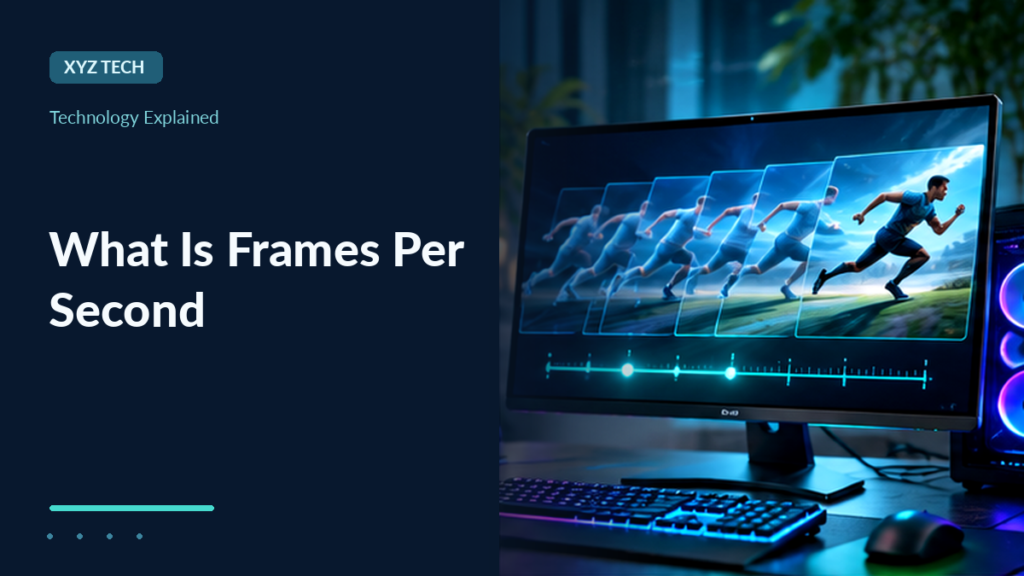

Frames per second, or FPS, measures how many image frames are rendered, captured or presented each second. It is different from a screen’s refresh rate in hertz. Consistent frame timing, not just average FPS, strongly affects perceived motion smoothness.
Learn FPS, frame time, 60 Hz versus 60 FPS, refresh rates, gaming stutter, video recording and performance checks.
Frames Per Second Explained
Frames per second, abbreviated FPS, describes how many distinct image frames are rendered, captured, encoded or presented during one second of time. The exact meaning depends on the context. In a video file, the frame rate describes its temporal image sequence; in a game, a performance overlay often reports the rate at which the application renders frames.
If a program produces 60 frames at a steady rate during one second, its FPS is 60 for that interval. That does not mean every frame arrived exactly on time or that a monitor necessarily displayed each one. Consistency matters because uneven frame delivery can make motion appear jerky even when an average counter looks high.
The MDN animation performance guide discusses frame budgets for responsive web animation, while Microsoft’s refresh-rate explanation defines how frequently a display can refresh its image. Together they show why rendering rate and panel refresh rate are related but different.
Frames per second is not a measure of image sharpness, network speed or computer memory by itself. A system can render many low-resolution frames or fewer high-resolution frames. The software, hardware, settings and workload determine the real output.
FPS also appears in cameras, film and live video. The suitable rate depends on motion characteristics, delivery constraints, artistic intent and user expectations. No one FPS value is ideal for every task.
Our codec guide explains how video frames are compressed and represented for storage or streaming.
How FPS Relates To Frame Time
FPS and average frame time are mathematically related for steady output. A consistent 60 FPS corresponds to roughly 16.67 milliseconds per frame, while a consistent 30 FPS corresponds to about 33.33 milliseconds. At 120 FPS, the corresponding steady frame interval is about 8.33 milliseconds.
These are idealized intervals, not measured benchmarks. Real applications can produce some frames quickly and others slowly. Average FPS alone may hide a long pause or repeated slow frame that the user notices as a stutter.
| Steady Frame Rate | Approximate Frame Interval | Common Interpretation |
|---|---|---|
| 24 FPS | 41.67 ms | Film And Creative Video Contexts |
| 30 FPS | 33.33 ms | Video And Some Interactive Applications |
| 60 FPS | 16.67 ms | Many Displays And Interactive Targets |
| 120 FPS | 8.33 ms | Higher-Rate Interactive Output |
| 144 FPS | 6.94 ms | High-Refresh PC Display Target |
The underlying formula is simple: frame interval in milliseconds equals 1000 divided by frames per second for a constant frame rate. Use this relationship to reason about work budgets, not as a substitute for measurements.
A web animation targeting 60 updates per second has only about 16.7 ms between frames on average. Rendering, scripting and browser overhead all consume time within that budget. MDN explains how expensive work can cause dropped frames.
For troubleshooting, inspect the distribution of frame times in addition to the average. A smooth experience is often more strongly associated with consistent frame delivery than a fluctuating headline FPS number.
FPS Vs Monitor Refresh Rate In Hertz
A monitor’s refresh rate, measured in hertz, describes how often its image is refreshed. FPS describes frames produced or presented by an application or media stream. A 144 Hz display can refresh 144 times per second under a supported mode, but that does not guarantee a game renders 144 distinct frames each second.
Produces Frames At A Variable Rate
Updates At Supported Panel Timing
Microsoft’s Windows refresh-rate guide explains the configured display mode and dynamic refresh features. A high-refresh panel requires appropriate cable, interface, resolution and graphics support to operate in a chosen mode.
If an application renders fewer frames than the display refreshes, some refresh cycles may show repeated content. If it produces more frames than the display can individually display, its counter can exceed the panel rate while visible results depend on synchronization and presentation behavior.
A display can feel more responsive at a higher supported refresh rate, but the improvement depends on the entire input-to-display pipeline. Do not equate a hardware specification with measured application performance.
The distinction helps explain why changing a Windows refresh setting does not automatically double the FPS of a game.
FPS In Games, Films And Recorded Video
In an interactive game, the graphics system may render new frames continuously in response to player input. The rate can change according to scene complexity, graphics settings, CPU work and GPU capacity. A performance counter may report instantaneous or averaged values, depending on the application.
For recorded video, the camera captures frames at a chosen rate and the encoder stores them under a video format. Playback normally follows timestamps. The playback device may repeat frames, interpolate frames or use other presentation methods to match its output display settings.
Film projects often use approximately 24 frames per second for an established motion aesthetic, while other production and broadcast contexts commonly use 25, 30, 50 or 60 variants. Some standards use fractional rates such as approximately 29.97. These choices depend on system and production history, not an intrinsic quality ranking.
Our video codec guide explains compression. Changing a video’s frame rate metadata or generating repeated frames does not automatically create new detail that the source camera never captured.
A game rendering at 60 FPS and a recorded movie at 60 FPS both involve temporal samples, but they differ in input responsiveness, frame generation and delivery constraints. Evaluating them with one performance slogan would be misleading.
For a video editor, choose the timeline and export frame rate according to source footage and intended platform requirements. For a gamer, measure how consistently the real application responds.
What Causes Low FPS In A Game?
Low FPS occurs when the system cannot generate or present frames at the desired rate under the current workload. Graphics rendering can be limited by the GPU, while simulation, game logic or draw-call processing can be limited by the CPU. Memory pressure, storage streaming, thermal constraints and background software may contribute.
Start with the game’s own performance settings and a reputable built-in overlay. Record the scene, resolution and graphics preset. Without consistent conditions, comparing two FPS values is not meaningful. A quiet menu screen and a crowded gameplay scene may have very different workloads.
Lowering expensive graphics settings can sometimes reduce GPU work, while a CPU-bound game may see little benefit from changing visual quality. Resolution changes affect pixel processing but do not directly solve every form of CPU or memory contention.
The operating system’s power settings and thermal behavior matter. A portable laptop on battery may use different performance limits from the same machine on mains power. Modern hardware can also reduce clocks to protect itself under certain conditions.
Avoid unofficial performance booster applications that promise impossible universal speed gains. Some change startup services, security settings or power policy in ways that create more problems than they solve.
For system context, read cache memory and RAM versus storage. Neither cached data nor extra disk capacity guarantees a higher frame rate by itself.
What Are Stutter, Frame Pacing And 1% Lows?
Stutter describes irregular delivery that interrupts perceived smoothness. A game can average 90 FPS while briefly spending far longer than expected producing a few frames. The result may feel worse than a lower but consistent frame rate. Frame pacing concerns how evenly new frames are presented over time.
A 1% low FPS metric is often derived from the slowest portion of measured frame intervals, but tools differ in their exact calculation, sampling and reporting. It should not be interpreted as a universal standard without checking the measurement tool. Percentiles and frametime graphs generally provide more context than one average.
For example, a hypothetical game might produce hundreds of quick frames but periodically pause during asset streaming. The average may remain high, while a frametime plot exposes spikes. These numbers are conceptual, not measurements of a particular product.
A performance test should include a stable scene or repeatable gameplay run. Warm-up effects, shader compilation, downloads and background tasks can change results. Record the test environment and compare similar conditions.
Frame pacing and frame rate are separate. Delivering 60 frames in one second unevenly is not equivalent to delivering one every 16.67 ms.
The practical goal is predictable responsiveness. Prioritize reducing pronounced spikes and verifying the cause rather than chasing the highest single screenshot of FPS.
V-Sync, Tearing And Variable Refresh Rate
Screen tearing can occur when parts of different rendered frames appear during one display scanout. Synchronization techniques coordinate how frames are presented. Traditional vertical synchronization, or V-Sync, can reduce tearing but may influence latency and frame delivery depending on implementation.
Variable refresh rate, abbreviated VRR, allows supported displays to adjust refresh timing within a defined operating range. Products such as adaptive sync implementations can improve alignment between incoming frame presentation and display refresh, although their capabilities and compatibility vary.
Microsoft’s display guidance explains refresh settings, while vendor manuals describe each product’s supported VRR range and behavior. A monitor marketing a high maximum Hz does not guarantee VRR is enabled under every resolution and connection.
Some games include FPS caps, V-Sync options or latency-focused modes. The best combination depends on hardware, the game engine and whether the user prioritizes tearing reduction, latency or consistent frame pacing.
Changing multiple settings simultaneously makes diagnosis difficult. Use one controlled change at a time and compare visible tearing, input feel and frame timing under the same scene.
Do not promise that turning off V-Sync will universally increase perceived smoothness or that enabling VRR fixes a CPU bottleneck. Each technique addresses a particular part of the presentation pipeline.
How To Check The Windows Display Refresh Rate
Windows 11 exposes display information under Settings, System, Display and Advanced display on supported versions. Select the intended monitor and inspect the current resolution and refresh rate. If more than one display is connected, each may operate with different settings and capabilities.
Microsoft’s instructions describe choosing a supported refresh rate and explain Dynamic Refresh Rate on compatible devices. A refresh rate option may not appear if the monitor, cable, graphics adapter or mode cannot support it.
Read the displayed frequency carefully. A panel running at 60 Hz does not mean an application can never render 100 FPS internally. It means the panel’s refresh cycles occur at the configured display timing.
Do not choose unsupported custom timing values from unknown software to force a higher number. Such changes can create blank screens, unstable output or driver compatibility problems. Prefer officially supported modes.
If a monitor supports multiple inputs, different cables or adapters may limit maximum refresh at a given resolution. Consult the display and computer’s documented specifications before attributing a missing option to Windows corruption.
After changing a supported setting, verify visual stability and application behavior. The desktop being smooth is one check, but it does not independently confirm any game’s rendered FPS.
Measuring FPS In Games And Applications
Games may provide a built-in FPS counter, benchmark scene or frame-time graph. Graphics drivers and platform overlays can also expose performance information. Use a reputable measurement path and record its method, since different tools can sample instantaneous rendering, completed presentation or other events.
A reliable comparison uses the same game version, scene, resolution, graphics settings and power conditions. Record average FPS along with important frame-time percentiles or a frametime plot. Do not combine results from two different benchmark routes as if they were controlled measurements.
For web applications, browser developer tools can help identify long frames, script work and rendering delays. MDN’s animation performance guide explains why smooth animation requires work to fit within frame budgets.
Browser frame callbacks such as requestAnimationFrame are useful for animation scheduling, but callback counts should not automatically be treated as a GPU-rendering benchmark. Background tabs may throttle or pause callbacks. Browser timing and displayed frames have their own rules.
Do not publish performance rankings based on a single unrepeatable run. Thermal conditions, background downloads, driver versions and game patches can change results.
An honest measurement reports what was actually tested, under which configuration, and what remains uncertain. An FPS overlay is evidence, not a universal hardware score.
Why More FPS Can Improve Responsiveness
Higher frame production can reduce the interval between opportunities to reflect new game state or user input, provided the rest of the pipeline is able to present those updates efficiently. This can make motion and controls feel more responsive in some interactive applications.
However, FPS is only one part of end-to-end latency. Input devices, game simulation, network delay, rendering queues, display scanout and pixel response also contribute. A game with high FPS can still feel unresponsive because of other delays.
An FPS cap can sometimes make frame timing more predictable and reduce excessive resource use, especially when the uncapped rate fluctuates widely. The result depends on hardware and game implementation rather than a universal magic cap.
For online games, internet latency is separate from display FPS. A fast-rendering client cannot repair a slow connection to a remote server. Our packet guide explains the network path involved in multiplayer communication.
The right target depends on the user’s display, task and hardware. A creative video player and a fast-paced interactive game have different priorities.
A useful optimization reduces visible stutter and end-to-end delay while maintaining acceptable image quality, stability and power consumption.
FPS, Resolution And Graphics Quality Tradeoffs
Rendering higher resolutions typically increases the number of pixels processed, while effects such as lighting, shadows and reflections can add GPU work. This means there are often tradeoffs between image quality, resolution and achievable frame rate. The magnitude varies substantially across games and hardware.
A performance problem should be investigated before making random changes. If GPU utilization and frame times suggest graphics processing is the bottleneck, reducing resolution or selected expensive effects may help. If CPU simulation is the primary limit, reducing pixel count may have little effect.
Upscaling and frame generation technologies can alter presentation behavior, but the resulting displayed-frame count does not always correspond to independent simulation or input updates. Evaluate responsiveness and artifacts separately from a headline frame number.
Some displays provide high refresh rate modes with different resolution or interface limits. A system may need a suitable cable or port to use its highest advertised combination. Unsupported or unofficial adjustments are not recommended as general fixes.
Power and heat also matter. A system pursuing very high FPS may draw more energy and produce more noise than a capped workload. The preferred tradeoff depends on user priorities.
Use measured outcomes and the game’s supported settings. The goal is a good experience, not simply selecting the maximum value in every control.
Video Export Frame Rate And Playback Issues
A video editor must select an export frame rate and handle source clips recorded at potentially different rates. When the timeline and source rates differ, the editor may repeat, drop or interpolate frames according to the chosen settings. The result can change motion appearance and file characteristics.
Frame rate is independent of resolution and bitrate. A high-resolution clip can have a low frame rate, and a low-resolution clip can have many frames per second. Compression settings and codec efficiency also influence file size and quality.
For a tutorial or screen recording, a moderate frame rate may be sufficient for readable on-screen steps. For fast motion or gaming clips, a higher rate may preserve additional temporal samples if the capture hardware and encoder can sustain it.
Some variable-frame-rate recordings contain nonuniform frame timestamps. Editing applications may handle them differently, and converting them to a constant frame rate can be useful for compatibility in certain workflows. Avoid claiming the conversion creates motion detail absent from the original recording.
Our codec explanation describes video compression, and file extensions explains why a .mp4 filename alone does not reveal actual frame rate or codec.
Check export requirements for the destination platform and preview the real output rather than assuming the editor’s timeline settings guarantee perfect playback everywhere.
FPS Troubleshooting Checklist
If a game appears choppy, first identify whether the problem is rendering FPS, inconsistent frame time, display refresh mismatch, network lag or video playback behavior. These symptoms can look similar but require different diagnostics.
Use a supported performance overlay and reproduce the issue in a consistent scene. Check CPU and GPU load, memory pressure, thermal limits, graphics settings and background tasks. Record average FPS and frame-time spikes when the tool supports them.
Confirm that Windows or the operating system uses the intended display refresh mode. Test supported V-Sync or VRR options one at a time. Do not disable security controls, download random driver packs or force unsupported refresh values to raise a counter.
For recorded video, inspect the source and export frame rates and confirm the playback application can handle the codec. For browsers, review animation performance and background-tab throttling before treating a callback counter as a gaming benchmark.
Retest the same task after each change. If the result improves, note the precise setting and whether image quality, power use or latency changed as a tradeoff.
Frames per second is useful when interpreted with frame time, display behavior and task context. A high number without stable presentation or responsive controls is not the whole performance story.
Frequently Asked Questions
What Does FPS Mean?
Frames per second, the number of image frames rendered, captured or presented in one second under a defined context.
Is 60 FPS The Same As 60 Hz?
No. FPS describes frame output; Hz describes the display’s refresh frequency.
What Is The Frame Time At 60 FPS?
About 16.67 milliseconds per frame if frames arrive at a steady rate.
Does A 144 Hz Monitor Guarantee 144 FPS?
No. The application and computer must still produce frames, and actual performance varies.
What Causes Stuttering With High Average FPS?
Uneven frame timing, resource bottlenecks or other presentation delays can create noticeable spikes.
Does A Higher FPS Always Make Video Better?
Not universally. Motion style, source capture, editing workflow and delivery requirements affect the preferred frame rate.
Does V-Sync Increase FPS?
Not necessarily. It coordinates presentation and can change tearing, latency and frame delivery.
How Can I Verify A Game’s FPS?
Use a supported counter or benchmark, record conditions and compare frame times alongside the average.


