
If a USB keyboard, mouse, drive, or dock disconnects only after Windows 11 wakes, first confirm the failure occurs after sleep rather than a simple screen timeout. Test one noncritical device directly in a known-good USB port, inspect Device Manager for an exact error, and check manufacturer updates. Protect external-drive data and avoid disabling USB power management globally without model-specific guidance.
USB wake problems can involve Windows power transitions, dock firmware, a USB-C cable, the peripheral driver, or an application that does not reconnect automatically. This guide separates those causes with repeatable checks, official Microsoft references, and explicit protection for stored data. The diagnostic diagrams are conceptual illustrations, not screenshots or claims of hardware testing.
Confirm The Problem Happens After Sleep
A device that disappears only when Windows 11 resumes from sleep points toward a wake-state, dock, cable, or device-driver issue. A device that fails while the PC is fully awake deserves a different investigation. Identify exactly when the disconnect occurs and whether Windows makes a connect or disconnect sound.
Save work, connect one noncritical USB device, and test normal operation before sleep. Let the PC sleep normally, wake it, and record whether the device recovers by itself. Repeat just once with the same device and port rather than trying many settings at once.
Record whether this affects a flash drive, keyboard, webcam, audio interface, or dock. The device type changes which drivers and power conditions are relevant. Avoid repeating a failure test with a drive that is actively writing important files.
Separate Sleep From Screen-Off Behavior
Turning off a monitor is not necessarily the same as putting Windows to sleep. Some computers use Modern Standby, hibernation, or manufacturer-specific low-power behavior, and connected peripherals may behave differently under each state. A black screen alone does not establish which transition occurred.
Check Settings, System, Power and battery for the configured screen, sleep, and hibernate options. Observe what happens when you explicitly select Sleep from the power menu and then return. Use a short controlled test, with active files saved first.
If the USB device fails only after a particular power transition, tell the manufacturer which transition triggers it. Do not disable every power-saving feature based on a single guess about sleep behavior.
Check Whether Windows Still Detects The Device
A disconnected peripheral may remain visible in Device Manager with a warning, disappear completely, or appear to work in Windows while failing inside one application. Those are different symptoms. Windows error codes can help narrow down a driver or enumeration problem without changing a setting.
Open Device Manager, inspect the relevant category, and use View to reveal hidden devices only if it helps compare states. Note any warning triangle or device status code. Restart the affected application once before changing driver settings.
Do not uninstall unknown USB controllers or root hubs indiscriminately. On a keyboard-only or mouse-only workstation, removing a controller can interrupt your remaining input method. Keep a recovery input option available.
For the related but distinct condition, read Usb C Port Not Working Windows 11. Use that narrower checklist only if its specific symptom applies.
Reconnect A Noncritical Peripheral Once
Unplugging and reconnecting a harmless peripheral can reestablish its connection after a wake event. That observation is diagnostic, not a permanent fix. If reconnection always works but the next sleep causes the same fault, the underlying driver or power transition still needs investigation.
Disconnect the noncritical peripheral only after Windows has fully awakened. For storage devices, confirm transfers are finished and use Eject when available. Wait a few seconds and reconnect to the same port, then compare with a second known-good port.
Never repeatedly disconnect an external drive during active writes. Sudden removal can corrupt data even if the USB connector appears mechanically sound. Preserve important files before running any experiment involving storage hardware.
Compare Direct Connection And A USB Hub
Hubs and docks introduce additional power supplies, cables, controller firmware, and device compatibility requirements. A keyboard that works directly but fails through a dock after sleep suggests the shared connection path may be contributing. A single-device issue on all ports is less likely to be caused by one hub.
Connect a low-risk peripheral directly to a built-in computer port for a single sleep-wake test. If it works directly, then test the hub with its intended power supply and the cable recommended by its manufacturer. Use identical conditions and note the results.
Avoid replacing a working USB-C cable with an unknown charging-only cable and treating the result as proof of a driver fault. USB-C connectors can support different data, charging, and display capabilities.
Inspect Cable And Connector Condition
A loose connector or damaged cable can create intermittent disconnections that happen to coincide with lid movement or waking a laptop. USB-C ports may also have compatibility requirements, especially for displays, charging docks, or USB4 accessories. These physical factors are not solved by a registry edit.
Inspect the cable ends and port for obvious damage while the computer is powered down if appropriate. Test a verified data-capable cable and a known-good port. For a powered dock, verify that its original adapter is connected and rated for the attached load.
Do not force a connector, scrape a port with a metal object, or keep testing a cable with exposed conductors. If a port feels loose or overheats, stop using it and seek qualified service.
For the related but distinct condition, read Usb Drive Not Showing File Explorer Windows 11. Use that narrower checklist only if its specific symptom applies.
Review Device Manager Error Codes
Windows Device Manager provides status messages that can identify missing, stopped, or malfunctioning hardware. A Code 43 warning has a different troubleshooting path from a device that simply disappears when a USB dock powers down. Copy the exact message rather than paraphrasing it as a generic USB error.
Open the device Properties dialog, select General, and record the Device status text. Compare that information before and after a single restart. Look up the specific code in Microsoft's Device Manager reference before attempting its recommended action.
Some errors indicate a hardware or firmware problem that software cannot safely fix. The goal is to collect reliable evidence, not to delete drivers until the yellow warning disappears.
Check USB Power Management Without Global Changes
Device Manager can expose power-management options for selected USB or input devices, but not every Windows 11 device presents the same tab. Some power behaviors are managed by firmware or the manufacturer. A missing tab is not evidence of corruption, and selective suspend should not automatically be disabled system-wide.
If a relevant device exposes Power Management, record the original selection. Only where Microsoft or the hardware manufacturer recommends it, test a reversible option for that specific device and restore it if the result does not improve.
Leave unrelated USB controllers untouched, especially on managed devices and laptops with strict battery requirements. A broad power-policy change can increase energy consumption and might conceal rather than solve a driver defect.
Understand USB Selective Suspend
USB selective suspend is designed to reduce power usage for idle devices. It is not inherently a bug, and historical Windows fixes targeting specific old USB drivers should not be applied indiscriminately to a modern Windows 11 PC. A particular device may fail to resume correctly even while others work normally.
First verify that the affected hardware model and driver actually require an adjusted power setting. Read the vendor's Windows 11 instructions and any firmware release notes. Test with a single controlled sleep cycle rather than switching multiple advanced power settings at once.
Keep the original value recorded. If disabling a relevant sleep feature improves behavior, discuss a sustainable driver or firmware fix rather than leaving global power-saving disabled without assessing its battery and heat impact.
For the related but distinct condition, read Usb Drive Wont Eject Windows 11. Use that narrower checklist only if its specific symptom applies.
Check Windows Update And Optional Drivers
Some wake-related hardware issues are addressed in Windows quality updates or manufacturer driver packages. Installing random unsigned drivers from download sites is a substantial security risk. Device-specific drivers from the computer or peripheral maker are preferable to generic third-party updater utilities.
Open Windows Update and review current status. Check the official PC maker's support page for chipset, USB controller, dock, and firmware updates that match the exact model and Windows version. Read release notes and prerequisites before installing anything.
Back up important data and use reliable power for firmware operations. Avoid changing BIOS or firmware just because a troubleshooting article offers a new version; update only when the vendor documents a relevant fix or requirement.
Test One Peripheral At A Time
Several devices attached to one hub can obscure which component triggers a reconnect sequence. A powered hub might behave differently with only a mouse attached versus a webcam, microphone, and external disk drawing power simultaneously. Isolating variables produces more useful evidence than disconnecting everything randomly.
Start with one keyboard or mouse that is safe to reconnect. Test sleep and wake, then add one additional peripheral. Record the first combination that reproduces the problem. If a shared dock is involved, include its external power state in the record.
Do not test this way with medical devices or other critical equipment. Use vendor support guidance for specialized hardware and maintain an alternate safe input method during all tests.
Observe Whether Storage Or Input Is Affected
A USB mouse disappearing is inconvenient, but an external drive dropping during file operations can cause corruption. Audio interfaces and webcams may remain visible in Device Manager while applications hold a stale device session. The risk and recovery procedure depend on which category is involved.
For a webcam or microphone, close and reopen the relevant application after wake. For keyboards or mice, verify input before launching work. For a removable SSD, confirm the drive appears normally and inspect file integrity before resuming heavy writes.
Keep a separate verified backup of files stored on removable media. Do not attempt risky repair commands on an external drive merely because the icon disappeared once after sleep.
For the related but distinct condition, read Windows 11 Wifi Disconnects After Sleep. Use that narrower checklist only if its specific symptom applies.
Check Dock Firmware And Manufacturer Utilities
A laptop dock can contain its own controller firmware. If several USB peripherals disconnect together when the PC resumes, that shared dock is more informative than the individual device drivers. Many business laptop makers provide dock firmware packages with documented compatibility prerequisites.
Identify the dock's exact model and check the official maker's support page for USB, Thunderbolt, USB4, or dock updates. Also confirm whether the PC requires a specific host driver. Follow the manufacturer's installation sequence and power instructions.
Never apply firmware intended for a similar-looking dock. A failed firmware update can disable the dock and require service. For company-owned equipment, obtain IT approval before updating a shared workstation accessory.
Differentiate USB-C Display From USB Data Problems
A USB-C monitor or docking station can carry display, power, and USB data over the same physical cable. A display that wakes while its built-in USB hub stays offline indicates a different path from a monitor that loses video completely. The connector shape alone does not identify supported functions.
Check whether the USB device is connected directly to the PC or through a monitor's hub. Use Microsoft's USB-C troubleshooting guidance to compare cable and device compatibility warnings. Test with the specific cable and port supported by the equipment maker.
Do not presume that every USB-C port supports video output or the same data speed. An incompatible connection cannot be fixed by disabling Windows security features.
Compare Battery And External Power Conditions
A device that disconnects only while the laptop runs on battery may be affected by energy policies or reduced power delivery. A powered hub or dock might also behave differently when its adapter is disconnected. Comparing two power states can reveal a condition without proving that Windows is at fault.
Perform one test connected to the proper charger and one on battery, with the same noncritical USB peripheral and no heavy background downloads. Record whether the result changes and whether the dock is externally powered.
Restore normal power configuration afterward. Do not leave a damaged battery or overheating adapter connected merely to reproduce a failure. Hardware safety takes priority over collecting additional data.
For the related but distinct condition, read Find Windows 11 Device Drivers. Use that narrower checklist only if its specific symptom applies.
Check For Application-Specific Reconnection
Some software does not reopen a device automatically when Windows resumes, even though the operating system sees it. Video meeting tools, design applications, and audio recording programs can hold stale input or output selections after a disconnect. This differs from a USB port disappearing entirely.
Confirm the device is present in Device Manager, then open the affected application's audio, video, or input settings. Reselect the intended device or restart that application once. Test whether other software can access the hardware after wake.
If the device works elsewhere, avoid driver replacement until you have checked the application vendor's recovery instructions. Unnecessary system-wide changes can introduce new issues into otherwise functioning peripherals.
Record The Exact Windows Build And Hardware
A useful support report contains the Windows version, computer and dock model, device type, USB port, and conditions that reproduce the fault. Without these details, advice may be drawn from a different generation of hardware or an unrelated Windows bug. A generic phrase like USB keeps disconnecting is not precise enough.
Open Settings, System, About to record the Windows build, and locate model identifiers on the maker's support page or device label. Do not include serial numbers, passwords, or other private identifiers in a public forum post.
Compare support instructions with your exact model. A fix written for Windows 7 or a particular server release should not be assumed valid for Windows 11 merely because it mentions USB selective suspend.
Avoid Deleting Controllers Or Registry Keys Blindly
Common forum shortcuts suggest removing all USB root hubs, erasing unknown device entries, or editing power-management registry keys. Those steps can disable mouse, keyboard, docking, or storage access and complicate recovery. A reversible, documented test is better than applying an unverified script.
If Microsoft or your hardware maker specifically recommends a driver reinstall, follow that exact model-specific procedure after creating a recovery point and protecting files. Keep another input method available if possible.
Do not perform broad registry cleanup or install unsigned USB drivers. If the problem persists, gather the Device Manager code and repeatable steps for authorized technical support.
For the related but distinct condition, read What Is A Device Driver. Use that narrower checklist only if its specific symptom applies.
Try A Normal Restart After Recording Evidence
Windows may hold a transient device state after an unexpected disconnect. A normal restart can restore USB enumeration without changing settings, but it may also temporarily hide a recurring wake bug. Restarting should follow a note of what failed so that useful troubleshooting information is not lost.
Save open documents, disconnect nonessential peripherals safely, then restart through the Windows power menu. After the PC starts, verify the affected device works before repeating a single normal sleep-wake test.
If the problem returns after the next sleep, stop treating reboots as a permanent fix. The repeatable trigger is a clue for the vendor and should guide further driver, dock, or power diagnosis.
Know When Hardware Service Is Appropriate
If a USB port is physically damaged, overheats, or fails with several known-good peripherals in all power states, software cleanup is unlikely to make it safe. Similarly, a faulty dock or cable can cause intermittent resets that look like Windows errors. Distinguish evidence of physical failure from policy settings.
Stop using equipment that is hot, sparking, loose, or visibly damaged. Test alternate known-good hardware only when it is safe. Contact the device maker with the symptoms and error details rather than opening a sealed laptop or attempting a port repair yourself.
Do not use critical removable disks or essential peripherals through a connection that repeatedly drops. Move important files to verified backup storage before further testing.
Build A Reproducible Support Checklist
The strongest evidence is a short sequence that another technician can reproduce: PC awake and device working, normal sleep, wake, specific USB failure, and recovery or nonrecovery after reconnecting. Include what was tried and the resulting behavior. Avoid anecdotes without timings or exact device identification.
Record the Windows build, USB device, connection path, dock model, power source, sleep type, and whether the fault occurs on a direct port. Include a non-sensitive Device Manager error code if present.
This record helps support staff target compatibility issues and may prevent unnecessary factory resets. Do not share personal documents, account details, or screen recordings that expose confidential files.
For the related but distinct condition, read Windows 11 Keyboard Backlight Not Working. Use that narrower checklist only if its specific symptom applies.
Verify Stable Operation Without Risky Power Tweaks
A successful recovery means the affected device remains usable through repeated ordinary sleep-wake cycles with normal security, update, and battery settings. It also means removable storage can be ejected and reconnected without errors. A one-time successful reconnection is useful evidence but not full resolution.
Perform two ordinary wake tests with a noncritical peripheral and the intended hub or port. Reopen the application that uses it and confirm function. Restore any diagnostic power option that made no difference, and confirm no other devices became unreliable.
Keep vendor-approved drivers and firmware current, maintain backups, and report persistent faults with your documented observations. Do not claim a fix is permanent until the real-world condition no longer reproduces.
Symptom Decision Table
Use the observed behavior rather than a guessed root cause to select the first supported test. Changes should be reversible, and any security or privacy control should be restored after testing.
| Observed Symptom | First Safe Test | Interpretation |
|---|---|---|
| Only after sleep | Controlled wake test | Power transition or driver resume path |
| Only through a dock | Direct port test | Dock power, firmware, or cable |
| Device Manager error code | Record exact code | Device or controller state |
| Drive disappears during writes | Stop risky tests | Potential data corruption risk |
| Only one application fails | Reopen application | Stale app device session |
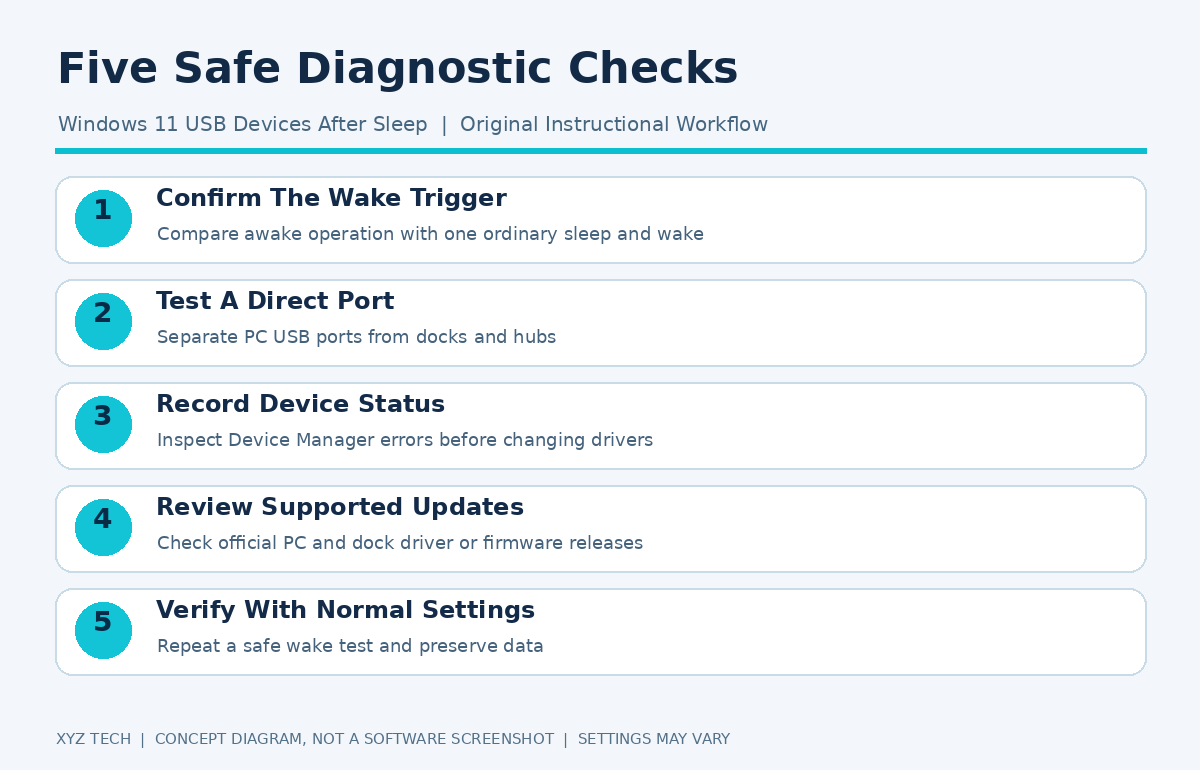
Five Step Verification
- Confirm The Wake Trigger: Compare awake operation with one ordinary sleep and wake. Write down the outcome before changing anything else.
- Test A Direct Port: Separate PC USB ports from docks and hubs. Write down the outcome before changing anything else.
- Record Device Status: Inspect Device Manager errors before changing drivers. Write down the outcome before changing anything else.
- Review Supported Updates: Check official PC and dock driver or firmware releases. Write down the outcome before changing anything else.
- Verify With Normal Settings: Repeat a safe wake test and preserve data. Write down the outcome before changing anything else.
Frequently Asked Questions
Why Does My USB Device Disconnect When Windows 11 Wakes?
The device, dock, driver, cable, or power transition may not resume as expected. Test a noncritical peripheral directly and record the exact behavior before changing advanced settings.
Does USB Selective Suspend Always Cause Wake Problems?
No, it is an energy-saving feature and should not be disabled globally without a documented reason. Some model-specific devices have resume problems that require approved driver or firmware updates.
Should I Reinstall Every USB Controller Driver?
No, broad controller removal can disable essential keyboard, mouse, or storage access. Start with the affected device and the manufacturer documented procedure.
Why Does A USB Hub Fail But A Direct Port Work?
A hub or dock adds a cable, power source, controller and possible firmware compatibility requirement. Check these components rather than assuming Windows itself is defective.
Can A USB-C Cable Cause Reconnection Problems?
Yes, cables support different power and data capabilities, and damaged or unsuitable cables can contribute to connectivity problems. Use a verified compatible cable.
Can An External Drive Be Damaged By Repeated Disconnections?
Unplanned disconnection during active writing can corrupt data. Stop tests involving important storage and keep a verified backup.
Do I Need A BIOS Update?
Only when the computer manufacturer documents an applicable fix or requirement. Firmware updates have risks and must match the exact model.
What If The Device Works In Windows But Not One App?
The application may need to reselect or reopen its input or output device after wake. Check app settings before replacing system drivers.
How Can I Tell Whether Sleep Was The Trigger?
Compare the device while fully awake, after the display merely turns off, and after a normal Sleep action. Record which event reliably reproduces the fault.
When Should I Contact Hardware Support?
Seek qualified support if ports overheat, are damaged, or fail with several known-good peripherals, or if a documented driver and dock update path does not resolve repeatable faults.
Official Vendor Guidance
The following vendor documentation supports feature behavior and supported troubleshooting paths. Menus and availability can vary by operating-system build and device.