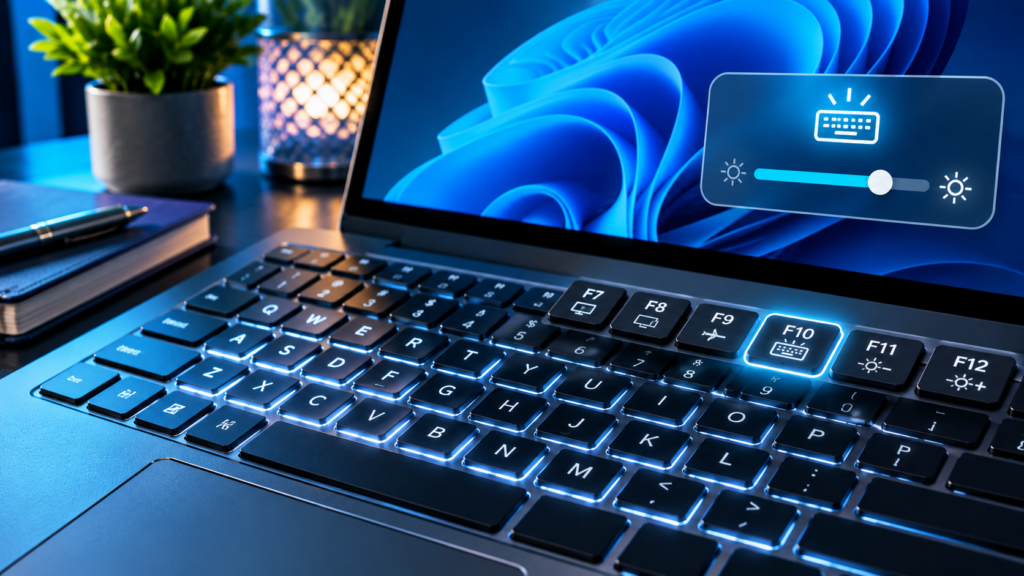

A Windows 11 keyboard that types normally but refuses to light up may not need a Windows reinstall or a keyboard driver reset. Backlighting varies by laptop model and hardware configuration, and manufacturers use different function keys, power controls and lighting utilities. This guide starts with the lowest-risk checks and separates unsupported hardware from a real fault.
Source Review: November 21, 2026. Instructions cross-check Dell, HP, Lenovo, ASUS and Microsoft documentation. Key placements vary by model. The featured artwork is a concept illustration, not a screenshot of a specific laptop keyboard.
Confirm that the exact laptop configuration includes a backlit keyboard. Find the keyboard-light icon and use the model’s supported key combination, sometimes with Fn. Check Fn lock, brightness cycles, automatic timeout and manufacturer utilities. On supported models, check the documented BIOS illumination option and approved driver updates only after simpler tests. Do not use generic driver boosters or change unrelated firmware settings.
| Manufacturer | Typical Controls On Supported Models | Important Qualification |
|---|---|---|
| Lenovo | Fn + Space | Only On Compatible Backlit Configurations |
| Dell | Backlight Icon On An F-Key, With Or Without Fn | Key Position Varies |
| HP | Backlight Icon, Often F4 Or F5 | Check Exact Model |
| ASUS | Often Fn + F7 | Model And Utility Differences |
| Gaming Or External Keyboard | Vendor Lighting Utility | Separate RGB Control May Apply |
Confirm Your Exact Laptop Model Supports Backlighting
Not every laptop sold with Windows 11 includes a backlit keyboard. Hardware configurations can differ even within the same model family: an entry-level version might have ordinary keys while a higher specification includes lighting. Search the precise model or product number on its manufacturer’s support page and read the keyboard or specifications section. The absence of a lighting icon is a clue, but the vendor’s configuration record is more reliable than appearance alone.
Avoid installing a generic ‘keyboard backlight driver’ until you have confirmed that the feature physically exists. Windows cannot create LEDs that were never installed. If you purchased a system advertised as backlit but the manufacturer’s records disagree, contact the seller with the product number and documentation rather than guessing at firmware modifications.
Differentiate Lighting Failure From Typing Failure
A keyboard that types every character correctly but stays dark usually points to brightness settings, firmware, vendor utilities or its lighting circuitry. A keyboard that also misses keys requires broader keyboard hardware and input troubleshooting. Record whether the backlight ever worked, whether it changes before Windows starts and whether the keyboard still registers normal keys.
If typing is unreliable, see our Laptop Keyboard Some Keys Not Working guide. Keep the two symptoms separate, because uninstalling a keyboard input driver does not necessarily control the LEDs. Repeatedly pressing random shortcuts on a computer with unsaved work can also trigger unrelated functions.
Find The Backlight Icon Instead Of Guessing
Look for a small keyboard outline or glowing-light symbol on the function row, spacebar or another vendor-defined key. The icon and placement vary across Dell, Lenovo, HP, ASUS and gaming machines. Dell’s current support guide lists several possible function-key locations, while Lenovo documents Fn plus Space on compatible models.
Confirm the meaning of the symbol in the exact model’s user manual rather than treating a photograph of another keyboard as authoritative. One keyboard might use F5 while another uses F7 or F10. Pressing the wrong function key can change screen brightness, airplane mode or other settings without affecting keyboard lighting.
Try The Key Alone And With Fn
On many laptops, the marked backlight key works either directly or while holding Fn. Test the vendor-recommended combination once, note whether the light turns on, then cycle carefully through the supported levels. A laptop may have Off, Low and High states, so a single press may not reach the brightest setting.
Do not hold several function keys at once. A controlled test should change only the intended lighting control and leave unrelated Wi-Fi, display and volume settings intact. If the manufacturer describes an Fn lock, check that mode before deciding the key is broken. Our Windows 11 Keyboard Shortcuts guide provides broader function-key troubleshooting.
Check Function Lock State
Some keyboards have a function-lock state that reverses whether an F-key invokes a standard F1 through F12 action or a special hardware action. On supported devices, Fn plus Esc or another documented shortcut can toggle that state. The appropriate combination is manufacturer-specific and not guaranteed on every laptop.
Dell documents checking both direct and Fn-modified backlight keys when the function mode is uncertain. ASUS also notes that Fn plus Esc is not supported on all models. Test using the actual manual, and return the previous lock mode if the change does not help. Function-lock controls do not substitute for missing lighting hardware.
Use A Dim Environment For A Valid Test
A keyboard with a very low brightness setting can appear completely unlit under direct daylight or strong office lighting. Move to a moderately dim room and look between the keys while cycling the officially supported levels. Avoid covering ventilation openings or putting the laptop on bedding merely to reduce room light.
Some machines automatically adjust illumination according to ambient light, and others time out quickly after inactivity. Watch the lighting immediately after a supported key press as well as after a few seconds. If it illuminates briefly and then fades, investigate timeout and sensor settings before declaring the LEDs defective.
Check Whether The Light Works At Startup
On some laptops, a keyboard backlight briefly illuminates during power-on or when entering the manufacturer’s firmware interface. This can provide useful evidence that the lighting hardware and controller can operate independently of a logged-in Windows session. However, not all models perform such a startup animation.
Do not assume no startup flash means hardware failure. Instead, compare the behavior with the model manual or a known supported diagnostic. If illumination works before Windows loads but not afterward, a vendor utility or profile setting becomes more plausible. If it never works at all, check firmware settings and hardware support before contemplating service.
Try Lenovo Fn Plus Space On Supported Models
Lenovo documents Fn plus Space as a keyboard backlight control on compatible ThinkPad, ThinkBook and IdeaPad models. Some layouts cycle between brightness levels and Off; others support distinct modes. The existence of the shortcut must be verified for the exact model and configuration.
If your Lenovo laptop has no compatible backlight hardware, pressing Fn plus Space will not add it. Check Lenovo’s official documentation and installed support utilities before changing firmware. A model-specific approach is safer than installing third-party utilities that claim to add lighting features to every Windows notebook.
Try The Dell Backlight Key For Your Model
Dell’s keyboard backlight guide lists several possible backlight keys, including certain F5, F6, F7 and F10 positions depending on the product. Dell also documents testing Fn-modified and unmodified modes when a lighting key appears unresponsive. Use the icon physically printed on your particular keyboard as the starting point.
A gaming model with Alienware Command Center may have additional RGB profiles, while a simpler Inspiron or Latitude can offer only a few brightness states. These products should not be treated as interchangeable. Check the Dell model support page and keep any firmware or lighting changes limited to your machine.
Use The HP Backlight Key Only When Present
HP’s current instructions tell users to look for the backlight icon, often on F4 or F5 on supported consumer notebooks, and press Fn together with that key if necessary. Some HP keyboards place the icon elsewhere, so the printed symbol and manual take priority over an example.
If your HP specification has no backlit keyboard, there is no Windows toggle that can enable it. On supported HP devices, test the actual brightness cycle and inspect any device-specific keyboard settings. Do not confuse screen-brightness symbols with keyboard-light symbols; they control different components.
Check ASUS Hotkeys And MyASUS Settings
ASUS documents Fn plus F7 for many compatible notebooks, while certain models use different keys or functions. The vendor may also expose settings through MyASUS or Armoury Crate on particular products. The relevant hotkey or app must match the exact hardware family.
If a supported ASUS keyboard stops responding to both the key and vendor utility, consult ASUS’s official backlight troubleshooting page. Avoid downloading a random ATK package intended for a different model. ASUS notes that some hotkey functionality has been integrated into newer software components, so an older instruction may not match a current release.
Do Not Assume Windows Has One Universal Backlight Slider
For many built-in laptop keyboards, lighting is primarily controlled by manufacturer firmware, hotkeys or vendor software rather than a common Windows 11 setting. Newer compatible keyboard devices can expose additional Windows lighting controls, but those depend on implementation and should not be assumed present on every system.
Check the supported vendor controls first. If Windows Settings offers keyboard backlight controls for your compatible hardware, use them as documented, but do not spend hours looking for a missing universal slider on a laptop that has never supported it. Microsoft describes compatibility requirements in its keyboard backlight implementation guidance.
Inspect The Manufacturer’s Keyboard Utility
Some laptops use a factory-installed management utility to select lighting effects, brightness, automatic turnoff and power-related settings. Examples include MyASUS, Lenovo Vantage, Dell-specific utilities or gaming lighting control panels, but availability varies by product and version.
Open only the utility supplied by or recommended for your exact device. Review whether the keyboard illumination is disabled in a profile, assigned a zero-brightness effect or configured to switch off under battery power. Do not install competing RGB utilities merely because their screenshots show an attractive lighting effect.
Check Sleep Timeout And Inactivity Options
A keyboard may be set to switch off after a short idle period to save power. If it lights when you start typing and then fades, the behavior may be intentional rather than a failure. Look for a model-specific timeout or inactivity setting in the manufacturer’s approved utility or firmware.
Test immediately after a keypress and again after the timeout period. Do not confuse an expected shutdown after inactivity with a lamp that never responds. On a shared office device, changing an organization’s power profile may require approval. Document the original value so you can restore it if the new setting harms battery life.
Check Ambient Light Sensor Behavior
Some premium notebooks have an ambient-light sensor that dims or disables keyboard illumination when room lighting is bright. Dell notes that certain models include these controls, and ASUS documents automatic keyboard backlight options on selected devices.
Test in an appropriately dim environment and check supported sensor settings for your model. Do not cover multiple sensors, pry open a display bezel or modify an ambient sensor’s wiring. If the user interface offers an automatic-brightness option, compare its behavior with a fixed level for a short harmless test, then restore your preferred configuration.
Test With AC Power And Battery
A power-saving profile may alter keyboard lighting to conserve battery. Compare the same official backlight shortcut while the laptop is safely connected to its normal charger and while it runs on battery. Do not use a damaged or unapproved adapter for this test.
If lighting works on AC power but not on battery, inspect manufacturer power settings rather than reinstalling keyboard hardware. If charging itself is unreliable, see our Laptop Not Charging When Plugged In guide. A lighting profile should not be diagnosed through an unsafe electrical setup.
Review Windows Power Mode Without Broad Resets
Windows 11 power modes can influence device behavior, but the precise keyboard-light control is usually vendor-dependent. Inspect the current power mode and any linked manufacturer lighting profile if the problem began after changing power settings.
Do not reset all power plans, disable battery management or use registry scripts as a default fix for a dark keyboard. A power-mode comparison is useful only when the lighting behavior changes consistently with that setting. Preserve a stable laptop power configuration and avoid unnecessary firmware updates.
Check For A Recent Manufacturer Utility Update
If the backlight stopped after a vendor lighting application update, record the utility version and whether a setting or profile was reset. An updated app may change menu labels, control integration or compatibility with a background service.
Use the manufacturer’s official support path to repair or update the relevant utility if needed. ASUS specifically documents reinstalling supported MyASUS or Armoury Crate components for certain backlight-control issues. Do not copy installers from driver mirror sites or force-install a package meant for a different model.
Use Windows Update For Supported Drivers
Windows Update delivers many supported device drivers, and Microsoft explains how optional updates may be available through advanced settings. Check for relevant recommended updates and review any manufacturer-provided keyboard, hotkey, chipset or system-control components that match the exact model.
Do not install every optional driver blindly. Read the component identity, its relevance and the device manufacturer’s compatibility notes. Our Safe Windows Driver Selection guide covers identifying the correct hardware. A backlight issue is not proof that the standard keyboard input driver should be removed.
Avoid Generic Driver Booster Utilities
A website promising to repair keyboard lights with an unspecified driver booster may install incompatible packages, bundle unwanted software or request unnecessary administrator privileges. Many keyboard backlight controls depend on firmware and manufacturer utilities rather than a universally interchangeable Windows device driver.
Prefer the laptop manufacturer’s verified support page and Microsoft’s update workflow. A device model, product code and current supported operating system are more informative than a generic ‘fix all keyboard problems’ scan. Keep security features active while diagnosing.
Inspect Device Manager Only For Real Errors
If the backlight and other keyboard functions stopped together, Device Manager can show hardware status and warning codes for keyboard or related components. However, the presence of a standard HID Keyboard Device entry does not guarantee that it directly controls a laptop’s illumination.
Record the exact device and error before making any change. Do not uninstall every keyboard, HID or USB controller as an experiment, especially when you need the laptop keyboard to enter passwords. Use supported manufacturer diagnostics when a wider input failure exists.
Check BIOS Or UEFI Settings Carefully
Some Dell and other laptops expose Keyboard Illumination settings in BIOS or UEFI firmware. If the vendor manual confirms such an option, check whether it is disabled. Dell also documents firmware-level configuration as a troubleshooting step for compatible systems.
Do not edit unrelated BIOS settings, reset secure boot, alter disk modes or flash a BIOS file solely because the keyboard is dark. Record the original setting and follow the manufacturer’s documented entry procedure. Firmware changes can affect startup and security; if uncertain, ask the device vendor or a qualified technician.
Consider Firmware Updates Only With A Specific Reason
A manufacturer may release BIOS or embedded-controller firmware to address specific keyboard, lighting or power issues. But firmware flashing is more consequential than pressing a brightness key or checking a utility setting. It can fail if power is interrupted or the wrong package is installed.
Read the exact model’s release notes, apply approved updates only where relevant and follow the vendor’s preparation instructions, including stable power and backups. Do not downgrade or cross-flash firmware from an unrelated model. If lighting works normally except in one Windows profile, focus on the profile or utility before firmware.
Check Whether RGB Lighting Uses A Separate App
Gaming laptops and external RGB keyboards may need a dedicated lighting utility for colors, zones, effects and profiles. On an Alienware model, for example, the lighting controls can differ depending on whether Alienware Command Center is installed and enabled.
Do not assume a shortcut for a plain white backlight can control all RGB zones. Check whether a profile has been set to black, brightness zero or an inactive effect. Preserve custom profiles before reinstalling an application. Use the genuine vendor app rather than several third-party controllers that may conflict.
Treat External Keyboards Differently
A USB or Bluetooth external keyboard can have its own illumination settings, batteries and firmware, independent of the laptop’s built-in keys. It may use onboard function combinations, a physical switch or separate companion software.
Check the external keyboard manufacturer’s manual. If Bluetooth pairing itself fails, see our Windows 11 Bluetooth Troubleshooting guide. Do not apply a Dell laptop BIOS instruction to an unrelated keyboard. For wireless devices, inspect battery charge and connection stability before assuming a Windows backlight driver problem.
Compare Another Windows Profile Only If Relevant
If a keyboard-light utility works for one Windows user account but not another, a per-user profile or application setting may be involved. Compare the installed utility, startup permissions and lighting profile on the same physical laptop without sharing passwords.
A user-profile comparison is diagnostic, not a reason to delete an account or remove its private files. Preserve the affected person’s settings and check supported application repair procedures. If the lighting fails before anyone signs in, a local Windows profile is less likely to explain the entire problem.
Recognize Signs Of Physical Hardware Failure
If the manufacturer confirms that lighting hardware exists and every supported hotkey, firmware setting and utility check fails, a disconnected lighting cable, failed LED array or keyboard controller can be possible causes. Physical symptoms such as liquid damage, a recent impact or flickering only in one region warrant extra caution.
Do not pry keycaps or open a sealed notebook without understanding warranty and electrical safety. An authorized service center can test the lighting assembly with appropriate tools. If typing works but lighting is dead, the computer may still be usable while an approved repair is arranged. A generic Windows reset is unlikely to repair a disconnected cable.
Verify The Fix Without Changing Unrelated Settings
After an appropriate change, cycle through the model’s documented lighting levels, test on AC and battery if relevant, and check behavior after a normal restart and idle timeout. Confirm that typing, function shortcuts and power settings still work as expected.
Record the successful key or utility setting for future reference, including the exact laptop model. A complete fix restores predictable lighting without weakening system security, modifying unrelated firmware settings or causing input failures. If the symptom returns, compare the environment with the documented successful test rather than repeating all steps blindly.
Frequently Asked Questions
Why Is My Laptop Keyboard Backlight Not Working In Windows 11?
Common reasons include unsupported hardware, the wrong key combination, Fn lock state, a vendor utility setting, battery or sensor behavior, a firmware option or a hardware fault.
How Do I Turn On The Keyboard Backlight?
Check the exact laptop manual for the printed backlight key, then cycle the supported brightness settings using the key alone or with Fn as documented.
Does Every Windows 11 Laptop Have A Backlit Keyboard?
No. Backlighting is a physical hardware feature that can vary even between configurations of the same laptop model.
What Is The Lenovo Keyboard Backlight Shortcut?
Compatible Lenovo models commonly use Fn plus Space, but confirm the exact model and supported brightness modes in Lenovo documentation.
Which Key Activates A Dell Keyboard Backlight?
Depending on the Dell model, the lighting icon can appear on keys such as F5, F6, F7 or F10. Follow the actual key label and manual.
How Does The HP Backlight Shortcut Work?
On supported HP notebooks, find the backlight icon, often on F4 or F5, and press it directly or with Fn as the model requires.
Does ASUS Use Fn Plus F7?
Many ASUS notebook models do, but not all. Check the model manual or ASUS’s official backlight instructions.
Can Windows Update Fix A Backlight Problem?
A compatible manufacturer driver or system-control update can sometimes help, but it cannot add lighting hardware and is not a substitute for checking the intended hotkey and utility.
Should I Change BIOS Settings To Enable Keyboard Lighting?
Only if the manufacturer documents a relevant keyboard illumination option for your exact model. Avoid unrelated firmware changes.
What If The Light Never Works But Typing Is Normal?
After confirming hardware support, the correct shortcuts and manufacturer controls, consult the vendor for possible lighting hardware or controller repair.
Official Manufacturer And Microsoft Sources
Primary documentation: Dell Backlit Keyboard Controls And Troubleshooting; HP Consumer Notebooks: Use A Backlit Keyboard; Lenovo Keyboard Backlight Reference; ASUS Enable Backlit Keyboard; ASUS Keyboard Backlight Troubleshooting; Microsoft: Device Manager Driver Updates; Microsoft: Recommended And Optional Driver Updates; Microsoft: Keyboard Backlight Implementation.


