
Browser extensions can save time, but they also introduce software from another developer into an environment where people log into accounts, read private messages and handle documents. An extension may legitimately need site access, tabs or download permissions, yet the same capabilities can expose sensitive information if the software is deceptive or compromised. You do not need to be a security engineer to make a more informed decision.
This practical guide explains how to inspect permission prompts and developers in Google Chrome and Mozilla Firefox, how to limit access where supported, and how to remove an extension that no longer earns your trust. It uses official Google and Mozilla documentation and recognizes that no storefront provides a universal guarantee of safety.
Before installing a browser extension, confirm it serves a real need, verify the exact publisher and official store listing, read the requested permissions and privacy policy, and check recent reviews or updates. Prefer the narrowest supported website access, test the feature on non-sensitive pages, and remove extensions you no longer use. Treat ‘read and change data on all websites’ as a significant permission that deserves justification.
| Permission Or Signal | Why It Matters | Recommended Check |
|---|---|---|
| Read And Change Site Data | Access To Website Content | Restrict To Necessary Sites If Supported |
| Tabs And Browsing History | Browsing Behavior May Be Revealed | Does The Feature Need It? |
| Downloads Or Local Files | File Access Can Be Sensitive | Check Policy And Publisher |
| Proxy Or Network Control | Can Affect Traffic Handling | Review As A High-Trust Tool |
| Unexpected New Permissions | Extension Capability Has Changed | Reassess Before Accepting |
Why Browser Extensions Need Permission Checks
Browser extensions can make repetitive tasks easier, but their permissions can also allow them to interact with webpages, tabs, downloads, and other browser features. A harmless-looking coupon helper or screenshot tool may need access to a page to complete a task; a malicious or compromised extension could misuse similar access. The risk is determined by what the extension can actually reach, how it handles data, and whether the developer is trustworthy. The right question is not simply whether the extension has five stars. Ask whether its requested capabilities are necessary for the function you want and whether you would be comfortable granting that level of access to the developer over time. Google and Mozilla both display permission requests in their extension workflows. These prompts deserve deliberate review rather than automatic acceptance.
Not every broad permission proves malicious intent. Some legitimate accessibility and productivity tools need considerable access. The decision should be informed by necessity, publisher credibility and available alternatives.
Start With A Clear Use Case
Before browsing extension stores, write down what problem the tool must solve. Perhaps you need a reader mode, a citation helper, a password manager, or a page screenshot. If the browser already provides the feature, adding an extra extension may be unnecessary. Each additional installed component creates another developer relationship, update path, and permission surface that you must maintain. A well-defined task helps you judge permission proportionality. A tool that changes colors on a single site may not need permanent access to every site you visit. A password manager has different legitimate requirements, but must meet stronger trust and security expectations. Our Password Manager guide explains why credential-handling tools require particularly careful evaluation.
Avoid installing several competing extensions merely to compare them. Test one reputable option at a time and remove those you do not use.
Use The Browser’s Official Store First
Google Chrome offers the Chrome Web Store, and Firefox has Mozilla’s official add-on distribution channels. These sources provide centralized installation controls and review mechanisms, but listing in an official store is not an absolute safety guarantee. An extension can change owners, receive updates, or contain functionality that you do not fully understand. Google describes its store review and browser protection measures in its extension security guidance. Avoid downloading extension packages from random pop-ups, unsolicited messages or websites impersonating the browser store. A page that claims your browser needs an urgent ‘security extension’ may be using a scare tactic. Our Fake Software Download Button guide explains how misleading download elements can direct users away from legitimate sources.
Check the address bar carefully. A recognizable icon or familiar color scheme is not enough to establish that the page belongs to Google or Mozilla.
Identify The Developer And Publisher
Read the publisher name shown on the extension listing and compare it with the developer’s official website or documented organization. Look for consistent branding, support information, and a credible history. Do not rely solely on a popular-sounding name because malicious listings can imitate established tools. For a business extension, confirm that the website actually links to the specific store entry. A product may also be sold or transferred to a new developer. That does not automatically make it unsafe, but it can change the party with access to future updates and data. If a previously trusted extension starts requesting new capabilities, reevaluate the relationship rather than assuming old trust applies forever.
For work-related extensions, check the organization’s approved software list. A personal preference does not override an employer’s data handling and browser security policy.
Examine The Actual Permission Request
During installation, read the permission warning rather than clicking Add immediately. Google explains that Chrome extensions can request access to site data and browser capabilities. Mozilla provides descriptions of permissions shown for Firefox extensions. A warning about reading and changing data on all websites is substantially broader than access to one specific domain, although the legitimate need varies by product. Compare every important permission with the use case. A tab organization tool may need to see tab information, while a page-highlighting extension may need to alter a webpage. Ask what a developer could potentially do if the extension were compromised. Microsoft’s or Google’s security logos on a third-party page are not proof that an extension has been approved by those companies.
Some permissions are optional and requested later; others are necessary at installation. The timing of the prompt does not remove the need to assess it.
Understand Read And Change Site Data
One of the most important browser permission categories concerns reading or modifying information on websites. On a site the extension can access, this might include visible content, forms, or elements of a login page, subject to browser security architecture and the extension’s actual code. You should therefore treat broad site access as a significant decision, particularly if you use financial or health services in that browser. Chrome’s extension management documentation explains site-access options for supported extensions. Limiting access to a selected site or enabling it only when clicked can reduce unnecessary exposure. However, Google notes that some extensions affecting lower-level networking, such as certain proxy or VPN behavior, are not controlled by the same site-data setting.
Do not present a restrictive setting as a guarantee that every kind of extension action is blocked. The precise meaning depends on the requested APIs and browser behavior.
Use Chrome’s Site Access Controls
After installing a trusted Chrome extension, open the Extensions page, select Details, and inspect site access controls where available. Google documents options such as On click, On specific sites, and On all sites for supported permissions. Choose the narrowest setting that allows your actual task. For example, a tool needed only on one project website may not require constant access to every page. If the extension stops functioning under a restricted setting, that is useful information about how it operates. Review its official explanation before granting broader access. Do not weaken permissions simply because a pop-up insists you must, especially when the extension’s purpose is not clear.
Site access controls are valuable privacy tools, but they do not replace a careful choice of publisher. A malicious extension with access to even one sensitive site can still be harmful.
Review Firefox’s Permission Messages
Firefox displays permission messages for many extensions and provides controls to manage some optional permissions. Mozilla’s permission request guide explains what various messages mean. Depending on the extension, a request may concern tabs, downloads, websites, or other capabilities. Read the explanation in context and compare it to the tool’s advertised function. When Firefox offers a separate optional permission, consider leaving it disabled until the related feature is genuinely needed. Mozilla’s optional-permissions guide describes management options. Do not assume Chrome and Firefox use identical permission wording or that a permission available in one browser exists unchanged in the other.
A permission warning is not a technical certification that the developer will behave well. It informs you about possible access so you can decide whether the tradeoff is acceptable.
Read The Privacy Policy And Data Disclosure
A good extension listing should make it possible to understand what user information is collected, processed, transmitted, retained, or shared. Look for a privacy policy that names the operator and explains the purpose of processing. A vague promise of ‘complete security’ is not an adequate substitute for concrete information about data handling. Ask whether the extension processes content locally or sends it to a remote service. Some legitimate functions, such as translation or summarization, may transmit page content. That can be inappropriate for confidential corporate documents or sensitive messages even if the extension is not malicious. Mozilla notes that developers must disclose relevant collection and transmission practices under its add-on policies.
If the extension’s business model is unclear, consider whether the developer might monetize browsing data. Do not assume a free price means no cost in privacy.
Evaluate Reviews Without Trusting Them Blindly
User reviews can reveal recurring problems, poor support, excessive advertisements, or sudden changes in behavior. Read recent critical reviews as well as positive ones, and look for specific reproducible observations instead of generic praise. A very high average rating does not establish that the requested permissions are appropriate. Some reviews may be outdated because the extension has changed versions or developers. The number of downloads also does not prove that all installations are safe. Combine community feedback with official source information, the developer’s identity, permission review, and update history.
A credible decision uses several independent signals. No single rating, badge, or screenshot should substitute for evaluating what the extension can access.
Check The Version And Update History
Look for a recent maintenance history and whether the extension works with the browser version you use. Frequent updates are not automatically good or bad; what matters is whether the developer communicates changes and responds to security issues. An extension that has not been maintained for years may still function, but should be evaluated against current browser requirements. Be alert to a sudden update that adds unrelated functionality or broad new permissions. Chrome and Firefox may notify you of significant permission changes. Review the request rather than agreeing automatically. Google describes browser warnings about potentially risky or untrusted extensions in its Chrome extension security article.
If a new update appears suspicious, consider disabling the extension while investigating. Avoid installing unofficial old versions from random mirrors as a workaround.
Treat Password Managers As High-Trust Extensions
A password manager can legitimately interact with sign-in forms, but it also handles highly sensitive information. Before choosing its extension, verify the publisher’s official domain, security model, account recovery process, and supported browser integration. Avoid imitation extensions with similar names or icons. A real password manager may request broad site access to offer autofill, but its permissions still deserve scrutiny. For an existing password manager, confirm that the extension installed is the one supplied by the product developer. Our Password Manager guide covers vaults, autofill and passkeys, and our Two-Factor Authentication guide explains additional account protection.
Never give your master password or recovery key to extension support personnel. A legitimate support process should not require disclosure of secret recovery material.
Understand Tab And Browsing-History Permissions
Some extensions request access to current tabs, tab titles, page URLs, or browsing history to provide session management or research tools. This can be appropriate for features such as saved workspaces, but browsing patterns can reveal private projects, personal interests, and confidential service addresses. Ask whether the function genuinely requires the level of history access requested. A simple tab restore task may already be available through the browser’s own history or session features. Our Restore Closed Browser Tabs And Sessions guide covers built-in options that may eliminate the need for an extension entirely.
Prefer built-in features when they solve the same problem reliably, particularly on a shared or workplace computer. Fewer installed extensions mean fewer external components to maintain.
Review Download And File-Access Permissions
An extension involved in downloads or local files can have access to information beyond ordinary webpages. Mozilla’s permission descriptions explain when an add-on requests access to downloads or file URLs. That can be legitimate for a document utility, but it is a stronger trust decision than allowing an extension to change toolbar colors. Do not let an unfamiliar extension read sensitive local files or manage downloads simply because a website says it will increase speed. If the browser already has a supported downloads manager, an extra tool may not add meaningful value. Check the privacy policy and whether the feature can operate with narrower permissions.
Be particularly cautious when an extension asks you to disable browser download warnings or security scanning. Those protections help detect suspicious files.
Consider Network And Proxy Permissions Separately
Some extensions can influence proxy behavior, VPN settings, or lower-level browser networking. Google notes that ordinary site-access restrictions may not constrain every such network capability. A proxy or routing tool can affect which server receives traffic and what connection metadata is exposed. Treat these as specialized tools rather than casual theme add-ons. If your task is only to clip screenshots or organize bookmarks, a broad network permission may be disproportionate. If the extension is a legitimate enterprise proxy client, obtain guidance from the administrator and verify the publisher. Our VPN overview explains network-routing concepts relevant to evaluating a proxy-related product.
Do not bypass workplace network controls with an unapproved extension. The security and privacy implications extend beyond one website.
Check Incognito And Private Browsing Access
Browsers may restrict or separately control whether extensions run in private browsing modes. Granting access to Incognito or Private Browsing does not make the extension’s actions private from its own developer. Review whether the extension needs to function there and what its data-handling practices say. If a private session involves sensitive research or account activity, it may be safer to leave unnecessary extensions unavailable. Do not assume that a private window blocks all extension data access when a particular extension has been explicitly allowed. Browser settings and capabilities differ across Chrome and Firefox.
A private browsing feature primarily changes local browsing history behavior. It is not a guarantee that external services, websites, or installed extensions cannot observe traffic and interactions.
Install One Extension At A Time
If several extensions are installed together and the browser becomes slow, opens unexpected tabs, or begins redirecting searches, it can be difficult to identify the cause. Install one vetted extension, review its permissions, test the promised feature, and observe normal browser behavior before adding another. Keep a record of the publisher and source. Avoid approving additional permissions during the test unless they are required for the intended action. If the extension needs access to a website containing sensitive data, use a non-sensitive test page first when possible. An extension that requests broad privileges before doing anything useful deserves extra scrutiny.
A controlled installation sequence helps with both security and troubleshooting. It also avoids keeping abandoned trial extensions installed indefinitely.
Watch For Changes After Installation
After installation, check whether the extension performs the advertised function and whether the browser exhibits unusual behavior. Unrequested search-provider changes, surprise advertisements, new toolbars, unexplained redirects, or browser performance problems can be warning signs. They are not conclusive proof of malicious activity, but they justify reviewing the extension. Open the browser’s official extensions-management screen and confirm the set of installed extensions. Check for permissions that were not part of your initial expectations. Do not respond to suspicious behavior by entering account passwords into a new pop-up.
If you suspect a compromised extension, disable it and use the supported removal and security-check procedures. Preserve evidence if a company security team needs to investigate.
Review Extensions Periodically
A browser’s extension list can accumulate tools that were useful once but are no longer needed. Periodically review installed extensions, their publishers, permissions, and update status. Remove those whose function is obsolete or whose developer you no longer trust. Google describes Chrome’s warnings for extensions that may present risk or have been unpublished. Reviewing permissions is especially important after a major browser update or when an extension changes its name or behavior. You do not need to perform a complex security audit every week, but an occasional deliberate check can prevent abandoned software from retaining broad site access indefinitely.
For work computers, use approved software management instead of individually changing an organization-controlled installation.
How To Remove A Suspicious Chrome Extension
If a Chrome extension behaves unexpectedly, open the official Extensions management interface and use Remove for the confirmed extension. Do not click a website’s unrelated ‘cleanup’ advertisements. Google documents the normal removal path in its extension management instructions. After removal, review whether any browser settings, such as search provider or home page, were changed. If Chrome warns that an extension is unsafe, treat the warning seriously and follow browser-supported guidance. Avoid reinstalling the same extension from a different unofficial source simply to bypass the warning. If other symptoms persist, consider a trusted security scan and official browser troubleshooting.
Removing an extension stops its future operation in that browser, but it does not automatically undo any sensitive data that may already have been collected or transmitted.
How To Remove Or Report A Firefox Extension
In Firefox, use the Add-ons and Themes manager or extensions toolbar controls to inspect and remove an extension. Mozilla’s extensions button guide describes management and reporting options. If the add-on requests unexpected new permissions, review its current privacy disclosures and developer identity before allowing it to continue. Report clearly suspicious behavior through Mozilla’s supported mechanisms rather than publishing private account data in reviews. Do not assume that deleting an extension also deletes all data previously handled by its developer. If you used it on sensitive websites, evaluate whether account security action is appropriate.
Avoid installing a different add-on that claims to remove malicious extensions. Use built-in browser tools and trusted security software where needed.
What To Do If An Extension Might Have Stolen Data
If there are credible signs that an extension accessed sensitive accounts or credentials, stop using it, remove it through the browser, and update the browser. Consider changing affected passwords from a trusted device, reviewing recent account sessions, and enabling strong multifactor authentication where supported. The appropriate response depends on what the extension could access, not merely its installation date. If work data may have been exposed, notify the organization’s security team promptly. Do not upload private logs, cookies, password exports or recovery keys to public forums. Our Two-Factor Authentication guide explains methods that can reduce account takeover risk, but MFA cannot undo exposure of every kind of sensitive data.
Avoid panic-driven account resets before preserving necessary recovery methods. Prioritize the accounts that were genuinely accessible to the extension and follow official incident response advice.
Avoid Fake Extension Update Prompts
A malicious webpage can imitate a browser notification and claim that you must update a security extension to continue. Real Chrome and Firefox updates and extension management occur through documented browser and store interfaces. Do not install a package from an unrelated website simply because it uses familiar branding or displays a countdown. Check the address bar and use the browser’s own settings to verify whether an update exists. Our Fake Software Download Button tutorial gives a broader checklist for recognizing misleading links and installer prompts. An extension that asks you to turn off Safe Browsing before updating should trigger concern rather than compliance.
The safest path returns to the authentic store listing or developer site and checks the current version directly.
Use Safe Browsing Without Assuming It Is Perfect
Chrome’s Safe Browsing features can warn about harmful sites, downloads, and some extension risks. Google documents different protection levels and their privacy implications in its Safe Browsing guidance. The correct setting is a personal or organization policy choice, not a magic substitute for reading permissions. Mozilla has its own browser security and extension review mechanisms. Neither browser can promise that every third-party extension is safe forever, because software behavior and ownership can change after installation. Keep the browser updated and maintain realistic expectations of automated checks.
Combine browser protections with conservative permission choices, trusted publishers, and periodic review. A layered approach is more resilient than any single indicator.
Understand Company And School Extension Policies
An organization may approve, block, or centrally install extensions for its managed browsers. These policies often exist to protect customer data, internal applications and compliance requirements. If an extension is required for work, obtain the approved version and understand what access the organization grants it. Do not use developer mode or sideload an extension to evade an organization’s controls. If the authorized tool requests broader permissions after an update, report that change rather than unilaterally overriding the policy. On a personal browser, you can make your own risk decision, but not when someone else’s protected information is involved.
A company-approved extension is still worth reviewing, especially if you handle financial or health data. Approval and appropriate usage should go together.
A Practical Five-Question Installation Checklist
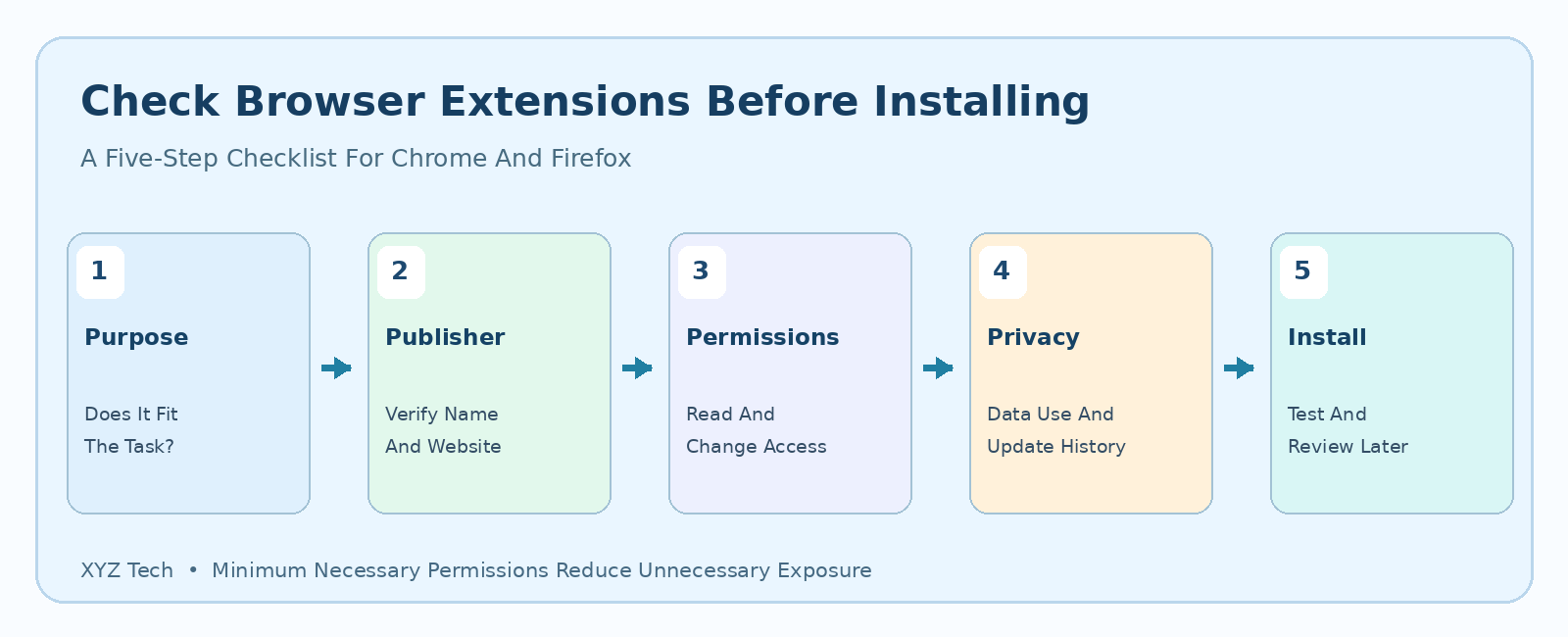
Before you choose Add to Chrome or Add to Firefox, ask five questions: Do I actually need this feature? Is the listing from an authentic official store and the expected developer? Are the permissions proportionate to the task? Is the data-handling policy understandable? Can I restrict access and remove the extension safely later? A tool that passes these checks is not guaranteed harmless, but the process helps identify unnecessary risks before they reach the browser. Use the illustrated checklist above and keep the answers short enough to repeat when permissions change after an update. For high-sensitivity accounts or workplace use, a qualified security review may be appropriate.
Treat trust as ongoing rather than permanent. The browser extension should continue to justify its access every time its capabilities or ownership materially change.
Frequently Asked Questions
Are Chrome Web Store Extensions Always Safe?
No. Store review helps reduce risk, but a listing is not an absolute guarantee. Check the publisher, permissions, privacy practices and update history.
What Does Read And Change All Data On Websites Mean?
It indicates broad access to site content or interactions within the extension’s permitted scope. Evaluate whether the feature genuinely needs that access.
Can I Limit Chrome Extension Access To Specific Websites?
For supported extension permissions, Chrome provides site-access options such as On click, On specific sites and On all sites. Some lower-level networking permissions are different.
How Do Firefox Extension Permissions Work?
Firefox displays permission requests for supported extensions and lets users manage certain optional permissions. Review Mozilla’s explanations before allowing access.
Is A Five-Star Extension Automatically Trustworthy?
No. Ratings are only one signal. Combine them with developer identity, permission scope, current reviews and a credible privacy policy.
Should I Let An Extension Run In Incognito Mode?
Only if it is necessary and you understand the privacy implications. Private browsing does not automatically prevent an authorized extension from accessing permitted data.
Can An Extension Read My Passwords?
A malicious or overprivileged extension may be able to interact with sensitive website content depending on its access and code. Treat credential-related tools as high-trust software.
Do Extension Updates Require New Permission Checks?
Yes, when an update materially changes access or behavior, reevaluate the extension even if its older version was trusted.
How Do I Remove An Unsafe Extension?
Use the built-in Chrome Extensions manager or Firefox Add-ons manager and follow official browser security guidance. Avoid installing unknown cleanup utilities.
What Should I Do After Suspected Extension Data Theft?
Remove the suspicious extension, review exposed accounts, change affected passwords from a trusted device, enable MFA where suitable and notify organization security if work data may be involved.
Official Research Sources
Research sources: Install And Manage Chrome Extensions; Chrome Web Store Permission Warnings; Google Security Guide To Extensions; Chrome Safe Browsing Protection Levels; Firefox Extension Permission Requests; Firefox Optional Extension Permissions; Manage Firefox Extensions From The Toolbar; Firefox Extension Data Collection; University Of California Berkeley Extension Safety. Extension permission interfaces, feature availability and browser policies vary by product and version.


