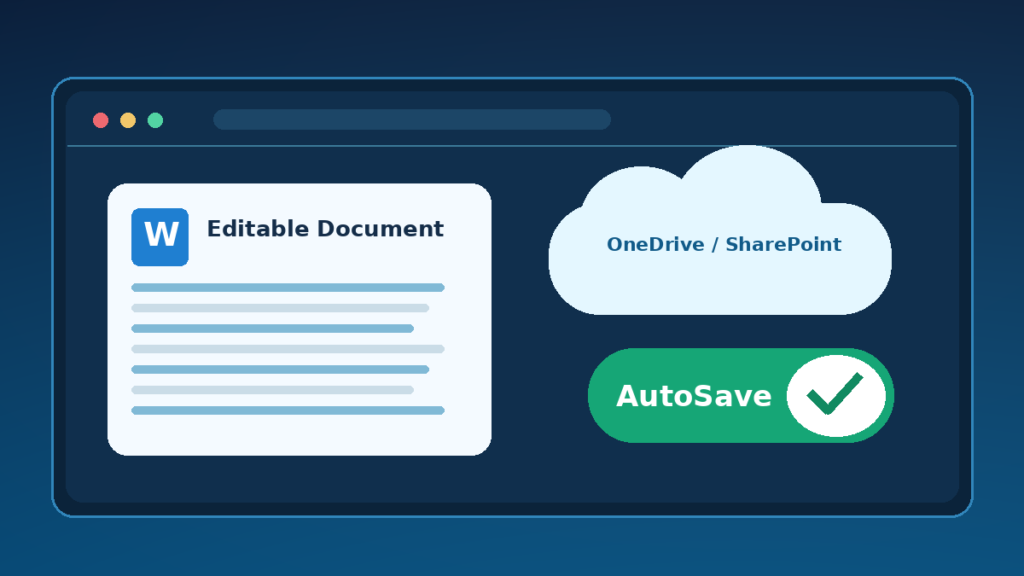

If Word AutoSave is greyed out, check whether the document is an eligible DOCX stored in OneDrive or SharePoint and opened in a supported Word product under the correct account. Older DOC files, local-only files, restricted permissions, paused synchronization and organization policies can prevent the expected switch. Save a copy before changing anything. AutoRecover remains separate from AutoSave and can still help after an unexpected shutdown.
Seeing a greyed-out AutoSave switch can be alarming during a long project. The safest fix is to identify which eligibility requirement is missing rather than reinstalling Microsoft 365 or moving valuable files blindly. This guide uses official Microsoft guidance, explains the risks of shared editing and version history, and shows a simple verification workflow.
Understand What Word AutoSave Actually Does
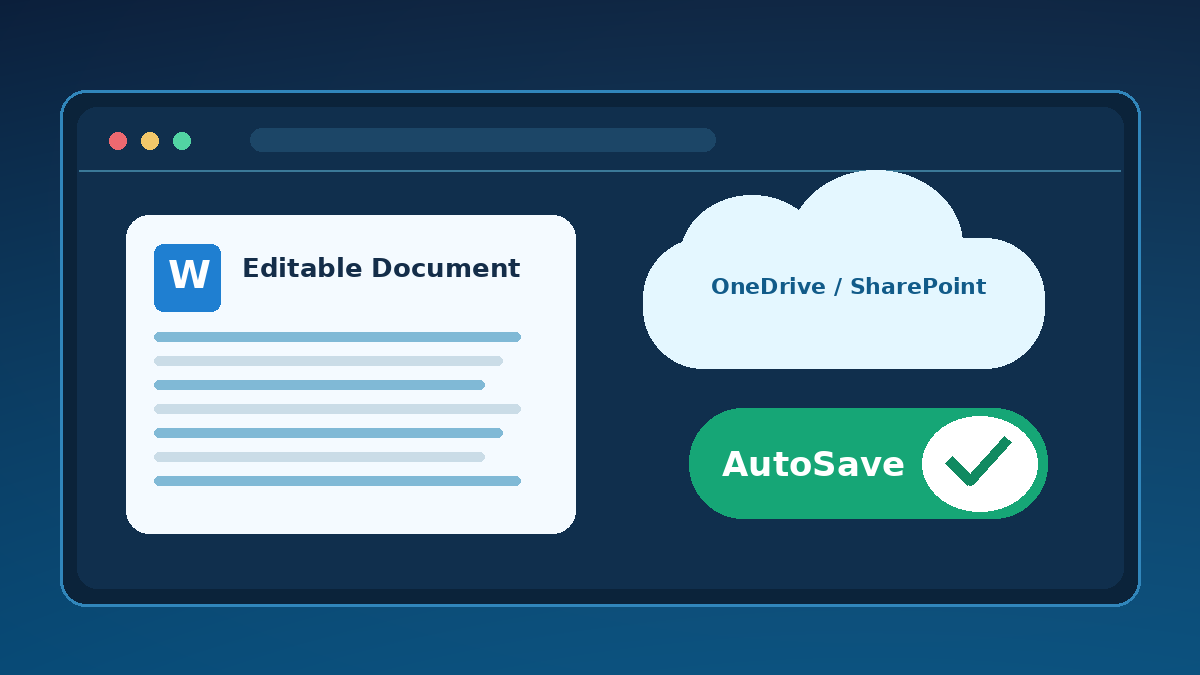
AutoSave is a feature of supported Microsoft 365 desktop apps that saves changes to eligible cloud-stored documents while you work. It is not a guarantee that any Word file anywhere on your computer will continuously save. When a document is stored in OneDrive, OneDrive for work or school, or SharePoint and opened through a supported Word experience, AutoSave may be available by default. The file location, Office edition, account and document state all matter.
Microsoft explains these requirements in What Is AutoSave. If the switch is unavailable, do not immediately assume your license expired or your computer is broken. First identify whether the file is local, whether it is an older DOC format, and whether the correct Microsoft account is signed in. Those quick checks are safer than repairing Office or moving important documents without a backup.
Separate AutoSave From AutoRecover
AutoSave and AutoRecover solve different problems. AutoSave writes eligible document changes as work progresses. AutoRecover helps recover unsaved work after a crash or unexpected shutdown, and can operate even when AutoSave is off. An AutoRecover file is not the same as a current, verified copy of your document in a second storage location. This distinction matters when people mistake a greyed-out switch for a total absence of recovery options.
Microsoft’s Word recovery guidance explains how Document Recovery may appear after an unexpected closure. The related XYZ Tech unsaved Word document recovery guide covers the case where you already lost edits. This article instead focuses on preventing preventable loss by understanding the AutoSave switch and choosing a reliable saving workflow.
Check The Exact File Location
Open the document and inspect the file name and location from Word’s title bar, File information or Save-related menus. A file stored directly in Documents on the local drive is not equivalent to a file stored and opened from OneDrive or SharePoint. Even when a folder contains the word OneDrive, the file may be temporarily unavailable to the sync app. Confirm the active location rather than guessing from a familiar folder name.
Microsoft’s turn on AutoSave instructions describe saving into a supported cloud location through Word. If the file is local, create an independent backup first. When cloud storage is permitted, save a copy from within Word to the correct OneDrive or SharePoint account, then confirm the copy opens and its changes appear. Moving a file through Explorer is not a substitute for verifying Word recognizes it as an eligible cloud document.
Check Whether The File Is In DOC Format
A document created in an older Word format can have different editing and saving behavior. Look at the filename extension and whether Compatibility Mode appears. The legacy .doc format is one documented reason that an AutoSave switch can be unavailable in supported Microsoft 365 workflows. Do not change the extension manually from .doc to .docx; renaming does not perform a proper document conversion.
To convert safely, preserve the original, use Word’s supported Save a Copy or conversion flow, and inspect the converted document for fonts, sections, tables and page breaks. See the Word formatting consistency guide for layout checks after changing format. A conversion may enable modern features, but it can also alter complex documents. Review the result before replacing the approved original.
Identify The Office Product And License
Not every edition of Word exposes the same AutoSave controls. Microsoft describes its continuous cloud AutoSave experience primarily for supported Microsoft 365 desktop subscribers, while version-specific instructions can vary for perpetual or older Office releases. Open Word’s Account or About area and note the installed product and version. Also verify which Microsoft account is signed in and whether it has permission to edit the document.
If your installed edition does not support a particular AutoSave flow, that is a product limitation rather than a malfunction to bypass. You can still save manually, use eligible recovery features and maintain backups. Do not install license activators, cracked Office builds or unknown add-ins advertised as enabling AutoSave. If you purchased Microsoft 365 through an employer, ask IT to confirm your assigned license and supported account before changing installations.
Sign Into The Correct Microsoft Account
Multiple Microsoft accounts can create confusing symptoms. You might sign into Word with a personal account while the file belongs to a work SharePoint library, or the reverse. Review the account shown in Word and compare it with the account that owns or has authorized access to the document. Do not sign out of every app at once, because that may interrupt other work and cloud synchronization.
Verify the document opens through the intended organization or personal cloud location and that you have edit rights. A person with read-only access cannot expect the same saving behavior as the editor. If the organization uses conditional access or managed device policies, follow the official sign-in path rather than changing security settings. Never share one-time authentication codes while seeking support for a disabled switch.
Use Save A Copy Before You Experiment
If the document matters, choose Save a Copy and give your working version a descriptive name before testing AutoSave changes. This is especially important when you are editing an approved report, student assignment, contract or collaborative document. You may discover that an automatic save captures experiments you did not intend to preserve. A named copy lets you inspect the result without risking the original text or an active team version.
Microsoft explains the interaction between AutoSave and existing copies in What You Should Know About AutoSave. Avoid opening a shared file solely to test settings and then replacing the original with unrelated changes. If the recipient only needs to review the final appearance, a verified PDF can serve that role without changing the editing copy.
Turn On AutoSave Through Word When Supported
In a supported Microsoft 365 desktop Word installation, open the eligible document, use File > Save a Copy or the available cloud Save options, and choose OneDrive or SharePoint as the destination. Enter a distinct filename if appropriate. Then review the AutoSave control and whether Word recognizes the file as cloud stored. Microsoft’s steps can differ by product and platform, so follow the interface actually present on your system.
Do not assume that the switch must become enabled merely because OneDrive is installed. The document must be eligible, the account must be properly signed in, and any managed restrictions may still apply. Test by making a harmless edit in a copy, letting Word save it, closing normally and reopening the same cloud copy. Verify the actual text rather than trusting only an on-screen toggle.
Check Whether Cloud Synchronization Is Paused
OneDrive can be paused, offline or not signed in, preventing the normal cloud-state assumptions that AutoSave relies on. Look at the official OneDrive status icon and any visible warnings. Test whether an existing document can be opened and saved through the intended account. Do not disconnect the account or delete local synchronization folders merely because the switch is greyed out.
Microsoft notes in its AutoSave explanation that paused OneDrive synchronization can affect eligible files. Resume sync through the supported app after ensuring the account and storage situation are correct. Before a large move or resync, keep an independent backup. An apparently synchronized folder is not automatically a complete backup strategy, as the cloud storage versus backup guide explains.
Review Whether The File Is Read Only
A document opened with read-only permissions may not allow the usual saving and collaboration behavior. Look for Word messages about Read Only, Protected View, checkout requirements or restricted permissions. Determine why the restriction exists before attempting changes. A downloaded attachment can be protected for safety reasons, while a SharePoint library can restrict editing according to organization policy.
Do not remove protection just to enable AutoSave. If you own the file and need an editable copy, use an approved Save a Copy workflow. If a team controls it, request edit access from the owner. Office security and permission controls serve purposes separate from convenience features. A Word document that opens for viewing is not proof that you can overwrite it or that every file can be made editable.
Inspect Sensitivity Labels And Organizational Policies
Business tenants may use retention settings, sensitivity labels and management policies that affect saving, co-authoring or sharing. Microsoft documents that administrators can set AutoSave defaults through policy. If an option is locked or the interface says an administrator controls the feature, do not try to defeat the policy with registry changes or account switching.
Record the message and ask the organization’s Microsoft 365 administrator for the approved workflow. Some documents are intentionally constrained because they contain confidential information. A safer alternative might be an authorized SharePoint library, a document checkout process or conventional manual saving. Avoid uploading restricted corporate files to personal OneDrive merely to test AutoSave, even if you can sign into both accounts on the same computer.
Distinguish A Local OneDrive Folder From Direct Cloud Open
Files synchronized through Explorer may sometimes be opened with different account or sync states than files launched directly from OneDrive or Word’s recent cloud documents list. If AutoSave remains unavailable for a file inside a local OneDrive path, try opening the same authorized document from the official OneDrive web interface or Word’s cloud locations. Confirm it is exactly the same version before making changes.
Microsoft’s AutoSave setup guidance addresses scenarios in which files opened through a local folder do not immediately receive expected AutoSave behavior. Avoid creating several competing copies with indistinguishable names. Record the cloud URL or approved document location and check which version colleagues are actively editing.
Test With A Simple New Cloud Document
If you cannot identify why one complex document is ineligible, create a blank test Word file in a cloud location you control. Use a harmless sentence, save it through Word, check whether AutoSave is offered, then close and reopen the same test document. This helps distinguish a file-specific issue from an account or product-level limitation without risking an important working document.
If the new cloud test works but the original does not, inspect the original file’s format, permissions and special features. If neither file offers AutoSave, review the edition, account, storage eligibility and administrative controls. Do not draw a definitive conclusion from a different PC that uses another Word license or policy. Maintain the test copy only as long as needed and delete it through normal channels afterward.
Understand Why AutoSave Can Be Off By Default
Microsoft documents settings that influence the default state of AutoSave for new files opened in Word. For Windows desktop apps, File > Options > Save can contain a preference related to AutoSave for OneDrive and SharePoint Online files. Depending on version and policy, that option may be available to users or controlled by administrators. Do not confuse a default-off preference with an unavailable feature.
Check the setting using official Microsoft steps, then open an eligible cloud document and evaluate its switch. A user preference may require a manual choice, while an organizational rule requires administrator support. Avoid resetting all Office preferences or modifying the Windows registry simply to toggle one setting. The exact product version and file location remain more useful evidence than a generic online screenshot.
Check Whether Coauthoring Is Affected
AutoSave supports collaborative workflows, but it does not eliminate editing conflicts or permission rules. When colleagues edit a shared Word document, confirm all participants use the same authorized cloud file and that it is not locked for exclusive editing. A file someone downloaded and renamed is not automatically part of the live collaboration session.
Microsoft offers guidance about coauthoring errors, including cases in which a newer server version exists. If Word reports a conflict, do not blindly replace another person’s changes. Review the conflict notice, preserve local edits in a safe copy and work with the document owner. AutoSave being on is useful, but it does not absolve users from checking the correct shared version.
Use Version History For Accidental Changes
When AutoSave is active, edits you did not mean to keep may also be saved. On eligible OneDrive or SharePoint files, Version History can help view or restore an earlier version. Locate the document’s version history through the approved Word or cloud interface, review timestamps and content, and restore only the version you actually need. Collaborators may have made legitimate changes since that version.
Microsoft explains restoring previous Office versions. Do not assume version history exists for every local file or every storage provider. Retention and version availability depend on the service and policy. Before restoring an older shared version, coordinate with the owner so that later work is not unexpectedly rolled back.
Keep AutoRecover Enabled And Understand Its Limits
AutoRecover is useful when Word or Windows closes unexpectedly. You can review AutoRecover-related preferences in Word’s Save options where supported. A typical configuration periodically stores recovery data, but it is not the same as every change being uploaded to cloud storage immediately. A power failure can still result in some unrecovered edits depending on timing and application state.
Microsoft’s AutoRecover configuration guide explains save frequency and recovery location. Do not set aggressive values without considering performance or organizational policy. Always save a named document intentionally when starting work. For documents that are not cloud eligible, frequent manual saves remain essential.
Recover Changes After Word Closes Unexpectedly
If a crash already happened, reopen Word and look for a Document Recovery pane when offered. Compare the available copies and timestamps before saving anything over the original. Use Save As or Save a Copy to preserve a recovered version for review. If the pane does not appear, follow the appropriate Microsoft recovery instructions rather than searching for unknown temporary-file cleaners.
The related unsaved-document recovery article describes the recovery workflow in detail. A recovery attempt should never include overwriting the last known-good copy without inspection. Treat recovery files as evidence of what Word may have captured, not a guarantee that all unsaved paragraphs are present.
Avoid Losing Work While Moving Files To The Cloud
Transferring a locally stored report into OneDrive or SharePoint is not automatically risk free. Check that the account has enough storage, the intended folder exists, and you can open the uploaded copy. Avoid changing a file actively edited by someone else. Maintain a separate backup of the original before any large folder move or synchronization reset.
After moving a test copy, compare its filename, size, key paragraphs and final section. Open it through the supported Word cloud workflow, make a harmless change, and confirm the edit persists after reopening. Do not delete your original until the authorized storage and recovery process are verified. AutoSave is a productivity feature, not a reason to abandon independent backups.
Check Offline And Unstable Network Behavior
A laptop may be disconnected from the internet, a VPN may interrupt access to cloud services, or organizational sign-in may need attention. AutoSave and subsequent synchronization cannot be assumed to have finished while network conditions are unstable. Look for save-status notifications and confirm the actual cloud document contains the latest intended changes when connectivity returns.
Do not turn off network firewalls or security software to force saving. Save work through an approved local contingency process if the cloud cannot be reached, and ask IT when policy restricts alternatives. Later, merge changes carefully to avoid overwriting a newer shared document. The important distinction is between an edit visible on your local screen and an edit verified in the intended shared file.
Compare Word Desktop With Word For The Web
Word for the web saves eligible cloud documents through its own browser-based experience. Desktop Word uses its installed product, connected account and file-opening context. If one version saves and another does not, compare the exact file, account, permissions and network state rather than concluding that the document itself is corrupt.
Use the browser through the organization’s official Microsoft 365 or OneDrive sign-in path. Avoid uploading sensitive files to a different account or random third-party editor as a diagnostic shortcut. The Word document layout guide also explains why appearance can differ across editors. Verify both the saved content and layout when you switch platforms.
Use A Five Step Save Verification Test
First, preserve the original and create a clearly named test copy. Second, confirm the copy is in an eligible cloud location and the correct account can edit it. Third, identify the Word edition and current AutoSave setting. Fourth, insert a harmless sample sentence, allow Word to save and close normally. Fifth, reopen the same authorized file and confirm the sentence is present.
If the sample fails, stop and note the exact message, file type, account context and whether OneDrive synchronization is paused. Do not keep recreating profiles or uninstalling Office. A repeatable observation helps support identify whether the block is caused by permissions, account state, product support or a particular document. Avoid testing with a sensitive original because the experiment itself could change it.
Know When Microsoft 365 Support Or IT Is Needed
Escalate when AutoSave fails for every new eligible cloud test file, Word reports a permission or administrator restriction, synchronization cannot finish, or coauthoring changes repeatedly conflict. Provide the Office product and version, file extension, cloud location type, account type and exact error message. Do not send private document contents unless your organization authorizes it.
A support agent may need to review tenant policy or service status, but ordinary users should not be asked to disable protections or reveal passwords. Keep a current verified copy and save work conventionally during investigation. Good diagnosis distinguishes an unsupported local file from a malfunctioning eligible cloud workflow, which leads to safer and faster correction.
AutoSave Diagnostic Table
| What You See | Best First Check | Safe Next Step |
|---|---|---|
| AutoSave Grey On A Local File | Document Path | Save A Verified Cloud Copy When Authorized |
| Old DOC File In Compatibility Mode | File Format | Convert A Copy Through Word |
| Switch Unavailable On Shared File | Permissions And Policy | Ask The Document Owner Or IT |
| AutoSave Stops During Sync | OneDrive Status | Resume Supported Sync And Verify Changes |
| Edits Saved But Unwanted | Version History | Review And Restore Appropriate Version |
| No AutoSave After A Crash | AutoRecover Availability | Use Document Recovery And Manual Saves |
Safe Save Verification Checklist
- Preserve the original and create a named working copy.
- Confirm the file format, Office edition, cloud location and signed-in account.
- Check permission and OneDrive or SharePoint synchronization status.
- Make a harmless change in an eligible test copy and close Word normally.
- Reopen that same cloud copy and verify the change really persisted.
A green or active switch is not a substitute for confirming the saved data. Keep independent backups for important documents.
Frequently Asked Questions
Why Is AutoSave Greyed Out In Microsoft Word?
Common reasons include opening a local document, using an older DOC format, having an unsupported product edition, paused OneDrive synchronization or read-only permissions. Check location, version and account first rather than reinstalling Word.
Does Word AutoSave Work On Files Saved Only To My PC?
Microsoft’s supported continuous AutoSave experience centers on eligible documents stored in OneDrive or SharePoint and opened using an eligible Office experience. For ordinary local documents, save manually and keep AutoRecover and backups available.
What Is The Difference Between AutoSave And AutoRecover?
AutoSave writes eligible edits as you work. AutoRecover stores recovery information that may help after a crash, even if AutoSave is off. Neither should be treated as a complete independent backup strategy.
Will Converting A DOC File To DOCX Enable AutoSave?
It may remove one compatibility limitation, but the document must still meet the account, storage, product and permission requirements. Save a copy, convert through Word and verify its layout and eligibility. Renaming the extension is not a safe conversion.
Can AutoSave Be Disabled By My Employer?
Yes, organizations can manage some AutoSave behavior through policy. If Word says the setting is controlled by an administrator, contact IT rather than trying registry changes or moving restricted documents to personal cloud storage.
Does Installing OneDrive Automatically Turn On AutoSave?
No, the file must be saved and opened through a supported cloud workflow with a suitable Office product and signed-in account. A OneDrive app installed on Windows does not by itself prove a particular document is AutoSave eligible.
What If I Accidentally Overwrite A Shared Word Document?
Check Version History in the authorized OneDrive or SharePoint location if available. Review the timestamps and coordinate with collaborators before restoring an earlier version, because the latest version may contain legitimate work by others.
Will AutoSave Protect My Document Without Internet Access?
Do not assume cloud-side saving has completed during a connection failure. Review Word’s save notifications, preserve edits through approved alternatives and verify the cloud document after reconnecting. Offline behavior depends on product and configuration.
Can I Turn On AutoSave For Every Word Document By Default?
A supported Word installation can offer default settings for eligible cloud documents, but no setting turns all unsupported local or restricted files into cloud AutoSave files. Policies and product editions can limit what is available.
What Should I Do If Word Still Says AutoSave Is Unavailable?
Test a new harmless DOCX saved in your authorized OneDrive or SharePoint location. Note the Word version, account, file permission, sync status and error message. If the new eligible test also fails, contact Microsoft or your organization’s administrator.
Official References
These Microsoft resources document Word AutoSave, eligibility, recovery and shared editing. Interface options can vary by product version and organizational configuration.
- Microsoft Support: What Is AutoSave
- Microsoft Support: Turn On AutoSave In Microsoft 365 Apps
- Microsoft Support: What You Should Know About AutoSave
- Microsoft Support: Recover Your Word Files And Documents
- Microsoft Support: Restore A Previous Version Without Unwanted Changes
- Microsoft Support: Troubleshoot Common Coauthoring Errors
- Microsoft Support: Change Word AutoRecover Save Frequency
For separate symptoms, see Word Not Responding When Saving and Cloud Storage Vs Backup. The appropriate repair depends on whether the issue concerns saving, eligibility, synchronization or recovery.


