
When Microsoft Word stops responding during Save, the most important goal is to preserve the document, not to restart the application as quickly as possible. The freeze may be temporary, or it may involve a cloud destination, document content, add-in, or Office installation problem. Some recovery options remain available after a crash, but the last unsaved edits are not always recoverable.
This guide prioritizes data protection, explains Microsoft-supported recovery tools, and uses controlled tests to find the cause. It covers common desktop Word scenarios; exact menu labels and capabilities depend on your edition and storage location. The procedures are documentation-based and do not claim hands-on testing of a specific damaged document.
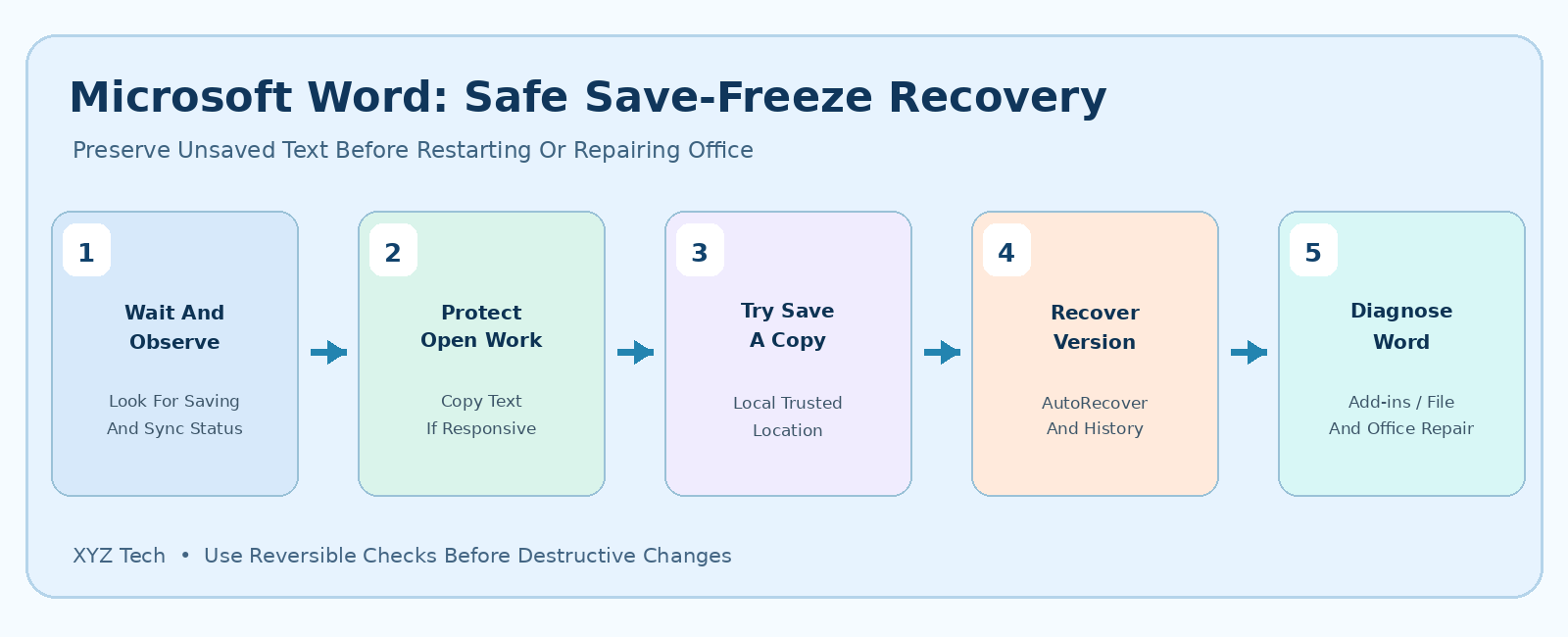
If Word freezes while saving, do not force-close it immediately. Allow the operation time to finish; if the application becomes responsive, save a separate copy under a new name and verify it. If Word crashes, inspect Document Recovery, Recover Unsaved Documents, and OneDrive or SharePoint version history where supported. After the content is protected, test a small local file, check add-ins with Word Safe Mode, and use official Office repair if necessary.
| Situation | Safest Starting Point | Action To Avoid |
|---|---|---|
| Word Temporarily Busy Saving | Wait And Observe | Immediate Force Close |
| Word Still Responds | Save A Separate Verified Copy | Overwriting Original Blindly |
| Word Crashed | Document Recovery And Version History | Deleting Temporary Recovery Files |
| Only Cloud Save Fails | Connection And Sync Status | Signing Out With Unsaved Edits |
| All Small Files Also Freeze | Safe Mode, Add-Ins, Office Repair | Resetting The Entire PC |
Why Saving Can Make Word Appear Frozen
Microsoft Word can become unresponsive during Save because the application is processing a large document, accessing a slow network location, communicating with OneDrive or SharePoint, waiting on an add-in, encountering a damaged document component, or handling a temporary system resource problem. A frozen window does not by itself prove that the document has been lost. Sometimes Word is still busy saving, while in other cases the process is genuinely stuck. Start by observing whether the title bar reports Not Responding, whether the Save icon is active, and whether the location is local storage or a cloud document library. Do not repeatedly click Save hundreds of times. That can queue extra operations and make it harder to interpret the original problem. The immediate objective is to protect existing edits before repairing the application.
If you are collaborating with other people on the same document, the problem may involve synchronization or version conflicts rather than a damaged copy of Word. Note this distinction before taking destructive action.
Do Not Force Close Word Immediately
If Word appears stuck, give it a reasonable opportunity to complete the current operation, especially when saving a large file with images, tables, tracked changes, or an unstable network path. Check whether Windows still responds normally and whether disk activity continues. Avoid restarting the entire computer while Word is actively writing if there is no safety reason to do so. A temporary UI freeze can resolve, allowing the document to be saved. If the application becomes responsive, immediately create a separate verified copy through Save As where supported. Do not assume that the existing location contains the latest edits until you reopen and check.
If Word remains completely unresponsive, move through the preservation and recovery steps rather than repeatedly selecting End Task as a reflex. A forced close is a last resort because the latest unsaved changes may not be recoverable.
Identify Whether The Document Is Local Or Cloud Stored
Look at the document’s location, if Word still lets you inspect it. A file in Documents on the local PC behaves differently from one saved to OneDrive, SharePoint, or a network drive. Cloud documents can use AutoSave and version history where supported, while an ordinary local file may depend more heavily on manual Save and AutoRecover. The exact features depend on Word edition, account and file format. Microsoft’s Office saving documentation describes those distinctions. Avoid moving the only copy during an active save operation. If the file is in a cloud location, check synchronization state before concluding that an edit never reached the server. Our OneDrive Not Syncing Files guide provides separate checks for that service.
Document identity matters. A file with the same name in two folders may be a different version, and opening the wrong one can make a successful save appear to have failed.
Preserve Unsaved Text If Word Still Responds
If the document is partially responsive, select a manageable portion of the unsaved text and copy it to a safe temporary location, such as a new plain-text document or a separate Word file. Do not overwrite the original document while investigating. For a very large file, prioritize the most recent edits that are hardest to recreate. Remember that copying as plain text will not preserve complex tables, images or tracked changes. If Word is completely frozen, do not assume that keyboard shortcuts will work. Clicking repeatedly may make the situation worse. An approved screen capture of a small amount of critical text can sometimes preserve information, but avoid displaying private material to people who should not see it.
Do not paste sensitive documents into a public website or unknown online converter. The goal is to create a private emergency copy of the text while preserving the official file and its access controls.
Try Save As With A New Name When Possible
If Word responds again, use File > Save As or Save a Copy, depending on the version and storage location. Give the document a new descriptive name and choose a trusted location with enough free space. For example, a filename containing a date and ‘recovery-copy’ helps distinguish it from the original without silently replacing existing work. Confirm that the file extension is appropriate, typically DOCX. Once saved, close only the duplicate copy if safe, then reopen it and inspect the last edited paragraphs, tables, and images. A confirmation dialog or title-bar change is not a substitute for actually checking the file. Microsoft’s save, backup and recover guidance covers the relevant Office workflows.
If Save As also hangs, note whether it fails on both local and cloud destinations. That observation helps distinguish document processing problems from network or permissions failures.
Check Whether The Target Folder Is Writable
A document may fail to save if the target folder is read-only, you lack permission, the network location is unavailable, or a storage policy blocks writing. Confirm that the chosen destination exists and that Windows has adequate free space. On a managed PC, ask the administrator for the correct permissions instead of overriding folder security or changing ownership. If Word permits it, try saving a duplicate to a different trusted local folder. If that succeeds while the original network or cloud path fails, the location may be the cause. Avoid granting broad access to all users or disabling ransomware protection simply to make one file writable.
A successful Save As to a second location does not mean you should delete the original. Keep both until you know which is correct and whether other collaborators have newer edits.
Inspect OneDrive Or SharePoint Sync Status
Word documents stored in OneDrive or SharePoint may show AutoSave and status indicators, depending on account and file type. If a save hangs while the network drops, Word may have local changes that are not yet committed to the cloud. Confirm the connection and look for a documented conflict or pending upload indication. Do not sign out of the cloud account or clear local sync caches while unsaved edits are still at risk. Microsoft provides coauthoring error guidance for supported Word scenarios. Our OneDrive synchronization guide covers broader file sync symptoms. If another collaborator is editing, check whether their changes are saved independently before replacing a shared version.
Never use a blanket ‘overwrite server version’ action without understanding the conflict. A cautious Save a Copy is usually safer when a document contains concurrent edits that need reconciliation.
Understand AutoSave Versus AutoRecover
AutoSave and AutoRecover are related but different features. AutoSave can continuously save supported cloud documents while you work, depending on your Word edition and configuration. AutoRecover periodically stores recovery information intended to help after a crash, but it does not guarantee that every keystroke will survive. A user should not treat either one as an unlimited substitute for verifying a saved file. Microsoft’s crash-protection guidance explains how recovery settings work and why normal Save remains important for files not covered by AutoSave. Check whether your current document supports AutoSave before relying on it.
A document saying ‘Saved’ at one moment does not prove that edits made later during a freeze reached the final file. Verification should examine the actual reopened content and, for cloud files, the current version history where available.
Look For The Document Recovery Pane After Restart
If Word eventually closes or must be restarted, launch it normally and watch for the Document Recovery pane. Microsoft describes this pane as a way to inspect recovered versions after an unexpected interruption. Review available files and timestamps carefully because the newest-looking file name may not contain the edits you need. Open each relevant recovered copy, inspect its contents and save a separate verified document before discarding recovery options. Do not immediately close the pane or select Don’t Save if you are unsure whether important edits remain. Microsoft warns that deliberately closing a document without saving can affect the availability of some AutoRecover information.
See Microsoft’s Word file recovery instructions and our Unsaved Word Document Recovery guide for the broader restoration process. Recovery should be tested, not merely assumed.
Use Recover Unsaved Documents When Appropriate
Supported desktop versions of Word provide a Recover Unsaved Documents path under File > Info > Manage Document, although labels and availability vary. This can help locate some temporary recovery copies. Do not assume every document that ever appeared on screen is retained there, and do not delete temporary folders while the recovery search is underway. If a suitable copy is found, open it and save it to a trusted location under a new name. Compare the last edited sections with any existing cloud or local version before deciding which to keep. Microsoft’s earlier-version recovery documentation explains supported routes.
If no recovery file appears, the absence is unfortunate but not proof that the original was deleted. Check its normal location, synced folders, backups and version history separately.
Inspect Version History For Cloud Documents
On supported OneDrive and SharePoint documents, Word can provide version history through the application or cloud storage interface. Look for a version from before the save problem or a version containing the needed edits. Open a version for inspection before restoring it over current work. A restore can replace the current visible state and may affect collaborators. Use a separate copy for comparisons when available. Date stamps and editors can help identify the intended version, but the content itself is the final test. A version with a newer timestamp may contain fewer useful edits than another version saved in the middle of a conflict.
Do not download or share a confidential document with a public repair service. Microsoft 365 permissions and organization policy should govern who may inspect or restore the file.
Test Saving A New Small Document
After protecting the important document, create a new short Word file with harmless sample text. Save it to a trusted local folder, then reopen it. If the small test document saves normally, the freeze may be related to the original document’s content, location, or add-ins rather than every Office operation. If even a tiny local document freezes during Save, investigate Word itself, installed add-ins, storage, account configuration and system stability. Avoid testing by repeatedly overwriting the original document. A controlled new file is more informative and protects the source.
Keep the test file free of personal information so that its details can be shared with official support if needed. Do not rely on one successful test to rule out an intermittent problem.
Compare Local Saving With Network Saving
If a new document saves locally but Word hangs when saving to a network share or cloud folder, focus on connectivity, file permissions and synchronization. Check whether the mapped drive is available and whether other approved applications can write there. A temporary network interruption can create delays that do not occur when saving to local disk. If local saving also hangs, the network may not be the primary cause. Do not run DNS or router resets because Word alone has a problem while every other application is online. If a cloud sync client is already reporting errors, resolve that separate fault through official support.
Our OneDrive Not Syncing Files guide helps distinguish local file creation from server-side upload and conflict handling. Always preserve both document versions when uncertainty remains.
Investigate Add-Ins With Word Safe Mode
Third-party COM add-ins, templates and document-management plugins can affect Word during loading, editing or saving. After protecting the document, test Word in Safe Mode using the supported command winword /safe or Microsoft’s application troubleshooting instructions. Safe Mode bypasses certain extensions and customization, making it a useful comparison. If a new document saves in Safe Mode but not in normal Word, investigate installed add-ins one at a time. Do not permanently remove company-required document-management software without IT approval. Keep a record of which add-in was changed and retest normal Word after each action.
Safe Mode is diagnostic, not a proof that every document is healthy. A corrupt document, failed network path or inadequate storage may still require separate checks.
Review Add-Ins Without Deleting Data
On supported Windows Word editions, COM add-ins can be inspected through File > Options > Add-ins and a Manage control. Menu paths vary. Record which add-ins are enabled before changing anything. If an add-in appears related to cloud saving, signatures, citations or document management, check its official documentation and whether an update is available. Disable one nonessential add-in for a controlled test only when permitted. Then save a sample document and return to the original issue if safe. If the problem stops, report the evidence to the add-in developer or administrator rather than treating the disabled state as a universal fix.
Do not clear a plugin’s database, delete templates or remove custom macros merely because an add-in is present. Those components may support important work processes.
Check Large Images Tables And Embedded Objects
A Word document with large high-resolution images, complex tables, embedded spreadsheets, tracked changes, or extensive cross-references can require more processing during Save. That does not mean it is corrupt. Compare the file size and complexity with a simple test document, and note whether the freeze happens after inserting a particular object. Work on a duplicate when isolating content. Remove or simplify one nonessential object at a time only after you have a verified copy of the original. Avoid using unknown online file-compression services for confidential documents. If an embedded spreadsheet appears to cause trouble, preserve its source and check the corresponding Office component separately.
The objective is to identify a reproducible content trigger without sacrificing the document’s formatting, citations or collaboration history.
Review Track Changes And Collaboration State
Tracked revisions, comments and coauthoring can complicate document saving when several people are editing or an add-in processes changes. If a shared document freezes, look for an editor conflict or pending merge message. Do not accept or reject every tracked change merely to make the file save, because those revisions may be legally or professionally important. Use a separate copy and coordinate with collaborators. Microsoft’s coauthoring troubleshooting documentation provides supported approaches. If you must preserve a conflicting set of edits, use Save a Copy where available and compare versions before any replacement.
A clear collaboration history is part of document integrity. An apparently successful save that loses another person’s edits is not a good repair.
Check Storage Space And Disk Health
Word needs a usable writable location for document and temporary processing operations. Very low free space or a failing drive can contribute to errors and stalls. Open Windows storage information and confirm there is reasonable free capacity. If the system is reporting disk errors or unusual noises, prioritize file backup and device service rather than repeated save attempts. Remove only disposable files you can identify safely. Avoid deleting Office temporary directories blindly or using registry cleaners to free a small amount of space. Our cloud backup software guide explains why having an independent copy matters before a drive failure.
After restoring safe working space, test a small local document and verify that the original or recovered file can be reopened. Free space is a prerequisite for reliable saving but not a guarantee that every corruption or add-in problem is resolved.
Keep Antivirus And Document Security Enabled
Security products and Windows Controlled Folder Access can restrict changes to protected folders. Such a warning may explain a failed save, but disabling antivirus or ransomware protection globally is not an appropriate first step. Inspect the exact message and determine whether Word is being blocked from a particular location or if the document came from an untrusted source. On a managed PC, ask IT to review the policy or allow an approved application path. Do not grant blanket permission to unknown executables or macros. Our ransomware explainer describes why document and folder protections matter.
A security restriction should be repaired narrowly through authorized configuration. A save fix is not successful if it leaves the computer exposed to malicious files.
Update Microsoft 365 And Windows Safely
Microsoft periodically updates Word and Office components to address stability and compatibility problems. After protecting the document, check for official Microsoft 365 or Office updates using the application’s supported update controls. Also check Windows Update for relevant system fixes. Review whether the problem began immediately after an update and document the installed version. Avoid downloading a ‘Word fix’ from a third-party site or running scripts that change Office licensing and registry values indiscriminately. Microsoft’s known Office issues page is a useful resource for documented problems. If Windows Update itself is broken, our Windows Update troubleshooting guide addresses that separate task.
Test a small Save operation after updating, then verify the previously affected document or a safe copy. A successful updater dialog is not proof that the original file can be saved reliably.
Use Office Quick Repair Before Online Repair
If Word keeps freezing while saving even small local documents, Microsoft provides a supported Office repair process through Windows installed-app settings. Depending on Office edition, Quick Repair and Online Repair may be offered. Quick Repair is generally the less disruptive starting point; Online Repair can require internet access and may perform a more extensive repair. Read Microsoft’s Office repair instructions for the correct workflow and account requirements. Close other Office applications after saving work and understand whether a restart or sign-in will be needed. Do not use repair as a substitute for recovering an already unsaved document.
Protect the original file and account access before making system-level changes. Repair can address application installation issues, but cannot guarantee the recovery of data that was never written.
Consider Printer Drivers And Templates Only With Evidence
Word interacts with document templates, layout engines and, in some configurations, printer-related components. If a particular document stalls during layout or printing as well as saving, those components may deserve investigation. But a document that freezes on Save is not automatically caused by the default printer or Normal template. Use an isolated test document and official support instructions before changing templates or printer drivers. Avoid renaming or deleting Normal.dotm without a backup and understanding of custom styles or macros that may reside there. If the issue affects only one specialized document, its content or related add-ins may be a more likely starting point.
Controlled tests avoid turning one save problem into several lost customizations. Always record the original configuration.
Force Close Only After Evaluating Recovery Risks
If Word is completely unresponsive for an extended period and ordinary recovery is impossible, ending the process may be the only practical way to regain control. Understand the risk: edits not captured by AutoSave, AutoRecover or another copy can be lost. If the PC is still functioning, check the file’s current existence and recovery options as far as safely possible before force-closing. After Word is closed, restart the application and inspect Document Recovery, recent files and version history before editing or overwriting the original. Do not immediately open and Save over a potentially more complete recovered version. The recovery process deserves its own careful inspection.
A force close is an emergency action, not a routine ‘fix’ for every brief Not Responding status. Avoid making it the first instruction in a document-repair tutorial.
Verify The Recovered Document Thoroughly
After recovering or saving a copy, reopen it from its actual location. Check the last revised paragraph, table values, images, comments, headers, page numbers and any embedded files that matter. If the document supports macros or tracked changes, confirm the correct version and file format are preserved. A file that opens without error might still be missing the most recent edits. Compare saved copies and version timestamps carefully. Do not delete older versions until the authoritative copy is verified and any collaborators have approved it. For regulated or contractual documents, retain an audit trail in accordance with your organization’s requirements.
The desired outcome is not merely that Word responds again. It is that the document contains the correct information and can be saved and reopened without losing meaningful content.
Prevent Recurring Save Freezes
Keep Office and Windows updated through official channels, maintain adequate disk space, and avoid unverified add-ins. For supported Microsoft 365 cloud documents, consider AutoSave and version history while also keeping independent backups appropriate to the sensitivity of the work. Make sure you understand whether a document is local, shared, or synced. When working with large files, save incrementally under clear version names before major edits or inserting complex content. If saving begins to lag, document the trigger and isolate it before the only copy is at risk. Our unsaved Word recovery guide is useful to keep available for emergency reference.
A dependable workflow combines prevention, careful recovery and verification. It does not rely solely on automatic saving or a single repair utility.
Frequently Asked Questions
Why Does Microsoft Word Freeze When I Click Save?
Possible causes include a large or damaged document, a slow network path, cloud sync errors, add-ins, storage limitations or an Office application problem. Protect unsaved edits before troubleshooting.
Should I Force Close Word When It Says Not Responding?
Not immediately. Word may still be processing a save. If forced closure is unavoidable, understand that recent unsaved changes could be lost and inspect recovery options afterward.
Can I Recover A Word Document After A Crash?
Sometimes. Word may offer a Document Recovery pane, Recover Unsaved Documents or cloud version history, depending on the document and Office configuration. Recovery is not guaranteed.
What Is The Difference Between AutoSave And AutoRecover?
AutoSave can save supported cloud documents as you work, while AutoRecover periodically stores information intended for crash recovery. Neither eliminates the need to verify your saved file.
Why Does Word Save Locally But Freeze On OneDrive?
The issue may involve network availability, synchronization, file permissions or a conflict with another editor. Preserve a separate copy and inspect OneDrive or SharePoint status.
Can Word Add-Ins Cause Save Freezes?
Yes. Some add-ins may interfere with processing or saving. After protecting the document, test Word Safe Mode and review nonessential add-ins one at a time.
How Do I Start Word In Safe Mode?
On supported Windows editions, use winword /safe through Run or follow Microsoft’s documented procedure, then test a harmless document rather than risking the original.
Should I Delete Word Temporary Files To Fix Saving?
Not as a first step. Temporary or recovery files may contain unsaved work. Inspect official recovery options and preserve data before deleting anything.
Does Repairing Microsoft Office Recover Lost Work?
Office repair can address installation or application faults, but it does not guarantee recovery of edits that were never saved. Protect documents and account access before repair.
How Can I Confirm A Word Save Problem Is Fixed?
Save a verified copy, close and reopen it, check the latest edits and important document elements, and repeat a controlled save in the affected location.
Microsoft References
Official source material: Recover Your Word Files And Documents; Recover An Earlier Version Of A Word File; Help Protect Files In Case Of A Crash; Save Your Office Files; Repair An Office Application; Save Back Up And Recover A File In Office; Troubleshoot Common Word Coauthoring Errors; Fixes For Recent Office Issues. Recovery availability depends on Word version, file location and what was actually saved before the interruption.


