
If Location services is greyed out in Windows 11, open Settings, Privacy and security, Location. Identify whether the device-level switch or an individual app permission is unavailable, and look for a managed-by-your-organization message. Windows and app permissions are separate controls. Do not bypass company policies or run unknown registry scripts; verify the intended use through a supported Windows feature.
A disabled location toggle can be a normal privacy choice, a dependency between device and app permissions, or an intentional management restriction. These steps help you identify which case applies and choose a safe fix without weakening account or device security. Interface names and available services vary with Windows version and hardware.
Identify Which Location Control Is Greyed Out
Windows 11 has a device location service, app access controls, browser permissions, and location-dependent features. They serve different purposes. Before changing anything, open Settings, select Privacy and security, then Location. Note whether the master Location services switch, Let apps access your location, a single application permission, or a related feature is unavailable. A locked per-app choice does not mean the device-level location switch is broken. Record the exact label and any accompanying message because that wording may identify an intentional restriction.
Use a standard account or administrator account only as normally assigned on this computer. Do not elevate privileges simply to make a grey toggle clickable. Save the Windows edition and version under Settings, System, About because labels can differ across releases. If an administrator policy appears, document that fact before treating the symptom as a software defect. The goal is to restore authorized control, not defeat device management or hide location collection from anyone else who manages the device.
Read The Managed By Your Organization Message
Microsoft explains that organization-managed Windows devices can restrict location settings and display a managed-settings message. This includes workplace, school, and other enrolled PCs that receive policy through approved management channels. A grey control accompanied by such a notice is not reliable evidence of corrupted Windows files. Changes should be reviewed by the person who administers the policy, because the restriction may protect staff, data, or physical device tracking.
On a personal computer, check whether you recently connected a work or school account or enrolled the device for organizational management. Do not disconnect an account until you understand whether it provides email, licensed applications, device security, or access to important files. On an employer-owned computer, request a policy explanation rather than using registry fixes downloaded from an unknown website. Even a technically successful bypass could break management compliance or cause access problems.
Open The Correct Windows 11 Privacy Page
Press Windows and I to open Settings. Navigate to Privacy and security, then Location. The page describes device location, app access, recent location usage, and related options available for the specific Windows release. Read the descriptive text around each toggle. If the master service is disabled and editable, decide whether enabling it supports the feature you are trying to use. Do not blindly enable every app permission because a single weather or navigation task does not require unrestricted location access for unrelated programs.
If Location is missing from a shortcut or search result, navigate through the main Settings categories rather than following third-party deep links. Check that you are looking at Windows settings, not a browser settings tab or the preferences of a specific app. The exact presentation may change with updates. Screenshots from older Windows versions may show controls that have moved, been renamed, or behave differently on a desktop without GPS hardware.
Separate Device Location From Per-App Permission
Device location enables Windows location-dependent experiences. Per-app controls determine whether particular supported applications can request precise location through the Windows service. If the device location setting is off, some dependent per-app controls may be unavailable or ineffective. Turn the master service on only if you consent to that capability, then review which applications actually need it. This sequence clarifies a dependency without claiming the app permission is independently defective.
Remember that traditional desktop applications may not provide the same per-app precise location controls as Microsoft Store applications. Microsoft describes different privacy behavior for desktop programs. Do not assume an unlisted program never receives any location-related information; it may use network or account data under its own policies. If privacy is your concern, inspect the program permissions and its privacy policy instead of relying exclusively on whether it appears in one Windows list.
Verification: Retest the exact Windows privacy switch after a normal restart and note whether the management banner changed.
Check Whether Your Account Is Managed
Open Settings, Accounts, then Access work or school to inspect connected organizational identities. A managed account can apply restrictions, but its mere presence does not prove that the location control is blocked. Treat the organization message and an administrator confirmation as stronger evidence. If the device belongs to your employer or school, stop before changing enrollment or policy settings because doing so can affect network certificates, encryption recovery, licensed software, and compliance.
For a personally owned device that you intentionally enrolled, review the account arrangement and associated app requirements before asking the administrator to remove the restriction. Avoid internet guides telling you to delete management keys or change group policy blindly. The safe result may be understanding why the toggle is intentionally unavailable rather than forcing it on. Maintain a written record of the message and the setting you hoped to change.
Understand Location And Find My Device
Microsoft notes that the location service supports features such as automatically setting the time zone and Find my device. If Location services are disabled, those features may be limited or use less accurate information. This is a meaningful privacy and convenience tradeoff, not proof that either feature must always be enabled. Decide which feature you actually need before granting location access at the device level.
If your goal is finding a lost laptop, check the official Microsoft Find my device requirements, account sign-in, and device settings rather than granting location access to every installed application. If the goal is a correct clock, you can also set a time zone manually. Do not assume enabling a disabled location control will immediately restore a network feature that uses a separate service.
Distinguish Automatic Time Zone From Location
Windows uses location signals when determining a time zone automatically. A grey or disabled automatic time zone setting can therefore appear related to the location service. Open Settings, Time and language, Date and time to inspect Set time zone automatically and the manual time zone selection. If a correct time zone is urgently needed, setting it manually can provide a supported temporary workaround without changing device privacy policy.
Treat a manual time zone as a workaround rather than proof that location permissions have recovered. The system clock, time synchronization, and location data are related but separate controls. If the clock itself is wrong, use the dedicated Windows time guide rather than installing a location-spoofing tool. Verify with a trustworthy clock and check the computer again after a restart before concluding the issue has been resolved.
Related XYZ Tech guide: Windows 11 Time Zone Keeps Changing. Use it when that narrower symptom applies.
Check Your Browser Location Permissions Separately
Websites generally request location through browser permission controls as well as operating-system capabilities. A website being denied or not prompting may reflect a browser-level decision rather than a grey Windows toggle. In Microsoft Edge, inspect the website permission for Location and review whether the website is trusted. Do not give broad permissions to a site merely to determine whether Windows settings are editable.
Use a well-known service and review the exact domain before testing. HTTPS matters for modern browser geolocation behavior, but permission and operating-system availability can still differ. A website estimating your city from an IP address is not evidence that Windows precise location works; IP-based location can be coarse or inaccurate. Document which layer denied access before attempting more changes.
Related XYZ Tech guide: What Is A VPN. Use it when that narrower symptom applies.
Interpret Missing GPS Hardware Correctly
Not all Windows desktop computers have a GPS receiver. Microsoft states that Windows location may be estimated using nearby Wi-Fi access points, cellular information, IP data, or GPS when available. A machine without GPS can still provide approximate location information, and its accuracy can vary substantially by environment. Do not buy hardware or drivers just because a map initially shows the wrong city.
Confirm the computer model and documented wireless capabilities. A stationary desktop using Ethernet may have different location quality from a cellular laptop. A grey privacy setting is not automatically explained by missing GPS, and a functioning location service does not guarantee pin-level accuracy. Keep those two questions separate when deciding what to troubleshoot or report to support.
Try A Normal Restart Before Advanced Changes
If the location control was editable before a recent Windows update and no policy notice appears, save your work and perform one normal restart. Revisit the same Settings page afterward. A restart is reversible, gives Windows a chance to complete normal initialization, and helps distinguish a transient interface problem from a persistent configuration restriction. Avoid holding the power button unless the computer genuinely stops responding.
Record whether the toggle changed, whether the message is identical, and whether app-level controls now respond. If nothing changes, do not loop through repeated restarts. Move on to checking Windows version, authorized policies, and updates. A controlled test produces information; speculative dozens of commands usually produce confusion and may create new faults.
Related XYZ Tech guide: Windows Update Stuck. Use it when that narrower symptom applies.
Check Windows Update Through Supported Controls
Open Settings, Windows Update and check the current update state. Install appropriate security or quality updates using Microsoft supported mechanisms after saving work and ensuring recovery options are available. A known Windows issue may be addressed by a future cumulative update, but no update should be promised as a universal fix for policy restrictions. If the device is managed, updates may be controlled by IT.
Do not download a random cumulative update package or device-driver bundle from an advertisement. Record the installed Windows version and update history so a support technician can compare it against documented release notes. If a pending restart exists, complete it when safe, then retest the exact same privacy control. Keep the before-and-after observations objective.
Verification: Compare the target app with the device location switch rather than assuming one automatically fixes the other.
Use Get Help Without Bypassing Security Policy
Microsoft offers in-product help and diagnostic guidance for Windows settings. Search the Get Help app for location or privacy and follow only the relevant supported instructions for your Windows version. If a troubleshooter identifies an organizational restriction, that is a reason to contact the administrator, not an invitation to remove policies without authorization. Account and device management restrictions are different from ordinary app permission toggles.
Before handing the device to support, record its model and Windows build, describe the disabled control, and note whether nearby settings work. Avoid sharing full screenshots containing work account addresses, device IDs, or private location history on public forums. Crop or redact personally identifiable data. A precise symptom description is more useful than saying every location feature is broken.
Check Whether The Device Is In A Shared Profile
A family or shared PC can contain multiple user accounts with different permissions and management arrangements. A location option appearing different in two accounts may point to account context or a device-level restriction rather than damaged hardware. Test only accounts you own or are authorized to administer. Do not use another person’s password or change their privacy preferences to investigate your own issue.
If you have an authorized second account, record whether the same location switch and management message appear. Refrain from creating extra privileged accounts solely to defeat access controls. Any difference should be interpreted in the context of the device owner’s settings, not as proof that policies should be deleted. If in doubt, ask the device administrator to perform the comparison.
Related XYZ Tech guide: What Is A Firewall. Use it when that narrower symptom applies.
Avoid Registry Fixes That Claim To Unlock Everything
Some forums suggest changing policy registry paths, disabling security services, or running one-line scripts that supposedly restore location settings. Those actions can disrupt management, privacy preferences, automatic time zone features, and future updates. They may also create a misleading interface state that conflicts with underlying device policy. A vague step to delete a key is not a safe universal troubleshooting procedure.
Do not apply group policy edits or registry modifications unless they are part of an approved organization-specific support procedure. On a personally owned device, prefer official Microsoft diagnostics and documented settings. If a fix requires administrator access, ask what it changes, how it can be reversed, and whether the Windows edition supports the setting. Protecting a working PC matters more than forcing a switch to move.
Understand A Grey App Toggle With Location On
A master Location services switch may be enabled while one app’s control is unavailable. The application may be a traditional desktop app, not request the permission in the same way, or be subject to management. Confirm its precise name, installation source, and whether it appears in the supported app permission list. An absent app or grey line item should not automatically trigger repair of the entire operating system.
Check the application’s own settings, account preferences, and vendor support documentation. If the problem occurs only in that app, test another authorized application that legitimately needs location. One failing app suggests a narrower diagnosis than several unrelated applications being unable to request location. Do not grant unrelated software location access as a substitute for proper troubleshooting.
Treat Privacy As An Intentional Choice
Many people deliberately disable Windows device location for privacy. If the switch is disabled by your own preference and can be changed, there may be nothing to fix. The question is whether you want the convenience of maps, automatic time zone, or device recovery. Read Microsoft’s privacy explanation before enabling a service that can combine signals from GPS, wireless networks, cell towers, and IP information.
Location access should be granted to trusted applications only when the benefit is clear. Consider how a browser or service might store location history or combine it with your account. An enabled device service is not permission for every website. Conversely, turning the service off cannot prevent all third-party applications from inferring approximate location by other means. Make the choice with realistic expectations.
Related XYZ Tech guide: What To Do After Clicking A Phishing Link. Use it when that narrower symptom applies.
Check Recent Usage Rather Than Guessing
The Windows Location page can show recent location use for supported applications. This information helps distinguish an active permission from a feature that is simply enabled but unused. Review only the details shown by your Windows build. A location indicator may appear when a supported app requests location through the service; the absence of an icon is not comprehensive evidence that no app can infer where you are.
If the user is concerned about unwanted use, compare recent access with the list of trusted apps. Change permitted settings intentionally and review their privacy notices. Avoid third-party privacy cleaners claiming they can permanently remove every trace of location. When the control itself is locked by policy, report the concern through the device manager rather than trying to conceal usage.
Verification: Confirm any authorized policy change remains effective after restarting without disabling unrelated security controls.
Consider A Wrong Location Separately From A Grey Toggle
An inaccurate map location is often a different problem from an unavailable control. Windows may use changing IP routes or nearby Wi-Fi databases, leading to an estimate outside your actual city. A location service can function while producing a coarse result. If the toggle is editable, use the official default location options where supported and review app-specific location settings.
Do not misrepresent a wrong location as proof that a Windows service is corrupt. Compare the result across a trusted map app and browser while considering whether a VPN or proxy changes your apparent IP region. Avoid publishing exact home coordinates in troubleshooting communities. The goal is a practical level of accuracy with privacy, not unnecessary disclosure of your address.
Record Device Policies For IT Support
A concise IT request should include the Windows edition and build, the specific grey setting, the exact managed message, whether the device is company-owned, and a description of the required workflow. Ask whether location access is intentionally restricted and what authorized exceptions exist. This helps administrators determine whether a change is permissible without guessing about internal compliance rules.
Do not request a general policy removal when only one business app needs location access. A least-privilege exception might satisfy the requirement while retaining the organization’s baseline controls. On a self-managed device, a manufacturer support case may be more suitable. Keep the support dialogue focused on documented behavior rather than speculative hardware failure.
Related XYZ Tech guide: Everyday Tech Troubleshooting Guide. Use it when that narrower symptom applies.
Use A Decision Table To Match The Symptom
The table below separates disabled device location, unavailable per-app access, managed settings, imprecise maps, and missing browser prompts. Begin with the observation that actually matches the computer. A privacy toggle can be grey for legitimate reasons, and solving the wrong symptom may weaken protection without improving the requested feature.
After each reversible check, return to the same page and record what changed. If a management banner remains, stop before unsupported configuration changes. If the toggle becomes available, decide whether to enable it and choose only the necessary app permissions. Verify the particular feature you need rather than assuming every location-dependent service is now correct.
Restore A Sensible Privacy Configuration
When the immediate issue is resolved, review which apps have location permission, whether automatic time zone is appropriate, and whether a browser has stored permissions for websites you no longer use. An open toggle should not be treated as an instruction to enable location everywhere. Keep any legitimate administrator settings and make only the necessary changes.
If you temporarily enabled a feature for testing, return it to your preferred privacy setting unless you want it permanently on. Record the working Windows version and the steps that changed behavior. For organizational devices, allow the administrator to confirm that the intended security policy remains enforced. A stable and understandable configuration is a more valuable result than a quick screenshot of an enabled switch.
Verify The Exact Feature That Prompted The Fix
Retest your real goal with a trusted map, automatic time zone, or authorized application, rather than trying random location-test websites. Confirm that the app is using the level of precision you expect and that your privacy preference is respected. If location remains blocked due to policy, the correct result may be an explanation of the restriction and an approved support path.
Do not claim success simply because a settings window now displays an editable control. Reopen Settings after a normal restart, verify the same state, and check whether the target app behaves correctly. If the condition returns, capture the exact message and recent changes for support. Avoid repeated escalations or security shortcuts that could compromise the device.
Symptom Decision Table
| Observed Symptom | First Safe Check | Interpretation |
|---|---|---|
| Location Services Is Grey | Look For Managed Settings | Possible Policy Or Device Restriction |
| One App Permission Is Grey | Check Master Service And App Type | Permission Dependency Or Desktop App |
| Time Zone Does Not Update | Check Date And Time Settings | Location And Clock Are Distinct |
| Website Cannot Request Location | Check Browser Site Permission | Browser Versus Windows Layer |
| Map Shows Wrong City | Compare IP, Wi-Fi And App | Accuracy Differs From Availability |
| Setting Reverts After Restart | Record Build And Policy State | Persistent Management Or Configuration |
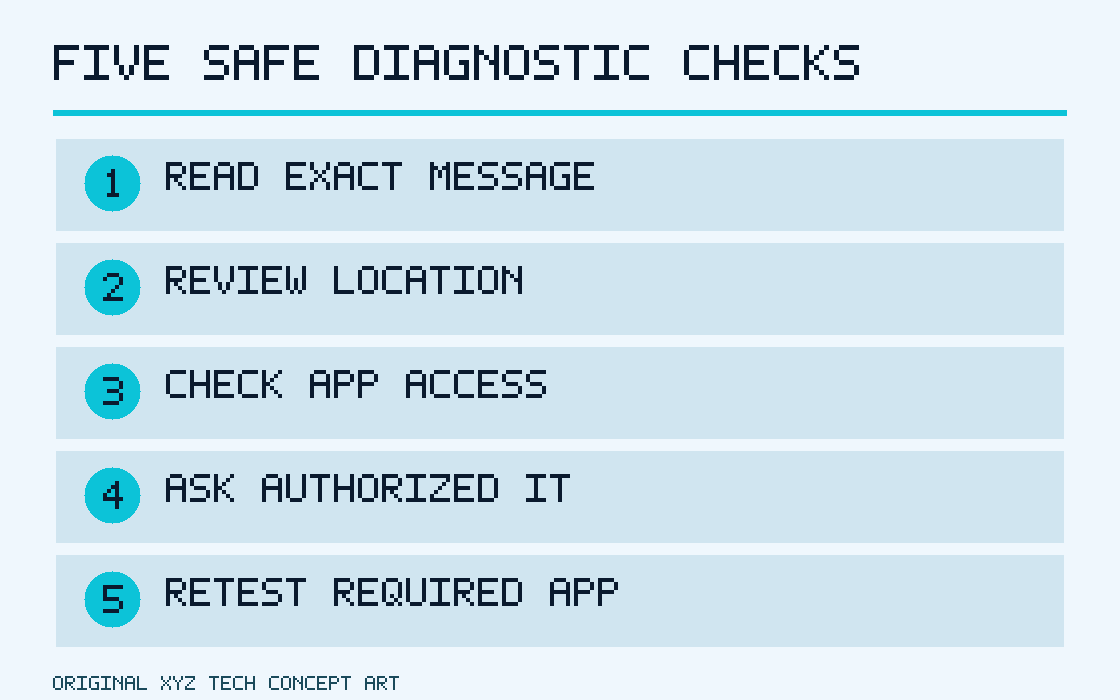
Five Step Safety Checklist
- Identify The Grey Control: Write down the exact setting and any managed-policy message
- Review Device Location: Check Privacy and security, Location and the master service
- Separate App Permissions: Compare individual app and browser permission behavior
- Use Authorized Support: Ask IT about device restrictions and avoid registry bypasses
- Retest The Target Feature: Check maps or time zone while preserving your privacy preference
Before leaving the page, confirm that the location privacy choice matches your intention, that the target application can or cannot access location as authorized, and that the device remains properly managed. Document any persistent policy message rather than disguising it with a tool that could break other Windows features.
Frequently Asked Questions
Why Is Location Services Greyed Out In Windows 11?
The device may be managed by an organization or the unavailable control may depend on another permission. Read the exact Windows message and identify which switch is disabled before changing anything.
Does A Grey Toggle Mean My GPS Is Broken?
No, a missing GPS receiver and a disabled Windows privacy control are different issues. Windows may estimate location using Wi-Fi, cellular signals, and IP information when available.
Can My Employer Disable Windows Location Settings?
Yes, Windows location settings may be managed by workplace or school policy. Ask the administrator for an authorized change rather than trying to bypass management.
Why Is Let Apps Access Your Location Unavailable?
The master device location setting, application type, or organizational restrictions can affect app-level permission controls. Review the device setting and the individual application requirements.
Will Enabling Location Fix The Wrong Time Zone?
It may help automatic time-zone detection, but the clock has separate date, time and synchronization controls. You can also select the correct time zone manually.
Can Websites Still Find My Approximate City With Location Off?
Yes, some sites can estimate a region from an IP address even when Windows precise location is disabled. That estimate is not the same as device location permission.
Should I Delete Registry Keys To Unlock Location?
No, unsolicited registry scripts can break privacy controls and device management. Use supported Windows settings or ask the authorized administrator.
Is Find My Device Related To Windows Location?
Yes, location settings support Find my device, but the feature also depends on account and device configuration. Consult Microsoft’s feature requirements.
Will Windows Update Always Fix A Grey Location Switch?
No, an update cannot be assumed to override intentional policy. It may address software problems but management restrictions require an authorized decision.
How Do I Know The Location Problem Is Resolved?
Reopen the original Settings control, confirm its authorized state and test the relevant app or Windows feature without unnecessarily sharing precise location information.
Official Vendor References
Official publisher documentation grounds the supported interface and security behavior. Menu labels and availability may vary by device, region and software version.