
If an Android app keeps switching back to another language, open Settings, System, Languages, App Languages and verify that the app supports per-app selection. Choose the intended language, restart the app and test a working internet connection. Check the device language order and any language preference inside the app or your account. Avoid clearing app data until important files are backed up.
This guide addresses a language preference that reverts, a language that never applies, and an application that does not appear in the Android per-app menu. Those symptoms are different. It uses the documented Android language workflow and preserves downloaded content, account access and other settings.
Confirm What Actually Changes Back
When an Android app seems to revert to the wrong language, identify the exact screen and when the change happens. Some interfaces show an account language, a device-level app language, or a separate content language chosen by the service. A homepage translating stories into another language is not necessarily the same as buttons and menus changing language. Before using any reset control, take notes about the language you selected, the app version, and whether the change happened after reopening, restarting, or signing into another account.
Open a simple settings screen inside the affected application and compare its labels before and after a clean restart. Do not rely only on the language of one article, search result, or advertisement. These elements can be localized by publishers or your account. A consistent test helps isolate whether the Android preference was lost or whether content personalization is changing separately. If a website rather than a native app is involved, investigate browser and account language settings instead.
Check Whether The App Supports Per-App Languages
Google says Android can offer per-app language controls only for applications that support language selection. The app must provide appropriate language resources and participate in the platform feature. If it never appears under App Languages, that omission can be normal rather than a corrupted setting. Some developers also provide their own language selector inside the app, separate from Android Settings. Do not assume every installed program should appear in the system list.
Check the app description, developer support pages, or settings for supported languages and Android versions. A feature that works on one phone may not appear on another because operating-system releases, manufacturer interfaces, or app builds differ. Avoid installing unofficial translated versions to gain one missing language: modified packages may undermine account security and introduce unwanted tracking. Prefer official applications distributed through a trusted store.
Use The Supported App Languages Menu
On supported Android versions, open Settings, System, Languages, App Languages, or the manufacturer-equivalent path. Select the app and choose a language from its offered list. Google notes that some steps depend on the Android release and only supported apps appear. If the app was set to follow the system default, it can use the first language in the device preferences that the app itself supports.
After choosing the language, leave Settings, fully close the affected app using its normal controls, and launch it again. Check whether the interface now uses the selected language. Do not immediately clear application data because changing a preference should not ordinarily require losing offline files or sign-in details. If the language remains wrong, note the displayed choice in Android Settings and continue with the narrower checks below.
Related XYZ Tech guide: How To Change One Android App Language. Use it when that narrower symptom applies.
Understand Follow System Default Behavior
An app set to System default can legitimately use a language different from the one you expect if your phone has multiple preferred languages. The app chooses the first supported language in that preference order, not necessarily the first language you personally think of as primary. This can make a language change look like a reset when Android is actually following the configured preference hierarchy.
Open the device language list and inspect the order of primary and secondary languages. Do not remove a family member’s or workplace-required language just to fix one app. If supported, select the desired language specifically for the affected app instead of changing the entire phone. When testing, change only one setting at a time so you know whether the result came from the app-specific choice or the system list.
Verification: Check whether the Android preference remains saved after one normal app restart.
Check The App Language List After Restart
Reopen Android App Languages after the affected app has restarted. If the app-specific choice is still present but its menus remain different, the problem lies in applying or rendering that choice, not necessarily in saving the Android setting. If the preference itself changed to System default, investigate app configuration, updates, account synchronization, or manufacturer-specific behavior. These observations lead to different troubleshooting paths.
Use a repeatable comparison: record the setting, open the app, use it briefly, close it, and check the setting again. Then reboot the phone normally and repeat. Avoid forced reboot procedures unless the device is unresponsive. A single clean test is more valuable than rapidly toggling language options until the interface happens to change. Keep notes about the exact stage when the preference changes.
Update The Application Through A Trusted Store
Google recommends updating an app when the supported language list appears incomplete or inaccurate. A developer may change localization resources or fix language settings in a newer release. Open Google Play, find the installed app, and review whether an update is available. Be aware that app versions can roll out gradually, so two devices may show different results even on the same Android major release.
Save work and confirm any important offline data is synchronized or backed up according to the app before updating. Use the official distribution channel, not a random APK mirror. After the update, check the list of supported languages and reselect your preference if necessary. If the problem began immediately after a recent update, report the build number to the developer instead of assuming an older unofficial package is safer.
Related XYZ Tech guide: Android Phone Not Connecting To Wi-Fi. Use it when that narrower symptom applies.
Check Whether The Phone Is Online
Google specifically notes that a changed app language may not take effect if the device lacks a network connection. Some applications load localized content, account preferences, or language resources when they connect. If the selection looks saved but the interface has not changed, test a reliable Wi-Fi or mobile connection before altering any data. The presence of Wi-Fi bars alone does not confirm internet access.
Try loading a trusted website in the browser and confirm the app has permission to use the available network. If Data Saver is enabled, examine whether the particular app needs background connectivity, but do not disable all mobile data protections without a clear reason. Reopen the app after the connection is restored. Distinguish a network-dependent delay from a preference that truly reverts.
Add The Desired Language As A Secondary System Language
Google describes adding a language to the Android system list as a supported troubleshooting option when an app does not change after a per-app selection. Open device language settings, add the desired language as a secondary choice, allow the setting to settle, and then select it again under App Languages. This can help an app recognize language resources without replacing the phone’s primary language.
Keep the device language order appropriate for your daily use. A secondary language may affect fallback behavior in apps that follow System default, so confirm the effect rather than adding many languages speculatively. After the test, check which language the original application uses and whether unrelated apps changed unexpectedly. Remove only language preferences that you added for troubleshooting and no longer need.
Related XYZ Tech guide: Android Mobile Data Not Working. Use it when that narrower symptom applies.
Inspect The App Internal Language Setting
Some software offers its own language setting within a profile, preferences page, or account dashboard. This can override or compete with the Android app-language choice, especially on services used across multiple devices. A setting stored on the provider’s server can reapply after sign-in or synchronization. Look for a menu labeled Language, Display language, Content language, or Region, but do not assume those names all mean the same thing.
If the app has its own selector, record the current value and decide which layer should control its interface. Change only that option and retest. An account-wide change could also affect the website or another device, so check the scope of the selection. Do not share account credentials with a third-party language tool. Use the application’s published help and account controls.
Separate Account Language From Device Language
A signed-in account may maintain a preferred language for emails, notifications, or web content. That choice can differ from the app menus selected through Android. If the application changes language after you sign in, compare its account settings with the setting when signed out, where the app allows such a test. Keep financial or sensitive accounts logged in unless you know how to restore access safely.
Do not reset the Google account language merely because one third-party application renders in an unexpected language. Check whether other apps use the same account preference. If only one service is affected, start with that service’s documented language controls. When contacting its support team, describe the exact part of the interface that changes and whether the change follows account login.
Check Supported Languages Rather Than Regional Flags
Language, region, number format, and time zone are different preferences. Android regional settings can influence measurements, calendar formats, and local conventions without necessarily changing every application’s menu language. An app that displays an unexpected currency or temperature unit may still honor the correct interface language. Avoid combining multiple unrelated changes into one troubleshooting experiment.
Open the app’s available languages list and confirm that the intended language actually appears. If it does not, the developer may not offer a translation for that edition. Changing the phone country or creating a new account seldom solves a missing localization resource and may affect payments or content availability. Prefer contacting the developer about specific language support.
Verification: Verify whether the app menu language or only translated content changed.
Restart The App Without Erasing Its Data
After adjusting Android and app-level preferences, close the affected app and open it again. Google includes restarting the app among its supported steps. This is less disruptive than clearing storage or reinstalling, and it can allow the interface to reload localized resources. Check whether the language is correct both on the main screen and in its settings or account pages.
If the issue persists, compare another supported app’s language selection to learn whether the behavior is limited to this developer. Do not force stop every system application or disable background services without a reason. A single app failure may be caused by its own localization implementation, whereas several independent apps reverting could justify reviewing system language order and device updates.
Related XYZ Tech guide: Android Apps Keep Crashing. Use it when that narrower symptom applies.
Review The Android Version And Manufacturer Interface
App Languages menus can differ by Android release, and some supported procedures are available only on newer versions. Google explicitly notes version limitations for its general instructions. Review Settings, About phone, Android version and compare the actual options present. Manufacturer interfaces sometimes rename categories or group them under General management rather than System.
Use the official support guide for your model if the labels differ. Avoid making undocumented assumptions about every Samsung, Pixel, Motorola, or Xiaomi interface. A missing toggle is not necessarily a defect. Keep the phone up to date using the manufacturer’s approved update mechanism, and verify the app’s actual supported languages before attempting advanced changes.
Understand Why App Data Clearing Is Risky
Google mentions clearing app data as a possible last-resort step when a language gets stuck, but that operation can remove local databases, unsynced messages, downloaded maps, offline work, preferences, or sign-in state. It should not be your first action. Before considering it, verify which files and accounts are recoverable and whether the app has an independent export or backup process.
On applications handling important documents, medical information, authentication, or work data, ask the vendor for a safe recovery procedure before deleting anything. Clearing cache is a different action from clearing all storage and may also log out or force re-downloads in some apps. Neither should be described as harmless. If the language issue is cosmetic, preserving irreplaceable data takes priority.
Related XYZ Tech guide: Google Play Download Pending. Use it when that narrower symptom applies.
Avoid Reinstalling Without A Recovery Plan
Uninstalling an app can remove locally stored content and sometimes revoke access to account-linked authenticator or device security data. Only consider it when the publisher recommends it or a careful diagnostic shows the local installation is damaged. Confirm your login method, backup status, purchased licenses, and exported files before removal.
For a noncritical app whose data is safely synchronized, a supported reinstallation may help after simpler steps fail. Reinstall from the original trusted store, choose the preferred language, and check persistence across a normal restart. Do not sideload modified packages or change device security settings for an unverified translation. If the issue returns, report it to the developer with reproduction steps.
Investigate One App Versus Several Apps
If one application ignores a saved language, its localization support or account integration is a reasonable starting point. If several unrelated apps change at once, the device language list, software update, or a shared system preference may be more relevant. Compare two supported applications that use the Android App Languages menu, but do not install untrusted software solely for a test.
Record which apps are affected and whether their Android settings still show the preferred choices. Distinguish content-language differences from menu-language changes. Avoid extrapolating from one app to a whole phone malfunction. A targeted diagnosis makes technical support faster and reduces the risk of changes that affect many unaffected services.
Related XYZ Tech guide: Transfer Android Contacts Safely. Use it when that narrower symptom applies.
Consider Work Profiles And Device Management
A work-profile app may be governed by organizational policies, managed installations, and company account preferences. These conditions can produce differences between personal and work copies of the same application. Do not disable device management or remove a work profile to force a language choice. Losing a work profile can remove access to files and applications.
Ask IT whether the organization enforces app configurations or language preferences. Provide the app name, version, managed status, and exact language transition. On a personal profile, apply changes independently where authorized. Treat different app copies as separate installations. What persists for one profile does not automatically persist for the other.
Verification: Repeat the language test after a reboot and sign-in without deleting local storage.
Check Offline Content And Translation Packages
Some applications provide downloadable language resources, content packs, or subtitles in addition to interface localization. An app may display one language for controls while continuing to show cached content in another. Check whether the actual interface is translated or whether only downloaded materials remain unchanged. Clearing app data to refresh offline files may destroy valuable saved content.
Use the publisher’s documented download, sync, or language-pack controls. When connected to reliable internet, allow needed resources to finish downloading. If a selection only applies after the next launch, restart the app once. Avoid deleting whole storage directories or installing unofficial language files. Documentation from the application developer is authoritative for its own content packs.
Know When A Server-Side App Bug Is Possible
A setting that persists until sign-in, updates, or a particular app version may reflect an application issue rather than an Android problem. Developers may deploy localization changes on the server or gradually update supported languages. Gather a clear reproduction sequence, including model, Android version, app version, desired language, and what changed after reopening.
Check whether the developer has a current support notice and whether another authorized account behaves differently. Avoid posting screenshots with usernames, private messages, or phone identifiers in public reviews. A concise report that distinguishes app menu language from content language gives the developer information they can actually use. Until corrected, a supported system-language choice may be a temporary workaround.
Preserve Accessibility And Regional Preferences
Language preferences can affect screen readers, voice input, spelling tools, keyboard layouts, and translated labels. If a change improves one app but makes accessibility navigation harder, restore the preferred configuration and seek an app-specific option. Do not assume the device must use a single language for every purpose. Android supports multiple preferences when compatible applications participate.
After the correction, test the app’s most important screens and a representative accessibility action if you rely on assistive technology. Keep time zone, regional settings, and language choices conceptually separate. A small verified improvement should not compromise essential communication or navigation on the whole device.
Use A Controlled Comparison Before Escalating
The diagnostic table below distinguishes a language preference missing from Android Settings, a saved choice that does not affect menus, and an interface that reverts only after sign-in. These require different actions. Start with the easiest supported check and avoid changing multiple layers at once. Observe whether the language list and the visible interface agree after each step.
If no supported solution works, prepare a developer report rather than repeatedly deleting app content. State whether the app appears under App Languages and whether the desired language is on its supported list. A reproducible bug report can help the publisher correct localization behavior without exposing private data or forcing unrelated system changes.
Related XYZ Tech guide: Everyday Tech Troubleshooting Guide. Use it when that narrower symptom applies.
Verify That The Language Now Persists
Once the menus show the intended language, close and reopen the app, restart the device normally, and confirm the preference again. Check whether it survives sign-in and a subsequent network connection. This verification distinguishes a temporary interface refresh from a genuinely saved choice. Confirm that downloaded content, notifications, and important account functions still work.
If the app only supports the system default and lacks your language, record that limitation rather than calling it fixed. Keep a safe backup of valuable offline content. For persistent defects, use the official feedback channel and include the version and exact reproduction steps. A durable solution respects both the preferred language and the integrity of the app’s data.
Symptom Decision Table
| Observed Symptom | First Safe Check | Interpretation |
|---|---|---|
| App Missing From Languages | Check App Support | Developer May Not Opt In |
| Menu Reverts On Reopen | Inspect Device Language Order | System Default Fallback |
| Setting Saves But UI Is Wrong | Restart And Check Connection | Language Resources Not Applied |
| Changes After Sign In | Check App Account Preferences | Service Level Language Choice |
| Only Content Is Wrong | Review Content Locale | Not Necessarily UI Language |
| Several Apps Change At Once | Review System Preferences | Shared Language Configuration |
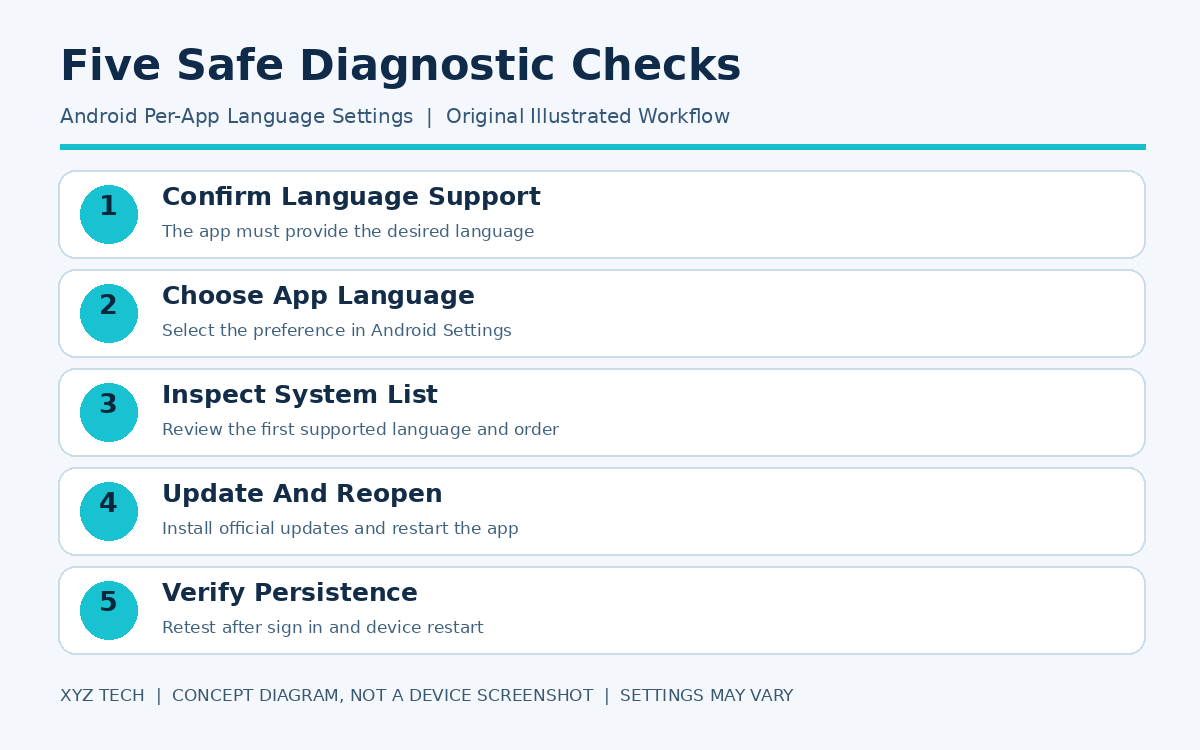
Five Step Safety Checklist
- Confirm Language Support: The app must provide the desired language
- Choose App Language: Select the preference in Android Settings
- Inspect System List: Review the first supported language and order
- Update And Reopen: Install official updates and restart the app
- Verify Persistence: Retest after sign in and device restart
Keep the successful language choice documented and verify it after reopening the app. If the application does not support your preferred language, report the limitation accurately instead of claiming that a reset has fixed it. Preserve data and accessibility preferences while testing.
Frequently Asked Questions
Why Does My Android App Language Keep Changing Back?
The app may follow the device language order, use an account language, or not reliably support per-app selection. Check whether the Android setting itself changes.
Why Is The App Missing From App Languages?
Only participating apps appear. Some developers manage language from inside their app. Check official support rather than assuming the phone is damaged.
Does Android Use My First Preferred Language For Every App?
Not necessarily. Apps following System default use the first language they support from the device preference list.
Should I Update The App To Fix The Language?
Yes, an official update can improve language support. Google recommends updating when supported language lists are incomplete or outdated.
Can No Internet Prevent A Language Change?
Yes, Google notes some app language changes may not take effect when the phone is offline. Restore connectivity and restart the app.
Do I Need To Change The Whole Phone Language?
Not when the app supports a specific language choice. However, adding a secondary system language is a documented troubleshooting step.
Will Clearing App Data Delete My Files?
It can delete local content and settings, so avoid it without a tested backup and a clear reason. It is not a harmless first step.
Can My Google Account Language Override An App?
An account or publisher preference may affect the service, but its behavior depends on the app. Check which part of the interface changes.
Does Every Android Version Have App Languages?
No, availability and menu locations vary by Android version and manufacturer. Follow device-specific official guidance.
How Do I Verify A Permanent Fix?
Confirm the language in Android settings and the app interface after closing, rebooting, and signing in, without erasing saved data.
Official Vendor References
Official publisher documentation grounds the supported interface and security behavior. Menu labels and availability may vary by device, region and software version.