
If Android asks a trusted app for location, microphone, camera, or notifications again after a period of inactivity, check its App info and Unused app settings. Android can intentionally revoke permissions or pause rarely used apps. Confirm whether the app was inactive, whether a temporary permission expired, or whether a work policy applies before granting the minimum access needed.
Unexpected permission prompts are not always bugs. Android intentionally limits unattended access by old applications, while one-time permissions, app reinstalls, work profiles, and system-wide privacy switches can create similar symptoms. This guide uses Google documentation to show how to diagnose the exact case without disabling Play Protect or giving every app unrestricted access.
Understand Why Android Resets Unused-App Permissions
Android can revoke selected permissions from apps that have not been used for a while. This is a privacy measure, not automatically a software defect. When an old application suddenly requests camera, location, or microphone access again, first examine whether it was placed in the unused-app category.
Google's unused-app management guidance describes how Android can revoke permissions and stop certain background activity. Open the affected app's information screen and look for an unused-app control, which may be labeled Pause app activity if unused or similar wording.
Do not switch off this protection for every app just because one alert is inconvenient. Preserving least-privilege permissions helps prevent long-forgotten apps from accessing private data without a clear current reason.
Confirm Whether The Permission Truly Changed
A pop-up asking for access does not always mean Android removed a previously allowed permission. Some apps request access separately for photos, notifications, nearby devices, microphone, or approximate versus precise location. A one-time choice can also expire because the user selected a limited option.
Reopen the app's Settings, Apps, Permissions page and record the exact permission and its current state. Compare the requested feature with what the app is trying to do. A photo picker may intentionally grant only selected images rather than permanent storage access.
Only grant the minimum access needed for the task. Do not enable all permissions to make a diagnostic message disappear. An app asking for unexpected contact or SMS access deserves extra scrutiny.
Find The Unused Apps Settings
Recent Android versions offer a list of apps that have been unused for an extended period. Manufacturers may place it within Apps, App info, or permission settings. The label and navigation can differ depending on Android version and device maker; an exact path from one Pixel build may not match a Samsung menu.
Open Settings and search for Unused apps or Pause app activity if unused. Select the affected app and read the available options before changing anything. If a work profile or device administrator controls it, the setting may be restricted.
Avoid installing an unrelated permission-manager app just to find the menu. Built-in settings and Google's documentation are safer starting points, especially because permissions govern access to personal information.
For the related but distinct condition, read Android Notifications Not Working. Use that narrower checklist only if its specific symptom applies.
Review The Pause App Activity If Unused Control
Android can pause rarely used apps and remove permissions as part of that maintenance. An app may seem to forget authorizations after months of inactivity even if it has not been reinstalled. The behavior is more likely to be expected when the affected app is one you seldom open.
In App info, check the Unused app settings section where available. If an app is legitimately needed in the background, review the option to stop pausing it and assess whether the additional access is justified. Test with just that app rather than a global change.
There is no reason to exempt every installed program. Unused-app protection reduces long-term background access, and disabling it should be an informed exception for a trusted application with a real ongoing need.
Distinguish One-Time Permission From Long-Term Permission
Modern Android permission prompts can include options such as Only this time, While using the app, and Don't allow depending on the permission. Choosing temporary access is intentionally different from granting ongoing access. A repeated prompt after another session may reflect that earlier choice rather than automatic reset.
Reproduce the task in the app, read the permission dialog carefully, and decide the appropriate scope. For a camera app you open occasionally, allowing access only during use can be sensible. For a call app, microphone access may be necessary while the call is active.
Do not treat persistent access as the default better choice. Match permission duration to the actual function, especially for location, camera, microphone, and files that can reveal private details.
Check Approximate And Precise Location Choices
Some apps can function with approximate location but others require precision for navigation or time-sensitive delivery features. If an app says location permission disappeared, the distinction may actually be between approximate and precise access. Location services being off at device level can cause an app to fail despite an allowed app permission.
Inspect the app's location permission and the device-level location control separately. Reopen the feature and observe whether it explicitly asks for precision. Grant precise access only if the function needs it and you trust the app's data practices.
Do not give broad background location permission to unrelated software. Location problems can have multiple causes, and changing accuracy does not fix an unused-app permission that has truly been revoked.
For the related but distinct condition, read Android Apps Keep Crashing. Use that narrower checklist only if its specific symptom applies.
Understand Notification Permission Separately
Android notification permission and alert channel configuration are not identical to camera or location permission. A restored permission might still leave a particular notification category muted. Some manufacturers also use power management to delay or suppress background alerts, which resembles a permission reset.
Open App info, Notifications, and inspect the master control plus available channels. Send a safe test notification after enabling only the necessary alerts. Check Do Not Disturb and battery rules if alerts still fail.
Avoid disabling system-wide quiet modes or allowing every category indefinitely. Sensitive lock-screen previews should remain under the user's control, and critical alerts may warrant an app that is intended for that purpose.
Check Camera And Microphone Privacy Switches
Android may include system-level camera and microphone access switches. An app can have its permission set to Allow while the global privacy switch blocks the hardware. That creates the impression of a forgotten permission even though the app-specific entry did not change.
Open the privacy or security controls and inspect Camera access and Microphone access, if supported by your device. Compare their states with the app's permissions, then run a simple camera or recording test using a trusted built-in app.
Restore the privacy switches to your desired level after testing. Do not turn on a global sensor for an app that does not need it or when using a public or shared device.
Inspect Permission Manager By Permission Type
Android Permission Manager can group apps by the data or device function they can access. This perspective is useful when several apps request the same sensitive permission again. If one permission category changed across many apps, the issue may involve an OS update or a deliberate privacy setting rather than a single app.
Navigate to Privacy or Permission Manager where offered and inspect the exact category. Look for apps that are Allowed, Not allowed, or Allowed only while in use. Compare one affected app with a trusted working app without changing either yet.
A permission-wide review can reveal genuinely excessive access. It is better to preserve restrictive defaults than to grant every app the same broad entitlement merely for consistency.
For the related but distinct condition, read Android Private Space Notifications Not Showing. Use that narrower checklist only if its specific symptom applies.
Consider Recent Android Or App Updates
Android updates can change permission prompts and app compatibility, while application updates can introduce new features that need additional access. A fresh request following an update is not always evidence of a corrupted setting. Read the app's explanation and confirm the download came through an authorized source.
Check the Android version and recent app updates through Settings and the Play Store. Read any official release notes that mention permission behavior. Test an existing supported feature first and note whether the newly introduced feature is the only one requesting access.
Never install an older APK from an unfamiliar website to bypass a permission prompt. That can remove security fixes and introduce malware. Contact the app developer if its permission requirement seems unexpected.
Verify The App Has Not Been Reinstalled Or Replaced
An app reinstall, restored backup, new work profile, or change to a different package can create a new permission state. A similar-looking app icon does not prove that the same installation retained the old settings. Duplicate apps in personal and work spaces can each hold different permissions.
Open App info and verify the app publisher and which profile hosts it. If you recently reset your phone, migrated data, or reinstalled from Play, expect to review permissions again. Do not assume a backup reinstates every private security choice.
Avoid copying app data between profiles manually. Personal, work, and Private Space installs are intentionally isolated for privacy, and their separate permission records should remain under appropriate control.
Separate Work Profile Policies From Personal App Controls
Managed devices can apply permission and data-access policies through an organization. An app in a work profile may behave differently from the same app in personal space, even on the same phone. A grayed-out control or message about administrator restrictions is a policy clue.
Check whether the app displays a work badge and whether your employer's management software provides guidance. Ask IT about the exact permission and its business use. Test the personal copy only if you own and are authorized to use it.
Do not use developer options, root access, or sideloaded management bypasses to defeat workplace restrictions. They can endanger company data and compromise device security.
For the related but distinct condition, read Android Contacts Not Syncing. Use that narrower checklist only if its specific symptom applies.
Check Google Play Protect Without Disabling It
Google Play Protect may reset permissions for infrequently used apps on certain older Android versions and includes protections against harmful apps. A permission reset is not, by itself, proof that Play Protect is falsely detecting malware. Turning security scanning off is not a valid first response.
Review the Play Protect information inside the Play Store if the device is supported, then compare the displayed app status with Google's official unused-permission explanation. For a needed app, grant the minimum permission again and document whether it stays enabled during normal use.
Keep Play Protect enabled. Do not ignore an actual harmful-app warning simply because you were troubleshooting permission persistence. If the publisher cannot be verified, remove the suspicious app through supported methods.
Review Archived And Long-Inactive Applications
Android can archive certain unused apps, preserving an icon or data while removing much of the application package. That is different from the operating system simply revoking a camera permission. If you have not opened an app in months, determine whether it is paused, archived, uninstalled, or still fully active.
Inspect App info and Google Play for status indicators, then restore only the trusted app you need. After restoration, review permissions from scratch rather than assuming the earlier authorization was retained.
Before reinstalling an app with local-only data, confirm its backup or export options. Do not clear storage indiscriminately because that can erase offline notes, game progress, or other information not stored in the cloud.
Inspect Battery Optimization Only For Background Failures
A background task that stops running can appear like a permission failure. Battery Saver or manufacturer optimization may delay jobs even when permission settings are correct. The symptom is more informative if it occurs only when the app is not visible or the screen is off.
First verify the permission actually remains allowed. Then inspect the app's battery usage settings and device-level Battery Saver state. Make a controlled test with a short, noncritical background task before requesting an exemption for an app that truly needs continuous operation.
Exempting every app can increase battery drain and data use. Only make targeted changes when a trusted app has a documented need for background activity, and keep privacy permissions separate from power settings.
For the related but distinct condition, read Android Battery Draining Fast. Use that narrower checklist only if its specific symptom applies.
Test One Permission With A Known Safe Task
Repeatedly switching several permissions makes it hard to know what solved a problem. A small reproducible test offers clearer evidence: for example, try recording a short sample inside a trusted app after granting microphone access while using the app. A successful test helps separate hardware problems from authorization state.
Choose one non-sensitive permission and one app feature, record the current setting, grant only what is required, close the app, and reopen it. Check whether the permission still appears and whether the feature works. Avoid waiting months as the only verification approach.
Do not record private calls, images of other people, or confidential documents merely to test a permission. Use a harmless sample and delete it appropriately after confirming the result.
When Permissions Revert Immediately
A permission that changes back within seconds is different from automatic unused-app maintenance that occurs after inactivity. Immediate reversion can indicate a restricted permission, admin policy, faulty app, or OS state that needs targeted support. It should not be dismissed as normal expiration.
Record the exact permission, app identity, Android version, and whether the setting reverts while the app remains open. Restart once, then consult the device maker or app publisher with the non-sensitive details. Inspect any administrator message before proceeding.
Do not factory reset the phone because one permission toggle changes back. A factory reset is disruptive, does not guarantee fixing a policy restriction, and risks loss of unbacked-up content.
When Permission Reset Happens After Weeks
If a trusted app keeps permission during active use but loses it after a long idle period, that pattern fits Android's unused-app behavior more closely. The phone may also stop background jobs or notifications for rarely used apps as part of the same maintenance system.
Use the app normally, note when you last opened it, and check its unused-app status if access is revoked again. For an app that must remain active, consider a narrowly scoped exemption after reviewing the privacy tradeoff.
Keep low-use applications restricted where possible. The safest baseline is not to grant long-term camera, microphone, or location privileges to software that is no longer actively needed.
For the related but distinct condition, read Android Storage Full. Use that narrower checklist only if its specific symptom applies.
Avoid Clearing App Data As A First Fix
Clearing application storage can erase account settings, downloaded content, saved drafts, or locally stored records. That is a much larger change than reviewing one permission. Similarly, resetting all app preferences can change disabled apps and notification defaults without identifying the cause.
Check the targeted permission, unused-app option, profile, updates, and power restrictions first. If the vendor eventually instructs a data reset, export what can be exported and read its exact consequences.
Do not delete shared system files or install apps promising to force permissions permanently. Permission controls are a security boundary, and bypassing them can create serious privacy risk.
Explain The Privacy Tradeoff Before Exempting An App
Preventing Android from pausing a trusted app may preserve convenience, but it can leave the app's granted permissions active across longer periods of inactivity. Background tasks may also resume, consuming battery and data. There is no universal best setting for every app.
Ask whether the app genuinely needs persistent access, whether a less privileged setting works, and whether you still trust its developer. For a critical app, document the reason for the exception and review it periodically.
Use the principle of least privilege: permit what the feature needs and no more. Re-enable unused-app protections when the special requirement ends, especially for location, camera, microphone, contacts, and files.
Document The Pattern For Support
Useful diagnostic details include the phone model, Android version, app name and publisher, exact permission, time since last use, and whether the app is in a work or private profile. Without that information a generic claim that Android forgot permissions can lead to irrelevant advice.
Write a short timeline: permission allowed, feature works, app unused or updated, permission later changes, and whether the unused-app setting was active. Ask the app vendor for help if the pattern occurs despite normal use.
Do not include screenshots containing private accounts, tokens, location history, or contact lists in a public bug report. Redact personal information and share only evidence needed to diagnose the setting.
For the related but distinct condition, read Android App Language Keeps Resetting. Use that narrower checklist only if its specific symptom applies.
Verify The Result And Restore Sensible Privacy Defaults
A verified resolution means the required feature works, the permission persists for the intended period, and unneeded privileges remain restricted. It also means Android's protective behavior is understood rather than silently disabled. For many apps, an occasional permission re-prompt is an acceptable privacy feature.
Reopen the trusted app, run a harmless test, close it, and confirm the specific permission state. Check notifications and background activity separately when relevant. Revisit the unused-app setting after several normal sessions if the issue previously appeared after inactivity.
Leave Play Protect and device security intact. If permissions still revert immediately, provide the timeline and device details to qualified support rather than resorting to rooting, blanket resets, or unsafe permission automation.
Symptom Decision Table
Use the observed behavior rather than a guessed root cause to select the first supported test. Changes should be reversible, and any security or privacy control should be restored after testing.
| Observed Symptom | First Safe Test | Interpretation |
|---|---|---|
| After months unused | Unused app status | Privacy maintenance may be expected |
| Immediately after tapping Allow | Temporary or policy restrictions | Inspect app permissions and admin messages |
| Only notifications delayed | Notification channels and battery | May not be a permission reset |
| After reinstall | App identity and profile | New installation may require consent |
| Across work apps | Managed profile rules | Ask administrator before changes |
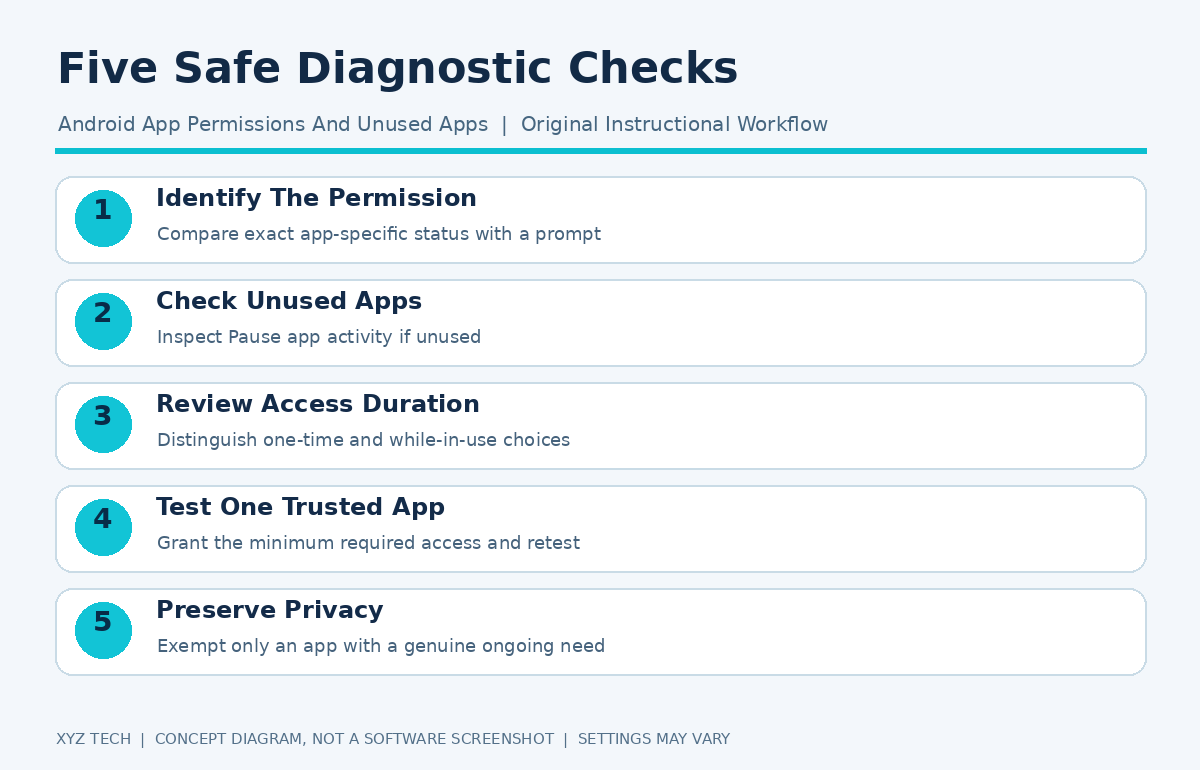
Five Step Verification
- Identify The Permission: Compare exact app-specific status with a prompt. Write down the outcome before changing anything else.
- Check Unused Apps: Inspect Pause app activity if unused. Write down the outcome before changing anything else.
- Review Access Duration: Distinguish one-time and while-in-use choices. Write down the outcome before changing anything else.
- Test One Trusted App: Grant the minimum required access and retest. Write down the outcome before changing anything else.
- Preserve Privacy: Exempt only an app with a genuine ongoing need. Write down the outcome before changing anything else.
Frequently Asked Questions
Why Does Android Remove Permissions From Unused Apps?
Android protects privacy by revoking selected permissions and pausing activity for apps that have not been used for a while. The behavior depends on Android version and device configuration.
What Is Pause App Activity If Unused?
It is a setting that can limit an inactive app and revoke granted permissions. Review its tradeoffs for a trusted app before making an exception.
Should I Disable Unused App Protection For Every App?
No, keep the protection for most apps and consider a limited exception only when an app needs ongoing access for a legitimate function.
Do One-Time Permissions Reset Automatically?
Yes, temporary access is designed to expire. Review what option you chose and use the least access that supports your task.
Can Play Protect Change App Permissions?
Google documents permission resets for rarely used apps on certain older Android versions. Do not disable Play Protect to bypass a permission prompt.
Why Does Location Access Still Fail When Allowed?
The device-level location switch, approximate-versus-precise selection, or app behavior may be responsible even when the app permission remains allowed.
Does Reinstalling An App Restore The Old Permissions?
Not necessarily. An app reinstall or restore can require fresh authorization, and separate personal and work profiles maintain separate permission states.
Should I Clear App Storage To Fix Permission Settings?
No, clearing storage can erase offline files and app settings. First review unused-app behavior, the exact permission, updates, and administrator policies.
Can Battery Saver Look Like A Permission Reset?
Yes, delayed background activity may resemble missing permission. Verify the permission itself before modifying battery optimization or data restrictions.
When Should I Contact The Developer?
Contact the developer when a trusted app immediately reverts a necessary permission during active use despite correct settings, and share a privacy-safe reproduction record.
Official Vendor Guidance
The following vendor documentation supports feature behavior and supported troubleshooting paths. Menus and availability can vary by operating-system build and device.


