
This guide follows Git and GitHub documentation, with a safe recovery sequence for divergent histories, initial repository commits and shared branches.
What Non-Fast-Forward Means
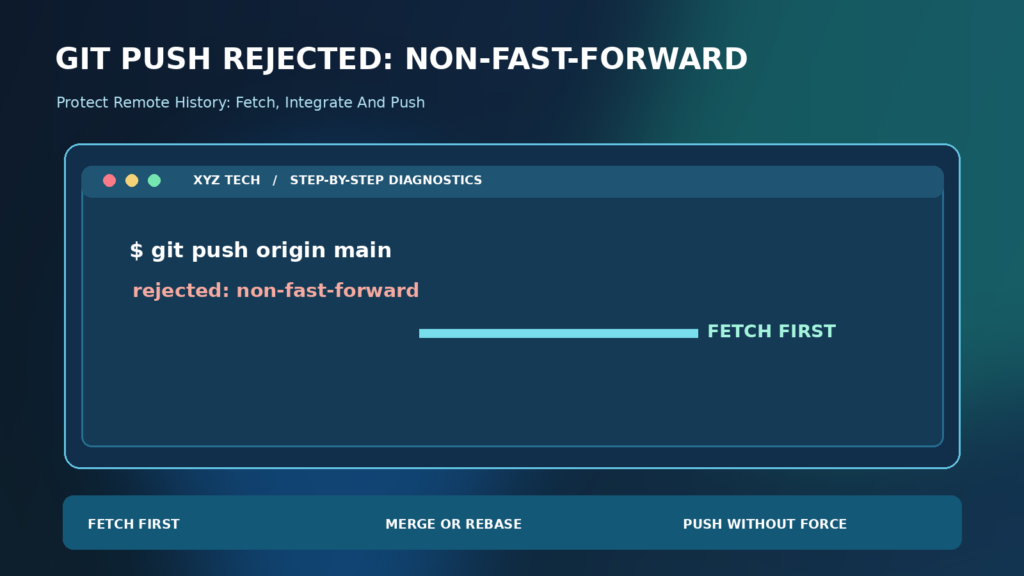
A Git push is rejected as non-fast-forward when the destination branch cannot move directly from its current commit to your proposed commit without discarding a part of its existing history. This commonly happens when a teammate pushed after your last fetch, someone created an initial README on the remote, or your local branch was rewritten independently. The rejection protects history by requiring you to reconcile the difference before moving the remote branch reference. It is not proof that the repository is corrupted or that you need a new Git remote. Git’s official push manual explains these protections, while GitHub’s troubleshooting article describes the error and recovery approach.
Read The Exact Rejection Message
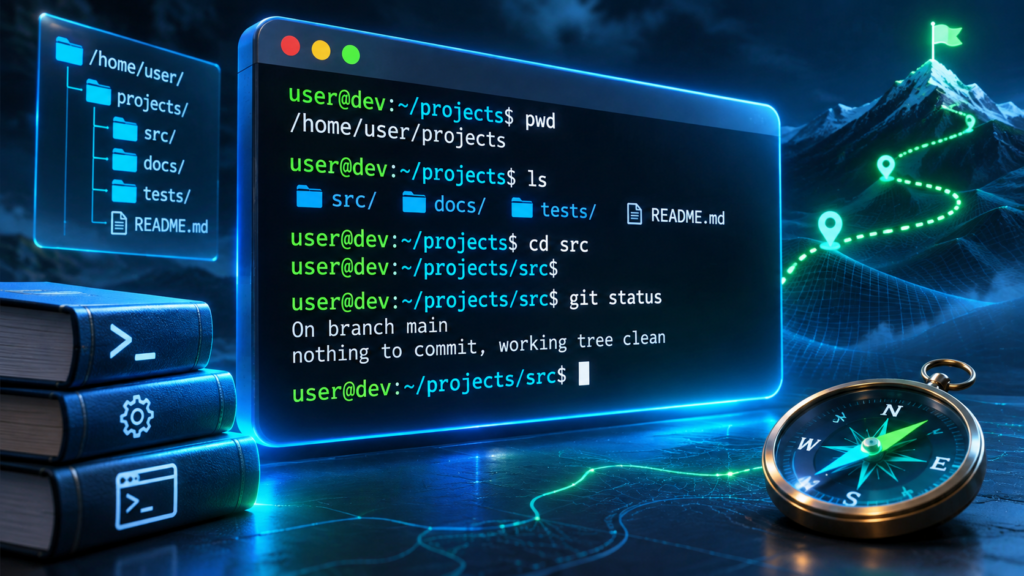
A typical terminal may display ! [rejected] main -> main (non-fast-forward) followed by explanatory hints. The actual branch may be named develop, release or something else, and the remote may be origin or another short name. Do not blindly copy commands containing main when your branch has a different name. Start with git status, git branch --show-current and git remote -v to identify the repository and destination. The first objective is understanding what was rejected, not changing history. Capture the useful message before running another push. Our Command Line Basics Guide helps beginners understand how command output and working directories influence troubleshooting.
Why Git Refuses To Overwrite Remote History
Suppose the remote branch contains commits A, B and C, while your local history contains A, B and D. If Git simply moved the remote branch to D, commit C would no longer be in its normal line of history. Git therefore rejects a standard push that would discard C from the destination branch. You need to incorporate C or make a deliberate authorized decision about replacing remote history. This safety check is particularly important in shared repositories, where someone else may have committed bug fixes or security changes. The right question is how to preserve and reconcile both histories. A force push is not a routine first step, because even a well-intentioned developer can erase a colleague’s work.
Inspect Working Tree Changes First
Before fetching or integrating, run git status. If you have uncommitted edits, determine whether they should be committed, stashed or kept in a separate working copy. Rebasing or merging with unresolved work can complicate the recovery process. Do not stage and commit secrets, credentials or generated files simply because you want a clean status line. Inspect changes carefully, and use your project’s ignore rules appropriately. A clear working tree makes it easier to understand which commits come from the remote and which are your own. If the project is critical, ensure that important local changes exist in a reliable backup or preserved branch before attempting substantial history operations.
Confirm The Actual Remote And Branch
Run git remote -v to inspect the configured fetch and push destinations. Use git branch -vv to see upstream relationships when available. If the repository was migrated, confirm you are still pushing to the intended organization and project. An incorrect destination is a configuration problem, while a non-fast-forward error is about branch history. If you also see remote origin already exists during setup, our Git Remote Origin Already Exists Guide addresses that separate issue. Keep the two diagnoses distinct. Verify the exact local branch and remote tracking target before following any merge, rebase or force-related instructions from a generic web article.
Fetch Remote History Without Merging It
A useful first diagnostic is git fetch origin, assuming origin is the appropriate remote and you have access. Fetch obtains relevant remote objects and updates remote-tracking references. It does not automatically merge those commits into your currently checked-out branch. This separation lets you inspect history before choosing how to integrate it. Git’s fetch manual documents the operation. If the fetch fails because of authentication or a network outage, troubleshoot that new failure independently. Do not interpret missing credentials as a reason to overwrite history. After a successful fetch, inspect the branch graph and identify the commits present only on the remote or only on your local branch.
Compare Local And Remote Commits
After fetching, use a graphical Git client or a log command such as git log --oneline --graph --decorate --all to visualize the branches. If you know the correct tracking branch, you can examine commits in one direction using git log --oneline HEAD..origin/main, changing the example to the actual branch. This helps establish which commits arrived on the remote while you worked locally. Before deciding to merge or rebase, review the content of important remote changes, especially dependency updates, migration scripts or modified configuration. A history graph is evidence about commit relationships, not proof that every change is safe. Teams should also consider their branching and review policy.
Understand Fast-Forward Updates
A fast-forward update is possible when the destination’s existing history forms an ancestor of the proposed new tip. Git can move the branch pointer forward without replacing the commits already reachable from that branch. This is why ordinary pushes work well when no other developer updated the branch after your last synchronization. Once local and remote lines diverge, a normal push will not implicitly choose whose changes to retain. The correct next step is to incorporate the remote history or coordinate an authorized alternative. Understanding this simple relationship is more valuable than memorizing an emergency command. It explains why the rejection is a protective design decision rather than a broken Git installation.
Option 1: Merge The Remote Changes
A merge combines two lines of development and may create a merge commit when their histories have diverged. After fetching and confirming the proper target, a workflow may use git merge origin/main while on your intended local branch. Change the sample name to match the actual repository and review the project’s merge policy. A merge preserves both original lines of history and records the integration, which can be appropriate for shared development branches. It may also produce conflicts requiring manual review. Do not commit a merge blindly when tests fail or the conflict involves files you do not understand. Run the project’s relevant tests and inspect the resulting history before pushing again.
Option 2: Rebase Local Commits Carefully
Rebase places local commits on top of another base, usually recreating those local commits with new identifiers. A workflow might use git rebase origin/main after a fetch, provided you understand the effect and the project allows it. Rebasing unpublished personal commits can produce a clean linear history. Rebasing commits already shared with collaborators can disrupt their work because commit identities change. The official rebase documentation explains the operation and available recovery controls. If conflicts appear, resolve them carefully and continue only after review. Avoid making a major history change simply to keep a graph aesthetically simple when the team’s policy favors merges.
Merge Versus Rebase: How To Decide
Merge and rebase can both integrate remote updates, but they produce different histories. Merge generally retains the original branch paths and may add an integration commit. Rebase replays selected commits on a new base, changing their identifiers. Neither should be chosen solely because a search result promised a one-command fix. Use the project’s documented development process, and ask the branch maintainer when uncertain. A shared protected branch may require pull requests rather than direct pushes. For an individual’s unshared topic branch, rebasing can be reasonable; for a collaboratively edited branch, merge may preserve context more safely. Whatever the method, inspect the resulting history, run relevant tests and confirm where the next push will go.
Why Git Pull Is Not Always A Universal Fix
A web tutorial may recommend running git pull and then repeating push. Pull combines fetching with integration according to configuration and arguments. Depending on the repository and Git settings, it may merge, rebase or stop and ask you to choose how divergent branches should be handled. That is not a bug. The official pull documentation explains the integration choices. Separating fetch from merge or rebase gives beginners a chance to inspect the remote before modifying local history. If your team has a standard pull configuration, follow it rather than changing global behavior for every repository during a one-off incident.
Why Pull –ff-only Can Reject Diverged History
The --ff-only option allows an integration only when the branch can advance without a merge commit or history replay. When local and remote branches have independently added commits, it normally refuses to integrate, which is an appropriate safety boundary. Do not misinterpret this second refusal as a need to delete commits. It simply means you must consciously choose a merge, rebase or other approved reconciliation strategy. Use the history graph and team policy to decide. A safe refusal leaves you with the opportunity to inspect and preserve work; a reckless workaround can make recovery more difficult. The objective is to integrate correctly rather than force every command to return success.
Resolve Merge Conflicts Without Losing Edits
A conflict occurs when Git cannot automatically reconcile certain changes. Open the affected files, understand each version, and decide on the correct combined content. Do not universally select ours or theirs without reading the implications, especially for configuration, database migrations or security-sensitive code. Use the editor’s conflict tools if they help, and ask the responsible contributor when intent is unclear. After resolving, stage the verified files and follow the operation-specific instructions for merge or rebase. The commands to finish or abort vary by operation. Run appropriate tests, inspect the final diff and ensure no conflict markers remain. A conflict is a request for human judgment, not evidence that Git has destroyed the files.
How To Abort An Unwanted Merge Or Rebase
If an integration becomes confusing, Git provides documented ways to stop the in-progress operation, subject to the current state. For example, git merge --abort may cancel a merge, while git rebase --abort is used for a rebase. These are not universal undo commands for every repository state, and local working changes can complicate recovery. Read git status before and after using an abort command. If critical work is involved, preserve a backup before experimenting. The safest recovery is the one you understand and can verify, not merely the command with the word abort in it. Seek teammate assistance when a shared branch or complicated conflict is involved.
The Danger Of A Blind Force Push
Using git push --force bypasses ordinary non-fast-forward protection and can replace the remote branch reference, potentially making colleagues’ commits disappear from the branch’s visible history. A beginner should not treat it as a shortcut after the first rejection. Some protected branches disallow it altogether. Even when you own the repository, another person or automation may have updated it. Before any intentional rewrite, coordinate with maintainers, check the full history, and understand the impact on open pull requests and deployments. Our Open Source Software Guide describes collaboration principles relevant to preserving contributor changes. The standard fix is to integrate, not overwrite.
When Force-With-Lease Is Discussed
Advanced Git guidance sometimes mentions --force-with-lease, which provides an additional guard against overwriting a remote ref that has changed unexpectedly relative to a known expectation. It is safer in certain controlled history-rewrite workflows than unconditional force, but it is not risk-free and does not make overwriting shared history appropriate by default. It also does not eliminate the need to understand fetch state, branch ownership and team policy. Do not recommend it as the routine answer to a non-fast-forward error. If a maintainer intentionally rewrites a personal or tightly controlled branch, they should follow their documented procedure and communicate the change. The average reader should stop at fetching and integrating reviewed history.
Branch Protection And Pull Requests
Many organizations protect important branches such as main or release. They may require pull requests, approvals, passing tests or signed commits. A rejected push can involve such policies independently of a non-fast-forward condition, so read the complete server response. If direct pushes are disallowed, use an approved feature branch and pull request rather than trying to bypass protection. The hosting provider’s repository settings and team policy determine the permitted workflow. Updating local history cannot grant authorization or override project rules. When the repository belongs to someone else, confirm your contributor role and target branch. Preserve a record of the rejection and coordinate with maintainers when an automated deployment or protected branch is involved.
Special Case: A Remote README Was Created First
A common first-time GitHub scenario occurs when someone initializes a remote repository with a README and later tries to push an independent local project. The remote already has an initial commit that the local history does not contain. Before integrating, inspect both histories and determine whether they share an ancestor. If the histories are unrelated, the standard merge process may require deliberate handling and an explicit option in an appropriate context. Do not paste --allow-unrelated-histories into random commands without understanding why the two repositories began separately. Consider whether you intended to clone the remote first, initialize locally, or migrate an existing project. A careful initial integration protects both the README and your local work.
Special Case: Someone Rebases The Remote Branch
If a teammate rewrites a shared remote branch, its history may no longer descend from the commits you fetched earlier. A normal push can reject because your local branch still references the old line of history. This situation requires team coordination, not a generic pull-and-force recipe. Ask whether the rewrite was intentional and what migration steps contributors should follow. Back up your local work and inspect the new branch graph before rebasing, resetting or recreating a branch. The correct response may depend on whether your commits were already incorporated through changed identifiers. Avoid blindly cherry-picking entire histories or pushing stale commits back onto a branch that was intentionally rewritten.
Remote-Tracking Branches Are Snapshots
A name such as origin/main usually refers to your locally stored view of the remote branch as of the last fetch. It is not a live connection that changes instantly every time another developer pushes. Fetching refreshes this information. That is why you should update your remote-tracking references before comparing histories. But a fresh fetch can also reveal a conflict, so it does not automatically solve the divergence. Think of the remote-tracking branch as evidence about the server’s state at a point in time. Using this model helps explain why comparing local and remote commits matters and why remote state should be checked again before any approved history rewrite.
A Step-By-Step Safe Recovery Example
Imagine your local main branch has one new commit and the server has another commit from a teammate. First save or commit legitimate working changes so your tree is in a known state. Run git remote -v to confirm the destination, then git fetch origin. Compare commit history with a graph. Choose a documented merge or rebase strategy for your team, resolve conflicts thoughtfully, and run the project’s tests. Check git status and the resulting history before attempting a standard push again. If the server has advanced once more, repeat the review rather than force overwriting it. This workflow protects both lines of work and creates useful evidence if further assistance is needed.
A Decision Table For Rejected Pushes
Match the specific rejection with the appropriate category. A non-fast-forward message points to history divergence; an authentication error points to credentials or permissions; a protected-branch message points to server policy; a missing upstream message points to tracking configuration. Different conditions can appear in sequence, but one generic fix cannot address them all. The table below keeps the decision process grounded in the actual error. Avoid applying destructive commands merely because their names include reset or force. Even when a push eventually succeeds, inspect the hosting interface to confirm that the intended commits and branch were updated correctly.
How To Verify That The Push Is Safe
Before the final push, inspect the branch name, remote URL, working-tree status, incoming commits and any unresolved conflicts. Make sure you are not sending secrets or accidental generated files. After a successful standard push, check the remote branch through the trusted hosting interface or another authorized view and verify that the expected commits appear. Do not assume that a success message proves an application deployed correctly, passed tests or used the desired target branch. Those are separate checks. If the push is still rejected, copy the complete error and reassess. A repeatable, evidence-based workflow is more dependable than forcing a result just to make the terminal stop displaying a warning.
| Error Category | Safe First Response | Do Not Assume |
|---|---|---|
| Non-Fast-Forward | Fetch, Compare And Integrate History | That Force Push Is Required |
| Authentication Denied | Check Official Account Access | History Is Corrupted |
| Protected Branch | Use Approved Pull Request Workflow | Local Merge Grants Permission |
| No Upstream Branch | Review Tracking Configuration | Remote History Is Divergent |
| Merge Conflict | Review Individual Conflicting Changes | Ours Or Theirs Is Always Correct |
When To Ask A Maintainer For Help
Contact the repository maintainer when the destination branch is shared or protected, when unrelated histories appear unexpectedly, when multiple contributors rewrote history, or when you cannot confidently resolve conflicts. Provide the branch names, sanitized remote information, the exact rejected message and the output of a safe history graph. Do not post private clone URLs, personal access tokens, SSH private keys or confidential source content to public forums. A maintainer can advise whether the team expects merge commits, rebases, pull requests or another controlled process. The aim is to preserve contributors’ work and restore a trustworthy workflow, not to claim that every rejected push is a simple local Git problem.
How To Prevent Repeat Non-Fast-Forward Errors
Fetch regularly when working with other contributors, coordinate branch ownership and follow the team’s integration policy. Small, reviewed changes are easier to reconcile than large surprise pushes. Avoid rewriting published branch history without communication, and use pull requests on repositories that require review. Teach team members to understand the difference between fetch and integration and to interpret an error before reacting. For editor workflows, our VS Code Terminal Guide explains a practical environment in which to run safe Git diagnostics. Non-fast-forward protection is a normal feature of collaborative source control; respecting it helps keep shared history intact.
Frequently Asked Questions
What Does A Non-Fast-Forward Push Rejection Mean?
The remote branch contains history your local proposed branch tip does not preserve. Fetch and inspect changes before integrating.
Does This Mean My Local Commits Are Lost?
No. A rejected push normally leaves the local commits intact. Review git status and the branch log before making changes.
What Should I Run First?
Check git status, verify the remote and branch, then run git fetch on the intended remote to inspect its current history.
Does Git Fetch Change My Working Files?
A normal fetch updates remote-tracking information without automatically merging into the checked-out branch.
Should I Merge Or Rebase?
Follow the project’s policy. Merge preserves branch history; rebase recreates selected commits and can disrupt already shared work.
Is Git Pull Always The Right Fix?
Not automatically. Pull combines fetching with a configured integration method and may require you to choose how divergence is handled.
Can I Use Git Push –Force?
Avoid it as a standard fix. Force pushing can overwrite shared branch history and may be prohibited by project policies.
What Is Force-With-Lease?
It is an advanced guard for intentional forced ref updates, but it does not eliminate the risks of rewriting shared history.
Why Did My First Push To GitHub Get Rejected?
The remote may already have an initial README or other commit. Check whether histories are related before choosing integration.
What If Push Is Rejected Again After Merging?
Fetch and review the remote again, because new commits or server-side policies may have changed since your last attempt.