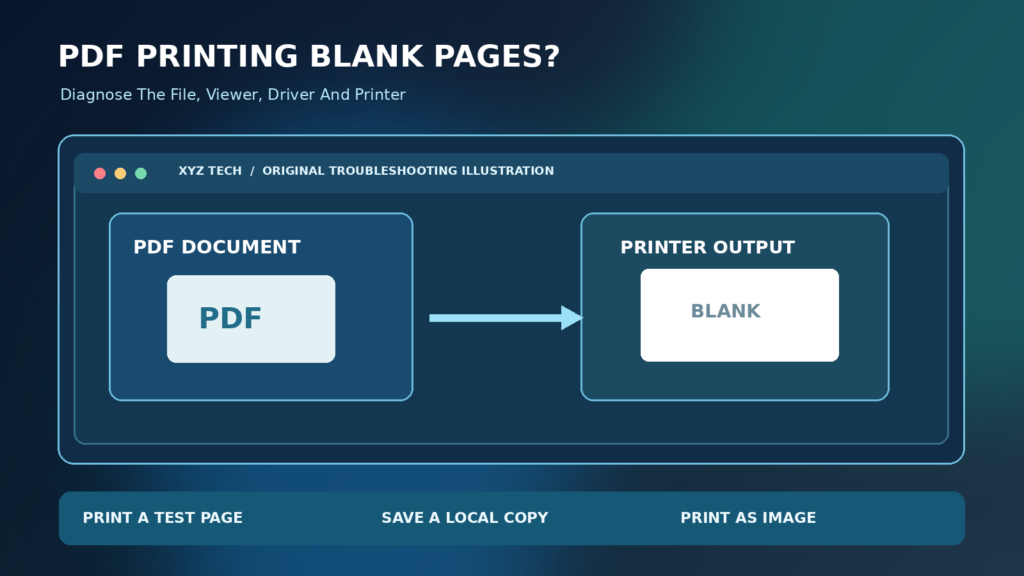

When a PDF prints blank pages, first check the on-screen document and Print Preview, then try a second PDF and a printer-generated test page. In supported Acrobat versions, Print > Advanced > Print As Image may work around some rendering errors. If every application prints blank, examine printer supplies or hardware instead of repeatedly modifying the PDF.
Use this evidence-based sequence to distinguish a PDF file problem from a viewer, Windows print queue, driver or physical printer issue. Keep originals unchanged and print one test page at a time.
Understand Why A PDF Can Print Blank
A PDF may look correct on screen while the printed page comes out entirely empty. That difference usually calls for a careful comparison between the document, its print preview, the software used to open it, and the physical printer. A viewer can display a page using one rendering process but send different instructions to the printer driver. At the same time, a printer with a cartridge or printhead problem can feed paper while producing no visible marks.
Do not assume the document is corrupted because one print job fails. Start with a small test that distinguishes a blank print preview from a preview containing the expected text. Preserve the original PDF and print only a single representative page while investigating. The Adobe Acrobat printing guidance explains the importance of isolating document, application and printer issues.
Start With A Four-Part Diagnosis
First, open the PDF and confirm the actual text or image is visible. Second, inspect the preview after choosing Print. Third, print a simple one-page document from another program, such as Notepad. Fourth, try a different ordinary PDF in the same viewer and printer. These comparisons narrow the problem without changing drivers, resetting Windows or sending sensitive files to an online conversion service.
If Notepad prints normally while one PDF comes out blank, pay attention to the PDF or viewer. If every application prints blank pages, the printer and its supplies deserve priority. If the preview itself is blank, investigate page content and rendering. Record results in a short checklist so you do not lose track after changing settings. Microsoft’s application printing guide supports using multiple apps for comparison.
Check Print Preview Before Using Paper
A print preview is an inexpensive early check because it shows how an application expects to arrange the chosen pages. Open the affected PDF, select Print and inspect the preview for a page that clearly contains content. Check whether the document is showing the correct pages rather than a blank cover, intentionally empty separator or unprinted reverse side of a double-sided job.
A preview containing the proper text does not prove the physical output will match, but it helps isolate later stages in the print pipeline. A blank preview can indicate a page-range error, unusual content visibility, a viewer-specific issue or a problem with the actual document. If preview quality changes when you choose a different application, focus on software before spending money on hardware.
Print A Test Page From Another Application
Open a trusted simple application and create a small document containing a few words. Send it to the same physical printer using the same paper tray. If the printer generates a normal page, its basic output mechanism is functioning for that job. That does not eliminate all driver-specific problems, but it makes a general lack of ink or toner less likely than when every output is empty.
If the simple document also prints blank, inspect the printer’s own self-test and consumables. Microsoft’s Windows printer troubleshooting documentation recommends basic printer tests before more complicated fixes. Keep each test to one page, especially if the printer is repeatedly feeding empty sheets.
Check Whether A Second PDF Prints Correctly
Open another PDF you are authorized to use, preferably containing ordinary text and no complicated graphics. Print one page through the same reader. If it works but the original fails, investigate the affected file’s fonts, layers, interactive objects, transparency and export settings. That comparison is more informative than replacing the driver immediately.
If both PDFs fail but Notepad works, the PDF reader or the driver’s treatment of PDF graphics becomes a stronger possibility. Try a supported reader from a trusted publisher as the next comparison. Do not upload confidential documents to free converters or unknown repair websites. A safer test uses a disposable sample file rather than real tax returns, identity documents or client information.
Save The PDF Locally Before Printing
Documents opened inside a browser, email attachment preview or remote document portal may travel through a different printing workflow than a locally saved file. Download or save an authorized copy to a trusted folder, close the web preview and open the copy in a supported desktop PDF viewer. Some rendering problems are confined to the embedded viewer, while the saved file works normally.
Use a new filename for any diagnostic or corrected copy, and retain the original unchanged. If the document is managed through work software, follow the approved storage location and retention policy. A saved file is not automatically a repaired file; it simply removes potential complications of the online preview, temporary file handling or remote delivery.
Try Adobe Acrobat Print As Image
Adobe documents Print As Image as a workaround for some PDF printing errors. In supported Acrobat or Acrobat Reader versions, open the saved document, select Print, find the Advanced option and enable Print As Image where available. Print one page to check the result. The option’s placement depends on the Acrobat version, as explained in Adobe’s Print PDF As Image instructions.
The process renders the page as a graphic before sending the result through the print path, which can bypass some difficulties involving fonts, transparency and vector instructions. It may take longer and affect fine detail or sharpness, so test small text and barcodes carefully. Do not claim the original file is repaired merely because the workaround succeeded. Preserve both the source and the known-good method.
Understand The Tradeoffs Of Image Printing
A rasterized image may print successfully when a printer or driver mishandles complex vector content. However, flattening a page can change the output resolution, reduce the crispness of small letters and increase the amount of print data. A high-resolution page might take longer to process than an ordinary text job. These tradeoffs matter for labels, architectural plans, invoices or official forms.
Inspect the actual printed page, not just the fact that a sheet emerged from the printer. Compare numbers, fine lines, symbols, signatures and any machine-readable code with the source. If Print As Image only helps at very low quality, a corrected PDF export or supported printer-driver update may be preferable. Keep the test reversible and avoid overwriting the authoring document.
Open The File In Another Supported PDF Viewer
A browser, Acrobat Reader and another trusted PDF reader may use different rendering libraries or print settings. If the affected file shows a correct preview in one but not another, that is strong evidence that the application path contributes to the symptom. Download the alternative through its official publisher or an approved app store, not a sponsored download button from an unknown site.
Be aware that viewers differ in support for forms, optional layers, advanced fonts and document permissions. A successful viewer swap may be a useful immediate solution, but it does not mean every feature will behave identically. Our Free Vs Paid PDF Editor Feature Checklist explains why opening, editing and printing a PDF are distinct capabilities.
Avoid Printing Directly From Webmail Preview
An email service’s attachment preview may show a simplified representation of the document. Printing from that web page can sometimes print the preview interface, the wrong page range or a rendered copy rather than the document itself. If you trust the attachment and are authorized to save it, use the official download option and then print through a suitable desktop application.
If a message is unexpected or asks you to install a special viewer, treat that as a separate security question. Never disable device protection or execute an untrusted installer to print a document. Keep private attachments in an appropriate protected folder and avoid online conversion sites with unclear retention policies. The purpose of the local-copy test is to isolate a printing path, not to expose information.
Review Page Selection And Odd Or Even Pages
Print dialogs may be set to selected pages, current page, odd pages, even pages, multiple pages per sheet or a manually entered range. If the selected subset contains intentionally blank pages, the output may appear broken while the printer is following the request. Examine the thumbnails and choose one page you know contains visible text.
Some PDFs use a printed page number that differs from the file’s internal page position. Check the actual preview rather than relying only on a number printed in the footer. Adobe’s Acrobat Reader print settings guide explains supported range and layout options. A page-range correction is simpler and safer than changing the printer driver.
Check Paper Size And Print Scaling
A mismatch between the page dimensions, printer tray and layout settings can place content outside the expected printable area or cause unexpected cropping. Check whether the PDF is A4, Letter or an unusual custom size, and compare that with the selected paper and scaling options. Use supported Fit or Shrink settings for a test where appropriate.
Print Preview is valuable here because it can show whether content is positioned far outside the sheet. Do not assume paper size is responsible for every blank physical page. If a printer-generated test page is also empty, hardware or supplies take priority. Restore your usual printer settings afterward so one unusual document does not disrupt future jobs.
Inspect Optional Layers And Transparency
Some design and engineering PDFs contain optional content groups, transparencies or layered artwork. A viewer can display an item that is excluded from a particular print configuration, or a printer driver may struggle with complex compositing. If only diagrams or artwork disappear while text prints, this is a useful direction for investigation.
Ask the document creator to review the source file’s printability and export options where possible. Avoid modifying the only signed or official copy of a document. A trusted reader’s Print As Image can sometimes bypass rendering complexity, but a corrected export is often preferable when the source file is available. Test one representative graphic before batch printing.
Consider Fonts And Text Rendering
Unusual fonts, damaged font resources or imperfectly embedded text can affect how a PDF prints on some devices. If background images appear but text is missing, compare another viewer and try Print As Image. A font-rendering issue may be document-specific rather than a general Windows printer problem. Adobe’s print error guidance describes broader troubleshooting for PDF content and drivers.
Do not install random font packs because a single PDF fails. If you created the PDF, return to the original word-processing or design file and export a new version using the application’s recommended PDF settings. Keep both versions and verify any equations, special characters and text alignment against the source.
Understand Scanned PDF Pages And OCR
A scanned PDF may consist primarily of page images instead of selectable text. Optical character recognition can add a text layer for searching and copying, but OCR does not automatically repair an image that the printer cannot render. If one scanned page prints blank, test another page from the same file and a separate simple PDF to see whether the problem follows image content.
Our What Is Optical Character Recognition guide explains the difference between searchable text layers and original page images. Avoid using OCR as a default print repair, and preserve the underlying scans. When a legal document is involved, a text-converted derivative may not be equivalent to the original.
Review Document Printing Permissions
Some PDFs contain restrictions that prevent or limit printing. A reputable reader may show a clear security message or disable the Print button, rather than quietly outputting blank paper. Check the document properties and any visible permissions before assuming the problem is a damaged printer. An authorized owner may be able to provide a printable edition.
Do not use password removal tools or circumvent restrictions on a document you do not own. Printing permissions, malformed files and hardware problems are different categories. For sensitive work, follow organizational document-management policies, and avoid uploading protected files to unapproved services merely to obtain a printable copy.
Run The Printer’s Built-In Self-Test
Most printers provide a configuration report, nozzle test or self-test through the device buttons, display or official utility. Consult the manual for the exact model. If the printer’s own test page is blank, investigate ink, toner, cartridges, printheads or another device-level issue before making more changes to Acrobat. The PDF reader is not responsible for a printer-generated test page.
Microsoft’s printer quality instructions recommend examining test output and consumables. Perform only the maintenance steps supported by your model. Some cleaning procedures use supplies, and opening an unfamiliar laser printer can expose hot components.
Check Ink, Toner And Cartridge Setup
A newly installed cartridge can still have protective tape or packaging that must be removed according to manufacturer instructions. An empty cartridge, blocked nozzle or printer-specific consumable problem may also yield pale or blank physical output. Check the printer’s on-device status instead of relying only on an application’s message that the job completed.
If a self-test prints normally, do not buy supplies merely because one PDF remains blank. Return to the document, viewer and driver checks. Conversely, if no documents can create visible marks, changing PDF fonts or reinstalling Reader will not refill a cartridge. Matching the fix to the symptom is the main way to avoid wasted effort.
Test Another Printer If You Have Authorized Access
Printing the same harmless page on another supported printer helps isolate device-specific behavior. Adobe’s official diagnostic guidance includes trying a different printer. If the second produces the intended page, consider the first printer’s model-specific driver, firmware or hardware instead of treating the original PDF as universally invalid.
Do not use an unauthorized public printer for confidential documents. Choose a disposable sample that reproduces the problem if the real file contains personal or commercial information. Record the printer models, application versions and specific test page, since those details are more useful to support than an unsupported claim that a brand is broken.
Inspect The Windows Print Queue
In Windows 11, open Settings > Bluetooth & devices > Printers & scanners, choose the correct printer and examine its queue. Check for paused jobs, reported errors, duplicates or jobs sent to an unintended printer. Microsoft’s print queue guidance explains the supported troubleshooting path.
A queue that reports success while a physical blank page emerges is different from a queue that remains stuck indefinitely. Do not clear a shared office queue without authorization, because other people may have active jobs. Use the observation to decide whether to investigate rendering and printer output or the Windows job-processing service.
Restart The Print Spooler Only When Relevant
The Windows Print Spooler organizes queued print jobs. It can be involved when applications cannot print, jobs remain stuck or the service repeatedly stops. Microsoft describes these conditions in its print spooler troubleshooting guide. An isolated blank page with a healthy queue does not automatically indicate a spooler fault.
Restarting the service may interrupt pending jobs and can require permission on managed devices. Avoid deleting system spool files or changing service startup settings without following official instructions. Our Print Spooler Keeps Stopping Windows 11 guide addresses recurring service failure separately from document-specific blank output.
Check Printer Driver Compatibility
A printer driver translates print commands into instructions the physical device understands. A broken, mismatched or outdated driver can produce unexpected results, particularly with PDFs containing complicated graphics. Identify your exact model and Windows version, then use Windows Update or official manufacturer downloads for supported drivers. Microsoft’s driver compatibility guidance describes an appropriate starting point.
Do not install generic driver-fixer utilities from advertising links. These can introduce unwanted software and may replace a working driver with the wrong one. Check our Printer Driver Unavailable and Windows Device Driver Guide for related safe procedures. A driver change should be based on evidence, not a guess.
Use A Virtual Printer As A Diagnostic
A supported virtual PDF printer may help determine whether the PDF application can render its print job into another file. Choose a harmless sample page and use a trusted built-in or approved print-to-PDF destination. Open the resulting PDF and inspect whether the contents survived. If that new copy is blank too, investigate the source document or viewer rather than blaming only a physical printer.
Printing a PDF into a new PDF can change interactive forms, signatures, links or accessibility structures, so it must not automatically replace the original official document. Do not use this technique to bypass restrictions. Keep diagnostic outputs separately named and compare their content carefully, especially for contracts and records.
Create A New PDF From The Original Source
If you wrote the document and can still access its original editable file, review the author’s print and export settings. Verify that graphics are set to print, fonts are handled correctly and no content is accidentally hidden. Then generate a fresh PDF using the application’s supported export rather than applying many unrelated system fixes.
Keep the first PDF and compare pages before relying on the new copy. A corrected export can solve document-specific issues without changing printer configuration for the entire household. If the PDF came from another person, ask the sender for a new authorized version. Our File Extension Guide explains why a PDF is not the same as its original word-processing or design format.
Follow An Orderly Blank-Printing Decision Tree
Start by inspecting the PDF and preview. Print a simple text page from another application, then test a different PDF in the same reader. If the printer self-test is blank, prioritize hardware and consumables. If other files work but one PDF fails, try a saved copy, alternate viewer or Acrobat Print As Image. If jobs are stuck, examine the queue and print spooler.
The diagrams in this guide are explanatory workflows, not screenshots of a tested printer. They help you choose the next reversible check without mixing unrelated fixes. Record the result after each step. One accurate observation can prevent an unnecessary printer replacement, driver reinstall or loss of a valuable original document.
Compare Common Blank-Page Symptoms
A blank preview with a healthy printer points toward the selected document or PDF rendering path. A normal preview followed by blank physical output points toward the driver or printer. A completely blank printer self-test is stronger evidence of a device-level problem. A job stuck in Windows’ queue involves a different part of the system.
The comparison table makes these patterns visible. Do not interpret any row as a guaranteed diagnosis. Several causes can occur together, and different printers process PDFs differently. Keep confidentiality, paper waste and user permissions in mind before trying another device or changing a shared print system.
When To Contact The Publisher Or Manufacturer
If a specific PDF consistently fails across reputable viewers, contact its author or publisher with a description of the symptoms. If the printer’s own self-test fails, follow the manufacturer hardware-support process. If one application fails but others work, report its version, print settings and whether the problem follows an update to that software.
For managed printers, contact IT before restarting services or reinstalling drivers. Provide the operating system, printer model, reader version, results of test pages and whether Print As Image changed the output. Avoid uploading confidential PDFs or account information to public help forums. A concise timeline is usually more useful than a list of random fixes.
Verify The Printed Result Before Large Jobs
After you find a promising solution, print one representative page containing text and any image or graphic that failed previously. Compare the physical sheet with the expected PDF for clipping, missing symbols, incorrect numbers and readability. If the original document contains several layouts, test one page of each type before printing a large batch.
Restore temporary print settings where necessary and save the diagnostic steps that worked. A job leaving the queue is not proof of complete and accurate output. The finished goal is a legible physical document that preserves its intended meaning and does not expose private information during troubleshooting.
| Symptom | Check First | Do Not Assume |
|---|---|---|
| Preview Is Blank | Viewer And Page Content | Printer Has No Ink |
| Preview Normal, Output Blank | Printer Test And Driver | PDF Is Empty |
| Only One PDF Fails | Print As Image And Fresh Export | Every Printer Is Broken |
| Printer Self-Test Blank | Cartridges And Hardware | Acrobat Needs Reinstallation |
| Job Stuck In Queue | Print Queue And Spooler | PDF Fonts Are The Cause |
Frequently Asked Questions
Why Does My PDF Print Blank When It Looks Normal?
The PDF viewer, document rendering, printer driver or printer itself may be involved. Compare preview, a second PDF, another application and the printer’s built-in test page.
How Do I Enable Print As Image In Adobe Acrobat?
Open the PDF, choose Print, find Advanced settings in your supported Acrobat version and select Print As Image where available. Test one page before printing everything.
Does Print As Image Always Work?
No. It can work around some PDF rendering issues, but it does not fix missing ink, faulty hardware or every damaged document.
What If Only One PDF Prints Blank?
Save a copy locally, try a different trusted viewer, review page selection and consider fonts, layers or a fresh export from the author.
Why Are All My Printer Pages Blank?
Check the printer’s own test page, ink or toner, cartridge installation and hardware maintenance before focusing on PDF settings.
Should I Restart The Print Spooler?
Only when queue errors, stuck jobs or broader Windows printing problems indicate it may be relevant. A PDF-only blank output does not prove a spooler fault.
Does OCR Fix Blank PDF Printing?
Not generally. OCR extracts text from images; it does not repair a failing printer or necessarily change how a scanned page is rendered.
Can PDF Security Permissions Stop Printing?
Yes. Some PDFs restrict printing. Use authorized document settings or ask the owner for a printable version rather than bypassing protections.
Is It Safe To Convert A Private PDF Online?
Use an approved tool with suitable privacy protections. Keep confidential documents in trusted local or managed workflows whenever possible.
How Do I Confirm The PDF Print Problem Is Fixed?
Print a known-content sample, compare text and images against the original PDF and repeat with another representative page before a large print run.


