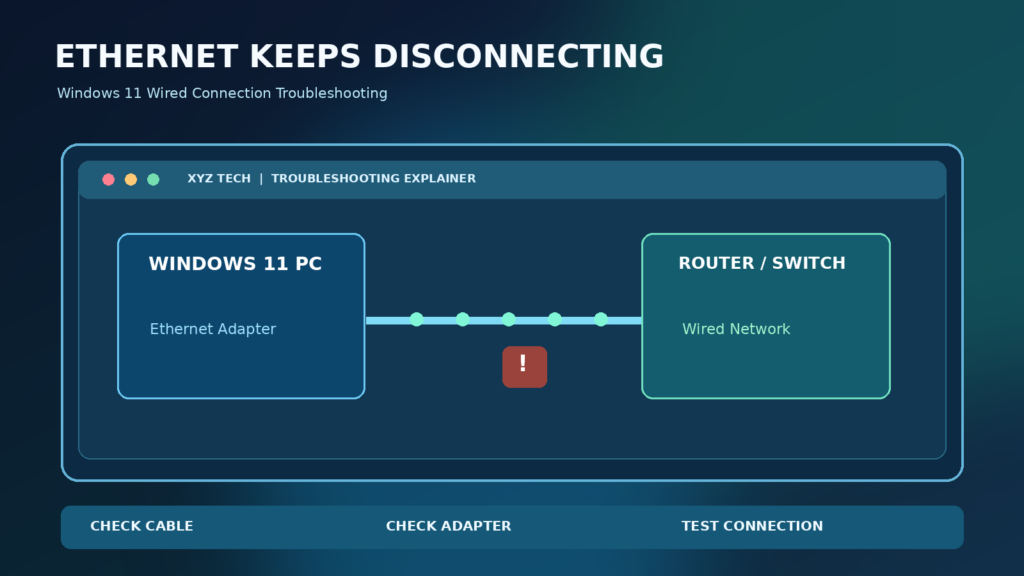

Use the checks below in order, observe one change at a time, and keep a record of what happens. These are documented troubleshooting techniques, not results from testing your particular computer.
Understand Whether Ethernet Is Actually Disconnecting
A wired connection that repeatedly drops is not the same problem as an Ethernet connection that remains active but cannot reach the internet. When Windows shows Network cable unplugged, the adapter disappears, or the port LEDs turn off, investigate the physical link and adapter. When the cable remains connected but websites fail, investigate IP addressing, DNS, router connectivity and the service beyond your home. The distinction determines the next safe test and prevents an unnecessary driver or router reset.
Note the exact symptom before making changes. Does the connection disappear for a second, fail only after sleep, drop whenever a desk or cable moves, or remain connected with a No internet label? Use the clock to record the approximate time and what you were doing. Our separate Ethernet Connected But No Internet guide is better suited to a stable wired link with an internet reachability problem.
Quick Answer: Try These Checks First
First, seat the Ethernet connector firmly at both ends, inspect the cable for damage and test a known-good cable. Then try a different available LAN port on the router or switch, without changing any router settings. Check whether another device using the same connection also disconnects. These physical comparisons are more informative than changing several Windows options at once because they isolate a possible faulty cable, port or adapter.
If the issue persists on the same PC with a reliable cable and port, run the Windows Network and Internet troubleshooter from the Get Help app, check the network adapter in Device Manager, and review applicable updates from Windows Update or the PC manufacturer. Microsoft documents this general diagnostic order in its Ethernet Troubleshooting Guidance. Save important work before a restart or any change to network configuration.
Check The Ethernet Plug And Cable Without Damaging The Port
A damaged locking tab, partially seated RJ45 plug or sharply bent cable can interrupt a link even when the computer otherwise works normally. Disconnect the cable by pressing its latch, inspect the connector in good light, and reconnect until it is correctly seated. Do not force a connector into a damaged socket. Where a wall plate or coupler sits between the PC and router, check that additional connection because a fault at any point in the run can interrupt service.
Try a different known-good cable of an appropriate length and category rather than buying an expensive premium cable before testing. Keep the replacement away from pinch points, chair wheels and heavy bends. If a link drops when you gently move the connector, stop the movement test and have the port inspected rather than repeatedly stressing it. The underlying technologies and link behavior are explained in What Is Ethernet.
Test Another Router Or Switch Port
An Ethernet cable can be good while a single router or switch port has a physical or configuration problem. Where your network administrator permits it, connect the same cable and computer to another ordinary LAN port. Check that you have not accidentally connected to a WAN port, a disabled managed-switch port or a port reserved for a separate network. Avoid changing enterprise switch settings just to make a personal laptop connect.
If the drop follows the original router port, focus on that device. If it follows the laptop or its adapter across known-good ports and cables, the computer becomes the stronger suspect. A shared network fault is more likely when multiple wired devices disconnect simultaneously. Our Network Switch Guide describes the role of switches, while What Is A Router explains the upstream device that connects a home LAN to its internet service.
Separate A Local Link Drop From An ISP Interruption
Check whether your phone continues to reach websites over the same router’s Wi-Fi when the wired PC loses connectivity. If the phone and PC both fail at approximately the same time, the router, broadband modem, power supply or internet service might be involved. If Wi-Fi works while the Ethernet link indicator repeatedly turns off, focus more closely on the wired path. These comparisons are evidence, not guarantees, because different clients and routes can fail independently.
Use another wired device, if available, to test the same cable and port. A router outage can affect all local and wireless clients, while a damaged laptop port may affect only one. Read How To Check Whether Your Router Or ISP Is Down for service-level checks. Avoid factory-resetting the router without knowing the credentials and settings required to reconnect the household.
Check Ethernet Status In Windows 11
Open Settings, select Network & internet, and inspect Ethernet and Advanced network settings. Check whether Windows reports the adapter as connected, disabled or absent, and note whether the symptom is a physical disconnect or lack of internet connectivity. Microsoft explains the relevant interface in its Essential Network Settings Reference. Labels vary with Windows updates and hardware, so use the named setting rather than assuming every screenshot is current.
If the Ethernet adapter appears disabled and you are authorized to change it, re-enable it once and observe whether the issue recurs. Do not repeatedly toggle a managed network adapter during an important remote session. If Windows does not list an Ethernet interface at all, inspect Device Manager and the manufacturer’s hardware specifications. The problem may be an adapter, docking station, driver or hardware-detection issue rather than a failed cable.
Use A Repeatable Ping Test Instead Of Guessing
Open Command Prompt and run ipconfig to identify the active adapter’s default gateway. With appropriate network permission, run a modest ping test to that gateway and record whether replies are steady. If the gateway is reachable during the interruption but a trusted public destination is not, that may help distinguish local connectivity from upstream problems. Avoid assuming one unanswered diagnostic packet proves a failed connection because some equipment restricts ICMP replies.
For example, ping -n 20 followed by your gateway address takes a short sample on Windows. Repeat under the same conditions after each relevant change, and compare the minimum, average and worst observations. Microsoft’s Ping Documentation describes the command. Our Network Latency Guide explains why a slow reply, a lost probe and an Ethernet link dropping are not identical symptoms.
Review The Network Adapter In Device Manager
Right-click Start and open Device Manager, expand Network adapters and locate the wired Ethernet controller. A USB Ethernet dongle or docking station may have a different vendor name from the laptop’s internal network card. Open Properties to check its device status and any error code. Do not uninstall an unidentified device simply because its name looks unfamiliar. Record the name, error and driver version before changing anything.
If Device Manager reports a failure, compare the code with Microsoft’s Device Manager Error Code Reference. Hardware identification is particularly important when a system uses both wired and wireless interfaces. Our What Is A Device Driver article clarifies why the driver mediates between Windows and the adapter but cannot repair a physically broken socket.
Update An Ethernet Driver Through Trusted Channels
Use Windows Update and the PC or adapter manufacturer’s official support resources to check for an appropriate wired-network driver. Microsoft’s Driver Update Guide describes built-in update and reinstall methods. Download the version intended for the exact device model and supported Windows release; similarly named adapters can use different hardware and drivers.
Before installing a driver, note the current version and whether a rollback option is available. Keep a copy of essential network configuration if the PC is work-managed or uses VPN software. Do not use a third-party driver updater that advertises dozens of urgent faults from a generic scan. If you only have one network connection, consider obtaining the official driver package before disconnecting it or ask the organization’s support team for a supported installation path.
Roll Back A Driver When The Problem Began After Updating
If an Ethernet connection became unreliable immediately after a driver update, open the adapter’s Properties in Device Manager and inspect the Driver tab. Where Roll Back Driver is available, a supported rollback may restore a previously working version. This is not a guarantee that the update caused the problem, but the timing and a repeatable symptom make a controlled rollback a reasonable diagnostic option.
Write down the before and after driver versions, restart when requested and repeat the same connection test. If Roll Back Driver is unavailable, do not download an arbitrary older package from an unknown archive. The hardware manufacturer’s release history and support team are safer sources. Remember that firmware, a network switch or cable could also have changed during the same period, so a driver rollback alone does not establish root cause.
Check Network Adapter Power Management Carefully
Some Ethernet controllers expose a Power Management tab in Device Manager with an option resembling Allow the computer to turn off this device to save power. If disconnections correlate with idle time or waking from sleep, inspect that setting and the manufacturer’s guidance. Microsoft’s NDIS Power Management Documentation explains that available controls depend on device capabilities and driver behavior.
Where a device-specific setting exists, a temporary test can help determine whether power management contributes to the symptom. Note the original value and reverse a change if it has no benefit or harms battery life. Do not insist that every Windows 11 PC has the same tab, or disable every power feature at once. Managed devices and Modern Standby platforms can handle these settings differently, and changes may require administrative permission.
Distinguish Sleep And Wake From Active Disconnections
A computer entering sleep may legitimately suspend network activity; that is not necessarily evidence of a failing Ethernet connection. Compare the symptom while the PC is actively running with the behavior after the lid closes or the display sleeps. Use the Windows power and sleep settings to understand the intended device state. If a remote desktop session disconnects only when the host sleeps, investigate the power policy rather than the LAN cable alone.
For a laptop, test once while connected to its proper charger and once on battery if safe. Docking stations, USB adapters and different operating modes can respond differently. Save the original power settings before changing them, and respect corporate policies. A brief interruption after waking can be normal in some hardware configurations, while repeated link loss during ordinary active use deserves deeper investigation.
Avoid Forcing Ethernet Speed And Duplex Settings At Random
An Ethernet adapter and its link partner normally negotiate compatible link capabilities. Some adapters expose Speed & Duplex settings under the Advanced tab, but their available values depend on the driver and hardware. A forced setting that does not match the switch port can create a new problem, including poor performance or unstable communication. Do not pick the largest advertised value merely because it looks faster.
Unless an administrator or hardware vendor has a specific reason otherwise, leave normal negotiated behavior in place while you investigate cable and port faults. If the link repeatedly renegotiates at a lower rate, that can be useful evidence about cable condition, adapters or intermediate equipment. Record any setting you change. A link-rate number is not the same as the speed guaranteed by an internet service provider.
Check A USB Ethernet Dongle Or Dock Separately
A USB-to-Ethernet adapter adds another point of potential failure: its connector, USB cable, hub, chipset, power supply and driver. If the Ethernet port exists on a docking station, temporarily test a direct Ethernet port on another suitable device or a known-good adapter. Observe whether unplugging other high-power peripherals changes the problem. Docking hardware can become unstable because of insufficient power or an incompatible cable, but do not assume that is the cause without a comparison.
Check the dock manufacturer’s firmware, driver and compatibility documentation. Avoid connecting a USB-C dock through an arbitrary adapter that lacks required features. Some laptops require a specific power adapter for their dock. If the problem follows the dock across computers, investigate the dock itself; if it follows only one laptop, look at that computer’s USB controller, operating system and supported port capabilities.
Check DHCP Address Changes Without Disrupting A Remote Session
A connection may stay physically active while the computer struggles to obtain or renew a valid IP configuration. In Command Prompt, ipconfig /all can show current addresses, gateway and DHCP details. An unexpected self-assigned address can indicate that the device did not receive an address from its configured network, but it does not prove the DHCP server is the only possible cause. Compare the details during a working period and a failure.
Windows offers ipconfig /release and ipconfig /renew, but these commands interrupt addressing and can disconnect remote sessions. Use them only when you are physically present or have an alternative recovery path, and know whether the PC uses a manually assigned address. Microsoft’s Ethernet Support Page includes networking commands but places them among several troubleshooting options. Never run a copied script blindly on a managed PC.
Do Not Confuse DNS Errors With An Unplugged Network Cable
A DNS resolver problem can prevent a hostname from loading even though the local cable, router and IP path are functioning. Test a known legitimate domain and compare it with the link’s status and the gateway test. If only names fail to resolve, investigate the configured resolver or the specific service; our Windows DNS Cache Guide discusses a related, narrower case.
Avoid changing DNS servers or flushing caches as the first step when the adapter explicitly reports that the cable is disconnected. Those actions cannot reattach a damaged connector. Similarly, DNS changes may affect workplace policies or filtering. If a resolver change is justified, record the previous setting and use a service approved for your network. A stable link but broken name resolution is a different symptom from a repeating link-down or link-up cycle.
Use The Windows Network And Internet Troubleshooter
Windows 11 provides automated diagnostics through its supported Get Help tools. Open Settings and navigate to Network & internet, or open Get Help and select the relevant network troubleshooter. Follow the instructions shown for the actual device. Microsoft recommends starting with its automated troubleshooting option for Ethernet problems. The available screens and fixes can change as Windows and Get Help are updated.
Record what the troubleshooter identifies and what it changes. If it only reports that it could not resolve the problem, do not claim the network is healthy. Repeat your controlled cable and gateway tests. A diagnostic tool may discover a disabled adapter, configuration issue or disconnected cable, but it cannot definitively certify the condition of every wire, wall outlet or ISP segment.
Inspect Event Viewer Only When You Need More Evidence
If the connection drops repeatedly but returns before you can inspect the interface, Windows Event Viewer may record network-related events near the observed times. Open Event Viewer and review appropriate Windows logs, using the actual adapter and driver names to narrow results. Do not assume every warning near the disconnect is responsible; systems record many routine events unrelated to the issue.
Create a simple incident timeline with the time, whether you were connected by Ethernet or Wi-Fi, any sleep or wake event, and the network adapter’s status. Compare the logs with that timeline. Microsoft introduces Event Viewer among its Windows System Configuration Tools. For organization-managed computers, involve IT before changing services or collecting diagnostic traces that could contain sensitive information.
| Observed Symptom | Next Safe Check | Likely Scope |
|---|---|---|
| Link LEDs Turn Off | Try Cable And Port | Physical Link |
| Internet Stops But Link Stays Up | Ping Gateway, Check DNS | Network Services |
| Only After Wake | Power And Driver Behavior | Adapter Configuration |
| Only With Dock | Test Adapter Without Dock | Peripheral Path |
| Multiple Devices Disconnect | Check Router And ISP | Shared Infrastructure |
Consider VPN And Virtual Network Adapter Conflicts
VPN clients, virtualization platforms and security software can install virtual adapters or modify routing. A problem confined to one VPN session may not represent a physical Ethernet link failure. Compare the physical adapter’s status with the VPN connection’s status and test authorized applications without the VPN only when workplace policy permits. A work device may require the VPN for secure access, so do not defeat required controls.
If the problem began after installing network-management software, consult its official compatibility notes and update path. Do not delete virtual adapters or disable firewalls as a blanket repair. Some networking software requires its own recovery configuration, and removing it can break access to development or business systems. A documented comparison is safer than an undocumented attempt to clean the network stack.
Reserve Network Reset For The Last Stage
Windows 11 includes a Network reset option under Advanced network settings. Microsoft identifies it as a later measure after ordinary troubleshooting because it can remove network adapters and reinstall them and may require VPN clients or virtual switches to be reconfigured. It does not repair a broken Ethernet cable or physically damaged network port. The potential disruption is especially important for a remote or managed computer.
Before using Network reset, preserve needed Wi-Fi details, VPN configuration, virtual network settings and access to a reliable recovery method. Restart when the tool instructs and recheck approved networking software afterward. If you are using a computer remotely, ask someone with physical access to assist. Do not present network reset as harmless or universally successful: it addresses selected software configuration problems, not every possible cause of intermittent wired connectivity.
Recognize Possible Hardware Failure
If a computer continues losing its Ethernet link across several known-good cables and switches, the adapter or its port may be failing. A socket with bent contacts, signs of liquid damage or a connection that repeatedly breaks when the plug moves deserves professional inspection. Do not insert a tool into the socket while the system is powered or attempt an improvised electrical repair.
For a desktop PC, a supported replacement network adapter may be an option; a laptop may instead use a trusted compatible USB Ethernet adapter, docking solution or authorized service repair. Diagnose before buying. A network-wide fault affecting many devices points away from one laptop’s port, while repeated failure isolated to that port makes local hardware a more credible hypothesis.
A Useful Escalation Report For ISP Or IT Support
When ordinary checks fail, write down the Windows version, adapter model, driver version, cable and port swaps, approximate disconnect times and whether other devices lost connectivity. Include a short, sanitized account of gateway ping results and any meaningful error messages. This gives a technician concrete evidence that can be compared with switch logs, link status and service incidents.
Avoid sending passwords, public IP details, machine serials or employer data into an open forum. An ISP can investigate the broadband side, while an office network administrator may inspect managed switch ports and authentication. A PC manufacturer can help with adapter hardware and supported driver releases. The correct escalation point depends on where the fault appears, not solely on which company supplied the internet package.
A Prevention Routine For Stable Wired Networking
Keep cables away from doors, rolling chair wheels and sharp bends. Label stable connections so that a later rearrangement does not accidentally move a cable into the wrong switch port. Use good-quality compatible adapters and the officially recommended power supply for docks. Update drivers and firmware through supported channels, but do not replace a stable configuration simply because a generic utility advertises a newer package.
When you make a deliberate change to a driver, switch, router or power setting, record the previous value and verify the connection afterward. Preserve a working backup internet method for important remote calls or work where feasible. A repeatable troubleshooting log and careful physical maintenance are usually more useful than speculative registry tweaks or repeated network resets.
Frequently Asked Questions
Why Does My Ethernet Keep Disconnecting In Windows 11?
Possible causes include a loose or damaged cable, an unstable switch or router port, adapter power management, a driver problem, a USB dock, or an upstream service issue. Isolate the physical link first.
How Do I Tell A Cable Problem From An Internet Outage?
Inspect the wired link status and port LEDs, try a known-good cable and port, and compare another device. A link that stays connected while websites fail suggests a different problem from physical disconnection.
Should I Disable Network Adapter Power Saving?
Only as a controlled test when disconnections correlate with idle or sleep behavior and your adapter exposes the relevant setting. Record the original configuration and consider the device manufacturer’s guidance.
Can A Bad Ethernet Cable Cause Intermittent Disconnections?
Yes. Damaged conductors, connectors or poorly seated plugs can interrupt a wired link. Replacing the cable with a known-good one is a safe early diagnostic.
Will Changing DNS Stop Ethernet From Disconnecting?
Not if the physical Ethernet link is dropping. DNS problems mainly affect hostname resolution, so diagnose them separately from cable or adapter link loss.
Is Network Reset Safe To Try First?
It is better reserved for later because it can disrupt VPNs, virtual switches and custom network configuration. Test cables, ports, adapters and drivers first.
Can A USB-C Dock Cause Ethernet Dropouts?
Yes, a dock, power supply, cable or USB adapter can introduce an additional point of failure. Compare the connection without the dock if your equipment permits.
Why Does Ethernet Disconnect After My Laptop Sleeps?
Power policy and adapter behavior may change around sleep and wake. Confirm whether the issue occurs only during those transitions before changing the network driver or router.
Should I Force My Ethernet Adapter To 1 Gbps Full Duplex?
Not as a blanket fix. Auto-negotiation is normally appropriate and mismatched forced settings can create more problems. Follow specific hardware guidance when a negotiated link is faulty.
When Should I Replace My Network Adapter?
Consider hardware replacement only after a repeatable problem remains with known-good cables, ports and suitable supported drivers, or when physical damage is evident.

