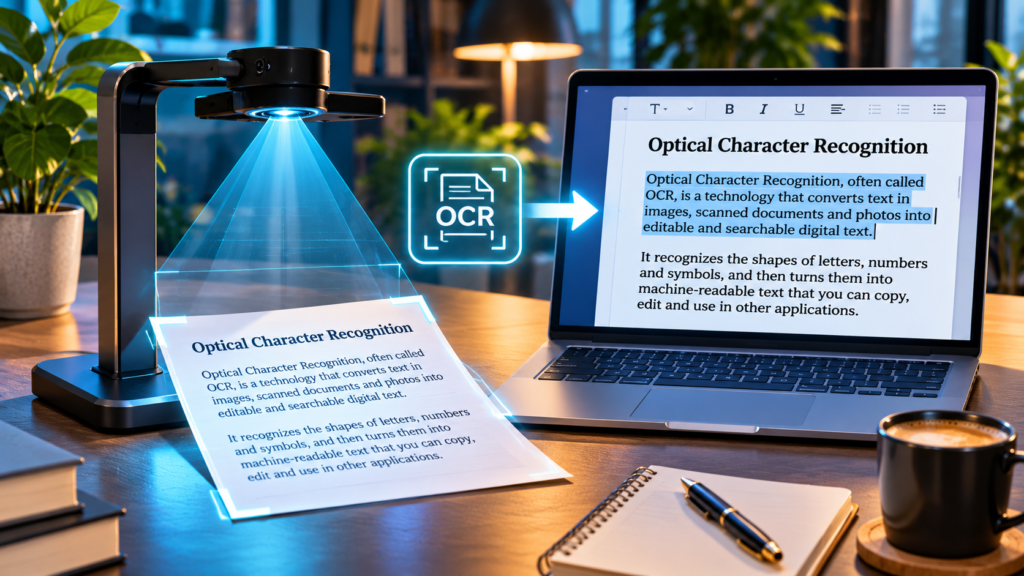

Optical character recognition (OCR) turns text visible in scanned pages, photographs, or image-based PDFs into machine-readable characters. It can make scans searchable and help export editable text, but recognition errors, layout problems, and accessibility gaps still require review. Preserve the original image and verify important information.
This guide explains how OCR works, when it helps, how to use supported Adobe Acrobat and OneNote workflows, and how to evaluate scan quality, accuracy, accessibility, privacy, and cost.
What Optical Character Recognition Means
Optical character recognition, usually shortened to OCR, is a technology that identifies characters in images and turns them into digital text. An image of a printed letter looks like a pattern of pixels to a computer. OCR software attempts to identify those patterns as letters, numbers, punctuation, and sometimes layout elements. The result can be copied, searched, indexed, or used in another document, subject to the accuracy of the recognition process.
OCR is useful because scanning a page and saving its image does not automatically make the words selectable. A photograph of a receipt may be perfectly readable to a person but still be only an image file. Text recognition bridges that gap. Adobe’s OCR documentation explains how recognized text can be added to a scanned PDF, while the W3C PDF7 technique describes its accessibility relevance.
Think of OCR as transcription by software, not automatic proof that the transcription is correct. A converted number, surname, formula, or date still needs appropriate checking, especially when decisions depend on exact information.
What OCR Can And Cannot Do
OCR can extract machine-readable characters from a sufficiently clear photograph, screenshot, image-based PDF, or scan. Some products preserve page appearance while placing a searchable text layer behind it; others output plain text, Word documents, or structured data. A high-quality recognition result can save manual typing and make a collection of old paper documents easier to organize.
Recognition is not the same as full document understanding. A software engine might identify the words in a two-column article but place them in the wrong reading sequence. It can mistake a letter O for a zero, merge table cells, drop a footnote, or lose the relationship between a heading and a paragraph. A service that advertises document AI may add classification or field extraction, but those capabilities are distinct from basic character recognition.
If accuracy matters, keep the original image, compare important fields visually, and use the recognized output as a working copy rather than unverified ground truth. That habit prevents a small transcription error from becoming a larger business or personal problem.
How OCR Works From Image To Text
The basic workflow starts with capture. A camera or scanner creates pixels representing a document. Preprocessing can rotate the image, correct perspective, improve contrast, reduce noise, and separate text from the background. A recognition engine then estimates what characters or words are present. A later stage may assemble them into lines, paragraphs, or document regions, sometimes using language models or dictionaries to improve plausibility.
Not every product uses the same recognition architecture. Traditional approaches relied heavily on character shapes and rules, while modern systems often incorporate machine-learning models. The open-source Tesseract documentation explains its recognition engine, training data, and languages. For users, the practical issue is not the mathematical design but whether the tool works reliably for the type of source material they actually have.
Every stage introduces potential error. An out-of-focus scan cannot always be rescued by a sophisticated model. Good preprocessing can help with rotation and shadows, but it may also remove faint marks if applied aggressively. Test the end-to-end result on representative samples before relying on batch conversion.
OCR Vs Copying Text From A Normal PDF
A normal text-based PDF may already contain characters and font information that a reader can select or copy. If you can search for a distinctive sentence, select individual words, and paste them accurately, you may not need OCR. Using text extraction directly is usually preferable when the original text is available because recognition adds opportunities for transcription mistakes.
An image-only PDF behaves differently. The entire page can be a picture, so highlighting may select the page image instead of individual words. OCR can create a text layer or export a transcription from such material. Some PDFs mix ordinary selectable text with scanned attachments, meaning only certain pages require recognition. Inspect the document rather than assuming every PDF needs conversion.
Before paying for OCR software, try the document’s existing search and copy functions. Our free versus paid PDF editor comparison explains why editing existing text and recognizing text inside scanned images should be evaluated as separate features.
Searchable PDFs Vs Editable Documents
A searchable PDF can preserve the appearance of a scanned page while storing recognized characters for searching, copying, or assistive technologies. A genuinely editable document goes further: it allows text to be rewritten, rearranged, and styled through an editor. OCR output may provide one or both capabilities depending on the software and conversion options, but an invisible text layer alone does not reproduce the original layout as editable paragraphs.
Consider an invoice printed on paper. You might want a faithful PDF archive for records, plus a separate spreadsheet containing the invoice number, date, and total. These are different outputs. Attempting to convert the entire page into an editable layout can introduce spacing or formatting changes that are unnecessary for recordkeeping.
Choose the output format according to the next task. For searching an archive, a text layer may be enough. For editing a memo, a word-processing file may be more useful. For database entry, verify the extracted fields individually instead of treating a full-page transcription as a correctly structured form.
Step-By-Step: Recognize Text In Adobe Acrobat
Adobe documents an OCR workflow for scanned PDFs in supported Acrobat versions. Open a scanned PDF, then select All Tools and Scan & OCR. Choose the option to recognize text in the current file, select the page range and document language, adjust supported settings if necessary, and run Recognize Text. Save the result under a new filename to retain the original document.
The exact button labels may differ across Acrobat releases, licenses, and interfaces. Use Adobe’s current instructions if a menu has moved. Adobe states that the procedure creates searchable text and recommends reviewing the output for recognition errors. Protected documents may require legitimate access or permission before editing; do not bypass restrictions on a document you are not entitled to change.
After conversion, search for several unusual words and copy a sample paragraph. Examine numbers, addresses, punctuation, headings, and tables against the scan. Do not overwrite the only copy of an important record until the new file has been checked and backed up.
Step-By-Step: Copy Text From A Picture In OneNote
Microsoft OneNote can extract text from pictures and inserted file printouts in supported versions. Insert a clear image into a page, right-click the picture, and choose Copy Text From Picture when available. Click where you want the transcription, then paste it using the usual paste command. Microsoft documents this in its OneNote OCR support article.
For a multi-page printout, some desktop OneNote versions expose options to copy text from the selected page or from all pages. OneNote may need additional processing time before the menu item appears. If it is missing immediately after insertion, check the supported application version and wait rather than assuming the feature was removed.
This approach is convenient when you need a short transcription instead of a full searchable PDF. Paste the extracted text into a separate draft, review it against the image, and preserve the picture as evidence. It is not a substitute for a complete document archiving or accessibility workflow.
Step-By-Step: Convert Scans With Google Drive
Google Drive provides an OCR-assisted conversion route for certain PDF and image files. On a computer, upload a supported scan, then use the available option to open the file with Google Docs. The document can contain recognized text that you may review and edit. Google’s official file-to-text guidance describes the workflow and the types of files it accepts.
Expect formatting changes. A scan with tables, columns, unusual typefaces, or dense graphics may not convert into a faithful editable document. A useful practice is to keep the source and output side by side, then confirm amounts, names, and the reading order. If the page contains private information, review the account and organization’s data-handling rules before uploading it to any external cloud service.
The availability of a menu or conversion option can vary by account and interface. Avoid relying on old screenshots as though they apply to every version. If you only need one sentence from a public poster, a local or on-device text selection tool may be more convenient than uploading an entire file.
Keep A Faithful Copy
Confirm The Text Layer
Verify Names, Dates And Totals
What Tesseract OCR Is
Tesseract is an open-source OCR engine used by developers, researchers, and applications that incorporate text recognition. It is not a full consumer document editor by itself. The project documents a command-line interface, programming APIs, language models, and output formats. Its official manual is the proper starting point for supported releases and usage details.
On a correctly configured system, a basic command can recognize a supported image into a text file. A representative command is tesseract sample.png extracted -l eng. It asks the software to use the English language data and write output with the given base filename. This is an instructional example, not a command tested against your computer or every installer. Language data and paths must exist first.
Technical users can also create searchable PDFs with the appropriate output option, but package support and setup differ among operating systems. Obtain builds and language data from trusted project-linked sources. If your goal is simply to copy text from one photo, a graphical application may offer a more approachable workflow.
Choosing Languages And Scripts
Text recognition depends heavily on matching the language and script to the source. A page written in English with ordinary Latin characters is different from a multilingual newspaper, Arabic script, Japanese vertical text, or a document using several alphabets. A model that was not trained for the relevant writing system may produce plausible-looking nonsense or miss entire lines.
Many tools offer a document language selector; some attempt automatic detection. In Tesseract, language data can be selected through its command-line options when the relevant models are installed. See the official Tesseract data-files documentation and the language information in its user manual. Do not assume every language receives equal accuracy or that handwriting recognition is supported merely because printed text is.
For mixed-language documents, test representative pages and inspect proper names particularly carefully. Different fonts, digits, punctuation conventions, and reading directions can change the result. A reliable process records which settings were used so future pages can be recognized consistently.
Why Scanning Resolution And DPI Matter
Small printed characters require enough image detail for recognition. A low-resolution photo can blur the difference between punctuation marks, similar letters, and thin strokes. Adobe’s scanning guidance recommends 300 dpi for grayscale or color document scans in an applicable workflow. Tesseract’s quality documentation also discusses image resolution and preparation.
Three hundred dots per inch is a useful starting point for many ordinary printed documents, not an absolute guarantee of accurate OCR. Increasing resolution beyond what the original contains will not invent missing detail. A sharp, well-exposed phone photograph may outperform a poorly focused high-resolution scan. Unusually small type, textured paper, or thin print may require a different capture setup.
Do not assume a large file size means high image quality. Compression artifacts, motion blur, and harsh shadows can destroy recognizable detail while leaving a substantial file. Compare a small sample of pages under realistic conditions before scanning an entire collection.
Lighting, Skew, Shadows, And Image Cleanup
Good lighting and straight pages often matter more than advanced software settings. Place the paper flat, avoid a hand casting a shadow over a paragraph, and hold the camera parallel to the document. A desk lamp reflected from glossy paper can wash out letters. If the capture application offers perspective correction, review its crop before saving so it does not remove page numbers or signatures.
Some OCR engines provide preprocessing for rotation, contrast, noise removal, and page segmentation. Those steps can help, but aggressive sharpening or thresholding can eliminate faint punctuation or handwritten annotations. Keep the original photograph and apply edits to a copy. A before-and-after comparison gives a realistic basis for assessing whether enhancement helped.
When an image contains a table, scan the whole page without cutting off borders or headings. Missing context may cause values to be associated with the wrong column. Prioritize an undistorted source and an honest review of uncertain regions over software that promises perfect recognition with one click.
Printed Text, Handwriting, And Difficult Documents
OCR engines commonly perform best on relatively clear printed text. Handwriting recognition is a related but more difficult problem because people form letters differently and often connect strokes. A tool optimized for printed documents may struggle with cursive notes even when its marketing page says it uses artificial intelligence. Test the exact handwriting sample before choosing a service.
Other difficult inputs include old newspaper columns, faded receipts, carbon copies, stamps, rotated page sections, low-contrast ink, mathematical notation, and unusual typography. A receipt printer’s faded digit may be confused with another number, while a textbook formula may lose the relationship between superscripts and variables. Basic transcription is not an appropriate substitute for validating such material.
For historical archives, consider storing a high-quality preservation scan and a separate text transcription. Correct recognizable errors while retaining the unmodified scan. For legal, financial, scientific, and medical documents, require appropriate human verification before treating extracted content as authoritative.
OCR Accuracy And The Problem With Percentage Claims
Software vendors sometimes advertise very high recognition accuracy, but a percentage is meaningful only in the context of the test dataset, document type, language, and error metric. Character-level accuracy does not imply that all dates, totals, or table relationships are correct. One incorrect character in an account number can be more damaging than many harmless punctuation errors in a long paragraph.
A straightforward home test uses several representative pages and compares the extracted text with the original. Check names, numbers, headings, line breaks, and reading order. If a page has 1,000 characters, a 99 percent character accuracy estimate could still mean around ten wrong characters on that page. This is a mathematical illustration, not a measured performance claim for any named tool.
Maintain a list of recurring errors, such as a zero confused with the letter O, and check those cases during editing. Neither a confidence score nor a clean-looking output should replace review of high-consequence information.
Recognizing Receipts, Invoices, And Tables
An invoice or receipt contains structured information: dates, merchant names, amounts, taxes, and sometimes item rows. Basic OCR might recognize most of the printed characters without reliably assigning each number to the correct field. A tool that extracts invoice totals or creates spreadsheet columns typically adds document layout analysis and field recognition beyond plain character transcription.
When reviewing an OCR-derived expense record, verify the total against the scan, check the currency, and confirm whether a negative sign or decimal point was recognized. If the document has multiple columns, ensure items have not shifted into unrelated rows. This is particularly important for financial reconciliation and tax records where a seemingly small mistake can propagate through later calculations.
Before buying a paid tool, test several examples of the real format you use. Compare a single-column printed receipt with a folded, faded, multi-page invoice. The tool that performs well on your documents is more relevant than one marketing claim about generic accuracy.
| Document Type | OCR Risk To Check | Recommended Verification |
|---|---|---|
| Printed Article | Columns Out Of Order | Read Through Extracted Paragraphs |
| Receipt | Decimal Points And Digits | Match Totals To The Image |
| Identity Document | Names And Number Confusion | Manual Field Comparison And Privacy Review |
| Handwritten Note | Unrecognized Words | Preserve The Image And Mark Uncertainty |
| Accessible PDF | Missing Reading Order And Tags | Run Accessibility Review After OCR |
OCR And PDF Accessibility
A scanned document made entirely from page images presents serious accessibility barriers because assistive technology cannot inherently interpret the words as actual text. OCR can produce text that is searchable or exposed to assistive tools. The W3C’s PDF7 technique describes using OCR to obtain actual text when the original editable source is unavailable.
However, OCR alone does not make a PDF fully accessible. Proper heading structure, meaningful reading order, text alternatives for informative images, tagged tables, language identification, and other checks may still be required. W3C’s example explicitly includes checking and correcting recognized text, adding tags, and testing accessibility. A file can be searchable yet still be difficult for a screen reader user to navigate.
If you can create a document from an accessible editable source, that is often preferable to scanning a paper copy and rebuilding structure. When you must remediate scans, treat recognition as an early step of an accessibility workflow and validate the final document with appropriate checks rather than relying only on the presence of a text layer.
Data Privacy When Using Online OCR Services
Some online OCR tools require uploading the document to a remote server. Before doing so, consider whether the source contains passwords, identity documents, confidential business contracts, medical records, or unpublished personal material. The privacy question is not merely whether the service uses HTTPS. You also need to understand its retention, account access, subcontractors, training policies, and deletion controls.
If the material is sensitive, a local OCR tool or an enterprise-approved document-processing service may be a better fit, depending on your environment. Even local software can include update checks, telemetry, or optional cloud features, so review the application’s actual behavior rather than treating local installation as an absolute privacy guarantee.
Keep source files in a protected storage location and share only the minimum information needed. Our home PC backup selection guide explains complementary questions about encryption and recovery when storing valuable documents outside the original computer.
How OCR Fits Into A Backup And Archiving Workflow
A text-recognition project often starts with fragile originals: paper forms, family correspondence, certificates, or printed reports. The preservation goal should be separate from the convenience of searchable text. Store a faithful original scan, then make a derivative copy for OCR and correction. If a conversion tool changes page appearance or drops content, the original can still be used to reconstruct what was there.
Give files clear names, record the scan date where useful, and keep a sensible folder hierarchy. For a large family archive, consistent metadata can be more important than maximizing OCR processing speed. Test that the converted files can be opened on another computer, and back up the original images as well as corrected text exports.
Our guide to file systems explains how stored files are organized, and digital signatures clarifies authenticity concepts that differ from simply extracting recognizable text from a scanned document.
Common OCR Mistakes And Why They Happen
The most familiar mistakes involve similar-looking characters, such as the digit 1 and lowercase l, the number 0 and capital O, or a missing decimal point. Other errors can change the order of text in columns, merge lines, omit footers, or confuse page borders with characters. These are not necessarily signs of defective hardware; they reflect the limits of interpreting pixels.
Language-model corrections can make text appear more fluent while unintentionally changing an unusual surname or technical identifier. For that reason, do not automatically accept every replacement suggested by a recognizer. Compare high-risk fields directly with the image and preserve unusual spellings when they are intentional.
A practical review process checks all dates, totals, names, equations, passwords or account identifiers, and any words changed by automatic correction. For an archive, mark uncertain readings rather than inventing missing letters. Transparency about uncertainty is more useful than a confident but inaccurate transcription.
A Practical OCR Quality Checklist
Before conversion, confirm the page is in focus, fully visible, reasonably straight, and free of strong shadows. Choose the correct document language and preserve an unaltered source. If you have a choice between a clean original digital document and a scanned printout, prefer extracting the original text rather than introducing OCR.
During conversion, decide whether you need a searchable PDF, editable document, plain text, or structured fields. Afterward, search for a distinctive phrase, copy a short passage, check names and numbers, and inspect tables and reading order. Make sure the file opens on another device if it will be shared.
Finally, assess accessibility and privacy separately. A correctly recognized paragraph does not guarantee accessible heading structure, and a cloud service does not automatically meet confidentiality requirements. This three-stage checklist is more dependable than choosing a product solely because it claims high accuracy.
OCR Vs AI Document Understanding
Optical character recognition focuses on identifying text from images. A document understanding system may then attempt to classify the document, locate invoice fields, infer entities, or summarize content. Modern products may combine these functions under one interface, which makes it easy to confuse a transcription with an interpretation.
A generated summary of a scanned contract can be useful for locating relevant sections, but it can also omit qualifications or misinterpret relationships. Verification should return to the original document, particularly when legal, financial, scientific, or health decisions are involved. OCR errors can compound downstream if a language model treats a wrong amount as authoritative.
Compare products on the task you actually need. A simple receipt archive may require accurate selectable text and naming. A business workflow might require structured fields, confidence thresholds, human review, and export to accounting systems. Those are different requirements even if both workflows begin by scanning paper.
How To Choose An OCR Tool Without Overspending
Choose according to document type, volume, language, privacy needs, and required output. A person extracting a paragraph from a photograph may be well served by existing notes or phone software. Someone archiving hundreds of scanned PDFs may need batching, searchable text layers, error correction, and consistent file naming. A developer may prefer an open-source engine such as Tesseract for integration into a custom workflow.
Check whether a paid subscription adds a feature you actually use. The ability to edit existing PDF content, reconstruct tables, or process large batches is not automatically included in every OCR package. A free tool can be excellent for simple text extraction but unsuitable for sensitive documents if it requires an unapproved upload.
Our PDF editor feature checklist gives a broader comparison framework. Evaluate the exact plan using representative test files before committing to annual billing. Do not interpret a tool’s brand, price, or artificial-intelligence marketing as proof of reliable recognition.
A Sample End-To-End Workflow For A Family Document
Suppose you want to digitize a printed family letter. Photograph or scan each page in good light, including all edges. Save the original images in a dated folder. Choose a trusted OCR tool and a suitable language setting. Export recognized text to a separate file or create a searchable PDF while retaining the scanned appearance.
Review the transcription against the pages, focusing on names, dates, unusual words, and paragraph breaks. Correct obvious recognition mistakes without silently modernizing the original wording. If a portion is illegible, add a separate editorial note rather than presenting a guess as original text. Recheck whether searching for a distinctive phrase returns the expected page.
Save the finished derivative alongside the preserved source, then back up both. This workflow values provenance, accuracy, and recoverability. It is more appropriate for meaningful archival material than quickly copying text from a screenshot and deleting the original image.
When OCR Is Not The Right Tool
If the source is already a text-based document, direct text extraction normally avoids a recognition step. If the main goal is to recreate a complex, accessible layout, OCR may only be the start, and a proper authoring or remediation workflow may be necessary. If the document contains high-risk information you cannot disclose to a service, an online converter may not be appropriate.
OCR also cannot reliably recover text that was never captured. Extremely blurry images, cropped sentences, missing pages, and illegible handwriting may require a better scan or human transcription. Avoid spending time adjusting software settings if the original must first be rephotographed or rescanned.
The reliable principle is simple: preserve the source, choose a tool matched to the material, verify the output, and treat accessibility, privacy, and archival quality as separate responsibilities. OCR makes text more usable, but it does not make every scanned document accurate, editable, or trustworthy by itself.
Frequently Asked Questions
What Is OCR In Simple Terms?
OCR means optical character recognition. It identifies letters, numbers, and other characters in images and converts them into digital text that can often be copied or searched.
Is OCR The Same As Scanning?
No. Scanning captures a picture of a page. OCR attempts to recognize the characters inside that picture. Some scanning apps perform both tasks automatically.
Can OCR Turn A Scanned PDF Into An Editable File?
Depending on the software, it can create an editable text export or a searchable text layer. A searchable PDF is not necessarily a fully editable or correctly formatted document.
Is OCR Completely Accurate?
No. Accuracy varies with scan quality, language, font, handwriting, layout, and the recognition engine. Verify important values against the source.
Does OCR Work On Handwriting?
Some specialized systems can recognize certain handwriting, but conventional printed-text OCR often struggles with cursive or irregular writing. Test representative samples.
Can I Use OCR Without Paying?
Yes. Some built-in tools and open-source engines support OCR. Availability, language coverage, interface quality, and privacy arrangements differ by product.
Can Microsoft OneNote Copy Text From A Picture?
Supported OneNote versions provide a Copy Text From Picture command for inserted images. Processing may take time, and copied content should be checked for errors.
Does OCR Make A PDF Accessible?
Not by itself. OCR can provide actual text, but accessible headings, reading order, tables, alternatives, and document tags may still need attention.
Is Online OCR Safe For Confidential Files?
Not automatically. Review the provider’s privacy, retention, access, and processing terms before uploading sensitive material. Use an approved local or enterprise solution when needed.
What Scan Resolution Is Best For OCR?
For ordinary printed documents, about 300 dpi is a common practical starting point. Clarity, lighting, source quality, and layout also matter, so no single resolution guarantees accuracy.


