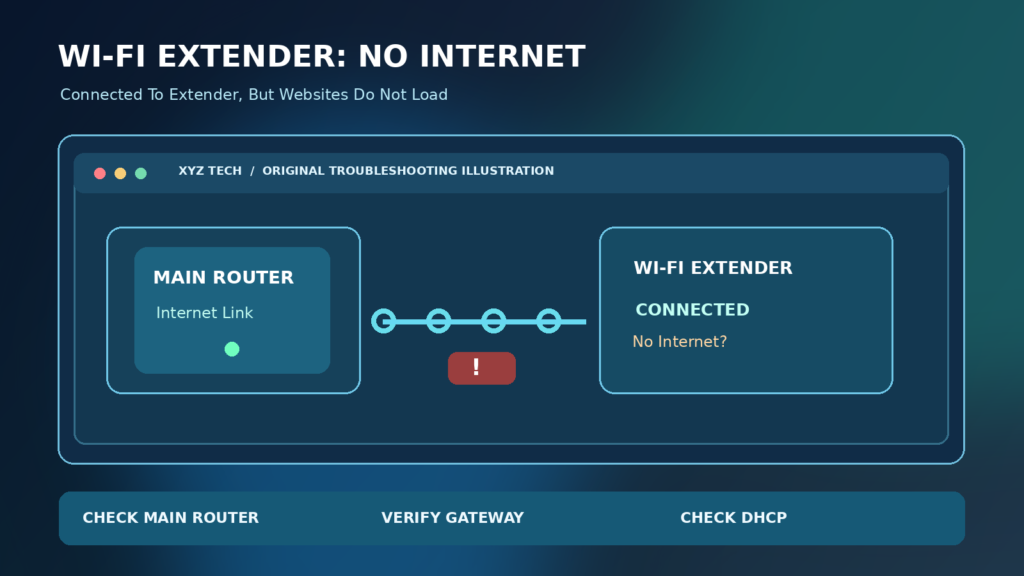

If a Wi-Fi extender is connected but has no internet, first check that your main router reaches the internet directly. Then verify the extender’s host-router connection, signal LED, configured Wi-Fi name and IP or default gateway. Move the extender closer to the router for a controlled test. Investigate DHCP or DNS only after understanding which connection fails, and leave factory reset for last.
This guide explains local Wi-Fi association versus upstream connectivity, safe TP-Link and NETGEAR-style checks, Windows diagnostics, signal placement and configuration. Interface names and indicator lights vary by model.
Understand What Connected But No Internet Means
A Wi-Fi extender repeats or relays a connection from the main router to devices farther away. A phone or laptop can connect successfully to the extender’s local wireless network while the extender still has no working path through the main router to the internet. In that situation the device displays connected or full Wi-Fi bars even though websites cannot load. This is a network-path issue, not necessarily a weak signal between the device and extender.
The safest approach is to check one link at a time. Confirm that the main router has internet, determine whether the extender is actually linked to that router, then examine the device’s IP address and gateway. Only after those checks should you change DHCP, DNS, network security or extender configuration. TP-Link’s official no-internet extender guide follows a similar distinction between local connection and upstream internet access.
Identify The Main Router And The Extender
Many households have one broadband router and one or more plug-in wireless extenders. Some extenders advertise a separate name ending in EXT, while others clone the main network name. When both use the same SSID, a phone can switch between them without an obvious change on screen. That makes it important to verify the network and hardware being tested before blaming the extender.
Write down the extender model, its configuration mode, the router model and the name of the main wireless network. If the setup includes a mesh system, access point or powerline adapter, check the actual product documentation because those topologies may use a different backhaul design. Our What Is A Wireless Access Point guide explains the local connection role, while What Is Mesh Wi-Fi helps distinguish coordinated mesh nodes from simple repeaters.
Fix 1: Test Internet On The Main Router First
Connect a phone or computer directly to the main router’s Wi-Fi, ideally while standing reasonably close to it. Open two unrelated trusted websites or run a normal network test. If the main router also has no internet, the problem is unlikely to be solved by resetting the extender. Instead, inspect the broadband connection, router status, service outage information or any account limitation using your provider’s official channels.
If the main router works but the extender does not, you have narrowed the problem. Record the result and reconnect the same test device to the extender. This comparison reduces confusion from phone-specific mobile data or VPN behavior. If using a phone, disable cellular data briefly during the test only if it is safe and practical; otherwise mobile data can make the browser work despite a broken Wi-Fi connection.
Test Connection
Test Connection
Test Connection
Test Connection
Fix 2: Check The Extender Link Or Signal LED
Range extenders use indicator lights to show power, router connection or signal quality, but the meanings vary across models. Consult your product’s quick-start guide rather than assuming every green light proves internet access. TP-Link’s signal and placement guidance explains how its models use indicators to judge the link to the host router.
If the extender’s router-link LED is off or indicates a weak signal, reconnect it to the intended network and move it closer to the router for testing. A link indicator might be healthy while the router itself has lost broadband connectivity, so interpret lights alongside actual internet tests. Do not infer that a computer’s full Wi-Fi bars prove the extender’s upstream connection is strong; those bars may describe only the nearby extender.
Fix 3: Move The Extender Closer To The Router
A Wi-Fi extender cannot provide a reliable downstream connection from a weak upstream signal. Plugging it into the farthest room, where the original router signal barely reaches, may extend an already poor connection. Temporarily move the device within a strong area of the router’s coverage, then test internet access before placing it farther away. TP-Link’s placement guide emphasizes the tradeoff between router link quality and reach into the intended coverage area.
A useful temporary test location is a clear wall outlet within effective range of the router, without a metal cabinet or thick concrete barrier between them. There is no universal distance that works for every building, wall type, band and device. After the connection works near the router, move it outward in stages while watching the model-specific signal indicator. Our Wi-Fi Slow In One Room guide covers related placement and interference considerations.
Fix 4: Reconnect The Extender To The Correct Network
An extender may retain credentials for an old router, a guest network or a different band after the household changes equipment. Open the extender’s official setup app or management interface using its manual, check the configured host SSID and reconnect to the intended router if necessary. TP-Link’s range extender setup support and NETGEAR’s range extender setup instructions describe how setup may involve a temporary local network that initially has no internet.
A device displaying connected during setup does not mean the extender has completed the host-router connection. Wait for the intended connection indicator, then run a real internet test. If the router’s Wi-Fi password was changed, update the extender’s host-network credentials through the supported process. Avoid entering the router password into a third-party setup website or a QR code that cannot be verified against the manufacturer.
Fix 5: Compare The IP Address And Default Gateway
A device can associate with an extender’s Wi-Fi but receive unsuitable IP settings. On Windows, connect to the extender, open Command Prompt and run ipconfig /all. Note the IPv4 address, subnet mask, default gateway and DNS settings for the active Wi-Fi adapter. Repeat while connected directly to the main router and compare the results. Microsoft’s Wi-Fi troubleshooting guidance documents interpreting gateway information.
Do not post your entire network configuration publicly. The default gateway normally needs to identify the correct route toward the local network, and the device generally needs a valid address for that network. An address starting with 169.254 can indicate that automatic IPv4 configuration failed under typical home DHCP conditions. These are investigative clues rather than universal proof of one specific router fault. Our Default Gateway Guide explains the gateway’s role.
Fix 6: Investigate DHCP Conflicts Without Guessing Values
Dynamic Host Configuration Protocol supplies devices with IP addresses and other network settings. A misconfigured extender or router can result in a missing, incorrect or conflicting address. TP-Link’s range extender DHCP troubleshooting discusses scenarios where devices connect to the extender but have no internet and provides model-dependent configuration checks.
Do not copy an example gateway or subnet from a random video into your own network. First identify the router’s actual LAN addressing, check whether the extender’s operating mode should pass DHCP from the main router, and review manufacturer instructions. In many home repeater configurations the main router manages addresses, but exact behavior depends on model and mode. Changing DHCP on both devices without a plan can create a wider household outage.
Fix 7: Check DNS After Local Connectivity Works
Domain Name System helps a device translate familiar service names into information needed to connect. A DNS failure can look like no internet when access by an IP address still works. It should be investigated only after you confirm a usable local connection and route. Windows offers network diagnostics and ipconfig /flushdns for clearing cached DNS information, as described in Microsoft’s connection guide.
Do not replace DNS settings immediately with an arbitrary public provider. A managed network may require its own resolvers, and custom DNS cannot repair a disconnected extender link. Compare the DNS addresses given when directly connected to the router versus through the extender. If the values differ unexpectedly, consult the manufacturer’s instructions and return to automatic settings when appropriate. Our Windows DNS Cache Guide explains the specific cache command.
Fix 8: Forget And Rejoin The Extender Wi-Fi
A device may retain an outdated password, connection profile or configuration from an earlier network setup. If other devices work through the extender but one phone or laptop fails, forget the saved extender network on the affected device, then join it again through normal Wi-Fi settings. This is less disruptive than resetting the entire extender or router.
Confirm the exact network name before rejoining, especially when the router and extender use similar SSIDs. Keep the official password available and avoid joining a lookalike network. Windows users can find the relevant network controls in Settings > Network & Internet > Wi-Fi. Microsoft’s connectivity instructions describe removing an unwanted saved network. If all devices fail through the extender, prioritize upstream and DHCP checks instead.
Fix 9: Restart The Extender In A Controlled Way
A restart can clear a temporary radio, connection or management fault without deliberately erasing configuration. Save any settings changes, use the supported restart option or disconnect power briefly according to the product instructions, then allow it to boot and reestablish its host connection. Note that internet may remain unavailable during the reconnection period.
After restarting, confirm the extender’s router-link indicator and run the same website test. If it works only briefly after every restart, look for unstable power, weak backhaul, outdated firmware or conflicting addresses rather than repeating the reboot indefinitely. Do not press a small recessed Reset button when you intend only to restart. On many devices, a factory reset deletes configuration and requires complete setup again.
Fix 10: Restart The Router Only When The Evidence Points Upstream
If direct connection to the main router fails or several local devices have similar problems, check the router and broadband provider. A normal restart may clear a transient problem, but it interrupts every device using the network. Inform household members if they rely on remote work, security systems or ongoing calls. Follow the equipment maker’s instructions for the sequence and any separate modem.
When the main router works normally and only extender-connected devices fail, restarting it may be unnecessary. Prefer targeted extender checks first. If the internet service remains down when connected directly to the router, contact the provider with the relevant outage evidence. The distinction prevents a simple extender configuration problem from turning into an avoidable whole-house disconnection.
Fix 11: Check The Extender’s Operating Mode
Some devices can function as a range extender, access point or other network mode. An access point typically expects an Ethernet connection to the main router, whereas a wireless range extender relies on a wireless upstream link. If the hardware is configured in a mode that does not match the actual cabling, it can broadcast Wi-Fi while still lacking a valid path to the internet.
Inspect the current operation mode and physical connections through the official interface. The mode names and available settings vary by product. Do not blindly enable bridging, routing, NAT or a second DHCP server without understanding the layout. Our What Is NAT In Networking and What Is A Router clarify the responsibilities of common network devices.
Fix 12: Check Wi-Fi Band Compatibility
Extenders and routers may operate on 2.4 GHz, 5 GHz or newer bands, with different channel rules and capabilities. A dual-band extender may have a healthy connection on one band and fail to establish its intended link on another. Some models have separate indicators for each host band. Consult the exact model’s documentation instead of assuming that both radios are always required for internet access.
TP-Link’s setup troubleshooting discusses compatibility issues involving certain 5 GHz channel choices and device support. Do not alter regulatory region settings or attempt to use forbidden channels. Compare with a simpler supported router band only if appropriate, then restore the secure wireless configuration. Our 2.4 GHz Vs 5 GHz Wi-Fi guide explains range and interference tradeoffs.
Fix 13: Review Firmware From The Manufacturer
Firmware updates can resolve compatibility or reliability issues in some devices. Check the extender model and hardware revision carefully, then use its official management interface or manufacturer support page for available updates. A firmware file intended for a different hardware version can be inappropriate. Do not use downloads from file-sharing sites or unrelated driver-update utilities.
Back up configuration when supported and follow the manufacturer’s power and installation instructions. Do not unplug the extender during a firmware update unless the official procedure directs you. If the device is currently unstable, arrange a reliable connection for the update process where possible. A firmware update may help a known bug, but it does not replace verifying the correct router password, DHCP values or placement.
Fix 14: Test With A Second Phone Or Laptop
A second device helps determine whether the problem belongs to the extender or one client’s saved Wi-Fi profile. Connect a different trusted phone or laptop to the same extender and open the same ordinary websites. If both fail, investigate the extender’s router link, gateway and configuration. If the second works, return to the first device’s Wi-Fi profile, DNS settings, VPN and security software.
Keep mobile-data switching in mind during phone tests. A device may silently use cellular data when Wi-Fi has no internet, so a successful browser load does not always prove the extender works. Do not disable essential work VPN settings on a managed device without authorization. A brief controlled comparison yields more useful evidence than assigning blame based on the icon shown in the status bar.
Fix 15: Check Guest Network And Client Isolation
An extender may be configured to connect to a guest network or a router mode with different restrictions. Guest networks can limit access to local devices, and some router policies restrict which clients or repeaters may connect. Not every guest network blocks internet, so the existence of an isolation feature is not proof of the cause. Identify the intended host network and the policy applying to it.
Check the router’s management interface using the official product address and your own authorized credentials. Avoid turning off security features globally just to see whether a connection works. If a managed guest network is intentionally restricted, contact the administrator. Use a separate test SSID or sanctioned access policy when appropriate rather than weakening household or workplace segmentation.
Fix 16: Check Whether A Captive Portal Is Involved
Hotels, student residences and public hotspots may require sign-in through a captive portal before granting internet access. A wireless extender connected to such a network may broadcast its own Wi-Fi while the upstream service still requires authentication or restricts repeated client identities. Some providers prohibit relaying the connection, and a normal home repeater is not guaranteed to work in that environment.
Connect directly to the source network first and complete any authorized login through its normal portal. Review the provider’s terms and equipment requirements. Do not try to bypass captive portals, device limits or organization security controls. When the extender is used in a managed setting, the appropriate solution may be a supported access point arrangement rather than a consumer plug-in repeater.
Fix 17: Inspect MAC Filtering And Access Controls
Some routers allow only approved device addresses or apply parental-control schedules and filtering rules. An extender can behave unexpectedly if the upstream network treats its link identity or downstream clients differently than expected. This is model-dependent, and modern Wi-Fi privacy features may also affect which identifier the router sees. Use the router’s connected-device list to gather evidence before changing rules.
Only alter access controls on networks you own or administer. Do not disable all filtering and security to make an unauthorized device work. If the extender does not appear among approved clients or the connection is deliberately blocked, use the supported enrollment process or ask the administrator. Document the device model and time of failure rather than guessing at address values.
Fix 18: Use Windows Commands Carefully
On a Windows computer connected to the extender, ipconfig /all shows adapter configuration, while ping can provide limited reachability information to an allowed target. A ping to the local gateway that succeeds while all external destinations fail suggests investigating the upstream route. A missing gateway or an automatic private IPv4 address can point toward DHCP problems. These are observations, not a definitive diagnosis.
Microsoft’s wireless network report guide describes additional diagnostic data. Remember that firewalls and devices can restrict ICMP echo requests, so one unanswered ping does not prove the destination is offline. Do not post logs that expose private network names, public addresses or credentials without reviewing them first.
Fix 19: When A Network Reset Is Justified
Windows provides network reset options, but a reset can remove network adapters’ configured settings and may require reinstalling VPN clients or other software. It should be reserved for persistent computer-specific network issues after safer comparisons, not used when every device on the extender lacks internet. Check Microsoft guidance for the exact Windows edition before considering it.
A reset of the extender itself can also erase router credentials and Wi-Fi settings, which is different from a restart. Keep the model’s installation details and the intended host password before initiating a factory reset. If the extender works close to the router but fails at its old location, changing all device configurations is unlikely to repair the basic signal problem.
Fix 20: Reset And Reconfigure Only As A Last Resort
Factory reset may help if the extender’s saved setup is irrecoverably wrong or the manufacturer recommends a clean configuration after other checks. Use the exact model’s official procedure, because holding buttons or using reset menus can have different timing and consequences. Save available configuration and note the original network name, passwords and mode first.
After reset, follow the manufacturer’s supported setup from beginning to end, connect it to the actual host router and confirm the upstream link before relocating it. Do not interrupt the setup because the device temporarily says No Internet while it is still in its local configuration network. NETGEAR’s setup guide explains why connecting to an extender during initial configuration does not necessarily provide internet immediately.
| Observed Pattern | First Useful Check | What Not To Assume |
|---|---|---|
| Main Router Also Has No Internet | ISP And Router Connection | Extender Is Defective |
| Extender Has Weak Link Indicator | Placement And Host Connection | Client’s Full Bars Prove Upstream Signal |
| Only One Phone Fails | Saved Wi-Fi Profile And Mobile Data | All Clients Are Affected |
| Invalid Address Or Gateway | DHCP And Mode | Public DNS Will Fix It |
| Works Near Router Only | Backhaul Signal Quality | Factory Reset Is Required |
A Decision Table For Typical Symptoms
Use the table below to select the next check. When the main router is offline, investigate broadband first. When only the extender fails, inspect its host link and gateway. When only one device fails, inspect the saved client profile. When the connection works near the router but not in the distant room, placement and radio conditions deserve attention. A stable link with failed name resolution points to DNS rather than missing Wi-Fi association.
Do not mistake troubleshooting examples for exact laboratory measurements. The practical purpose is to reduce unnecessary changes by matching tests to observable symptoms. Network conditions, router policies and signal quality can change over time, so repeat a working test after moving equipment or updating configuration.
Where A Range Extender Cannot Solve The Problem
A range extender cannot repair a broadband service outage, replace the host router’s DHCP configuration or guarantee good performance through a weak upstream wireless link. If you need reliable connectivity across several floors or through heavy walls, consider whether a wired access point, Ethernet run or properly designed mesh system offers a stronger link. Your building layout and equipment capabilities determine the best approach.
A wireless extender also cannot create more bandwidth than the broadband connection provides. Some models reduce useful throughput when serving clients and relaying over the same radio, although real performance varies. Check whether your problem is actually lack of coverage, a slow upstream connection or an internet-service outage before spending money on additional hardware.
How To Verify The Fix Worked
After a change, test the same phone or computer on the extender, open at least two unrelated websites and check that the connection remains stable for several minutes. Confirm the device has appropriate IP and gateway settings and the extender’s router-link indicator reflects a healthy connection. Then retest at the intended location after moving the device.
A single successful speed-test result is not sufficient to certify long-term reliability. Repeat the check later when several devices are connected or the household normally experiences the problem. Document the exact setting you changed so you can reverse it if an unexpected side effect appears. For broader network troubleshooting habits, see our Network Latency Guide.
Build A Simple Long-Term Maintenance Plan
Keep a note of the extender model, official support address, network mode and original setup choices. Check that the host router and extender use supported security settings and that firmware is maintained through the manufacturer. When the router’s SSID or password changes, remember that the extender may also need to be reconfigured.
Place the extender where it receives a reliable host signal rather than merely where a client shows maximum Wi-Fi bars. If recurring outages persist across devices, record times, signal indicators and gateway results before contacting vendor support. The best maintenance strategy is a reliable network layout with documented settings, not repeated resets and unexplained changes.
Frequently Asked Questions
Why Does My Wi-Fi Extender Say Connected But No Internet?
The device may connect to the extender while the extender lacks a working connection to the main router, has invalid IP or gateway settings, or the broadband connection itself is unavailable.
Should I Restart The Router Or Extender First?
Test whether the main router works directly. If it does, start with the extender and its link. If the router itself lacks internet, troubleshoot the upstream connection instead.
Can A Wi-Fi Extender Have Full Bars Without Internet?
Yes. Bars often describe the device’s radio link to the extender, not the extender’s connection to the router or internet.
Where Should I Place A Wi-Fi Extender?
Choose a location within reliable range of the main router, not in the dead zone. Use model-specific signal indicators and move gradually toward the target room.
Does Changing DNS Always Fix An Extender?
No. DNS changes cannot repair a missing host-router link or incorrect gateway. Check connectivity and IP settings before investigating name resolution.
What Is A DHCP Conflict On An Extender?
A misconfigured addressing arrangement can leave clients with incorrect or missing IP and gateway details. Review the manufacturer’s mode-specific instructions rather than inventing IP values.
Should I Turn Off Wi-Fi Security To Connect The Extender?
No. Use the correct supported security mode and official setup guidance. Do not disable protection globally or bypass a managed network’s policies.
Why Does My Extender Work Near The Router But Not Far Away?
The link between extender and router may be too weak at the distant location. Improve placement or consider a more suitable backhaul arrangement.
Will Factory Reset Fix Every Extender Problem?
No. Reset erases configuration and cannot repair a broadband outage or poor placement. Use it only after the targeted checks and with setup information available.
Can I Use An Extender With Any Router?
Compatibility varies by band, security, mode and manufacturer. Many models are designed to work across brands, but you should verify the actual specifications and supported setup.

