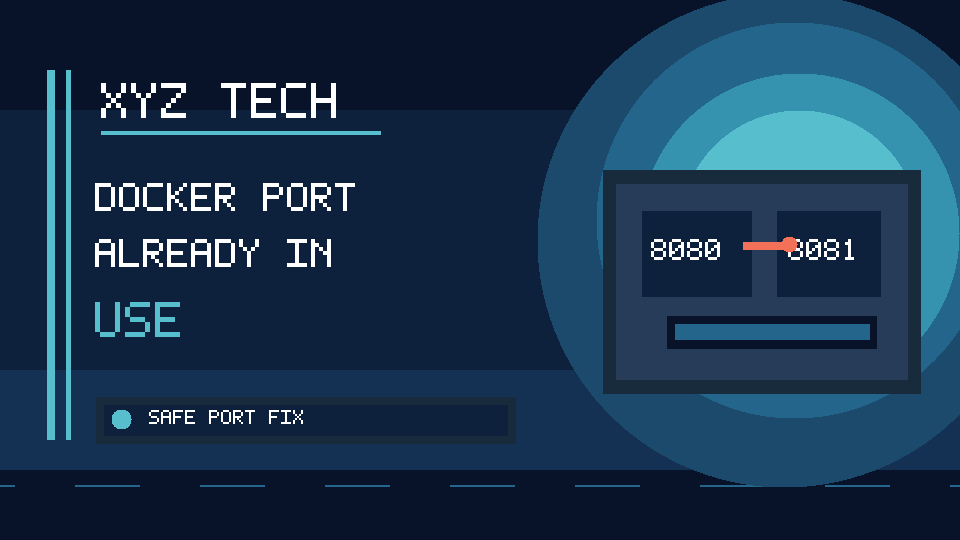

A Docker container can fail to start with “port is already allocated” even when the image and application are working correctly. The error usually means the requested host port is occupied by another container or process. The fastest safe solution is to identify who owns that port and, when appropriate, publish the new container on a different unused host port.
Documentation Review: November 2026. The instructions refer to official Docker references and common operating-system diagnostic commands. They are not a claim that every Docker Desktop or Engine configuration was tested physically.
Run docker ps to check published ports and use an operating-system listener tool if nothing in Docker owns the requested address. If another service needs port 8080, use -p 127.0.0.1:8081:80 for a development-only container that listens on port 80, or update the Compose ports mapping to an authorized free host port. Do not kill unknown processes, delete volumes or use system prune as a default repair.
Safe Port Troubleshooting Flow
| Issue | Diagnostic | Safer Action |
|---|---|---|
| Another Container Uses 8080 | docker ps | Map New Container To 8081 |
| Windows Process Owns Port | Get-NetTCPConnection | Identify Process Before Changes |
| Linux Listener Owns Port | ss -ltnp | Inspect Service And Ownership |
| Compose Stacks Conflict | docker compose ps | Use Different Published Host Ports |
| Container Runs But Site Fails | Logs And Internal Listener | Diagnose Application Separately |
Example Commands
docker ps
# Example when the app listens inside its container on TCP 80:
docker run -p 127.0.0.1:8081:80 IMAGE_NAME
# Inspect mapped ports after it starts:
docker port CONTAINER_NAME
# Windows PowerShell diagnostic:
Get-NetTCPConnection -LocalPort 8080 -State Listen
Read The Actual Port Bind Error
The Docker message “port is already allocated” usually appears when a new container tries to publish a host address and TCP or UDP port already reserved by another listener. The wording may include “Bind for 0.0.0.0:8080 failed” or “listen tcp:0.0.0.0:8080: bind: address already in use.” Record the complete address, port, transport protocol and Docker command before changing anything. They identify which resource the engine cannot reserve.
Do not assume that the application running inside the new container is broken. The container may never have started because host-side publishing failed. A working container elsewhere or an ordinary non-Docker service might hold the port. Docker’s official troubleshooting guidance distinguishes port-allocation errors from internal application connection errors. The safest resolution preserves the service already listening and maps the new application to another authorized port.
Understand Host Ports And Container Ports
With a command such as docker run -p 8080:80 IMAGE, the first number is the host port and the second is the container’s listening port. Docker makes the container reachable through the host mapping, and the app inside the container still normally listens on its own port 80. Two independent containers can both listen on port 80 internally while publishing different host ports.
For example, the first container can use 8080:80 and a second can use 8081:80. The host does not ordinarily allow two competing listeners on exactly the same protocol and bind address. This distinction avoids an unnecessary application change. Read the Docker Image Vs Container explainer when the image, container and published service concepts are still unfamiliar.
Distinguish A Host Bind Failure From A Container Crash
An application can crash after starting, whereas a host port bind failure can stop container creation or startup before the application accepts requests. Examine the Docker error and the container state before assuming the program’s code is failing. A message about address already in use in an application log inside the container can reflect a different collision between processes in that container.
When a container actually starts and then exits, investigate its application log and exit status. Our Docker Container Exits Immediately article covers that situation. If Docker itself reports that a host port is already allocated, inspect host publishing first. A small classification step saves time and avoids changing application dependencies when the problem is simply an existing host listener.
List Running Containers With Docker Ps
Run docker ps in the intended Docker context. The PORTS column shows mappings made by running containers and can reveal a mapping such as 0.0.0.0:8080->80/tcp. Identify the actual container ID, name and application before stopping anything. A container may belong to another project or person, especially on a shared workstation.
Docker’s listing command is a read-only starting point. A result showing 8080 mapped to a container is stronger evidence than guessing from its image name. Use docker ps –format when you need a concise view of container names and published ports. Do not execute docker stop against every container because one new service cannot bind a port. Existing containers may host databases, development environments or critical services.
Check Stopped Containers Without Assuming They Hold Ports
Run docker ps -a when the intended application is missing from the running list. This includes exited and created containers and helps determine whether the failed start left a record. An exited container ordinarily is not an active network listener on a host port. Therefore, an old stopped container in the list does not automatically explain a current bind conflict.
Inspect the state and published-port configuration rather than treating every similarly named container as the problem. If a running replacement service occupies the old port, note its identity. Keep the original container and its volumes intact until you know which component owns important data. Deleting a stopped database container can have consequences beyond the port investigation, especially when the data was stored in an anonymous volume.
Check Docker Compose Services And Project Names
If the deployment uses Docker Compose, run docker compose ps from the intended project directory. This reveals active services, container names and published ports associated with that Compose project. However, a second Compose project using the same host port may not appear in the current project’s focused view, so compare docker ps as well.
A common example is two local applications both declaring ports: [“8080:80”] in their respective compose.yaml files. Each configuration works in isolation but collides when both stacks are running. Prefer changing one project’s host-side port rather than deleting the other stack. Consult Docker’s Compose ports reference for syntax and avoid editing someone else’s shared configuration without approval.
Look Up A Windows Listener With Netstat
On Windows, a diagnostic command such as netstat -ano | findstr :8080 can reveal local endpoints and process IDs associated with the chosen port. Inspect the exact local address, port and LISTENING state; search output can also include unrelated remote endpoints or similarly numbered ports, so do not treat every text match as a listener conflict.
Use Task Manager or a suitable process lookup to identify the PID before considering any change. Ports can be held by development servers, web servers, proxy tools, Docker Desktop components or software that runs as a service. Do not indiscriminately terminate a process simply because its PID appears beside the number. A benign application may be providing the website or API that another program depends on.
Use PowerShell To Inspect The Exact TCP Port
A more structured Windows check is Get-NetTCPConnection -LocalPort 8080 -State Listen when the cmdlet is available. It can display the local address, state and owning process ID. If the conflict concerns UDP rather than TCP, use appropriate platform-specific tools instead; a TCP-only command does not establish that UDP is free.
Confirm whether the listener binds to 127.0.0.1, 0.0.0.0, an IPv6 address or a particular network interface. Address scope matters when interpreting the collision. Take care with PowerShell commands copied from forums: viewing a listener is very different from running Stop-Process against an unknown owner. Inspect first, identify the program and then decide whether adjusting the new Docker mapping is safer.
Identify A Linux Listener With Ss
On Linux, ss -ltnp can list TCP listening sockets and, where permitted, their associated processes. A filtered form such as ss -ltnp ‘( sport = :8080 )’ may narrow the view, though shell quoting and tool versions vary. The purpose is to see whether a process outside Docker already holds the port.
You may need administrator privileges to see process details, but do not run applications as root merely to avoid a bind conflict. If a service such as nginx or a database is the owner, understand its role before stopping it. On an organization-managed server, use documented change procedures. A production reverse proxy is not disposable simply because a developer started another local container.
Identify A macOS Listener With Lsof
On macOS, lsof -nP -iTCP:8080 -sTCP:LISTEN is a common way to inspect a TCP listener without changing it. The output can identify the application name and process ID. Verify that the displayed port is the host port from the Docker error and that the result refers to the protocol you intended.
A development server, an application started through a package manager, or Docker’s own forwarding layer can own the listener. Avoid terminating unknown processes via kill -9 as a default response. Prefer stopping the known application through its normal controls or choosing a different host port for the new container. A port list is diagnostic evidence, not permission to interrupt other people’s software.
Identify The Process Before Deciding To Stop It
A process ID is just a number assigned by the operating system. After locating the listener, determine which application owns it and whether it is expected to run. Look for a service name, installation path or active project. A background process might be a database required by several local services.
If the process belongs to the container you intended to replace, use the project’s normal lifecycle management. If it belongs to something unrelated, map the new Docker application to a different port instead. Stopping a service without understanding its role can break other applications, lose active work or interrupt shared users. The safest fix is often to leave the existing listener alone.
Choose An Alternate Host Port
When port 8080 is occupied and the image listens on port 80, change the host mapping to -p 8081:80 if 8081 is available and authorized. The application still listens on 80 inside the container, while users connect to the host at 8081. This is a straightforward resolution documented by Docker’s official guide.
Test the alternate port with a browser or the application’s health endpoint after startup. Do not assume 8081 is free without checking, and avoid changing the container-side port when no application configuration requires it. If the service must remain reachable at a particular public URL, consider a properly configured reverse proxy or network administrator plan rather than arbitrarily changing a production endpoint.
Use An Explicit Localhost Binding For Local Tools
For a development-only web interface, consider mapping 127.0.0.1:8081:80 rather than exposing the host port on every interface. Docker documents how host IP binding affects reachability. A mapping bound to 127.0.0.1 is intended for the local machine, whereas a mapping to 0.0.0.0 can accept traffic through multiple host interfaces subject to network rules.
Do not assume that a successful local browser connection proves a service is safe to expose on a public network. Binding and firewall policy are separate controls. If you only need a personal development dashboard, limiting the listener to localhost is a practical default. Security behavior can vary with Docker version and network mode; check the documentation for the specific setup.
Update A Compose Port Mapping Precisely
In a Compose service, change the host portion of a mapping such as “8080:80” to “8081:80”. The container-side value remains 80 if that is where the application actually listens. Use a quoted string for the mapping, as documented by Docker Compose. Then apply the change through the normal compose up -d workflow for that project.
Review the service’s other networking and environment settings before applying changes. A database, reverse proxy or test script may still expect the old host port. Do not run compose down -v merely to refresh a port mapping: the -v option can delete associated volumes and data. After updating, check docker compose ps to confirm the new mapping and test the endpoint.
Understand Why Dockerfile Expose Does Not Fix The Host Conflict
The EXPOSE instruction in a Dockerfile describes a container-side network port but does not, by itself, make the host port available. Altering EXPOSE from 80 to 8081 does not necessarily change the application’s listener and does not resolve two host processes contending for port 8080. Host publishing is configured when a container is created or by the deployment’s networking setup.
Use the actual docker run -p option or Compose ports key to change the host mapping. Modify application configuration only when the internal listener itself must change. This separation matters for beginners because a plausible-looking Dockerfile edit may appear to fix nothing. Our What Is A Computer Network? guide provides general network concepts behind host and container connectivity.
Check Whether The Application Listens Inside The Container
After a successful host mapping, a connection can still fail if the application listens on a different container port or only on 127.0.0.1 inside its own network namespace. That is not the same as the original host-port allocation failure. Inspect the image documentation, application startup logs and intended internal port before changing further settings.
If docker ps shows a valid published mapping but the browser reports connection refused, investigate the application’s internal bind address and readiness. Do not restart the Docker daemon as the first response. Different failure stages require different evidence. Record whether Docker could publish the port and whether the application subsequently accepted connections.
Check For Duplicate Compose Stacks
It is easy to start the same Compose application twice under different project names or from different directory copies. Both can attempt to publish the same host port. Use docker ps to find the actual service owning the port and compare project labels or container names with your running development stacks.
If the old stack is truly obsolete, stop it through its own Compose project after confirming its data is protected. Avoid removing containers by a broad name pattern that might match multiple unrelated projects. When two development copies need to coexist, allocate distinct host ports and document them in each project. A naming convention for Compose projects can reduce accidental duplication.
Separate Development Port Conflicts From Production Routing
On a production host, port 80 or 443 may already belong to a reverse proxy such as nginx, Caddy, or another gateway. That can be intentional: the proxy receives public requests and forwards them to services behind it. Publishing a second container directly onto that same public port can disrupt the established design.
Do not shut down the proxy just to make a new container start. Instead, connect the new service through the documented internal network and add an approved proxy route. A production gateway may also handle certificates, authentication and request limits. Changing it requires more review than using a different localhost port for development. Our What Is A Firewall? overview discusses network access controls beyond port availability.
Check Docker Desktop And WSL Networking Separately
On Windows with Docker Desktop and WSL, host-side forwarding can involve Windows services and the Docker backend. A process appearing in Windows may be related to an application launched in WSL, or Docker Desktop can report a conflicting host binding. Verify which environment actually owns the port before killing a Windows process that you do not recognize.
If the same port works in WSL but fails from a Windows browser, diagnose that as a reachability issue after solving the binding conflict. Do not edit low-level WSL networking or disable the Windows firewall without evidence. Restarting Docker Desktop may disrupt all containers and is more consequential than checking a single mapping. Keep troubleshooting focused on the reported host address and port.
Use A Random Host Port For Temporary Tests When Appropriate
Docker supports automatically assigned host ports in certain publishing forms, including a published container port without a fixed host port. This can be useful for temporary tests when the exact external port is not important. After starting the container, run docker ps or docker port to discover which host port Docker assigned.
A random port is not appropriate when an application, reverse proxy, callback URL or automated test expects a stable address. Document the chosen host port and update your test command accordingly. Do not confuse automatic port selection with a guarantee that the service is bound only to localhost; specify a host address or use the correct supported networking configuration when local-only access is required.
Check Whether IPv6 And IPv4 Bindings Interact
The error may reference 0.0.0.0, 127.0.0.1, :: or a specific interface. These represent different binding scopes, and the operating system’s dual-stack behavior can influence which listeners conflict. A service listening on a wildcard address can prevent another from claiming the same relevant address and port.
Avoid assuming that changing from 0.0.0.0 to an IPv6 address is a harmless workaround. It can expand exposure or introduce a reachability difference. Prefer a known-free host port and the narrowest intended bind address, and verify access from the appropriate interfaces. Docker’s Engine port-publishing documentation explains the security implications of selecting the host address.
Distinguish Firewall Problems From Port Allocation
A firewall can block incoming network connections even when a container starts and publishes successfully. Conversely, opening a firewall rule cannot make a host port available when another process already holds it. These are separate stages: the operating system first needs to allow Docker to bind, and the network must then permit intended clients to connect.
Do not turn off the Windows firewall or modify cloud security groups merely because Docker prints port is already allocated. Fix or change the conflicting binding first. After the container starts, use a local connection test before investigating network access rules. Our Firewall guide explains why traffic filtering is different from socket ownership.
Preserve Data Volumes While Resolving Conflicts
A port problem rarely requires deleting image layers, persistent volumes or a Docker installation. Commands such as docker system prune and compose down -v can remove unused resources or associated volumes and may destroy data needed by unrelated projects. Do not use them as generic troubleshooting shortcuts.
If you decide to remove an obsolete container, identify it precisely and confirm that its volumes and configuration are backed up. Container lifecycle and data persistence are different concerns. A change from -p 8080:80 to -p 8081:80 should normally require a controlled container recreation, not deletion of databases or application data. Keep storage operations out of the port diagnosis unless another error justifies them.
Test With A Clear Local Endpoint
After mapping the service to a free host port, try its intended local endpoint such as http://127.0.0.1:8081/ if it serves HTTP. Different applications use different paths and response codes, so a 404 at the root may mean the application is running but that route is not defined. Check the application’s own health or readiness endpoint when documented.
Also inspect docker ps and the application logs to confirm the container remains running. For a local-only bind, test from the host itself before trying another computer. Do not consider a network error fixed merely because Docker accepted the port option. The application must actually respond as intended, and its exposure should match your security requirements.
Document The Selected Mapping For Teammates
A useful development README should state the container port, host port and access URL separately. For example, App service listens internally on 80, is published to localhost:8081, and is available to a local browser at http://127.0.0.1:8081. That prevents another developer from assuming the old 8080 mapping is still in effect.
If several projects share one development host, maintain an agreed port allocation table to reduce conflicts. Include any Compose project name, reverse proxy entry and local-only binding policy. Avoid hard-coding private passwords into shared configuration just to make application startup easier. Clear documentation is a small investment that prevents the same error recurring after every restart.
Verify The Fix Without Disrupting The Existing Listener
A successful repair satisfies three checks: the new container starts, its intended app responds on the new host port, and the service previously using the old port continues to function. Confirm all three rather than focusing only on the disappearance of the error message. Use docker ps, docker port and a local browser or HTTP client where relevant.
If the application is a database or protocol other than HTTP, use its supported client rather than expecting a web page. If you modified Compose, inspect the actual mapping after deployment. The safest outcome is a documented and repeatable port configuration that does not break unrelated development stacks or publicly expose a service that should remain private.
Frequently Asked Questions
What Does Docker Port Is Already Allocated Mean?
Docker could not reserve the specified host address, port and protocol because another listener or container is using a conflicting binding.
How Do I Find Which Container Uses Port 8080?
Run docker ps and inspect the PORTS column, then verify the specific container name before changing anything.
Can I Use 8081 Instead Of 8080?
Yes, when 8081 is available and your app permits the change. For a container listening on 80, map the host as 8081:80.
How Do I Change A Port In Docker Compose?
Update the host-side value in the service ports mapping, for example from “8080:80” to “8081:80”, then apply the configuration through Compose.
Does Changing EXPOSE In A Dockerfile Solve The Problem?
Usually no. EXPOSE describes container-side port metadata. The collision concerns the host published port.
Should I Run Docker System Prune To Fix A Port Conflict?
No. Pruning does not identify the listener and can remove unrelated resources. Diagnose the owner or choose a different host port.
Why Is Port 8080 Still Busy After I Stop A Container?
Another process, Compose project or service might be using it. Inspect host listeners and Docker container mappings again.
Is Binding To 0.0.0.0 Safe For Local Development?
It can make the service reachable through host interfaces beyond localhost. Prefer an explicit 127.0.0.1 binding for local-only tools when supported.
How Do I Check The Port Owner On Windows?
Inspect netstat -ano or Get-NetTCPConnection for the exact local port and identify the owning process before stopping anything.
How Do I Verify Docker Port Conflicts Are Fixed?
Confirm the new container runs, the intended endpoint responds on the new host port, and the previous service remains available.
Docker Documentation
Official references: Docker Desktop: Port Already Allocated; Docker: Publishing And Exposing Ports; Docker Engine Port Publishing; Docker Container Port Command; Docker Container List; Docker Compose File Ports Reference; Docker Run Reference; Docker Container Stop Command. The commands should be adapted to the actual Docker context, host operating system and network policy.