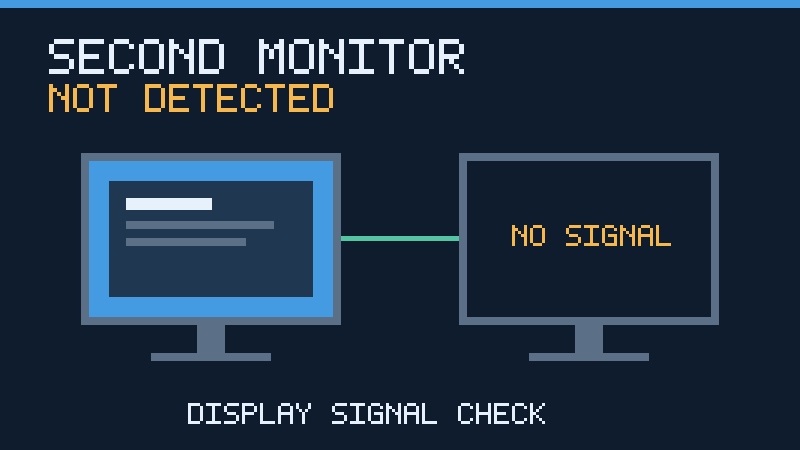

A second monitor can make work easier, until it suddenly disappears from Windows. Whether you are setting up a new screen or recovering a connection that worked yesterday, the safest approach is to narrow down the cause before changing your system.
Identify What Windows Can Actually See
A second screen can fail in several different ways. It may be absent entirely from Windows Display settings, present but inactive, or recognized while the physical monitor reports no signal. These symptoms look similar from your chair but point to different parts of the display system. Treating every dark monitor as a driver failure risks wasting time or making a working computer harder to use.
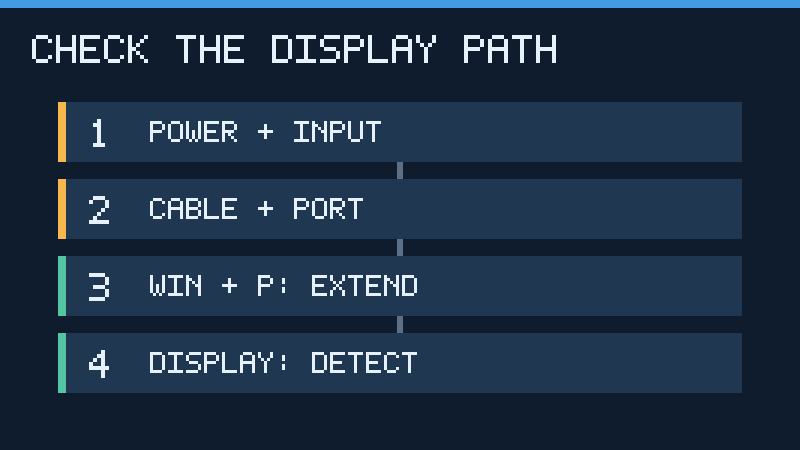
Start with your primary screen working. Save open documents and note whether the external display ever worked with this exact computer, cable and port. Check the monitor’s own menu using its hardware buttons. A visible menu indicates that the panel can at least produce its own image, but it does not prove that the video input or cable is working. If the monitor has no power indicator or menu, check its power connection before touching Windows settings.
Open Settings and select System, then Display. If Windows shows two numbered display rectangles, the computer has identified more than one screen. If only one appears despite a connected monitor, proceed through the connection and detection checks. A detected monitor that stays black deserves separate checks for input selection, resolution and refresh rate.
Check The Power, Input And Video Cable
Confirm that the monitor is connected to a working power outlet and switched on. Inspect its video cable at both ends. HDMI, DisplayPort and USB-C connections are different interfaces, even where adapters allow them to work together. Make sure the connector is fully seated; never force an unfamiliar plug or pull on a cable that has a locking connector.
Use the monitor’s physical controls to choose the actual input you have connected. For example, a cable plugged into HDMI 2 will not produce an image if the monitor is listening to DisplayPort. Some monitors select inputs automatically, but manual selection removes an avoidable variable. If you are using a converter, confirm its direction: a DisplayPort-to-HDMI adapter is not necessarily an HDMI-to-DisplayPort adapter.
Try another cable that you know works with the same type of connection, rather than buying a replacement immediately. A connector can look undamaged while the internal wiring is unreliable. One practical test is to attach the problematic display to the same cable and output that work with a known-good monitor. Change only one component at a time so that you can identify the failed part. If the screen goes dark when the cable is moved, stop using that connection until you can inspect or replace it.
Choose Extend Using Windows Projection Settings
When the physical connection appears sound, check whether Windows is configured to use the second display. Hold the Windows logo key and press P. The projection panel offers four configurations, including use of the primary display alone and extension across screens. Select Extend for a normal two-monitor workspace. Wait briefly to see whether the external display becomes active.
Duplicate is useful for presentations because both screens show the same desktop. For a troubleshooting session, however, Extend is usually more informative: you can tell whether Windows treats the second display as an independent output. Avoid choosing the external-screen-only mode if you are relying on the working primary display to continue troubleshooting.
If you can see the desktop on both screens but the mouse moves in an unexpected direction, the fault is not monitor detection. Rearrange the display rectangles in Settings so that their relative positions match your desk. Apply the change and test mouse movement across the edge between the displays.
Manually Detect The Second Monitor
On your working display, open Settings using Windows + I. Go to System, then Display. Expand Multiple displays and use the Detect control if another screen is missing. The exact position of the control can vary with Windows updates, system policies and display capabilities. Microsoft documents the detection option in its multiple monitor guide.
When both display rectangles appear, use Identify to associate each number with a physical monitor. Select the external display and verify that an active display configuration is selected. If Windows does not find it, repeatedly clicking Detect is unlikely to change a defective signal path. Return to the hardware tests and try a direct connection instead.
For a wireless monitor, the connection method is different. Use Windows + K to look for a compatible wireless display receiver. A wired display missing from Display settings should not be diagnosed by trying to pair it as a Bluetooth device. Wireless display compatibility, network conditions and receiver setup are separate issues.
Bypass Docks, Adapters And USB-C Hubs
A docking station is a convenient way to connect multiple screens, but it adds components that can fail independently. Disconnect the external display from the dock and test it through a video output built into the computer, if one exists. If the direct link works, keep the same monitor and cable while examining the dock, its power supply, firmware, host connection and supported display combinations.
USB-C is a connector shape, not a guarantee of video output. Some ports carry USB data and power without supporting native display video. Check the computer specifications for display-capable USB-C, DisplayPort Alternate Mode or the relevant Thunderbolt or USB4 display capability. The connected adapter and cable must also support the required features.
Some USB graphics docks use a software-driven display technology rather than a native video signal. These docks may have their own driver requirements. Identify the exact model and obtain the correct software from the manufacturer instead of installing an unrelated graphics package. A single working monitor on a dock does not necessarily establish that the dock can run two displays at your chosen resolution and refresh rate.
Microsoft explains port and cable limitations in its USB-C troubleshooting guide. Consult the dock’s own support documentation for the maximum number of simultaneous displays and supported output combinations.
Isolate The Monitor, Cable And Computer
Testing components against known-good equipment is more useful than guessing. If possible, borrow a working display and an appropriate cable, or connect the suspect monitor to a different computer. You do not need to buy equipment simply to perform every test. Start with what you already own.
| Test Result | What It Suggests | Next Check |
|---|---|---|
| Monitor works on another computer | Original computer, configuration or connection path may be at fault | Try a known-good output on the original PC |
| Another monitor works on the same cable and port | Original monitor or its input settings need attention | Test another input on the suspect screen |
| Direct connection works but dock fails | Dock, host cable, compatibility or dock software | Check the exact dock model and firmware |
| Both monitors work alone but not together | Display count or bandwidth constraint | Review computer and dock specifications |
| Windows detects the screen but it stays black | Output mode, signal timing or display input | Choose a supported resolution and refresh rate |
Do not treat a single successful test as proof that all equipment is healthy. An intermittent cable or connector may pass when positioned in one direction and fail when moved. Record your results and keep track of which monitor, interface and output you used.
Restart Windows And Reset The Graphics Driver
A temporary display state can become stuck after sleep, docking, a game or a graphics-intensive session. Save your work. A normal restart is a reasonable next step after ruling out simple power and input issues. Leave the second screen attached and switched on during the restart so that Windows can attempt detection again.
For a system that suddenly stopped driving an external screen, Microsoft also documents the Windows + Ctrl + Shift + B keyboard shortcut as a possible graphics-driver reset. Use it while the computer is running and responding. Your displays may briefly flicker or you may hear a sound. It is not guaranteed to restore the monitor, and it does not repair a damaged cable, add a missing display output or replace a defective graphics card.
If restarting restores the second monitor but it disappears every time the system wakes from sleep, document the pattern. Test with a direct cable rather than a dock, then check relevant driver or dock updates. Avoid permanently disabling useful power features without establishing that they are implicated.
Check Display Drivers Without Risky Driver Utilities
Open Device Manager and expand Display adapters. Note the graphics hardware listed there, especially on laptops with integrated and discrete graphics. You can also inspect the Monitors section after attaching the external display. Device Manager information can help with diagnosis, but an absent or generic monitor entry is not by itself a diagnosis of hardware damage.
Check Windows Update and the computer maker’s official support page for the exact model. On laptops, the manufacturer may provide graphics drivers adapted to its switching graphics or docking design. A desktop GPU vendor’s official driver page may be appropriate for a standalone graphics card. Avoid generic driver-download sites and automatic driver-updater utilities that claim to repair every detected issue.
If the problem began immediately after installing a graphics driver, inspect the display adapter’s Properties and Driver tab in Device Manager. Roll Back Driver may be available if Windows retained a previous version. If not, consult the manufacturer’s instructions for returning to a supported version rather than deleting drivers indiscriminately. Keep the working screen available, save important files and have the appropriate driver package ready before attempting more disruptive changes.
Driver removal is a later troubleshooting step, not a first response. It can temporarily leave your system running at a reduced display resolution or remove vendor-specific functions. See Microsoft’s external monitor troubleshooting documentation and our guide to finding Windows 11 device drivers safely.
Check Resolution, Refresh Rate And Display Bandwidth
Sometimes the second monitor is detected, but the desired mode cannot be displayed reliably. Select the external display in Settings, then review Display resolution and the Advanced display options. Begin with the recommended resolution and a refresh rate explicitly supported by the monitor and connection. If a display mode fails, allow Windows to revert where the confirmation dialog offers a timeout rather than confirming settings you cannot see.
A cable or dock that handles one 1080p display may not be able to handle two high-resolution screens at high refresh rates. Display count, color settings, resolution and refresh rate can all affect the amount of video data the connection must carry. The capabilities of the weakest component in the display path matter more than the marketing name of an individual port.
For a diagnostic test, try a lower supported refresh rate on a detected display or connect only one screen to the dock. If reducing the load helps, review the specifications before buying new cables or hardware. It may be possible to use a different physical output or a supported arrangement rather than giving up the additional monitor.
Check Desktop Graphics Outputs And Laptop Limits
Some desktop computers have display connectors on the motherboard as well as on a separate graphics card. The motherboard outputs may be unavailable if the processor does not have usable integrated graphics or if the computer firmware disables them. Connect to a supported output on the active graphics card first, particularly if the working monitor already uses it.
A laptop’s built-in display can also count toward the number of displays supported by its graphics hardware or docking implementation. To understand a specific limitation, look up the exact laptop configuration, not only the product family name. Models sold with different processors or graphics options can behave differently even when their cases appear identical.
A passive HDMI splitter normally distributes the same input signal; it does not create two independent extended desktops. If you need two separate workspaces, the computer or supported docking solution must provide two independently addressable display paths. Do not assume that adding a splitter will increase the graphics hardware’s supported monitor count.
Diagnose A Display That Fails After Sleep Or An Update
If the setup used to work, write down what changed before the first failure. Did you move the laptop, change a cable, install a graphics driver, apply a Windows update or connect a new accessory? A timeline helps you select a sensible test instead of making several unrelated changes simultaneously.
For failures after undocking and redocking, test a full restart while the screen is connected directly. If it works outside the dock, reconnect the dock only after checking its power and host cable. If a monitor is detected but windows do not return to their previous positions, that is a window-management issue. Windows offers options for remembering window positions when monitors are disconnected.
For a problem following an update, check the manufacturer’s support notices and Windows Update history. Do not uninstall security updates as a blanket remedy. A supported driver rollback may be more targeted if the evidence points directly to a recent graphics driver. If the entire system also experiences other problems, see Windows 11 troubleshooting after an update.
When To Stop Troubleshooting And Seek Repair
Stop if a port is visibly bent, loose, scorched or unusually hot. Disconnect affected equipment safely and arrange inspection. Do not open a monitor’s housing or attempt to repair a power supply. These parts are not suitable for casual troubleshooting and can pose electrical hazards.
If both screens are functional on other computers but none of the external outputs on the original PC work with a supported direct connection, the computer’s output hardware, firmware or graphics subsystem may need service. If a single display consistently fails across multiple known-good cables, sources and inputs, the display itself becomes the stronger suspect.
Before contacting support, collect the exact PC and monitor models, graphics adapter name, driver version, dock model, connection interface and test results. A concise description such as “HDMI works directly but neither dock output detects the monitor after sleep” gives a technician a far better starting point than “my second monitor is broken.” Do not send passwords, recovery keys or unrelated personal files with a support request.
Frequently Asked Questions
Why Is My Second Monitor Not Detected In Windows 11?
Common causes include an incorrect monitor input, a faulty cable, an inactive projection mode, unsupported USB-C video, display-count restrictions or graphics-driver problems. Start with physical connections and display settings before reinstalling software.
How Do I Force Windows 11 To Detect A Second Monitor?
Open Settings, choose System and Display, expand Multiple displays and select Detect. If the connection is not recognized, verify the input, cable and video output rather than relying on repeated detection attempts.
Can A Bad HDMI Cable Cause A Monitor Not To Be Detected?
Yes, a damaged or unsuitable HDMI cable can prevent a reliable connection. Test with a known-good cable and a supported video output before purchasing additional equipment.
Does Every USB-C Port Support A Monitor?
No, USB-C ports differ in their capabilities. Check the computer and cable specifications for the appropriate video output support or use a compatible software-driven display solution.
Why Does My Second Monitor Say No Signal?
The monitor is not receiving a usable video signal through the selected input. Check the actual input selection, cable, output port and Windows display mode. If Windows detects the monitor, also check supported display settings.
Can An HDMI Splitter Extend My Desktop?
No, a conventional passive or powered HDMI splitter is designed to reproduce one source signal on multiple displays. Independent desktops require independently supported display outputs.
Should I Reinstall Windows To Fix A Missing Second Monitor?
No, do not reinstall Windows as an initial troubleshooting measure. Isolate physical connections, display configuration and graphics drivers first. Only consider more disruptive operating system repairs if evidence suggests wider software corruption and your data is backed up.
Related Guides And Technical References
For related Windows display issues, read Windows 11 Black Screen With Cursor. If your external screen is working but sound is coming from the wrong output, see Windows 11 No Sound. If you are troubleshooting a computer that does not power on at all, use Laptop Won’t Turn On.
Primary references: Microsoft external monitor troubleshooting, Microsoft multiple monitor setup and Microsoft USB-C troubleshooting. The diagrams are original conceptual illustrations, not actual Windows screenshots. The procedures are based on official documentation and diagnostic reasoning, not hands-on testing of every hardware configuration.


