
Open Settings > Accessibility > Live Caption on a supported Android phone, or check the caption shortcut in the volume panel. Confirm the feature is enabled, the relevant language pack has downloaded over Wi-Fi, Battery Saver is off for a short test, and the audio contains clear speech. Live Caption does not necessarily caption every app, conversation or protected media stream.
Live Caption creates on-device text from speech in playing media, but Android versions, phone models and supported languages differ. A blank caption overlay can be caused by missing feature support, an incomplete language download, battery restrictions, silent media, a different caption system or noisy audio. The safe approach is a short known-good media test followed by targeted settings checks, not clearing accessibility data indiscriminately.
Confirm Live Caption Is Supported On Your Device
Google documents Live Caption for supported Android and Pixel devices, with availability depending on hardware, operating system and installed components. The absence of the control on an older or manufacturer-customized device does not automatically mean a software fault. Some phones offer their own captioning products with different names and limitations.
Open Settings and search for Live Caption. Then inspect Accessibility and the media volume panel. If the control does not appear, look up your phone model and current Android version on the manufacturer support site. Do not install unknown accessibility APK files merely to imitate an unavailable system feature. Record device model and software build before troubleshooting further.
Use The Correct Captioning Feature
Android Live Caption generates captions for speech in audio playing on the device. Video-player subtitles, closed captions from a streaming service, Live Transcribe for environmental speech and Sound Notifications are separate services. Turning on a video player’s CC button is not necessarily the same as enabling system Live Caption.
Start a simple video with clear speech, then locate the system Live Caption control. If the video already displays provider subtitles, temporarily distinguish their appearance from the floating Live Caption window. Avoid assuming the feature listens to people in the room: that use case belongs to other accessibility options, subject to device support and consent.
For the related issue, see our Android Notifications Not Working guide. It addresses a separate symptom and can help narrow the diagnosis.
Find Live Caption Through Accessibility Settings
On supported phones, Google directs users to Settings > Accessibility > Live Caption. Some devices also place a shortcut near the media volume slider after pressing a hardware volume key. Manufacturers can reorganize the exact menus. The caption control may be hidden from volume controls even though the full accessibility setting remains available.
Search Settings for the complete feature name first. Turn it on for a controlled media test and check any option controlling whether its icon appears in the volume panel. If settings are unavailable or managed, avoid bypassing policy. Do not reset every accessibility preference just because the volume shortcut is missing.
Allow The Initial Language Download
The first Live Caption use can require a language pack. Google notes that the default pack is downloaded when connected to Wi-Fi. If the download was interrupted or a phone has little free space, the feature may appear enabled without functioning as expected. Unsupported languages will not become available simply by repeating the same request.
Connect to a trusted Wi-Fi network, open Live Caption settings and check the installed caption languages. Let a legitimate download finish with sufficient storage and battery power. Confirm the language appears in the available set before testing again. Do not obtain language packs from unofficial file-sharing sites or change the phone region solely to force a feature.
Check The Actual Language Of The Audio
Speech recognition is not universal across every language, accent and mixed-language conversation. The set supported by Live Caption varies with the Android version and device. A clip spoken in a different language may produce no text, delayed text or inaccurate text even when an English-language test works correctly.
Use a short clip in a language known to be supported on your particular phone. Compare it with the clip that failed. Inspect Live Caption language choices rather than assuming the phone has every Google language pack. For content in an unsupported language, use creator-provided captions or another trustworthy accessibility option if one is available.
For the related issue, see our Android Speakerphone Not Working guide. It addresses a separate symptom and can help narrow the diagnosis.
Turn Battery Saver Off Briefly For A Test
Google states that Live Caption turns off automatically in Battery Saver mode. Because speech processing uses additional power, an enabled battery restriction can explain why captions disappeared after the battery became low. It is not necessary to remove every battery optimization or allow all apps unrestricted background activity.
Check the battery icon and Settings > Battery for an active saver mode. Temporarily disable Battery Saver while connected to power, play known-good speech audio and observe whether captions return. If they do, identify the power-state dependency and restore the preferred battery configuration afterward. Remember that running speech captioning continuously uses more battery.
Verify The Media Actually Contains Audible Speech
Live Caption performs best on speech that is sufficiently clear. Instrumental music, loud sound effects, long silences and heavily distorted audio may not produce readable words. A low-volume clip in a malfunctioning app can look like a caption failure when there is no usable speech signal.
Play a brief, accessible spoken tutorial from a trustworthy source and confirm you can hear its words through the phone speakers. Compare captions for that clip with a noisy or music-heavy sample. If the clean clip works, troubleshoot the original source and its audio rather than resetting the accessibility service. Do not expect Live Caption to accurately identify arbitrary environmental sounds.
Compare One App With Another
Audio-routing, website player implementations and protected media rules may affect whether caption processing is available. One streaming app may behave differently from an ordinary local video or browser clip. Testing only a single service leaves open the possibility that Live Caption itself is fine while the player blocks or handles audio differently.
Try a different known-good source with clear speech, such as a locally stored ordinary video and a public nonprotected clip. Keep the system settings unchanged while comparing. If one source fails but others work, inspect that player’s own captions, updates and permissions. Avoid disabling digital rights management or using unauthorized downloaders to force access to protected audio.
For the related issue, see our Android Notification Sound Not Working guide. It addresses a separate symptom and can help narrow the diagnosis.
Understand Calls And Device Restrictions
Google documents captioning during calls on Pixel and selected Android devices, but call-caption support is not universal. Phone audio paths and privacy notifications can differ from ordinary media playback. A feature that captions a podcast may not support your chosen calling application or telephony configuration.
First confirm that Live Caption works with ordinary media. Then review the phone’s manufacturer documentation for supported call captions and any dedicated setting. Do not promise that captions work on all voice or video call services. When captions are used around others, communicate clearly and respect privacy expectations, especially for sensitive or workplace conversations.
Check Whether The Caption Window Is Hidden
The Live Caption overlay may be moved, minimized, closed or obscured by other on-screen elements. A disabled icon in the volume panel can also create confusion: the caption feature can exist but not be visibly enabled at the moment. A blank screen with audio playing is not by itself proof that the speech engine is broken.
While a known-good clip plays, press the volume key and inspect the Live Caption toggle. Toggle it off and on once through the supported interface, then look for the floating caption panel. Close full-screen overlays that may obstruct it and rotate the screen to see whether layout changes. Avoid third-party screen-overlay apps as a first-line repair.
Test With Headphones And The Phone Speaker
Audio can be routed to Bluetooth headphones, wired earphones, the handset speaker or a connected vehicle. Whether captions can be produced depends primarily on supported media processing, not simply on loudspeaker volume. However, a wrong or silent audio route can make diagnosis misleading because you may not hear what the player is outputting.
Use a short test clip first with phone speakers, then with the normal headset if needed. Check media volume rather than ringtone volume and verify the audio source is genuinely playing. If the clip has no audible speech through either route, investigate output selection or the app. Do not change unrelated system-wide permissions just to make the overlay appear.
For the related issue, see our Android Vibration Not Working guide. It addresses a separate symptom and can help narrow the diagnosis.
Give The Phone Adequate Free Storage
Caption language files and ordinary system components need local storage. A device at critically low free space can struggle with downloads or updates. This is a different situation from a completed language pack that simply cannot recognize the audio. Freeing space must not endanger photographs, messages or application data.
Inspect Settings > Storage and confirm there is room for the supported language download and pending system updates. Uninstall only unused applications or remove verified temporary files through supported controls. Back up important media before moving it. Do not clear the data of accessibility components indiscriminately, as doing so can discard useful device-specific settings.
Restart After A Completed Configuration Change
Restarting can recover a temporary user-interface or service problem after language installation or a system update. But a reboot cannot add hardware support for an unavailable feature or recognize an unsupported language. It should be treated as a controlled confirmation step after the configuration has been checked.
Finish any legitimate download, save open work and restart the phone normally. Reopen Settings > Accessibility > Live Caption and confirm the intended option remains enabled. Test the same clear speech clip as before. If the settings keep resetting, check whether a user profile, manufacturer feature or managed policy is controlling them rather than repeating resets.
Install Supported System And App Updates
Android platform services and manufacturer software can change feature availability, performance and captions language support. Updates may fix specific bugs, but they do not guarantee support on all hardware. Downloading beta builds or unverified APKs just to obtain a caption feature can introduce unnecessary security and stability risk.
Check Settings > System > Software update or the equivalent manufacturer menu, and update the media app through its official store when appropriate. Keep battery level and backups adequate before updating. Record the original version and retest known-good speech after completion. On a managed device, follow the organization’s update policy.
For the related issue, see our Android Phone Not Connecting To Wifi guide. It addresses a separate symptom and can help narrow the diagnosis.
Keep Live Caption Privacy Claims Accurate
Google explains that Live Caption processing occurs on the device and that audio and captions are not stored or sent to Google through the feature itself. However, the app providing audio may have separate data collection practices and streaming behavior. These are distinct privacy questions, so one privacy statement cannot describe every media application.
Use official Google documentation for the system feature and review the playback app’s own privacy settings if the source is sensitive. Do not record other people without permission. For confidential workplace calls, verify which captioning product and device policies apply before sharing screens or transcripts. Live Caption availability does not automatically authorize recording.
Do Not Confuse Caption Appearance With Missing Text
Caption text size, color, position and contrast can make the overlay difficult to read against bright or moving content. A caption may exist but appear at the bottom where navigation buttons or a full-screen app obscure it. Readability is an accessibility setting, not merely an aesthetic preference.
Inspect the caption appearance and accessibility preferences your Android version supports. Move the floating caption panel if the interface allows it and choose a readable text size. Use a simple spoken video with a plain background to confirm the text exists. Do not disable other accessibility aids that you rely on during troubleshooting.
Compare Automatic Media Captions With Video Subtitles
A streaming player may supply professionally edited subtitles in many languages, while Live Caption attempts automatic speech recognition on device. They can disagree or have different timing. If Live Caption does not support the clip’s language, the app’s built-in captions may still be a better and more accurate option.
Try the video player’s caption menu and the system Live Caption control separately. Note which produces text and which language is selected. Avoid enabling both simultaneously if the two overlays obscure one another. When accessibility is essential, prioritize accurate content-provided captions over trying to force an unsupported language through the automatic feature.
For the related issue, see our Android Battery Draining Fast guide. It addresses a separate symptom and can help narrow the diagnosis.
Check For Device Administrator Or Profile Limits
School, company and managed-profile devices can restrict downloads, settings and system accessibility features. An option that is hidden or repeatedly reverts after a change may reflect an administrative configuration. This deserves a policy check instead of treating it as file corruption.
Check whether Android identifies the device or specific account as managed. Ask IT whether captioning features, language downloads and related network access are permitted. On a personal phone, inspect whether a secondary user profile is active. Do not remove device management or modify work profiles without authorization.
Avoid Random Accessibility App Data Resets
Clearing storage or resetting all accessibility settings may remove preferences for screen readers, magnification, switches and other tools that users depend upon. It is disproportionate when the problem is an unavailable language pack or battery-saving mode. Unofficial optimizer apps can also interfere with security and accessibility services.
Start with supported Live Caption controls, a single language download check, a short battery-saver test and an ordinary restart. If none works, document the model, Android version and exact media example before contacting manufacturer support. Keep any repair narrow and reversible. Do not erase personal files or accessibility settings to repair one missing caption window.
Use A Short Repeatable Test Procedure
An effective diagnosis uses consistent audio and changes one variable at a time. A five-minute podcast intro with clear speech and no music is easier to test than a protected film with several languages and complex audio. Repeating the same known-good sample makes it possible to determine whether a setting truly helped.
Record whether Live Caption is visible, which language is installed, Battery Saver state, media app and approximate moment the failure occurs. Change only one setting and replay the clip. This log is valuable if the issue is intermittent or manufacturer-specific. Avoid claiming the phone is fixed based on a single accidental caption appearing for one word.
For the related issue, see our Android Screen Rotation Not Working guide. It addresses a separate symptom and can help narrow the diagnosis.
Check Captions After A Phone Call Or Battery Change
Some users notice captions disappear only after a call, a connection to an accessory or the battery falling below a saver threshold. These events change phone state without necessarily damaging the caption service. Identifying the trigger is more useful than reinstalling every app.
Once captions work on the known-good clip, compare the phone before and after the event that normally causes failure. Review whether Battery Saver activates, the audio output changes or another app takes focus. Keep a short note of the trigger. Restore important accessibility preferences and avoid leaving the device in a high-power diagnostic mode.
Verify Caption Reliability And Set Expectations
A functional Live Caption feature should display understandable text for supported, sufficiently clear speech on the tested device. It will not guarantee perfect transcription, every language, every call or protected stream. Reliable accessibility planning includes alternative subtitles when a particular task requires accuracy.
Complete two or three repeat tests with a supported language and ordinary media. Confirm the phone retains its preferred power, privacy and accessibility settings afterward. If captions are still missing, provide the model, Android build, language and audio source to Google or manufacturer support. Do not rely on automatic captions as the sole method for critical instructions or emergencies.
Five Step Workflow
Use this short workflow only after you have identified the exact symptom. It summarizes the reversible checks explained above rather than replacing the detailed instructions. The diagram is an original teaching illustration, not a screenshot from a particular device or operating-system build.
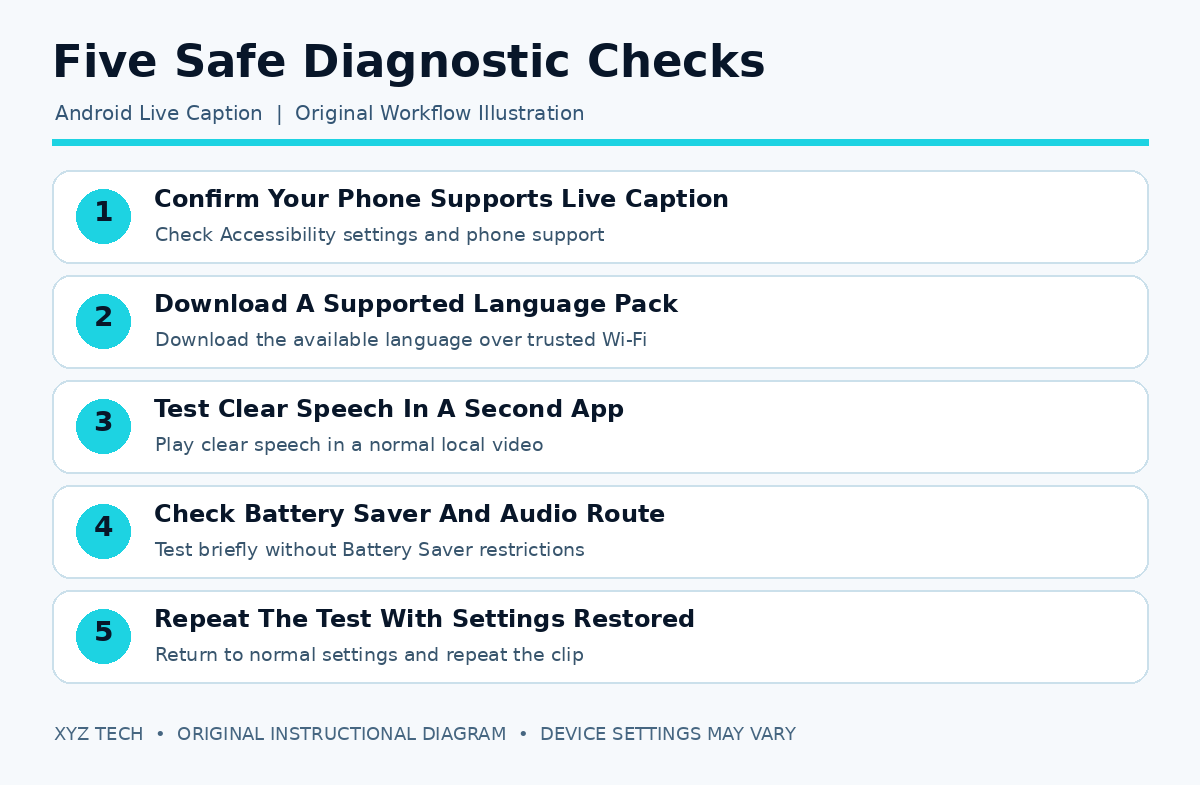
- Confirm Your Phone Supports Live Caption: Check Accessibility settings and phone support. Record the result before moving to the next check.
- Download A Supported Language Pack: Download the available language over trusted Wi-Fi. Record the result before moving to the next check.
- Test Clear Speech In A Second App: Play clear speech in a normal local video. Record the result before moving to the next check.
- Check Battery Saver And Audio Route: Test briefly without Battery Saver restrictions. Record the result before moving to the next check.
- Repeat The Test With Settings Restored: Return to normal settings and repeat the clip. Record the result before moving to the next check.
Symptom And Next Action Table
| What You Observe | First Safe Check | Why It Matters |
|---|---|---|
| Use The Correct Captioning Feature | Confirm Your Phone Supports Live Caption | Confirm The Selected Feature |
| Check The Actual Language Of The Audio | Download A Supported Language Pack | Separate Automatic From Manual Behavior |
| Understand Calls And Device Restrictions | Test Clear Speech In A Second App | Check A Known Good Example |
| Restart After A Completed Configuration Change | Check Battery Saver And Audio Route | Look For A Reversible Condition |
| Compare Automatic Media Captions With Video Subtitles | Repeat The Test With Settings Restored | Exclude App Or Profile Limits |
| Use A Short Repeatable Test Procedure | Repeat The Test With Settings Restored | Retest With Normal Security |
Frequently Asked Questions
Why Is Live Caption Missing From My Android Settings?
The feature is limited to supported devices and software versions. Check your manufacturer documentation rather than installing an unknown APK.
Does Live Caption Need Wi-Fi?
The initial language pack download may require Wi-Fi. After it is installed, processing of supported captions occurs on the device.
Can Battery Saver Stop Live Caption?
Yes, Google documents that Live Caption turns off automatically in Battery Saver. Test briefly with Battery Saver disabled.
Why Does Live Caption Work In One App But Not Another?
Different media sources, protected playback, available audio and player behavior can affect results. Compare with a known-good speech clip.
Can Live Caption Translate Every Language?
No, availability depends on the supported phone model, Android version and downloaded language. Check the available language list.
Does Live Caption Work For All Phone Calls?
No, call-captioning support is limited to Pixel and selected Android phones and may depend on the call service.
Is Live Caption The Same As Video Subtitles?
No, player-provided subtitles are separate from on-device automatic speech captioning.
Does Live Caption Record Audio And Upload It To Google?
Google states that the system feature processes audio and captions on-device. The media application may have separate privacy practices.
Should I Reset All Accessibility Settings To Fix It?
No, that can disrupt essential assistive tools. Check support, languages, Battery Saver and a known-good clip first.
What Is The Best Way To Verify The Fix?
Replay a short clear-speech sample in a supported language, observe repeatable captions and confirm your usual power and accessibility settings.
Official Reference Material
These are manufacturer or platform support documents. Settings can differ by operating-system release, device capabilities and organizational policies. The steps above are documentation-based troubleshooting, not a claim of laboratory testing on every supported device.