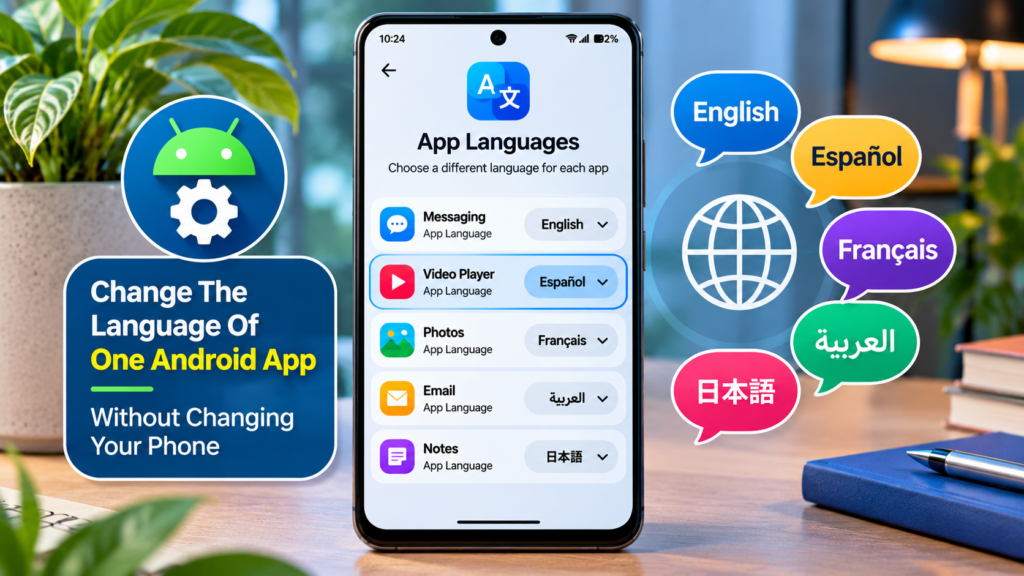

Want one Android app to display Spanish, Urdu or Japanese while the rest of your phone stays in English? Supported Android phones let you change the language of one app without switching the entire device. The important limitation is that the application itself must offer the requested language. This guide separates Pixel-style Android and Samsung Galaxy steps, explains missing language options and shows how to fix a preference that does not take effect without clearing valuable app data.
Quick Answer: On a recent Android phone, open Settings > System > Languages > App languages, choose a supported app and select its language. On Samsung Galaxy, use Settings > General management > App languages. Only apps with developer support appear. If the selection does not apply, restart that app, check its update and internet connection, then try the officially documented secondary-language method. Do not clear app data or factory-reset the phone as a first step.
What Per-App Language Means On Android
Android lets supported applications display their menus, labels and interface text in a language that differs from the phone’s main language. For example, the operating system may remain in English while a supported reading app displays Spanish. The preference belongs to that application rather than every screen on the device. It is not an automatic translation tool and it does not guarantee that user-generated messages, news articles or videos will be translated. The app developer decides which languages are available and how much of the interface is localized. Google’s Android Help documentation explains this distinction. Before changing anything, identify whether the problem is an app’s interface language, keyboard input, a website’s language or the region associated with an account.
Check Your Android Version Before Following The Steps
Android introduced a centralized per-app language system in Android 13. Menu paths can change between Android releases and manufacturers, and Google’s current help notes that certain related steps depend on Android 14 or later. Open Settings, locate About phone or About device and check the Android version and software information. On a managed phone, some controls may be restricted. You do not need to download an unknown language-switching app just to inspect version information. Google’s Android developer guidance explains the Android 13 capability, while the consumer help provides the current user-facing route. Write down your phone model and version if you are troubleshooting instructions that do not match the screen.
Use The Official Android Settings Route
On a recent Google-style Android interface, open Settings, choose System, then Languages and App languages. Select a supported app and choose one of the languages it lists. Google’s current Android Help instructions use this path. Older interfaces and some manufacturers may instead show Languages and input before App languages. Read the labels on your actual screen rather than assuming every version has identical wording. You are changing one app’s preference, so the device’s global interface language should not change. Open the chosen app afterward and examine its menus and settings. If a restart of the app is necessary, close it normally first instead of clearing its storage.
Follow The Samsung Galaxy Menu Path
On supported Galaxy phones and tablets, Samsung documents a separate navigation route: Settings > General management > App languages. Choose the application and select a preferred entry under Suggested or All languages. The choice depends on the app developer’s published language support. Samsung’s US support instructions and Galaxy app-language guide confirm these steps for supported software. Samsung’s One UI menus evolve, so use the built-in Settings search if the exact location differs. Changing a Galaxy app’s language does not require resetting One UI or changing your Samsung account credentials. Keep the rest of the phone configured as you prefer.
Understand Why Some Apps Are Missing From The List
The App languages screen does not necessarily enumerate every installed application. Google’s documentation says that developers must opt in to the feature, and Samsung likewise explains that availability depends on the app. An app missing from the list is therefore not proof of a damaged operating system. Search inside that particular app for a Language, Display language or Regional settings option. If there is no in-app control, check its official support pages for supported locales. Avoid third-party utilities that promise to force every app into any language; their results may be limited and they can request unnecessary access. The sensible next step is to determine whether the developer exposes an official option.
- Open Settings: Find App languages through the phone’s supported menu
- Select App: Only supported applications appear in the chooser
- Select Language: Choose an offered language, leaving the system language untouched
- Reopen And Verify: Check two app menus and restore System default if necessary
Original instructional diagram. Menu labels may differ by manufacturer and Android version.
Know The Difference Between System Default And A Chosen Language
When the app setting says System default, Android normally selects the first compatible language from the device’s ordered language preferences. Choosing another language explicitly can override this behavior for that app. As a result, two applications can legitimately show different languages even though both are working properly. If you later change the phone’s primary language, an application pinned to a separate choice may stay as it was. To restore automatic behavior, open the same App languages page and select the system default option when supported. Do not confuse the app’s preference with a Google account language saved for web services. These are different layers of settings and may produce apparently inconsistent screens.
Check Which Languages The App Actually Offers
After selecting an app, review the languages shown under Suggested and All languages. An entry in a list indicates the app claims support for it, but individual screens can still contain untranslated terms. Google’s Android Help advises updating the app to obtain the latest supported-language list. A language that is not listed cannot be made available merely by installing a keyboard. Some apps have region-specific editions or server-managed strings, and the available options may differ across releases. If a specific language matters for accessibility or work, check the developer’s localization documentation or support team. Avoid treating the global number of Android languages as a guarantee for every third-party app.
Update The App When Language Choices Are Missing
An outdated app might not expose newly added language support. Open the official Google Play Store, choose the account menu and Manage apps and device, then review available updates for the application. Google’s Play Help instructions provide the supported workflow. Update only from the official store or the app’s legitimate publisher channel. Read any new permission prompts before accepting. After an update, return to App languages and look for the newly supported choice. An update is not proof that a translation will exist; it only ensures that you are not judging an old app build. Our Android app compatibility guide explains other reasons an app’s features may differ between devices.
Restart Only The Affected App First
If Android shows the selected language but the app still uses its previous interface, leave the Settings screen and fully close that application through the normal app switcher. Launch it again and check whether labels changed. Google recommends restarting the app as an initial troubleshooting step. Some applications rebuild parts of their interface only at startup, while others apply the change immediately. Do not force-stop important apps that are recording, uploading or processing unsaved work. Preserve any active form or draft before closing it. A successful restart tells you the preference was accepted, not that every piece of remote content will be translated. Check the same menu in more than one part of the app.
Confirm Internet Access When The App Needs It
Google’s Android language troubleshooting guidance includes checking for a network connection when a chosen language does not take effect. Some apps fetch localized data or configuration remotely, so a temporary offline state may affect what they display. Test ordinary connectivity with a trusted website or a different app. A phone that can browse over Wi-Fi but fails over mobile data may have a separate connection issue. Do not disable private DNS, mobile security or a required VPN without a specific reason. If language selection works after connectivity is restored, the problem may have been the app’s ability to refresh content. Our Android connectivity guide offers a separate diagnostic path for connection symptoms.
Add The Preferred Language As A Secondary System Language
When a per-app setting appears to save but has no effect, Google suggests adding the preferred language as an additional device language and trying again. This can help Android match locale preferences without replacing the primary phone language. Locate the System Languages list, add the language and keep your existing primary language at the top if that is your intention. Wait briefly, reopen App languages and select the app’s preferred language again. Menu names vary across devices, so use Google’s current Android language guidance for the official process. This is a reversible configuration change, unlike deleting app storage. Record the original language order so you can restore it if necessary.
Choose A Language Without Changing The Phone’s Main Interface
Suppose a family member uses the phone in English but wants a supported app in Hindi. Open the per-app language selector, choose Hindi for that app and leave the system’s top language unchanged. Return to the home screen and open unrelated applications to confirm that their menus still follow their own settings. This approach is useful for multilingual households, translators and learners who prefer particular tools in a familiar language. It should not affect stored photos, contacts or messages simply because an interface preference changed. Still, some apps may use regional rules or account settings alongside language. Check the precise feature before assuming it is isolated from all other preferences.
Separate Keyboard Languages From Application Languages
An app’s displayed interface language and the keyboard’s input language are two different settings. A messaging app may display English menus while the keyboard types Urdu, Chinese or French. Conversely, changing the app to another language does not automatically install the correct keyboard layout. Configure keyboard languages through your trusted keyboard application’s settings or the phone’s Language and input controls. Do not install unfamiliar keyboards merely to switch an app’s interface, because keyboards can receive sensitive typed content. If characters appear incorrect in copied text or form fields, consider our Unicode explanation to distinguish text encoding from the language of menus. Keep these problems separate during diagnosis.
Distinguish Translation From Localization
Localization includes more than translating words. An app might adjust text direction, date presentation, decimal separators, currency formatting, typography or culturally appropriate wording. But not every app implements those adaptations, and setting a language does not necessarily change your physical location, payment region or service eligibility. A Japanese app interface can still show prices in a currency based on your account or country. Similarly, language selection does not translate user-created chat messages unless the app provides a separate translation feature. State your desired result precisely: interface labels, content recommendations, spoken output, date formats or payment region. Each may have a different documented setting.
Use Android 14 Regional Preferences Separately
Google describes Regional preferences on supported Android 14 and later devices as a separate system feature for settings such as temperature units, the first day of the week and certain numbering preferences. Look under System, Languages and Regional preferences where your version offers it. Changing app language alone might not produce the number or measurement format you expect. Conversely, a regional preference change does not guarantee that every app adopts the same format. Test a supported app and a system screen after adjustment. Do not change account country or billing address to solve a date-format problem. Official Android Help separates language preferences from regional display settings for a reason.
Understand Why A Website May Remain In Another Language
Many apps embed web pages, account portals, help articles or online feeds. Their displayed language may be determined by the website’s own controls, a saved account preference, browser headers or content availability. As a result, an app’s navigation could change while an embedded article remains in its original language. Look for an official language selector on the website or in the service account. Do not repeatedly reinstall the Android application when only online content differs. Google’s account language guidance describes a separate setting for certain Google services on the web. Keep app, account and webpage settings distinct so the actual source of the mismatch is easier to identify.
Test The Change With A Short Verification Checklist
Verification should be observable rather than based on one translated button. Confirm the chosen language remains selected in Android Settings, relaunch the app and examine two or three common menus. Check whether dates, notifications and content follow the expected behavior; these may still be determined by separate settings. If the app uses cloud sync, verify that ordinary data such as notes or saved items is still accessible. Note the app version and system version before considering more involved troubleshooting. If the preference resets after reopening, document that exact behavior. A reproducible mismatch is useful when contacting the app publisher and avoids broad changes to unrelated phone settings.
Handle Apps That Offer Their Own Language Control
Some apps offer a language preference inside their Settings menu, and others rely on an account-based choice. If both Android Settings and the app show language controls, determine which one the developer says takes precedence. Try only one change at a time and observe whether Android mirrors the selection or the app maintains a separate preference. Avoid changing a global account language when you only want one phone app translated, because it might also affect web or other devices. In a work environment, an administrator may require a particular language for support or compliance. Refer to the application’s official help rather than assuming the Android per-app selector is always authoritative.
Check Whether Work Profiles Have Different Restrictions
Android’s work profile and some managed-device arrangements separate business applications and policies from personal use. A work app might be restricted from changing certain preferences or may require a corporate version of the application. If language controls are missing only in the work area, ask the organization or device administrator before removing the profile or altering policy. Do not use an untrusted personal copy of an enterprise app as a workaround. A missing setting can reflect app developer support, operating system configuration or device management. Keep track of whether the selected application belongs to the personal or work profile when documenting the issue.
Understand What Happens After An App Update
A legitimate update may add languages, fix translations or alter the way a locale is selected. It can also change names and locations of menu controls. After updating, check the App languages list and the app’s own Settings. If a language choice disappears, inspect the developer’s release notes and support channels rather than assuming the phone is broken. Some applications ship translations in stages across countries or versions; an update being available does not guarantee every region gets every string immediately. Avoid installing an older APK from a third-party mirror just to recover one layout. Older packages may carry security weaknesses or be incompatible with the current Android release.
Avoid Clearing Storage As An Early Troubleshooting Step
Clearing an application’s storage or data can remove local settings, saved sessions and offline material. Google’s help mentions clearing data as a possible option in some stuck-language situations, but that is not an appropriate first step when the app holds valuable unsynced information. Before considering it, confirm whether your notes, drafts, accounts and offline downloads are backed up. Try reversible measures first: select the language again, restart the app, check connectivity and update from the publisher. Clearing only a cache is also not a guaranteed language fix and can affect performance while data is rebuilt. Our Android contact synchronization guide demonstrates why verified backups matter before troubleshooting data-related issues.
Do Not Factory Reset Android For A Single App Language Issue
A factory reset is disproportionate when one application’s menu language is not changing. Resetting Android can erase local device data and requires careful backup and account recovery planning. Per-app language issues are usually better approached through supported settings, app updates, account preferences and developer assistance. If a device has widespread language or system problems, document all symptoms and seek official manufacturer guidance before contemplating system recovery. Do not accept internet advice that treats reset as a routine language-switching button. The goal is to preserve the user’s files and keep a working phone stable while investigating one configuration mismatch. A screenshot of the setting and an app version number are more useful than a hurried reset.
Use A Practical Decision Table To Locate The Cause
Not every language problem calls for the same action. If an app is absent from the App languages list, check developer support; if the preference is visible but ignored, restart and update; if only online content stays untranslated, inspect the service’s web or account options. The decision table below pairs these cases with a low-risk first step. Use it as a troubleshooting aid rather than a guarantee that a particular cause is proven. Confirm the result after each change and undo unnecessary settings. This approach also helps distinguish a phone-language issue from keyboard input, regional format or connectivity problems that merely look similar.
| What You See | Likely Explanation | Safe First Check |
|---|---|---|
| App Not In List | Developer Has Not Exposed Per-App Support | Check Official In-App Settings |
| Selection Saved But Menus Unchanged | App Not Reloaded Or Localization Not Applied | Reopen App And Check Updates |
| Only Website Text Is Untranslated | Website Or Account Controls Content | Review Service Language Settings |
| Wrong Keyboard Input | Keyboard Language Is Separate | Review Trusted Keyboard Settings |
| Dates Or Temperature Still Different | Regional Preferences Are Separate | Review Android Regional Preferences |
Learn The Limits Of Automatic Language Detection
Some applications attempt to select language from the phone’s ordered preferences, account settings or device locale during first installation. Others remember an explicit selection and keep it after the phone language changes. The central per-app selector is designed to make supported choices more visible but does not force every developer to support the same behavior. If a fresh installation starts in the wrong language, check the app’s own preference before changing the entire phone. Avoid making repeated account changes based on guesses. The developer’s documentation can clarify whether the app uses a stored locale, a server-side preference or the system default. A small controlled change provides more evidence than repeatedly flipping many unrelated switches.
Know Why Notification Text May Stay Untranslated
An app’s local buttons can use the selected language while notification text continues to arrive from a server in another language. Notification titles and bodies are sometimes authored by the remote service, and user-generated messages naturally preserve their original wording. If notification buttons or categories behave differently, inspect the app’s own notification settings. Do not remove notification permission merely to force language changes. Our Android notification troubleshooting guide covers notification delivery separately from localization. Test both an in-app menu and a notification so you do not confuse correct interface translation with server content that the app was never designed to translate.
Check Text Direction And Font Support
Languages can use different writing systems and text directions. A supported app may switch from left-to-right to right-to-left layouts, change punctuation or display a different font. Some screens and third-party content may not fully follow the change if the app has incomplete localization. Verify that important controls remain understandable before using the app for sensitive work. Missing glyphs, squares or inconsistent letter shaping can reflect app font support rather than a failed Android language selection. Do not install unknown font packages or grant accessibility permissions to untrusted tools as a quick fix. Record a screenshot that excludes personal information and report rendering errors to the developer with the language and app version.
Keep Account Security Separate From Language Preferences
Changing a display language should not require handing over a password to a third-party website. Use official device settings and authenticated app menus, and be cautious of webpages claiming that they can unlock hidden language packs in exchange for credentials. If an app asks you to sign in again after an update or preference change, verify that it is the genuine publisher’s sign-in flow. Never send recovery codes or exported contact lists as proof that a language setting failed. On a shared family device, ensure you are adjusting the intended profile rather than someone else’s account. This precaution matters because support scams can imitate legitimate multilingual setup instructions.
Compare Language Behavior Across Two Supported Apps
If you need to know whether the Android system feature itself works, choose two installed applications that explicitly appear in the App languages list. Change the language in the first and verify it, leaving the second untouched. Then compare their behavior with the phone’s primary language. If one changes correctly and the other does not, the difference is more likely to involve that application’s implementation or account configuration. If neither follows supported selections, check Android version, app updates and device policy before drawing conclusions. Do not perform this experiment with an unfamiliar app that you installed only for testing. A trusted existing app is sufficient for controlled diagnosis.
Check Accessibility Before Making Large Language Changes
A user may rely on screen readers, voice control, text magnification or translated learning tools to navigate Android. Before switching a critical application to a language you cannot comfortably read, locate the route back to App languages and consider capturing the original setting. Some accessibility labels and spoken output are supplied by the application, while the screen reader’s own language may be configured separately. A partially localized interface can be confusing when spoken controls differ from visible text. Test a noncritical app first if you are uncertain. Avoid changing the whole phone’s primary language as an experiment when it could make vital accessibility controls difficult to find afterward.
Plan A Reliable Setup For Multilingual Households
Families often share help instructions while using phones with different system languages. Rather than forcing every person to use the same language, select each supported app’s preferred locale and leave the device interface accessible to its primary user. Write down the menu route for the particular brand and Android version, because a Samsung Galaxy and a Pixel may not show identical screens. Check that the user can still recognize security prompts, payment confirmations and account settings. If an application has limited translation quality, an official in-app choice may work better. The goal is an understandable, secure setup, not the maximum possible number of language overrides.
Document A Problem For The App Developer
When the selected language remains wrong after supported low-risk checks, gather the exact app name and version, Android version, device model, language chosen and the screens that do not update. Note whether the app appears in the Android selector and whether its own language menu disagrees. Explain the result after reopening the app and checking the connection. Use the publisher’s official support contact or in-app feedback. Avoid sharing account tokens, phone numbers, messages or credentials in public screenshots. A concise reproducible report gives developers a chance to investigate incomplete localization or an inaccurate supported-language list without requiring risky device resets.
Restore The Previous Language When Needed
To undo the experiment, return to Settings, locate the same app in App languages and select its former language or System default, if available. Restart the application if its menus do not update immediately. The system language of the phone should remain unchanged if you only adjusted the app preference. Check that familiar buttons and accessibility labels have returned before using the app for important activity. If you also added a secondary system language for troubleshooting, you can review that list separately, but avoid deleting any language that other household members or apps rely on. Successful rollback is part of a good troubleshooting guide, not an afterthought.
Frequently Asked Questions
Can I Change One Android App To Spanish While Keeping My Phone In English?
You can do this when the application supports a separate language preference. In Android Settings, find App languages, select the supported app and choose Spanish. The rest of the phone can remain in English.
Where Is App Languages On A Samsung Galaxy Phone?
Samsung documents Settings, General management, App languages on supported Galaxy software. Select the app, then choose a language under Suggested or All languages. Menu positions can vary by One UI release.
Why Is My App Missing From The Android App Languages List?
Not every developer has added support for the centralized feature. Check the app’s own settings and official documentation, and install any legitimate updates. A missing app is not automatically a hardware fault.
Will Changing App Language Translate My Messages?
Changing the interface language does not automatically translate user-written messages, news content or audio. Those tasks require translation features that the application supports separately.
Do I Need Android 13 Or Newer?
Android 13 introduced the centralized per-app language feature. Some related Settings paths and regional preferences described in current Google documentation apply only to Android 14 or later.
What Should I Do If The App Stays In The Old Language?
Reopen the app, confirm the selected language, check connectivity and update it through the official publisher. Google also suggests trying the preferred language as a secondary system language in certain situations.
Will Selecting Another App Language Erase Data?
Choosing a supported language in Settings should not itself be a data-deletion action. Do not confuse this reversible choice with clearing the application’s storage, which can remove local information and sign-in state.
Does App Language Also Change My Keyboard Language?
The keyboard has separate input-language settings. Configure the trusted keyboard app if you want to type in another language; changing the application’s menu language is not a substitute.
Why Does A Web Page Inside The App Use A Different Language?
Embedded web pages may use independent website or account preferences. Look for an official language option on that service rather than repeatedly reinstalling the Android app.
How Can I Return To The Phone’s Normal App Language?
Open the same App languages setting and choose System default, if offered. Restart the app if necessary and verify its interface without changing the phone’s overall language.
Official Sources And Verification
This article is based on published instructions from Google Android Help, Android Developers, Samsung Support and Google Play Help. Instructions were checked against provider documentation; the article does not claim physical testing of every Android build or app. Screenshots and example menus are illustrative, not exact universal device captures.


