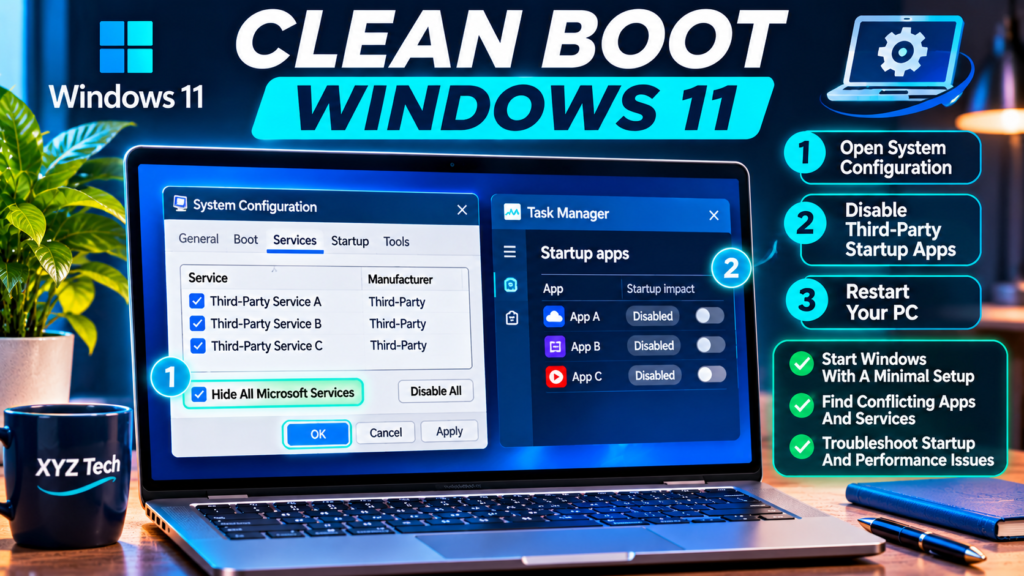

A clean boot is one of Microsoft’s supported ways to determine whether a third-party service or startup app is interfering with Windows 11. The important details are to protect your original startup settings, hide all Microsoft services before disabling the remaining services, test a specific symptom, and return the PC to its ordinary configuration afterward.
Research Review: November 22, 2026. This guide is based on official Microsoft instructions. The cover and inline workflow are original conceptual illustrations rather than verified screenshots of a particular Windows 11 build. Do not bypass company IT policies to perform a clean boot.
| Observation | Meaning | Next Safe Action |
|---|---|---|
| Problem Persists In Clean Boot | Tested Startup Items May Not Be Cause | Restore State And Investigate Other Causes |
| Problem Disappears In Clean Boot | Possible Startup Conflict | Re-Enable Controlled Subsets |
| VPN Or Backup Utility Is Missing | Required Service May Be Disabled | Restore With Administrator Approval |
| Installer Does Not Run | Windows Installer May Be Unavailable | Follow Official Microsoft Installer Guidance |
| Normal Startup Works After Isolation | Targeted Repair May Have Helped | Confirm And Record Restored Baseline |
What A Clean Boot Actually Does
A clean boot starts Windows with a deliberately reduced set of third-party services and startup applications so you can determine whether a background component interferes with an app, installer or update. It is a controlled troubleshooting state rather than a performance optimization that everyone should leave enabled. Microsoft documents the process for Windows 11 and warns against changing advanced boot settings without specific support guidance.
The distinction matters because disabling non-Microsoft software may also stop legitimate backup clients, printing utilities, VPN connections and device features. Decide exactly which symptom you intend to reproduce and make a written plan to restore your original startup configuration. A clean boot is a temporary experiment: start with a baseline, change a limited group of services, retest and record what changed.
When A Clean Boot Is Appropriate
Consider a clean boot when an application fails only after normal Windows startup, a trusted installer encounters interference, or a recurring error appears to involve another background application. It can help distinguish a third-party startup conflict from a hardware problem or damaged system file. The method is less informative when Windows cannot boot at all, a disk is failing or the internet service itself is unavailable.
Do not run a clean boot merely because a single browser tab loads slowly or because a website promises instant performance gains. First check the simpler app-specific settings and basic connectivity. If the problem is a specific Windows blue screen, our Windows 11 Stop Code Guide explains how to record the error before choosing a more targeted test.
Clean Boot Versus Safe Mode
Safe Mode starts Windows in a special diagnostic environment using a reduced set of drivers and features. A clean boot, by contrast, uses normal Windows but temporarily suppresses chosen third-party services and startup apps. Because the two environments differ, success in one is not proof of the same cause in the other.
Use a clean boot when you want to isolate startup software while retaining a reasonably normal desktop. Use Safe Mode when a different type of recovery or diagnostic is warranted by the failure. Do not assume that a clean boot disables every driver, background task or security mechanism; some components remain active and managed systems may enforce additional policies.
Save Work And Verify An Account Login
Before changing startup settings, save open documents and ensure you know how to sign back in after a restart. Verify that any required account recovery method, local administrator credentials or organization-approved authentication remains available. A startup configuration change can affect the software you normally use for network access or additional login support.
If this is a shared or workplace computer, coordinate with its administrator. Avoid the procedure during a business-critical meeting, backup or large file transfer. Keep a trusted copy of important documents: clean boot is not designed to erase personal files, but it is still a system configuration change with potentially disruptive effects.
Record Currently Enabled Third-Party Services
Open System Configuration and review the Services tab before disabling anything. Record which non-Microsoft services are enabled and take a private screenshot or written list for restoration. Microsoft’s procedure specifically instructs users to hide Microsoft services before choosing Disable all, because built-in Windows services should not be indiscriminately disabled.
Do not publish screenshots that contain business software names or device identifiers. If a service belongs to disk encryption, endpoint security, remote management, backup or a network access product, discuss the change with IT before proceeding. The aim is to know exactly what was changed, so restoration does not rely on memory.
Record Startup App Status Separately
Startup apps are managed through Task Manager’s Startup apps page. Before disabling items, note which were Enabled and which were already Disabled, along with each program’s publisher if shown. This is necessary because blindly enabling every entry later does not recreate the original configuration.
Microsoft provides separate documentation for configuring startup applications. A clean boot typically involves two groups: third-party services and startup apps. Treat both inventories as part of a single experiment and preserve their initial states. Do not remove or uninstall an app merely to prevent it from launching during a diagnostic.
Open System Configuration With Msconfig
Press Windows + R, enter msconfig, and open System Configuration using the normal trusted Windows interface. You can also search for System Configuration from Start. Confirm the expected application window appears rather than running a third-party executable that claims to imitate Microsoft’s tool.
Stay on the standard Services workflow and do not modify advanced options on the Boot tab as a shortcut. Microsoft explicitly advises that advanced boot settings should be changed only with guidance from a qualified support professional. A clean boot does not require changing processor counts, maximum memory settings or permanent safe-boot flags.
Hide All Microsoft Services Before Disabling Anything
Select the Services tab and check Hide all Microsoft services first. This is the critical safety step in Microsoft’s published clean-boot instructions. Only after Microsoft services are hidden should you consider selecting Disable all for the remaining visible services, and only if your computer’s management and security requirements permit it.
Double-check that the checkbox remains selected immediately before clicking Disable all. If it is not selected, stop and correct the sequence. Disabling Windows services in bulk can interfere with core functionality. On managed devices, some third-party services are also essential, so administrative approval can be necessary even when Microsoft services remain hidden.
Disable Only The Intended Non-Microsoft Services
With Microsoft services hidden, select Disable all for the displayed non-Microsoft services, as specified in Microsoft’s clean-boot method. This changes the startup state but does not uninstall the programs. Keep your list of originally enabled services so you can undo the exact changes after testing.
Do not assume every visible service is disposable: backup, VPN, anti-malware and accessibility tools may be supplied by third parties. If suppressing one would violate policy or jeopardize the computer, do not proceed without administrator supervision. Where permitted, use the documented test and restore the configuration promptly.
Apply Service Changes And Open Startup Apps
After selecting the intended services, choose Apply and proceed to the Startup tab of System Configuration. On Windows 11, Microsoft directs users to open Task Manager to handle startup app entries. The list is not identical to the Services tab: some apps launch at sign-in without appearing as standalone services.
Avoid mixing the process with unrelated registry tweaks or scheduled-task deletion. Changing multiple undocumented settings at once makes it impossible to learn which change affected the symptom. For general startup-app management outside clean-boot testing, see the official Configure startup applications documentation.
Disable Startup Apps In Task Manager
In Task Manager, open Startup apps and disable each entry selected for the clean-boot experiment. Review your original status list and do not confuse Disable with Uninstall. Microsoft documents using Task Manager for this part of the procedure, and the application can be opened from the Startup tab instructions.
If your company requires security or management apps to start automatically, follow its policy rather than overriding them. A program may have several components; disabling a startup entry does not guarantee that no related process will ever run. Treat the test as an isolation technique, not a security bypass or a permanent system hardening setting.
Restart Windows Normally
Close configuration windows and restart the computer normally after saving work. The reduced startup state generally takes effect after the restart. Sign in using the expected account and note any utilities that did not launch because their startup items were disabled.
Do not force power off while Windows is installing updates or finishing storage operations. If you can no longer reach a corporate network because an approved VPN service was disabled, coordinate with IT instead of improvising credential or security changes. The next step is to test the original symptom, not to change more settings.
Reproduce The Original Problem Precisely
Run the same task that failed before the clean boot: open the application, repeat the trusted installer action or perform a comparable harmless test. Keep the file, account and network conditions as consistent as possible. If the issue disappears, a suppressed background component becomes a plausible cause.
One successful attempt is not proof that a specific startup item is guilty. The problem may be intermittent, influenced by network conditions or temporarily resolved by a normal restart. Repeat only as safely as needed and record clear observations. If the issue remains exactly the same, the clean-boot experiment has still supplied useful evidence.
Interpret A Problem That Persists
If the same issue remains after a clean boot, it may not be caused by one of the disabled startup services or apps. The underlying application, Windows component, driver, account configuration or hardware could be responsible. The result does not justify immediately wiping Windows or deleting the user profile.
Return the system to its normal configuration before exploring a different branch of troubleshooting unless a qualified technician gives other instructions. If the problem is a corrupted Windows component rather than startup interference, our System File Repair Guide covers supported DISM and SFC checks.
Interpret A Problem That Disappears
If the issue reliably disappears during clean boot, one or more temporarily disabled components may be involved. The next step is to find the culprit by re-enabling controlled subsets, not to leave every third-party service and startup program disabled indefinitely.
Check whether an important security or network utility was among the disabled components. If so, seek authorized help before continuing. A clean boot can change normal work conditions, so verify that the successful test is comparable with the original failure and not merely a consequence of switching networks or accounts.
Use Half-Group Testing To Identify A Conflict
Microsoft describes using a divide-and-conquer method: re-enable approximately half of the disabled services, restart and retest. Depending on whether the issue returns, narrow the candidate group. Repeating this process is usually faster than toggling each service one at a time on a system with many entries.
Keep a simple table of the enabled group, test outcome and restart time. Do not re-enable unapproved security-sensitive components in an unmanaged way. When the likely culprit is identified, check its authentic publisher, version and release notes before deciding whether updating or repairing it is appropriate.
Repeat Group Tests With Startup Applications
After service testing, examine disabled startup apps using the same controlled grouping approach, if the original symptom remains resolved. Each test should maintain a known combination of service states and startup-app states so its outcome has a clear meaning.
Avoid switching both categories randomly between restarts. A well-recorded sequence lets you distinguish a service conflict from an app launched during sign-in. If the problem requires several components acting together, note that a single-item test may not reproduce it and seek more detailed vendor support.
Keep A Simple Conflict Isolation Log
Create a table showing test number, enabled service subset, enabled startup apps, reboot completed, exact action tested and result. Include a short note when a VPN, antivirus or hardware utility changes behavior. Without such a log, a sequence of reboots can easily lead to an incorrect conclusion.
Do not paste system details or credentials into a public spreadsheet. The purpose is to preserve cause-and-effect evidence while helping you return the computer to normal. A symptom that varies on its own should be described as intermittent rather than reported as definitively caused by one program.
Confirm The Suspected Component
Once one service or startup app appears responsible, return to a controlled configuration that isolates that single component and reproduce the error. If the problem returns only when it is enabled and disappears when disabled, the evidence is stronger. Even then, check whether another app or environment is required to trigger the conflict.
Do not delete a service’s executable, registry key or program folder as a shortcut. Use its official configuration or support process. For installed programs with update or repair controls, follow the manufacturer’s guidance and preserve application data. Some problems require an escalation to vendor support rather than a permanent startup workaround.
Do Not Disable Security Services Permanently
Antivirus, firewall, encryption, backup and device-management software may appear among third-party services or startup apps. Their role can be critical even if they contribute to a conflict. A clean boot is not a reason to remove protections or leave essential monitoring inactive.
If security software is implicated, contact the vendor or IT administrator for an approved compatibility fix. Keep Windows Security active and use legitimate exception or policy mechanisms only when authorized. Our Windows Security Scan Guide explains ordinary built-in protection, which should not be casually weakened while troubleshooting.
Restore Normal Startup Correctly
After testing, open System Configuration again and follow Microsoft’s instructions for returning Windows to normal startup. On the General tab, choose Normal startup if appropriate, and review the Services tab to restore the intended service state. Then re-enable startup items according to your recorded baseline, rather than enabling previously disabled apps indiscriminately.
Microsoft’s restoration sequence may display selected settings differently across builds, so use the official guide for your version and confirm each changed item. Restart and verify that needed software launches. Restoration is part of the diagnosis, not an optional convenience; a machine left partially configured may later experience avoidable problems.
Re-Enable The Right Startup Apps
In Task Manager’s Startup apps page, enable only the programs that were enabled before your clean-boot test or that the authorized administrator now approves. Leave intentionally disabled items in their original state. Verify the application names and publishers to avoid accidentally enabling a newly installed unknown entry.
If you cannot identify a startup item, record it and investigate through the genuine vendor before making a permanent choice. This also helps distinguish normal startup-app management from a diagnostic clean boot. Our Everyday Tech Troubleshooting Guide advocates reversing one change at a time, rather than treating every background program as harmful.
Verify Essential Services After Restoration
After a normal restart, check that network access, your approved security software, backup tools, printers and input-device utilities work again. If any expected service remains missing, compare the current System Configuration state with your original list and restore the intended setting using supported controls.
Do not conclude that restoration succeeded simply because the desktop appears. A delayed backup client or missing VPN component may not be obvious immediately. If an enterprise service cannot be restarted, contact IT before performing further tests. Preserve your isolation log so the cause and restoration can be reviewed.
Handle Installers That Fail In Clean Boot
Certain installers require the Windows Installer service or other supporting services. Microsoft’s clean-boot article explains steps for starting Windows Installer where necessary when installing or uninstalling while in the clean-boot state. A new installer error in clean boot does not automatically prove the original software is defective.
Follow the exact Microsoft instructions for the required service rather than enabling every disabled component at random. Use only trusted installers from their authentic publishers. If the installation is still unsuccessful, record the error and return to normal startup before pursuing broader application repair.
Avoid Advanced Boot Settings And Unsafe Tweaks
Microsoft explicitly cautions against modifying System Configuration’s advanced boot options without support guidance. Settings for processor count or maximum memory are not standard clean-boot steps. Similarly, deleting system services through command-line tools is not part of the ordinary diagnostic procedure.
Do not combine clean boot with unrelated registry cleaners, driver booster utilities or forced Windows servicing changes. If a tutorial requires permanently disabling built-in Microsoft services, it is not following Microsoft’s documented clean-boot approach. Keep the scope limited and reversible so you can trust the results.
Use A Restore Point As Supplementary Protection
Windows System Protection can store restore points representing system files, registry settings and installed programs. A restore point may provide an additional recovery option before risky troubleshooting, but it is not a substitute for a personal-file backup or for recording startup states. Availability depends on system configuration.
Microsoft’s System Protection guidance explains checking whether protection is enabled and creating a restore point. Do not assume one exists automatically or that it can recover all documents. If you need file-level recovery, see our File History Recovery Guide and confirm that an actual backup is available.
Know When To Stop And Seek Support
Stop if essential network, security or accessibility functions fail unexpectedly, if the PC becomes unable to sign in normally, or if the machine is governed by management policies you do not control. Clean boot is a diagnostic technique; continuing without the necessary access or approval can make support harder.
Provide your support technician with the original symptom, exact changed states, test log and restoration attempts. Do not share credentials or confidential application data in a public forum. An authorized administrator can help isolate conflicts without bypassing workplace controls or disabling protective software permanently.
Document The Final Outcome
A useful result includes whether the original issue reproduced during normal startup, whether it disappeared in clean boot, the test subset that triggered it and what remedial action was taken. When nothing changed, that negative result is valuable: it narrows the troubleshooting path away from tested startup software.
Keep the record with the affected application or IT ticket and confirm that startup settings have been restored. Avoid turning a temporary state into a general optimization recommendation. What matters is identifying a reproducible conflict while preserving normal security, work tools and access.
Test Normal Operation One Last Time
After restoring the saved baseline and restarting, repeat the affected app workflow and check essential software. If a targeted vendor update or configuration change was made, verify that it prevents the failure in the normal startup environment rather than only while other components remain disabled.
A successful fix means the PC works under its authorized everyday configuration. If the issue reappears, use the documented evidence to escalate it instead of restarting an endless cycle of disabling unrelated components. Keep operating-system repair and full reinstallation as separate, evidence-driven paths.
Frequently Asked Questions
Is A Windows 11 Clean Boot Safe?
It is a supported troubleshooting procedure when performed carefully. Hide Microsoft services before disabling third-party services, record original states and restore normal startup after testing.
Does Clean Boot Delete My Personal Files?
The procedure changes startup configuration rather than deleting ordinary documents, but saving work and keeping backups is still advisable.
Is Clean Boot The Same As Safe Mode?
No, Clean boot uses normal Windows with selected third-party startup components disabled; Safe Mode runs a different minimal diagnostic environment.
How Do I Open System Configuration?
Press Windows + R, type msconfig and use the supported System Configuration interface.
Why Must I Hide All Microsoft Services?
It helps keep Microsoft services out of the group being disabled, reducing the risk of disrupting essential operating-system functionality.
Should I Disable Antivirus Permanently?
No, Security and management services may be essential. Use the method only with appropriate authorization and restore protections promptly.
How Do I Find Which Startup App Causes A Conflict?
Re-enable controlled subsets and restart to test, narrowing the group until a reproducible culprit is found.
Will A Clean Boot Make Windows Faster Permanently?
It is meant for conflict diagnosis, not as a permanent optimization. Leaving important startup components disabled can create new problems.
How Do I Restore Normal Startup?
Follow Microsoft’s restoration instructions in System Configuration and restore the previously enabled startup apps from your saved list.
What If The Problem Still Happens In Clean Boot?
It may not involve the disabled components. Restore the original settings and investigate app, driver, system-file or hardware causes separately.
Official Microsoft References
Microsoft: How To Perform A Clean Boot In Windows; Microsoft: Configure Startup Applications; Microsoft: System Protection; Microsoft: Recovery Options In Windows; Microsoft: Repair Missing Or Corrupted System Files; Microsoft: Backup Restore And Recovery; Microsoft: Troubleshooting Windows Stop Codes.


