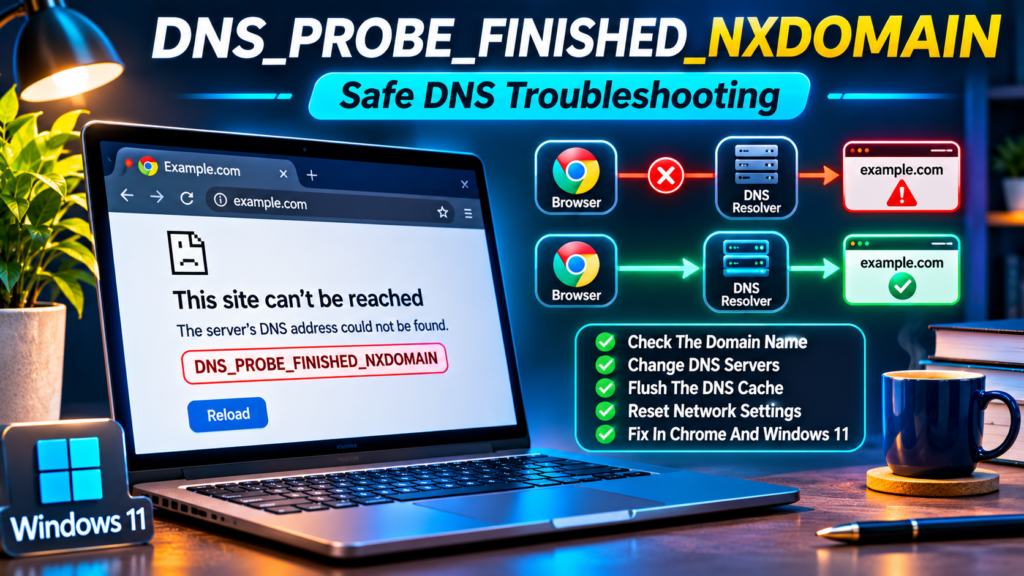

Chrome’s DNS_PROBE_FINISHED_NXDOMAIN message can appear when a hostname is truly absent from DNS or when the resolver path returns a stale or unexpected negative answer. The safest fix starts with the hostname itself and progresses through browser, computer and network comparisons before touching system settings.
Research Review: November 2026, based on official Microsoft networking, Google Public DNS and Mozilla DNS over HTTPS guidance. The featured image is an editorial illustration, not a verified current browser screenshot.
Check the exact domain spelling. Test another website and the same hostname in a second browser or device. If the correct name works elsewhere, inspect Secure DNS and resolver settings. Use ipconfig /flushdns only if a stale local cached response is plausible. A genuinely nonexistent name needs a site-owner fix, not a Windows reset.
Confirm The Exact Failing Hostname
Start by copying the full hostname from Chrome’s address bar and checking its spelling against the organization’s verified website. A missing letter, extra subdomain, or incorrect top-level domain can legitimately produce NXDOMAIN. That response says the name was not found by the resolver, not that Windows must be repaired. If a link came from a message, compare it with the official website rather than trusting a lookalike address.
Check the name before running any network command. A corrected typo is a complete fix when the original hostname never existed. Do not submit passwords to substitute domains or install a browser extension that claims to recover missing sites. Keep the first diagnostic simple and security-aware.
Understand The NXDOMAIN Response
NXDOMAIN is a DNS response indicating that the queried domain name does not exist in the resolver’s view. Chrome can express that as DNS_PROBE_FINISHED_NXDOMAIN. A local browser may display it for a temporary cached negative result, or the authoritative DNS records may genuinely be absent. These situations require very different next steps.
A negative name answer is not equivalent to a connection timeout. Other errors, such as a DNS server that does not respond, point toward an unavailable resolver or network path. Record the exact message and which name failed instead of diagnosing all browsing problems as the same DNS error.
Test Another Known Website
Open two unrelated, familiar websites whose legitimate hostnames you already know. If they load and only one domain returns NXDOMAIN, focus on that name and its DNS records. If almost every site fails, examine the connection and resolver. A successful search page alone is not definitive because some search results may be cached.
Repeat the test using complete HTTPS addresses. Do not enter private credentials during diagnostics. Note the time and whether the error is consistent. A small control group of working and failing domains helps distinguish an isolated missing record from a broad device or network problem.
Try Another Trusted Browser
Enter the identical hostname in a second browser on the same Windows computer. Chrome, Firefox and Edge can use different Secure DNS or DNS over HTTPS configurations. If the failure occurs only in one browser, the browser resolver or extensions become more plausible than an absent public DNS record.
Preserve the exact spelling, VPN state and active network between tests. Private browsing may exclude some extensions but it does not universally bypass DNS policy or proxies. If both browsers fail, continue diagnosing at the system and network layers rather than repeatedly clearing the first browser’s cookies.
Compare Another Device On The Same Network
Try the same legitimate hostname on a second device connected to the same Wi-Fi network. If one laptop fails but another device resolves the name, investigate the laptop’s DNS cache, custom resolver, browser policy or VPN. If every device connected to the router fails, consider the router, upstream resolver or site-owner records.
Verify that the phone is genuinely using the same Wi-Fi rather than silently switching to cellular data. A device with private DNS or a VPN can legitimately return different results, so record those differences. Do not assume that one successful phone test proves every public resolver has the latest answer.
Check Basic Connectivity Before DNS Repairs
An NXDOMAIN message can appear alongside a wider loss of internet access. Confirm that Windows is connected to the intended wireless or Ethernet interface and that unrelated network services function. If Windows reports no internet access, resolve that broader problem first rather than only changing DNS settings.
Our Wi-Fi Connected But No Internet checklist covers gateway and connection symptoms. The current task is narrower: an exact hostname fails during resolution. Avoid an operating-system reset or adapter reinstall when a single typed name is the only failing item.
Inspect Chrome Secure DNS
Chrome can use DNS over HTTPS and a selected provider instead of relying solely on the DNS servers supplied to Windows. That means Chrome may receive a different answer for the same hostname. In supported versions, check Settings under Privacy and security for the Secure DNS options and note their current configuration.
Do not turn off encrypted DNS by default or pick a random public provider. On managed networks, a policy may enforce the setting to protect users or resolve internal names. Make one reversible test only when authorized, then return to the prior configuration if the change does not explain the failure.
Understand Firefox DNS Over HTTPS
Mozilla documents several DNS over HTTPS protection levels and resolver choices in Firefox. Depending on the selected level and network, Firefox may take a different lookup path from Chrome or Windows. This explains why one browser may open a legitimate domain while another reports an error.
Inspect the documented Firefox settings without bypassing organizational policy. A public resolver is not automatically correct for internal network names. If a comparison shows a browser-only difference, diagnose that browser’s effective resolver instead of changing router firmware or wiping the computer.
Use Nslookup As A Controlled Test
Open Command Prompt or Windows Terminal and run `nslookup example.com`, substituting the actual legitimate hostname you wish to test. The command queries a DNS resolver and can reveal the server being used. If it produces a negative name result, that is evidence about the path used by the command, not necessarily every browser.
Do not paste unknown command sequences from a forum. Query one harmless public hostname at a time and record the response. Remember that a browser with its own encrypted DNS provider may not use the same path as nslookup, so different results deserve explanation rather than immediate broad configuration changes.
Compare A Second Authorized Resolver
Google Public DNS documentation describes using its resolvers to troubleshoot name resolution. A controlled comparison, such as `nslookup example.com 8.8.8.8`, can show whether the normal DNS service returns a different answer. Differences can arise from caching, filtering, private namespace policies or genuine upstream inconsistency.
Do not permanently redirect a managed computer to public DNS merely because one query succeeds. Corporate intranet sites may require private resolvers, and public DNS may be blocked or forbidden. Use this comparison as evidence, document the original settings and consult the network administrator when appropriate.
Recognize A Truly Nonexistent Domain
A mistyped or unregistered hostname may simply have no valid DNS records. A public website owner may also have removed a subdomain, allowed a domain to expire or changed their nameserver delegation. In those cases, a browser cache flush cannot create a valid DNS answer.
For an ordinary visitor, verify the current official website and contact the owner if needed. If you manage the domain, review registration status, authoritative nameservers and the expected records. An NXDOMAIN response can be correct even when the computer and router are perfectly healthy.
Allow For DNS Negative Caching
Resolvers may cache negative DNS answers for a period based on the DNS configuration and server behavior. After a domain has been newly registered or a missing record created, one network may still show a negative response while another has updated information. Browser reloads do not force every upstream server to refresh instantly.
If you own the website, inspect the authoritative records and allow the relevant cache lifetime to pass. If you are visiting, retry later or contact the owner. Do not repeatedly reboot the router or change public DNS providers when the real issue is record publication and cache expiry.
Flush Windows DNS Cache Only When Appropriate
Microsoft includes `ipconfig /flushdns` in Windows network troubleshooting. Clearing the local resolver cache may help when an earlier negative lookup is stale after legitimate DNS changes. The command does not rewrite system files, but it also cannot repair an absent authoritative domain record.
See our Windows DNS Cache Flush guide for the exact supported procedure. Run the command only as a targeted diagnostic, then retest. Do not install aggressive repair scripts that modify the firewall, network stack and every adapter for one hostname error.
Do Not Confuse Browser Cache With DNS Cache
Browser caches hold website resources such as images and scripts, while DNS caches hold name-resolution information. Clearing every cookie and saved login is disproportionate when the browser cannot resolve a hostname. Removing browsing data may sign you out of useful accounts without affecting a missing DNS record.
Check the exact error layer. If the hostname resolves and a specific page resource is stale, ordinary browser cache management may help. For NXDOMAIN, start with the domain and resolver path. A broad browser profile reset is not the first step in a data-preserving troubleshooting routine.
Review Windows DNS Server Assignment
Windows 11 network settings can specify automatic DNS servers or manually configured resolver addresses. A VPN, old network profile or custom adapter setting may influence the current lookup path. Record the original server addresses and whether the device is managed before editing anything.
Our Change DNS Server Windows 11 guide covers supported configuration steps. An organization may intentionally require its own DNS service, so public server replacement can break intranet access or filtering. Use a reversible comparison rather than treating provider switching as a universal fix.
Check VPN And Proxy Behavior
A VPN may route DNS requests to private resolvers that differ from the home router’s service. Internal company names often resolve only while the VPN is connected, while public websites can behave differently when the tunnel or filtering policy changes. A proxy can also alter how browsers reach resources.
Only disconnect from a workplace VPN when policy permits a diagnostic test. Do not bypass protective routing to access restricted services. Record which connection was active when the hostname failed and ask IT to verify private DNS settings if the name belongs to an internal network.
Check The Router And ISP Resolver
If several devices fail to resolve many legitimate public names using the same router, its DNS service or the ISP’s assigned resolver may be unhealthy. Confirm router connectivity and look for an official outage notice before changing configuration. A temporary upstream failure is different from a nonexistent hostname.
Our Router Or ISP Outage guide provides a broader diagnostic. A controlled restart may be reasonable after saving work and checking ownership, but factory-resetting a router can erase security settings and should not be the first reaction to a browser error.
| Observed Result | Likely Layer | First Check |
|---|---|---|
| Only One Misspelled Host Fails | Nonexistent Name | Correct The Address |
| Chrome Fails, Firefox Works | Browser Resolver Path | Inspect Secure DNS |
| All Devices Fail Many Sites | Network Or Upstream DNS | Check Router And ISP |
| New Record Works Only Sometimes | Negative DNS Caching | Verify Authoritative Records |
| Only Intranet Name Fails | Private DNS Policy | Use Approved Resolver |
Inspect Security Filtering Instead Of Disabling It
Some protective DNS services intentionally block known dangerous or restricted names. A block may surface as a negative response or a different DNS error, depending on the service and policy. If the name fails only on a work or family network, review the filtering explanation before changing providers.
Do not disable antivirus, parental controls or organizational DNS safeguards to force the browser to load a suspicious site. Verify the domain’s legitimacy and contact the authorized administrator about a suspected false positive. A filtered answer is not proof that the Windows network driver is defective.
Remember That Public DNS May Break Intranet Names
Home and organizational networks can use different DNS views for internal hostnames. A public resolver cannot necessarily find a file server or intranet name that exists only on a private DNS server. Changing to Google Public DNS may therefore fix one public lookup while breaking internal services.
Use the resolver authorized for that network. Record the original DNS settings before any test, and restore them if an internal address stops resolving. Do not send confidential internal hostnames to public lookup websites without permission; keep private-network diagnosis within approved tools.
Check A Recent DNS Change With The Website Owner
A website may have just changed name servers, created a subdomain or updated its address records. Such changes can leave resolvers with different cached information for a period. The failure may therefore reflect site-owner deployment rather than the visitor’s laptop or browser.
If you own the domain, verify registration, authoritative delegation and the intended A, AAAA or CNAME records through approved DNS tools. If you are visiting, consult the organization’s verified status channel. Refreshing Chrome repeatedly cannot make a missing authoritative record appear.
Recognize DNSSEC And Other Domain Failures
DNSSEC validation, damaged delegation and unreachable authoritative name servers can produce DNS failures. Many of these yield SERVFAIL rather than NXDOMAIN, so interpreting all DNS errors as nonexistent names will send users down the wrong diagnostic route. Google Public DNS provides administrator-level domain troubleshooting guidance.
Record the exact DNS response, resolver and record type. If you manage the domain, investigate the authoritative zone and any validation status using trusted diagnostic services. If you are simply visiting the website, report the error to its owner rather than making risky changes to Windows security settings.
Review Captive Portal Requirements On Public Wi-Fi
Hotel and guest networks sometimes intercept or restrict connectivity until a user completes an authorized portal sign-in. DNS behavior may be unusual during that period, and several websites may fail in the browser. This problem belongs to the current network’s access process, not the registration of each individual website.
Verify the Wi-Fi network identity and use the venue’s published sign-in procedure. Do not enter important credentials into an unexpected portal. Once the legitimate connection is active, retry the exact affected hostname before considering a resolver change or router restart.
Check Whether An Extension Changed The Browser Path
A browser extension or security plugin can route requests through a proxy or other service. When a name fails only in one browser, review recently added extensions and their requested privileges. Do not assume that every extension offering a DNS repair button is trustworthy.
Use the browser’s built-in extension management controls and compare with a clean authorized profile if necessary. Our Browser Extension Permission Guide explains why access to browsing activity matters. Never install unknown troubleshooting extensions that demand control of every visited website.
Do Not Reset Networking For One Missing Name
Windows network reset and aggressive command sequences can remove custom adapter settings, VPN configuration and working network profiles. These changes are disproportionate when only one mistyped or genuinely nonexistent hostname fails. A successful diagnostic should preserve every functioning service possible.
Consider broad network repair only after confirming that numerous valid sites fail on the same device and ordinary targeted steps do not work. Back up settings and consult the device administrator first. Our DNS Server Not Responding guide covers resolver availability rather than a negative name answer.
Compare NXDOMAIN With Timeout Errors
NXDOMAIN is a negative DNS response indicating no such name in the resolver’s view. A timeout generally means the expected DNS response did not arrive in time. SERVFAIL can indicate another server-side or validation problem. These categories must not be treated as identical.
Use the exact output of the browser and controlled lookup to choose the next step. A timeout warrants checking connectivity and resolver availability. An NXDOMAIN response warrants checking spelling, domain existence and cached answers. Avoid blindly rotating DNS providers without understanding which error occurs.
Use Trusted Public DNS Diagnostic Tools
Google Public DNS documents troubleshooting tools for comparing names and checking responses. For a public domain that you own, such a tool can help determine whether authoritative records are published and whether resolvers agree. It is particularly useful when investigating recently added or changed DNS entries.
A single public lookup service cannot necessarily assess internal company names or every resolver worldwide. Avoid entering private network identifiers, account information or credentials. Interpret the results together with the authoritative DNS configuration and the timing of recent changes.
Document Before And After Test Conditions
Write down the hostname, browser, connected network, VPN status, resolver service and response code for each attempt. This lets you distinguish a real change from an apparent fix caused by switching devices or networks. A small table is often enough to spot whether the failure follows the device or the domain.
Do not expose sensitive hostnames or internal organization names in public screenshots. If you contact the website operator, share only the public hostname and relevant error details. Keeping the evidence organized avoids repeatedly changing settings when the owner is already fixing the underlying DNS zone.
Verify That The Correct Website Opens
After resolution succeeds, confirm that the browser reaches the legitimate domain through HTTPS and that its address has not been replaced with an unrelated lookalike. A DNS fix should not compromise account security or redirect users to a risky service.
Test one additional known website and, if applicable, any authorized internal resources. If changing DNS disrupted working services, restore the prior settings and pursue a narrower remedy. A page loading once is not proof that all DNS records or future cache behavior are correct.
Know When To Ask The ISP Or Administrator
If many valid public domains fail for every device on one connection, and controlled lookups implicate the same upstream resolver, contact the ISP or network administrator. If only an organizational intranet name fails, the internal DNS team is usually the correct contact.
Provide the observed hostnames, affected devices, times and DNS response codes, without passwords or private personal information. Avoid a generic request to reset everything. Precise evidence helps support teams determine whether the fault belongs to network connectivity, resolver policy or a domain’s authoritative records.
Prevent Repeat NXDOMAIN Confusion
Keep reliable bookmarks for important websites, use trusted DNS settings appropriate to the network and be cautious with links from unknown senders. When a new domain is deployed, its owner should verify authoritative records and allow appropriate cache lifetimes before announcing it as broadly available.
For everyday users, the most useful habit is to check spelling and compare another device before attempting a system-level fix. Distinguish nonexistent hostnames from DNS server failures and keep a record of the action that actually restored access. This prevents unnecessary repairs and preserves computer security.
Frequently Asked Questions
What Does DNS_PROBE_FINISHED_NXDOMAIN Mean?
The queried hostname was reported as nonexistent in the DNS resolver’s view. It may be a typo, a missing record or a stale negative result.
Can A Typo Cause NXDOMAIN?
Yes, a misspelled address or nonexistent subdomain can correctly return NXDOMAIN even when your internet connection works.
Will Flushing DNS Fix NXDOMAIN?
Only when stale local cache information is involved. It cannot create a missing domain record on the internet.
How Do I Flush DNS On Windows 11?
For a justified cache test, run ipconfig /flushdns through a trusted Windows terminal, then retry the correct hostname.
Why Does A Site Work On My Phone But Not Laptop?
The two devices may use different DNS caches, resolver services, secure DNS settings, VPNs or network paths.
Should I Switch To Google DNS?
Only for an authorized controlled comparison. Public resolvers can break private intranet names and managed network policies.
Can Secure DNS Cause Different Browser Results?
Yes, Chrome or Firefox can use encrypted DNS services that differ from the Windows system resolver.
Is NXDOMAIN The Same As DNS Server Not Responding?
No, NXDOMAIN is a negative name answer; a timeout or unresponsive server is a different failure.
What If The Website Domain Really Does Not Exist?
Verify the legitimate address and contact the owner. Changing your Windows settings cannot recreate nonexistent DNS records.
Should I Reset My Network Adapter?
Not for one missing hostname. Consider wider repairs only after confirming a broader network problem and preserving settings.
Official Sources
Official reference pages: Google Public DNS Troubleshooting; Google Domain Troubleshooting; Google Public DNS Setup; Microsoft Fix Wi-Fi Connections; Microsoft Fix Ethernet Connections; Firefox DNS Over HTTPS; Google Chrome Loading Errors.


