
If Windows 11 Bluetooth refuses to turn on, the underlying issue may be as simple as a disabled radio or as serious as a missing hardware adapter. The switch can be grayed out, disappear from Quick Settings, or turn itself off. The safest response is to identify which behavior you see before removing drivers or changing services.
This guide follows Microsoft’s supported troubleshooting order and separates Bluetooth detection from ordinary pairing issues. Device names and settings depend on the PC model and Windows build. The procedures are documentation-based rather than physically tested on every computer.
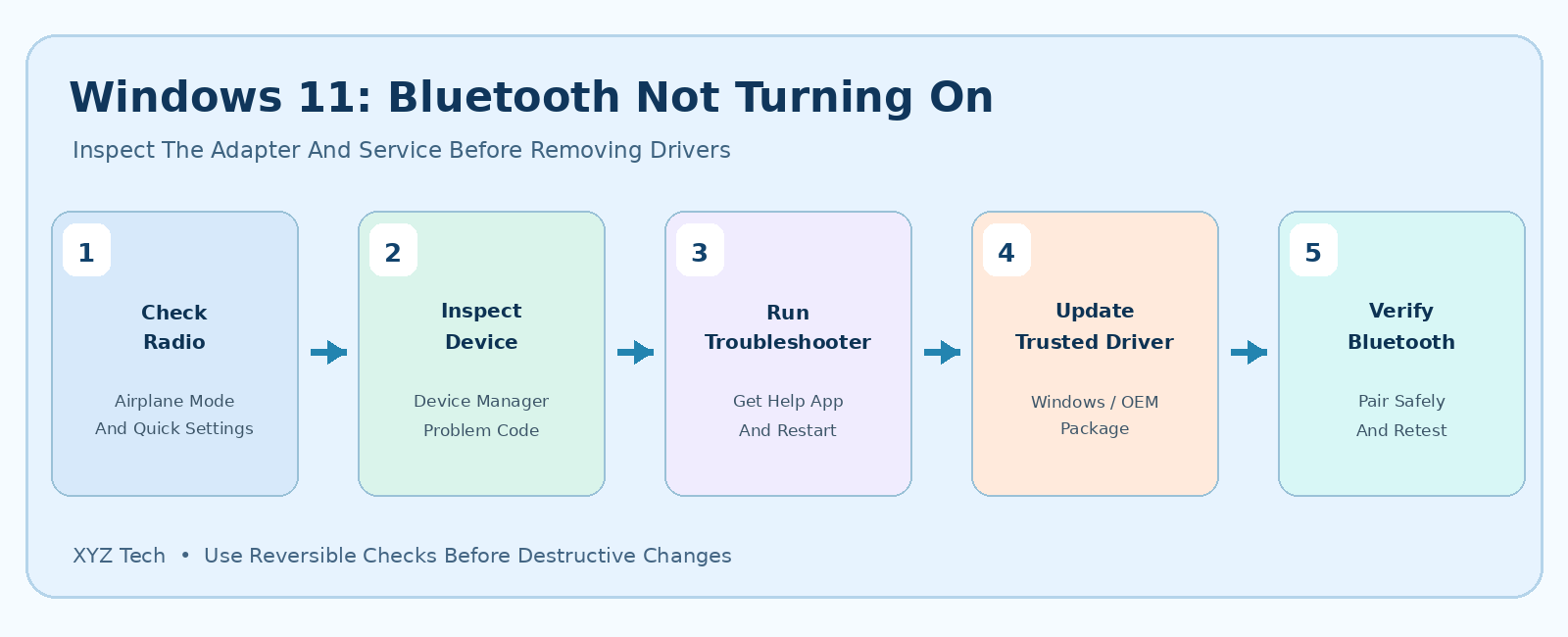
Check Settings > Bluetooth & devices, Quick Settings, and Airplane mode. Restart Windows, inspect the actual Bluetooth adapter in Device Manager, and run Microsoft’s Bluetooth troubleshooter in Get Help. If the device is missing or has a problem code, use an official compatible driver and manufacturer diagnostics. Do not uninstall drivers, reset Windows, or disable security protections as a first step.
| Observed Problem | What To Check First | Why It Matters |
|---|---|---|
| Toggle Present But Off | Settings And Airplane Mode | May Be A Disabled Radio |
| Toggle Missing | Device Manager And Get Help | Hardware Detection Or Driver |
| Toggle Grayed Out | Device Status And Policy | Unavailable Or Managed Feature |
| Bluetooth On, Pairing Fails | Accessory And Pairing Settings | Different Failure Category |
| Bluetooth Vanishes After Sleep | Power-State And Driver History | Potential Recurring Driver Issue |
Determine Whether Bluetooth Is Off Or Missing
Bluetooth not turning on can describe a missing toggle, a grayed-out toggle, a device that turns on briefly and switches off, or a working radio that cannot pair with one accessory. These are different failure categories. Before modifying Windows, open Settings > Bluetooth & devices and check whether the Bluetooth switch exists. Then open Quick Settings and examine the Bluetooth tile if your version offers it. If the switch is visible but off, enabling it is a straightforward setting change. If the switch is absent everywhere, Windows may not detect the radio or its driver. If Bluetooth turns on but cannot connect to headphones, focus on pairing rather than adapter detection. Microsoft’s missing Bluetooth guidance distinguishes these cases.
Record whether the problem began after an update, sleep, docking, airplane mode, or physical damage. Those patterns make the diagnosis more reliable than assuming every failure needs a driver reinstall.
Check The Bluetooth Quick Settings Tile
Use Windows + A or click the network and sound area of the taskbar to open Quick Settings. Find Bluetooth and check whether it is active. Depending on your Windows 11 build, the layout may include a tile or an expanded device list. If the option is present and interactive, turn it on and watch whether Windows recognizes the change. If the tile is missing, that can indicate a detection problem or a customized panel rather than a simple off state. Do not waste time clicking unrelated Wi-Fi or airplane-mode controls indiscriminately. Open Settings and Device Manager next to determine whether Windows sees the Bluetooth adapter. Microsoft’s Bluetooth on/off instructions describe the supported controls.
A toggle that immediately returns to off deserves investigation of the device status, Windows update history, and services. Repeatedly forcing it on without collecting evidence does not identify the cause.
Make Sure Airplane Mode Is Not Restricting Radios
Airplane mode affects wireless radios, but device behavior and available overrides vary. Open Quick Settings and inspect its state. If it is active unintentionally, turn it off and then test Bluetooth normally. Some laptops have manufacturer-specific radio controls that can interact with the operating system, so consult the model’s manual if the controls are unclear. Do not assume that airplane mode must always disable every Bluetooth feature in precisely the same way. Some supported configurations allow particular radios to be enabled separately. The test is simply whether Bluetooth becomes available after returning the computer to its intended operating mode.
If Wi-Fi also disappeared at the same moment, investigate shared wireless hardware or a broader radio-control problem. Our Windows 11 Wi-Fi Adapter Disappeared guide covers the Wi-Fi side without conflating the two technologies.
Restart Windows Before Altering Drivers
A normal restart can clear a stalled driver or system service after sleep or a recent update. Save documents, close applications, and use Start > Power > Restart. Do not force the laptop off during an update or unsaved work. After Windows restarts, check whether Bluetooth appears in Settings and Device Manager. If the problem returns after each sleep cycle, note that repeatable pattern. A restart can be a temporary workaround without revealing the root cause. If it does not help, move to device-status checks instead of restarting repeatedly.
Keep track of whether the adapter is missing, disabled, or showing an error. Those distinctions guide the next step and help the computer manufacturer provide appropriate support.
Inspect Bluetooth In Device Manager
Right-click Start, open Device Manager, and look for Bluetooth. Expand the category if present and identify the actual hardware radio, which may appear under an Intel, Realtek, Qualcomm, or other manufacturer name. Do not confuse Bluetooth peripherals with the PC’s adapter. Check whether the entry is enabled or carries a warning indicator. Open Properties and read Device status. A specific error code can indicate a driver or device-start problem; a missing category suggests that Windows may not be detecting the hardware. The exact interpretation depends on the model and driver. Do not uninstall anything until the adapter is correctly identified.
If Bluetooth is not listed, use View > Show hidden devices only as a diagnostic. A faded historical device does not prove that the radio is currently present.
Use Show Hidden Devices Carefully
Device Manager can show devices that are not presently connected. A faded Bluetooth adapter may be an old USB dongle, an internal card that failed enumeration, or a historical device instance. Its visibility provides useful context but does not guarantee that enabling it will restore the radio. Note its device name and status if available. Avoid deleting every hidden Bluetooth entry as a cleanup exercise. Some belong to paired devices or support components, and mass removal can create new problems without repairing the physical adapter. If the internal radio remains absent after a normal restart, obtain the PC model’s support instructions.
A laptop that has a combined Wi-Fi and Bluetooth module may exhibit both functions failing after a hardware or firmware problem. That possibility requires specific evidence, not a generic reset.
Run The Windows Bluetooth Troubleshooter
On Windows 11, Microsoft directs users to the automated Bluetooth troubleshooter in the Get Help application. Run it using the supported Settings or Get Help route, follow the prompts, and record any action it takes. It may identify common service, device, or configuration issues, but it cannot guarantee recovery of a damaged radio. If the troubleshooter reports that Bluetooth hardware is unavailable, inspect Device Manager and the manufacturer’s specifications rather than attempting repeated pairing. If it reports no issue while the switch is still missing, collect a screenshot of the relevant Windows settings without exposing private information. Microsoft’s Bluetooth troubleshooting page provides further official branches.
Do not approve an unfamiliar repair that deletes drivers or device configuration until you know what it will remove and how to recover.
Confirm The PC Actually Has Bluetooth Hardware
Not every desktop computer includes a Bluetooth adapter. Some motherboards require a separate Wi-Fi and Bluetooth module or USB dongle, and some prebuilt PC configurations differ within the same product family. Verify the model specifications rather than assuming Windows 11 itself guarantees Bluetooth capability. If you use an external USB dongle, test that the device is connected properly and try another known-working port when safe. Avoid cheap unknown adapters requiring an unsigned driver or excessive system permissions. If the hardware was physically removed or has failed, software toggles cannot create it.
If the PC never supported Bluetooth, an approved compatible adapter is a hardware solution, not evidence that Windows is defective. On managed workstations, confirm that installing external radios is permitted.
Check Bluetooth Support Service Status
Windows contains services related to Bluetooth device discovery and support. Open services.msc and inspect Bluetooth Support Service where present. A stopped service can affect some Bluetooth functionality, although the precise configuration depends on Windows build and adapter design. Do not blindly change startup types for every service that contains the word Bluetooth. If the service is unexpectedly stopped on a personal PC and Windows offers a normal Start action, you can test it and recheck Bluetooth. If the setting is protected by an organization, contact the administrator rather than overriding policy.
A running service is not evidence that hardware exists or its driver has loaded correctly. Keep Device Manager detection and service behavior as separate checks.
Check Windows Update For Supported Drivers
Open Settings > Windows Update and check for supported updates, including applicable optional driver updates. Review the publisher and compatibility information. Microsoft notes that driver updates can resolve some Bluetooth availability problems, but the right package depends on the actual adapter and PC manufacturer. If Windows Update itself is failing, our Windows Update Service Not Running guide addresses that separate issue. Avoid downloading a driver from a generic advertisement or installing multiple unrelated Bluetooth packages. After a legitimate update, restart if requested and test whether the Bluetooth toggle remains available.
A driver version number alone does not establish success. The verification is whether Windows detects the adapter and can use Bluetooth reliably in normal conditions.
Install The Correct Manufacturer Driver
If Windows detects the radio with a problem code, or if the driver is missing, visit the official support page for the exact computer or motherboard model. The same marketing series can contain different wireless chipsets, so identify the actual hardware before downloading. Microsoft recommends obtaining Bluetooth drivers from the PC manufacturer when relevant. Its Bluetooth driver instructions describe the supported process. Keep the installer available offline if Bluetooth shares a module with Wi-Fi that has been unstable. Do not remove the existing driver until you have a known-compatible replacement and understand how to reinstall it. Our Windows Driver Safety guide covers avoiding counterfeit driver portals.
Check device status after installation. A successful setup dialog does not prove that Windows can discover, pair, and communicate with accessories.
Roll Back Only After A Known Bad Update
If Bluetooth stopped turning on immediately after a driver update, Device Manager may offer a Roll Back Driver option. This can be worth considering when the previous version worked and the option is available. Document the old and new versions before proceeding, and follow manufacturer instructions for the affected adapter. Do not roll back a driver merely because the button exists. A missing radio may have hardware causes that a rollback cannot solve. If the rollback option is disabled, Windows might not retain the prior package. The correct OEM installer may then be a safer recovery path than trying third-party archives.
Test the toggle and an approved accessory after the change. If the issue returns after sleep or a restart, record the circumstances for further support.
Use Driver Reinstallation As A Later Step
Uninstalling a Bluetooth adapter is more disruptive than enabling it or updating a known-bad driver. Windows can sometimes rediscover the device after a restart, but it is not guaranteed to reinstall every specialized driver correctly. Before attempting removal, download the manufacturer-supported package and confirm that you can access the PC locally. Select only the identified Bluetooth radio, not all controllers or every remembered peripheral, and review the uninstall dialog carefully. Avoid selecting options that delete driver packages unless official guidance specifically calls for them and you can recover. Reboot normally and inspect Device Manager again.
If Windows still does not detect the adapter after a correct driver installation, seek manufacturer diagnostics rather than repeating the uninstall process.
Understand Why Pairing Problems Are Different
A Bluetooth toggle that is on but cannot connect to one set of headphones is not the same as a disabled or missing radio. Pairing can fail because the accessory is not discoverable, is already linked elsewhere, has a low battery, or is outside the supported range. For those cases, use the accessory’s own pairing procedure and Microsoft’s Bluetooth connection guidance. Do not repeatedly reinstall the PC’s radio driver if several other Bluetooth devices work normally. The problem is likely more specific to the peripheral, its pairing state, or profile compatibility. If headphones connect but produce no sound, our Bluetooth Headphones Connected But No Sound guide covers the audio-output path.
A successful basic pair test is evidence that the radio can communicate, but it does not certify every device profile or hardware condition.
Inspect USB Bluetooth Dongles And Ports
External Bluetooth dongles depend on a functioning USB connection. If the adapter disappears intermittently, test the device on a known-good port and avoid hubs that are overloaded or disconnect during sleep. Check whether the dongle becomes warm, loose, or physically damaged. Do not pry open it or attempt improvised electrical repairs. A different USB port can help distinguish connector behavior from a broader Windows problem, but only if doing so is permitted and safe. For a work computer, confirm that external radio adapters are allowed. Untrusted dongles can create security risks, and installation should follow manufacturer documentation.
If the problem affects several USB accessories as well as Bluetooth, diagnose the USB subsystem separately rather than attributing everything to the wireless driver.
Check Whether Wi-Fi Is Also Affected
Many laptops use a combined wireless module for Wi-Fi and Bluetooth. That means two features can fail together after a hardware, power-state, or driver problem, although their software stacks remain distinct. If Wi-Fi and Bluetooth both disappear after sleep or an update, collect that timing as evidence. Check the Wi-Fi adapter in Device Manager independently. Our Wi-Fi Adapter Disappeared article explains the separate diagnostic path. Do not assume that resetting Wi-Fi passwords will restore Bluetooth or that a Bluetooth pairing reset will repair network access.
A service technician may use the combined symptom to evaluate the hardware module, but software checks should still identify which radio functions Windows currently detects.
Review Power State And Sleep Behavior
Bluetooth may disappear after sleep and return after restarting on some systems. Record the exact sequence: battery level, docking, lid closure, system wake, and which devices stop working. Use manufacturer-supported power-management recommendations rather than copying an undocumented registry adjustment from a forum. If the laptop also shuts down when unplugged, that is a separate power problem; our Laptop Shuts Down When Unplugged guide covers battery and power-source diagnosis. Do not disable every power-saving setting merely to test Bluetooth. A controlled, repeatable comparison is more informative and less disruptive.
If the radio is absent even after a fresh normal startup, sleep settings alone are unlikely to explain the entire problem.
Check For Firmware And BIOS Updates Carefully
Microsoft’s missing Bluetooth guidance refers users to PC manufacturers for model-specific firmware or BIOS checks when appropriate. Such changes are not routine Bluetooth toggles: a firmware update can interrupt critical hardware functions if performed incorrectly. Read the official instructions and verify the exact system model, power requirements, and any organization restrictions first. Do not download a modified firmware image or clear secure boot and encryption settings based on a generic tutorial. If the computer is encrypted or managed, an administrator may need to prepare recovery information before firmware maintenance.
If the Bluetooth issue follows physical damage or the radio is not visible in any supported diagnostic, hardware service may be more appropriate than firmware experimentation.
Avoid Unknown Bluetooth Repair Utilities
Some websites promise one-click Bluetooth repair by changing services, registry keys, or driver packages. Such tools can be difficult to audit, may bundle unwanted software, and often ignore hardware differences. Prefer Windows Settings, Get Help, Device Manager, Windows Update, and the official PC manufacturer support page. Do not grant administrator rights to a utility solely because its page resembles a Microsoft dialog. Verify the publisher and actual download source. If an installer presents unusual security warnings, stop and research it rather than disabling protections. Our safe driver download guide explains why a trustworthy source matters.
A clear diagnosis is preferable to broad system modifications. The goal is one reversible change followed by a verification step.
Use Hardware Diagnostics Before Replacing Parts
If the Bluetooth adapter remains absent after supported settings and driver checks, consult the computer manufacturer’s diagnostic tools. A failed radio could involve the wireless module, USB bus, internal connection, or motherboard, but only qualified assessment can distinguish them reliably. Note any recent drop, spill, or repair and any simultaneous Wi-Fi failure. Do not open a laptop containing a battery or sealed chassis without appropriate service qualifications. If the device is under warranty, use authorized service and understand what data access a repair may require.
A technician should confirm the fault before recommending a component replacement. A missing toggle alone is not proof of a specific failed part.
Know When A Windows Reset Is Excessive
A factory reset or full Windows reinstall can erase local applications, account configurations, and personal files. It is not a reasonable first response to a Bluetooth toggle that was disabled or a driver that needs an update. Even a clean installation cannot restore physically absent hardware. If authorized support recommends a major Windows repair, first verify an independent backup, account recovery keys, and the availability of compatible drivers. Our backup-before-reset guide outlines file-protection steps. Consider whether manufacturer service could address a suspected hardware problem without wiping the machine.
Protecting user data and working software is a higher priority than blindly reinstalling an operating system to test one device.
Verify Bluetooth With A Trusted Accessory
After a setting, service, or driver repair, confirm Bluetooth appears in Settings and Device Manager without a warning. Turn it on and try pairing with an accessory you own and trust. Follow the accessory’s documented discovery mode and check the result within normal range. A successful connection is stronger evidence than a blue toggle by itself. If the same accessory repeatedly disconnects, review its charge level and interference, then consult our Bluetooth Devices Keep Disconnecting guide. Do not claim the entire radio stack is permanently repaired after one short test. If the problem originally occurred after sleep, retest that scenario.
Keep a record of the driver version or setting that produced the improvement, especially on a laptop with a history of recurring radio problems.
Escalate With A Precise Troubleshooting Record
If Bluetooth still will not turn on, provide support with the PC model, Windows version, presence or absence of the Bluetooth category in Device Manager, any problem code, and whether the switch is missing or grayed out. Include recent Windows, driver, and firmware changes, plus whether Wi-Fi is also affected. Use Microsoft and manufacturer support rather than exposing a remote desktop session or administrator password to an unverified technician. Share only redacted screenshots. If an organization controls the computer, report the findings to its IT team and leave protected settings alone.
With a clear symptom and controlled tests, support can distinguish local configuration, driver failure, and likely hardware issues without requiring unnecessary destructive steps.
Reduce Future Bluetooth Interruptions
Maintain Windows and OEM drivers through supported update channels. Keep hardware and firmware documentation available for future troubleshooting, particularly if the PC has a history of losing wireless devices after sleep. Avoid installing multiple third-party utilities that compete for Bluetooth controls. Before relying on Bluetooth for a presentation, accessibility device, or audio call, test the intended accessory in advance and retain an approved alternative where practical. A single reliable fallback is more useful than repeated emergency driver changes.
The most durable fix is the one that identifies the actual cause, preserves system security, and remains stable through normal restarts and sleep cycles.
Frequently Asked Questions
Why Is Bluetooth Not Turning On In Windows 11?
Airplane mode, a disabled radio, missing adapter, faulty driver, system-service issue, or hardware problem can prevent Bluetooth from turning on. Check Windows Settings and Device Manager before resets.
What If The Bluetooth Toggle Is Missing Completely?
Check Device Manager for the Bluetooth radio and its status. Use Microsoft’s Bluetooth troubleshooter and manufacturer support if Windows does not detect the hardware.
Where Is Bluetooth In Windows 11 Settings?
Usually under Settings > Bluetooth & devices, with a Quick Settings control when available. The exact layout depends on the Windows build.
Can I Restore Bluetooth By Restarting Windows?
A normal restart can clear a temporary driver or service fault, but a recurring problem should be investigated through Device Manager and official diagnostics.
Will Updating A Driver Fix Bluetooth?
It can help when the driver is missing or malfunctioning. Use Windows Update or the exact PC manufacturer’s official package, and verify the radio after installation.
Should I Uninstall Every Bluetooth Device?
No. Identify the actual adapter and preserve a compatible driver before considering removal. Deleting paired devices or unrelated components may create new problems.
Can Wi-Fi And Bluetooth Fail Together?
Yes. Some PCs use a combined wireless module, though each function must be diagnosed separately. Record whether both disappeared at the same time.
How Do I Run The Bluetooth Troubleshooter?
On Windows 11, use Microsoft’s automated Bluetooth troubleshooter through the Get Help application or the supported Settings route.
Is A Missing Toggle Proof That The Bluetooth Card Is Broken?
No. A disabled adapter, driver or service can cause similar symptoms. Hardware service becomes more relevant after supported software checks fail.
How Do I Confirm Bluetooth Is Fixed?
Check that the adapter appears without errors, the toggle remains available, and a trusted accessory pairs and works normally after a restart or sleep test.
Microsoft Sources
Platform documentation: Fix Bluetooth Disappeared In Windows; Turn Bluetooth On Or Off In Windows; Fix Bluetooth Problems In Windows; Troubleshoot Bluetooth Not Connecting; Update Bluetooth Drivers In Windows. Follow official OEM instructions for model-specific driver and hardware issues.


