
The message ‘Default Gateway Not Available’ in Windows 11 can be frustrating because a computer may still show a Wi-Fi or Ethernet connection while websites fail. A gateway is the route that normally carries traffic beyond your local network, so the right diagnosis is more specific than resetting every network setting.
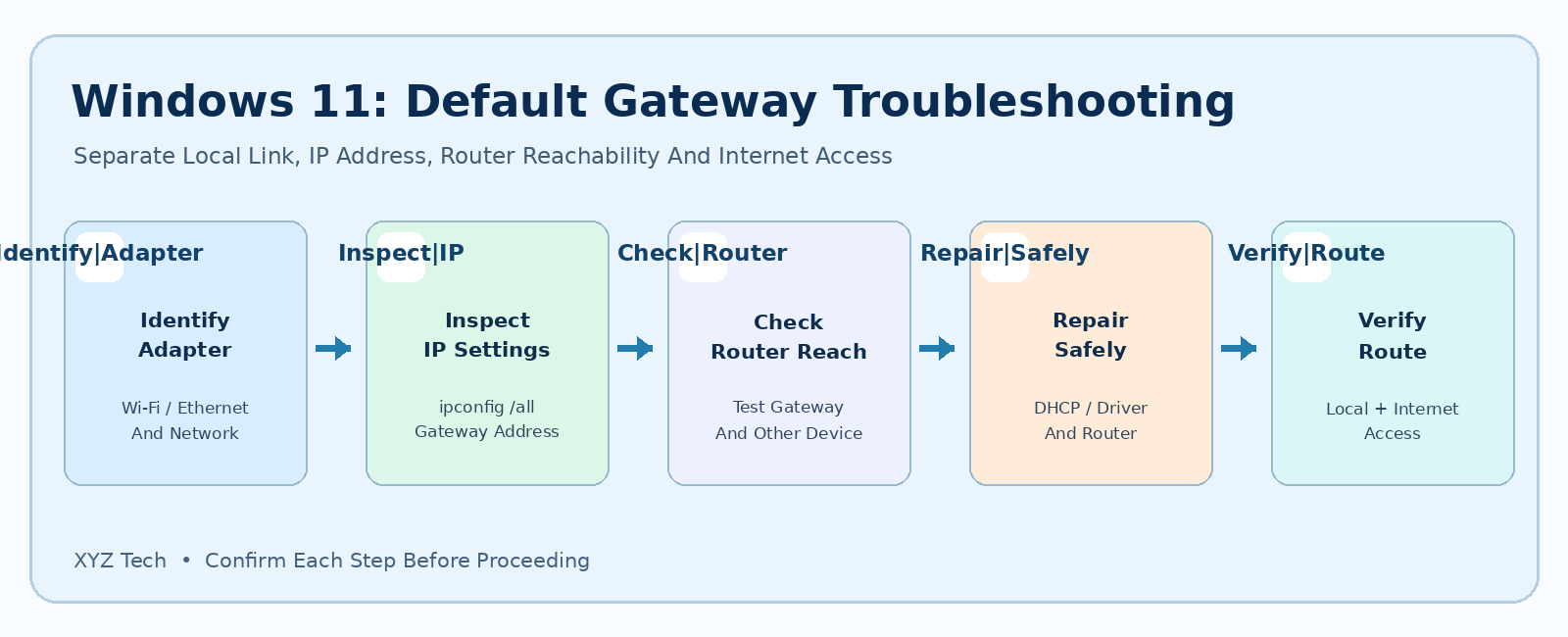
This guide follows a safe sequence: identify the active link, read its IP configuration, check the intended router, distinguish DNS from routing, and only then consider changes to drivers or Windows network settings. Procedures reflect Microsoft documentation and do not claim physical testing on every router or PC.
Confirm the PC is really connected and another device can use the same network. Open Command Prompt and run ipconfig /all to inspect the active adapter’s assigned address and Default Gateway. If addressing is automatic, reconnect normally and check DHCP and the router; use Windows diagnostics before touching drivers. Avoid guessing static IP values or running a full Network reset without a backup and recovery plan.
| Observation | Likely Starting Point | First Safe Check |
|---|---|---|
| Adapter Not Detected | Driver Or Hardware | Device Manager |
| Link Connected, Gateway Empty | IP Configuration | IP Assignment And DHCP |
| Gateway Reachable, Websites Fail | DNS Or Upstream Route | Separate DNS And Internet Checks |
| Every Device Fails | Router Or Provider | Router And Service Status |
| Failure Only After Sleep | Adapter And Power State | Driver And Reconnect Test |
What The Default Gateway Actually Does
A default gateway is the router or another networking device Windows normally uses when sending traffic beyond the local network. In a typical home, the gateway is the address of the router on the Wi-Fi or Ethernet subnet, but managed networks can have more complex routing. An error referring to an unavailable default gateway does not automatically mean the internet provider is down. The PC may have an invalid local IP configuration, be connected to the wrong network, or be unable to reach the router. Microsoft’s TCP/IP addressing guidance explains why the system needs a route for destinations outside its own subnet. The gateway is different from a DNS server. DNS resolves names, while the gateway forwards packets toward other networks. Restarting the DNS client does not necessarily repair a laptop that cannot reach its local router.
The diagnostic objective is to determine whether Windows has a valid local link, received suitable addressing, can communicate with the gateway, and can reach the wider internet. Treat each stage separately before resetting anything.
Identify The Exact Symptom Before Repairing
Some users see a troubleshooter message that mentions the default gateway, while others only observe ‘Connected, no internet’ or frequent disconnects. Those are related but not identical symptoms. Ask whether Wi-Fi networks are visible, whether the PC actually joined one, and whether web browsing fails continuously or only intermittently. A missing Wi-Fi tile is a hardware or driver-detection path rather than a gateway-only issue. Open Windows Settings > Network & internet and check the active connection. If no SSIDs appear, follow our Wi-Fi Network Not Showing guide. If the entire Wi-Fi adapter is absent, see our Wi-Fi Adapter Disappeared guide. If the adapter is visible and connected, continue with address and route diagnosis.
Write down when the failure began and whether it follows sleep, a VPN connection, an update, or a router change. These observations will make the later checks more targeted and less disruptive.
Preserve Network Access And Configuration Details
Before adjusting the adapter, keep a copy of important Wi-Fi credentials, VPN configuration instructions, and any special IP settings required by your employer or school. Avoid publishing router administration passwords in diagnostic notes. If possible, keep a temporary alternative connection available, such as Ethernet or an authorized phone tether, so a failed driver change does not leave you stranded. A network reset can remove virtual adapters and configuration; a command that releases a DHCP lease can temporarily disconnect the computer. Those steps should never be the first action during a remote support session that depends on the same network. Make sure someone can reconnect to the machine locally before altering its only connection.
If a workstation is organization managed, request approval before editing static routes, DNS policies, or VPN adapters. Administrative restrictions are not faults to be bypassed.
Check Whether Other Devices Have Internet
Use a trusted phone or second computer on the same Wi-Fi network, not merely the same provider or mobile-data connection. If it can browse normally, the issue may be localized to the Windows computer or its network interface. If every device connected to the router has the same failure, examine the router, modem, upstream connection, and service-provider status rather than reinstalling the PC’s wireless drivers. A device receiving internet through mobile data is not a valid test of the local router. Temporarily disable mobile fallback only if that is safe and needed to make the comparison clear. Be mindful of cellular costs. If the failure appears on only one room’s Wi-Fi extender but the main router works, see our extender connectivity guide.
Do not factory reset a shared router because one laptop shows a gateway warning. First determine which devices and network segments are affected.
Verify The Windows Connection Is Real
A Wi-Fi network name appearing under Connected means the computer has associated with an access point, but that alone does not establish that it received an appropriate IP address or can reach the gateway. Open Windows Settings and inspect the network’s properties. If Ethernet is used, check the cable seating and link indicator where available. Avoid switching many settings while the link itself is unstable. If the adapter repeatedly disconnects before any IP address can be assigned, focus on radio range, driver stability, Ethernet cable quality, or router health. Our Ethernet Unidentified Network guide addresses one form of local network failure. If the link is stable, proceed to inspect its address and gateway configuration.
A good diagnosis follows the path from physical or wireless association to IP configuration, then to routing and DNS. It does not treat all ‘no internet’ messages as one fault.
Read The IP Address And Gateway With Ipconfig
Open a normal Command Prompt and run ipconfig /all to inspect the current interface details. Microsoft’s ipconfig documentation explains that the command reports addresses, subnet information, and default gateways. Identify the active Wi-Fi or Ethernet adapter, not a disconnected tunnel or virtual machine interface. Check whether it has a plausible local IPv4 or IPv6 configuration and a gateway appropriate to that network. The values 192.168.1.1 or 192.168.0.1 often appear in home-router examples, but there is no universal gateway address. Do not replace your actual value with an internet example. If the adapter has an automatically assigned 169.254.x.x IPv4 address, that often indicates a failure to obtain IPv4 configuration from DHCP, although IPv6 connectivity may still have its own path.
Do not paste the full unredacted ipconfig output to a public forum. It can expose adapter identifiers, local network addresses, DNS suffixes, and organization details.
Check Whether The Default Gateway Is Blank
If ipconfig shows no default gateway on the connection you intend to use, Windows may lack a route to external networks. But a missing IPv4 gateway alone is not definitive if the network uses IPv6 or is intentionally restricted. Look at the actual routing and connection requirements before adding a gateway manually. If the network should use automatic addressing, inspect the adapter’s IP assignment and whether DHCP is enabled. If an organization intentionally configures static routing, obtain the correct settings from its administrator. Do not type 192.168.1.1 merely because it appears in an online tutorial; that address may belong to another device or be outside the computer’s subnet.
A blank gateway is a clue to investigate DHCP and routing configuration. It is not a reason to disable security software or delete every saved network.
Check DHCP And Automatic IP Assignment
Many home and small-office routers use DHCP to assign local addresses, subnet settings, and the default gateway. In Windows, confirm that the adapter is configured for automatic IP assignment if that is the intended network design. A manually configured static address can be correct on some networks, so do not switch to DHCP without checking the network owner’s instructions. If a personal network uses DHCP and the PC shows an unsuitable address or gateway, a normal reconnect or supported troubleshooter can be a reasonable first step. Check whether another device receives a valid address from the same router. If every device fails to obtain one, the router’s DHCP service may need investigation. Microsoft’s network settings guidance explains where IP assignment controls are located.
The objective is correct addressing, not merely making the warning disappear. Preserve any original manual configuration before editing it.
Use A Controlled Disconnect And Reconnect
After confirming the right network and documenting settings, disconnect from the Wi-Fi network and reconnect normally. This can request fresh network configuration without deleting the saved profile. If Ethernet is in use, briefly disconnecting and reconnecting a cable may produce a new link negotiation, but do not do this during critical remote work or equipment updates. Once reconnected, run ipconfig again and compare the address and gateway. A different gateway is not automatically wrong; routers and network segments can be configured in various ways. Test a secure website, and note whether the connection remains stable. If the issue returns after a few minutes, record the time and whether it coincides with sleep or router activity.
A controlled reconnect is less disruptive than a network reset. Try it before removing drivers, clearing all Wi-Fi profiles, or changing router factory settings.
Test Local Gateway Reachability Carefully
If the active adapter lists a gateway address, you may test that address using the supported ping command where appropriate. For example, ping followed by the actual gateway IP can reveal whether the router responds to ICMP echo requests. However, a timeout is not conclusive because some routers intentionally block or limit ping responses. Compare the result with the router’s management interface or another authorized device on the same network. Do not treat a successful gateway ping as proof that the wider internet works; it only tests one aspect of local reachability. If the gateway answers but outside sites fail, investigate upstream routing and DNS.
Avoid network scans or repeated flooding of a shared router. A few controlled packets are enough for ordinary troubleshooting, and an administrator should handle advanced tests in managed environments.
Distinguish Gateway Failure From DNS Failure
DNS translates hostnames such as example.com into addresses that applications use. A laptop may have a working gateway and internet path but still fail to resolve names because its configured DNS servers are unavailable. Conversely, DNS cache clearing does not repair a computer that cannot reach the router. These faults can look similar to a person who only tests websites. If local gateway access works while hostnames fail, follow our DNS Server Not Responding Windows 11 guide for relevant name-resolution checks. Do not substitute random public DNS addresses for an organization-managed resolver without permission. Some environments depend on private DNS zones for company services.
A useful diagnostic separates local link, gateway route, external IP connectivity, and hostname resolution rather than performing every available reset command at once.
Use The Windows Network Troubleshooter
Windows 11 includes network diagnostics through the Get Help application and Settings. Run the supported Network and Internet troubleshooter, review what it finds, and record any proposed fix. A troubleshooter may identify DHCP, adapter, or configuration problems, but it cannot guarantee repair of a failed router or a physically damaged network card. If the troubleshooter says it cannot resolve the gateway problem, return to the recorded IP configuration and comparison with other devices. Do not repeatedly click through a disruptive reset without understanding what it will change. Microsoft’s Windows Wi-Fi troubleshooting guidance offers the normal diagnostic path.
A successful status message should be followed by a real connection test. An error disappearing briefly does not establish stable local and internet access.
Review Wi-Fi Signal And Router Stability
A weak wireless connection can interrupt communication with the gateway even when the PC sometimes shows Connected. Move closer to the router and check whether stability improves. Compare the results with Ethernet when available. Signal quality can be affected by walls, interference, distance, and access-point congestion. If Ethernet is reliable but Wi-Fi is not, our Wi-Fi Slow But Ethernet Fast guide covers radio-specific diagnosis. Do not assume a firmware or routing fault before testing ordinary placement and connectivity. If the gateway warning occurs only at one location, the local wireless link deserves priority over IP reset commands.
A stable router may still experience periodic radio interference. Record whether the problem follows a time of day or a particular room before making permanent changes.
Check For A Faulty Ethernet Cable Or Port
For a wired PC, inspect the Ethernet cable, plugs, and port indicators if available. A damaged cable or loose connector can interrupt the link and leave Windows without a usable gateway even when the router is functioning. Try a known-good cable or another authorized switch port, one change at a time. Do not test by moving cables in a production server closet without permission. A managed switch may have access restrictions and port-specific settings. If the cable is sound and the link remains active but DHCP fails, investigate the addressing path rather than assuming a physical problem. Microsoft’s Ethernet troubleshooting instructions cover common wired scenarios.
A wired test is useful for distinguishing wireless instability from router or upstream issues, but it must be performed safely and within network policy.
Restart The Router Only When It Is Appropriate
If several devices on the same network cannot reach the gateway or internet, a normal router restart may be warranted on equipment you own and manage. Follow the manufacturer’s process and consider whether the restart will interrupt security systems, work calls, or connected devices. Do not use Restore Factory Defaults in place of a restart. A router may need firmware maintenance or provider support if the fault recurs, but changing advanced routing settings without evidence can create new outages. Our Home Wi-Fi Router Security guide explains the importance of secure administration and configuration backups. If only one computer fails, prioritize that adapter and its settings before disturbing every other user.
When the router restarts, verify the gateway address and DHCP state on the PC again. Do not assume that a green status light means internet access has been fully restored.
Check The Wireless Or Ethernet Driver
A network driver that fails during sleep or under load can cause repeated disconnects and apparent gateway loss. Check Device Manager for the actual adapter, its status, and driver version. If the issue began after a recent update, note the timing. Use Windows Update or the PC manufacturer’s official driver page for compatible packages. Our Windows 11 Device Driver guide explains the risks of unofficial installers. Do not uninstall the only network driver unless you have a verified replacement and an alternate way to access it. A software update that solves one model’s problem may not apply to another model with a different chipset.
After updating, verify the adapter status and actual connection stability. A driver installation message alone is not proof that the gateway problem has ended.
Check Sleep And Power Management Patterns
If the default gateway becomes unavailable after the computer wakes from sleep, review manufacturer-supported power-management and driver settings for that adapter. Some laptops handle network reconnection differently depending on battery state, docking, or modern standby behavior. Record whether a normal restart restores the gateway and whether the problem returns after the next sleep cycle. Avoid disabling every system-wide power optimization to treat an unverified hypothesis. Change only settings supported for the actual hardware, and test one variable at a time. If a wireless adapter disappears entirely after sleep, use the separate Wi-Fi Adapter Disappeared guide rather than trying to repair a route for nonexistent hardware.
A repeatable event sequence is more valuable to support than repeated broad resets. Note the driver version and Windows build when escalating.
Review VPN And Virtual Network Adapters
VPN applications, virtual machines, and container environments can add virtual network adapters and routes. A default gateway displayed under one interface may not represent the path used by ordinary internet traffic. If the problem starts when connecting a VPN, contact its administrator or review the vendor’s supported configuration. Do not delete virtual adapters or alter split-tunneling policies without understanding their purpose. A work computer may intentionally route particular destinations through a VPN gateway. Changing a static route to force traffic elsewhere can violate policy and disrupt private services. Use the actual active interface as your reference when reading ipconfig and connection settings.
A diagnostic that works only when an approved VPN is disconnected should be reported to the network administrator, not treated as authorization to permanently disable security controls.
Avoid Guessing Static IP And Gateway Values
A popular internet suggestion is to assign a static address and gateway manually. That can be dangerous if the chosen address is already in use, outside the subnet, or incompatible with a network’s DHCP policy. Do not copy example addresses such as 192.168.1.100 into your settings without knowing the correct router network and address allocation. If a trusted network administrator gives you a static configuration, record each field and apply it through the supported Windows interface. Otherwise, automatic addressing is generally more appropriate on consumer routers configured for DHCP. Compare the configuration with a known-working authorized device and the router’s documented LAN settings.
An apparent short-term repair that creates an IP conflict is not a real solution. Preserve the original settings so any change can be reversed.
Understand What Ipconfig Release And Renew Do
The Windows commands ipconfig /release and ipconfig /renew affect DHCP addressing. Release can relinquish a current lease and interrupt connectivity; renew requests configuration again. They may help in certain DHCP problems, but they do not repair a damaged Wi-Fi card, a router that is powered off, or an access point the PC cannot detect. Do not run these commands casually on a remote computer when losing its current network session would lock out support. If a controlled DHCP renewal is justified, save work, ensure local access, and use Microsoft’s documented ipconfig procedures. Check the resulting address and gateway afterward.
If the renewal repeatedly fails, inspect the router’s DHCP service and the link rather than executing the same commands indefinitely.
Use Network Reset Only As A Late-Stage Option
Windows 11 offers Network reset in Advanced network settings. It removes and reinstalls network adapters and resets related configuration. Microsoft describes it as a later-stage troubleshooting measure. It can affect VPN software, virtual switches, network profiles, and manually configured settings, so it should not be used before less invasive gateway and DHCP checks. If a network reset is truly warranted on a personal computer, preserve credentials, have compatible drivers available, and understand how to restore any special networking tools. On a managed device, request approval. A reset cannot make an unreachable router respond or repair a damaged Ethernet cable.
Always verify the result after restarting: valid addressing, the intended default route, successful local communication, and stable internet access. Do not declare success merely because settings returned to defaults.
Know When Router Firmware Or Hardware Is The Issue
If several devices intermittently lose gateway access despite stable local wiring and Wi-Fi coverage, the router or access point may require firmware maintenance, configuration review, or hardware evaluation. A device that reboots repeatedly, becomes unusually hot, or stops serving DHCP deserves investigation by its owner or provider. Do not perform an unsupported firmware flash or reset the router during critical use. Check the official model support page and follow provider requirements. If the equipment belongs to a business or building, collect evidence and ask the administrator to review it. A router replacement is not justified by one Windows troubleshooter message alone.
If only one laptop shows the problem while other clients are stable, continue examining the laptop’s connection, driver, and network policies before blaming shared hardware.
Create A Small Connection Test Matrix
A simple table of results helps isolate the faulty layer. Record whether Windows detects the adapter, the network link is connected, the computer has an appropriate IP address and gateway, local gateway communication works where permitted, and a secure website loads. Repeat the same checks on a second authorized device if possible. Mark each step as working, failing, or not testable. Do not include passwords, recovery keys, or full confidential network identifiers in the record. If Wi-Fi works next to the router but fails at a desk, capture that location difference. If Ethernet succeeds on the same router while wireless fails, capture that too.
One reproducible result is more useful than an unspecific ‘internet broken’ report. It supports the least disruptive fix and makes later support conversations faster.
Verify Stability After The Repair
After correcting an actual fault, confirm Windows retains a valid gateway and can browse normally. Test a secure website, perform normal work for a while, and observe whether the connection survives sleep or a routine reconnect if that was part of the original symptom. A brief icon change is not enough to verify stability. If you changed a driver, note the version. If you changed router settings, confirm that other devices still connect. If you adjusted DHCP or a static route, document the approved values and avoid leaving accidental manual overrides. Keep a backup of special configurations so they can be restored if needed.
The correct outcome is stable connectivity without compromising VPN access, other network clients, or device security.
Escalate With Precise Evidence
If the warning persists, record the Windows edition and build, adapter model, wired or wireless link type, when the problem occurs, and which devices are affected. Include a redacted summary of ipconfig results, the gateway reachability test where permitted, driver status, and any network diagnostics. Avoid exposing network keys, account credentials, and organization-specific private addresses unnecessarily. Contact Microsoft support, the computer manufacturer, router vendor, or network administrator according to which layer is failing. If hardware repair is suspected, use qualified service and preserve personal data before handing over a device. Our Windows Backup Before Reset guide covers general file-safety principles for more intrusive maintenance.
Not every ‘default gateway not available’ report has one universal repair. A reliable troubleshooting sequence identifies the failing connection stage and preserves everything else.
Frequently Asked Questions
What Does Default Gateway Not Available Mean In Windows 11?
Windows may be unable to use or reach its normal route beyond the local network. The cause can involve a network link, DHCP configuration, adapter driver, router, or policy.
How Do I Find My Default Gateway Address?
Use ipconfig or ipconfig /all in Command Prompt and inspect the active adapter. Do not assume a sample address such as 192.168.1.1 matches your network.
Why Is My Default Gateway Blank?
The adapter may not have received suitable routing information, may be disconnected, or may use a different configuration. Check DHCP, IP version and the network’s intended design.
Will Flushing DNS Fix A Default Gateway Problem?
Not necessarily. DNS resolves names, while a gateway forwards packets to other networks. Diagnose local connectivity and routing before trying DNS-specific changes.
Should I Set A Static Default Gateway Manually?
Only when you have accurate configuration information from the network owner. Guessing a gateway can create conflicts or prevent internet and private-network access.
Can A Wi-Fi Driver Cause Gateway Disconnections?
Yes. A failing or incompatible driver can interrupt the local link, but examine the adapter status and connection behavior before replacing a driver.
Does Ipconfig Release And Renew Help?
It can request fresh DHCP addressing on a suitable network, but releasing an address interrupts the connection and should not be done casually during remote work.
Is Network Reset A Safe First Step?
No. It can remove adapters and alter VPN, virtual network and saved connection settings. Use it only after reversible checks and a recovery plan.
Can A Router Cause The Default Gateway Error?
Yes. A router that cannot serve addressing or communicate reliably can affect multiple devices. Compare other clients before resetting shared equipment.
How Can I Verify That The Gateway Error Is Fixed?
Confirm valid local addressing and routing, verify stable connectivity with the intended router and secure internet sites, and repeat any sleep or reconnect scenario that originally triggered the problem.
Microsoft Documentation
Primary references: Fix Wi-Fi Connection Issues In Windows; IPCONFIG Command Documentation; TCP/IP Addressing And Subnetting; Advanced Wireless Troubleshooting In Windows; Essential Network Settings And Tasks In Windows; Windows DNS Client Troubleshooting; Fix Ethernet Connection Problems In Windows. Microsoft and the device manufacturer control the supported procedures. Protect private network data and obtain authorization for changes to managed equipment.


