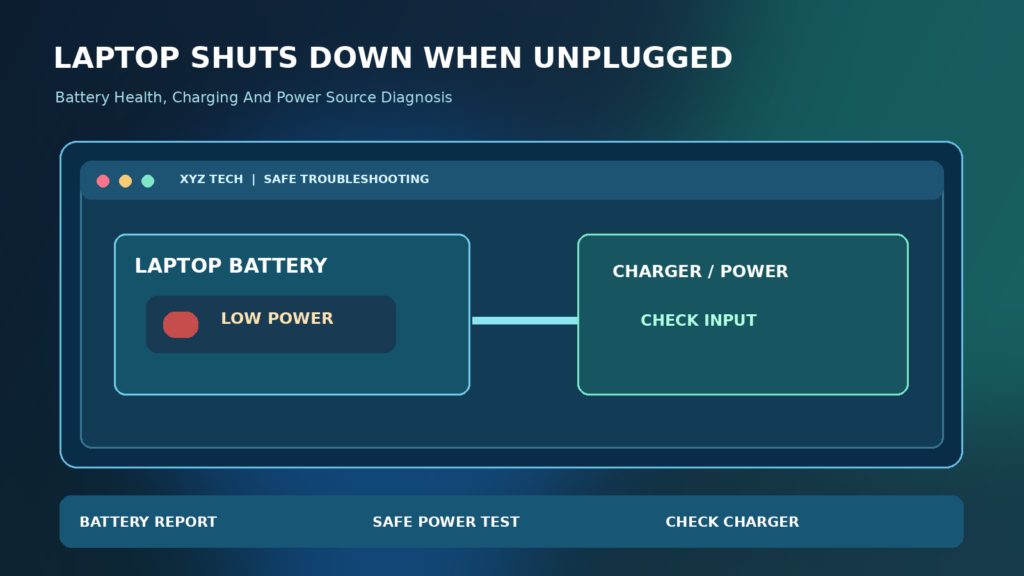

This guide distinguishes normal battery-life problems from a sudden failure of the electrical power path, drawing on Microsoft battery-care and support guidance.
What An Immediate Shutdown Means
When a laptop turns off the moment you remove its charger, it may be unable to draw adequate power from the internal battery. The cause can be a depleted or failed battery, a loose battery connection, a charging circuit problem, incorrect battery reporting or a power-management issue. The timing is important. A sudden complete power loss is different from a normal Windows shutdown, sleep transition or a black display.
Before buying a new battery, observe whether the computer reports a plausible charge percentage while plugged in and whether it actually operates on battery for even a few seconds. If the machine shuts down instantly at a displayed 100 percent, that strongly suggests the reported state does not match usable power. It does not identify the exact failed component by itself.
Quick Answer: Begin With Safe Power Checks
Save and back up any unsaved work while the laptop can still operate on external power. Check the charging cable and correct power adapter, look at the battery icon and, if possible, generate the Windows battery report with powercfg /batteryreport. Compare the battery’s design capacity and reported full charge capacity, then assess the PC manufacturer’s diagnostics. Seek professional support for suspected battery or charging hardware faults.
Do not open a swollen battery, puncture a battery pouch, use improvised jump-start methods or bypass charging protections. If the laptop is overheating, bulging or emitting an unusual smell, power it down and arrange safe service. A software fix is not appropriate for signs of physical battery damage. Microsoft’s battery-care guidance covers diagnostic information and safe battery practices.
Distinguish Power Loss From Screen Sleep
Sometimes a laptop seems to shut down when unplugged because the display becomes dark or Windows enters sleep as a result of a configured power action. If indicator lights remain active and the computer responds to the keyboard or power button, the problem may be a sleep or display policy rather than complete loss of battery power. Confirm whether fans, lights and applications continue running.
If the screen goes black but the operating system remains active, review power and display settings without assuming the battery is dead. Our Windows Hibernate Option Guide explains sleep-related controls. If the laptop truly powers off instantly, keep the focus on the battery, charger, internal connection and power circuitry.
Check The Battery Indicator And Charge Behavior
Hover over or select the battery icon while the charger is connected. Look for a charging status, estimated level or a message such as plugged in, not charging. Some modern laptops deliberately stop charging near a configured maximum to protect battery health. That is different from failing to supply power when disconnected, so do not diagnose a battery fault from a single charge limit setting.
Compare the displayed percentage before and after a period of charging with the correct adapter. A percentage that never rises, jumps suddenly or falls instantly after unplugging is useful evidence. Our Laptop Not Charging When Plugged In article covers related charging symptoms. Record the exact messages before changing anything.
Use The Correct Charger And Cable
A charger that cannot deliver the wattage required by the laptop may keep it running under light load without charging its battery effectively. Confirm the adapter model, output rating and any required USB-C Power Delivery capability against the laptop manufacturer’s specifications. Test with an authorized charger if the original is damaged. Do not assume that any USB-C charger and cable support every laptop.
Microsoft’s slow or discharging while plugged in guidance discusses insufficient power delivery and incompatible cables. Never connect a visibly damaged charger or a third-party adapter whose voltage or connector does not meet the device requirements. Unplugging after an inadequate charging session can reveal that the battery was never meaningfully charged.
Inspect The Charging Port Without Damaging It
A loose or damaged charging port can interrupt power delivery and prevent reliable battery charging. Observe whether the charging indicator changes when the cable is gently moved during normal use. Do not repeatedly force or bend a connector to keep it charging. If the port is hot, discolored, cracked or visibly damaged, stop using it and obtain professional inspection.
USB-C ports may support data without charging, or charging at different maximum power levels depending on the model. Check the authorized charging port instead of using an arbitrary connector. Our USB-C Port Not Working guide separates power and data problems. Physical damage cannot be corrected safely by installing a Windows driver from an unknown website.
Generate A Windows Battery Report
Windows can produce a battery health report using the built-in power configuration utility. Open a supported Windows Terminal or Command Prompt and run powercfg /batteryreport. Windows usually reports the location of the generated HTML file. Open that file from its recorded path and inspect the battery’s design capacity, full charge capacity, and available usage history where reported.
A battery report is diagnostic information, not a certificate of safety. Some devices expose incomplete telemetry, and a battery may fail under load despite apparently plausible readings. Microsoft’s battery reference describes capacity monitoring. Do not use a report alone to decide that opening a sealed laptop is safe.
Interpret Design Capacity Vs Full Charge Capacity
Design capacity is the amount of charge the battery was originally rated to hold. Full charge capacity is the estimate it can currently store under observed conditions. A substantially smaller full charge capacity can indicate wear or degraded capacity, but it does not identify the failure mechanism or guarantee the laptop will shut off at a particular battery percentage.
Compare multiple reports over time if available and note abrupt changes. Older batteries naturally lose capacity, while software estimates can be inconsistent after a battery controller resets. Do not treat a single calculated percentage as a diagnosis of the motherboard. If the laptop shuts down instantly without external power, professional electrical checks may still be necessary.
Check Battery Cycle Count And Usage History
Where supported, the battery report may list cycle counts, capacity history and recent usage. Not every laptop reports every field. Large changes in the reported full charge capacity or very short discharge periods can support the case for a degraded battery. A high cycle count alone, however, is not proof that the power problem comes from the cells rather than charging hardware.
Record the report without editing it, and compare with the manufacturer’s battery diagnostic tool where offered. Do not publish a report containing private machine identifiers or usage information. If the report has missing fields, label them unavailable rather than inventing values.
Run The Manufacturer’s Battery Diagnostics
Many laptops include approved diagnostics accessible through a manufacturer support app, firmware menu or boot-time test environment. Use the procedure for the exact model from the vendor’s official documentation. A battery hardware test may report poor health, a connection problem or a charging issue. The labels and reliability vary by vendor.
If a test reports failure, record the error code and contact service. If it reports no fault but the device still cannot operate unplugged, keep investigating: passing one diagnostic does not rule out intermittent failure under load. Avoid using unverified utilities that promise to recalibrate or repair battery cells by software.
Check Battery Health Charging Limits
Some manufacturers offer smart charging or charge thresholds to reduce long-term battery wear. A laptop configured to stop at 80 percent is not automatically defective. Check the approved vendor application or firmware settings if the displayed charge seems capped at a consistent level. Microsoft’s battery-care guidance describes smart charging as a battery longevity feature.
Do not disable health protections merely to make the status display show 100 percent. If the laptop powers off the instant you disconnect it, a charging cap does not adequately explain the absence of battery-powered operation. Preserve working settings while you examine the actual capacity and power path.
Evaluate Whether The Battery Is Detected
Open Device Manager and review battery-related entries if the system supports them. A missing or warning-marked battery component can suggest a detection or software problem, but it can also reflect hardware issues. Look at the Windows power status and firmware diagnostics together rather than inferring hardware condition from one Device Manager label.
Do not uninstall battery system devices blindly. Some manufacturers explicitly warn against driver removal or unsupported resets on certain models. For a Surface device, consult Microsoft’s Surface battery guidance, which discusses service escalation when a device powers off after unplugging.
Could A Windows Power Setting Cause It?
A Windows power plan can choose different screen brightness, sleep or performance behavior on battery and AC power. Such settings may create the appearance of a shutdown or trigger sleep when you close a lid, but they should not generally make a healthy laptop lose all electrical power at the moment the charger is removed.
Review Settings > System > Power & battery for available controls and verify what Windows is configured to do on battery. Microsoft’s Windows power settings reference describes these options. Changing a display timeout is reasonable for a display-only symptom; it is not a replacement for testing a failing battery.
Why The Laptop May Show 100 Percent Yet Die
The charging indicator is an estimate based on battery-controller information rather than a direct guarantee that cells can deliver current under load. A degraded battery, disconnected battery cable or faulty controller may report an unrealistic charge. If the computer cannot sustain itself for even a few seconds, the useful observation is that the battery power path is failing, regardless of the icon’s percentage.
A 100 percent reading is not proof the adapter or battery is healthy. Gather battery-report information, manufacturer diagnostics and a documented description of the behavior. Avoid repeated deliberate power cuts because unsaved files and storage operations can be damaged by abrupt loss of power.
Check For Sudden Shutdowns Only Under Heavy Load
A device that runs on battery for several minutes but shuts off during gaming or video rendering differs from one that dies instantly when unplugged. High load can reveal reduced battery capacity, temperature limits or a hardware power fault that a low-load test does not reproduce. Keep this distinction in your support notes.
Do not run extreme benchmarks on a battery that is physically swollen or overheating. For a healthy-looking device, a short ordinary workload comparison may be informative. If the PC reports stop errors or restarts rather than loses power, troubleshoot the Windows crash behavior separately, including our Windows Stop Codes Guide.
Check For Heat And Battery Swelling
Excess heat and physical swelling are serious warning signs. A swollen battery can deform the chassis or trackpad, and a hot or damaged pack should not be charged or pressed back into shape. Stop using the laptop, disconnect external power when safe to do so, and consult the manufacturer’s authorized battery service instructions.
Never puncture, crush, freeze, heat or attempt to jump-start a lithium-ion cell. Do not mail damaged batteries through ordinary channels without checking applicable transportation rules. Safety takes precedence over recovering a document or proving the failure through additional power-cycle experiments.
Should You Calibrate The Battery?
Online guides sometimes recommend fully discharging and repeatedly recharging a battery to repair its capacity. That is not a reliable treatment for chemically aged or physically damaged cells. A manufacturer may prescribe a specific supported calibration or gauge-reset procedure when the reported percentage is inaccurate, but the correct procedure is model-specific.
Do not deliberately deep-discharge a battery that is already failing to support the system. Microsoft’s battery-care guidance recommends avoiding unnecessary prolonged operation at extreme charge levels. If the computer cannot operate without AC power, a service diagnosis is safer than a home experiment intended to force a recalibration.
Check Whether The Charger Is Masking A Hardware Fault
On AC power, the laptop may operate using the adapter even if the battery is disconnected or no longer capable of delivering enough current. This explains why normal Windows performance while plugged in does not rule out a battery problem. A charging LED alone also cannot prove the battery is actually receiving useful charge.
An authorized repair technician can examine the battery connector, charging circuit, internal cable and board-level power path with appropriate equipment. Those checks are not well suited to an untrained user working inside a sealed or electrically damaged device. Be prepared with the battery report and original power-adapter details.
Backup Your Files Before Advanced Repair
If the device runs only while connected, preserve irreplaceable work before shipping it for service or attempting supported diagnostics. Sudden power loss during a copy can interrupt the operation, so use a stable power source and verify files after transfer. Store a second copy independently of the laptop when possible.
Our Back Up Files Before A Windows Reset guide describes a systematic preservation approach. Do not perform a factory reset hoping to repair a swollen or electrically failing battery. Hardware repair and operating-system recovery are different tasks.
A Symptom-To-Cause Comparison Table
Compare what you observe rather than matching a single error phrase to a specific replacement part. A system that loses all power instantly may have a dead battery or power-path fault; a display that goes dark while lights remain active may have a power-setting issue; and a device that drains while plugged in may have an inadequate charger.
The table below suggests which safe test provides additional information. It is not a remote hardware certification, and several components can fail at once. Use the results to decide whether ordinary software checks are appropriate or whether manufacturer service is required.
When To Replace The Battery
Replacement may be appropriate when the battery fails manufacturer diagnostics, displays severe capacity degradation and cannot sustain normal operation, or is physically damaged. Use a genuine or manufacturer-approved compatible replacement and follow the specific laptop’s servicing instructions. A battery is not interchangeable solely because the connector or exterior shape looks similar.
If the laptop is under warranty, contact the manufacturer before opening it. Some models use adhesive or integrated components that require special tools and training. Battery replacement may not repair a faulty charging circuit, so use the diagnosis rather than buying a part based only on an internet symptom list.
| Symptom | Likely Category | Safer Check |
|---|---|---|
| Instant Power Loss | Battery Or Power Path | Battery Report And Manufacturer Service |
| Screen Dark, Lights On | Sleep Or Display Settings | Power Configuration |
| Charge Falls Under Load | Battery Health Or Power Delivery | Approved Adapter And Diagnostics |
| Swollen Chassis | Unsafe Physical Battery Condition | Stop Use And Seek Service |
When To Contact Professional Support
Escalate when the laptop consistently shuts down the moment the charger is removed, reports a failed battery test, has visible swelling, or behaves unpredictably after safe checks. Provide the exact laptop model, battery-report summary, charging status, adapter type and any manufacturer diagnostic codes.
Do not share serial numbers publicly unless the vendor’s authenticated support channel needs them. Ask about battery warranty, replacement eligibility, and whether data on the internal drive must be backed up before repair. A technician can examine hardware that Windows utilities cannot directly prove safe or functional.
Long-Term Battery Care After Repair
Once reliable battery operation returns, protect the replacement with sensible thermal management, manufacturer-supported smart charging and routine software maintenance. Avoid prolonged exposure to extreme heat and do not leave a battery stored fully depleted for long periods. Microsoft’s battery-care guidance offers practical advice on charge levels and storage.
Occasionally review the battery’s actual behavior during a short normal unplugged session. Keep a current independent backup, because any laptop can fail unexpectedly even when its battery report looks normal. The useful goal is dependable operation and safety, not preserving a perfect 100 percent capacity number forever.
A Final Safe Checklist For Sudden Power Loss
Record whether the system is truly off or merely asleep, confirm the approved charger and the battery indicator, inspect for heat or swelling, run a supported battery report, compare the manufacturer’s diagnostics, and back up important files. If the laptop loses power immediately without AC, treat a hardware power-path issue as plausible even if Windows shows a high charge percentage.
Avoid invasive repairs, unofficial battery firmware and repeated abrupt unplug tests when the device is unstable. Do not mistake a power-mode tweak for proof that a failing cell was repaired. Consult the manufacturer when safety, warranty or internal electrical hardware is involved.
Frequently Asked Questions
Why Does My Laptop Shut Off Immediately When Unplugged?
The battery may no longer provide usable power, its connection or controller may be faulty, or the charging circuit may have failed. Verify whether the computer truly powers off rather than sleeps.
Can A Battery Show 100 Percent But Be Bad?
Yes. The reported charge is an estimate and does not guarantee the cells can supply current under load.
How Do I Generate A Battery Report In Windows 11?
Run powercfg /batteryreport in a supported Command Prompt or terminal. Open the generated HTML report and inspect its reported capacities and usage history.
Will Reinstalling Windows Fix A Dead Battery?
No. Reinstalling Windows cannot repair degraded cells, loose battery connections or damaged charging circuitry.
Could The Charger Cause The Problem?
A charger with insufficient compatible output may fail to charge the battery properly. Confirm the approved adapter, power rating and cable.
Should I Calibrate A Battery That Dies Immediately?
Do not force repeated deep discharges. Follow the manufacturer’s specific safe calibration guidance, if any, and seek service for suspected hardware failure.
Is A Swollen Laptop Battery Dangerous?
Yes. Stop using or charging a visibly swollen or damaged battery and arrange manufacturer-approved service.
Does Low Power Mode Cause An Instant Shutdown?
It normally changes power use, not the physical ability of a healthy battery to run the computer. Separate a normal sleep transition from actual power loss.
When Should I Replace The Battery?
Consider replacement after appropriate diagnostics confirm degraded or failed battery operation, using an approved compatible part and authorized service.
Should I Backup Files Before Battery Service?
Yes. Protect irreplaceable data while the laptop operates on stable external power and verify the copied files before service.


