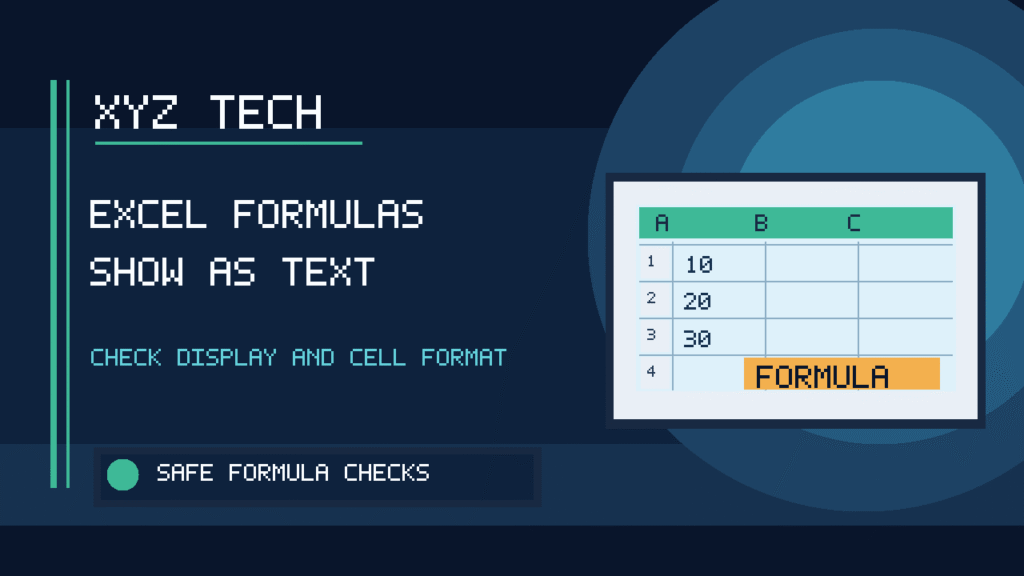

Excel may display =SUM(A1:A2) instead of a number when Show Formulas is enabled or a cell stores the expression as text. A formula that displays an old value and does not update is a different problem involving calculation settings or its dependencies. The steps below distinguish those conditions and protect valuable workbook logic.
Documentation Review: November 2026. Based on Microsoft Excel Support resources. The illustration below is original and is not an actual Excel screen capture. Protect an unchanged copy before modifying important spreadsheets.
If many cells show formulas, toggle off Formulas > Show Formulas. If only a few formulas appear as text, change those cells to General and press F2, then Enter. If numbers appear but fail to update, inspect Calculation Options > Automatic. Do not paste fixed values over formulas as a shortcut.
| Symptom | Likely Cause | First Safe Check |
|---|---|---|
| Most Cells Show =A1+B1 | Show Formulas | Turn Off Ribbon Toggle |
| One Cell Shows Formula Text | Text Format Or Prefix | General, F2, Enter |
| Number Does Not Update | Calculation Mode | Check Automatic Option |
| Cell Displays #REF! | Broken Formula Reference | Inspect The Error |
| Pivot Table Numbers Stay Old | Refresh Issue | Check The Pivot Data Source |
Identify The Difference Between Display And Calculation
A cell displaying =SUM(A1:A3) may be functioning exactly as Excel has been instructed. Show Formulas reveals expressions across a worksheet without removing their underlying calculations. A Text-formatted cell may instead store the expression as ordinary characters and never calculate it. A third possibility is a valid formula showing an old numeric result because the workbook uses manual calculation.
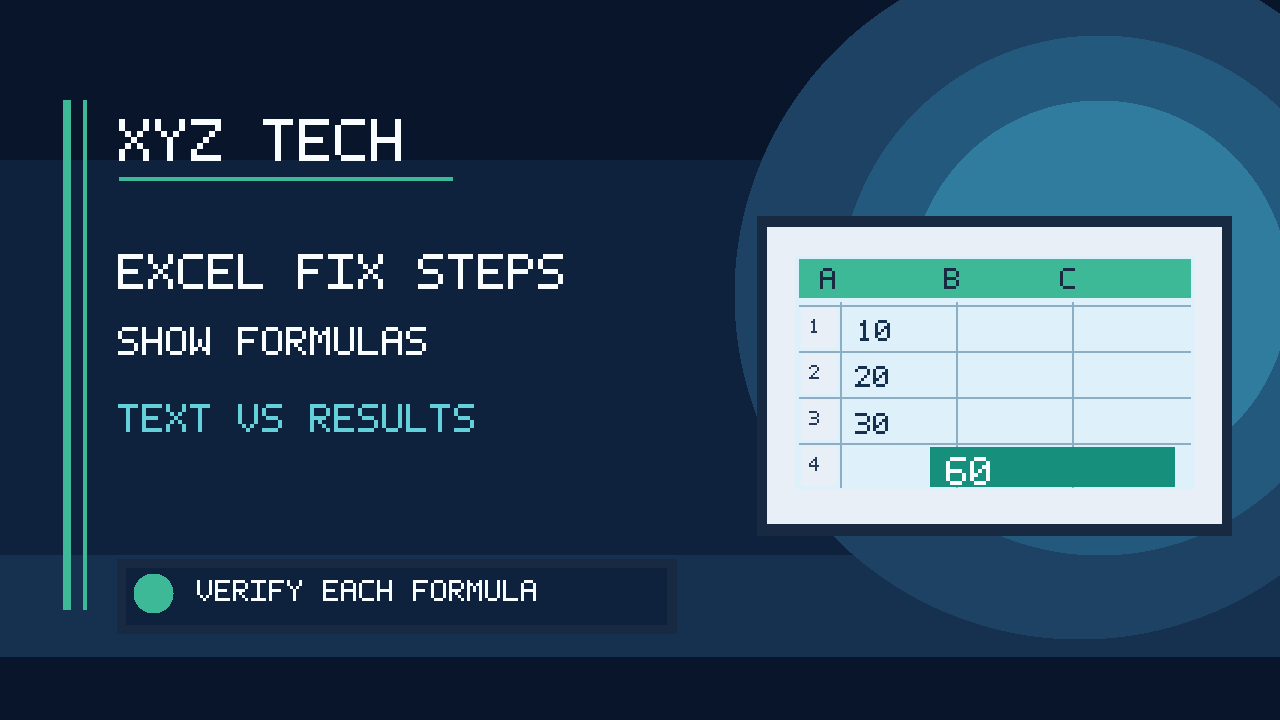
Diagnose these situations separately. Note whether many cells show formulas, only one or two cells display text, or calculated values fail to change when inputs change. Build a harmless example with 10 in A1, 20 in A2 and =SUM(A1:A2) in B1. This controlled comparison will help identify the correct setting without altering important business data.
Save A Backup Before Changing A Real Workbook
A display toggle is reversible, but bulk editing, Find and Replace operations and formula-to-value conversions can damage a workbook. Make an independent copy of the original file before changing a spreadsheet that contains finance records, payroll information, client data or a complicated model. Verify that the backup actually opens and has the expected worksheets.
A shared workbook can have protected cells, external links and hidden calculations that are not obvious in the visible grid. Do not replace formulas or adjust every cell format simply to make the screen appear cleaner. If an earlier version is needed after an accidental change, our File History Restoration guide describes one possible recovery source, provided the file was backed up before the error.
Turn Off Show Formulas On The Formulas Ribbon
When most formula cells display their underlying expressions rather than their results, open the Formulas tab and find Show Formulas in the Formula Auditing group. Select it to switch the worksheet back to displaying calculated values. Microsoft’s official instructions confirm that the control toggles the presentation of formulas without rewriting them.
After switching the display, inspect several unrelated formula cells. If a sum cell now displays 30 instead of =SUM(A1:A2), this was a viewing preference rather than formula corruption. Do not reinstall Excel or retype hundreds of formulas to correct a normal ribbon option. The formula bar will still display the expression when its cell is selected, and that is expected.
Use Ctrl Plus The Grave Accent Shortcut
On supported desktop Excel for Windows versions, Ctrl together with the grave accent key toggles Show Formulas. This is the key often found near the number 1, though keyboard layouts and laptop keyboards vary. Microsoft explicitly documents this shortcut and the alternative ribbon control.
The grave accent is not the ordinary apostrophe. If the key is hard to identify because of a regional layout, use Formulas > Show Formulas instead of guessing. Confirm you are working inside Excel and not a remote desktop application that intercepts shortcuts. A correct toggle should change the way many formula cells appear in the same worksheet.
Understand Why The Formula Bar Still Shows A Formula
In normal Excel use, the grid displays the result of a working formula while the formula bar displays the expression that produced it. For example, cell B1 may show 30, but selecting it reveals =A1+A2 in the formula bar. This is how users inspect calculations without permanently replacing the visible result.
Do not diagnose a problem merely because the formula is visible above the grid. Look at what the cell itself displays and whether it responds to an input change. The Excel web interface can have different formula-display controls from the desktop app, so match the procedure to the actual edition rather than assuming every ribbon is identical.
Check The Number Format Of A Single Problem Cell
If most formulas return numbers but a specific cell displays the typed expression, select that cell and inspect Home > Number Format. A cell previously formatted as Text may treat =A1+B1 as a literal string. This often happens when formulas are pasted into a column originally prepared for customer numbers, product codes or imported text.
Only change cells that are intended to calculate. Columns containing postal codes, account identifiers and long numeric strings may require Text formatting to preserve leading zeros. A broad conversion to General can damage the underlying information, so the safe test starts with one confirmed formula cell and leaves unrelated text data unchanged.
Switch Text To General Then Confirm The Formula
Microsoft recommends selecting the affected cell, changing its format to General, pressing F2 and then pressing Enter. The F2 and Enter sequence reenters the expression in the correct format. Merely switching a cell’s display format does not necessarily cause Excel to reinterpret the content that was previously stored as text.
After the correction, test the formula with a harmless input change. If the cell still shows literal text, check for a leading apostrophe or space before the equals sign. Do not assume that a file-wide calculation shortcut can activate a text entry; only a recognized formula will be recalculated by Excel.
Remove An Accidental Leading Apostrophe
An apostrophe before an equals sign can intentionally tell Excel to store the following characters as text. Tutorials and documentation sometimes use this feature to display formulas for teaching purposes. If an actual calculation cell contains an unwanted leading apostrophe, inspect and edit it deliberately.
Do not strip apostrophes from every imported cell. They may be used intentionally to preserve literal strings, model numbers and identifiers. Compare the current formula-bar contents with a known working example, correct only the affected formula and verify the result. A visible formula should be changed to a calculation only when that was the intended design.
Check Spaces And Invisible Characters Before Equals
Copying a formula from a website, email or PDF can introduce a leading space or another invisible character before the equals sign. In such cases the visible cell may resemble a formula while Excel treats the entry as text. Inspect the beginning of the formula bar and compare the same expression when typed directly into an empty General-formatted cell.
For one cell, remove the unwanted prefix and confirm the formula. For a large imported range, preserve the original file, inspect sample values and use a controlled conversion technique. A broad Find and Replace of all whitespace may alter worksheet names, descriptions and legitimate text values, creating a new problem while hiding the original one.
Make Sure The Expression Starts With Equals
Microsoft explains that an entry such as SUM(A1:A2), without an initial equals sign, is ordinary text. A valid Excel calculation normally begins with =, followed by an expression or function. Typing 11/2 without an equals sign may even produce a date depending on locale and cell formatting.
Check exactly what is present rather than relying on the visual appearance of copied instructions. If the text must remain an explanatory example, leave it unchanged. If it is intended to calculate, insert the required equals sign and verify the cell references. Do not interpret a formula pasted into a text box or comment as a failed worksheet calculation.
Distinguish A Stale Number From Literal Formula Text
If a cell displays 30 but does not change when you update a referenced input, Excel has recognized the expression but may not be recalculating automatically. This differs fundamentally from a cell displaying =SUM(A1:A2) as text. The Show Formulas command controls presentation, while the calculation mode controls when recognized formulas are evaluated.
Test the distinction by changing a harmless input and then restoring it. If the numerical result stays old but the formula remains present, inspect Calculation Options. Avoid changing the structure of a complex workbook before discovering whether manual calculation was deliberately configured to reduce processing load.
Check Automatic Calculation In Excel Options
In desktop Excel, inspect Formulas > Calculation Options or File > Options > Formulas > Workbook Calculation. Automatic is appropriate for ordinary spreadsheets that should recalculate dependent cells as their inputs change. Microsoft’s calculation guidance also documents Manual and other choices for specialized models.
Changing a workbook to Automatic may trigger expensive recalculations when many large formulas, data tables or external dependencies exist. Consult the workbook owner if the model was intentionally set to Manual. For a simple personal sheet, choose Automatic, change a test input and confirm the result updates. The correct setting is the one that matches the design of the workbook.
Use F9 For A Deliberate Recalculation
When a workbook is intentionally in Manual calculation mode, F9 can calculate formulas without permanently changing that mode. Excel’s official shortcut reference describes additional commands for full calculation of open workbooks. Before pressing the key, exit cell-editing mode and verify that your work has been saved.
Inside the formula bar, F9 applied to a selected expression can evaluate and replace it with the result, a very different action from recalculating the workbook. That distinction matters for users who edit formulas by highlighting expressions. Do not press unknown keyboard combinations repeatedly in a production financial model; use the documented operation for the problem being diagnosed.
Know When Full Recalculation Is Appropriate
Microsoft documents Ctrl+Alt+F9 to calculate all worksheets in open workbooks, and Ctrl+Alt+Shift+F9 to recheck dependencies and perform a full calculation. These are advanced options for recognized formulas whose dependency information or calculated outputs need attention. They will not convert a text-formatted expression into a valid formula.
Large workbooks can take considerable time to recalculate. Save a backup and allow processing to complete before concluding that Excel is unresponsive. Do not use a forced dependency rebuild when merely turning off Show Formulas fixes the problem. Match the level of intervention to the evidence rather than assuming the most complex shortcut is the most effective.
Recognize Error Values As A Separate Problem
A formula displaying #REF!, #NAME?, #VALUE!, #DIV/0! or #N/A has been recognized as a formula, but Excel cannot provide the intended result under the current references or data. The exact error contains useful diagnostic information. A reference error can arise from deleting cells, while a name error may indicate an unrecognized function.
Use Microsoft’s Detect Formula Errors guidance instead of hiding the error with a hard-coded number. Changing Text to General is not the correct response to an already recognized formula producing an error. Confirm the function name, arguments, data types and referenced cells, and preserve the calculation logic rather than merely hiding a warning.
Test A Fresh Workbook Before Reinstalling Excel
Create a new workbook and enter 7 in A1 and 8 in A2. Type =SUM(A1:A2) into A3 and confirm that it displays 15. Change A1 to 10 and check whether A3 becomes 18. This simple test identifies whether Excel can normally recognize and update formulas outside the affected workbook.
If the new file behaves correctly, investigate the original worksheet’s format, Show Formulas state, imported data and calculation configuration. If a fresh test also fails, check the Excel edition and official updates. Do not reinstall Office or reset user profiles just because one imported sheet has a known Text formatting problem.
Compare The Behavior Across Multiple Worksheets
When only one worksheet shows formula text, the cause may be local display or cell formatting rather than a machine-wide malfunction. When several workbooks contain stale numbers, calculation configuration or a shared application setting may be relevant. Record which sheet or file exhibits the issue and whether the same expression calculates elsewhere.
Do not remove hidden or protected worksheets merely to make the comparison easier. Create a separate test area in a copy and observe how a small example behaves. The pattern often tells you whether to change one cell, one worksheet view or the workbook calculation option, avoiding unnecessary changes across an entire reporting system.
Understand Problems Caused By Pasting From Websites
Pasted formulas may arrive with an apostrophe, hidden spaces or formatting copied from HTML. A visible =SUM expression does not prove Excel stored it as an executable formula. Check the actual formula bar and input cell format after pasting into a disposable example.
If you paste an entire table from another program, decide which columns contain literal identifiers and which truly require calculations. Converting everything to General can remove leading zeros from codes, while converting everything to formulas can make untrusted text execute in a spreadsheet context. Treat externally supplied data with caution and preserve the original import.
Treat CSV Imports With Extra Care
CSV files are text records rather than native Excel workbooks containing all formula and formatting metadata. Excel may interpret imported values according to opening and import choices, including regional settings. An equals sign inside a trusted CSV value can be intended as a formula or simply as text. These possibilities should not be assumed equivalent.
Do not automatically evaluate formulas supplied by strangers; spreadsheet formula injection is a real risk in some workflows. For authorized project data, use a controlled import, inspect sample rows and convert only clearly intended formula columns. Preserve the original CSV for audit and avoid overwriting source data before confirming that totals and identifiers remain correct.
Check Regional Separators In Function Arguments
Excel’s argument separators can differ according to language and regional settings. A formula copied from documentation using commas may need a different separator in another locale. That usually leads to a parsing problem or error rather than a simple Show Formulas state, but it can confuse users investigating why a formula does not return a result.
Use a working local formula or Excel’s Function Arguments interface as a guide. Avoid changing the entire Windows locale simply to make one copied expression parse. Confirm that decimal separators, argument separators and cell references make sense for the workbook. A regional parsing issue should be resolved precisely, not by replacing every punctuation mark in the file.
Avoid Converting All Formulas To Values
Paste Special > Values can replace a calculation with its present numerical output. That sometimes produces a convenient static report, but it removes the formula and breaks future updates. A balance sheet cell that now shows 30 may stop responding when its underlying inputs change.
Do not use this as a repair for formula display. Preserve the dynamic expression, correct the view or formatting, and verify that recalculation still works. If a report intentionally needs fixed values, document that choice and retain an editable calculation version separately. Removing formulas is a modeling decision, not a default troubleshooting step.
Examine Named Ranges And Structured References
Not every valid formula uses A1-style cell references. Excel tables can use structured references such as =SUM(Sales[Amount]), and workbooks can refer to named ranges or external sheets. If those names change or a source table disappears, Excel may return an error or unexpected value.
Inspect the actual formula rather than substituting a simpler expression that changes its meaning. An invalid name is different from literal formula text. Restoring missing table columns or correcting a reference may be necessary, but should be done on a backed-up copy when the model feeds financial or operational decisions.
Separate Pivot Table Refresh Problems
A PivotTable can display stale summaries even if ordinary Excel formulas update normally. Refreshing the PivotTable’s data source and its cached report is a different task from turning off Show Formulas or changing Text-formatted cells. Do not fix a refresh problem by rewriting formulas across the sheet.
Our Excel Pivot Table Not Refreshing guide provides the relevant diagnostic workflow. First determine whether the visible result belongs to a formula, pivot summary, query or linked data source. Those objects have different update cycles, and an apparently old number does not always mean Excel’s calculation engine is broken.
Check Cloud Copies And External Links
A spreadsheet may reference another workbook stored in a cloud drive or network location. If the external file is unavailable or has not synchronized, some formulas can show stale values or link errors. These cases are distinct from a cell displaying an equals sign as text.
Verify the authorized source and its synchronization state without bypassing security prompts for external links. Our Google Drive Desktop Not Syncing guide covers related availability checks. If the workbook has external connections, do not enable untrusted content solely to make a number update, and confirm that the external data source is genuinely the one intended by the owner.
Test A Single Formula Before A Bulk Repair
If hundreds of entries were imported as text, it may be tempting to select every cell and force Excel to reinterpret the range. First copy several representative cells into a disposable workbook, apply General formatting and F2 then Enter, and check whether each formula produces the expected result.
A bulk operation can damage intentionally text-formatted catalog numbers or explanatory formulas. Keep the original unchanged and test a conversion method only on the confirmed formula range. Compare a sample of results and the total number of working formulas before applying any mass edit. Small controlled tests are faster than repairing a corrupted production sheet afterward.
Do Not Overwrite Protected Models Without Permission
Protected worksheets and shared templates often prevent editing formulas for good reasons. A user may be allowed to change inputs but not calculations. An inability to edit a formula is therefore not necessarily a sign of corruption or a broken Excel installation.
Ask the workbook owner or IT for an approved editable copy instead of attempting password-removal tools or unprotect scripts. In business workflows, preserving an audit trail can matter as much as getting a displayed number. You can test the same expression in your own worksheet without altering the protected source.
Verify The Mathematical Result Independently
A successfully displayed number can still be wrong because of incorrect references, data types or logic. Once a formula starts calculating, use a simple independent check for representative rows. If the example adds 10 and 20, the displayed output should be 30, not merely any number.
Change one harmless input to confirm that dependent cells respond, then restore it. For important reporting, compare the result against reviewed source records and ask for second-person verification where appropriate. A visual fix is incomplete when it simply hides a wrong calculation or replaces a formula with a static value.
Record Which Setting Solved The Problem
Keep a short note of whether the correction was Show Formulas, General formatting with F2 and Enter, removing an apostrophe, or changing calculation mode. The appropriate troubleshooting path is worth recording because the next user may encounter the same symptom after importing a similar file.
For shared workbooks, communicate calculation setting changes to collaborators. If a template repeatedly arrives with formula fields stored as text, correct the import process rather than repeatedly repairing its outputs. A simple documented procedure prevents unnecessary reinstalls and accidental overwrites of valuable spreadsheet logic.
Prevent Formula Display Problems In Future Workbooks
Use predictable number formats for calculation cells, test imports on a small sample, and review whether Show Formulas is active before distributing a workbook. Keep Automatic calculation for ordinary sheets unless a specialized model deliberately requires another setting. When formulas must appear as examples, label them clearly so readers do not confuse literal text with failed calculations.
Maintain a versioned backup process for important documents and review the output after any bulk data conversion. Our Windows Backup Software comparison can help when choosing broader file protection. The objective is a workbook whose results remain accurate and reproducible after new inputs arrive.
Frequently Asked Questions
Why Is Excel Showing Formulas Instead Of Results?
Either Show Formulas is enabled or certain cells were entered as Text or with a prefix. Diagnose whether the whole worksheet or individual cells are affected.
How Do I Turn Off Show Formulas?
Use Formulas > Show Formulas, or Ctrl plus the grave accent key on supported desktop Excel for Windows.
What If Only One Cell Shows The Formula Text?
Inspect its number format, leading apostrophe and spaces. For an intended formula, change Text to General and press F2 then Enter.
Why Does Changing Text To General Not Work Immediately?
The existing entry may still be stored as text. Microsoft recommends confirming the formula with F2 followed by Enter.
Does Manual Calculation Display The Expression As Text?
Not normally. Manual calculation tends to leave previous numerical results stale; it is different from Show Formulas.
How Do I Enable Automatic Workbook Calculation?
Use Formulas > Calculation Options > Automatic or File > Options > Formulas when appropriate for the workbook.
What Does F9 Do For Excel Formulas?
Outside edit mode, F9 requests recalculation. Inside formula editing, evaluating a selected expression can replace it with a value.
Can I Recalculate Text Formulas With Ctrl Alt F9?
No. A text entry must be corrected into a recognized formula first; recalculation alone will not interpret it.
Why Do Formulas Pasted From CSV Not Work?
Imports can retain Text formatting, extra characters or regional syntax differences. Inspect a safe copy before bulk conversion.
Should I Replace Formulas With Their Values?
Not when the sheet must keep updating. Pasting values removes the dynamic formula and can conceal the original issue.
Official Microsoft References
Documentation used: Microsoft Show And Print Formulas; Microsoft How To Avoid Broken Formulas; Microsoft Detect Formula Errors; Microsoft Change Formula Recalculation; Microsoft Excel Keyboard Shortcuts; Microsoft Text Formatted Numbers; Microsoft Replace Formula With Result. Excel menu labels and shortcut availability can vary by version and platform.


