
An Excel PivotTable that refuses to refresh can quietly turn a current sales, inventory or finance report into an outdated one. The fix depends on whether the existing numbers changed, new records were added outside the source range, or an external query failed to load. This guide uses a source-first workflow to help you repair the report without damaging the workbook.
Scope: Desktop Excel with ordinary PivotTables, Excel Tables, Power Query and Data Model sources. Certain menu names, automatic-refresh options and external-connection controls differ between Excel versions and Microsoft 365 editions. The steps are based on documented behavior, not a claim that every workbook was physically tested.
Save a copy of your workbook, verify that the new values really appear in the source, select the PivotTable and use Refresh. If new rows are missing, inspect PivotTable Analyze > Change Data Source and consider an Excel Table. For Power Query or Data Model reports, refresh the underlying connection before evaluating PivotTable results. Check filters and independently compare totals before trusting the report.
Quick Diagnostic Reference
| Symptom | Likely Check | Safe Next Action |
|---|---|---|
| Old Values From Existing Rows | PivotTable Cache | Refresh Selected Report |
| New Rows Missing | Source Range | Change Data Source Or Use A Table |
| Connection Error | Power Query Or External Source | Inspect Query Status And Credentials |
| New Category Invisible | Report Filters And Slicers | Review Selections |
| Unexpected Total | Aggregation And Data Types | Validate Against Source Rows |
Identify The Kind Of Refresh Problem
A PivotTable can look outdated for several different reasons. The source may have changed but the PivotTable cache has not been refreshed. New rows may exist below the selected range and remain outside the source. A connection to an external database may not have updated its query results. A slicer or filter may hide a newly added category. These situations produce similar symptoms but require different repairs. Start by deciding whether the problem concerns changed values in existing rows, new rows or columns, missing groups, an error message, or a connection that never finishes.
Record the current total for one well-defined category and compare it with the corresponding source records. Choose a small, non-sensitive test dataset if possible. Make a copy of the workbook before changing its structure, especially when other people rely on it. Do not immediately delete the PivotTable, overwrite formulas, or disable workbook security protections. You need to know where the data stopped updating before deciding which control to use.
Protect The Workbook Before Troubleshooting
Save a separate working copy with a recognizable date or version suffix before modifying a workbook used for accounting, inventory, payroll, reporting, or compliance. If the file resides in OneDrive or a shared location, confirm the current sync state and whether other people are editing it. Your local file might be behind the cloud copy, so a refresh may appear unsuccessful even though you are looking at a different version of the document. See our OneDrive Not Syncing Files guide if you suspect that the underlying workbook is stale.
Avoid editing the original financial source merely to make a summary number match your expectation. Instead, preserve the source records and note the discrepancy. If the workbook opens without its normal worksheets or fails to display data, investigate the file itself first with our Excel File Opens Blank guide. A refresh is appropriate only when you are confident that the input rows represent the dataset you actually want to analyze.
Understand The Four Layers Of A PivotTable
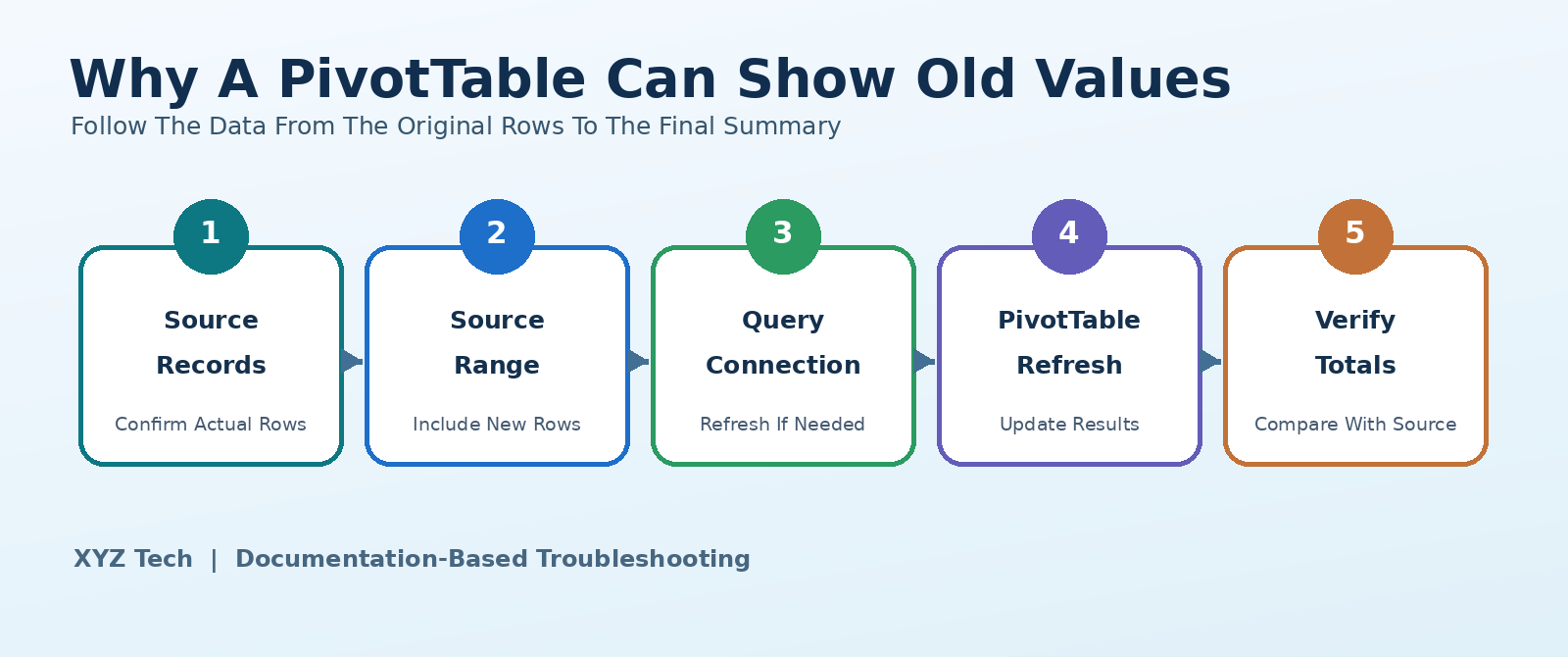
It helps to distinguish the source table, the selected source range, the PivotTable cache, and the visible report. A source table or range contains the records. The PivotTable’s source definition tells Excel which records to include. Refresh updates the PivotTable’s stored view of that source. Fields, filters, grouping and layout determine what appears on screen. When a query or connection supplies the records, it adds another layer that must complete successfully before the PivotTable can show current information.
The original diagram below illustrates the decision path. If an expense changed from 50 to 75 inside the selected data range, a refresh should retrieve it. If you inserted ten new records beneath a fixed range that ends above those rows, refreshing the old range does not necessarily include them. If a remote query has not pulled new data, the PivotTable cannot display records that were never loaded into the workbook or model.
Refresh One PivotTable First
Click inside the affected PivotTable. In desktop Excel, open the contextual PivotTable Analyze tab and choose Refresh, or use the refresh command from the context menu where available. The command updates the selected PivotTable using its configured source. Wait for the operation to complete and then check a known number. Be careful not to confuse refreshing a webpage or reopening a workbook with refreshing the PivotTable’s underlying data.
Microsoft’s official PivotTable refresh documentation explains the available options, including Refresh All. If the selected PivotTable updates but another one does not, those two reports may have different caches, connections or sources. Do not assume that one successful refresh has validated every PivotTable in the file. Choose a specific comparison such as the total revenue for one month and match it against actual source rows.
Use Refresh All When Several Reports Depend On The Data
A workbook may contain multiple PivotTables, queries, tables and external connections. The Refresh All command attempts to update the relevant refreshable objects according to their configuration. In Excel, it can be available from the Data ribbon and from PivotTable-specific controls. Because different components may have separate connection settings, one report can update successfully while another remains unchanged or displays an error.
Run Refresh All when you intend to update all relevant sources and understand the workbook’s dependencies. In a large model it may take time, may request credentials, or may affect queries that consume bandwidth. If the workbook contains important shared reports, perform the first test on your separate copy. After the operation, check the output timestamp, any error messages, and at least two independent totals. A spinner disappearing is not evidence that the numbers were correct.
Check Whether New Rows Are Outside The Source Range
One of the most frequent surprises occurs when the original PivotTable was built from a fixed address such as A1:F100. Adding records at row 101 does not necessarily expand that selected range. Click the PivotTable, inspect PivotTable Analyze > Change Data Source where supported, and read the exact source reference. If it ends before the new records, the PivotTable can refresh perfectly while continuing to omit them.
Update the source only after confirming the correct first and last columns and headers. Microsoft documents this in Change The Source Data For A PivotTable. A wrong range can double-count totals, omit rows or include notes that were not intended as records. Compare the revised range to your expected source table before saving. If the source is a properly configured Excel Table rather than a fixed range, newly appended rows are generally easier to include on the next refresh.
Convert A Well-Structured Source Range To An Excel Table
For a frequently updated worksheet, an Excel Table can be a more dependable PivotTable source than a manually maintained fixed cell range. Select the continuous dataset, ensure the first row contains unique meaningful column names, and use Insert > Table or the supported keyboard shortcut. Confirm that the detected range includes the entire dataset but excludes unrelated summary notes. Give the table a descriptive name and point the PivotTable at that table.
A table normally expands as rows are appended directly to it, reducing the chance that the next month’s entries fall outside the source. However, this does not fix bad records, duplicate headers, blanks in required fields, or external query errors. It also does not mean the PivotTable becomes a real-time view; you may still need to refresh it. Microsoft’s PivotTable creation guidance recommends tables as a practical source choice.
Look For Blank Rows And Interrupted Data Blocks
If the source range was inferred from a selection rather than specified deliberately, blank rows or columns may lead you to choose only part of the dataset. Inspect the source for accidental gaps, blank header cells, merged cells, hidden columns, and subtotals inserted between individual records. None of these automatically proves why a refresh failed, but they can make source selection and later aggregation unreliable.
Use a copy when cleaning data. Remove only the structural elements that are genuinely wrong and preserve the underlying business records. A row containing no value in one optional field is different from an entirely blank line separating two datasets. Verify the intended record count before and after cleanup. If your workbook’s sheet tabs have vanished, first restore visibility using our Excel Sheet Tabs Missing guide instead of trying to repair the PivotTable while the source sheet cannot be inspected.
Confirm That The Source Data Actually Changed
A PivotTable cannot display an update that never reached its source. For example, someone may have edited a separate CSV in Downloads while the workbook still reads last week’s copy from another folder. A report may be linked to a cloud file that has not finished synchronizing. Or a spreadsheet formula may be displaying an old result because calculation settings or dependencies have not updated.
Open the source worksheet or query output and find the exact record that should have changed. Verify the field value there before inspecting the PivotTable. If the source is wrong, repair that upstream issue rather than manipulating the report. If the source is correct and inside the selected range, test refresh and report filters. This order avoids spending time on cache settings when the root problem is a file path or a data-loading job.
Inspect Report Filters And Slicers
A refreshed PivotTable may still appear to omit new records because of a report filter, slicer, timeline or field-specific selection. Open the relevant filter and inspect which items are selected. A new region or product category may not be included in an old manual selection. Also check whether the report is grouped by a date field whose boundaries differ from those of the source.
Do not automatically clear all filters in a shared financial report because an existing selection may be intentional. Note the current state, test with a copy of the report, and then restore the intended reporting view. After changing a filter, compare the displayed sum and count to the source. If the values appear when the filter is cleared, the problem was report selection rather than data retrieval. Record that distinction in the troubleshooting notes.
Verify The Correct Value Field And Aggregation
Sometimes the new rows are included but a result seems incorrect because the Value Field Settings use Count rather than Sum, Average instead of Sum, or a calculated field with different logic. Right-click a value field, inspect its settings, and confirm which column is being summarized. A text value in a numeric column can affect aggregation choices. Also distinguish values formatted as percentages from actual fractional source data.
Refresh does not change the meaning of the aggregation you selected. A valid result for Count can be very different from Sum even when every record has loaded. Examine a small subset of records and calculate an independent result using a normal worksheet function when practical. If a total matches the chosen calculation but not your expectation, correct the field configuration or upstream data types rather than repeating Refresh All.
Watch For Data Type And Date Problems
New data imports can convert an entire column to text, create mixed date formats or introduce leading and trailing spaces. Two category labels that look identical may actually differ by invisible characters. A date entered as text may not participate in grouping in the way a true Excel date does. These issues can make a refreshed PivotTable look inconsistent or unexpectedly split one category into several entries.
Inspect the source column formats and representative values, not just the PivotTable display. Where appropriate, standardize data types in a repeatable cleaning step such as Power Query. Keep a copy of the original values for auditing. Avoid using bulk Find and Replace without a preview when financial codes or identifiers can contain meaningful spaces or leading zeros. The objective is consistent data interpretation, not a cosmetic change to the report.
Understand Why A Power Query PivotTable Can Stay Stale
When a PivotTable uses data loaded through Power Query, refreshing the PivotTable alone may not fetch changed records from the external source. The underlying query may need to run and update its loaded table or Data Model. Open the Queries & Connections interface where supported and inspect the query’s status, source path, loading destination and error details. Then refresh the appropriate connection or use a controlled Refresh All.
Microsoft’s external data connection instructions distinguish query refresh from PivotTable refresh. If the source file moved, the database is offline, credentials expired or a network policy blocks access, retrying the PivotTable cannot resolve those upstream conditions. Check the query’s own errors before deleting the report. If a cloud-synced source is involved, also verify the underlying file with our Google Drive For Desktop Not Syncing guide when relevant.
Handle Missing Or Renamed Columns In Power Query
Power Query steps often refer to columns by name. If an upstream CSV or database changes a column heading, a later rename, type conversion or merge step can fail. Open the query editor on a working copy and inspect the Applied Steps list to identify the first step reporting a problem. A step that expects ProductID cannot automatically guess that the source owner renamed it Item Code.
Microsoft’s Power Query data source error guidance covers common schema, authentication and access problems. Confirm whether the new schema is an intentional business change before editing transformations. A hasty fix that drops a column can produce a technically refreshable but mathematically incomplete PivotTable. After repairing the query, verify its row count and field types and then refresh the downstream report.
Check Credentials And Connection Permissions
An external connection may fail because a password changed, a token expired, a file moved into a restricted folder or a database role lost access. Excel may show a prompt, a yellow warning bar, or an error through Queries & Connections. Record the exact wording. Do not share passwords with a colleague just to get the workbook to refresh, and do not disable organization security controls to bypass a blocked connection.
Use the documented authentication method for the source system and ask the owner or administrator to restore necessary permissions when appropriate. If a workbook was downloaded from an untrusted location, treat any warning about external connections seriously rather than enabling everything blindly. Once the connection works, confirm that the loaded data belongs to the expected environment and reporting period. Incorrectly connected test data can be more dangerous than a visible refresh error.
Work Carefully With The Data Model And Power Pivot
Some PivotTables are based on the workbook Data Model rather than a simple worksheet range. Relationships, calculated measures and source tables inside the model affect what appears in the summary. A missing model relationship or a query that did not load fresh rows cannot be fixed by changing a normal cell range in the PivotTable Analyze tab. The correct procedure depends on how that model was built.
Inspect the model’s tables and connections through the supported Power Pivot or Data tools. Microsoft provides guidance on modifying Power Pivot sources. Avoid deleting relationships or changing measure definitions until you understand their role in existing reports. Use a test file and verify key totals after refreshing the model. A measure producing a different answer from a simple SUM may be intentional because of filter context, not evidence that the refresh failed.
Review Refresh On Open And Background Refresh Settings
Excel offers settings for refreshing some connections when the workbook opens, and additional behavior may be available depending on the PivotTable and Excel version. Do not rely on an old remembered toggle as proof that refresh is automatic everywhere. Open the relevant PivotTable or connection properties and check what your installed version supports. Some background refresh operations can still be running when the report is first displayed.
For a critical report, define a repeatable refresh and validation procedure instead of trusting that opening the file always performs all operations. If background refresh is enabled for a connection, wait for completion before reading the final figures or exporting a PDF. Document which queries and PivotTables require updating. Automatic behavior can save work, but the same behavior may also trigger unexpected external connections for a shared workbook.
Investigate A PivotTable That Shows An Error Instead Of Results
Not every refresh problem is a stale summary. Errors can appear if a field no longer exists, a query fails, the source contains an invalid reference, or the PivotTable cannot expand without overlapping occupied cells. When an error occurs, note it exactly, save a copy and investigate the most direct explanation. Do not repeatedly click through dialogs without checking whether a partial update changed other reports.
For expansion-related errors, Microsoft documents PivotTable spill and expansion issues in supported Excel versions. A PivotTable that needs more output cells may be obstructed by values or another report in its destination. Move or clear only the genuinely conflicting content after confirming it is safe. If the source schema changed, resolve that rather than deleting the PivotTable. Keeping the original error text gives you a reproducible starting point for support.
Troubleshoot Empty Items And Old Categories
A refreshed PivotTable can sometimes continue showing old item names in field dropdowns or category lists depending on its retained-item settings and cache behavior. That can be mistaken for a failed refresh even when the totals are current. Compare the underlying records and the visible report before deciding whether old items should be retained or removed.
If an old category is not in the source, look for the PivotTable’s field item retention settings where available. Changes to these options can affect the reporting experience for other users, so test them in a copy. Be especially careful with historically meaningful product categories: an item that is no longer in the current month may still be needed in a year-to-date analysis. Removing it from a dropdown for cleanliness is a different decision from correcting the source data.
Check Workbook Protection And Shared Editing
A protected worksheet, protected workbook structure, or organization-managed file can limit what you are allowed to change. Excel may permit a refresh but prevent changing a source or layout. Shared cloud editing adds another complication: another person may update data or filters while you are working. Confirm whether the file is read-only and whether you have edit rights before diagnosing a disabled control as corruption.
Do not remove passwords, bypass access controls or overwrite another person’s work. Request the required permission from the owner and use a separate editable copy for testing where policy allows. If your file is locally synchronized, check that it is not a stale duplicate. A successful refresh followed by a save conflict can leave the authoritative cloud version unchanged. Handling access and file identity correctly is part of reliable PivotTable troubleshooting.
Use A Small Independent Validation Table
For an important summary, establish a separate check outside the PivotTable. Count the relevant source records and calculate an independent sum or average for one category and one date window. Compare it to the refreshed report. This can reveal whether the report includes new records, whether a filter omits data, or whether the wrong aggregation is selected. Do not validate one calculation with another formula that references the same broken pivot result.
Choose a stable example, such as all transactions for a particular product in one month. Note the expected row count and total from the source. Refresh once, check the result, and then alter only one suspected setting at a time. Document successful and failed steps. This controlled approach is more reliable than repeatedly recreating PivotTables until a plausible figure appears.
A Safe Decision Table For Common Symptoms
If existing edited values fail to update but the source reference is correct, start with Refresh. If new rows are absent, inspect Change Data Source and convert a suitable range into an Excel Table. If an external query raises errors, investigate connections and credentials before touching the PivotTable layout. If a category seems missing only after using a slicer, inspect filters and selections. When the Data Model is involved, check model sources and relationships.
Treat these as diagnostic branches, not automatic replacements for judgment. A real workbook can have more than one issue at once, such as a stale query feeding a PivotTable that also has a restrictive filter. Resolve upstream problems first and recheck the report after each change. The safest path is the one that explains the discrepancy while preserving original records and a recoverable workbook copy.
What To Do If Refresh Takes A Very Long Time
A large PivotTable with millions of records, complex measures, several joins or a remote database connection can take time to refresh. Watch for visible progress, query activity and any connection error, and distinguish slow processing from a frozen application. Avoid killing Excel immediately if it may be writing a critical result, particularly when the workbook is large and unsaved work is present.
If the operation consistently stalls, test a smaller known-good sample in a copy, check source availability and review whether a query pulls unnecessary columns or rows. Performance improvements may involve better data source design, not turning off security or changing arbitrary system settings. If Excel itself fails to open or becomes unusable, recover the file first; our Excel Recover Unsaved Workbook guide covers that separate scenario. Never promise a universal fixed refresh duration.
When A PivotTable Should Be Rebuilt
Rebuilding is a legitimate last resort when the source definition has become unusable or a report layout is irreparably confused, but it is not the first step. A new PivotTable may have different filters, grouping, formatting or calculated measures, and those differences can break reports that depend on the old result. Save a copy and document the original configuration before recreating anything.
Build a new diagnostic PivotTable from the verified source in a separate sheet. If the new one reflects the expected data while the old one does not, compare their source, fields, filters, cache and model connections. Only replace the existing report after checking every required output and obtaining any necessary review. A reliable repair preserves the business meaning of the workbook rather than simply producing a table that looks fresh.
Prevent Future Refresh Failures
Choose a clean source with unique headers and consistent field types. Prefer an Excel Table for growing worksheet data, document external queries and connection owners, and use predictable file paths. Define which reports need manual refresh versus scheduled or on-open refresh. Keep a separate workbook backup and retain a simple independent numerical check for key metrics so unusual totals are noticed early.
If workbooks live in cloud storage, make file synchronization part of the reporting checklist and confirm the final saved version. See our cloud backup software selection guide for broader file protection principles. Before sharing a refreshed report, note the source period, refresh method and validation outcome. An explicit verification step prevents decision-makers from relying on a visually polished PivotTable that still excludes last week’s records.
Escalate With Evidence Instead Of Guesswork
If none of the supported checks resolves the issue, gather the Excel version, file type, source type, exact error, whether Refresh One or Refresh All was used, and a minimal anonymized example. Record if the problem affects every PivotTable or only one. Do not send a confidential workbook to public forums; remove or replace personally identifiable and commercial information when preparing a sample.
Use official Microsoft support or your organization administrator, particularly for Power Query credentials, workbook protection and Data Model permissions. Explain whether the source itself updated, whether the PivotTable source range includes the new rows, and whether filters hide them. These facts often narrow the diagnosis immediately. The goal is a reproducible and safe fix, not a random sequence of resets that might damage an otherwise valuable file.
Frequently Asked Questions
Why Does My PivotTable Not Update After I Change Data?
The PivotTable may need Refresh, the source range may omit new records, or an external query may not have updated. Check the actual source and refresh path before altering the report.
How Do I Refresh A PivotTable In Excel?
Select a cell inside the PivotTable and choose Refresh from PivotTable Analyze or its supported context menu. Check a known total against the underlying records afterward.
What Is The Difference Between Refresh And Refresh All?
Refresh targets a selected PivotTable or connection, while Refresh All attempts to update the workbook’s applicable refreshable objects. External connections may still fail individually.
Why Are Newly Added Rows Missing From My PivotTable?
A fixed source range may stop above the new rows. Check Change Data Source or use an Excel Table that expands to include appended records.
Does A PivotTable Refresh Automatically When Data Changes?
Not in every workbook. Behavior depends on Excel version, source type and configured refresh settings. Verify the result instead of assuming every edit appears instantly.
Can A Filter Make A Refreshed PivotTable Look Stale?
Yes. Slicers, date filters and selected categories can hide newly loaded items. Test the report view without changing the authoritative source records.
Why Does Refresh All Fail For A Power Query PivotTable?
A source path, credential, schema or connection may be invalid. Inspect the query or connection error before changing PivotTable fields.
Can I Refresh A PivotTable Without Losing Its Formatting?
A normal refresh is designed to update data, but layout and formatting behavior depends on settings and structural changes. Save a backup and verify the report afterward.
Should I Rebuild A PivotTable That Will Not Refresh?
Only after checking the source range, query, filters, values and cache. A diagnostic PivotTable built on a verified source can help isolate the problem.
What Is The Safest Way To Verify PivotTable Totals?
Independently calculate a count or sum from a clearly defined set of source rows and compare it to the refreshed PivotTable under matching filters.
Research And Documentation
Primary documentation used to design this workflow: Refresh PivotTable Data; Change The Source Data For A PivotTable; Create A PivotTable To Analyze Worksheet Data; Refresh An External Data Connection In Excel; Handling Data Source Errors In Power Query; How To Correct A PivotTable Spill Error; Make Changes To An Existing Data Source In Power Pivot. Microsoft controls the supported Excel behavior and current menu locations. For critical reports, preserve backups, confirm source identity, and validate totals.


