
When a Windows 11 laptop loses its Wi-Fi adapter, the problem may look more serious than an ordinary connection failure. The Wi-Fi tile can disappear from Quick Settings, the network switch may be absent from Settings, and Device Manager may show a warning or no wireless card at all. The correct fix begins by determining whether Windows can actually detect the wireless hardware.
This safety-first guide explains how to inspect the adapter, check WLAN AutoConfig, use trusted drivers and decide when hardware service is appropriate. It distinguishes missing Wi-Fi hardware from a slow connection, incorrect password or DNS error. The procedures follow Microsoft documentation and are not a claim that each laptop model has been physically tested.
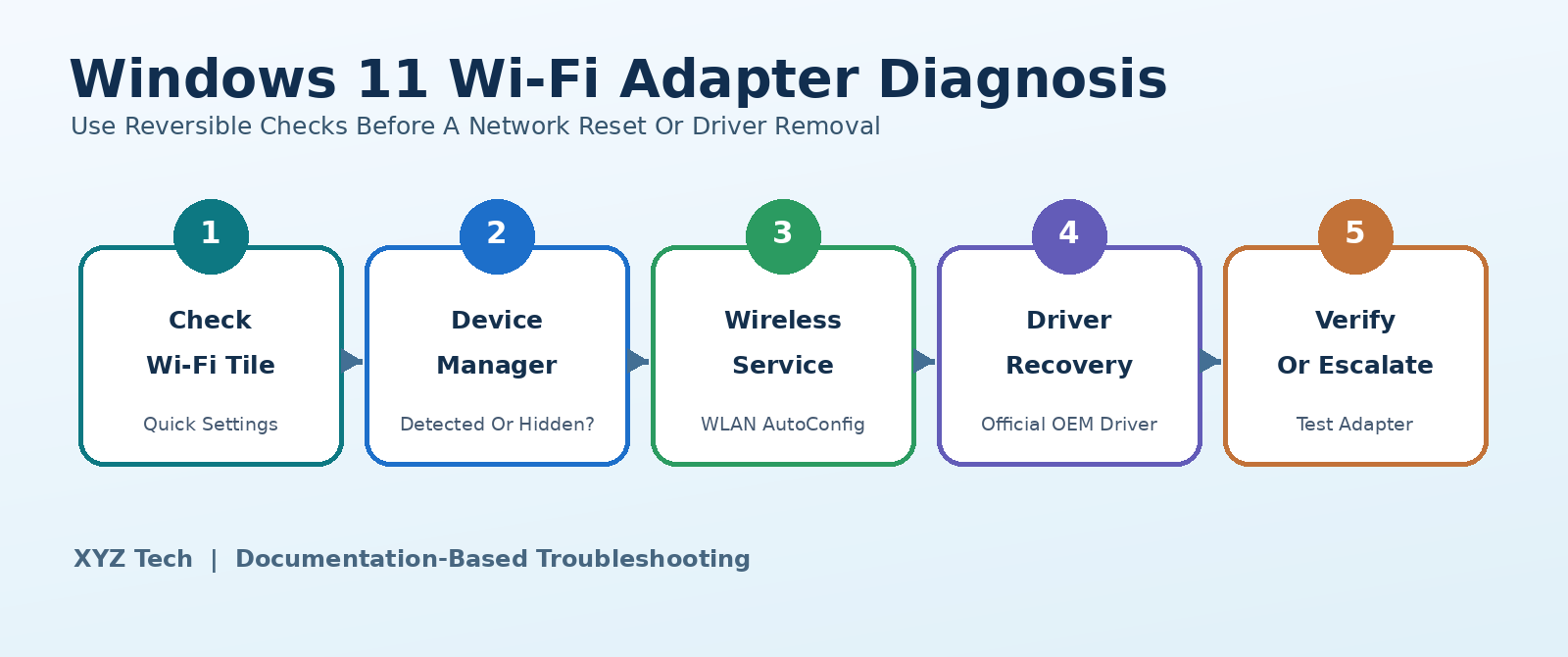
Check Airplane mode and Quick Settings, then inspect the Wi-Fi adapter under Device Manager > Network adapters. Enable it if Windows shows it disabled, check WLAN AutoConfig in Services, and try the Windows network troubleshooter. If the driver is missing or failing, obtain the exact manufacturer-approved driver before reinstalling. Use Network reset only when you understand its effects on VPNs and saved network settings.
Wi-Fi Symptom Comparison
| What You Observe | Likely Area To Investigate | Recommended First Check |
|---|---|---|
| No Wi-Fi Toggle, Adapter In Device Manager | Adapter State Or Service | Enable Device And Inspect WLAN AutoConfig |
| Wireless Device Has Error Code | Driver Or Hardware State | Read Device Status And Driver Details |
| Adapter Is Missing Entirely | Detection, Firmware Or Hardware | OEM Driver And Supported Diagnostics |
| Networks Visible But Cannot Connect | Network Authentication Or Router | Connection Troubleshooter |
| Wi-Fi Connected But Websites Fail | Network Or DNS Configuration | Connection And DNS Troubleshooting |
Find Out Whether Wi-Fi Is Hidden Or The Adapter Is Missing
A missing Wi-Fi tile does not always mean the wireless card has physically disappeared. Windows 11 can hide the connection option when the adapter is disabled, its driver cannot load, the wireless service is stopped, or the hardware is not detected. Sometimes the adapter is present and working while a user only needs to restore access to the correct network screen. A router problem produces a different symptom: the wireless adapter is visible but networks or internet connectivity may fail.
Begin by writing down which of these conditions you observe. Can you see Wi-Fi in Quick Settings? Does Settings > Network & internet show a Wi-Fi switch? Is any wireless device listed under Network adapters in Device Manager? Does Bluetooth work? This classification matters because changing DNS or restarting a router does not normally restore a driver that Windows cannot detect. The steps below proceed from reversible observations to increasingly disruptive changes.
Protect Your Connection And Recovery Options
Before adjusting drivers or network settings, ensure you have another way to access important files and support instructions. A wired Ethernet cable, a trusted phone tether, or an offline copy of the correct manufacturer driver can be valuable if the adapter disappears again. On a managed office computer, contact the administrator before making changes to network policy or security tools. Write down any VPN, virtual switch or enterprise access configuration you might later need to restore.
If you are about to remove a driver, confirm that you already have a compatible replacement package or know that Windows can reinstall the original. Avoid using ‘driver update’ websites that bundle unrelated installers. Our guide to finding Windows 11 device drivers safely explains the manufacturer-first approach. No network repair can be called low risk if it leaves you without a way to reinstall the component required to get online.
Confirm Airplane Mode And Quick Settings
Press Windows + A to open Quick Settings, or access the network panel through the taskbar. Check whether Airplane mode is enabled. If it is, turn it off and allow the system a moment to reinitialize its radios. Some laptops also offer physical wireless switches or function-key combinations that affect a radio independently of Windows. Their meaning varies among manufacturers, so consult the printed keyboard legend or the device manual before changing unfamiliar controls.
If the Wi-Fi tile appears after these checks, choose a known network and test a normal secure website. Do not immediately run a network reset merely because the option had been hidden. If the Wi-Fi tile remains absent, proceed to Settings and Device Manager rather than experimenting with router channels or passwords. A control panel that shows only Ethernet is a clue about local adapter detection, not proof that your internet provider is at fault.
Check Settings > Network & Internet
Open Settings > Network & internet and look for Wi-Fi. If the control exists, check whether it is off. Then inspect Advanced network settings for a disabled wireless adapter when supported by your Windows 11 build. The list can contain physical adapters, virtual adapters from a VPN or hypervisor, and the Ethernet device. Names vary depending on the hardware and driver.
If you can identify the genuine Wi-Fi adapter and Windows offers Enable, enable it and retest. Do not toggle unrelated virtual adapters to see what happens; that can interrupt corporate VPN and virtual machine networks. If there is no wireless option anywhere in Settings, document this fact for the next step. Microsoft’s Wi-Fi troubleshooting instructions distinguish absent options from ordinary problems connecting to an available network.
Restart Windows Normally Before Deeper Changes
A normal restart can restore a temporary driver or service state after sleep, an update or a power-management transition. Save your work and use Start > Power > Restart. A restart is different from putting the PC to sleep, and it is generally preferable when a subsystem has become stuck. Disconnecting power abruptly can risk unsaved work and should not be your default recovery method.
Once the computer comes back, check Quick Settings and Device Manager again. If the wireless adapter returns only after every reboot and disappears later, record when it happens: after sleep, when unplugged, under heat, or after using a VPN. That pattern may indicate power-management or driver behavior. A successful single restart is a useful temporary recovery, but it should not be presented as proof of permanent repair when the symptom repeatedly returns.
Open Device Manager And Locate The Wireless Card
Right-click Start and open Device Manager. Expand Network adapters. Look for an entry identified as Wireless, Wi-Fi, WLAN, 802.11, Intel, Qualcomm, Realtek, MediaTek or another known adapter manufacturer. Be careful: the list may also include wired Ethernet and virtual networking components. If the wireless card appears, inspect whether its icon indicates it is disabled or whether Windows displays a warning symbol.
Open its Properties page and read Device status on the General tab. Note any exact error code. According to Microsoft’s Device Manager error-code documentation, different codes require different investigation; a generic ‘update the driver’ step is not a diagnosis. If you are not confident which entry is the wireless hardware, compare the model specifications or the OEM support page before changing anything.
Show Hidden Devices Without Assuming They Are Active
In Device Manager, select View > Show hidden devices where supported, then check Network adapters again. A faded adapter can represent hardware not currently present or an older device instance. Its appearance may help identify a driver or detection problem, but it does not mean that enabling a faded entry will create working hardware. A USB adapter that is not plugged in, for instance, may appear in the history without having any present radio.
Do not uninstall every hidden device in the list. Windows can keep historical devices and virtual components for legitimate reasons, and mass cleanup does not guarantee a fix. Record the specific hardware name and inspect its Properties when available. If the expected wireless card is not visible even with hidden devices displayed, move to Windows Update, device-manufacturer diagnostics and BIOS or hardware checks after reviewing the service state.
Enable A Disabled Adapter Rather Than Reinstalling It
If Device Manager explicitly shows the correct physical wireless adapter as disabled and offers Enable device, use that supported control. Then check Settings for the Wi-Fi option and run a simple scan for available networks. This is a narrow, reversible intervention that is preferable to deleting a driver package. If the device is disabled by an organization policy, respect the policy and contact the administrator instead of trying to work around it.
If the entry is enabled but its Device status contains an error, enabling it again without investigating the error may not help. Some hardware buttons and power-management features can also affect adapter availability independently. Compare the result after each change. A diagnostic record of ‘disabled, enabled, now visible’ is much more useful than an unspecific claim that resetting the network fixed everything.
Check WLAN AutoConfig Service Status
Windows uses the WLAN AutoConfig service, also known as WlanSvc, to manage standard wireless connections. Microsoft Learn recommends checking whether this service is running when Wi-Fi controls or adapters appear missing. Press Windows + R, type services.msc, and locate WLAN AutoConfig. Inspect its current status and startup type. Do not change unrelated services while searching.
If the service has stopped unexpectedly on a personal device and Windows permits it, use the supported Start or Restart action. If startup is disabled or the option is locked on a managed computer, investigate why before altering policy. Not every missing adapter is caused by WlanSvc, and the service cannot substitute for nonexistent hardware. After any permitted change, recheck the Wi-Fi option and Device Manager. Microsoft’s wireless connectivity troubleshooting guide identifies the adapter and WLAN AutoConfig as separate diagnostic checkpoints.
Use The Windows Network Troubleshooter
Windows 11 provides an automated Network and Internet troubleshooter through the Get Help app and related Settings entry points. Microsoft’s official guidance suggests running it early in common Wi-Fi investigations. Follow its prompts, read the findings, and record what it changed. It may identify a disabled adapter, common configuration issue or connection fault; it does not guarantee it can restore hardware the system does not detect.
If the troubleshooter proposes a significant reset, review the consequences before accepting. A device used for business or remote access can have special network components. Do not treat an inconclusive result as proof of hardware failure. Repeat one specific check afterward, such as whether the wireless device now appears in Device Manager or a known network becomes visible. Evidence matters more than a broad message saying that no problem was found.
Check Windows Update And Optional Driver Updates
An interrupted or outdated driver can make a wireless adapter unavailable. If you have a working temporary connection, open Settings > Windows Update and check for appropriate system and driver updates, including optional updates where available. Review the driver publisher and hardware applicability. Install only updates offered for the correct system and record the version if troubleshooting a recurrence.
Microsoft recommends Windows Update as a normal driver source, but OEM laptop and adapter manufacturers may supply more model-specific packages. If Windows Update itself is not operating correctly, use our Windows Update Service Not Running guide to diagnose that separate issue. Avoid installing multiple different driver packages in one step; otherwise it becomes difficult to identify which change fixed or worsened the problem. Restart if the installer requests it and recheck the adapter status.
Install The Correct Driver From The PC Manufacturer
For a laptop or prebuilt desktop, begin with the support page for the exact model, product code and installed Windows version. The hardware can differ even across laptops with the same marketing name. Download the wireless LAN or Wi-Fi driver package from the manufacturer or the adapter maker when that is the supported source. Use an alternate trusted internet connection if the affected PC is offline.
Check that the package is intended for your hardware, architecture and Windows 11 version. Avoid drivers offered by random download portals or pop-up repair utilities, especially packages that request antivirus deactivation. Preserve the installer locally before removing an existing driver. Microsoft’s Device Manager driver documentation covers normal update and reinstall procedures. The safest sequence is identifying the device, obtaining the right package, and only then changing the driver.
Check Driver Date Version And Device Status
Open the wireless adapter’s Properties and inspect the Driver tab for provider, date and version. Also note the device name and any warning code on the General tab. A higher driver version number is not automatically better if the package targets a different adapter or operating system. The OEM support page should guide compatibility choices.
If the adapter works with a known version and disappears after a particular update, that history can support a rollback decision. If the device has no driver loaded, a generic Windows replacement may restore basic function or may not support all hardware features. Record what is actually installed before updating. After any change, inspect the same version fields and test for Wi-Fi. This avoids confusing a failed installer with a successful driver replacement.
Roll Back A Driver Only When There Is A Clear Reason
Device Manager may provide a Roll Back Driver control when Windows retains the previous driver. This can be useful if the adapter disappeared immediately after a driver update and the previous version was known to work. Do not roll back merely because the button happens to be available. Use the exact device record and make sure the issue truly began after the update.
If rollback is disabled, Windows may not have a prior package stored; that does not mean the computer is permanently broken. A correct driver obtained from the device manufacturer may be a better next step. Record the dates and versions before and after. Keep a way to recover connectivity, especially if a VPN or remote-access session depends on the wireless adapter. Test Wi-Fi scanning and actual connection, not just the presence of a driver entry.
Reinstall A Wi-Fi Driver Only With A Recovery Plan
Uninstalling a network adapter through Device Manager is more disruptive than enabling it or updating its driver. Windows often redetects hardware on restart and may reinstall a compatible driver, but this is not guaranteed, particularly on a machine without a functioning internet connection. Before uninstalling anything, download or otherwise obtain the correct OEM driver and ensure you know how to install it.
If official documentation supports reinstalling, select only the confirmed physical wireless device, review the uninstall dialog carefully, and do not delete driver packages unless you understand the consequences. Restart using the documented process, install the trusted package if needed, and check whether Device Manager shows the adapter without an error. Do not use generic cleanup scripts that remove all network devices or packages. Your goal is one controlled repair with an escape route, not a broad experiment.
Inspect Airplane Mode And OEM Utility Conflicts
Some laptops include manufacturer utilities, wireless radio settings and keyboard firmware that can turn the radio off independently of the Windows Wi-Fi tile. A function key may require the OEM hotkey driver to communicate correctly with Windows. If a specific laptop model consistently loses Wi-Fi after a keypress or power-profile change, consult its manual or support application for supported steps.
Avoid downloading a third-party utility that claims to unlock every laptop radio. Check whether the manufacturer offers a diagnostic or driver update for wireless control. A missing Wi-Fi option on a workstation could also be caused by administrative restrictions. Changes to local policy, registry access or secure boot features are not suitable generic fixes. Document the manufacturer’s model and the behavior of the physical or function-key switch before escalating.
Review Sleep And Power Management Patterns
When Wi-Fi disappears after sleep or hibernation but returns after restarting, a power-state or driver interaction becomes more plausible. Note the exact sequence: did the system sleep, disconnect from a dock, change battery state, or wake with Bluetooth working but Wi-Fi missing? In Device Manager, some adapters provide a Power Management tab, while others do not. The available options depend on the driver.
Do not assume an online instruction about unticking a power option applies to every Windows 11 machine. Prefer manufacturer recommendations and test one supported change at a time. If the laptop belongs to a company, seek approval before modifying power or device policies. Maintain a record of the driver version and Windows update history to help identify a repeatable cause. If the physical adapter is absent even after a cold startup, power management alone is less likely to explain everything.
Recognize When DNS Fixes Are Not Relevant
If Windows cannot detect a wireless adapter, DNS cache commands and changing DNS servers are usually addressing the wrong layer. DNS translates hostnames after a usable network path exists. Flushing a cache cannot make a missing PCIe or USB wireless card appear in Device Manager. This is why a diagnosis must begin with adapter visibility rather than generic internet-speed tips.
If Wi-Fi is visible and connected but websites do not resolve, that is a different problem. Our DNS Server Not Responding Windows 11 guide covers those network-name failures. Similarly, if Ethernet works but Wi-Fi is merely slow, our Wi-Fi Slow But Ethernet Fast guide looks at radio and throughput issues. Choose the correct branch instead of using every command found online. Avoid network-stack reset commands until Windows actually recognizes a network device that requires configuration repair.
Understand The Role Of The Router
A broken router or incorrect Wi-Fi password can prevent an otherwise healthy computer from connecting, but it normally does not remove the wireless adapter from Device Manager. To separate these layers, see whether the PC can detect any nearby Wi-Fi networks. If the adapter is present and can scan but cannot join one particular network, investigate the router, password, band and security settings.
If no Wi-Fi hardware exists in Device Manager, restarting the router repeatedly is unlikely to help. Our home Wi-Fi router security guide explains safe router administration, while our Wi-Fi extender connected without internet guide covers problems beyond the PC’s adapter. Do not factory reset a shared router just because one laptop’s Wi-Fi control disappeared. Such a reset can interrupt many users and erase network settings unrelated to the computer’s hardware.
Check BIOS Or UEFI Only With Manufacturer Instructions
Some PC firmware offers an option to enable or disable onboard wireless devices. If Windows does not detect the adapter after ordinary service and driver checks, consult the official model documentation to see whether such a setting exists. Not all systems expose it, and there is no universal key sequence or option name. Record existing values before making any supported change.
Avoid flashing firmware, clearing CMOS, resetting security settings or toggling unrelated BIOS options simply to make Wi-Fi appear. Firmware changes carry risks that are disproportionate to a routine connectivity issue. A managed or encrypted computer may also require administrative permission and recovery keys before certain firmware changes. If the card is not listed by a supported OEM diagnostic either, hardware service may be more appropriate than guessing at firmware configurations.
Use An External USB Wi-Fi Adapter As A Diagnostic
A trusted external USB Wi-Fi adapter can sometimes help determine whether the problem concerns the internal radio or the operating system more broadly. If the USB adapter is compatible with Windows 11 and installs through official drivers, check whether Windows detects it and can connect. This test can provide useful context, but it is not conclusive: a working USB adapter does not prove that the internal card is physically dead.
Prefer a device you already own or one approved by your IT department. Avoid buying hardware before checking warranty and manufacturer support options. A USB adapter can also help provide temporary internet access for downloading the correct internal driver. Do not leave unknown wireless hardware connected to a managed network without permission. Record whether the internal adapter remains absent and whether other components such as Bluetooth are also affected.
Use Network Reset Only As A Last Resort
Windows 11 offers Network reset under Settings > Network & internet > Advanced network settings. Microsoft documents this as a later-stage option because it removes network adapters and reinstalls them, resetting networking components to default settings. It may disrupt saved configurations, VPN clients, virtual switches and network profiles. On a device used for remote work, these changes can break essential access until it is configured again.
Only consider Network reset when the hardware is recognized and supported troubleshooting indicates a corrupted configuration, and when you are prepared to rebuild affected settings. It is not a substitute for missing physical hardware or an unavailable compatible driver. Make a backup and ensure you have necessary passwords and installer files before proceeding. After reset and restart, inspect Device Manager, then reconnect to a trusted network and verify both Wi-Fi availability and internet access.
Escalate If The Adapter Still Does Not Appear
If the wireless card remains absent from Windows Settings and Device Manager after safe checks, correct driver installation and supported manufacturer diagnostics, hardware failure becomes more plausible. The cause may involve the internal card, its electrical connection, the motherboard, or a firmware-level disablement. Only a qualified diagnosis can distinguish them reliably, especially after physical impact or moisture exposure.
Collect the exact PC model, Windows build, adapter model if known, Device Manager findings, service status, and recent update or repair history. Contact the device manufacturer or an authorized technician. If the laptop is under warranty, avoid opening the chassis without understanding the warranty and safety implications. Sensitive personal files should be backed up before service. Do not claim that a particular replacement part is necessary based solely on a missing Wi-Fi button.
Verify The Repair Beyond The Wi-Fi Icon
A successful repair should restore more than a Wi-Fi tile. Confirm that the correct adapter appears in Device Manager without a problem code, that WLAN AutoConfig is functioning, and that Windows can scan for available networks. Connect to a trusted network, open a secure website, and check whether the connection stays stable through a normal restart or sleep cycle if that was part of the original problem.
For a personal computer, note the driver version and any setting that was changed so the issue can be diagnosed if it returns. For a managed PC, let the administrator verify VPN and corporate network access. Do not assume the repair is complete merely because the icon reappears for a moment. Compare the outcome to the original symptom and confirm that no unrelated virtual adapter or saved profile was unintentionally affected.
Prevent Repeated Adapter Disappearances
Keep Windows 11 and the laptop’s OEM drivers updated from trusted sources. Maintain an offline copy of a known-compatible wireless driver if the device has previously lost the adapter. Avoid questionable optimization applications that disable services or modify network settings indiscriminately. When using sleep, docking stations or battery-saving modes, note any reliable pattern of disappearance and report it through manufacturer support channels.
Keep regular backups of important work and understand how to restore VPN or network configurations before doing disruptive maintenance. Our guide to backing up files before a Windows reset describes broader data protection practices. A preventive routine does not require resetting the router weekly or reinstalling the driver every time Wi-Fi slows down. It relies on stable software, documented changes and the ability to recognize a missing adapter as a distinct issue from normal wireless performance.
A Checklist For Support And Technicians
Before asking for help, prepare a short summary of when the Wi-Fi option vanished, whether the wireless adapter is visible or hidden in Device Manager, and whether WLAN AutoConfig is running. Include any Device Manager error code, driver version and Windows update history. State whether the PC can connect through Ethernet, whether Bluetooth still works, and whether the issue follows sleep or happens from a fresh startup.
Do not send screenshots showing private network keys, full device identifiers or unrelated personal information to public discussion forums. Follow the device manufacturer’s support process and provide only data needed for troubleshooting. If the problem turns out to involve damaged system components rather than wireless hardware, our Windows system file repair guide offers a separate, documented route. Keeping these branches distinct makes escalation more efficient and avoids unnecessary destructive resets.
Frequently Asked Questions
Why Is The Wi-Fi Option Missing In Windows 11?
Windows may not detect an enabled wireless adapter, a driver may have failed, Airplane mode may be active or the WLAN AutoConfig service may not be running. Check Settings and Device Manager first.
How Do I Find The Wireless Adapter In Device Manager?
Open Device Manager, expand Network adapters and look for a known Wireless, Wi-Fi or WLAN device. If it is not present, try View > Show hidden devices to inspect historical entries without removing them.
Can WLAN AutoConfig Cause The Wi-Fi Button To Disappear?
A stopped or unavailable WLAN AutoConfig service can interfere with wireless management. Microsoft recommends checking the adapter and the service separately when Wi-Fi is missing.
What If My Wi-Fi Adapter Is Hidden Or Greyed Out?
A greyed entry may represent hardware that is not currently present. Record its device details and investigate drivers and hardware detection rather than assuming it can simply be re-enabled.
Is It Safe To Uninstall The Wi-Fi Driver?
Only with an appropriate recovery plan. First download the correct official driver and ensure another way to reconnect; Windows may not automatically restore every missing driver.
Will Network Reset Fix A Missing Wireless Card?
Not if the hardware is undetected or physically damaged. Network reset is a last resort for some configuration problems and can disrupt VPNs, virtual adapters and saved network settings.
Why Does Wi-Fi Disappear After Sleep?
The pattern may involve power management, a driver or a device startup fault. Record when it happens and use manufacturer-supported guidance instead of changing undocumented settings.
Does Restarting My Router Restore A Missing Wi-Fi Adapter?
Usually not. A router problem affects network access, while an adapter missing from Device Manager is a local detection or driver issue.
Can A Faulty Wi-Fi Card Make The Wi-Fi Toggle Vanish?
Yes. Hardware faults are possible, particularly when the device is absent from supported diagnostics, but missing controls alone do not establish a physical failure.
How Do I Know The Wi-Fi Adapter Is Fixed?
Confirm the device appears without errors in Device Manager, Windows can scan networks, and a trusted Wi-Fi connection remains stable after normal use or a restart.
Research And Official Sources
This guide draws on Microsoft resources: Fix Wi-Fi Connection Issues In Windows; Wireless Network Connectivity Issues Troubleshooting; Update Drivers Through Device Manager; Device Manager Error Codes; Setting Up A Wireless Network In Windows; Get Connected When Setting Up Your Windows Device; Fix Ethernet Connection Problems In Windows. Verify menu paths, driver packages, warranty rules and workplace policies for the computer you actually use.


