
When Firefox passwords are not syncing, the temptation is to sign out, reset the Mozilla account, or reinstall the browser. Those steps can be risky if the computer still holds the only copy of important logins. A safer approach first identifies which device contains the passwords, confirms the account and Sync selections, and preserves local information before making any disruptive change.
This tutorial covers Firefox on desktop and Android, the difference between browser Sync and mobile autofill, the optional Primary Password, and recovery-key precautions. It follows Mozilla support documentation rather than claiming that a specific browser installation was physically tested. Menu names vary by Firefox version and operating system.
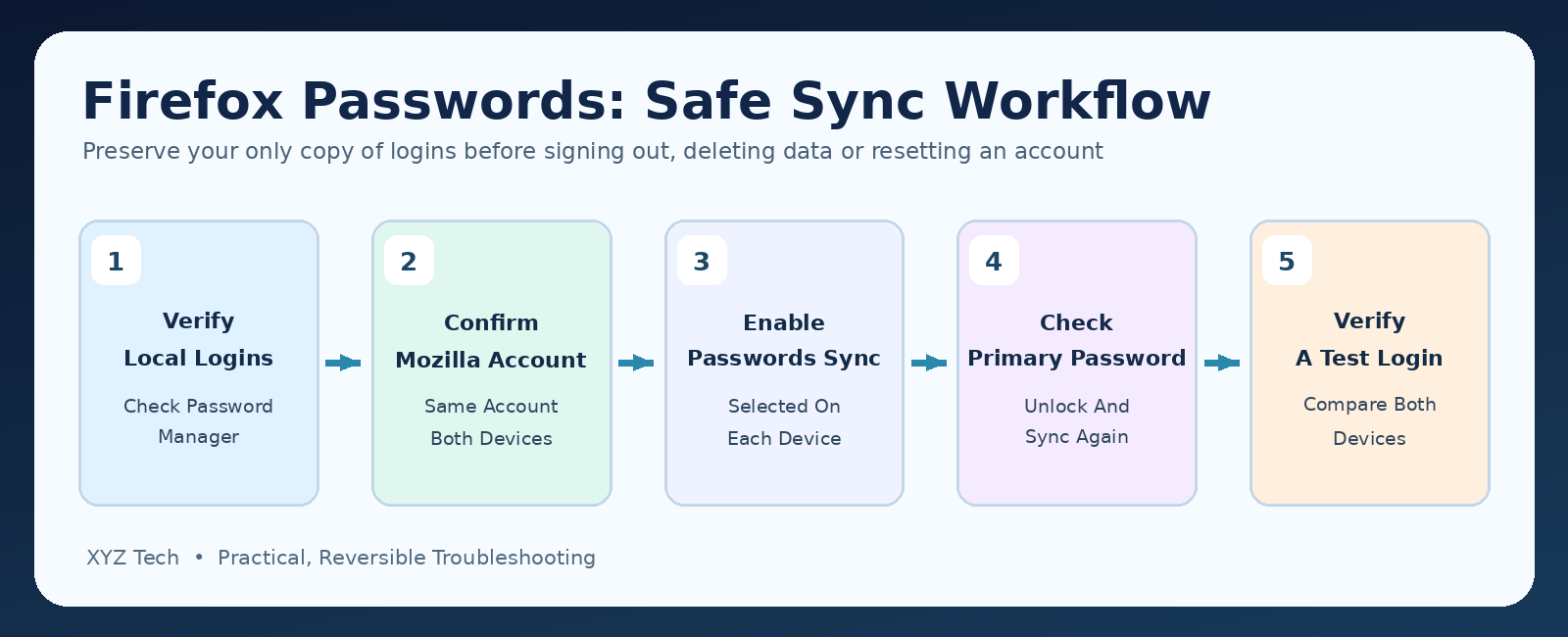
Check that the original browser actually contains the saved login, verify that both devices use the same Mozilla account, and enable Passwords in Sync settings on each device. Run Sync Now, check for a Primary Password prompt, and test the receiving browser’s own Password Manager. Do not sign out and delete local data or reset the Mozilla account password without understanding recovery-key and encryption consequences.
| Symptom | First Check | Important Precaution |
|---|---|---|
| Saved Logins Missing On Second Device | Same Account And Passwords Selected | Preserve Original Local Copy |
| Bookmarks Sync But Passwords Do Not | Password Data Type And Primary Password | Do Not Reset The Account First |
| Passwords In Firefox But No Android Autofill | Android Autofill Provider | Do Not Delete Browser Vault |
| Login Data Gone After Password Reset | Recovery Key And Remaining Devices | Avoid Further Destructive Steps |
| One Login Is Old Or Incorrect | Website And Username Matching | Do Not Delete All Duplicates |
Find Out Whether Passwords Are Actually Missing
When Firefox passwords are not syncing, the symptom can mean several different things. One browser might show the saved login locally but a second device remains empty. A website may refuse to autofill even though the correct credentials exist in Firefox Password Manager. A mobile phone might use the system’s autofill provider instead of Firefox, creating the impression that the Sync feature is broken. These cases require different checks. Start by identifying one non-sensitive example login that exists on the original device. Open Firefox’s built-in password manager, not merely the website’s sign-in form, and look for the corresponding saved entry. Do the same on the receiving device. Do not delete, re-enter, or overwrite a real password just to test the feature. Record which device contains the authoritative copy and whether other Sync categories, such as bookmarks, are updating. This allows you to distinguish a general account problem from a passwords-only configuration issue.
If the original login is not saved anywhere locally, synchronization cannot recreate an entry that never existed in the synced data. Investigate password saving, browser profiles, or a separate password manager before changing Sync settings.
Protect Your Only Copy Before Changing Sync
Your first priority is preserving existing credentials. Firefox Sync is designed to keep selected data consistent across devices, not to guarantee recovery from every deletion or account problem. Signing out can involve choices about local information, and a Mozilla account password reset without a recovery key can affect access to encrypted server data. Avoid beginning with either action, especially if an old computer holds the only remaining copy of your logins. Use Firefox’s supported password management and profile backup guidance to plan a secure independent copy where appropriate. A password export in a readable CSV is particularly sensitive because it can expose website addresses, usernames, and passwords. Do not place it in a public cloud folder, email it to yourself without protection, or leave it unencrypted in Downloads. Use an approved encrypted backup method or a trusted password manager if migration is needed.
For more context about the difference between a password manager and a synchronization service, read our Password Manager guide. The goal is a recoverable, controlled source of credentials rather than blindly trying account resets until logins appear.
Verify Your Saved Logins On The Source Device
On desktop Firefox, open the menu and choose Passwords, or use its built-in password manager interface. Search for a known website and verify that an entry is present before trying to sync it. If the device has a Primary Password, unlock it through the normal prompt. On Firefox for Android, the saved passwords screen may require device authentication before displaying entries. Menu names differ across versions. If the entry is there, document its presence without copying the secret value into notes or screenshots. If it is missing, check whether the website uses a passkey, a different browser profile, another Firefox installation, or an external password manager. Some websites intentionally prevent standard password-saving flows or use authentication methods that do not store a reusable website password. Mozilla’s Firefox Password Manager documentation helps identify the normal local record.
Avoid creating multiple inconsistent credentials for the same website. A login entry existing on one device is useful evidence; it does not by itself prove that it was previously uploaded to Sync.
Confirm The Same Mozilla Account On Every Device
Firefox Sync uses a Mozilla account to connect participating browsers. On the sending and receiving devices, open the account or Sync screen and check the full email address. A personal email and a work email can look similar, and browser profile pictures are not sufficient proof of identity. A new account with the same familiar display name is not the original account that contained prior synced data. If the devices are linked to different Mozilla accounts, first determine which account owns the logins you want. Do not sign out of the only device containing passwords until local data is protected. On managed computers, ask the administrator if an organization policy restricts account features. Mozilla’s desktop Sync setup guide and Android Sync setup guide describe normal sign-in steps.
A successful sign-in is a prerequisite, but not a complete Sync test. You must also verify that the password data type is selected and that a known record appears on the other device.
Enable Passwords In The Sync Data Types
Firefox can sync several categories independently, including passwords, bookmarks, history, and other supported browsing data. Open the Sync settings on each device and check that Passwords, sometimes described as Logins and Passwords, is selected. The exact label depends on browser version and platform. Someone may have chosen bookmarks alone during setup, so bookmarks arriving correctly does not prove that passwords are enabled. Mozilla’s guide to selecting Firefox Sync data explains that selections can differ between devices. On a desktop browser, the account panel or Settings may expose Manage Sync. On Android, use the account and Sync controls provided by the Firefox app. Enable the required category, save if necessary, and then verify one login. Avoid enabling payment information or other categories merely to solve a passwords-only problem unless the user intends those categories to synchronize as well.
If the Passwords option is unavailable due to a browser policy or unsupported build, document that limitation. Do not bypass security restrictions using a modified browser.
Run Sync Now On The Desktop Browser
After checking account identity and data selection, open the account panel on desktop Firefox and use Sync Now where available. Give the browser a normal internet connection and allow the operation to finish. Then inspect the receiving browser’s password manager. A button that has been clicked is not evidence that a particular encrypted record was transferred; the final verification is whether the expected entry appears. If no logins arrive, note whether bookmarks or tabs are syncing. If every category fails, focus on account access, connectivity, or a general Sync problem. If only passwords fail, review the password selection and Primary Password state. Mozilla’s desktop synchronization instructions describe the normal account controls. Repeatedly clicking Sync Now every few seconds is unlikely to add useful information and can obscure error patterns.
Use a benign example, not a financial account password or sensitive credential exposed on screen during troubleshooting. If you must show a support screenshot, crop usernames and website details that identify private accounts.
Trigger A Sync Check On Firefox Android
On Android, open Firefox and locate Settings, the Mozilla account section, or Sync preferences. Confirm that the same account is signed in and that password syncing is enabled. Some versions display the device name, last sync time, and a manual sync option. The mobile app’s interface is not necessarily identical to desktop Firefox, so use the instructions appropriate to the installed version. Test by examining the saved-password list inside Firefox for Android rather than relying only on autofill in an unrelated application. Mozilla’s Android saved-password instructions explain how to inspect local entries, with device unlock required where appropriate. If the entry exists in Firefox but does not autofill into another app, that is probably a separate autofill-provider setting, not evidence that Sync itself failed.
Do not copy passwords into messenger apps to compare them. Compare the presence of a named test login and check the website address without revealing the secret.
Distinguish Browser Sync From Android Autofill
Firefox on Android can store and synchronize browser logins while the Android operating system may use a selected autofill service for passwords inside other apps. If passwords appear in Firefox’s saved-password list but are not suggested in a banking or shopping app, verify the system’s chosen autofill provider and whether that particular app supports it. The setting is separate from the Mozilla account’s Sync service. Mozilla’s Android login saving, syncing, and autofill guidance discusses these controls. Be cautious before switching providers on a shared phone, because existing passwords may be stored in different vaults. An absent suggestion is not proof that the underlying password was deleted. Verify the record in the browser first. Our Password Manager overview also explains why stored credentials and autofill are related but distinct functions.
Avoid granting broad accessibility access to untrusted autofill utilities. Use supported browser or system features to protect the privacy of login data.
Check The Primary Password Prompt
Firefox desktop supports an optional Primary Password that protects saved logins locally. If the feature is enabled, Mozilla documents that Firefox may need the Primary Password before Sync can access its account credentials. A prompt that was dismissed or never completed can make synchronization appear stalled even when the correct Mozilla account is configured. Enter the Primary Password through Firefox’s normal interface. Do not disable it casually, share it with support staff, or assume it is the same password as your Mozilla account. Each device may have different local Primary Password settings, and the Primary Password itself is not synced. Mozilla’s Primary Password and Sync article explains this interaction.
If you have forgotten the Primary Password, do not use a random reset technique found on a forum. Some recovery approaches can remove saved local passwords. Preserve data and consult official Mozilla guidance before taking an irreversible step.
Do Not Reset Your Mozilla Account Password Impulsively
A Mozilla account password reset is a major security operation, not a harmless Sync refresh. Mozilla explains that its encrypted server-side Sync data depends on account encryption keys. Resetting the password without an appropriate recovery key can delete encrypted data stored on its servers. That includes information that someone may have assumed would return to a new device. If you can still sign in, check the account settings and recovery-key options before considering any reset. Store the recovery key in a secure location that you can access independently of the device being repaired. Read Mozilla’s official account recovery key instructions carefully. Do not publish, email openly, or give your recovery key to a third-party technician. If sign-in fails, use Mozilla’s supported recovery and support flow rather than guessing.
An account reset does not guarantee that lost passwords will reappear. In the worst case, it can remove the remote copy needed for recovery when no device holds a local version.
Verify Internet Access Without Blaming Every Network
Firefox needs a working connection to exchange Sync data. Open a secure site and check whether other normal browsing activities work. A captive portal, organization proxy, restrictive firewall, VPN policy, or unstable network can interfere with account services. If the laptop is otherwise online, do not assume that changing DNS or resetting the router is the correct next move; first examine Sync settings and account state. Try a second trusted connection when feasible, or compare with a device on a different network. Preserve corporate security requirements and do not disable an organization firewall simply to test a browser issue. If the whole computer has connectivity trouble, diagnose that separately before changing encrypted Sync data. Our OneDrive Not Syncing Files guide uses a similar approach to separate cloud-service behavior from network connectivity, but it does not substitute for Mozilla’s product-specific instructions.
Document whether the problem occurs only behind a particular network. A repeatable connection-specific symptom gives support useful information without exposing passwords or changing local vault data.
Review Date And Time Without Disabling Security
A seriously inaccurate system clock can interfere with secure authentication sessions. Check whether the computer or phone shows a plausible date, time, and time zone, and whether automatic time synchronization is working correctly. Do not bypass certificate warnings or disable browser protection merely to make an account request succeed. A clock problem should be corrected at the operating-system level. If time settings are accurate and websites load normally, move on rather than repeating this generic check. The absence of passwords in one browser is more likely to be explained by an account, selected Sync category, local profile, or encrypted data problem than by a tiny clock difference. If several apps report secure-connection errors, diagnose the broader system issue as well.
A successful Firefox login to a website is not the same thing as a successful Mozilla account Sync operation. Keep those two types of authentication separate during testing.
Check Whether Firefox Has Several Profiles
Desktop Firefox can have multiple browser profiles, each with its own settings and local password store. A person may open a new profile after a system migration or reinstall and conclude that passwords vanished, even though another profile holds the original entries. Check which profile was used before the problem began. Do not delete an unfamiliar profile while troubleshooting. Profiles can also be managed by an organization, so confirm ownership before changing settings. If the original profile is available, first preserve it using Mozilla’s documented backup guidance and inspect its saved passwords. Signing into Sync from a new profile will not necessarily restore data that was never uploaded. A profile comparison should come before sweeping browser resets.
Avoid copying individual internal Firefox database files between live profiles without following documented procedures. A partially copied profile can cause more confusion or data loss.
Check Whether Passwords Were Saved In Another Browser
Some people use Firefox for browsing but allow another password manager or operating-system service to save their credentials. If the expected entry is absent from the Firefox Password Manager on the source device, check whether it was actually stored in the other tool. Windows Credential Manager, another browser, a mobile password service, and a dedicated password manager are separate stores. Do not assume that signing into Firefox Sync automatically imports credentials from those applications. If migration is appropriate, use a supported import method, confirm the origin and destination, and protect any exported file. Our Password Manager explainer describes the difference between storing and synchronizing credentials.
When a website uses a passkey rather than a reusable password, the expected item may not appear as an ordinary saved login. Avoid creating a weaker password unnecessarily simply to make a record appear in Sync.
Understand Sync Timing And Conflicting Changes
Synchronization is designed to propagate selected changes, but it is not a guarantee that every device updates at the same instant. If a browser has been offline for weeks, it may take time to reconnect and process changes. Do not use several devices to edit or delete the same login in quick succession while diagnosing a delay. Otherwise, you can create conflicts that are harder to untangle. Choose one harmless test entry with a clear website name and inspect its presence after each manual Sync operation. If changes arrive in only one direction, document which device and account were involved. Avoid modifying the actual password of an important account as an experiment. A safe test might involve an unused demonstration site or checking an already-saved non-sensitive record.
Sync’s normal design means deletions can propagate too. Do not delete an apparently duplicate password record until you understand whether it is the only accurate copy elsewhere.
Update Firefox From Its Official Channel
An outdated or damaged Firefox installation can create compatibility and account problems. Open the browser’s About Firefox or supported app-store update process and check for a legitimate update. Keep the operating system updated as appropriate. Avoid downloading a ‘sync repair’ version from a search-result advertisement or an unofficial third-party website. If the browser will not open or repeatedly crashes, that is a different problem from a logged-in browser that simply does not sync passwords. Our Firefox Not Opening On Windows 11 guide provides separate steps for startup failures. Before reinstalling Firefox, preserve the profile and verify whether important passwords exist locally. A reinstall can create a new profile or change application data depending on how it is performed.
After an update, verify that you remain signed into the correct Mozilla account and that Passwords is still selected. Then check the same known login rather than assuming the update solved everything.
Review Two-Factor Authentication And Account Access
A Mozilla account may require a verification email, authenticator code, or another supported identity check. If the account asks for verification, complete it through the legitimate Mozilla sign-in process. Avoid passing one-time codes, account recovery keys, or passwords to anyone claiming to offer remote repair. Authentication and encrypted Sync data are related but distinct parts of the system. If you no longer have the recovery method, use Mozilla account support and the documented account recovery options. Our Two-Factor Authentication guide explains why an extra verification step can protect accounts even though it sometimes complicates device migration. Do not disable MFA as a routine browser repair, and do not assume an MFA failure means the local passwords have been erased.
Always confirm the website’s real domain before entering credentials. Our Fake Download Button guide includes practical advice for avoiding misleading security and software prompts.
Never Expose Your Passwords In Public Debugging Logs
When asking for help, describe which data type fails, which devices are involved, the browser version, the account status, and any error message. Do not provide password values, a full password export, recovery keys, or sensitive profile files to public forums. Even usernames and website lists can reveal private information, so crop screenshots carefully. If Mozilla support requests diagnostic information, follow its official instructions and review the content you are sharing. A public pastebin is not an appropriate place for raw login databases or unredacted account records. The purpose of troubleshooting is to understand why synchronization fails, not to make secrets available for analysis by strangers.
A clear report such as ‘passwords update on Windows but not on Android; bookmarks sync on both’ is usually more actionable than exposing hundreds of credentials.
Use A Secure Backup Rather Than Assuming Sync Is Enough
Sync is useful for keeping devices consistent, but there are situations where an independently recoverable backup is appropriate, especially before a major operating-system migration or an irreversible account change. Mozilla supports various profile and password-management workflows; the appropriate choice depends on browser version and operating system. A profile backup should be handled as private data because it may contain authentication and browsing information. Do not leave an unencrypted password CSV in a shared folder. Choose a protected location and verify that the backup can be restored under controlled conditions. A security-conscious backup process also includes a clear plan for deleting temporary exports after a successful migration. For broader file recovery principles, our cloud backup selection guide discusses what to look for in a dependable backup service.
The essential distinction is between data synchronized for convenience and a separate protected copy you can recover when an account or device becomes unavailable.
Do Not Delete Local Firefox Data During Sign-Out
Some Firefox account and sign-out flows offer an option affecting local synced information. Read the actual dialog on the installed version and do not choose deletion if that device holds the only known copy of your passwords. The safest troubleshooting sequence keeps the source browser intact while testing account and data-type settings on the receiving device. If you must sign out for an official repair procedure, first verify where the credentials live and how they are backed up. Do not assume they are safe in the cloud merely because the browser once displayed a Sync icon. Mozilla’s Sync overview warns about the interaction between local data, account recovery, and encrypted remote copies.
A controlled test should be reversible. Removing the only copy of encrypted credentials to fix a timing problem is not a proportionate first step.
When Resetting Sync Settings Is Justified
After verifying the correct account, data type, Primary Password state, connection, and browser update, an official support procedure may require adjusting Sync configuration. Treat that as a controlled escalation. Record which device contains the authoritative login data, make a protected backup, and follow current Mozilla instructions for the exact Firefox version. Do not invent a universal ‘Reset Sync’ button that may not exist in your interface. Avoid changing multiple settings at once. A password sync issue caused by a disabled data-type checkbox will not benefit from removing devices or rebuilding profiles. If an administrator manages the browser, consult them before altering policies. A useful result is one specific known login becoming visible on the target device, followed by normal subsequent synchronization.
If the problem concerns only autofill in third-party Android apps, do not reset Sync at all until the autofill-provider settings have been checked.
Recover Logins From An Old Device If Possible
If the Mozilla account’s server copy no longer contains the expected credentials, a previous computer or phone may still hold local saved logins. Keep that device offline or otherwise untouched if you are uncertain about the effect of signing in and syncing changes. Inspect its password manager through normal authentication and consult Mozilla’s supported migration or backup procedures. Do not delete profiles, browser folders, or old user accounts before checking. A local copy cannot be guaranteed to survive device failure, so take care with important hardware and seek qualified assistance if the device is damaged. If no original device or backup remains and the encrypted server data has been removed, recovery may not be possible. Be wary of companies claiming they can decrypt Mozilla account data without authorization.
The priority is to identify a real remaining copy before attempting changes that synchronize deletions or alter encryption keys.
Check Sync Behavior On A Third Device Carefully
A third device already signed into the same Mozilla account can help identify which browser is out of sync. Compare whether a known login appears in the original browser, the second device, and the third. If two agree and one does not, focus on that browser’s account, selected data types, and local lock state. If every device lacks the entry, inspect the original source and backups before assuming a local display fault. Do not add an untrusted public computer to your Mozilla account as a diagnostic tool. If you use another trusted device, ensure it is securely locked and eventually review the account’s connected-device list. Avoid creating new passwords for real accounts purely to perform this test.
Keep the comparison simple and record its result. A precise device matrix saves time if you need to contact support.
Understand Duplicate And Outdated Password Entries
When a password has changed on a website, an old saved login may remain in the manager, and several entries can exist for similar domains or usernames. That can look like a synchronization problem when the real issue is that Firefox selects an outdated entry for autofill. Compare the login’s website, username, and applicable account without revealing the secret. Test whether the expected record appears on both devices. Avoid deleting all duplicates immediately. A seemingly redundant entry may belong to a different subdomain or account. Use the password manager’s supported editing controls only after identifying the correct current record. Mozilla’s Password Manager documentation explains how to view and manage entries.
Sync can transport inaccurate records as well as accurate ones. Data quality must be checked separately from the success of the transfer.
When To Contact Mozilla Support
If the safe sequence does not resolve the problem, gather a concise report: Firefox versions and platforms, whether the same account is signed in, whether Passwords is selected, whether other data types sync, whether a Primary Password is configured, and which device has the expected login. Include error wording without exposing passwords, recovery codes, or sensitive login URLs. Use Mozilla’s official support site and account recovery resources. Do not rely on strangers requesting remote access or installation of unknown troubleshooting utilities. If the problem began after a reinstall, note whether a new Firefox profile was created. If it began after a password reset, disclose whether an account recovery key was used, but never share the key itself.
A support request with a reproducible test and clear security precautions is more useful than repeated reinstall attempts.
Verify The Fix And Keep Future Logins Protected
The repair is successful when the same expected saved login appears on the intended devices and later permitted changes synchronize normally. Verify a non-sensitive entry, check the account and data-type settings again, and confirm that normal browsing is unaffected. Do not treat a successful one-time sign-in to a website as proof that Sync transported the password. Maintain a secure recovery method for the Mozilla account, review whether you need a protected independent backup, and keep Firefox updated through official channels. If you use a Primary Password, remember that it is local and separate from the account password. If you rely on Android autofill, review that configuration independently.
A disciplined workflow avoids the worst outcome: trying to repair a missing login and accidentally deleting the only remaining encrypted copy.
Frequently Asked Questions
Why Are Firefox Passwords Not Syncing Between Devices?
Common causes include using different Mozilla accounts, leaving Passwords unselected in Sync settings, a blocked Primary Password prompt, a local browser profile difference, or connectivity and account problems.
Where Do I Check Saved Firefox Passwords?
On desktop Firefox, open the Passwords manager; on Android, open the app’s saved-password screen and authenticate with the device method if required.
Does Firefox Sync Passwords Automatically?
It can sync selected password data when the browser is signed into the correct Mozilla account and password syncing is enabled. Verify results rather than assuming a one-time setting guarantees every transfer.
How Can I Force Firefox To Sync Now?
Use the Sync Now command in the Firefox account controls where available, then check a known login on the receiving device.
Why Do Bookmarks Sync But Passwords Do Not?
Sync choices can differ by device. Check whether Passwords is enabled on both, and whether a Primary Password prompt is preventing Firefox from accessing stored account credentials.
Is My Mozilla Account Password The Same As Firefox Primary Password?
No. The Mozilla account password is for account access, while the optional Primary Password helps protect locally saved logins and is not synchronized across devices.
Will Resetting My Mozilla Account Password Delete Synced Data?
Mozilla warns that a reset without an account recovery key can delete encrypted server-side Sync data. Preserve remaining local data and read the official recovery-key guidance before resetting.
Why Are Passwords Visible In Firefox But Not Android Apps?
The problem may be Android’s selected autofill provider rather than Firefox Sync itself. First verify the login inside Firefox’s own saved-password manager.
Can Firefox Sync Restore Passwords From A Broken Computer?
Only if the relevant data was successfully synchronized or another supported backup or local device copy exists. Sync is not a guarantee of recovery after every account or device failure.
Should I Sign Out And Delete Local Data To Fix Sync?
Not when the device may contain the only valid copy. Confirm the original saved logins and a secure backup first, and use Mozilla’s documented guidance before making destructive changes.
Official Mozilla References
Primary documentation: Mozilla Firefox Sync Overview; Choose What Firefox Syncs; Set Up Firefox Sync On Desktop; Set Up Firefox Sync On Android; Firefox Password Manager; Use A Primary Password With Sync; Reset Mozilla Account With Recovery Keys; Firefox Sync On Desktop; Manage Saved Passwords In Firefox Android; Firefox Android Login Sync And Autofill. Treat password exports, recovery keys and Firefox profiles as sensitive information, and match the troubleshooting steps to the installed browser version.


