
This guide explains fair speed tests, wireless bands, congestion, extenders, mesh backhaul and Windows driver checks, using Microsoft, Intel and Google technical documentation.
Why Wi-Fi Can Be Slower Than Ethernet
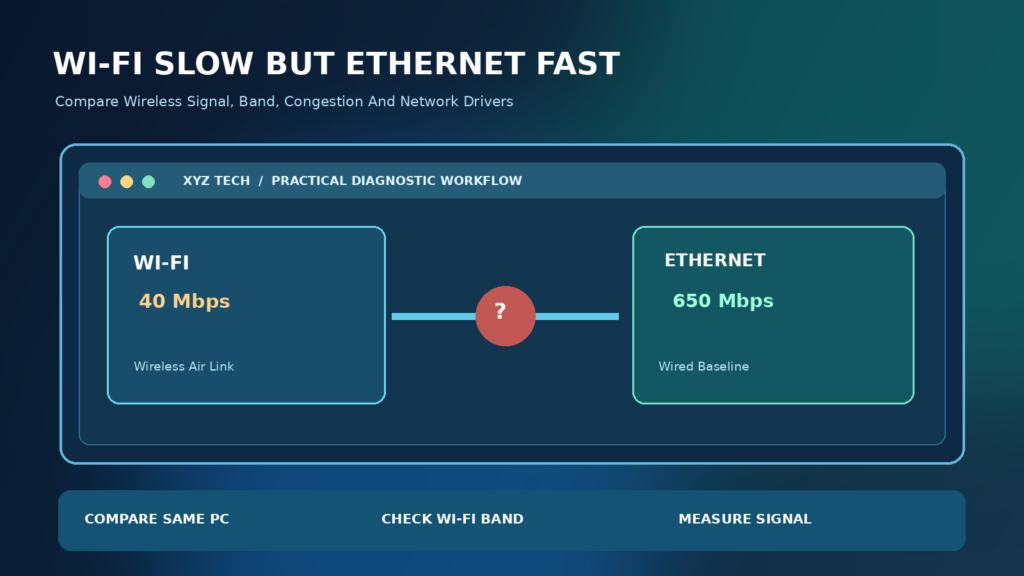
Ethernet provides a wired connection between your device and network equipment, while Wi-Fi carries data through radio waves shared with other devices and affected by physical surroundings. A wired test can therefore be much faster than a wireless test even when both use the same internet plan. The difference may be normal, but a very large or sudden gap can also signal weak signal, congestion, an outdated Wi-Fi adapter or an unsuitable router configuration.
Before changing anything, confirm the comparison is fair. If one test uses a powerful desktop on Ethernet and another uses an older phone on Wi-Fi, the devices themselves may explain part of the difference. Microsoft’s Slow Internet Connection Guide notes the influence of wireless location and surrounding devices. Your objective is to identify the slowest part of the path, not to force Wi-Fi to equal an ideal wired link.
A Five-Minute Diagnosis That Avoids Guesswork
Connect the same laptop to the router by Ethernet and run a repeatable internet speed test, then disconnect the wired link and connect that laptop to Wi-Fi from the same position. Use the same test provider and server where possible, close active downloads and repeat each test several times. Record download speed, upload speed and latency, and note whether other devices are streaming or backing up during the comparison.
Move close to the router and repeat the Wi-Fi test. If wireless speed improves substantially, the radio path or the access-point location likely matters. If it remains very slow next to the router, inspect the Wi-Fi band, adapter capabilities, driver and router settings. If both connection types slow down together, investigate the internet service or overall router load instead of assuming the wireless radio is the only problem.
Build A Controlled Speed Test Baseline
Run comparable measurements on the same device before and after changing the connection type. An internet speed test measures the result of a particular end-to-end path at that moment, not a universal maximum. Different test servers, time of day and background traffic can produce different results. Record a few trials and use the range of outcomes rather than treating one unusually high reading as typical.
Google’s Home Network Speed Test Documentation distinguishes tests made at a router from tests on client devices. A router-to-internet measurement can be healthy even while a laptop’s Wi-Fi path is slow. That distinction helps prevent unnecessary calls to an ISP when the actual bottleneck lies between the laptop and its access point.
Understand Internet Speed, Link Rate And Real Throughput
The speed negotiated between a Wi-Fi adapter and router is not the same as application throughput. Wireless protocols require airtime for management, acknowledgments and retransmissions, while interference and shared use can reduce the data delivered to the application. The physical link rate is one capacity indicator, not a promise that a file or speed-test result will reach that number.
Ethernet also has overhead and configuration limits, but it normally avoids radio interference. Do not compare an advertised Wi-Fi standard’s theoretical maximum with a measured wired download and conclude that the router is defective. For an introduction to waiting time versus transfer rate, read our Network Latency Guide. Capacity, delay and consistency are related but different dimensions of performance.
Check The Wi-Fi Band: 2.4, 5 Or 6 GHz
Many routers offer 2.4 GHz and 5 GHz networks, while compatible Wi-Fi 6E or Wi-Fi 7 equipment may also support 6 GHz where allowed. A device connecting to crowded 2.4 GHz spectrum can see significantly lower speeds than a 5 GHz or 6 GHz connection near the router. However, the lower-frequency band often has better reach through obstacles, so the fastest band at one location may not be the most reliable in another.
Intel’s Band Comparison explains the tradeoffs, and our 2.4 GHz Versus 5 GHz Wi-Fi Guide provides practical context. Check your device’s current Wi-Fi band through its network properties rather than assuming the router’s marketing name tells you which band it selected. Availability of 6 GHz depends on compatible hardware and regulatory settings.
Test A Faster Band Only If The Signal Is Suitable
If the laptop supports 5 GHz, test it while relatively close to the router. Some networks use one name and select a band automatically, while others expose separate network names. Check which band the device actually joined and repeat the same test. A strong 5 GHz link may outperform 2.4 GHz, but a distant or blocked 5 GHz connection may become unstable and slower.
Do not force a high-frequency band for every device in the building. Thick walls and long distances change the tradeoff. If band steering on your router makes results inconsistent, consult the manufacturer’s documentation before adjusting it. A controlled comparison of two supported bands gives better evidence than disabling 2.4 GHz for every older smart-home device.
Check Signal Strength Near The Router
Move the device temporarily into the same room as the main access point and repeat the Wi-Fi speed test. If throughput improves, range and physical obstructions are plausible contributors. Walls, floors, metal cabinets and certain electronic devices can attenuate or disturb a signal. Google notes in its Home Wi-Fi Troubleshooting that distance, barriers, device capabilities and frequency affect performance.
A network icon showing several bars does not guarantee excellent performance. Bars are a coarse display of signal strength, while congestion and retransmissions can still reduce actual data transfer. Test a different spot in the room and compare consistency rather than selecting equipment solely from the number of bars shown. Our Wi-Fi Slow In One Room guide covers placement-related problems in detail.
Router Placement And Obstacles
A router placed behind a television, inside a metal cabinet or at the far edge of a house may not provide the best radio coverage. Where possible, position the access point in an open, elevated and central location away from large metal objects. If you have a multi-story home, test several positions before moving network equipment permanently.
Microsoft’s Wi-Fi And Your Home Layout discusses how band choice and home materials influence reception. Moving the router by a small distance can sometimes alter interference and signal paths. Do not unplug professionally managed network hardware or disturb fixed wiring without permission. Keep a record of the original position so you can reverse an unsuccessful experiment.
Wi-Fi Congestion And Neighboring Networks
Wireless devices share radio airtime, and neighboring access points may compete for overlapping channels. In apartments or busy offices, strong signal does not always produce strong throughput when many devices are communicating. Video calls, backups and streaming can add legitimate traffic that reduces the capacity available for a single speed test.
Intel’s Wi-Fi Troubleshooting Guidance points to interference and access-point configuration. Compare measurements at a less busy time and temporarily pause large uploads under your control. Avoid disabling another person’s device or changing shared business network settings without authorization. The goal is to determine whether demand and congestion are limiting the wireless channel.
Choose Router Channels Carefully
On many routers, channel selection can be automatic or manually configured. A crowded or overlapping channel can affect throughput, but forcing a random channel is not a guaranteed improvement. Check your router’s supported regulatory region and whether it already manages channels intelligently. If you change a channel, record the old value and test the same device and location afterward.
Intel’s Channel And Width Configuration Guide explains why wider channels may increase theoretical data rates while also increasing interference exposure. An 80 MHz or 160 MHz setting is not automatically better in a crowded home. Optimize for consistent usable throughput, not just the largest number in a settings menu.
Channel Width Is A Tradeoff, Not A Free Upgrade
A wide wireless channel can carry more data under favorable conditions, but it also occupies more spectrum and may experience more competing activity. A narrower channel can sometimes yield more stable performance in a crowded environment. The right choice depends on the router, adapter, Wi-Fi generation and nearby networks.
Keep an automatic width selection when the router is operating well, unless supported vendor guidance suggests a particular test. If you narrow or widen the channel, change only that setting and compare repeated measurements. Do not select unsupported regulatory options or modify firmware to unlock channels. A reliable wireless connection is more valuable than a theoretical rate displayed only when no one else is using the network.
Check Whether Your Wi-Fi Adapter Is Old Or Limited
An older wireless card may support fewer spatial streams, earlier standards or a narrower range of channels than a modern router. Its limitations can affect real throughput even when the access point advertises a fast Wi-Fi generation. Check the adapter model through the operating system’s normal hardware information, then compare its manufacturer specifications with the router.
Do not assume a computer is faulty because a newer device is much faster in the same room. A newer radio may support more efficient protocols or better antennas. Conversely, buying the newest adapter will not fix a router located behind thick walls. Test the same device near the router and investigate the actual bottleneck before purchasing hardware.
Update Wi-Fi Drivers Through Trusted Sources
If the wireless adapter behaves poorly only on one Windows computer, review its driver version and any support notices from the PC manufacturer. Obtain recommended updates through Windows Update, the computer maker or the adapter’s official source as appropriate. Intel’s Wireless Connectivity Guidance specifically mentions OEM drivers and interference checks.
Do not download driver packs from advertisements promising a dramatic speed boost. Updating can help compatibility and stability but does not overcome physical limitations such as poor signal or heavy congestion. Save work and know how to restore a working driver if an update causes a problem. Our Device Driver Explanation covers why drivers matter to hardware behavior.
Test Power-Saving Settings Without Disabling Safety
Some wireless adapters reduce power consumption during idle periods or on battery. A power-saving profile may influence responsiveness and, in some cases, throughput. If performance is poor only on battery, compare the same test while connected to appropriate power. Follow the computer or adapter manufacturer’s supported settings rather than disabling arbitrary services.
Power optimization is not the primary cause of every Wi-Fi slowdown. If the adapter behaves the same near the router on battery and external power, look elsewhere. Avoid registry hacks and unverified scripts that change hidden network parameters. Any supported setting change should have an observable result and an easy route back to the original value.
Check Whether Your Extender Is The Bottleneck
A Wi-Fi extender can deliver better coverage but may provide less throughput than a direct connection to the primary router, especially when it uses the same radio channel for both backhaul and client traffic. A device may connect to a strong extender signal while the extender itself has a weak connection upstream. Intel’s wireless guidance discusses the throughput limitations of repeaters and extenders.
Test directly on the main router’s wireless network near its location, then compare the extender connection. If the main router is fast but the extender is slow, investigate extender placement, backhaul quality and interference. Our Wi-Fi Extender Connected But No Internet guide addresses a different failure mode where upstream connectivity may be absent entirely.
Mesh Wi-Fi Backhaul And Placement
Mesh networks can improve coverage across a large home, but the link between mesh points also needs adequate capacity. A mesh node placed far from the primary router may give nearby clients a strong local signal while sending their traffic over a weak backhaul. Ethernet backhaul, where supported, can remove one wireless hop and improve consistency.
Google’s Mesh Testing Guide explains checking the connection quality between points. Our Mesh Wi-Fi Explanation describes the architecture. Before adding another mesh point, test where existing nodes connect and whether the slow speed occurs only behind one node. More hardware is not automatically the answer to poor placement.
Separate Local Wi-Fi From Internet Service Problems
Wi-Fi speed and internet speed are not interchangeable. A local transfer between devices can reveal wireless performance without relying on the ISP, provided the test is conducted using trusted equipment and properly configured tools. A router-level internet test can show whether the service connection is fast even while one wireless device struggles.
If Ethernet and Wi-Fi both produce poor internet performance at the same time, investigate modem, router and provider conditions. If Ethernet remains fast on the same computer but Wi-Fi is slow, wireless characteristics become the more useful focus. Our Router Or ISP Outage Checklist helps separate those cases.
Check Upload Speed, Download Speed And Latency Separately
A connection may download quickly but upload slowly, or show reasonable throughput with inconsistent latency. Video calls and online games can feel bad even when a single download test appears acceptable. Measure each component under comparable conditions rather than reducing the entire experience to one speed number.
Congestion, weak signal and retransmissions may affect different workloads differently. Our Network Latency Guide explains why response time is distinct from bandwidth. If slow performance appears only in one application, test whether its own server, VPN settings or background synchronization is involved before blaming the Wi-Fi radio.
Compare Another Device On The Same Wi-Fi Network
Test a second device from the same location and on the same Wi-Fi band if possible. If one laptop is consistently slow while a nearby phone or computer is fast, adapter capabilities, driver state or device-specific applications deserve attention. If every Wi-Fi device is slow, inspect router placement, channel congestion, wireless settings or the primary access point.
Do not demand identical results from unlike devices: antenna design, wireless generation and number of streams affect capabilities. The value of a second device is identifying the scope of the issue. Our Wi-Fi Works On Phone But Not Laptop article covers a different case involving connectivity on one device.
Check Background Downloads And Cloud Backups
A speed test competes with software updates, cloud synchronization, video uploads and other network tasks. If one computer is performing a large backup, its upload traffic can increase latency and reduce capacity for other devices. Review the legitimate background activity visible in Windows and any network-management app you use.
Pause only your own nonessential transfers for a short diagnostic test. Do not terminate unknown system processes or remove backup software merely because network traffic is high. Repeat the measurement under quieter conditions and resume necessary backups afterward. A one-time improvement during the pause suggests competing traffic, not necessarily a defective router.
Do Not Weaken Wi-Fi Security To Chase Speed
Some online advice recommends disabling encryption, switching to obsolete security modes or turning off protective router features in pursuit of higher throughput. Avoid such changes. A home network should use supported security, such as an appropriate WPA2 or WPA3 configuration, and updated firmware from a trusted manufacturer. A faster but insecure network is not an acceptable tradeoff.
Your router may have automatic channel selection, quality-of-service controls and band steering settings that affect traffic. Review the vendor’s documentation before altering them. Our Home Router Security Guide explains why security settings and appropriate access controls should be preserved during troubleshooting.
When To Consider A Network Reset
Windows includes a network reset capability, but it can remove and reinstall adapters and clear some network configuration, potentially affecting VPNs and other tools. Microsoft’s Wi-Fi Connection Troubleshooting documents that option as a later step. It is not the first action to take when a 2.4 GHz wireless link is simply slower than Ethernet.
Before any reset, record working Wi-Fi credentials and special settings, make sure you can reconnect securely and obtain help if a managed device is involved. First test signal, band, router configuration, interference and adapter drivers. A targeted reversible change is more informative than erasing several settings at once and then being unable to identify what helped.
A Diagnostic Comparison Table
Use a short worksheet to record wired speed, wireless speed near the router, wireless speed in the problem room, band, device model and time of measurement. Keep the same server and similar conditions where feasible. A comparison table makes it easier to spot a location or band effect rather than guessing from one screenshot.
Results may vary from test to test, and the figures should not be treated as guarantees. The table below maps common patterns to sensible next checks. It is an original editorial aid based on the supported behavior of wireless and wired connections, not a measurement of a specific customer’s router or internet service.
Choosing Between Ethernet, Better Wi-Fi And Mesh
If a stationary desktop needs consistently high throughput and low variability, a properly installed Ethernet connection is often a practical choice. Where cable installation is not feasible, improving the position of the router or access point can be worthwhile. Mesh networking may improve coverage in a large building when the backhaul is suitable, but it can introduce another wireless hop.
Choose the intervention that addresses the observed bottleneck. Better placement may be enough for one room; a newer client adapter may help one old computer; a wired backhaul may help a distant mesh node. Upgrading an internet plan will not necessarily improve a weak wireless connection inside the home. Test before spending money and verify the result after the change.
| Test Result | Likely Area To Investigate | Safest First Test |
|---|---|---|
| Wi-Fi Faster Near Router | Signal Or Obstructions | Test Placement |
| All Wi-Fi Devices Slow | Router Or Radio Congestion | Check Band And Channel |
| One Wi-Fi Device Slow | Client Adapter Or Driver | Compare Similar Devices |
| Extender Slow, Router Fast | Wireless Backhaul | Test Direct Router Link |
| Wired And Wireless Both Slow | Internet Or Router Load | Check Service And Activity |
How To Verify That Wi-Fi Performance Improved
After making a supported adjustment, repeat the same tests using the same device and locations. Compare download, upload and latency, and note whether speeds remain consistent across several trials. A speed increase measured once is encouraging, but performance that immediately collapses again may indicate ongoing interference, roaming or contention.
Check whether the improvement holds for real tasks such as video calls, ordinary browsing and file transfers. Restore a previous setting if it worsens stability. Keep a simple record of the router channel, band or placement you changed so you can reverse it later. The objective is dependable performance that matches the equipment and environment, not a marketing number reached under ideal conditions.
Frequently Asked Questions
Is It Normal For Wi-Fi To Be Slower Than Ethernet?
Yes. Wireless uses shared radio spectrum and is affected by signal, interference and protocol overhead, while Ethernet avoids those wireless limits.
Why Is My Ethernet Fast But Wi-Fi Extremely Slow?
Check whether the device uses a crowded 2.4 GHz band, has weak signal, uses an older adapter or connects through a slow extender. Run controlled tests close to the router.
Will Switching To 5 GHz Always Make Wi-Fi Faster?
No. It may improve throughput near a compatible router, but weaker signal at longer range can reduce reliability and speed.
Does A Wi-Fi Speed Test Measure My Router’s Maximum Speed?
No. It measures the result of a particular end-to-end connection at that moment. Link rates and router specifications are not guaranteed application speeds.
Can A Wi-Fi Extender Make Internet Slower?
Yes. A wireless repeater can consume airtime for backhaul and client communication, so placement and connection method matter.
Does Changing The Wi-Fi Channel Improve Speed?
Sometimes. It can help with congestion or interference, but choose a supported configuration and compare measurements before and after.
Should I Always Set The Widest Wi-Fi Channel?
No. Wide channels may be more exposed to congestion or interference. A narrower setting can produce more consistent performance in crowded areas.
Can A Windows Wi-Fi Driver Cause Slow Speeds?
Yes. Driver compatibility and configuration can affect performance. Use official computer or adapter manufacturer support to review updates.
Will A Faster Internet Plan Fix Weak Wi-Fi?
Not necessarily. If Ethernet is already fast but Wi-Fi is weak inside the building, upgrading the plan will not remove walls, interference or adapter limitations.
Should I Reset Windows Networking Immediately?
No. A network reset can affect saved network and VPN configuration. Start with band, signal, congestion, driver and router checks.

