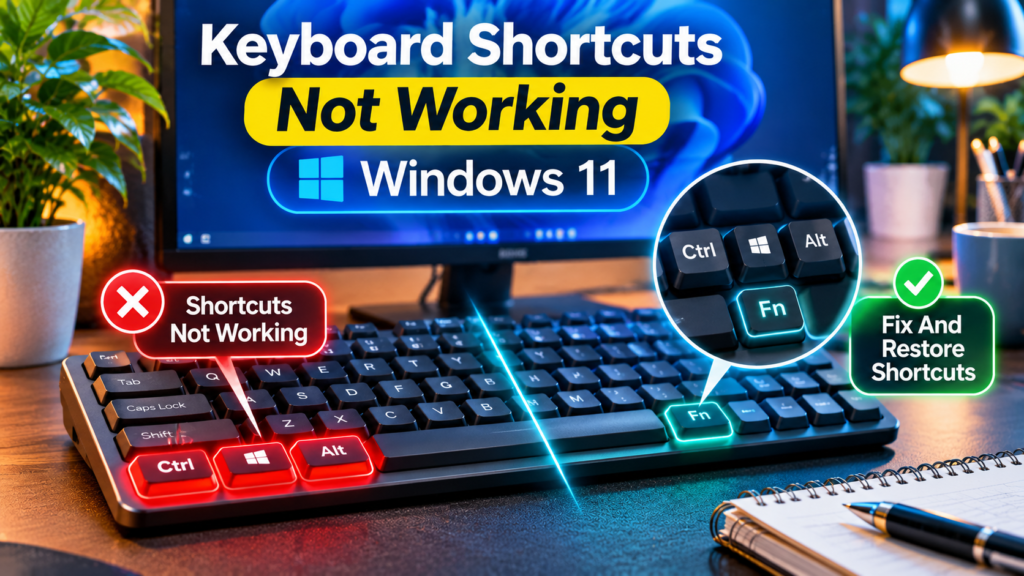

If keyboard shortcuts are not working in Windows 11, first test Ctrl and Windows key combinations in Notepad and on the desktop. Check a gaming keyboard’s Win Lock, review Settings > Accessibility > Keyboard for unexpected Sticky Keys or Filter Keys behavior, and confirm the keyboard layout and app focus. Use official driver or Windows repair tools only if simpler checks identify a broader problem.
This step-by-step guide distinguishes hardware faults, application hotkey conflicts, Windows settings, function-key mode and Remote Desktop behavior. All procedures are diagnostic guidance, not claims of hands-on testing on your keyboard.
Check What Is Actually Failing
Keyboard shortcuts can stop working for several reasons, and the fastest repair begins by classifying the symptom. A Windows logo shortcut such as Windows + E may fail while Ctrl + C still works, or all combinations may fail only inside a particular program. A keyboard could also have a damaged modifier key, an accidental function-lock mode, an accessibility setting, or a utility intercepting the combination. These are different problems and should not be treated as one generic keyboard failure.
Open a simple built-in application such as Notepad and try typing ordinary letters. Select a short word and test Ctrl + C, Ctrl + V and Ctrl + A on harmless sample text. Next use Windows + E for File Explorer and Windows + I for Settings. Record which combinations work and which fail. This small matrix helps separate a physical key issue from a program-specific shortcut or a Windows-wide setting before any invasive troubleshooting.
Know Which Shortcuts Windows Actually Supports
Windows 11 provides operating-system shortcuts, but not every combination belongs to Windows. Ctrl + Shift + V, for example, is a paste-as-plain-text action only in applications that implement it. Browser shortcuts, graphics editor shortcuts and game bindings can differ by software and language. Microsoft’s Windows keyboard shortcuts reference is the primary source for built-in combinations.
Test a documented Windows shortcut instead of an unfamiliar online list. Windows + D displays or hides the desktop, Windows + E opens File Explorer, Windows + R opens Run, and Windows + U opens Accessibility settings. Some key combinations act differently when a full-screen game, virtual machine or Remote Desktop window captures input. A shortcut failing in only one application does not prove the operating system or keyboard driver is defective.
Test The Ctrl, Alt, Shift And Windows Keys Separately
Modifier keys are the foundation of most shortcuts. If the left Ctrl key has failed, Ctrl-based combinations may appear broken even though ordinary letters still type. Test left and right Ctrl or Shift separately where the keyboard provides both. Compare a second keyboard if one is available. Avoid forcing the keycap off a laptop keyboard, because delicate mechanisms can break and some models are not designed for casual disassembly.
Use Windows’ On-Screen Keyboard as a diagnostic aid through Settings > Accessibility > Keyboard, or the supported shortcut Windows + Ctrl + O if that combination is still functioning. Observe whether pressing physical modifier keys changes the on-screen key indicators where supported. The tool cannot prove every hardware defect, but it offers a useful comparison. Our Laptop Keyboard Some Keys Not Working guide covers more detailed hardware and input checks.
Turn Off An Accidental Keyboard Gaming Lock
Many gaming keyboards provide a Win Lock, Gaming Mode, or similar switch that prevents the Windows logo key from interrupting a game. On some models the key is dedicated; on others it requires Fn and a function key. The combination is manufacturer-specific, so do not guess by pressing random keys and expecting universal behavior. Search the keyboard’s model number on its maker’s official support page.
If Windows + E and Windows + D fail but Ctrl + A and Ctrl + C work normally, a locked Windows key is a plausible cause. Check for a light, lock symbol, software profile, or toggle in the keyboard manufacturer’s approved utility. After changing one setting, test two known Windows shortcuts again. Do not download an unofficial gaming-mode unlocker, registry patch or driver bundle just to restore a shortcut.
Review Sticky Keys Settings
Sticky Keys allows a person to press modifier keys one at a time rather than holding them simultaneously. It is an accessibility feature, not malware or a Windows fault. However, if it was activated unexpectedly, the behavior of combinations may feel different. Open Settings > Accessibility > Keyboard and review Sticky Keys. Microsoft’s keyboard accessibility guidance explains its purpose and controls.
If you do not use Sticky Keys, turn it off and test the same shortcut again. Also review the keyboard shortcut that toggles it, because pressing Shift repeatedly can trigger a prompt depending on settings. If you rely on the feature for accessibility, do not permanently disable it merely because a generic online repair checklist suggests doing so. Instead, adjust how you use the combination and preserve the accessibility configuration that fits your needs.
Check Filter Keys And Slow Keystrokes
Filter Keys can ignore brief or repeated keystrokes. It is helpful for certain accessibility needs, but it can also explain why quick key combinations fail to register on a machine where someone enabled it accidentally. In Windows 11, look under Settings > Accessibility > Keyboard. Microsoft’s accessibility shortcut reference notes that holding Right Shift for eight seconds can toggle Filter Keys under supported settings.
Test the same harmless combination slowly and then normally. If you do not need Filter Keys, disable it for a controlled comparison and restore your preferred settings afterward. A keyboard that misses ordinary letters, delays key repeats and rejects shortcuts may have a broader input or hardware problem, so do not assume a single Windows setting explains every behavior. Document the change before trying another adjustment.
Check The Selected Keyboard Layout And Language
Keyboard layouts differ in the location of symbols and special keys, and some applications interpret shortcuts according to physical key positions or typed characters. An unexpected layout can make certain combinations seem inconsistent. Open Settings > Time & language > Language & region, inspect installed keyboards, and confirm the active input layout. Microsoft provides official keyboard layout instructions.
Windows + Space normally changes among installed layouts, although that shortcut itself might be unavailable during this problem. Use the taskbar’s input indicator or Settings to verify the selection instead. Do not remove a language required for another user or application without checking. If only punctuation-related shortcuts fail, the difference may be layout-specific rather than a broken Windows key or operating-system component.
Use Notepad To Separate App-Specific Problems
Testing in a simple program prevents complex applications from obscuring the diagnosis. Open Notepad through Start, enter a harmless sentence, and try Ctrl + A, Ctrl + C, Ctrl + V, Ctrl + Z and Ctrl + S in a temporary document. If they work in Notepad but not in a graphics editor, browser extension or remote session, investigate that application first. Check its keyboard shortcut settings and whether a text field actually has focus.
Some programs deliberately intercept or redefine global shortcuts. Screen-capture tools, clipboard managers, video drivers, automation programs and games are common examples. Close one nonessential application at a time and repeat the test. Avoid uninstalling many programs at once, because that makes it difficult to identify the cause and can remove useful settings. Our Snipping Tool Not Working guide is relevant when only screenshot-related combinations fail.
Restart The Affected App Before Restarting Everything
A shortcut may stop responding after a program loses focus, gets stuck in a modal dialog or encounters a temporary internal fault. Save the document first, then close and reopen the affected application. If the application has a custom shortcut editor, check whether the command was reassigned or disabled. An application repair or reset should come later because it may change preferences or erase local state.
Compare the shortcut in another window after restarting the application. If all other software still responds normally, reinstalling keyboard drivers or resetting Windows would be disproportionate. Document the application’s version and specific command that fails, then consult its official support documentation. Windows system shortcuts and software-specific shortcuts should not be collapsed into a single diagnosis.
Check Whether The Windows Key Works Outside Shortcuts
Press the Windows logo key alone while the desktop has focus. It normally opens the Start menu in a standard Windows setup. If the Start menu opens but Windows + E fails, the key itself may still function. If the Start menu also fails, check Gaming Mode, device keyboard settings and whether Start or Explorer is experiencing a problem. Do not conclude that the key is physically broken from one failed combination.
Try clicking the Start button using the mouse and open File Explorer from the taskbar or search. If those interfaces also fail or freeze, the problem may involve Windows shell responsiveness. Our Windows 11 Taskbar Icons Missing and Windows 11 Search Not Working guides cover related shell symptoms without treating every issue as a keyboard defect.
Inspect The Function Key And Function Lock
Laptops often assign special functions such as volume, brightness and media controls to their top row. Whether you must hold Fn to use an F1 through F12 command depends on the laptop model and its configured function-row behavior. A change in Fn Lock can make shortcuts involving these keys act differently. Consult the manufacturer’s official manual for your exact device, because key combinations and firmware settings vary.
Test an ordinary Windows shortcut without a function key, then compare an affected F-key command. If only the function row behaves differently, focus on Fn Lock and vendor keyboard settings rather than resetting the whole keyboard. Avoid changing firmware or BIOS options without recording the original settings and confirming the supported procedure. An accidental Fn mode is not the same thing as a Windows keyboard driver failure.
Reconnect An External Keyboard Or Receiver
For a USB keyboard, disconnect it gently, inspect the connector and port for obvious damage, and try a known working port. Avoid repeatedly forcing a connector or using a damaged hub. For a wireless keyboard, check battery condition, the power switch and the USB receiver or Bluetooth pairing. Microsoft’s mouse and keyboard troubleshooting guidance recommends checking physical connections and system updates.
Use a second keyboard to compare if possible. If every shortcut works on another device but not the original keyboard, that is useful evidence for a hardware, receiver, firmware or keyboard-specific utility issue. If both keyboards fail in one particular program, investigate the program and Windows settings first. Do not assume that a keyboard connected through Bluetooth uses the same troubleshooting path as a wired device.
Look For Shortcut Conflicts With Utilities
Hotkey managers, macro tools, gaming overlays, screenshot utilities and remote-control software may reserve combinations for their own functions. If the problem began after installing an application, inspect its hotkey assignments and documentation. A shortcut conflict can make one combination behave unexpectedly while most of the keyboard functions normally. Some applications offer a setting to stop intercepting a specific key sequence.
Disable one nonessential utility temporarily using its normal controls and test again. Record the result, then restore useful settings. Do not download scripts that claim to unlock every key or disable all security software. If the program is managed by your employer or school, ask the administrator before changing global hotkeys. A conflict is best resolved by changing the application’s shortcut rather than weakening the operating system.
Understand Remote Desktop And Virtual Machine Shortcuts
When you control another computer remotely, keyboard shortcuts can be captured by the remote desktop client, passed to the remote system or handled by your local Windows desktop. The result depends on the client and its keyboard configuration. A virtual machine can behave similarly, especially when it takes control of the keyboard. Test whether the same combination works outside the remote session.
If the shortcut fails only inside Remote Desktop Connection, inspect its supported local resources and keyboard settings before changing hardware. Our Remote Desktop Audio Not Working guide illustrates how remote-session settings can differ from local Windows settings, even though audio troubleshooting is a separate task. Do not assume a remote-host restriction is a malfunction of your local keyboard.
Check Accessibility Features Without Removing Needed Support
Accessibility settings should be reviewed thoughtfully. Sticky Keys, Filter Keys, toggle sounds, the On-Screen Keyboard and other features are legitimate tools. They can also be switched accidentally on a shared computer. In Settings > Accessibility > Keyboard, review only the controls relevant to the symptom and write down the initial configuration before testing alternatives.
If another person relies on a feature, coordinate any change and restore their preferred setup. An effective diagnostic test changes one variable at a time and uses the same keyboard shortcut afterward. Do not disable all accessibility features merely to improve performance. Microsoft’s official descriptions explain the intended behavior more reliably than anonymous scripts or registry files.
Install Supported Windows And Keyboard Updates
An update can correct known input-device or compatibility problems, but it is not proof that every shortcut issue stems from outdated software. Use Settings > Windows Update to check for supported system updates and the keyboard manufacturer’s official support channel for model-specific firmware when needed. Microsoft’s hardware troubleshooting guidance recommends keeping Windows updated.
Do not install driver-updater programs from random download sites. Such utilities may bundle unwanted software or install inappropriate device drivers. Our How To Find Windows 11 Device Drivers Safely explains trusted driver sources. Back up important work and follow manufacturer guidance before a firmware update, because some hardware updates have additional requirements.
Check Keyboard Device Status In Device Manager
Device Manager can show installed keyboard and HID input devices and may reveal a reported error. Right-click Start, choose Device Manager, and expand Keyboards or Human Interface Devices as appropriate. Do not assume a generic device name means the wrong driver is installed. Many keyboards deliberately use standard Windows HID drivers, which are normal for their hardware.
If Device Manager shows a specific warning, look up the device model and error using official support information. Avoid uninstalling an input device while you have no alternative way to control the computer. An ordinary restart can refresh temporary device communication, but repeated random driver removals may make diagnosis harder. Record the original configuration before taking an advanced step.
Try A Safe Restart And Controlled Retest
A restart can clear a temporary application or shell state and reinitialize device input without wiping files. Save all open work, use the normal Windows restart command and wait for the desktop to load. Recheck the same three test combinations: one Ctrl command, one Windows logo command and the shortcut that originally failed. Keep the result alongside the pre-restart observation.
If a shortcut works only immediately after reboot and later fails again, a background utility or application conflict becomes more plausible. Note what software starts afterward and whether the problem occurs when a particular app launches. This repeatable pattern is more useful than restarting randomly several times and declaring the system repaired.
Use A Clean Boot Only For Persistent Software Conflicts
A clean boot starts Windows with a reduced set of nonessential startup programs and services to help isolate software conflicts. It is an advanced diagnostic approach, not a routine first fix. Microsoft’s clean boot procedure explains the supported process and how to restore normal startup afterward.
Follow the official sequence carefully, especially on an employer-managed computer. Keep a record of disabled services and startup entries so you can reverse changes. Do not disable security or device-management software without authorization. If shortcuts recover in a clean environment, selectively re-enable components to identify the interfering utility rather than leaving the machine indefinitely in a diagnostic configuration.
Check Whether The Problem Is A Screenshot Shortcut
Windows provides more than one method for screenshots, and the Print Screen key can be configured to open screen capture rather than copying an image directly. This can appear to be a broken shortcut when the action changed after an update. Microsoft’s shortcut reference describes Windows + Shift + S and related screenshot commands, while Windows accessibility settings include a Print Screen behavior option.
Test Snipping Tool manually, verify your capture destination and review relevant settings. Do not apply this scenario to unrelated Windows shortcuts such as Windows + E or Ctrl + A. Our How To Take A Screenshot On Windows 11 offers practical capture methods. A changed screenshot workflow should be fixed in the screenshot settings, not by resetting the entire operating system.
Repair System Files Only When Other Windows Problems Also Appear
System file corruption is a possible but less common explanation for isolated shortcut failure. Consider supported repair tools when multiple Windows components behave incorrectly, standard settings and hardware checks have failed, or Windows reports damaged system files. Microsoft’s System File Checker guidance describes DISM and SFC usage, including elevated command requirements.
Do not run arbitrary third-party registry cleaners or scripts that promise to fix keyboard shortcuts by deleting unknown keys. Follow supported Microsoft instructions, make a backup and review the tool output. For a fuller explanation, consult our How To Repair Corrupted Windows System Files Safely. A single failed application shortcut is rarely sufficient evidence to begin an operating-system repair.
Why Editing The Registry Is Usually Unnecessary
Online troubleshooting pages sometimes recommend removing keyboard remapping entries or changing Windows policies without verifying that the machine actually has a remapping rule. Registry changes can affect every user and may be enforced by an organization. They should not be a general-purpose fix for a shortcut that fails in one app or a keyboard with a physical defect.
If you suspect a deliberate key remapping, inspect the legitimate keyboard utility, PowerToys configuration or organizational policy first. On a managed computer, contact IT. Use official documentation and a reversible change plan if advanced settings must be modified. Avoid downloading untrusted registry files whose contents you have not reviewed.
How To Test After Each Fix
Use the same small test suite every time so that you can compare results. In Notepad, try Ctrl + A and Ctrl + C on a temporary sentence. On the desktop, try Windows + E and Windows + D. Finally, repeat the exact application-specific combination that originally failed. Record whether one, several or all of the commands recovered.
A successful test in one application does not prove every shortcut is fixed everywhere. Confirm that you can use the key combination consistently after closing and reopening the affected app or restarting if necessary. This record also helps an IT technician reproduce the issue. Avoid reporting generic success based on a screenshot of a settings panel alone.
A Symptom-Based Troubleshooting Table
Use the decision table below to match what you observe with the least disruptive next test. If Ctrl shortcuts fail everywhere, test the Ctrl keys and accessibility settings. If Windows shortcuts alone fail, check gaming-mode locks and Windows shell behavior. If only F-key shortcuts change, examine Fn Lock. If the issue happens inside one program, check that program’s hotkey configuration and whether its window has focus.
The table provides investigative directions, not diagnoses. More than one cause can occur together. Avoid unnecessary Windows resets, firmware flashing or registry changes before checking the basics. A small number of controlled observations will usually narrow the issue more effectively than performing every imaginable repair.
| Observed Symptom | Useful First Check | Do Not Assume |
|---|---|---|
| Only Windows-Key Shortcuts Fail | Win Lock And Windows Shell | Hardware Is Broken |
| Ctrl Shortcuts Fail Everywhere | Modifier Keys And Accessibility | Windows Is Corrupt |
| Only Function Row Is Different | Fn Lock And Vendor Instructions | Driver Must Be Reinstalled |
| One Program Is Affected | App Focus And Hotkey Conflicts | System-Wide Failure |
| External Keyboard Works | Built-In Keyboard Inspection | Reinstalling Windows Will Help |
When To Seek Hardware Or Professional Help
If a known-good external keyboard works but the laptop’s built-in modifier key does not, the internal keyboard or its connection may need qualified inspection. Persistent key failures after liquid exposure, physical damage or repeated missed presses are especially worth evaluating. Avoid opening the device or removing keycaps if doing so could damage it or affect warranty coverage.
For company-owned computers, ask IT before reinstalling drivers, changing startup services or modifying managed policies. Share the keyboard model, Windows version, affected shortcuts, results with a second keyboard and steps already tested. An accurate symptom report helps determine whether repair, replacement or a software configuration change is appropriate.
Maintain Shortcuts Without Risky Tweaks
Keep a short reference list of frequently used shortcuts that are actually supported by your applications. Learn which controls come from Windows, which belong to a program and which are defined by the keyboard manufacturer. Record custom hotkeys when setting up accessibility or gaming utilities. That reduces confusion after app upgrades or computer replacements.
Use trusted update sources and preserve accessibility settings that work for you. If a shortcut fails again, repeat the simple classification test before changing anything. The central lesson is to match the fix to the symptom: hardware and modifier keys, accessibility, app conflicts, Windows shell or advanced repair are different pathways.
Frequently Asked Questions
Why Are My Keyboard Shortcuts Not Working In Windows 11?
Possible causes include an inactive application window, a damaged modifier key, gaming mode, Sticky Keys or Filter Keys, keyboard layout changes, app hotkey conflicts or a device issue. Test known shortcuts in different applications first.
How Do I Unlock The Windows Key?
Some gaming keyboards offer Win Lock or Gaming Mode. Check the exact keyboard model and official manufacturer instructions. A generic shortcut to unlock every keyboard does not exist.
Can Sticky Keys Stop Keyboard Shortcuts?
Sticky Keys changes how modifier combinations are entered. An unexpected setting can feel like a broken shortcut, but it is an intentional accessibility feature and should be adjusted according to the user’s needs.
What Is The Difference Between Sticky Keys And Filter Keys?
Sticky Keys allows sequential modifier presses. Filter Keys can ignore brief or repeated keystrokes. Both are configured through Windows Accessibility keyboard settings.
Why Does Ctrl + C Work In One App But Not Another?
An application may have focus or clipboard restrictions, custom shortcuts or a conflicting hotkey assignment. Test in Notepad, then review the affected application’s documentation.
How Can I Test Whether My Windows Key Is Broken?
Try pressing the key alone and a documented Windows shortcut, then compare with another keyboard and check any gaming lock setting. One failed shortcut does not prove hardware damage.
Does Fn Lock Affect Keyboard Shortcuts?
It can change how F1 through F12 functions work on some laptops. The exact behavior depends on the manufacturer, so check official model-specific guidance.
Should I Reinstall Keyboard Drivers To Fix Shortcuts?
Not as the first step. Test settings, modifier keys and app conflicts first. Use Device Manager and vendor-supported driver procedures only when evidence points to a device problem.
Is It Safe To Disable All Accessibility Keyboard Features?
No. They are important for many users. Review only the relevant setting and preserve or restore accessibility features needed by the person using the device.
Should I Reset Windows Because A Shortcut Fails?
No. A reset is disproportionate for most isolated shortcut issues. Start with reversible checks and investigate broader system problems only when supported by additional evidence.


