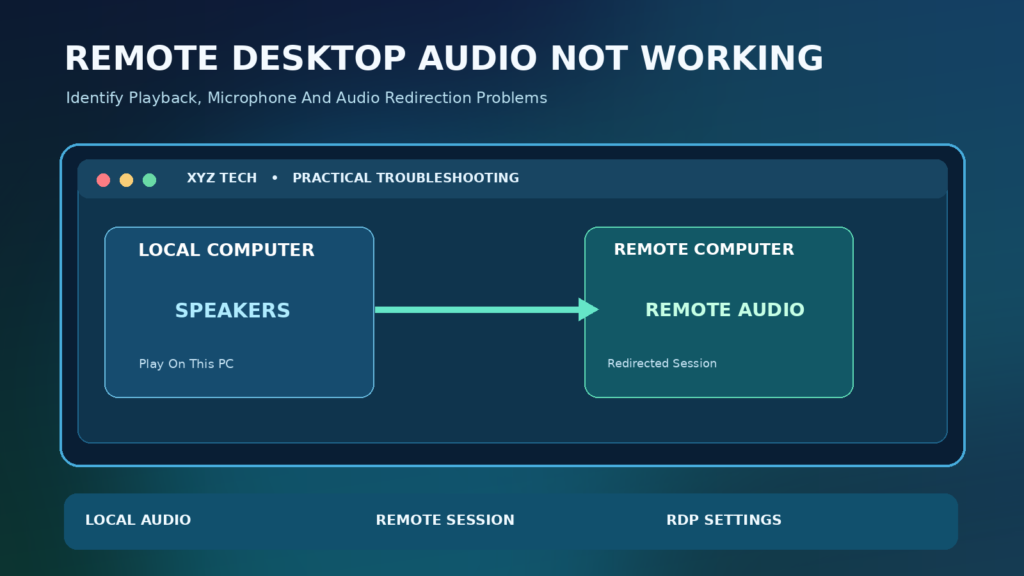

If Remote Desktop audio is not working in the classic Windows client, open Remote Desktop Connection > Show Options > Local Resources > Remote Audio Settings. Select Play on this computer for speakers, or Record from this computer for your microphone where allowed, then reconnect. Check the local speakers, remote app mixer and organization policies before reinstalling drivers.
Remote speakers and microphones use different redirection paths. This guide covers supported Windows clients, local device tests, app-specific settings and managed remote desktop restrictions, drawing on official Microsoft documentation.
Identify Which Remote Desktop Sound Is Missing
Remote Desktop audio problems are not one single failure. You may be unable to hear sounds produced on the remote Windows PC through your local speakers, unable to transmit your microphone into a remote meeting, or able to hear music but not a particular application. These symptoms involve different settings and should be tested separately. Start by recording which direction the audio needs to travel and which application is affected.
An ordinary Windows Remote Desktop Connection session can redirect the remote computer’s sound to the local device, play it on the remote PC, or leave remote audio silent. Microphone redirection is an additional choice. A work-managed Azure Virtual Desktop or Windows App session may expose different controls and may have administrator-enforced policies. Identify your actual client before following a menu path written for another product.
Quick Diagnosis Before Changing Settings
On the local computer, play an ordinary system sound or a known audio file outside the remote session. Confirm that the speakers or headphones work locally and that the volume mixer is not muted. If local sound fails everywhere, fix that first rather than changing the remote host. If it works locally but not in the remote desktop, the connection’s audio redirection or the remote app becomes a more useful investigation target.
Next, run one simple sound-producing activity within the remote Windows session and note the selected output device. If a microphone problem is involved, use a microphone test or permitted call inside the remote session without recording other people. Write down the client name, operating-system versions and the exact symptom. A brief repeatable test is more informative than resetting both computers.
Understand Local Speakers Vs Remote Speakers
Audio playback from a remote computer can be redirected over the Remote Desktop connection to the computer in front of you. This lets sound from remote applications emerge from your local headphones. Alternatively, some sessions can play sound on the host computer itself. Those destinations are not equivalent, particularly if the remote machine is physically far away or unattended.
Microsoft’s Remote Desktop policy reference explains that the classic client has a Remote audio section under Local Resources, where users may choose a playback destination subject to applicable policy. If you need sound locally, select the local playback option rather than troubleshooting the remote host’s physical speakers unnecessarily.
Fix 1: Set Remote Audio Playback In MSTSC
On the local Windows PC, close the affected remote session after saving work. Open Start, search for Remote Desktop Connection, or run mstsc from the normal Run dialog. Select Show Options if the compact connection window appears. Open Local Resources and choose Settings in the Remote audio area. Under playback, select Play on this computer, then reconnect to the intended host.
Microsoft documents mstsc as the Windows Remote Desktop Connection client. The exact interface can differ between Windows versions, but the local-resource concept remains. Avoid editing obscure registry keys or copying downloaded RDP configurations as a first repair. Reconnect before testing because a changed redirection choice may not change a session that is already established.
Fix 2: Review Remote Microphone Recording
The microphone sends audio in the opposite direction from speaker playback. If your local speakers work but participants in an app running on the remote computer cannot hear you, return to Remote Desktop Connection, Show Options, Local Resources and Remote audio Settings. In the recording section, choose Record from this computer where supported. Reconnect and review the remote app’s microphone selection.
This setting does not authorize an organization to record people without consent, and some hosts deliberately prohibit redirection. Microsoft’s RDS policy documentation describes audio recording redirection separately from playback. Treat microphone access as a privacy-sensitive capability, and check operating-system permissions as well as the remote meeting application’s own mute control.
Remote PC → RDP Connection → Local Speakers
Local Microphone → RDP Connection → Remote Application
Fix 3: Confirm The Local Output Device
Windows can send audio to the wrong destination when a Bluetooth headset, HDMI display, docking station or USB speaker is connected. On the local computer, open Settings > System > Sound and check the output device. Confirm volume, any mute state and whether the correct endpoint is selected. Use an ordinary local sound test before reconnecting the remote session.
If the local device works in normal Windows applications but remote audio remains absent, the problem is not proven to be a broken headset. Return to the remote-session playback setting and the Windows volume mixer. Microsoft’s Windows sound troubleshooting guidance covers selecting the output device and other safe local checks. Avoid downloading driver tools advertised in a random search result.
Fix 4: Check The Remote Session Volume Mixer
A Windows session can have its own sound output selection and per-app volume settings. While connected, check the speaker icon and Settings > System > Sound on the remote desktop. Confirm that the desired remote application is not muted or assigned to an unexpected endpoint. Some apps expose additional audio settings and may need to be restarted after devices appear or change.
Test a simple permitted system sound rather than relying on one browser tab or meeting application. If general remote playback works and a single app is silent, focus on that app’s mixer, playback device and service-specific support documentation. Reinstalling the entire Remote Desktop client would be premature when the connection clearly carries audio from other sources.
Fix 5: Reconnect After Changing Redirection Settings
Changes to selected local resources do not necessarily reconfigure an already-open session. Save the remote application’s work, sign out or disconnect appropriately, then connect again using the updated settings. If you are working in a shared office environment, avoid forcing logoff because it may close someone else’s programs or interrupt an automated process.
Before reconnecting, confirm you are reaching the same remote host and that the intended connection profile is active. A saved RDP file may preserve different settings from the default client. Microsoft’s MSTSC documentation explains connection files and how the client uses them. Do not publish connection files containing server addresses or credentials to a public support site.
Fix 6: Understand Managed Remote Desktop Policies
Organizations can control audio playback and recording redirection through Group Policy or device-management settings. If a menu appears correct but the desired audio still cannot be redirected, an administrator-enforced rule might be relevant. Microsoft documents Remote Desktop Services device and resource redirection policies, including controls that can prevent audio movement between local and remote computers.
Do not disable security policies, install unauthorized software or attempt to bypass workplace restrictions. Ask the IT team whether audio redirection is allowed for your session type. Describe whether the missing function is playback, microphone input or both. The correct administrative fix may be a policy change after a risk review, but that decision belongs to whoever manages the environment.
Remote Desktop Connection Vs Windows App Vs AVD
Microsoft offers different remote connection experiences, including the classic Remote Desktop Connection client and Windows App or managed Azure Virtual Desktop setups. Their interfaces and supported redirection features are not always identical. An article mentioning Local Resources and mstsc specifically describes the classic Windows desktop client, not every cloud desktop or browser-based remote access interface.
Microsoft’s Remote Desktop client FAQ describes per-connection bidirectional sound options, and its Azure Virtual Desktop audio redirection guidance addresses policies managed by administrators. Check the exact product your employer or provider deployed before applying a consumer Windows fix.
Windows App And Cloud Desktop Redirection Settings
In a managed cloud desktop, audio behavior may be determined jointly by the client, connection profile, host pool properties and session-host policy. A user-visible local checkbox can be necessary but not sufficient. The organization may also define whether audio plays locally, remains on the remote session or is disabled. These settings are especially important when multiple audio devices are present.
Microsoft describes supported RDP properties for Azure Virtual Desktop and the device and audio redirection framework for Windows App. For a managed account, provide support with the client version, connection type and device type rather than editing centrally controlled configuration files yourself.
Why A Remote Meeting App Might Stay Silent
Meetings introduce more moving parts than system sounds. The remote app may choose the wrong speaker or microphone, a browser may lack microphone permission, the remote session may not redirect capture and the meeting may use a specialized multimedia optimization path. A successful music playback test does not prove that microphone capture is working in both directions.
Open the meeting application’s own device settings and confirm the selected speaker and microphone. Test its built-in audio check when available. Microsoft’s Teams speaker guidance specifically tells remote desktop users to check local Windows audio. Avoid repeatedly granting microphone access to unrelated apps just to make one meeting work.
Check Remote Microphone Privacy And Mute Controls
Windows microphone privacy settings and app-level mute controls can prevent capture even when the RDP connection requested microphone redirection. Verify the local microphone works in a trusted local app, then inspect remote Windows microphone settings and the application you use. The remote session may expose a redirected capture device with a different name from the physical local microphone.
Do not assume the absence of a device proves the local mic is broken. The client and administrator policy may have blocked it before the remote application launched. Separate those cases by comparing local recording, remote device visibility and the app’s own testing feature. If an organization’s privacy policy prohibits redirection, seek an approved alternative rather than trying to override it.
Check Headsets, Docking Stations And HDMI Audio
A headset can switch default playback when it pairs, a monitor may appear as an HDMI audio output, and a dock can expose its own speakers. On the local PC, inspect which endpoint is currently selected and repeat a local sound test. If you disconnect a headset while a remote session is open, the session might not immediately use the new local default as expected.
Try a controlled reconnect after changing the local output device. Avoid unplugging storage devices or docks during active file transfers. Bluetooth audio troubles may also come from pairing profiles rather than RDP; our Bluetooth Headphones Connected But No Sound On Windows 11 guide addresses that separate local issue.
Test Audio With A Minimal Reproducible Procedure
Create a small checklist that starts with one local sound test, then one remote system playback test and, when needed, one microphone test. Record which worked and whether a headset or dock was attached. Reconnect only after changing one relevant setting. This reveals whether a specific action changes the outcome and prevents a long sequence of resets with no clear evidence.
For example, if local audio works and a remote notification sound does not, investigate remote redirection. If both local and remote audio fail, first check the local device. If playback works remotely but recording does not, focus on microphone redirection and privacy settings. This basic decision tree is more reliable than relying on a generic ‘No sound’ warning.
Use A Simple Audio Routing Diagram
Picture two separate Windows computers connected by an authenticated Remote Desktop session. Application audio originates on the remote machine and can be sent through the connection to the client’s local speakers. Microphone recording starts at the local machine and may travel in the opposite direction. The connection client and any administrative policies determine whether these resources are exposed.
That explanation also clarifies why speakers on the physical host can remain quiet while you hear sound locally. The remote machine is generating the data, but the destination is chosen by redirection. Do not confuse the direction of the application data with the physical location of the program or microphone. They are separate concepts with distinct configuration controls.
Understand Remote Audio Recording Limitations
Microphone redirection is not a guarantee that every specialized recording application will accept every device. Audio APIs, latency, device sampling choices and application permissions can affect usability. A conferencing app may support a tested optimized remote workflow, whereas a specialized professional audio interface might need direct access to hardware not available through the remote session.
Verify the intended workload with a small test before selecting remote desktop software for critical recording. If the task is live audio production, an ordinary RDP session may be unsuitable even when a microphone appears in the remote device list. Our remote desktop software selection guide explains broader product and workflow tradeoffs.
Why Internet Speed Is Not A Complete Explanation
Poor connectivity can affect media quality, but one fast download-speed result cannot confirm that redirection is correctly configured. Remote audio depends on the selected endpoint and session protocol, while latency, packet loss and congestion influence the experience once the stream is active. A connection can be fast enough for file transfers yet exhibit delays in conversation.
Compare the remote audio symptom under the same connection at different times and, where allowed, on a stable wired connection. Our network latency guide explains round-trip delay and jitter. Do not change router security settings or disable a firewall solely because sound fails in one remote app.
Avoid Exposing Remote Desktop To The Internet
Audio troubleshooting should never create a new remote-access security problem. Do not open arbitrary inbound RDP ports on a home router merely to solve a missing microphone or speaker. Secure remote access requires an appropriate authenticated route, patch management and protection against unwanted access. A workplace may use approved gateways, VPNs or other controls.
Our VPN overview explains that a VPN has distinct privacy and network roles and is not a guarantee of safety. If the session was established successfully, focus on its local resources and allowed redirection policies. Changing public port forwarding does not select a speaker destination and may expose the host to attack.
Check The Remote Desktop Host’s Windows Edition
Not every Windows edition is intended to accept incoming Remote Desktop sessions as a host. Microsoft’s Remote Desktop setup guide specifies supported host requirements. A Windows Home PC can often use supported client tools, but that does not mean it offers the same incoming RDP host capabilities as a supported Pro or enterprise edition.
If you are unable to establish a session at all, that is a separate connectivity and licensing question, not an audio-only problem. Verify the host’s supported Windows edition and the approved remote access method before troubleshooting sound. Avoid downloading unofficial Windows edition activation tools or unsupported remote hosting patches.
| Symptom | First Check | Who Can Fix It |
|---|---|---|
| No Audio Anywhere | Local Output Device | Local User Or Device Support |
| Only Remote Sound Missing | Playback Redirection | RDP User Or Admin |
| Only Microphone Missing | Recording And Privacy | RDP User Or Admin |
| Only Meeting App Silent | App Device Settings | App Support Or IT |
| Managed Session Blocks Audio | Remote Resource Policy | Organization IT Team |
Distinguish Authentication Problems From Audio Problems
If a session never authenticates, you cannot meaningfully test audio redirection within it. Authentication, remote desktop service availability and device redirection are separate stages. Keep the sequence logical: establish a safe authorized connection, confirm that the remote desktop appears, then investigate playback and recording.
Credential errors deserve their own diagnostic path. See Remote Desktop Credentials Not Working for login-focused troubleshooting. Do not reveal passwords or one-time authentication codes to a helper who claims that speaker settings are locked until you provide account access.
When An App Works Locally But Not In RDP
Some software uses hardware acceleration, specialized device APIs or features that behave differently in remote sessions. Rather than treating this as evidence of a universal Windows audio service defect, check the app’s documentation for supported remote desktop environments. A media player, browser or communication client may need a specific output device selected after connection.
Compare one ordinary system sound, another audio application and the problem app. If only the last app fails, provide its support team with the version and remote access environment. Avoid changing systemwide audio services when evidence points to a single application’s handling of redirected devices.
How To Report The Problem To IT Support
A concise support report should state whether remote playback or microphone recording failed, which Remote Desktop client you used, the remote Windows version if known and the exact test results. Include whether Play on this computer or Record from this computer was selected, whether local sound worked and whether the session is managed by an employer.
Do not include public host IP addresses, remote-access passwords, private connection files or meeting recordings in a public ticket. If policies might be involved, ask an administrator to confirm approved redirection settings. A factual report helps technical staff isolate the fault without weakening remote-access security or changing unrelated equipment.
A Final Practical Troubleshooting Checklist
Start at the local device and confirm its speakers and microphone work. Check the actual Remote Desktop client and its Local Resources settings. Reconnect, inspect the remote session’s volume mixer and app devices, and compare a simple system sound with the affected program. For managed desktops, ask whether policy restricts playback or recording redirection.
Document one setting change at a time and stop when the intended audio works. Keep Windows and the remote app updated through official channels, preserve access controls and avoid unsafe fixes such as opening public RDP ports. The correct resolution should match the direction of the missing audio and the product actually being used, not a generic claim that all remote sound problems have the same cause.
Frequently Asked Questions
Why Is There No Sound In My Remote Desktop Session?
The classic Windows client may not be set to play remote sound locally, the chosen output device may be wrong, an app may be muted or an administrator policy may restrict redirection.
How Do I Play Remote Desktop Audio On My Computer?
In classic Remote Desktop Connection, open Show Options, Local Resources, Remote audio Settings and select Play on this computer, then reconnect.
How Do I Use My Microphone Over RDP?
Where supported and permitted, set Remote audio recording to Record from this computer, reconnect, and check microphone privacy and app selection on the remote desktop.
Does Remote Desktop Audio Play On The Remote PC?
It depends on the selected playback mode and applicable policy. Some configurations play it locally, some on the host, and others disable remote audio.
Why Does Remote Desktop Work But Teams Sound Fails?
Teams or another meeting app may have its own device settings, mute controls, permissions or remote media optimization requirements. Test normal session audio separately.
Can A Company Block RDP Microphone Redirection?
Yes. Managed device and Remote Desktop policies can restrict playback or recording redirection. Request an authorized change instead of bypassing restrictions.
Does A Fast Internet Connection Guarantee Remote Audio?
No. Bandwidth does not correct a disabled audio setting or wrong device. Latency, loss and congestion can affect quality once redirection works.
Should I Open Port 3389 To Fix Remote Desktop Audio?
No. Opening a public RDP port does not fix audio settings and can increase exposure to unwanted remote access.
Is Remote Desktop Connection The Same As Windows App?
No. Microsoft provides several remote connection products and managed services with different interfaces and possible administrative controls.
Should I Reinstall My Audio Driver First?
Not usually. First confirm local speakers work, check redirection and app mixer settings, and test with another remote sound source before changing drivers.

