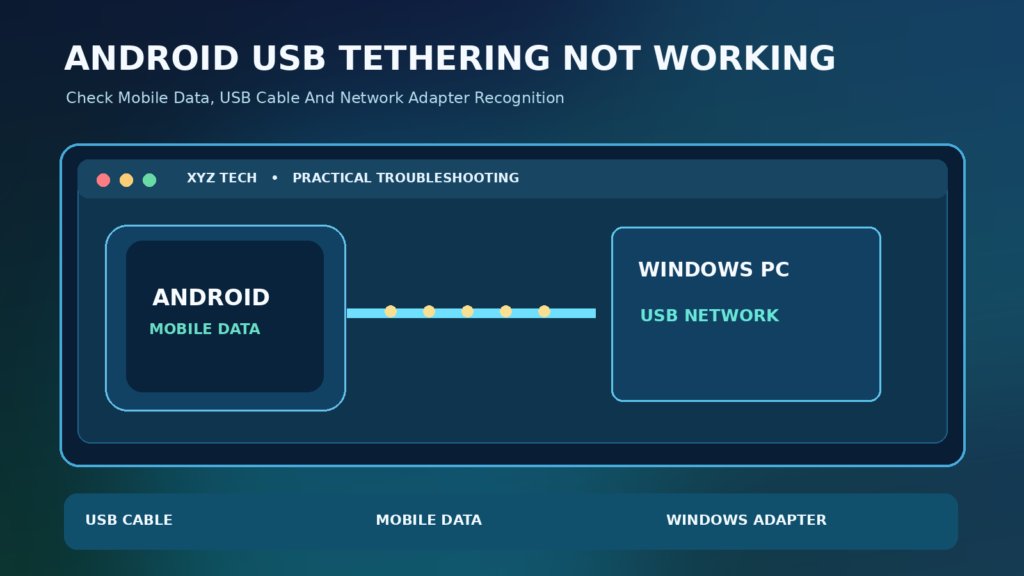

If Android USB tethering is not working, verify that mobile data works on the phone, connect it to a compatible Windows PC using a data-capable USB cable, and enable Settings > Hotspot & Tethering > USB tethering. If the switch is greyed out, try another cable and USB port. If tethering is enabled but Windows reports no internet, check the new network adapter and carrier connection. Google’s standard method does not support Android USB tethering to a Mac.
Follow this guide in order to distinguish charging-only cables, phone mobile-data issues, Android settings and Windows USB network-adapter problems without disabling security protections or resetting your devices unnecessarily.
Understand What USB Tethering Is Supposed To Do
USB tethering uses a physical cable to let a compatible computer use the Android phone’s mobile data connection. The phone acts as the internet-sharing device, and the connected computer usually sees a new network interface. This is different from transferring photographs over USB, charging the battery or connecting the computer to the phone’s Wi-Fi hotspot. A USB cable can support one purpose without automatically providing every other function.
Google’s official tethering guide explains the supported Android procedure and notes that menu wording and supported features can vary by device. Begin by establishing whether mobile data works on the phone itself and whether the computer detects the attached phone. Those two tests distinguish an upstream mobile connection problem from an issue with the cable, USB connection or computer’s network adapter.
Start With A Three-Part Diagnostic Check
First, temporarily turn off the phone’s Wi-Fi if that is necessary to confirm that its cellular connection works, then open a normal webpage using mobile data. Second, connect the phone to the PC with a known data-capable USB cable and observe whether the phone responds to the connection. Third, open the phone’s hotspot or tethering settings and check whether USB tethering becomes selectable. These tests are reversible and do not require root access.
Do not infer that a computer recognized the phone as a network adapter merely because charging started. Charging requires power connections, while communication also requires functional data lines, a suitable port and supported software. Write down whether the tethering switch is greyed out, turns off automatically or stays on while the computer reports no internet. The next step depends on that difference.
Step-By-Step: Enable USB Tethering On Android
On many Android devices, open Settings > Network & Internet > Hotspot & Tethering, or the manufacturer’s equivalent mobile hotspot menu. Connect the phone to a supported PC using USB, then turn on USB tethering. Google documents this procedure in Android Help. Some brands organize the controls under Connections or a similarly named screen.
After enabling tethering, allow Windows a moment to discover the new wired network connection. Test a trusted website using the computer, while leaving the phone connected. If the setting is greyed out, do not randomly change the phone’s developer options. Confirm that the cable supports data, the computer recognizes the phone and the mobile plan permits tethering. Some carriers restrict or charge separately for sharing mobile data.
Why The USB Tethering Switch May Be Greyed Out
A disabled USB tethering control commonly indicates that the phone has not detected a suitable connected device or that a network or device restriction is in effect. A charging-only lead may power the phone without carrying usable data. A damaged port or a connection to an unsupported device can produce a similar symptom. Corporate phone management or carrier policies can also prevent certain settings.
Try a known data-capable cable and a different working USB port on the PC. Check whether the phone offers an ordinary USB connection notification. Do not interpret a missing notification as conclusive hardware failure, because Android manufacturers display these indicators differently. Google’s Pixel tethering instructions provide a supported reference for a Pixel device, but use the corresponding help page for your own phone model.
Check The USB Cable Before Reinstalling Anything
Not every USB cable provides reliable data transfer. Some low-cost cables are designed mainly for charging, and others develop intermittent faults near the connector. A phone that charges normally but never appears in Windows File Explorer may still have a cable issue. Testing with a cable that has successfully moved files between the same two devices is a useful way to reduce uncertainty.
Inspect the connectors for visible damage without inserting metal objects into the port. Try a direct USB connection rather than a questionable hub, and avoid forcing a connector that does not fit smoothly. If a second cable works immediately, there is no reason to reset network settings or reinstall drivers. Keep a reliable spare cable available before a trip or when using tethering as a backup internet connection.
Try Another USB Port And A Direct Connection
A computer’s USB ports can behave differently because of electrical faults, power management, device drivers or a connected hub. Move the cable to another direct port on the computer where possible. If a docking station is involved, test a direct connection to the PC. Observe whether Windows reports that a new device was connected and whether the tethering option becomes available on Android.
Avoid unplugging external storage while it is writing data, and do not change BIOS or USB security settings merely to test a phone. A direct cable comparison is a safe first experiment. If all ports fail with several devices, the problem may be broader than Android tethering. If the phone works on another PC, investigate the first computer’s USB and network configuration before concluding the phone is damaged.
Confirm That Cellular Data Works On The Phone
USB tethering usually shares the Android phone’s cellular data connection. A phone connected to Wi-Fi may still have mobile data disabled, an exhausted data allowance or weak cellular reception. Test the phone’s own mobile internet independently rather than using only the PC’s browser. If ordinary pages fail on the phone, a cable or Windows driver change will not restore the unavailable upstream network.
Check Airplane mode, the mobile-data switch, signal conditions and any data limits shown by the carrier. For detailed phone-specific diagnosis, use our Android Mobile Data Not Working guide. Google also documents relevant connectivity controls in its Pixel network settings help. Carrier outages and account restrictions may require the provider’s assistance.
Check The Carrier’s Tethering Allowance
Some mobile plans permit tethering within a general data allowance, while others impose different caps, speeds or restrictions. A mobile phone may browse normally yet refuse to share its connection under a particular plan. Avoid assuming that every phone model or operating-system version has identical carrier policies. Review the carrier’s official plan details and any tethering notification shown in Android settings.
Do not change hidden carrier provisioning files or install scripts promising to bypass data restrictions. Such methods can violate service terms, make connectivity worse or expose the device to untrusted software. If tethering previously worked but no longer does after a plan change, ask the carrier whether the feature is enabled for the account. Record your plan name and device model before contacting support.
Look For The New Network Adapter In Windows
On Windows 11, open Settings > Network & Internet and inspect the listed connections after enabling USB tethering. The phone may appear as a wired Ethernet-style adapter even though there is no conventional Ethernet cable. Windows Device Manager can also show a new network interface. Its exact name varies with Android version and implementation, so do not require the literal word Android to appear.
If Windows shows a new network connection but no internet access, focus next on IP configuration, DNS and the phone’s upstream connectivity. If there is no new interface at all, return to the cable, USB port and driver-recognition checks. Microsoft provides general Windows network troubleshooting guidance for connection problems. Do not delete working network adapters without a recovery plan.
Recognize RNDIS And CDC Network Interfaces
Android tethering implementations can present different USB networking interfaces. Older examples often mention RNDIS, while some newer combinations use CDC-based USB networking. The precise driver name depends on the phone, operating system and connection implementation. A device shown as an unknown network adapter after an update is a clue, but it is not enough evidence to prescribe a particular downloaded driver package.
Use the supported driver path for your device and Windows version. If the phone maker or Microsoft offers an official update, prefer it over community archives and generic driver-download websites. A driver matching the wrong chipset or interface can leave the connection unstable. Keep ordinary Windows protections enabled and avoid changing device identities or forcing arbitrary INF drivers simply to make a warning disappear.
Use Device Manager Safely
Right-click Start and open Device Manager, then inspect Network adapters, USB controllers and any Other devices entries that change when you connect the phone. A warning icon can indicate a driver or configuration problem. Note the device’s displayed name and any status code before acting. If the interface disappears immediately when the phone disconnects, it is probably related to the USB connection.
Use Windows Update and the device manufacturer’s official support site for drivers. Microsoft’s Device Manager driver guidance explains supported update and reinstall concepts. Do not remove every network adapter or disable the computer’s security protections. For a work-managed PC, ask IT before changing driver or network policy settings.
Fix A Connection That Shows Connected But No Internet
If tethering is enabled and Windows shows a network connection, check whether the Android phone itself can access the internet using cellular data. If yes, test one common website and another separate destination from Windows. A single site failure can reflect that service rather than general tethering. Inspect whether a VPN, restrictive proxy or custom DNS configuration affects the PC’s traffic.
A computer can report that a network adapter is active even when the route to the public internet is not usable. Windows diagnostics and a controlled reconnection may help distinguish the local USB link from the carrier connection. Our Android Mobile Network Not Available guide explains cellular availability, which is separate from USB recognition.
Check IP Address Assignment Without Guessing
On the Windows PC, open a standard Command Prompt and run ipconfig. Look at the adapter that appears when USB tethering is enabled. The details can help determine whether Windows received an appropriate network configuration. Do not assume every phone uses a specific fixed private address because that value can vary by manufacturer and implementation.
If the adapter exists but appears incorrectly configured, reconnect the cable and toggle tethering once, waiting for Windows to update. A computer with unusual static address settings may need review by its administrator. Avoid changing every adapter to random static IP values. Your objective is to identify the affected USB network rather than break a working Wi-Fi, VPN or office connection.
Understand USB File Transfer Vs Internet Sharing
Android’s USB interface can expose choices such as file transfer, photo transfer, MIDI, charging and USB tethering. These are related to the same physical cable but represent different functions. Selecting file transfer does not automatically turn the phone into a network adapter, and using tethering does not automatically authorize access to all the phone’s photographs.
If your actual goal is moving photos rather than obtaining internet access, follow our Transfer Photos From Android To Windows guide instead. Keep the computer and phone connected to a trusted environment, especially if you plan to approve file access prompts. Avoid enabling Developer options or USB debugging merely to transfer ordinary photos or share mobile data.
Do Not Enable USB Debugging As A Standard Fix
USB debugging enables additional developer-level communication and is normally unnecessary for regular tethering. Online tutorials sometimes advise turning it on without explaining what it does. That creates an avoidable security consideration when connecting to unfamiliar computers. A safe consumer procedure starts with Settings > Hotspot & Tethering and a known good data cable.
If a specific manufacturer requires a specialized procedure, use that manufacturer’s official documentation and understand the permission requested. Do not accept arbitrary debugging authorizations from an untrusted PC. After a diagnostic test, remove any permissions that were granted unnecessarily. Ordinary mobile internet sharing should not require turning off antivirus programs or bypassing Android security safeguards.
Test With Another Computer To Isolate The Fault
If the phone and cable work on a second compatible Windows PC, this is evidence that the first computer may have a driver, USB port or network configuration issue. If both computers fail with the same cable, try another cable before blaming the phone. If a different Android phone works on the first PC, investigate differences between the affected phone’s software and supported USB networking mode.
Record the Android model, software version, Windows edition, cable type and specific behavior in each test. Do not compare different mobile carriers without noting them. A controlled cross-device experiment can save substantial time compared with repeatedly resetting the phone. Use only computers on which you are permitted to install and configure a network connection.
Why A Mac Is A Different Case
Google’s Android Help states plainly that Mac computers cannot tether with Android by USB through its standard documented workflow. Therefore, a Mac that cannot use the same USB tethering procedure as a Windows PC should not automatically be diagnosed as having a defective cable or broken Android setting.
If you use macOS, investigate a supported Wi-Fi hotspot or Bluetooth tethering method instead, subject to the phone model and carrier plan. Do not install unverified kernel extensions or network-driver packages promising universal compatibility. A third-party solution may advertise additional behavior, but Google’s standard supported method is the safer baseline for a general tutorial.
How To Compare USB With Wi-Fi Hotspot
USB tethering can be convenient for a single computer when wireless hotspot sharing is unreliable or when the cable also provides power. Wi-Fi hotspot mode lets several compatible devices connect wirelessly but introduces wireless signal and interference considerations. Neither option guarantees a faster or more stable connection under every carrier and device condition.
Test the same phone, data plan and location with both methods if your plan allows it. Compare whether the computer detects the connection, whether common websites load and whether video calls remain stable. Our Android Phone Not Connecting To Wi-Fi article covers receiving Wi-Fi on a phone, which is different from sharing the phone’s cellular internet with other devices.
| USB Tethering Symptom | First Check | Avoid |
|---|---|---|
| Phone Only Charges | Data-Capable Cable And Port | Untrusted Driver Packages |
| USB Tethering Greyed Out | Connected Supported Host | Random Developer Tweaks |
| Windows Adapter Missing | Device Manager And Official Driver | Deleting All Network Adapters |
| Connected Without Internet | Phone Mobile Data And IP | Immediate Factory Reset |
| Mac Not Working | Google Platform Limitation | Unverified Kernel Extensions |
Avoid Unnecessary Network Resets
A full network reset can discard custom configuration, known networks, VPN settings or other saved preferences. Do not use it as the first step for a USB cable that has never been confirmed to carry data. Start with the phone’s mobile connection, a supported tethering setting, the cable and the computer’s adapter detection. These checks are reversible and usually give more diagnostic information.
If a manufacturer or official support adviser recommends a reset after narrower checks, document important network settings and understand what the operation removes. For a company-owned PC, ask IT first. Resetting Android or Windows without a backup may introduce new sign-in and configuration work without fixing a hardware or carrier limitation.
Battery, Charging And Heat Considerations
USB tethering can drain or heat an Android phone depending on signal strength, data volume and how the connected computer supplies power. A laptop port may charge slowly while the phone actively uses mobile data. Observe whether the connection fails only after a long high-volume transfer or when the phone becomes unusually warm.
Use a reliable cable and avoid placing the phone in direct sunlight or against heat-trapping surfaces. If Android displays a thermal warning, follow its instructions and let the device cool. Do not defeat battery safety controls to keep the connection active. Reducing large background downloads can also make the connection more usable on metered mobile plans.
Understand Why A Connection May Drop After Sleep
A tethered connection may stop when the computer suspends USB devices, the phone changes power state or mobile reception becomes unstable. If the problem happens mainly after sleep or laptop lid closure, compare a short test while the PC is awake and the phone remains connected. Note whether Windows retains the adapter and whether Android still shows USB tethering enabled.
Use the operating system’s supported power management controls rather than registry changes from unverified forums. Updating Windows and Android through official channels can resolve known compatibility issues, but updates do not guarantee that a particular USB cable or carrier will work. Keep essential work saved before experimenting with sleep and power settings.
What To Do After An Android Or Windows Update
Changes to USB networking behavior after an update can be caused by driver compatibility, device identification or network settings. Do not automatically downgrade the operating system or install an unofficial ROM. First repeat the cable and second-computer tests, inspect the Windows adapter status and check the manufacturer’s current support information.
If a confirmed software regression affects your device, report the exact Android build, Windows build, network-adapter message and reproduction steps to the vendor. Microsoft’s and Google’s support channels can assess whether a supported fix is available. Treat community forum suggestions as diagnostic leads rather than guaranteed solutions, particularly when they ask you to disable driver-signing checks.
Document The Problem Before Asking For Help
Write down whether USB tethering can be enabled, whether Windows shows a new network adapter, whether the phone itself has mobile internet and whether another data cable worked. Include the phone model, OS versions and network type. This short report distinguishes a physical USB issue from a carrier or PC driver issue and helps support avoid redundant troubleshooting.
Do not share your IMEI, full device serial number, phone account passwords or private network records in a public forum. A screenshot with a driver error code can be useful after removing personal identifiers. If a work network uses a managed VPN, consult the administrator before using tethering to bypass the approved connection path.
A Practical Fix Order That Preserves Your Data
Begin by testing mobile data on the phone, then confirm the USB cable supports file data. Connect directly to a supported computer, turn on the documented tethering setting and look for the new Windows network adapter. Test a simple website, and compare another USB port or PC if detection fails. Only then investigate official driver updates and deeper network configuration.
Stop when the internet connection works and remains stable under a short realistic test. Avoid broad resets, USB debugging, untrusted driver installers or scripts promising free tethering. This measured sequence protects your computer and phone while identifying the specific cause, rather than assuming every greyed-out switch or ‘No Internet’ message means the same thing.
Frequently Asked Questions
Why Is USB Tethering Greyed Out On Android?
The phone may not detect a suitable USB data connection, the cable may only support charging, or a device or carrier restriction may apply. Test a known data-capable cable and supported computer first.
How Do I Turn On Android USB Tethering?
Connect the Android phone to a compatible computer with a data-capable USB cable, then use Settings > Network & Internet > Hotspot & Tethering > USB tethering or the manufacturer equivalent.
Can Android USB Tethering Work With A Mac?
Google’s standard Android tethering documentation says Mac computers cannot use Android USB tethering. Consider supported Wi-Fi or Bluetooth alternatives.
Why Does My Phone Charge But Not Share Internet?
Charging proves power reaches the phone but not that the USB cable supports data or Windows recognizes its networking interface.
What Is RNDIS In USB Tethering?
RNDIS is a USB networking mechanism used by some devices. Other implementations may use CDC networking, so the adapter name and supported driver can vary.
Do I Need USB Debugging For Tethering?
Normally no. USB debugging is a developer function and should not be enabled as a routine internet-sharing fix.
Why Is USB Tethering Connected But Windows Has No Internet?
The phone may lack usable mobile data, the PC may have a network configuration problem, or a carrier or VPN policy may affect traffic. Test the phone independently first.
Does USB Tethering Use My Mobile Data Plan?
Usually yes. The connected computer consumes the phone’s shared mobile data, subject to carrier plan terms and restrictions.
Should I Download A Third-Party RNDIS Driver?
Avoid unverified driver sites. Use Windows Update and official manufacturer guidance for the exact device and supported Windows version.
Can I Fix USB Tethering Without Resetting My Phone?
Often yes. Check mobile data, cable, USB port, tethering setting and the Windows adapter before considering a broad reset.


