
To set a persistent Windows environment variable, open Edit the system environment variables, choose Environment Variables, then create or edit a value under User or System as appropriate. Temporary values can be set in cmd or PowerShell. Preserve PATH entries and reopen programs to read new settings.
Follow safe GUI, Command Prompt and PowerShell examples, with PATH protection and troubleshooting guidance.
What Windows Environment Variables Do
Environment variables are named values made available to a process and, in many cases, inherited by programs it starts. They help software locate folders, select configuration options and find executable commands. Common examples include PATH, TEMP and application-specific values used by developer tools.
A variable name and its value are separate pieces. For example, a project may expect a variable named DEMO_MODE with a value such as test. The variable is not an executable program and does not automatically change Windows hardware or security behavior.
Windows has different scopes for variables. A variable can exist only inside one Command Prompt or PowerShell session, or it can be stored as a user or system setting for future processes. Knowing which scope you intend to change is essential before editing anything.
Microsoft’s set command reference describes Command Prompt environment handling. Its setx documentation explains persistent variables and significant limitations. These official references show why a command that looks successful may not update an already open terminal.
Most users should begin with a harmless custom test variable rather than changing PATH. An incorrect PATH entry can cause a program to be unavailable or direct a command to a different executable from the intended one.
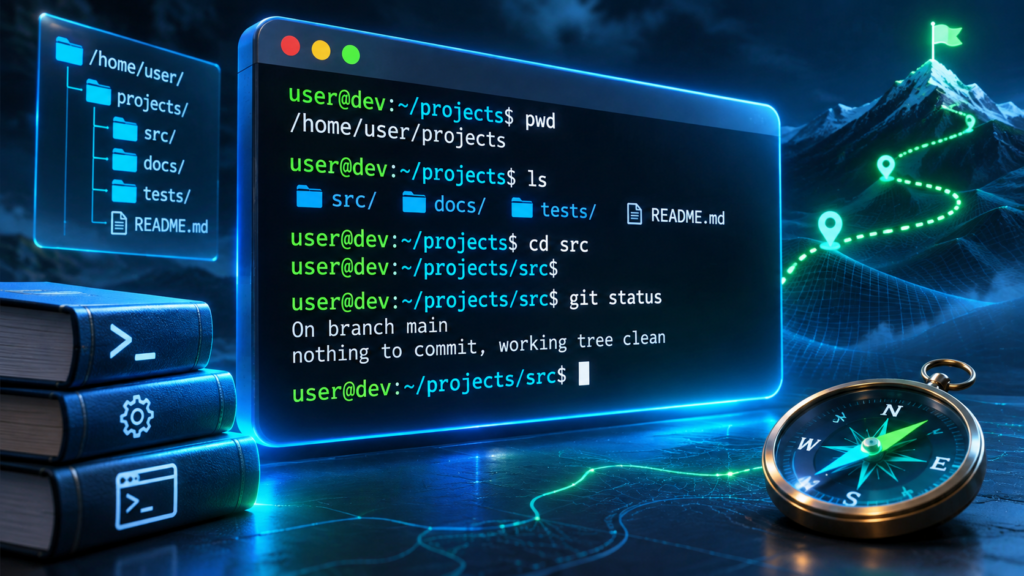
Our command-line guide explains shells and working directories. This tutorial focuses on defining, inspecting and safely updating variables in Windows 11 and similar supported versions.
User Variables Vs System Variables Vs Process Variables
A process variable exists in a running process’s environment and normally affects only that process and children created after the change. User variables are settings associated with one Windows account. System variables apply more broadly and generally require appropriate administrative permission to change.
A newly started terminal may receive the applicable current user and system values. A terminal that was already open before a persistent variable changed can continue using an older environment snapshot. This explains why restarting the terminal can be necessary even after the Windows interface confirms a save.
Shared Computer Scope
Current Windows Account
Terminal Or App Snapshot
If a variable appears in both user and system settings, Windows uses scope-dependent behavior to compose the environment. PATH in particular can combine contributions and should not be simplified to one universal override rule for all names and operating-system versions.
Avoid editing system-wide settings to solve one user’s development task when a user-scoped variable is sufficient. Broad changes can affect services and other accounts.
For troubleshooting, always identify the process that reads the variable, which account launches it and whether that process was started after the change. A variable visible in one terminal may be absent from a background service.
Open The Windows Environment Variables Dialog
Windows provides a graphical environment-variable editor through System Properties. On a supported Windows 11 installation, search for Edit the system environment variables and open the corresponding system control, or navigate through Settings and advanced system information where available. Choose Environment Variables in the Advanced tab.
The dialog commonly presents separate lists for the current user’s variables and system variables. Review both before clicking New, Edit or Delete. A user-level change is often appropriate for a personal development tool, while system-level changes may require administrator approval.
Microsoft’s Windows documentation describes the distinction between user and system environment state. The exact Settings navigation and labels can evolve, so search for the control by its recognized name instead of relying only on one screenshot.
For a safe example, create a new user variable named XYZ_TEST_MODE with value demo. This does not install software, delete files or modify PATH. Save it using the dialog, then open a new terminal to inspect it.
Do not enter passwords or access tokens into a demonstration variable that you plan to screenshot or share publicly. Environment values can sometimes be observed by processes, diagnostic tools or logs under relevant permissions.
After confirming the test works, remove only the custom demonstration variable through the same interface if it is no longer needed. Do not remove unfamiliar system variables you did not create.
Create A User Environment Variable Safely
Open Environment Variables and select New under the user variables section. Enter a descriptive name such as XYZ_PROJECT_MODE and a non-sensitive value such as testing. Save and close the dialog normally. A new terminal session is useful for observing the resulting environment.
Choose a name that is unlikely to conflict with a system variable or other application. Variable names are generally treated case-insensitively in normal Windows environment lookup, but developers should still use consistent spelling to avoid confusion in scripts and documentation.
To inspect the value from Command Prompt, use echo %XYZ_PROJECT_MODE% in a newly opened cmd session. In PowerShell, use $env:XYZ_PROJECT_MODE. The syntax differs because cmd and PowerShell are distinct shells.
If the output is missing, first check that the right account and terminal were used. A script running under a different account or service context may not see the same user variable.
Do not assume saving a user variable immediately rewrites the environment of every process already running. Some applications need to restart or explicitly reload configuration.
Use the graphical editor for deliberate persistent changes when possible. It reduces some risks of command-line quoting and accidental replacement of complex values, especially with PATH.
Set Temporary Variables In Command Prompt
The set command changes the environment of the current Command Prompt process. For a harmless example, enter set XYZ_TEST_MODE=demo, then echo %XYZ_TEST_MODE%. The value is available to programs started from that session under normal inheritance behavior.
The change is not generally a persistent account-wide setting. Close that Command Prompt and open a separate new one, and the temporary value normally will not remain unless it also exists in stored user or system settings.
Microsoft’s set reference documents command syntax and variable handling. An assignment containing spaces or special cmd characters may require careful quoting. Avoid copying complex examples without understanding how the shell parses them.
Temporary variables are useful when running a one-time developer command, testing an application option or comparing behavior without changing Windows settings. This is often safer than writing persistent values when the task lasts only one session.
Be careful with secrets. Commands typed into a shell can be recorded in history, support transcripts or screenshots depending on configuration. An environment variable is not a secure secret vault.
For broader shell concepts see what a command line is. Successful variable creation can be verified by launching an appropriate harmless child process under the same session.
Set Temporary Variables In PowerShell
PowerShell uses the environment drive to access the current process’s variables. For a harmless test, enter $env:XYZ_TEST_MODE = "demo" and then inspect $env:XYZ_TEST_MODE. Programs launched from that PowerShell session can inherit the value under normal process creation behavior.
This assignment is typically scoped to the process rather than stored permanently for all future sessions. The distinction matters when a user sets a variable, closes the terminal and later wonders why a development tool cannot see it.
PowerShell’s syntax is not identical to cmd syntax. An instruction written as set XYZ_TEST_MODE=demo for Command Prompt should not be assumed to produce the same result in PowerShell.
PowerShell can also read user- and machine-level environment settings through .NET APIs when supported. However, that is a separate operation from changing only the current session’s environment. Always specify the intended scope.
Temporary assignment is a good way to test an application that reads one configuration value without changing the entire computer. Verify the application behavior, then close the test session.
Avoid passing private credentials in demonstrations or terminal logs. If a real application requires secrets, use its documented secret-management system rather than an informal environment-variable screenshot.
Persistent User Variables With PowerShell
PowerShell can call the .NET Environment class to set persistent user-scoped variables. One supported pattern is [Environment]::SetEnvironmentVariable("XYZ_TEST_MODE", "demo", "User"). This updates the user setting under applicable Windows behavior, but it does not automatically replace every already-running process’s environment.
To read the stored user setting through the same API, use [Environment]::GetEnvironmentVariable("XYZ_TEST_MODE", "User"). This can help distinguish a persistent value from the temporary $env: variable in the current PowerShell process.
The scope parameter matters. Using Machine instead of User generally requires suitable privileges and affects broader computer configuration. There is no reason to request administrator elevation for a harmless personal test variable.
Before automating a persistent change, document the original value or whether the variable existed. A script that unconditionally overwrites a shared configuration can disrupt tools the user depends on.
The Windows environment can be affected by policies and processes that already hold snapshots of older values. Reopen the relevant app and verify that it observes the intended value.
This approach is best used for documented, repeatable configuration management. Beginners editing a single simple variable may find the graphical Environment Variables dialog easier to audit.
Why Setx Requires Special Caution
Windows includes setx for writing persistent environment variables. It differs from the Command Prompt set command because it stores a setting for future processes rather than only changing the current cmd session.
Microsoft’s setx documentation warns that values may be truncated to a specific length in supported implementations and that expansion behavior can change stored variable references. These limitations are particularly hazardous when a user tries to rewrite an existing long PATH value.
Do not recommend setx PATH "%PATH%;..." as a universal PATH repair. That command can expand and replace existing values in a way that loses parts of a complex configuration. Use the supported graphical PATH editor or a carefully reviewed environment-management method.
A successful setx message does not mean an already open terminal automatically receives the new value. Open a fresh process and inspect the intended stored value and actual application behavior.
If a guide suggests running setx /M for every developer task, consider whether a user-scoped setting is sufficient instead. Machine-level changes require broader authorization.
The safest use of persistent variable tools is controlled change, verification and rollback. Avoid executing commands that modify PATH until the current entries have been recorded.
Understand PATH And Command Lookup Order
PATH is an environment variable containing directories that command interpreters and program launch mechanisms may search for executable files under their rules. An application installer may add its program folder so the user can launch a tool by name instead of typing a full path.
PATH can contain multiple entries, and order matters. A directory earlier in the search path may contain a program with the same name as one installed elsewhere. This can create version confusion or security risks if an untrusted directory takes precedence.
For example, a Python installation or developer tool may place its executable directory on PATH. If multiple versions are installed, the first matching executable encountered under the shell’s rules may not be the version the user intends.
Our Python virtual environment tutorial explains why activation adjusts PATH for the current session, and package manager guide covers supported software installation.
Before changing PATH, identify the exact executable location and use a supported inspection command such as where.exe python from an appropriate Windows terminal. PowerShell command discovery may include functions and aliases, so the exact results can differ from cmd.
Never remove unknown system entries or paste a short replacement PATH over the existing value. A safer repair adds or edits only the necessary entry and preserves the full original list.
Add A Folder To PATH Through Windows Settings
Open the Environment Variables dialog, then select the PATH entry in the appropriate user or system section. Use the supported Edit control to view individual entries. Record the existing list before making a change, and verify the directory you intend to add actually contains the required executable.
Choose New to add the verified directory using the graphical editor, rather than rewriting the entire PATH string. The user section is often sufficient for personally installed developer tools. System-wide PATH changes should be reserved for cases with a justified need and appropriate permission.
Avoid placing a writable downloads folder or another untrusted directory at the beginning of PATH. A malicious executable with the same name as a trusted tool could be launched unintentionally under some workflows.
After saving, close and reopen the application or terminal that needs the tool. Confirm the intended command resolves to the correct executable, not merely that the name is now accepted. Use the documented version command when available.
If the tool still cannot be found, inspect whether the executable resides in a subfolder or has a different filename. Adding a parent directory that does not contain the executable may not solve the issue.
For troubleshooting, compare the original and updated PATH entries before removing anything. A reversible one-entry change is better than a large unexplained replacement.
Common Environment Variables: TEMP, USERPROFILE And JAVA_HOME
Windows and applications use many environment variable names. USERPROFILE commonly points to the current account’s profile directory, while TEMP and TMP are used by software for temporary file locations. PATH influences command discovery. Development ecosystems may define variables such as JAVA_HOME under their documented requirements.
The existence or value of any particular variable depends on operating-system version, account, application installation and policy. Do not assume every variable will appear with the same path on all computers.
For temporary directories, changing TEMP can affect many applications and should not be used as an improvised way to recover disk space. File permissions, available capacity and application expectations matter.
JAVA_HOME or other toolchain variables should point to the correct supported installation location. A variable merely existing does not prove the associated executable or framework is installed and compatible.
Our filesystem guide explains why a directory path must exist and be accessible. A correct string in Environment Variables cannot create a missing program.
When inspecting a computer, distinguish standard operating-system variables from application-specific settings and avoid deleting values you do not understand.
Environment Variables And Security
Environment variables can carry configuration values, but they should not be treated as encrypted storage. A process may expose its environment through diagnostic tools, logs or child processes under applicable permissions. Values can also be accidentally copied into screenshots or support requests.
If an application requires an API token or other secret, use its supported credential store, secret manager or protected configuration mechanism. Avoid hardcoding secrets into scripts or placing them in publicly shared project files.
User and system PATH entries can also affect which commands execute. An untrusted directory early in the search order can create a command hijacking risk. Restrict write access to directories containing important executables.
A system-wide variable may influence background services, scheduled tasks and multiple user accounts. Changes should be approved, recorded and tested under the actual context.
Never run arbitrary environment-repair scripts from unknown sites. Such scripts can modify PATH, proxy settings or developer tool configuration in ways that are difficult to reverse.
The appropriate principle is least scope: use a temporary process variable for experiments, a user variable for personal persistent configuration and a system variable only when genuinely required.
Troubleshoot Variables Not Appearing In A Program
If a new variable is absent from an application, confirm that the intended stored value exists in the correct user or system scope. Then restart the affected application or terminal. A process launched before the change may continue using an older environment snapshot.
Check that the application runs under the expected account. An IDE, scheduled task, Windows service and interactive terminal may have different environments. Testing the value in your own PowerShell window does not prove that a background service sees it.
If a PATH change appears ineffective, inspect the command resolution result and the actual executable path. A different installation might be earlier in the search order, or the new entry might not point to the folder containing the executable.
Be mindful of shell syntax. %NAME% in cmd and $env:NAME in PowerShell have different meanings. Copying one form into the other can produce confusing output.
Use read-only checks before changing system-wide settings. If a program has a documented configuration file or setting that overrides the environment, consult its own documentation.
A useful support report includes Windows version, shell, variable scope, sanitized value and the exact process that fails to see it. Do not share secrets in logs or screenshots.
Remove A Test Variable And Verify The Original State
When a demonstration variable is no longer needed, return to the Environment Variables dialog and remove only the custom name that you created. If you used a temporary process variable, closing the relevant terminal normally ends that session-level change.
Do not delete unknown variables or entire PATH entries to achieve a clean screenshot. Removing a legitimate toolchain or operating-system setting can break existing software. If an original value was overwritten, restore it from your own recorded configuration or organizational instructions.
After removal, open a new terminal and verify that the custom test variable is absent where expected. For a persistent value, check the same scope where it was originally created. A still-open application may retain an older snapshot temporarily.
Document any changes made during troubleshooting, including why they were necessary and which applications were tested. This prevents later confusion when a development environment behaves differently from another machine.
For complex deployments, managed configuration and version-controlled scripts can help repeat authorized settings, but secrets and user-specific paths require separate handling.
The safe workflow is inspect, change the narrowest scope, verify, record and reverse if necessary. It protects the wider Windows environment while making developer tools easier to configure.
Frequently Asked Questions
What Are Environment Variables In Windows?
Named configuration values available to processes, often inherited by programs they launch.
How Do I Set A Windows User Variable?
Use the Environment Variables dialog under System Properties, choose the user section and create a named value.
What Is The Difference Between Set And Setx?
set changes the current Command Prompt process; setx writes persistent settings for future processes with documented limitations.
How Do I Read A Variable In PowerShell?
Use the $env:NAME syntax for the current process or a .NET API for a specific persistent scope.
Why Does A New Variable Not Show In My Terminal?
Already-running processes may retain an older environment snapshot. Open a new authorized session.
Is It Safe To Replace The Whole PATH?
No. Replacing PATH indiscriminately can remove required directories and break commands.
Should API Keys Be Stored As Ordinary Environment Variables?
Use the application’s approved secret-management approach and avoid exposing sensitive values in logs or shared files.
How Do I Remove A Test Variable?
Remove the specific custom entry from the appropriate user or system scope, then verify in a new process.