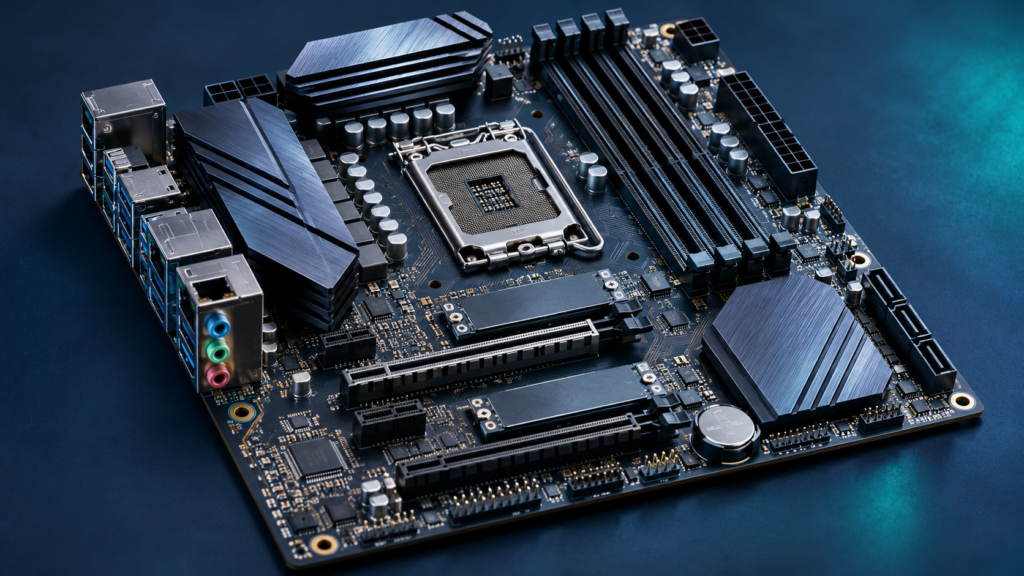

A motherboard is a computer’s main circuit board. It connects the CPU, RAM, storage, expansion devices and external ports, and provides electrical paths and power regulation for compatible components. The exact motherboard determines which processors, memory and expansion devices a system can support.
A motherboard is easier to understand once you separate what it connects from what each part actually does. This guide explains the components, modern interfaces, compatibility rules and safe maintenance decisions without confusing the motherboard with the CPU or storage.
What A Motherboard Does In A Computer
A motherboard is the main printed circuit board that physically supports key computer components and provides electrical pathways through which they communicate. On a typical desktop computer, the processor, memory modules, expansion cards, storage connectors, power inputs and external connections depend on features provided by the motherboard. It is sometimes called the system board or mainboard. A laptop also has a mainboard, although its design is normally customized for a particular chassis and may include permanently attached components.
Think of the motherboard as a carefully organized infrastructure rather than the processor itself. The CPU performs instruction execution. RAM holds data and instructions currently in use. Storage retains files when power is off. The motherboard places these subsystems into a compatible electrical and mechanical system, supplies power through appropriate circuits, and connects components using several interfaces. The chipset and additional controllers help coordinate particular connections, but they do not replace the CPU as the computing engine.
A motherboard is not a storage device or an operating system. Replacing one does not inherently remove every file from a separately installed drive, although system encryption, hardware-bound authentication and boot configuration may be affected by a replacement. Nor does a more expensive motherboard automatically make an application faster. Performance depends on the CPU, memory, storage, cooling, graphics and how the selected board supports them together.
Desktop boards have comparatively standardized mounting formats. Small computers and laptops may use tightly integrated boards with a soldered CPU, memory or other components. Intel’s technical motherboard anatomy guide explains the board’s role as the connection point between the processor and the rest of the platform. That is a useful conceptual reference when inspecting a PC for the first time.
To understand where this fits in the broader system, read our introduction to computer hardware and software. It distinguishes the work performed by individual parts from the infrastructure that connects them.
Identify The Main Components On A Desktop Motherboard
The most recognizable landmark on a desktop board is usually the CPU socket, often surrounded by power regulation circuitry and cooler mounting points. Nearby are memory slots, which are long narrow connectors that accept compatible RAM modules. Farther down the board you may see PCI Express expansion slots, M.2 storage sockets, chipset heatsinks, fan headers and connectors for front-panel switches. Along one edge is the rear input/output area with USB, networking, audio and sometimes display ports.
The exact location of each connector varies. Compact Mini-ITX boards arrange fewer components in a small space. Larger boards may have additional expansion slots, storage sockets and headers. A laptop board can look very different, and many parts may be permanently soldered or connected through ribbon cables. Identifying an unfamiliar connector by its appearance alone is unsafe when power is present.
A useful rule is to read the model number from the board itself or its documentation, and then use the manufacturer’s labeled diagram. Marketing pictures can illustrate the general layout, but only the manual for the exact revision reliably identifies every connector and its supported function. If a small header looks like a fan connection, that does not prove it has the same voltage or pinout as another header nearby.
| Visible Part | Typical Function | What To Confirm |
|---|---|---|
| CPU socket | Connects the compatible processor | Socket, supported CPU and firmware |
| DIMM slots | Accept system memory | DDR generation, capacity and population order |
| PCIe slots | Accept compatible expansion devices | Lane count, clearance and sharing |
| M.2 sockets | Support selected compact devices | NVMe or SATA capability and keying |
| Power connectors | Supply regulated board and CPU power | Exact PSU cables and required inputs |
| Front-panel headers | Attach case buttons and indicators | Manufacturer pin diagram |
A component checklist is more useful than memorizing a photograph of one board. The same general parts appear in many PCs, but their counts and capabilities can differ substantially.
Instructions
Connections And Power
Working Data
Saved Files
Understand The CPU Socket And Processor Compatibility
The processor socket creates the mechanical and electrical connection between a desktop motherboard and a compatible CPU. A processor must match the board’s socket design, and socket compatibility alone is not always sufficient. The chipset, firmware version, power delivery and official processor support list can also determine whether a particular CPU is supported.
For example, two processors may look similar but belong to different socket families. Attempting to insert an incompatible chip can damage contacts or the CPU package. Do not use force to compensate for a mismatch. Processor orientation markers, locking mechanisms and cooler mounting differ by platform, so installation should follow the exact board and CPU documentation.
On many modern desktop designs, the memory controller resides inside the CPU rather than inside a separate traditional northbridge chip. Some PCIe connections also run directly to the processor. This is why motherboard diagrams sometimes distinguish CPU-connected storage slots from chipset-connected ones. The board supplies the connections, but different data paths can have different bandwidth and sharing rules.
A board with the correct physical socket can still need an updated UEFI firmware version to recognize a newly supported processor. AMD’s desktop firmware guidance describes why firmware support may be needed and advises using the system or motherboard manufacturer’s official instructions. Some boards support recovery features that update firmware without a compatible running CPU; others do not.
Never buy a CPU or flash firmware based solely on a general article. Find the support page for the exact motherboard model and revision. Read its CPU compatibility list, the minimum required firmware version and any restrictions. A computer that fails to boot after a CPU upgrade may have a compatibility or installation issue, not necessarily a defective motherboard.
If you are new to component roles, our computer fundamentals guide provides context for what the processor actually does after the firmware and board have initialized it.
Explain The Chipset And Data Pathways
The chipset is a collection of logic functions that helps connect a CPU platform to supporting devices and I/O features. Historically, desktop PC designs used separate northbridge and southbridge components. Modern designs move some functions into the processor and use a smaller set of supporting controllers, so the traditional two-chip description is no longer a reliable diagram of a current PC.
A chipset can provide additional connections for USB, SATA, PCIe and other subsystems. Some high-bandwidth devices are connected directly to the CPU, while others traverse the chipset link. This distinction matters if a motherboard manual says that installing an M.2 drive disables a particular SATA port or changes the bandwidth of an expansion slot. The limitation may be a deliberate resource-sharing rule rather than a broken connector.
The chipset name also signals a family of board features, but it cannot tell you every capability. Two boards built around the same chipset may differ in power delivery, rear USB connections, network controllers, storage sockets, cooling and firmware features. Manufacturers can make different engineering choices within the platform’s allowed design.
Intel’s motherboard buying guide explains modern CPU and chipset connections. It is more accurate to think in terms of specific lanes and supported controllers than to assume the chipset handles all communication in the computer.
For a real upgrade, read the exact block diagram or specification table. If you plan multiple SSDs and a graphics card, confirm the number and type of available lanes, how they are divided, and any ports that become unavailable with certain devices installed. Physical slots do not always correspond to full simultaneous electrical bandwidth.
That same principle explains why a system can support a device mechanically but not offer the bandwidth or interface it expects. Connections are engineered capabilities, not simply holes that happen to fit a card.
Compare ATX, Micro-ATX And Mini-ITX Form Factors
The motherboard form factor describes physical dimensions, mounting holes and aspects of component placement. It affects case selection, expansion potential and sometimes cable routing. A larger format often creates more room for connectors, but size is not a universal quality score. Some compact boards provide sophisticated features, while a larger inexpensive board may provide fewer capabilities.
ATX is a common full-size desktop format. Micro-ATX occupies less space, and Mini-ITX is a compact option often used for small systems. Extended ATX is a broad label applied to larger boards, but exact dimensions and case compatibility should be verified. A case advertised as supporting ATX may not support every oversize board or every combination of cooling equipment.
When matching case and board, check standoff positions and the actual dimensions, not only the product’s informal label. A case may physically fit a smaller board but place cable routes or expansion slots differently. Likewise, a graphics card, large CPU cooler or radiator can interfere with adjacent components even when the motherboard technically fits.
Intel provides a small-form-factor planning guide that discusses memory and space constraints. For readers planning a compact workstation, the limiting factors may include cooler height, drive positions and power supply layout rather than simply the motherboard width.
Laptop and all-in-one computers rarely use these desktop standards internally. Their mainboards are commonly shaped around a particular enclosure with specialized connectors. A motherboard replacement for a laptop is therefore often a repair to the same model rather than a standard upgrade like installing an ATX board.
The practical method is to choose the device requirements first, then confirm that the board and case can meet them. Form factor is a compatibility constraint and a design choice, not proof of how fast a computer will run.
Understand RAM Slots, Channels And Memory Support
RAM modules plug into designated motherboard memory slots. The number of slots sets some expansion limits, but capacity support is also determined by the processor, motherboard design and firmware. A board may physically accept a module that is not supported at its desired speed or capacity. The owner’s manual and qualified vendor lists are better evidence than a generic statement that every stick of a certain size will work.
Memory generations are not interchangeable. A DDR4 slot cannot accept a DDR5 module merely because both are desktop DIMMs. Desktop systems and laptops also often use different physical module formats, such as DIMM and SO-DIMM. Read the exact platform specifications before buying. For background on what RAM does, see RAM versus storage.
Many desktop CPUs use multiple memory channels. Placing modules in the recommended slots can allow the system to use more than one channel and improve bandwidth under appropriate workloads. Do not assume that any two slots are equally correct. Board manufacturers provide diagrams indicating preferred positions, often for one, two or four modules.
Advertised high memory speeds can depend on profiles such as XMP or EXPO, processor limits and the specific combination of modules. A higher rated speed is not automatically guaranteed when mixing kits or populating every slot. Stability matters more than a headline specification, especially on a work computer.
If the machine fails to start after a memory change, avoid repeatedly forcing it to boot with unsupported settings. Power it down safely, check proper seating under the manufacturer’s directions, and consider restoring supported default memory settings. Our Windows Memory Diagnostic guide explains how a separate test can help identify certain memory errors after the system can boot.
A motherboard connects memory, but actual memory performance and stability depend on the entire memory subsystem. Evaluate the board, CPU and modules as one compatible set.
Recognize PCI Express, M.2 And Storage Connections
Expansion slots enable a desktop PC to accept graphics cards, network adapters, capture cards and other add-on devices. PCI Express is a modern high-speed interface that uses configurable links with different lane counts. A physically long slot may be electrically connected with fewer lanes than its appearance suggests. Verify the manual rather than assuming that every x16-length slot always supplies sixteen active lanes.
An M.2 connector is a compact physical format frequently associated with NVMe solid-state drives, but M.2 can support different interfaces depending on the socket and device. Some M.2 slots support PCIe and NVMe, others may support SATA, and some are intended for network or other modules. Mechanical keying helps reduce incorrect installation, but it is not a complete compatibility guarantee.
SATA connectors remain relevant for many 2.5-inch drives and other supported storage devices. A system can mix SATA and NVMe storage depending on platform support. The motherboard manual may identify conflicts between an M.2 socket and one or more SATA ports. Those rules are not universal; they are specific to the board’s controller and lane layout.
When installing a new SSD, plan for the data migration or backup separately from the physical connection. The drive may be detected by firmware but contain no operating system, or it may need initialization before appearing as a usable data volume. Do not initialize or format a drive that contains data you want to recover.
If a drive is not recognized, follow a targeted diagnostic path rather than immediately assuming the motherboard failed. Our SSD not detected in BIOS article distinguishes device detection, connection and firmware issues.
Storage slot labels can be misleading when interpreted without the full specifications. A larger number of sockets does not prove that all can operate simultaneously at maximum bandwidth. Before purchasing an expansion device, check both physical clearance and electrical compatibility.
Power Delivery, VRM, Cooling And Safe Connections
A motherboard receives electrical power from the power supply and distributes or converts it for components that require different voltages. The voltage regulator module, or VRM, is an important part of the power delivery circuitry for the CPU and sometimes other subsystems. Its design, cooling and firmware behavior influence how reliably the board supplies power within supported operating limits.
The motherboard’s main power connector and CPU power connector serve different functions. Most desktop builds use a large main board connector along with one or more dedicated CPU power connectors. Do not substitute cables simply because their plugs appear similar. Modular power supply cables are not universally interchangeable between power supply models and can damage hardware if improperly mixed.
Heatsinks may cover VRM components, chipsets or solid-state drives. Cooling effectiveness depends on airflow, power draw and physical layout. A tall graphics card or poorly routed cable can obstruct airflow, while a small case may require more careful fan placement. Intel’s processor thermal management guidance discusses the relationship between chassis design and cooling.
A board with a large heatsink is not automatically suitable for every processor. The supported CPU list, VRM performance under real workloads and any manufacturer power limits are more useful than the number of decorative covers. Conversely, an ordinary office PC does not necessarily need an enthusiast board designed for extreme overclocking.
When assembling or servicing hardware, shut down, disconnect power as instructed by the manufacturer, and use appropriate electrostatic discharge precautions. Do not open a power supply or touch energized connections. Fans and connectors should be installed according to the exact manual, not through trial and error.
Power stability is a system-level property. A good motherboard cannot compensate for every defective power supply, overheating component or incompatible cable. Address these as separate risks in a safe build plan.
Firmware, UEFI And The Startup Sequence
Modern motherboards include firmware that runs before the operating system. This is commonly called BIOS in casual language, even when the modern implementation is UEFI. The firmware helps initialize the processor and memory, identify connected devices, apply supported hardware settings and find the system’s boot path. It is not the same program as Windows or Linux.
The startup process begins when the system receives power and its platform firmware starts executing. Hardware initialization, device discovery and boot management lead to loading the operating system. A failure at one stage may produce different symptoms. A PC that shows no display or never reaches firmware has a different problem from a computer that opens firmware setup but cannot find its operating system.
Firmware updates may introduce support for additional CPUs, fix security issues or address stability defects. They can also be disruptive if an update fails or uses the wrong image. AMD’s official BIOS update guidance emphasizes checking the board manufacturer and exact model. Not every system needs a firmware update merely because a new version exists.
Secure Boot, TPM features, boot order and hardware monitoring may be managed through firmware controls. These settings can affect encryption recovery and startup behavior. Do not disable a security mechanism as a generic response to an upgrade problem. Record the existing state and preserve recovery information before authorized changes.
Learn more about the distinction between firmware and application software in our firmware explainer. A firmware setting belongs to the hardware platform, while the operating system uses the initialized resources to run applications.
If a PC no longer starts after a component change, gather evidence about the stage where it fails before replacing parts. Our No Bootable Device Found guide focuses on one class of post-initialization startup problem.
Choose A Motherboard For A Real Upgrade
Start with the processor you intend to use and verify the precise socket and CPU support list for each candidate board. Include any firmware version requirement. Next, check memory generation, officially supported capacity and the number of slots you need. It is easy to select a board that looks powerful but does not support a purchased RAM kit or processor.
Then examine expansion requirements. How many M.2 drives do you need? Will one PCIe slot be occupied by a large graphics card? Are additional network or capture cards planned? Check which slots share lanes or ports, how close they are to the CPU cooler and whether the case has room for every component. A feature list without a physical layout can miss practical conflicts.
Check rear and front connectivity separately. A case might have a front USB-C port that requires a motherboard header not provided on a budget board. A board’s rear USB-C connector does not automatically connect the case’s front socket. Similarly, built-in Wi-Fi, wired network speed and audio features depend on the actual controllers installed.
Compare power and cooling support with the expected processor and workload. A board suitable for a moderate office CPU may not offer the same headroom under a high-power workstation workload. Do not interpret marketing claims about phase counts alone as a measurable reliability guarantee.
Finally, read the manufacturer’s manual, warranty details and firmware update procedure before buying. Keep a backup plan for the existing computer and a list of any storage encryption recovery requirements. An upgrade should not leave the only copy of important files dependent on a new untested build.
Intel’s component and motherboard selection guide supplies a foundation, but an actual purchase decision should rely on current exact-model specifications. The most expensive board is not necessarily the most appropriate one for your applications.
Troubleshoot Common Motherboard Symptoms Without Guessing
A PC that does not power on, has no video, restarts unexpectedly or fails to detect an SSD can involve the motherboard, but those symptoms are not proof that the board is defective. Begin with the exact observation. Are any fans or status lights active? Does the monitor receive a signal? Can firmware setup open? Did the problem begin after a particular component was moved?
For a new build, verify the installed CPU and memory against official support lists and the board manual. Check that the required power leads are correctly connected using cables intended for that specific power supply. Do not bridge contacts at random to see whether the system starts. Manufacturer-labeled debug lights or diagnostic codes may provide useful evidence.
If memory appears to be the problem, follow the documented slot population sequence and test with a supported module when safe. If an SSD is missing, distinguish firmware detection from operating-system filesystem visibility. If a USB port fails, compare the same device on another supported port before concluding that the board is bad.
A sudden shutdown under load may involve cooling or power delivery. Monitor supported temperature and power indicators without forcing an unstable computer through repeated stress tests. If there is a burning smell, visible damage or electrical noise, disconnect power safely and obtain qualified service.
Avoid opening a laptop solely to inspect its mainboard. Many laptop boards are tightly integrated with batteries, ribbon cables and delicate components. Professional inspection may be the safer approach, especially if battery damage is possible.
Related XYZ Tech references include laptop startup troubleshooting and USB device recognition. These topics help separate a peripheral, storage or power symptom from an actual motherboard failure.
Care, Lifespan And When Replacement Makes Sense
A motherboard does not have a universal expiration date. Reliability depends on component quality, thermal conditions, electrical power, physical stress and usage. Some systems operate for many years without board failure, while others are damaged early by liquid, power faults or handling. Treat any exact lifespan claim without context as an estimate rather than a diagnostic rule.
Keep vents clear and fans functioning. Dust accumulation can affect cooling, but cleaning should follow the computer manufacturer’s guidance. Do not wash a motherboard, spray liquid into connectors or use metal tools to scrape slots. Before working inside a desktop, shut down, disconnect power and follow appropriate anti-static precautions.
If you plan a CPU upgrade, investigate the board’s supported processors and firmware first. A replacement may be required because of a socket change rather than a failed board. Conversely, a compatible CPU, RAM or storage upgrade may deliver the needed performance without replacing the motherboard at all.
Repair or replacement decisions should consider the actual fault, labor cost, warranty, platform age and the value of the rest of the system. A laptop mainboard replacement can involve significant labor and may affect identifiers, firmware and device-bound security settings. Preserve data and recovery keys before the work.
When replacing a desktop motherboard, confirm that the case, PSU connectors, cooler, CPU, RAM and storage are all supported. An operating system might also require reconfiguration or reactivation after a major hardware change. Prepare for that possibility instead of assuming everything will start exactly as before.
The most valuable question is not whether a motherboard is expensive or new, but whether it meets the system’s compatibility, expansion and reliability needs. Correct selection and careful maintenance matter more than feature labels in isolation.
Frequently Asked Questions
What Is The Main Purpose Of A Motherboard?
It connects and supports major computer components and provides compatible electrical paths, connectors and power circuits so they can operate together.
Is The Motherboard The Same As The CPU?
No. The CPU executes instructions. The motherboard connects the CPU to memory, storage and other components.
Can A Computer Work Without A Motherboard?
A conventional desktop or laptop requires an appropriate mainboard or equivalent integrated circuit platform to connect and operate its components.
Does A Motherboard Determine Computer Speed?
It can influence supported components and connectivity, but overall speed also depends on the CPU, memory, storage, graphics and workload.
Can Any CPU Fit Any Motherboard?
No. Check socket, processor support list and firmware requirements for the exact board.
Is M.2 The Same As NVMe?
No. M.2 is a physical connector and module form factor. NVMe is a storage protocol commonly carried over PCIe.
Do Laptops Have Motherboards?
Yes. They commonly have custom mainboards with some integrated or soldered components.
Should I Update The Motherboard BIOS?
Only for a clear supported need, using exact-model official instructions and appropriate precautions. An update is not automatically necessary on every system.


