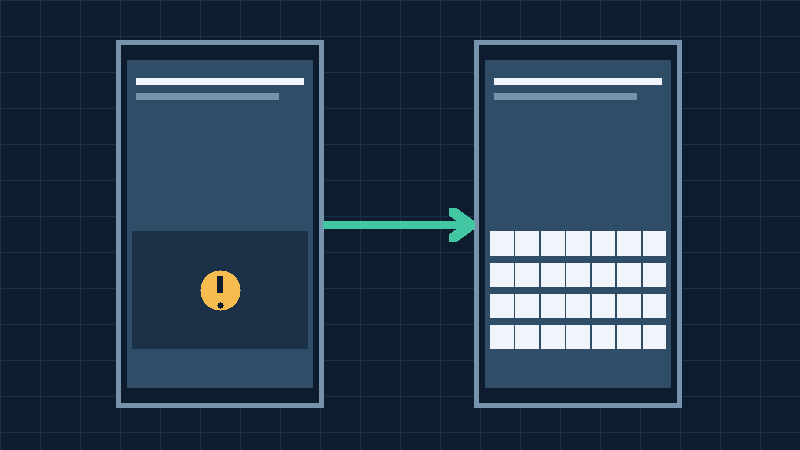

Identify Where The Android Keyboard Is Missing
When the Android keyboard is not appearing, you may be unable to enter a message, search for an application or fill out an ordinary form. Although the symptoms can look similar, a missing on-screen keyboard is not always caused by the keyboard application itself. The active text field, a connected accessory or another part of the device may be involved.
Start with a simple comparison on an unlocked phone. Open a trusted messaging or notes application where you can enter text without sending anything. Tap an empty editable field and observe whether a cursor appears. Then try a different familiar application. Use a harmless phrase instead of a password or private message while testing.
A keyboard that fails in one application but opens normally in others suggests a problem with the affected app or its particular text field. A failure across several unrelated applications points toward the selected input method, its configuration or a broader system issue. If the same part of the screen also fails to respond to other ordinary taps, investigate the touch interface as well.
Record the device model, Android version, keyboard name if known, and when the problem first appeared. Consider whether you recently connected a physical keyboard, installed an app, changed the default input method or received a software update. These are useful clues rather than conclusive diagnoses.
Do not repeatedly change typing settings or remove applications before establishing whether another working input method is available. If the problem occurs on the lock screen and prevents legitimate access to the phone, address that situation separately as described later. The initial goal is to identify a controlled test that does not risk important information or lock you out of the device.
Check The Active Text Field And The Affected Application
An on-screen keyboard normally appears in response to an editable text field. Not every visible line of text on the screen is editable. Some application interfaces display information in read-only areas that resemble input fields. A webpage can also fail to respond because its content has not finished loading.
Tap directly within an ordinary editable field and check whether the text cursor appears. If the application displays a form, try a second field that clearly accepts text. Compare the behavior with a notes application or the message composition area of a trusted app. There is no need to submit any message or form during this test.
If the keyboard opens normally in other applications, return to the affected program. Save any accessible unfinished work. Close the affected screen and reopen it through the ordinary application controls. If it remains unresponsive, use the supported application troubleshooting method rather than changing the default keyboard immediately.
Google’s Android application troubleshooting guidance explains the usual approaches for an installed app that fails to respond. Our Android apps keep crashing guide covers related diagnostic comparisons.
If the problem is confined to a website, try another ordinary page with a legitimate editable field. A failed webpage interaction does not establish that the keyboard application is damaged. Contact the site or app developer if the behavior consistently follows one particular form.
If the keyboard momentarily appears and then disappears, note whether you are accidentally tapping outside the field or triggering a navigation gesture. Record the actual sequence rather than assuming that every disappearing keyboard has crashed. Preserve any local drafts before trying more disruptive application repairs.
Confirm The Default On-Screen Keyboard
Android can support more than one input method. The default input method determines which keyboard normally opens when you select an editable text field. An inadvertent change can result in an unfamiliar layout, a different set of languages or an unavailable keyboard.
On an unlocked phone, open Settings through its icon. Look for System, Keyboard and On-screen keyboard on devices using a similar Android settings arrangement. Other manufacturers use different names or groups, such as General management and keyboard settings. The settings search feature may be useful if you already have a working input method, but you should not need to type in order to navigate the ordinary menus.
Inspect the keyboards that are enabled and the current default. Select a trusted input method that is already installed and compatible with your device. Do not enable an unfamiliar keyboard simply because it appears in the available list. An input method can handle sensitive text, so the publisher and privacy implications matter.
Google’s Gboard troubleshooting documentation describes restoring Gboard to the available keyboard list and switching back to it when another input method has become active. Follow the corresponding controls on your own handset, which may vary with Android and app versions.
Return to an ordinary notes field and verify whether the intended keyboard appears. Try a few letters and delete the harmless sample afterward. If another trusted keyboard works but your original one does not, focus on repairing the original application instead of resetting the entire phone.
Retain at least one working input method while investigating. Removing or disabling all available keyboards can make ordinary navigation and future sign-ins significantly more difficult.
Disconnect A Physical Keyboard Or Check Its Display Setting
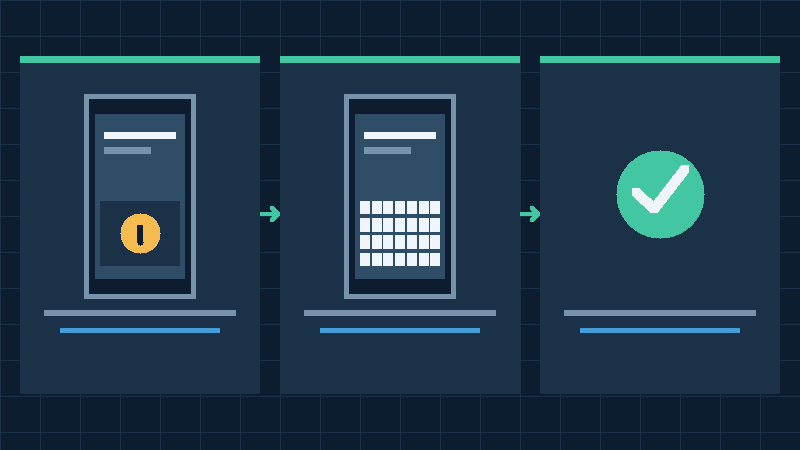
Connecting a physical keyboard can cause Android to hide its virtual keyboard intentionally. That behavior can be useful on a tablet or phone used with a keyboard case, but it can also explain why the on-screen input method no longer appears when you expect it.
Inspect the connected accessories. A Bluetooth keyboard, a compatible USB keyboard or a dock may still be recognized by the phone. If an accessory is unnecessary for your test, disconnect it through its normal controls. Finish any active work before unplugging equipment that also provides storage or other important functions.
Open the same ordinary text field after the accessory has been disconnected. If the on-screen keyboard returns, the input method itself may be working as expected. Investigate the behavior associated with the physical keyboard instead of uninstalling the virtual keyboard.
Google’s Android input and Switch Access guidance explains that external input devices can hide the software keyboard and describes the setting that enables virtual input alongside a connected device. Depending on Android version and manufacturer, the relevant control may appear under Physical keyboard or a similarly named section. Look for an option that permits the on-screen keyboard to remain visible.
Users who rely on external switches, a keyboard or other accessibility equipment should retain the input arrangement they need. Do not disconnect an essential assistive device without a safe alternative. Test the supported software keyboard option with the equipment in place where appropriate.
Our Android Bluetooth pairing guide provides additional connection diagnostics. Once you identify the cause, restore your intended accessory and input configuration. A successful repair should support everyday use rather than merely making the keyboard appear with all accessories disabled.
Restart The Phone Without Losing Access
A temporary application or operating system fault can occasionally prevent the selected keyboard from appearing. A normal restart may restore ordinary behavior, but it is important to consider how you will unlock the phone after restarting it.
Before restarting, confirm that you know the device’s legitimate screen-lock credential and that you have a usable way to enter it. A phone may require its PIN, pattern or password after a restart even if you normally unlock it with a fingerprint or face recognition. If you rely on a password and cannot establish a working keyboard or supported alternative, investigate the access problem first rather than assuming that biometric sign-in will remain available.
Save important accessible work and use the phone manufacturer’s normal restart procedure. The power control can differ among devices. Avoid holding buttons at random or selecting recovery actions whose meaning you do not understand. A restart is different from a factory reset.
After a successful restart and authorized unlock, open the same harmless editable field used in your earlier comparison. Verify the selected input method and type a few characters. Check another app before opening many optional applications.
If the keyboard works after restart but later stops appearing, record what preceded the next failure. An application overlay, a connected device or a recurring software problem may be involved. Repeatedly restarting the device without investigating the pattern is unlikely to provide new evidence.
If the entire phone is slow or stops responding rather than simply failing to display a keyboard, our Android performance guide discusses wider device problems. Choose diagnostics based on the actual symptom, and keep a working way to unlock your device before making further changes.
Update The Keyboard And Android Through Trusted Sources
Keyboard applications are software components and can experience compatibility issues or defects. A supported update may address a known problem, particularly when the keyboard stopped working after another application or system change. However, not every missing keyboard is caused by an outdated version.
If the phone is accessible, identify the installed input method through its settings or application information screen. Open Google Play or the manufacturer’s approved application update service, and navigate to the installed software list. Check whether an appropriate keyboard update is available. It may be possible to select an installed app without typing its name.
Use the normal update controls for the existing trusted keyboard. Do not obtain a modified keyboard package from a website that claims to repair typing problems. An input method handles private information during ordinary use, so an untrusted replacement can introduce a significant security risk.
Record the original version if available and allow the update to finish before testing. If the keyboard fails immediately after a particular update, note the version and contact its developer. Where the device provides an official option to remove an update from a preinstalled application, review its effects and available security updates before considering that route.
Check supported Android system updates through the device manufacturer’s normal settings as well. Back up important information, ensure sufficient storage and maintain reliable power before installing a major update. Do not interrupt an installation that is still processing.
Afterward, repeat the same two-application keyboard test. Verify that the expected layout, languages and typing behavior are restored. Do not assume that a successful installation alone establishes that the original defect has been corrected. If the operating system is too old for a desired input method, request a supported alternative rather than forcing an incompatible package onto the phone.
Force Stop The Faulty Keyboard And Clear Its Cache
If the chosen keyboard remains unresponsive after the simpler checks, investigate its application state. Android provides controls for installed applications that can be accessed through Settings, independent of the keyboard’s own preferences. Be certain that you are selecting the actual input method rather than a different app with a similar name.
Open Apps in Settings and locate the affected keyboard. Depending on the model, you may need to display system applications if the keyboard was preinstalled. Open the application information screen. Record its current state and confirm that another trusted input method or a suitable access method is available before stopping a keyboard on which you depend.
Use Force stop if appropriate, then return to an ordinary editable text field to test whether the input method launches again. If it does not, revisit its enabled status and the default keyboard selection using the supported settings controls.
Next inspect the Storage or Storage and cache section for that specific keyboard. Clearing its cache is a less disruptive action than clearing its stored application data. Use the cache option when available and observe the result before considering broader changes. Google’s Gboard troubleshooting guidance differentiates these operations.
Do not clear data for several applications at once. You may make it harder to determine which action affected the keyboard, and unrelated applications can contain valuable local information. Avoid confusing the Clear cache control with the more consequential Clear storage or Clear data option.
Test the same text field again after the targeted action. If a working input method reappears, verify more than one application and check the original keyboard preferences. Record the result rather than continuing with increasingly intrusive repairs simply because additional options are available.
Understand What Clearing Keyboard Data May Remove
If ordinary restart, configuration and cache checks do not resolve a specific keyboard failure, restoring that application’s default state may be considered. This is a more consequential action because it can remove settings associated with the chosen input method.
Review the keyboard’s current configuration while it is accessible. Note important language layouts, accessibility preferences, custom arrangements and other settings you depend on. Check whether the developer provides a supported way to preserve any relevant personalized information. Do not assume that every keyboard stores or synchronizes these details in the same way.
In the affected keyboard’s application information page, the Clear storage or Clear data control can reset its application state. Only use this after understanding the consequences for that keyboard. Saved words, preferences and other keyboard-specific information may need to be configured again. The labels and exact effects vary between input methods and devices.
Do not confuse keyboard data with data belonging to the messaging app, notes app or another application in which you type. Clearing a messaging application’s data can affect local conversations or other records, whereas the keyboard reset targets its own stored state. Verify the application name before confirming anything.
Once the selected keyboard has been reset, confirm it is enabled and selected as the intended input method. Reconfigure only the necessary languages and preferences. Test basic typing before restoring optional customization.
If the keyboard still fails, avoid repeating the same reset without a new reason. Collect the app version, device model and failure circumstances for the developer. The appropriate next step may be a supported alternative input method or a software fix. Protect locally stored information and retain normal access to the phone throughout the process.
Check Storage Pressure And Wider Touchscreen Problems
A phone with severely limited free storage can have difficulty carrying out ordinary tasks, including storing temporary application information. A missing keyboard alone does not establish that storage is the cause. Inspect the actual capacity before removing anything.
Open the device’s Storage settings and review the available space. Google’s Android device troubleshooting guidance identifies low available storage as one factor that can contribute to wider instability. If the device is nearly full, address the demonstrated capacity issue rather than using an unfamiliar cleaning utility.
Our Android storage full guide explains how to distinguish replaceable downloads from personal information that should be preserved. Remove only files you can identify and safely retrieve again, or copy valuable items to a suitable independent destination and verify them. Deleting a synchronized item can have effects beyond the local device.
Also check whether touch input works normally in the screen area where the keyboard should appear. Compare ordinary buttons or scrolling gestures in a trusted app that does not require typing. Remove an unsuitable case if it interferes with normal access to the display, and follow the manufacturer’s care instructions for its exterior.
A touchscreen that fails to register taps in several ordinary views needs a different diagnosis from a missing input method. A screen defect, protective accessory or broader system problem may be involved. Do not press unusually hard or use pointed objects to force an unresponsive area to work.
Once a demonstrated capacity or input issue is corrected, repeat the controlled keyboard test. If the keyboard is still missing while the rest of the phone operates normally, return to the application and configuration evidence instead of performing more general cleanup.
Handle A Missing Keyboard On The Lock Screen
An unavailable keyboard on the lock screen requires additional care because you may be unable to access the settings needed for repair. Identify whether the device is asking for its legitimate password, a PIN, a pattern or a different account verification step. Do not confuse the normal device lock screen with a web sign-in page.
Use a supported input method that is already available. If your device and its security configuration permit a compatible external keyboard, that may offer a legitimate way to enter your own password. Availability is not guaranteed, especially in restricted startup or recovery environments. Follow the manufacturer instructions for the phone rather than experimenting with undocumented controls.
Do not assume that a fingerprint or face unlock option will work after a restart. Android may require the primary credential in certain situations. If you cannot enter that credential because no suitable input method appears, contact the manufacturer’s authorized support service. Explain that you possess the credential but cannot access the necessary keyboard.
For some models, a manufacturer-supported Safe Mode procedure can help distinguish a downloaded keyboard problem from the built-in input arrangement. The procedure may still require the normal lock credential, and an essential input method may not be available. Confirm the exact model’s documented behavior and how you will unlock it before proceeding. An unavailable keyboard is not a reason to bypass authentication.
Avoid online tools promising to remove a screen lock or recover device access without the legitimate credentials. They can create privacy, security and data-loss risks. A factory reset may erase the information you are trying to preserve and can require previous account verification during setup.
If the device contains irreplaceable information and cannot be unlocked normally, seek appropriate authorized assistance before accepting any destructive recovery option. Prioritize legitimate access and information preservation over a quick appearance of a working keyboard.
Test Safe Mode Or An Alternative Keyboard Carefully
If a missing on-screen keyboard started after another app was installed, consider whether downloaded software could be interfering with ordinary input. Android Safe Mode temporarily restricts downloaded applications, which can be useful for comparing the system’s built-in behavior with its normal operating state.
First confirm that your particular device provides a usable input method in this mode and that you have the required screen-lock credential. Follow the manufacturer’s documented Safe Mode procedure. Do not simply copy a button sequence intended for another phone.
On a successfully unlocked device in Safe Mode, use an available built-in application and input method to test ordinary typing. If the keyboard now works, record that result. It suggests that a difference between the restricted and ordinary configuration deserves investigation, but it does not establish which downloaded application caused the problem.
Return to normal startup through the documented procedure. Review recently installed apps one at a time and inspect their supported configuration. Protect important local application data before uninstalling anything. Avoid disabling necessary accessibility, security or workplace management services.
If another trusted keyboard is already available, comparing it with the faulty input method can also be useful. Verify that it works before removing the original one. If you decide to reinstall a keyboard, use the authorized app distribution source and confirm that the application remains available for your device.
A comparison with a different input method is not proof that every feature of the original keyboard has been repaired. Keep the configuration that provides dependable access and appropriate privacy protection. Report a repeatable application-specific failure to its developer rather than deleting more unrelated information in the hope of correcting it.
Verify Typing And Protect Data Before Advanced Recovery
After the keyboard appears again, check normal typing in at least two trusted applications and return to the original affected field. Test the letters, numbers and language layouts you actually use. If external keyboards are part of your normal setup, reconnect them through the supported procedure and verify the intended software keyboard behavior.
Restore any temporary changes that are no longer necessary. Confirm that the selected input method is the trusted keyboard you intended to use. Check ordinary privacy and accessibility preferences, and do not leave the device in Safe Mode simply because the keyboard worked during a diagnostic comparison.
If the problem returns frequently, record the Android version, keyboard app version, affected applications and whether an accessory is connected when it occurs. Provide this information to the keyboard developer or phone manufacturer. Avoid including private text, passwords or sensitive screenshots in a routine support message.
A factory reset is a last resort rather than an ordinary keyboard troubleshooting step. It can erase local information and requires preparation for account access afterward. Google’s Android backup guidance explains the available backup arrangements and their limitations. Our Android backup before resetting guide provides additional protection considerations.
Verify important photographs, documents and app-specific records independently, and confirm that you can regain access to the required accounts. If a touchscreen or other hardware problem is responsible, a software reset may not correct it.
This guide uses official Android and Gboard documentation and original diagnostic reasoning. Its illustrations are conceptual, not actual device screenshots, and the procedures were not independently tested on physical Android hardware. The goal is reliable input without creating avoidable data loss or access problems.
Frequently Asked Questions
Why Is My Android Keyboard Not Appearing?
The selected keyboard may be disabled or unresponsive, the text field may not accept input, or a physical keyboard may be connected. Compare ordinary editable fields in different apps first.
How Do I Restore Gboard As My Keyboard?
On an accessible phone, open the Android keyboard settings, check that Gboard is enabled and select it as the intended input method. Menu names vary by device.
Can A Bluetooth Keyboard Hide The On-Screen Keyboard?
Yes, Android can intentionally hide software input when a physical keyboard is connected. Review the physical keyboard and virtual keyboard display settings.
Will Clearing Keyboard Data Delete Saved Words?
It can reset keyboard-specific preferences and learned information. Check the relevant keyboard documentation, preserve important settings and try clearing only the cache first.
Should I Uninstall My Only Keyboard?
No, establish another trusted working input method before removing or reinstalling your only keyboard. Otherwise you may be unable to type or unlock the phone.
What If The Keyboard Is Missing On The Lock Screen?
Use a supported legitimate credential entry method if one is available, and consult the device manufacturer’s authorized support. Avoid destructive recovery before evaluating data protection.
Will A Factory Reset Always Fix A Missing Keyboard?
No, a reset cannot guarantee correction of every software or hardware problem. Use targeted checks and verify backups and account access before considering it.


