

Confirm That Both Devices Are Using The Same Network
When Wi-Fi works on a phone but not a laptop, it is tempting to conclude that the wireless adapter is broken. The comparison is useful, but only when both devices are accessing the same network under comparable conditions. A phone can continue browsing through its cellular connection even when its local wireless connection has lost internet access.
Open the phone’s wireless settings and confirm the network name. Briefly disable mobile data if you can do so without interrupting essential communications. Load two fresh webpages on the phone and confirm that they actually open. Restore mobile data immediately after the test. Google describes this distinction in its mobile data settings guidance.
Repeat the test on the laptop in the same location. Check the exact network name, particularly if there are separate names for guest access, mesh equipment or individual wireless bands. A similar name does not establish that two devices are using the same connection. Avoid joining an unfamiliar network just because its name resembles your home network.
If the phone cannot load pages with cellular data disabled, the original result was misleading. Investigate the shared network first. If the phone genuinely works and the laptop does not, you have a much better reason to examine the laptop or its relationship with that particular access point. The distinction is the foundation for the rest of this guide.
Identify The Stage Where The Laptop Connection Fails
A laptop can encounter an obstacle at several different stages. It may fail to display available networks, see a network but reject its password, connect without receiving a useful address, or successfully reach the internet while one application remains unusable. These are separate conditions that require different tests.
Look at the network status before opening a browser. If the wireless option is missing, start with the adapter and operating system. If other networks are visible but the intended one is absent, investigate coverage, frequency compatibility and the access point. If the laptop displays an authentication error, focus on the saved connection details and network policy.
When the laptop shows a connected status, open several unrelated reputable websites. If only one site fails, it may have nothing to do with Wi-Fi. A browser-specific failure may involve its extensions, proxy or profile configuration. Check another installed browser before assuming the entire computer is offline.
Create a simple record of the phone’s result and laptop’s result for each network tested. Note the room, network name, approximate time, operating system and error message. Take care not to post private network names or credentials publicly. The useful observation is not merely that one device works, but precisely which connection stage succeeds on one and fails on the other.
Our guide to Wi-Fi connected without internet provides a broader explanation of these layers when a laptop joins successfully but cannot reach online services.
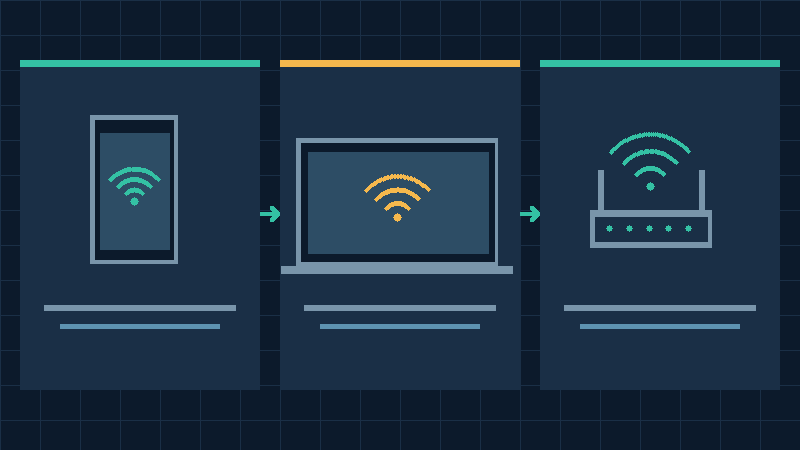
Check Windows Wi-Fi And Airplane Mode Settings
For a Windows 11 laptop, begin with the ordinary wireless controls. Open the network area from the taskbar or use Network & internet in Settings. Confirm that Wi-Fi is enabled and airplane mode is disabled when you want wireless access. Examine the list of available networks and select the intended connection.
Some laptop models also have a physical radio switch or a keyboard shortcut for wireless functions. Consult the manufacturer’s device documentation if the wireless option disappeared unexpectedly after using a function key. A disabled radio is a different problem from a damaged antenna or an outdated driver.
If Windows offers its network diagnostics through Get Help, run the appropriate Network and Internet troubleshooter. Read its results before accepting recommendations that would change preferences. Microsoft’s official Wi-Fi troubleshooting guide describes the available diagnostic and connection controls.
If the laptop is connected to a wired dock as well as Wi-Fi, consider whether you are testing the intended adapter. Disconnect an optional Ethernet cable temporarily only when it is safe to interrupt that connection. Then repeat the browsing test. A machine with working Ethernet and failing wireless access presents different evidence from one that cannot connect using either interface.
Restart normally after saving important work if the network controls are behaving unexpectedly. Avoid deleting software or attempting a factory reset merely because the wireless toggle became unavailable during one session.
Forget And Rejoin Only The Affected Wi-Fi Network
A saved Wi-Fi profile contains information that helps the laptop reconnect automatically. If the router password or security configuration changed, the laptop may retain settings that no longer work. A phone with updated credentials can still connect, making the laptop appear to be the only affected device.
Before removing the saved profile, confirm that you know the current password and any other requirements for joining. On Windows 11, locate Manage known networks within Wi-Fi settings and remove the relevant saved connection. Then select the verified access point from the network list and enter its current credentials.
On a Mac, the Wi-Fi settings include controls for previously joined networks. Use the option to forget the particular network and reconnect if you have the authority and information needed to restore it. Menu wording may vary by macOS release.
Do not remove every saved wireless network when only one is affected. A workplace or university connection may require enterprise authentication, certificates or managed configuration. If you depend on such a network, contact its administrator before deleting the profile or changing authentication details.
A mistaken password can be caused by an unexpected keyboard layout, Caps Lock or a copied trailing space. Make sure you are entering the credentials for the intended network, without revealing them to bystanders or support forums. If a guest portal is involved, a correct wireless password may still be insufficient until the legitimate sign-in process is complete.
Retest using fresh webpages immediately after reconnecting. If the laptop can join but not access the internet, move to address and routing diagnostics instead of repeatedly removing the same profile.
Compare Wireless Bands And Signal Conditions
Smartphones and laptops differ in their antennas, radio hardware and supported wireless standards. One device may operate reliably in a room where another has difficulty. They can also connect to different radio bands while displaying the same network name, especially when a router automatically selects suitable connections for its clients.
Move the laptop closer to the access point and position it normally on a suitable surface. Compare its behavior there with the place where you initially experienced the problem. Check whether the connection becomes stable, whether the network appears in the list, and whether webpages load. Do not assume that a strong signal icon guarantees adequate performance.
If your router broadcasts separate verified names for 2.4 GHz and 5 GHz networks, test an available compatible band. The lower frequency often provides useful coverage across obstacles, whereas the higher frequency may provide better performance at shorter distances. The result depends on congestion, access point placement and device capabilities.
Some newer networks also support 6 GHz operation. A laptop must support the required standards and security configuration to use those connections. Do not weaken wireless security to make a device join a network it cannot support. Consult the device and router specifications instead.
For more context, read our 2.4 GHz and 5 GHz Wi-Fi comparison and our guide to slow Wi-Fi in one room. If the laptop works only near the access point, coverage or interference deserves attention before a system-wide software reset.
Try Another Trusted Network Or A Wired Connection
An independent connection helps separate a laptop-wide fault from a problem involving one router. If you have permission, connect the same laptop to another trusted wireless network. Keep the test applications and settings unchanged apart from the network you join. Try the same two ordinary websites.
A laptop that cannot use any known-working wireless connection may have a disabled adapter, a software conflict or a hardware issue. A laptop that works elsewhere but fails on the home network points toward a compatibility, authentication, address assignment or access-policy problem specific to that environment.
A mobile hotspot can provide another comparison if your subscription supports tethering. Confirm that you have sufficient data allowance and avoid running large downloads or automatic updates during the test. Your hotspot may use a different frequency or security configuration from the original router, so success does not conclusively prove that every part of the laptop’s wireless hardware is healthy. It does establish that the laptop can communicate in at least one wireless setup.
If the laptop has a compatible Ethernet port or adapter, try a wired connection to an authorized router port. Temporarily disconnect Wi-Fi if necessary to make the tested route clear. Our guide to Ethernet connected without internet in Windows 11 explains additional checks when wired access also fails.
Record each result separately. Return to the original connection afterward. A workaround is useful for getting necessary work done, but a controlled comparison also gives you evidence to repair the failing network without changing unrelated settings.
Check IP Address Assignment And The Default Gateway
After a laptop establishes its wireless link, it normally needs usable network configuration before it can communicate beyond that link. On many home networks, a service called DHCP supplies an address, gateway and other information. A failure at this stage can leave the wireless icon looking connected while websites remain unreachable.
In Windows, open Command Prompt and run ipconfig /all. Find the section corresponding to the active wireless adapter rather than an unrelated virtual or disconnected interface. Record whether it has an IPv4 or IPv6 address, and whether a gateway and DNS information are present. Microsoft documents the output and command options in its ipconfig reference.
An automatically assigned IPv4 address in the 169.254 range often indicates that ordinary DHCP assignment did not succeed. This is a useful clue on a conventional home network, but it does not mean that every IPv6-capable connection is necessarily unavailable. Nor does it identify the precise reason the address assignment failed.
Check whether the laptop was configured with manual network settings for an earlier location. A static address, gateway or DNS server from another environment can be unsuitable for your current network. Record the original settings and consult the administrator if the configuration is intentional. Do not guess an unused IP address or copy another device’s complete address, as that can cause an address conflict.
On a normal home network that uses DHCP, reconnecting may obtain appropriate settings. If assignment repeatedly fails on one router but works elsewhere, the router’s address allocation or client access configuration deserves investigation. Avoid enabling additional DHCP servers or changing the whole network’s address range without understanding its existing design.
Test Local Router Access Separately From Domain Resolution
The default gateway is generally the device through which a laptop reaches other networks. If you know the gateway address from the active adapter configuration, you can attempt a simple connectivity test before changing browser settings. On Windows, run a ping command using that actual address, for example ping 192.168.1.1 if that is the address listed on your computer.
A reply indicates that the laptop can exchange the tested packets with the gateway. It does not prove the router has a functioning internet connection. A missing reply is also not conclusive because some equipment blocks or deprioritizes ping requests. Use this result together with other observations instead of treating a single command as a complete network diagnosis.
Next, compare whether ordinary domain lookup works. Run nslookup example.com in Command Prompt on a Windows system. A successful answer shows that the queried resolver returned information for the example domain, but it does not mean every website or browser request will work. If lookup fails while the local gateway is reachable, inspect the configured DNS service.
DNS translates names into addresses and can be affected by local settings, a network resolver, a VPN or organizational policy. Our DNS explanation describes why domain lookup is distinct from the connection to the router itself.
If only one browser cannot load websites, check its own network settings before modifying the entire system. Some browsers support separate proxy or encrypted DNS configurations. Keep security protections in place, and do not bypass a certificate warning to perform a connectivity test. Use a known public website that normally establishes a trustworthy secure connection.
Review DNS VPN And Proxy Settings Without Weakening Security
A laptop can successfully connect to Wi-Fi yet direct its traffic through a proxy or VPN that is no longer available. This can explain why the phone works on the same access point while laptop applications cannot communicate. It can also explain why the problem started after moving from an office to a home network.
Review the laptop’s proxy settings and any installed VPN client. Note whether each configuration is intentional and whether it belongs to an employer, school or other managed service. Do not turn off an organizational protection to bypass a network restriction. Ask the responsible administrator to inspect the affected connection instead.
For a personal VPN on a privately managed laptop, it may be appropriate to compare the same websites using its ordinary disconnect control on a trusted network. Understand that your traffic will no longer receive that VPN’s protection during the comparison. Restore your normal configuration afterward. Our VPN guide explains its role and limitations.
Inspect custom DNS settings if the domain-resolution test repeatedly fails. A private resolver may be unreachable away from its intended network. Before changing the setting, preserve the original value and determine whether the network expects automatic configuration. Using an arbitrary public resolver is not necessarily appropriate for workplace resources or local domains.
Do not permanently disable the firewall, antivirus, certificate validation or password protection on the router. If security software appears to be blocking a legitimate application, inspect its documented rules and support information. Establish which program or connection is affected rather than exposing the entire computer for convenience.
Repeat the original browsing test after any authorized adjustment, and restore unrelated settings. One successful comparison should lead to a targeted repair, not a collection of permanent changes with unclear consequences.
Check The Windows Network Adapter And Its Driver
If the wireless option is absent or the laptop cannot connect to several independent networks, open Device Manager and expand the Network adapters category. Identify the wireless adapter using the PC manufacturer’s model documentation. A Wi-Fi adapter, wired Ethernet controller and virtual network interface may all appear in this list.
Observe whether the correct adapter is listed, enabled or marked with an error. A listed device is not proof of a fully functioning radio, but the status can direct your next action. If it has been intentionally disabled, enable it only when appropriate. Record any reported device error codes for support.
Consider recent Windows or driver updates. If the problem started directly after a particular change, check the PC manufacturer’s supported driver release and any available rollback option. Use the correct model and operating system version. Our guide to finding Windows drivers safely explains why official sources are preferable to third-party driver bundles.
Before removing a wireless driver, obtain a known compatible replacement from the manufacturer using another working computer if necessary. Do not assume that the disconnected laptop will be able to download the replacement online afterward. Ensure that you have permission to alter the device and can restore the original configuration.
If the failure occurs primarily after sleep or while the laptop runs on battery, document that relationship and check the relevant manufacturer-supported power and driver settings. There is no need to disable power management across every adapter and device merely to test a single wireless problem.
When the adapter remains absent despite supported driver and operating system checks, qualified hardware diagnosis may be appropriate. An external compatible wireless adapter can be a temporary alternative, but it does not establish the cause of the original fault.
Troubleshoot A MacBook That Cannot Access Wi-Fi
A MacBook can exhibit the same distinction between an established wireless connection and working internet access. Start with the Wi-Fi status in System Settings and confirm the exact authorized network. Check whether a normal restart resolves the issue after you have saved important work.
Apple’s Mac internet connectivity guidance distinguishes joining a wireless access point from reaching internet services. It also identifies address renewal, system time, software updates and network diagnostics as areas to investigate.
For a Mac using ordinary DHCP address assignment, inspect the network details and TCP/IP controls. If a lease renewal is appropriate, use the supported Renew DHCP Lease option. The Apple DHCP renewal instructions explain the procedure. Preserve any specialized settings on a managed network and avoid replacing them without authorization.
If the Mac can connect to the router but webpages or other internet services remain unavailable, consider Wireless Diagnostics. Apple’s Wireless Diagnostics guide describes how to start an analysis through the Wi-Fi status menu on supported systems. Review the findings without assuming that every wireless recommendation applies to your particular router.
Diagnostic reports may contain information about your local network and device environment. Share such reports only with an authorized support person. If the Mac works reliably on another Wi-Fi connection, compare the failing network’s configuration and access conditions before undertaking larger operating system changes.
Investigate Router Client Restrictions And Address Capacity
A router can allow one device to communicate while rejecting or limiting another. Guest networks, parental controls, device access rules and enterprise authentication can all produce differences between a phone and laptop. An address allocation problem may also affect a new client while devices with existing leases continue to work.
If you administer the router, check its client list and relevant access settings using the official management interface. Confirm that the laptop is allowed to join the intended network. If you do not manage the router, provide the administrator with the laptop’s error message and the results of your comparison tests.
Modern devices may use randomized or private wireless addresses. A router that depends on an approved device list or address reservation may therefore treat a reconnection differently from what you expect. Check the operating system’s supported per-network address controls and the router’s documentation. Do not disable privacy features across all networks simply to solve one approved access issue.
Inspect the DHCP pool and connection limits if supported by the equipment and if you have evidence of an address assignment failure. Avoid copying the working phone’s address onto the laptop. Each device requires appropriate distinct configuration. Changes to the router can affect every household member, so make only justified adjustments and retain a record of the original settings.
A normal router restart can be useful when several connection symptoms suggest a temporary device problem. Warn other users and avoid interrupting essential calls or work. Do not use a factory reset as a routine restart. Our home router security guide explains why restoring connectivity should not come at the expense of safe wireless configuration.
Reserve Network Reset For Later And Verify Recovery
If the laptop still cannot connect after targeted checks, consider whether its network configuration requires a more extensive repair. Windows offers network reset controls that can reinstall network adapters and return networking settings toward their defaults. This is a later-stage option, not the first action for a single failed access point.
Before using it, record the wireless network access information and any custom IP, VPN, virtualization or proxy configuration you need. Save open work and make sure you have administrative permission and an alternative way to obtain support. Resetting network configuration can interrupt existing connections and require networking software to be reconfigured.
After a supported repair, connect to the intended network and test fresh webpages. Verify the connection again after a normal restart, then compare the laptop near the router and in its usual working location. If an application originally failed, test that application separately. A successful Wi-Fi indicator alone is not enough.
Keep a brief record of the exact change that restored access. Restore mobile data on the phone and any personal VPN or temporary diagnostic settings that were disconnected. If no repair resolves the issue, share your network comparison, operating system version, device model and relevant error details with the router administrator, laptop manufacturer or internet provider as appropriate.
This guide uses official Microsoft, Apple and Google documentation and controlled diagnostic comparisons. The illustrations are conceptual, not screenshots from a tested computer. No physical laptop or router was independently tested for this article. The most valuable troubleshooting result is identifying the layer that failed while preserving your data, network security and working configurations.
Frequently Asked Questions
Why Does My Phone Connect To Wi-Fi But My Laptop Does Not?
The laptop may have a saved-profile problem, weak signal, incompatible wireless settings, driver fault or restricted access. First confirm the phone is not using mobile data instead.
Why Is My Laptop Connected But Has No Internet?
The wireless link can work while DHCP, routing, DNS or a proxy fails. Compare another trusted connection and inspect the laptop’s network configuration.
Can A Router Block Only One Device?
Yes, access rules, guest network policies or address restrictions can affect one client without disconnecting all others. Ask the authorized network administrator to check.
Should I Reset My Router If My Phone Works?
Not as a first step. Confirm the phone is using Wi-Fi and investigate the laptop. A normal restart may be appropriate; a factory reset can erase important router configuration.
Will Forgetting A Wi-Fi Network Delete Personal Files?
No, forgetting one saved connection does not erase ordinary personal files, but you will need its credentials and any required authentication information to reconnect.
What If My Laptop Works On A Mobile Hotspot But Not Home Wi-Fi?
The result points toward a difference in network conditions, compatibility or access policy. Compare bands, saved settings and router configuration.
Should I Replace The Laptop Wi-Fi Adapter?
Not before checking its status, supported drivers and behavior on independent networks. Persistent evidence of an adapter or antenna fault warrants qualified diagnosis.

