
If your Windows 11 laptop loses Wi-Fi after sleep, first confirm that the same network works before sleeping and that other devices remain online. After wake, inspect the Wi-Fi toggle, adapter status, power-management options and the actual internet path. Update wireless drivers only from Windows Update or the device manufacturer. Avoid Network reset until less disruptive checks fail.
A sleeping laptop may need to rejoin its access point and obtain a usable route after wake. These checks distinguish a disappearing wireless adapter from a connected network without internet, slow reconnection, VPN issues and router problems. Menu availability can vary by hardware and Windows build.
Confirm The Problem Happens After Sleep
Begin with a repeatable observation rather than assuming every Wi-Fi disconnect has the same cause. Connect to a familiar, trusted network and verify that a normal website opens. Put the computer to sleep through the Windows power menu, wait until it is actually asleep, then wake it. Note whether the Wi-Fi icon disappears, reports connected without internet, or reconnects slowly. Each result points toward a different part of the network path.
Repeat the test only once or twice to avoid unnecessary disruption. Record whether the problem also occurs after a normal restart and whether other household devices stay online during the same period. If every device loses access, investigate the router or internet service first. A connection that fails only when the laptop resumes deserves a targeted adapter, driver, or power-management check.
Separate Sleep From Screen-Off And Hibernate
Windows can turn off the display, enter sleep, or hibernate, and those are different states. A dark screen does not prove the computer entered sleep. Check Settings, System, Power and battery for screen, sleep, and hibernate controls appropriate to the device. Observe whether the problem follows a lid close, a power-button action, an inactivity timer, or a manual Sleep command.
If the connection recovers after screen-off but fails after sleep, you have narrowed the trigger. If hibernation is involved, its deeper power transition may change which adapter behavior you inspect. Do not change every power setting simultaneously. Keep a baseline of the original choices and make one reversible change at a time so the next test provides meaningful evidence.
Check Whether Wi-Fi Itself Is Off
After waking, open Quick Settings and inspect the Wi-Fi and Airplane mode controls. If Wi-Fi is disabled, try enabling it normally. Check that airplane mode did not become active and that a physical wireless switch or keyboard function key was not used accidentally. Some laptops integrate radio controls with manufacturer utilities, so icon state matters more than a guessed shortcut.
If the Wi-Fi switch has disappeared entirely, move to adapter detection rather than forgetting the network. If it is on and the correct network is visible, attempt a single normal connection. Avoid repeatedly removing saved networks before identifying whether Windows recognizes the adapter. Password removal is not a repair for a missing radio or driver.
For the related but distinct symptom, see Wifi Keeps Disconnecting. Use that narrower guide only if its checks match what you observe.
Inspect The Actual Network Status
Open Settings, Network and internet, Wi-Fi, then the active connection details. Windows may report that the device is connected to the local network without a working internet path. Test a known, legitimate site and distinguish a browser error from a complete network outage. If only one browser fails, investigate that browser before resetting networking system-wide.
Compare the network name and connection state before and after sleep. A change to a different SSID or guest network can explain why some services fail. Do not assume a signal-strength icon proves that the router has internet. Conversely, a brief reconnect immediately after wake can be expected on some hardware and is not necessarily a persistent fault.
Compare Wi-Fi With A Wired Connection
If the laptop supports Ethernet, connect through a reliable cable and compare ordinary browsing while keeping the same router and internet service. A working wired path while Wi-Fi fails suggests the wireless portion requires attention. If both fail, investigate DNS, gateway or upstream access, especially if another device also experiences the problem.
Remove the Ethernet cable before repeating the wireless test so Windows is not silently choosing the wired route. Do not change router passwords or reset the internet service merely because a single laptop has a resume problem. The purpose of this comparison is isolation, not finding a workaround that hides the original cause.
Check Other Devices On The Same Network
Use a trusted phone or another computer on the same Wi-Fi network to check whether the router and internet connection remain functional. Observe it at the time the Windows computer wakes. If all devices temporarily drop, the root cause may be router firmware, an overloaded access point, scheduled network maintenance or an upstream outage.
If only the Windows machine fails, keep troubleshooting local to it. Avoid assuming the access point is faulty without comparison. Record whether the affected machine is on 2.4 GHz or 5 GHz and whether band steering appears to move it between network names. These details can help explain an intermittent reconnect without suggesting that one band is universally better.
For the related but distinct symptom, see Windows 11 Wifi Adapter Disappeared. Use that narrower guide only if its checks match what you observe.
Use The Windows Network Troubleshooter
Windows 11 includes a Network and Internet troubleshooter accessible through the Get Help experience and supported Settings entry points. Run the built-in diagnostic while the failure is present and note what it reports. A tool that finds no problem does not rule out an intermittent sleep-related issue, especially after the adapter has already reconnected.
Do not run external network repair scripts or utilities from advertisements as a substitute. The built-in troubleshooter may suggest ordinary checks or supported repairs. If it offers an action that changes settings, read what will happen first. Preserve VPN, custom DNS, proxy or business network settings that you might need to restore after testing.
Locate The Wireless Adapter In Device Manager
Right-click Start, open Device Manager, then expand Network adapters. Look for the wireless adapter by its manufacturer and model, rather than guessing that every listed network item is Wi-Fi. If it is missing after sleep, compare the list after a restart. Inspect any warning symbol and read the device status message before deciding what to change.
A temporary missing adapter can differ from a device that remains present but cannot connect. Microsoft documents adapter and driver checks for Wi-Fi problems. Do not uninstall network devices indiscriminately, particularly virtual adapters used by work VPNs or virtual machines. If the physical adapter disappears repeatedly, document its model and the Windows build for manufacturer support.
Review The Adapter Power Management Option
Some wireless adapters expose a Power Management tab in Device Manager with a setting allowing Windows to turn off the device to save power. When the tab and checkbox exist, note the original state before trying a reversible test. Newer hardware and drivers may not expose this tab, and its absence is not proof of a broken Windows installation.
Only change an available setting when the sleep-specific evidence supports doing so. Test one sleep and wake cycle, then compare battery behavior and connectivity. Keeping a radio active more often may affect energy use. Avoid copying registry hacks advertised as a way to force the tab to appear, because driver implementation and device policy vary widely.
For the related but distinct symptom, see Wifi Connected But No Internet. Use that narrower guide only if its checks match what you observe.
Inspect Wireless Power Saving Settings If Available
Some Windows power plans and adapter drivers provide additional wireless power saving controls. Their placement and availability depend on the device and active power mode. Review Settings, Power and battery and any manufacturer-approved power utility rather than assuming an old Control Panel menu appears on every Windows 11 laptop.
If you find an available setting, record its value before testing a small change. Do not promise that selecting maximum performance always fixes disconnects or that every device supports the option. If the issue disappears with a specific approved change, check whether the added power consumption is acceptable. Restore the previous setting if it does not help.
Check Whether A VPN Changes Reconnection
VPN software may reconnect its tunnel after the base Wi-Fi link returns. This can make the computer appear offline even though it is already connected to the router. Note whether Windows shows local Wi-Fi connection, whether DNS resolution works, and whether the issue happens only while a corporate or personal VPN is active.
Do not uninstall a managed VPN, disable security protection or change split-tunnel policy without approval. When permitted, compare behavior with the VPN disconnected for one controlled test. If Wi-Fi works but the VPN tunnel does not recover, follow the VPN provider's documented reconnect procedure instead of resetting the wireless adapter or router.
Verify DNS And Gateway Separately
A device can reconnect to Wi-Fi but fail to reach websites because it lacks a usable gateway or DNS resolver. Open the connection details in Windows Settings and note whether an IP address, gateway and DNS servers are provided. A browser's DNS error is not identical to the radio disconnecting. This distinction changes the appropriate remedy.
Do not paste arbitrary public DNS addresses into a managed computer or switch off encrypted DNS without understanding the implications. If the router itself is unreachable, DNS is unlikely to be the primary issue. Compare a reliable local connection against internet access, then consult the official DNS and default gateway guides when those symptoms actually occur.
For the related but distinct symptom, see Default Gateway Not Available Windows 11. Use that narrower guide only if its checks match what you observe.
Check Driver Updates From Trusted Sources
Open Windows Update and review relevant driver updates when offered. For a laptop, use the manufacturer's support page for the exact model and operating system if official guidance identifies a newer wireless driver. Do not assume every optional driver is required or that updating unrelated devices will improve Wi-Fi. Preserve a way to reconnect if the update does not work.
Before making changes, identify the current adapter name and driver version and consider a restore path supported by the vendor. Avoid driver download sites that bundle installers or claim universal compatibility. After installing an approved update, restart if instructed, then repeat a controlled sleep and wake test on the same network.
Consider Router Firmware And Network Settings
An access point may handle roaming, Wi-Fi power saving or reconnect negotiation differently across clients. If the symptom follows one particular router but not another trusted network, examine the router's official firmware and configuration guidance. Check for a guest network, client isolation or unusual scheduling rules that could affect reconnection without changing the entire network.
Do not turn off wireless security or downgrade encryption solely to fix resume behavior. Any firmware update should follow the manufacturer process with an appropriate power supply and configuration backup. Make one targeted change and verify it with more than one device if possible. If the router is managed by an internet provider, ask the provider rather than experimenting with unknown settings.
Test A Second Trusted Network
Try a different legitimate Wi-Fi connection, such as a private hotspot you control, and repeat the same sleep and wake sequence. A problem on both networks suggests the laptop or its software is more likely involved. A problem only on one network points toward that access point or its interaction with the adapter.
Avoid conducting this test on an untrusted public network or bypassing captive portal warnings. Keep the network characteristics documented, including frequency, security type where visible and whether the issue is reproducible. Do not change sensitive account settings based on one inconclusive attempt; a brief signal fluctuation can look like a failed reconnect.
For the related but distinct symptom, see Dns Server Not Responding Windows 11. Use that narrower guide only if its checks match what you observe.
Review Windows Updates And Recent Changes
If sleep-related Wi-Fi failures began after a Windows update, driver change or new networking app, record the approximate start date. Windows Update history and manufacturer release notes can identify legitimate changes. A new VPN, virtual network adapter, endpoint protection policy or device firmware update may affect reconnection even when the wireless card is healthy.
Do not uninstall security updates casually. Prefer targeted supported driver repair or vendor guidance when the evidence implicates a specific component. If a workplace computer has recent policy changes, ask IT to review them. A dated troubleshooting log helps support staff distinguish a new regression from a long-standing weak-signal problem.
Understand Modern Standby Differences
Some newer Windows laptops use Modern Standby instead of older sleep behavior. Network behavior during low-power idle depends on the hardware, Windows version and connected state. Do not assume all laptops remain online while asleep or that receiving background messages means the Wi-Fi radio stays active continuously.
The relevant symptom is whether the computer successfully reconnects after wake, not whether it streamed data throughout sleep. Consult device documentation when evaluating standby expectations. Avoid changing firmware sleep states or BIOS options simply because an internet tutorial recommends a universal fix. Such changes can affect battery life, reliability and warranty support.
Check Saved Network Credentials Before Forgetting
If Windows repeatedly requests the Wi-Fi password after wake, inspect whether the correct saved SSID is selected and whether the network administrator recently rotated credentials. Forgetting and reconnecting can help some credential issues, but it also removes saved connection details and may be inappropriate on school or business networks.
Only use Forget when you know the current password and have permission to reconnect. Record any custom network settings first. If Windows reconnects automatically without credential prompts but internet traffic fails, focus on IP, gateway or VPN diagnosis instead. An indiscriminate credential reset can introduce another problem while leaving the original resume issue unresolved.
For the related but distinct symptom, see Wifi Works On Phone But Not Laptop. Use that narrower guide only if its checks match what you observe.
Distinguish Slow Reconnection From Total Failure
A wireless adapter may need a short interval after wake to negotiate its link and obtain network configuration. Record the approximate delay without treating every second as a fault. Compare whether the connection consistently recovers and whether important apps simply attempt to communicate before the network is ready.
If it recovers reliably after a brief delay, application reconnect behavior may be the narrower issue. If it remains disconnected until you toggle Wi-Fi or restart, investigate adapter state and driver behavior. Do not claim a universal acceptable reconnection time because hardware, network and standby implementation differ. Use repeated controlled observations to describe the actual impact.
Review Signal Conditions Around The Device
A laptop may wake in a different room or orientation with weaker reception than it had before sleeping. Check signal strength, proximity to the access point and any known interference from thick walls, metal furniture or nearby devices. A low signal can prolong reassociation and make the timing appear linked to sleep even when coverage is the real issue.
Test closer to the router before changing drivers or services. Avoid purchasing a range extender without confirming the cause. If the network is stable near the access point but fails elsewhere, coverage or roaming deserves attention. Use the Wi-Fi performance comparison guide for further diagnosis rather than changing privacy or security settings.
Generate A Wireless Network Report When Needed
Windows includes a documented wireless report created from an elevated command prompt using `netsh wlan show wlanreport`. The report can provide connection history and disconnection reasons useful for a recurring issue. Run the command only when you are comfortable with an administrator-approved diagnostic and keep the report on your own device.
The HTML report may reveal network names, connection times and adapter details, so do not publish it publicly or email it to an unknown support account. Read the period around wake instead of assuming every logged warning is the cause. Microsoft's official wireless report documentation explains its sections and limitations.
For the related but distinct symptom, see Wifi Slow But Ethernet Fast. Use that narrower guide only if its checks match what you observe.
Avoid Premature Network Reset
Windows Network reset is a much broader action than reconnecting Wi-Fi. It can remove and reinstall network adapters and reset configurations, potentially requiring VPN, virtual switch or other networking software to be configured again. Microsoft documents this as a later troubleshooting option rather than the first action for every intermittent disconnect.
Before considering it, check the adapter, current network, updates and provider documentation. Ensure you have administrator permission, network passwords and a way to reinstall relevant services. If an earlier reversible step fixes the symptom, a full reset adds risk without clear benefit. Never recommend resetting a managed computer without the responsible administrator.
Recognize Hardware Warning Signs
Repeatedly missing wireless hardware, Device Manager error states or failures on every trusted network may indicate a driver, firmware or physical adapter problem. Those observations warrant the laptop vendor's diagnostic procedure. A Wi-Fi card that reconnects only when pressure is applied to the chassis or after overheating is not a normal settings issue.
Avoid opening a sealed laptop or reseating internal components without expertise and authorization. Back up important work and document the symptoms before service. Hardware work can affect warranty coverage, battery safety and data security. For devices under warranty, the vendor's repair channel is safer than unverified replacement parts or tools.
Validate The Fix Through Repeated Controlled Tests
After one change, reconnect to the same trusted SSID and repeat the original sleep and wake condition. Check that Wi-Fi becomes available, the intended network reconnects and useful internet applications work. If possible, repeat at least two times under similar conditions instead of relying on a single successful wake.
Finally restore any experimental power, VPN or privacy settings that did not contribute to the result. Record the effective change and any remaining limitation. If the machine still fails, provide the network report and driver details to legitimate support without including passwords. The best outcome is a reliable connection with security and battery behavior intact.
For the related but distinct symptom, see What Is A Default Gateway. Use that narrower guide only if its checks match what you observe.
Symptom Decision Table
| What You Notice | Best First Action | What It May Mean |
|---|---|---|
| Wi-Fi toggle missing after wake | Check Device Manager and adapter state | Radio or driver issue |
| Connected but no internet | Compare gateway, DNS and VPN | Network route problem |
| Only one router affected | Test a second trusted network | Router or compatibility factor |
| All devices offline | Check upstream connection | Network-wide outage |
| Fails only after sleep | Review supported power controls | Resume behavior |
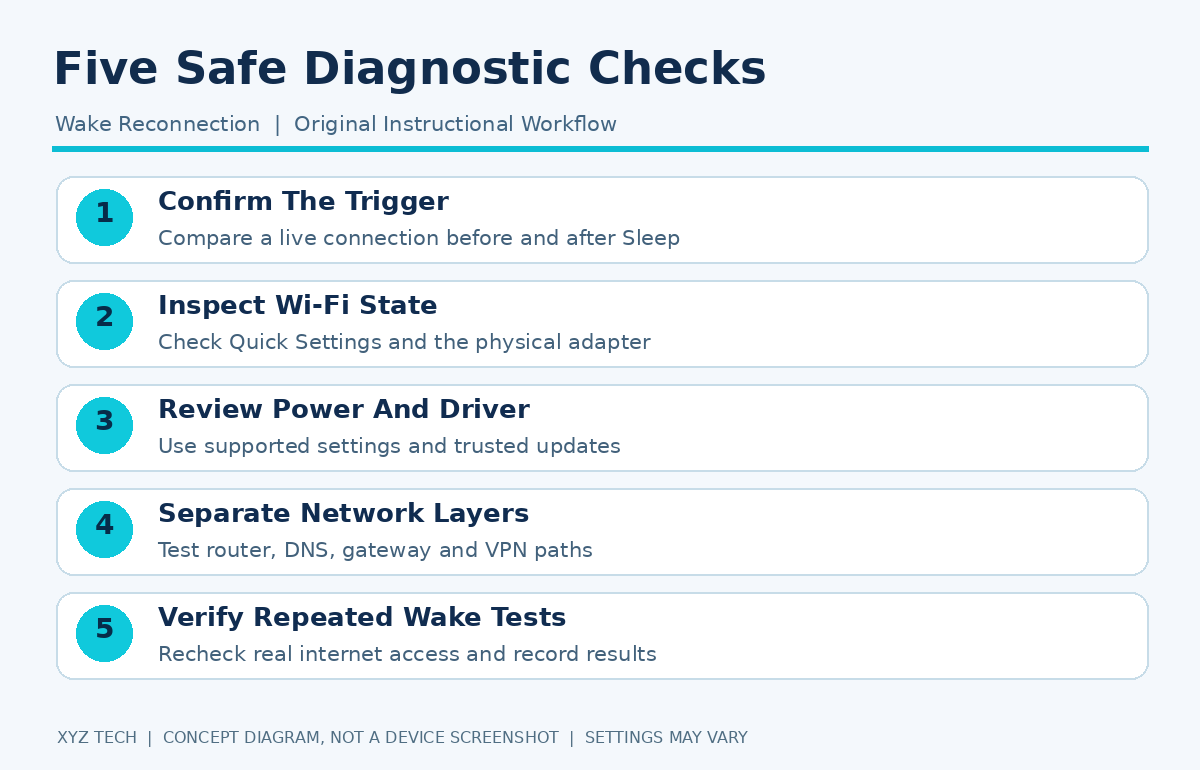
Five Step Checklist
- Confirm The Trigger: Compare a live connection before and after Sleep.
- Inspect Wi-Fi State: Check Quick Settings and the physical adapter.
- Review Power And Driver: Use supported settings and trusted updates.
- Separate Network Layers: Test router, DNS, gateway and VPN paths.
- Verify Repeated Wake Tests: Recheck real internet access and record results.
Frequently Asked Questions
Why Does Wi-Fi Disconnect Right After Sleep?
It can reflect adapter reinitialization, driver behavior, router reassociation or another network service. Compare the Wi-Fi toggle and internet access before and after wake before choosing a fix.
Is The Network Adapter Power Management Tab Always Available?
No, its availability depends on driver and hardware design. Do not force it to appear through registry scripts. Use supported settings and manufacturer guidance.
Can A VPN Make Wi-Fi Look Disconnected?
Yes, the wireless link may be active while the VPN tunnel or its DNS routing has not recovered. Follow the VPN provider and organization policy.
Should I Reset All Network Settings Immediately?
No, Microsoft documents Network reset as a wider action that may affect VPN and virtual network configuration. Try narrower checks first.
How Do I Know The Router Is Not The Problem?
Compare other trusted devices on the same access point and test the affected laptop on another permitted network.
Is Slow Reconnection After Sleep Always A Fault?
No, some hardware needs time to rejoin the network. A repeatable failure that requires manual intervention deserves closer diagnosis.
Does Changing DNS Fix A Missing Wi-Fi Adapter?
No, DNS settings cannot restore a wireless device that Windows does not detect. Investigate adapter recognition first.
What Command Creates A Windows Wireless Report?
Microsoft documents `netsh wlan show wlanreport` for a Wi-Fi diagnostic report. Protect it because it may contain network details.
Should I Download A Universal Wi-Fi Driver Tool?
No, use Windows Update or the laptop and adapter manufacturers approved downloads for the exact model.
How Can I Confirm The Fix Is Stable?
Repeat the same sleep and wake test on the same trusted network, check actual browsing, and restore experimental settings that did not help.
Official Vendor References
These original instructions are informed by the publishers official support documentation. The menus and available capabilities depend on your software version, device model and any management policy.