
Close camera and video apps, let an overheated phone cool naturally, and try the Flashlight tile in Quick Settings. Restart the phone if the torch remains unavailable, then compare the camera flash while taking a photo. If both the torch and flash fail after safe updates, the issue may involve the camera module, thermal protection or hardware. Do not force the LED on with unknown apps or attempt to cool a hot phone with water.
A flashlight that will not turn on can be caused by a missing Quick Settings tile, another app using camera hardware, a temporary system state, high device temperature or a failed light module. These cases need different remedies. This guide begins with safe observations and avoids confusing an illustration of a flashlight with a claim that every Android model has the same controls.
Identify What The Flashlight Actually Does
First determine whether the Quick Settings Flashlight tile is missing, greyed out, unresponsive or turning itself off. A torch that never activates is a different symptom from one that works for seconds and then stops. Record whether a message says the camera is in use, the phone is too hot or a permission is unavailable. This observation guides the next safe check.
Do not assume a grey tile means the LED is broken. Some Android builds disable the torch while the camera is using hardware or while thermal protection is active. Conversely, a working tile with no visible light may need a camera flash comparison. Start with an accurate description before installing new apps or changing system settings.
Find The Flashlight In Quick Settings
On many Android phones, swiping down from the top shows Quick Settings, sometimes requiring a second swipe to expand the tiles. Look for Flashlight or Torch. If the tile is absent, use the Edit control if available to add it back; the layout varies by manufacturer. The missing shortcut does not by itself mean the light hardware has failed.
Google documents the basic Quick Settings interface for Pixel phones. Use your manufacturer instructions if the phone has a different skin or swipe gesture. A custom launcher may alter the visible shortcuts without changing the underlying flashlight. Verify the function from a supported system control before downloading an unknown torch application that requests broad access.
For this related situation, read Android Phone Will Not Charge before trying unrelated repairs.
Check Whether The Tile Is Disabled
If the tile is greyed out, read any explanation offered by the phone. It may be temporarily unavailable during video recording or after a heat warning. Stop interacting with the tile for a minute and check whether another camera-related app is active. Do not repeatedly tap a disabled control hoping to force the flash while the system is protecting its components.
Some models support camera flash brightness levels or alternate flashlight controls, while others provide only an on/off action. Avoid copying a menu path intended for a different phone. If the tile becomes active immediately after closing a camera app, that result is stronger evidence of a resource conflict than a hardware failure.
Close The Main Camera App Properly
Open the camera if it is running and stop recording, live streaming or video calling. Close the camera app normally and return to Quick Settings to try the flashlight again. Some camera interfaces reserve the LED or camera sensor while a video or camera session is active. A task switcher preview does not always tell you whether another application is still using the hardware.
Test one variable at a time: first the torch while the camera is closed, then the camera flash separately. Do not clear all camera data as an initial remedy, since this can reset settings and presets. If an app remains stuck, a normal restart is usually a safer diagnostic step than forcing unknown camera services to stop.
Check Video Calling And Scanning Apps
A camera conflict can come from video meeting applications, QR scanners, document scanners, social media and camera permission utilities. Close any recent app that used the lens and wait briefly. Android manages hardware access, so an app can sometimes retain a session longer than you expect. The torch may become available once that session is released.
If the conflict occurs only after one named app opens, look for an update or vendor support guidance for that application. Avoid automatically revoking every app permission, since unrelated camera features may stop working. A targeted, repeatable test is more useful than uninstalling half the phone. Record the exact application before deciding whether to remove it.
For this related situation, read Android Apps Keep Crashing before trying unrelated repairs.
Let An Overheated Phone Cool Safely
The flash and camera are sensitive to operating temperature, and phones may limit functions when warm. If the device is uncomfortable to hold or displays a heat warning, stop camera recording, intensive games and charging if the manufacturer advises it. Move to a shaded, ventilated room and allow it to cool naturally. Google advises reducing heavy activity when a Pixel becomes too hot.
Never put a hot phone in a freezer, refrigerator, ice bath or under running water. Sudden temperature changes and moisture can cause damage. Do not force the flashlight with a third-party app while thermal protection is active. Test again only when the device returns to a safe temperature, and investigate recurrent overheating separately rather than treating the LED as the only problem.
Check Battery And Power Conditions
Some devices may restrict certain functions when the battery is critically low or a manufacturer power mode is active. Read any on-screen warning and check whether charging and battery level are normal. Do not assume a particular percentage threshold applies to all Android models. Try disabling only a temporary power-saving mode you deliberately enabled, if your device documentation links it to flashlight behavior.
A weak battery, unexpected shutdown or charging problem deserves independent diagnosis. Do not keep the LED on for a lengthy test when the phone is nearly empty. If the torch works reliably after charging and cooling, that is an observation worth recording, not proof that every future failure is caused by battery life.
Restart Android Once Before Escalation
A normal restart closes stuck app sessions and refreshes many temporary system services. Save current work, stop file transfers and power cycle the phone using the supported device instructions. After it starts, test the system flashlight before opening camera-heavy apps. A simple restart can help distinguish a temporary operating-system state from a persistent malfunction.
Do not enter recovery mode, erase the device or use unfamiliar dialer codes just to restart flashlight service. If the problem disappears, monitor which app triggers it again. If the tile remains unavailable immediately after restart, inspect heat, updates and the camera flash test instead of performing repeated factory resets.
For this related situation, read Android Phone Not Connecting To Wi-Fi before trying unrelated repairs.
Test The Camera Flash With A Photo
Open the manufacturer Camera app, select a standard Photo mode and locate the flash setting where offered. Test one ordinary photo in a safe environment with flash enabled. The camera flash and continuous flashlight often use related hardware, so comparing them can help separate Quick Settings trouble from a broader lighting fault. Do not point the flash directly into anyone’s eyes.
If camera flash works but the torch toggle fails, investigate the software control and app conflicts. If both fail with no heat warning, hardware or camera service may be involved. A camera app crashing as well suggests a broader camera issue. These comparisons are not a substitute for an authorized diagnostic test, but they help describe the fault accurately.
Compare Front And Rear Camera Behavior
Some phones have a rear LED associated with the camera system, while the front camera may have no physical LED or may use screen illumination. Confirm which light you are testing. A working front selfie image does not prove the rear flash LED is functional. Similarly, a rear camera photo taken without flash is not evidence that the flash circuitry is healthy.
If the rear camera cannot focus, switches off unexpectedly or shows errors, use the manufacturer’s camera troubleshooting process alongside flashlight checks. Do not dismantle the camera island or press on the lens cover. Multiple camera faults make authorized service more appropriate than installing a torch widget from an unknown source.
Check Camera Permissions Without Overcorrecting
Android permissions control which apps may access the camera. The built-in flashlight control may work through system functionality even when a third-party camera app has restricted access. Review permissions only for the named app showing an error. Avoid granting camera, contacts and location access to a flashlight download that does not have a compelling reason to need them.
If your installed camera app was denied camera permission, restoring it through Settings may fix the camera test. That action does not guarantee the torch tile will recover. Keep the two features distinct. After a permission change, close and reopen the relevant app rather than repeatedly resetting every permission on the device.
For this related situation, read Android Battery Draining Fast before trying unrelated repairs.
Check Android And Camera Updates
Open System Update and Google Play or the manufacturer’s application update screen to look for legitimate patches. Install only updates intended for the device, with sufficient battery and a backup of important content. Google’s camera troubleshooting guidance includes checking the camera application and Android system software. A fixed bug can restore normal hardware access.
Do not sideload an unsigned camera package from an advertisement or disable Play Protect to enable a purported flashlight fix. If an update requires a restart, complete it normally and retest the same Quick Settings action. Record whether the failure began after a specific update; this helps support teams distinguish a regression from aging hardware.
Check Whether A Third Party Torch App Is Interfering
A downloaded flashlight app may compete for camera access, add overlays or behave poorly in the background. If you recently installed one, close it and test the built-in Flashlight tile. Use Android’s supported app controls to remove the unwanted tool if the conflict is repeatable. A modern Android phone does not ordinarily require a separate app just to switch on its built-in torch.
Review permissions carefully before deleting any app that stores personal information. Do not remove a legitimate accessibility or safety tool without understanding its purpose. If the system torch works only while a third-party app is absent, leave that app uninstalled and choose the manufacturer’s control instead.
Use Safe Mode Only As A Targeted Test
On supported devices, Safe Mode temporarily loads the phone with third-party app behavior restricted, which can help identify interference. Because entry steps vary, follow the manufacturer’s instructions rather than a universal button combination. Before attempting it, understand that some apps and widgets will be unavailable until normal restart. Do not treat Safe Mode as a permanent setting.
If the flashlight works only in Safe Mode, investigate recently installed apps one by one after returning to normal operation. Avoid immediately wiping app storage. If the torch remains broken even there, system or hardware causes become more plausible but are not proven. A precise comparison is more useful than an anecdotal claim that Safe Mode repairs LEDs.
For this related situation, read Android Notifications Not Working before trying unrelated repairs.
Understand Why A Flashlight Switches Itself Off
A light that turns on for several seconds then switches off may reflect a heat event, application taking camera control, operating-system limitation or a physical electrical problem. Note whether the failure coincides with a camera launch, charger connection or heavy workload. Repeat a short test only when the phone is not hot and battery conditions are normal.
Do not leave the LED running continuously to force an intermittent error, especially when the phone is already warm. Avoid covering the flash or wrapping the device to keep it dark; both can worsen heat. Gather a short description of the conditions and stop testing if the device becomes unusually hot.
Check Work Profile Or Device Restrictions
School and work phones can use mobile device management policies that restrict camera features. If the phone is managed, determine whether the system has a camera restriction or security message. Do not bypass a workplace restriction through alternate camera apps. Some management settings are applied intentionally to prevent image capture in sensitive locations.
Ask the administrator whether the torch is subject to the same device policy. A managed restriction may be different from a malfunction, and a repair shop cannot necessarily override it. On a personal device, avoid installing administrative tools or creating a work profile merely to change flashlight behavior.
Avoid Camera Service Reset Scripts
Internet troubleshooting lists sometimes recommend hidden dialer codes, root commands, deleting system apps or granting advanced permissions to a torch utility. These actions can weaken security, break camera functions or erase settings. A flashlight problem rarely justifies changes to a protected Android partition. Prefer normal restart, official updates, limited app checks and manufacturer support.
Do not modify bootloader state to recover an LED. Rooting or unsupported system repairs can cause data loss and compromise payment or security apps. If the hardware has failed, software hacks cannot reliably replace the component. Knowing when to stop is part of safe diagnosis.
For this related situation, read Android Storage Full before trying unrelated repairs.
Keep Camera And Torch Testing Privacy Respectful
A camera flash test need not include faces, documents or private surroundings. Point the camera toward a plain object and verify whether a flash occurs. Turn off any live broadcast or social media camera mode first. Do not upload private photographs or logs to unknown troubleshooting sites. The existence of a hardware issue does not require sharing personal images.
When contacting an authorized support provider, describe the model, Android build, observed messages and whether the Camera app can produce flash. A short text record is usually sufficient at the beginning. Avoid promising that any technician has tested your particular device unless a real hands-on inspection occurred.
Distinguish Physical Flash Damage From Software Faults
Damage from a drop, liquid exposure or a recent repair can affect the LED, connector or camera module. If the torch never illuminates and camera flash is also absent, a hardware fault becomes more plausible after safe software checks. Do not use this pattern as a certain diagnosis without inspection. A camera module can fail in different ways on different devices.
Stop testing if you observe swelling, burning smell, damaged glass or unusual heat. Do not open the phone yourself without appropriate skills and safety precautions. Authorized service can evaluate the flash hardware and provide an estimate. Keep a verified backup of personal files before handing over the device.
Consider Manufacturer Diagnostic And Warranty Options
The most appropriate next step for persistent failure is often the manufacturer’s support app or authorized repair channel. Some brands offer built-in diagnostics for camera, flashlight or sensors; use those tools only if documented for your model. Note whether the phone remains under warranty and whether an earlier repair may affect coverage.
Do not pay for an unknown optimization subscription promising to repair a failed LED remotely. If the device is financed or managed by an employer, check ownership and repair authorization first. A supported assessment helps avoid unnecessary replacement of expensive components when the issue is a software conflict.
For this related situation, read Android Touch Screen Unresponsive before trying unrelated repairs.
Use A Safe Temporary Lighting Alternative
If the light is needed urgently, use a separate flashlight rather than forcing the phone LED with an unofficial app. A second device, battery-powered light or room lighting avoids prolonged thermal stress on a phone already showing warnings. Be especially careful if you rely on lighting for travel, maintenance or personal safety.
Do not use a damaged or overheating phone as a primary emergency light. If the torch failure appears only during low-battery or thermal conditions, preserve remaining battery for communication. A safe workaround is preferable to risking a complete shutdown while troubleshooting a convenience feature.
Confirm The Fix And Watch For Recurrence
After one supported change, test Flashlight from Quick Settings for a brief period while the device is cool, then confirm a separate photo flash in the Camera app if available. Record which change preceded the improvement. Make sure the camera still works and that no essential app permissions were unintentionally modified.
If the fault returns, compare temperature, active camera apps, battery level and update history rather than repeating random repairs. When both torch and camera flash remain unavailable after official steps, seek manufacturer support. The purpose of this workflow is a reliable diagnosis and safe use, not a promise of a universal software fix.
For this related situation, read The Everyday Tech Troubleshooting Guide before trying unrelated repairs.
Symptom And First Check Matrix
Use this as a starting map, not a diagnosis. The same symptom can have more than one cause, so change one variable at a time and compare the outcome.
| Observed Symptom | First Safe Check | Why It Matters |
|---|---|---|
| Flashlight tile missing | Inspect Quick Settings edit layout | Shortcut may be hidden |
| Tile greyed out | Close camera and check heat | Hardware may be reserved |
| Torch works only after restart | Watch recently used camera apps | Possible temporary conflict |
| Torch switches off quickly | Check device temperature | Thermal restriction possible |
| Camera flash also fails | Run official camera diagnostics | Broader flash hardware issue |
| Managed device blocks camera | Check administrator policy | Feature may be intentionally restricted |
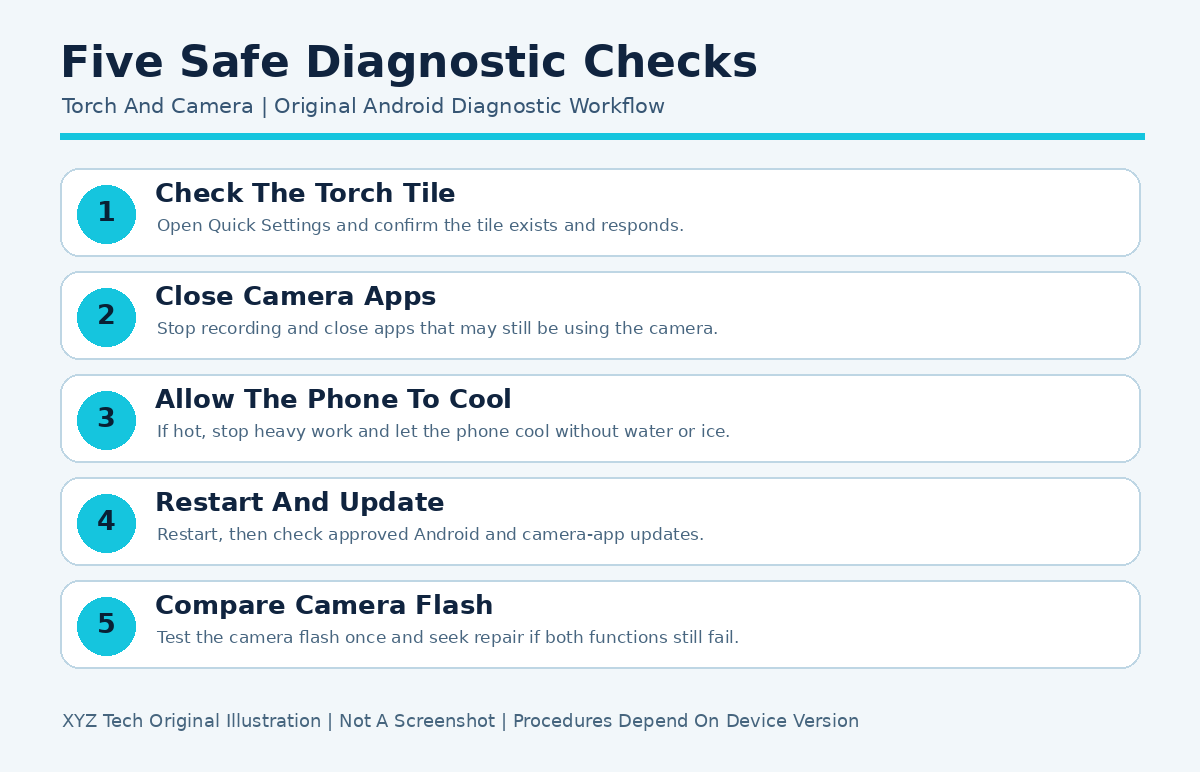
Five Step Verification Checklist
- Check The Torch Tile: Open Quick Settings and confirm the tile exists and responds.
- Close Camera Apps: Stop recording and close apps that may still be using the camera.
- Allow The Phone To Cool: If hot, stop heavy work and let the phone cool without water or ice.
- Restart And Update: Restart, then check approved Android and camera-app updates.
- Compare Camera Flash: Test the camera flash once and seek repair if both functions still fail.
Frequently Asked Questions
Why Is My Android Flashlight Greyed Out?
The phone may be using camera hardware, applying a thermal restriction or showing a device-specific limitation. Close camera apps and check for heat warnings before restarting.
Can The Camera App Block The Torch?
Yes, some camera or recording sessions use the same flash hardware. Close camera and scanning apps and test the system Flashlight tile again.
Why Does My Flashlight Turn Off After A Few Seconds?
Possible causes include temperature protection, another app taking camera control, an operating-system fault or a failing light module. Record the condition rather than forcing continuous use.
Should I Install A Separate Flashlight App?
Usually no. Many Android phones provide a built-in torch control. Unknown third-party apps can add permissions and create conflicts without solving hardware problems.
Can Overheating Disable The Flashlight?
Yes, some devices limit hardware functions when warm. Stop heavy activity and let the phone cool naturally; never use ice or water.
How Can I Test The LED Safely?
Try the system Flashlight tile briefly, then use a normal photo with camera flash enabled where supported. Avoid pointing the light into anyone’s eyes.
Will Restarting Android Delete My Photos?
A normal restart does not intentionally erase photos or apps. It is different from a factory reset, which is not an appropriate first step for torch issues.
Could A Work Profile Block My Flashlight?
Some managed devices restrict camera capabilities. Check policy messages and consult the administrator rather than trying to bypass restrictions.
Does A Working Camera Mean The Flashlight Is Fine?
Not necessarily. A camera can capture photos without triggering its LED. Test the flash setting separately if your model supports it.
When Should I Ask For Hardware Repair?
If the torch and camera flash remain unavailable after safe checks, or if there is physical damage or unusual heat, contact the manufacturer or an authorized technician.
Official Research Sources
These vendor pages are used for documented feature behavior and safe remedies. Some menus and policies vary by device, Windows version or Firefox release.