
When Android Private Space is locked, its apps stop foreground and background activity and cannot show ordinary notifications. This is a privacy feature, not a fault to repair. Unlock Private Space and test a noncritical app first. If alerts still do not appear while it is unlocked, check that app’s own notification permissions, category, account, network connection and any other active notification mode.
Private Space allows eligible Android devices to isolate sensitive applications from the main profile. That isolation changes the way those apps run, appear and notify you. A missing message can therefore be expected protection when the space is locked, or a separate application problem if the space is already open. Treating both cases as the same bug leads to unsafe advice and unnecessary profile resets.
This guide follows Google’s Private Space and Android notification documentation. It explains a controlled way to test delivery without exposing sensitive messages and helps identify when a main-profile app is a better home for time-critical alerts. Exact screens vary across supported Android versions, manufacturers and device-management policies.
Understand Why Locked Private Space Apps Stay Silent
Google documents that locking Private Space stops the apps inside it from performing foreground or background activity, including showing notifications. This prevents the contents and behavior of sensitive applications from surfacing outside the protected container. If an alert is absent only while the space is locked, there may be nothing wrong with Android or the app.
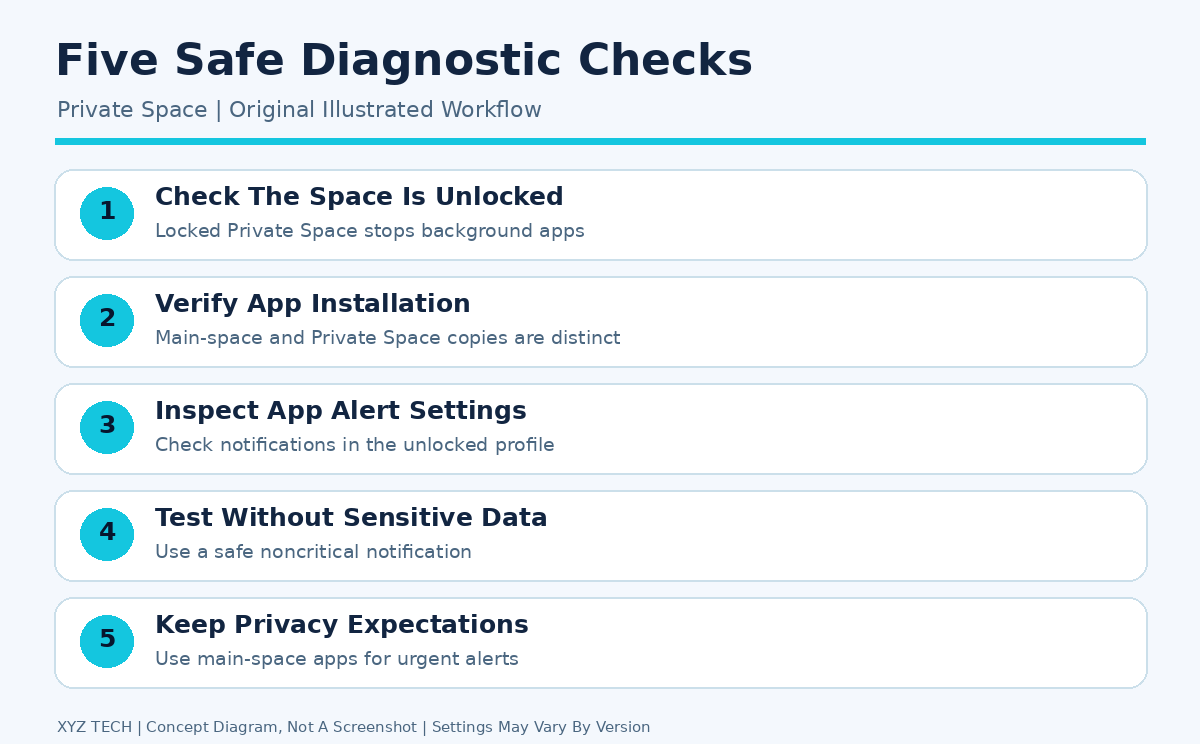
Open the app drawer and find Private Space, then note whether it is locked. Do not unlock in a public setting where someone can see the protected app list. For a controlled test, use a noncritical app and confirm its behavior while the space is open, then repeat after locking it. Avoid relying on a banking or emergency app as your test subject.
If the notification appears only while Private Space is unlocked, that pattern matches the intended isolation. A toggle that forces every locked app to run normally would undermine the feature; use an app outside Private Space if reliable background delivery is essential.
Confirm That Your Device Actually Supports The Feature
Private Space is a system-level feature available on supported Android versions and devices, not merely a hidden folder created by a third-party launcher. Some manufacturers use terms such as Secure Folder, Hidden Space or App Lock for separate implementations. The settings and notification rules may differ significantly, and instructions for one product should not be applied blindly to another.
Open the normal system Settings app and look for the supported Private Space entry under the device’s security or privacy area. Check the Android version and manufacturer help pages if the label does not match. Do not install a copycat private-folder app or sideload an APK solely to reproduce a screen from an online tutorial.
If your phone uses a different manufacturer container, follow that vendor’s documentation. A general Android Private Space explanation can clarify the concept but cannot guarantee identical controls or notification behavior on every handset.
Distinguish Private Space From A Work Profile
A work profile separates organizational apps and data according to an administrator’s policies. Private Space is a user-controlled personal privacy container on supported devices. Both can show different app icons or account contexts, so they are easily confused in the app drawer. A work profile may pause under enterprise settings, while Private Space can be locked independently.
Inspect the app drawer label and the system settings for the affected app. If the device shows a Work tab or management banner, check whether the silent app actually belongs to a managed profile. Do not disable enterprise policies, remove a work account or reset the profile to imitate a Private Space solution.
Correctly identifying the container determines which permissions are safe to change. A managed profile should be escalated to an administrator if a business-critical notification is blocked by policy.
For the related symptom, follow our focused Android Notifications Not Working guide. Keep the distinction between that condition and this article’s central problem in mind.
Unlock Private Space Through The Normal Interface
A notification test is meaningful only when the target app is allowed to run. On a supported device, open the app drawer, locate the Private Space section and authenticate using its configured unlock method. You may use the device screen lock or a dedicated Private Space lock, depending on the setup. Do not share the passcode or bypass the protection.
With the container open and in a private location, launch a harmless app and verify it displays its latest state. Check that the app can connect to the internet or perform a normal local function. Then arrange a benign test notification from a trusted source. Observe whether the message appears while you keep the space unlocked.
If delivery resumes in the unlocked state, the earlier absence is most likely expected lock behavior. If the app is open but cannot connect or notify, continue checking the app’s own settings without changing Private Space security.
Check The Space Locking Behavior
Private Space can lock based on the device’s configured conditions. The exact choices and defaults depend on Android version and manufacturer. A user may unlock it briefly, return to another app or lock the phone, and unknowingly return to the protected state before a message arrives. This creates an apparent intermittent notification fault.
Review the Private Space lock settings and record when it is supposed to lock. Test with the space visibly open, then lock the phone under safe conditions and recheck the container status. Avoid leaving the space unlocked merely to receive messages if you originally enabled it for confidentiality.
A notification that disappears after the container re-locks is expected. If sensitive apps must stay hidden, use an approved alternative method for urgent contact rather than weakening the private-container lock schedule.
Identify Which Copy Of The App Is Sending Alerts
An app installed in the main Android space is separate from the copy installed inside Private Space. Its account, notification permissions, app data and background behavior may differ. Seeing the same icon in both locations does not mean both copies are signed into the same account or share notification preferences.
While Private Space is unlocked, locate the specific installed copy whose notifications are missing. Open its App info page from inside the correct context, then confirm you are not inspecting the main-profile version. A harmless test message should be directed to the account associated with that copy. Do not delete either installation until you understand its locally stored information.
If the alert arrives on the other copy, the issue may be account context or app configuration rather than a device-wide failure. Compare the relevant account and notification settings carefully without exposing protected data.
For the related symptom, follow our focused Android Contacts Not Syncing guide. Keep the distinction between that condition and this article’s central problem in mind.
Verify The Sign-In Account Inside Private Space
Private Space can use a separate Google account for added separation, and individual apps may also require their own sign-in. A messaging or calendar app with the wrong account might be perfectly functional but receive no expected events. The absence of an alert cannot be diagnosed until you confirm that there is something for that installation to receive.
Open the protected app while the space is unlocked and inspect its account or profile menu. Verify the correct address, subscription, group or conversation without showing account details to others. Send an ordinary test event that you control. If the app does not show the event even when open, investigate synchronization or account delivery first.
If new content is missing inside the app, Android’s banner permission is not the primary suspect. Correct the account or service problem before changing notification privacy settings.
Inspect Notification Permissions For The Private Copy
Android offers per-app controls to allow or block notifications and, on some devices, separate categories for messages, reminders and background services. These settings can differ between two copies of the same app. After confirming Private Space is open, check whether the protected installation is permitted to display the type of alert you expect.
From the Private Space app’s information screen, inspect Notifications and enable only the appropriate categories. Use the actual names displayed on the device because manufacturers may reorganize this interface. Send a benign message during the test. Do not grant unrelated sensitive permissions or enable all categories just to make one reminder appear.
If a previously disabled category begins showing while Private Space stays unlocked, the issue is app-level configuration. If every category is enabled and the app receives the message but still shows no alert, review silent and system-wide notification presentation next.
For the related symptom, follow our focused Android Notification Sound Not Working guide. Keep the distinction between that condition and this article’s central problem in mind.
Distinguish Silent Notifications From Missing Notifications
A delivered Android notification may be silent rather than completely absent. Depending on the phone, it can appear without sound, vibration, heads-up banner or lock-screen preview. That presentation is separate from Private Space preventing an app from running when locked. Changing the device’s volume alone will not make a locked private app send alerts.
During an unlocked test, open the notification shade and look for the app’s harmless test notification. Inspect the individual alert category and whether it is set to alerting or silent. Compare this with the phone’s general sound settings. Do not expose real protected message text on a shared screen while testing a lock-screen preview.
If an item is present but quiet, fix its presentation setting. If no item is generated while the app is active, check the account, app behavior or another notification mode. If it is absent only when the container is locked, respect the documented isolation.
Review Do Not Disturb And Other Modes
Android can suppress sounds and banners through Do Not Disturb, Bedtime or other custom modes. A Private Space app may therefore be permitted to run while unlocked, yet its notification appears silently because of a separate phone-wide filter. This does not mean Private Space is broken. The correct diagnosis separates the app’s ability to produce an event from the system’s choice to interrupt you.
Inspect active notification modes in Settings and Quick Settings, noting any schedules. Use a noncritical alert while Private Space is unlocked, briefly comparing the behavior when a safe mode is off and on. Restore your normal mode afterward. Never disable a mode during a sensitive meeting or quiet period without considering privacy.
If the same protected app generates an alert when the mode is changed, check the mode’s notification filters. Do not try to override Private Space’s locked-state restriction by adding an exception to Do Not Disturb.
For the related symptom, follow our focused Android Vibration Not Working guide. Keep the distinction between that condition and this article’s central problem in mind.
Use Notification History As A Limited Diagnostic
Some Android devices provide notification history for alerts that were delivered and later dismissed. It can help distinguish an unnoticed notification from one that was never created, but it is not a guarantee that every event from every app will be recorded. A locked Private Space may prevent the app from generating the event in the first place.
If supported, open Settings, Notifications, Notification history. Enable it before a harmless test if it is currently off, then observe whether the event appears during an unlocked period. Do not expect history to reconstruct messages from before it was enabled. Avoid taking screenshots of sensitive notification contents or uploading them to unknown diagnostic services.
A historical entry indicates that Android received a notification. An empty history is inconclusive and must be interpreted together with app activity, account delivery and the container’s lock state.
Check Connectivity While The Space Is Unlocked
An app that cannot contact its service may fail to receive new content even when Private Space is open. Mobile data restrictions, Wi-Fi authentication or a network outage can resemble a notification failure. The system-wide internet connection and the app’s own network session both matter. Locked-state isolation remains a separate reason that background traffic stops.
Keep Private Space unlocked, open the affected app and refresh a harmless screen or view a non-sensitive page. Compare Wi-Fi and mobile data only if switching networks is permitted by your plan. Do not turn off VPN or corporate access controls merely to make a test succeed. If other apps cannot connect, investigate overall network connectivity first.
If the protected app cannot load fresh content while open, a notification setting change alone will not solve it. Resolve the verified connection issue, then retest its alert delivery in the unlocked state.
For the related symptom, follow our focused Android Phone Not Connecting To Wi-Fi guide. Keep the distinction between that condition and this article’s central problem in mind.
Review Background Data And Battery Restrictions
Android can limit background data and battery use on an app-by-app basis. Such restrictions may affect notification timing for an unlocked app, but removing them does not change the fundamental rule that locked Private Space apps cannot run. Treat these settings as a secondary consideration after confirming the container is open and the app actually receives data.
Inspect the affected app’s Battery and Mobile data entries where supported, taking note of any restricted mode. For an important but non-sensitive test, use the manufacturer-supported option to permit needed background activity only while the space can run. Monitor data use and battery impact. Do not disable every power-saving feature or assume unrestricted means guaranteed delivery.
If delivery improves only while the space is unlocked, the result is consistent with a background limitation layered on top of Private Space. Return unnecessary exceptions to their original state once the cause is understood.
Check Android Unused-App Optimization
Android may pause app activity when an app is unused for a long period. Google documents that this process can revoke permissions and stop notifications. A rarely opened Private Space app can therefore have another independent reason for silence when you eventually unlock the container. This should be checked after confirming the correct installation, account and permission context.
Open App info for the protected installation and look for Unused apps or Pause app activity if unused, if offered on your device. Review any paused permissions. Only exclude a genuinely needed app from optimization, then send a harmless test while Private Space stays unlocked. Do not globally disable protection for every rarely used application.
An optimization-related permission reset may explain an unlocked-state failure. It does not make alerts from a locked private container appear, and changing it may increase battery use or leave unused apps active.
For the related symptom, follow our focused Android Battery Draining Fast guide. Keep the distinction between that condition and this article’s central problem in mind.
Test With A Harmless Notification Source
Testing with a real banking alert, private message or authentication code risks displaying confidential information. A controlled experiment can instead use a calendar reminder you create or a non-sensitive application that offers a test message. The test should distinguish app delivery from system presentation without compromising the entire reason for using Private Space.
Select an app with no sensitive content, confirm it is installed in the correct space and verify its account. Keep Private Space unlocked and trigger one event. Record whether it arrives in the app and notification shade. Lock Private Space and repeat to compare only the expected behavior. Do not publish the protected account name or screenshot in a support forum.
A difference between locked and unlocked states is normal. If the app fails in both states, diagnose the underlying account, permissions or connectivity. A clean comparison avoids dangerous attempts to defeat privacy isolation.
Recognize The Private Space Notification Indicator
On supported devices, notifications from a Private Space app can include a private-space indicator while the container is unlocked. This helps you recognize the source without confusing it with the main-profile version. However, notification appearance differs across Android builds and OEM launchers. The icon alone is not a complete delivery diagnostic.
Send a noncritical notification with Private Space open and compare its app icon or indicator with the ordinary copy. Check whether the alert is grouped, silent or collapsed in the notification shade. Do not reveal the protected app list to someone who should not see it just to check a symbol.
A visible private-space indicator confirms the event came from the protected context. The absence of an indicator on a different manufacturer may be an interface variation rather than proof that an app was installed outside Private Space.
Understand Lock-Screen Privacy Versus App Activity
Android separately controls which notifications may appear on the device lock screen and whether their sensitive content is hidden. Private Space adds another layer: when the private container itself is locked, its apps are stopped. You can therefore have a lock-screen preview preference that is correctly configured and still receive no private notifications until the container is unlocked.
During a harmless unlocked-state test, compare the notification shade with the device’s lock-screen preview behavior. Review the phone’s general sensitive-content setting without changing the Private Space lock. Avoid exposing confidential messages to nearby people. If an alert appears only after unlocking the whole phone, determine whether its preview was hidden rather than assuming it never arrived.
A concealed preview is a deliberate privacy choice. A missing event from a locked private app is a separate documented behavior. Fix only the setting associated with the actual symptom.
Keep Time-Critical Alerts Outside A Locked Space
A payment approval, medical reminder, emergency message or sign-in prompt may need immediate attention even when you are not using your phone. Private Space is a poor place for an app that must run continuously while the container stays locked. Google explicitly advises against using it for apps that need background functionality during locked periods.
Identify which apps you depend on for time-sensitive notifications and whether they can safely operate in the main profile. Use a reliable alternative notification method where appropriate. Do not weaken the Private Space lock merely to get every alert, and do not copy sensitive material between profiles without understanding the exposure.
The right solution may be architectural rather than a hidden toggle: keep truly private apps isolated and place essential alerting tools in a context that is permitted to run. Test the new arrangement before relying on it.
Do Not Delete Private Space As A First Repair
Deleting a protected profile can remove its local app data and configurations, potentially including information not backed up elsewhere. It is not an appropriate response to a locked-state notification restriction that is operating as designed. Even when an app misbehaves while unlocked, a full profile reset destroys far more state than a targeted permission or account check.
Before any destructive change, verify your backups, app sign-in methods and recovery options through the service provider. Prefer changing one reversible notification setting or reinstalling only a noncritical app if the vendor actually recommends it. Do not clear Private Space storage, remove its Google account or reset the entire phone based on a generic online workaround.
If the cause is intentional isolation, deletion will not create a safer version of the feature. If the issue is app-specific, isolate that app and obtain authorized support before risking personal data.
Consider Manufacturer And Management Restrictions
Private Space behavior is based on Android, but manufacturers may present different navigation labels and supported controls. A work-managed device may also have administrator restrictions. User-facing settings should not be assumed identical on Pixel, Samsung or another brand, and a feature missing entirely is not necessarily malfunctioning.
Record the device model, Android version and whether it is personally or organizationally managed. Consult the device manufacturer’s official documentation when an expected Private Space menu does not appear. On a work phone, speak to IT rather than bypassing profile restrictions, bootloader security or app verification.
Vendor-specific help is appropriate for unsupported menus, while Google’s documentation remains useful for the core privacy principle. Avoid copy-paste instructions that could modify the wrong profile or erase managed data.
For the related symptom, follow our focused Google Play Download Pending guide. Keep the distinction between that condition and this article’s central problem in mind.
Review System And App Updates Safely
Notification controls and Private Space interfaces can evolve with Android releases. An app may also need a supported update to use newer notification categories correctly. However, updating software does not remove the intentionally restricted behavior of a locked Private Space. The update decision should be driven by observed compatibility problems, not a desire to bypass security.
Check for normal Android system and Play Store updates from official sources while preserving device backup and battery charge. Confirm the affected app is supported on your device. Avoid sideloading packages that claim to unlock hidden background capabilities. After updating, repeat the same non-sensitive unlocked-state notification test for comparison.
A supported update may resolve an app bug, while continued silence during the locked state remains expected. Document the OS build and app version if an unlocked-state failure continues and you need vendor assistance.
Verify The Outcome Without Losing Privacy
A successful result respects both notification delivery and isolation. The protected app should behave normally while the space is deliberately unlocked, while the locked container should not be expected to deliver active background alerts. Your practical workflow should distinguish noncritical private apps from services that require always-available notifications.
Run a single harmless test while unlocked, inspect app and notification shade, then lock Private Space and verify it hides the protected activity. Restore any temporary changes to Do Not Disturb, network restrictions or preview settings. Keep a short private record of the settings you intentionally changed and the result.
If alerts operate correctly while unlocked and stop when locked, the feature is working as designed. If they fail even while unlocked after basic permission, account and connectivity checks, seek targeted app or manufacturer support rather than disabling the privacy boundary.
Symptom Decision Table
Match the observation to a non-destructive check. A symptom can have several causes, so treat the suggested explanation as a hypothesis to test rather than a confirmed diagnosis.
| Observed Symptom | First Safe Check | What The Result Suggests |
|---|---|---|
| Alerts Stop Only While Private Space Is Locked | Review Private Space Lock State | Expected Privacy Isolation |
| No Alert Even When Unlocked | Check The Correct App Installation | Per-App Permission Or Account |
| App Shows No New Messages | Verify Sign-In And Connectivity | Delivery Or Synchronization Issue |
| Notification Is Visible But Silent | Review Notification Category | Alert Presentation |
| Only Rarely Used App Fails | Check Unused-App Optimization | Paused App Activity |
| Urgent Apps Must Notify While Locked | Consider Main-Profile Installation | Better Alerting Design |
Five-Step Verification Checklist
Complete a single controlled test, note the result, then restore any setting you changed only for diagnosis. The correct outcome is normal operation with appropriate privacy and security, not merely a warning disappearing.
- Verify the phone supports Android Private Space and identify the correct app installation.
- Unlock Private Space privately and confirm the app can receive new content.
- Inspect app notification categories, account, network, and active notification modes.
- Send a harmless test notification while unlocked and observe the notification shade.
- Lock Private Space, confirm the intentional suppression, and preserve the privacy boundary.
Frequently Asked Questions
Why Are Private Space Notifications Missing When It Is Locked?
Because Android stops foreground and background activity for apps inside locked Private Space. Google describes this as an intentional privacy protection.
Can I Force Private Space Apps To Notify While Locked?
There is no general supported setting that guarantees normal background notifications while the protected container is locked. Consider using the main profile for urgent alerts.
Are Main-Space And Private-Space App Installations The Same?
No, they are separate installations or contexts that can have different accounts, app data and notification preferences.
Should I Turn Off My Phone Lock Screen?
No, the phone lock and the Private Space lock are important privacy protections. Diagnose the correct app and notification setting instead.
Do Not Disturb Can Affect Unlocked Private Space Notifications?
Yes, a system notification mode can suppress sound or banners for apps allowed to run. It does not override the lock-state restriction.
Can An Unused App Lose Notification Permissions?
Yes, Android unused-app optimization can revoke permissions and stop unused apps from notifying. Inspect the affected installation when the space is unlocked.
Will Notification History Show Every Missing Private Alert?
No, history is not a guaranteed record of an event that the app never generated while the container was locked.
Is Private Space The Same As A Work Profile?
No, work profiles are separately managed organizational contexts. Identify the correct container before changing settings.
Can I Delete Private Space To Fix Notifications?
Avoid that as a first step. Deleting a protected profile can remove important local data and cannot change Android’s intended lock-state behavior.
How Can I Test Notifications Without Exposing Sensitive Content?
Use a benign app or self-created reminder while Private Space is unlocked, and compare delivery after locking it. Keep sensitive accounts out of the test.
Official References
These vendor-maintained resources document the platform behaviors discussed above. The exact settings labels and supported capabilities can differ by OS version, account, region, and device manufacturer.


