
In Settings > Network & internet > Mobile hotspot, confirm that the PC has a working internet connection to share, select the correct source, and check that its Wi-Fi adapter is enabled. Distinguish a switch that will not turn on from a hotspot that broadcasts but gives clients no internet. Avoid disabling your firewall or bypassing workplace network policy.
When Windows 11 cannot enable Mobile hotspot, an unavailable radio, incorrect sharing source, power setting or administrator restriction can look almost identical. This tutorial follows Microsoft documentation and tests the smallest possible change before considering drivers or broader repairs.
Recognize The Difference Between Hotspot And Internet Failure
A Windows mobile hotspot shares an existing internet connection with nearby devices. When the Mobile hotspot switch will not remain on, the problem differs from a hotspot that stays on but gives connected phones no internet access. Identify which behavior you actually see before changing settings. Open Settings > Network & internet > Mobile hotspot and note whether the switch is missing, disabled, briefly turns on or displays a specific error.
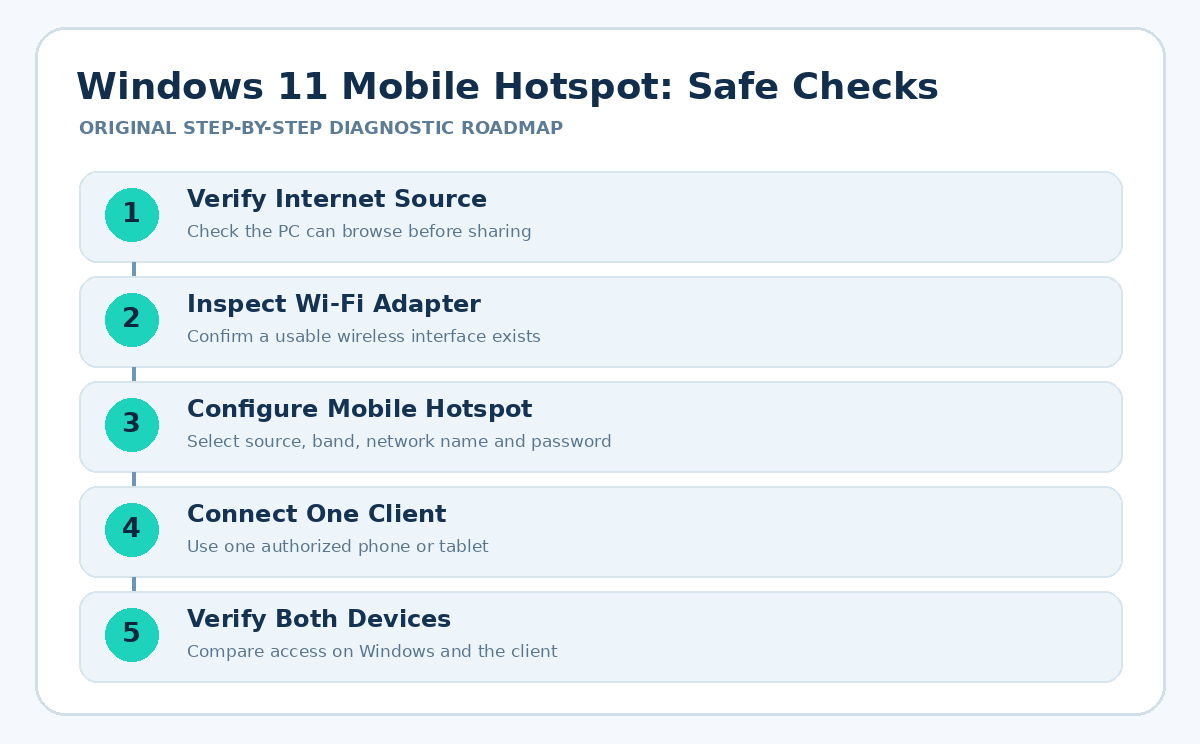
Next check whether the Windows PC itself can open two familiar websites without using the hotspot. If the computer has no working connection to share, fixing its ordinary Wi-Fi, Ethernet or cellular connection comes first. Do not interpret a phone failing to load one webpage as proof that the Windows hotspot feature is unavailable. A clear symptom makes the rest of the investigation faster and safer.
If the original connection fails too, use the broader troubleshooting procedure in Wi-Fi Connected But No Internet.
Confirm The Computer Has A Connection To Share
Microsoft describes Windows mobile hotspot as sharing an internet connection over Wi-Fi or Bluetooth where the device supports it. An incoming Ethernet connection can be shared over Wi-Fi, and a compatible Wi-Fi connection can also be used when Windows and the adapter permit that configuration. Check the selected incoming connection under Share my internet connection from. The chosen source should be the connection that currently reaches the internet.
If you are using a corporate network, sharing may be restricted by policy or your agreement with the network operator. Do not bypass that restriction by changing services or registry keys. If the internet source changes after docking a laptop or switching between Wi-Fi and Ethernet, revisit the selection before testing again. The hotspot is a sharing layer, not an independent internet subscription.
Use The Official Mobile Hotspot Settings Page
Open Windows Settings and choose Network & internet > Mobile hotspot. Microsoft also provides a Quick Settings shortcut that can open the same settings page. Review the sharing source, the method used to share over the connection, the network name and the password. The exact interface and available options depend on the Windows version and adapter. Focus on what Windows offers instead of trying to enable unsupported menu items.
An absent toggle can reflect hardware capability, driver state or organizational management; a toggle that switches off immediately may be a different failure. Record the precise wording of any error. Avoid downloading generic hotspot activators from third-party websites. Windows has supported configuration controls, and unsupported utilities can interfere with adapter settings or introduce unwanted software.
Check Whether Wi-Fi Hardware Is Available
A wireless access point requires an appropriate wireless interface. Some desktop PCs do not have a Wi-Fi radio, and some USB adapters support client connections but do not provide the combination of features Windows needs for hotspot hosting. In Settings > Network & internet > Advanced network settings, check whether a usable Wi-Fi adapter is listed. A missing interface is a different issue from an incorrect hotspot password.
If the Wi-Fi control disappeared after a restart or update, investigate adapter detection through Windows Device Manager and the hardware maker. Do not assume an old netsh hostednetwork compatibility indicator alone proves whether the modern Windows mobile hotspot feature works. That command relates to older wireless-hosting mechanisms and should not replace the current Windows interface or vendor specifications.
An adapter that disappears calls for the separate checks in Windows 11 Wi-Fi Adapter Disappeared.
Distinguish Airplane Mode From A Disabled Adapter
Airplane mode can disable wireless radios, although Windows may allow some radios to be re-enabled separately. Check the Quick Settings panel and the current Wi-Fi state, especially after travel. Turning off Airplane mode is a sensible first test when the radio is intentionally disabled. If Wi-Fi is absent even with Airplane mode off, investigate the adapter rather than repeatedly toggling the hotspot.
A hardware radio switch, function key or laptop manufacturer utility can also affect wireless availability on some devices. Follow the device manual for the specific model. Do not enable unrelated radios or disable security settings solely to make the hotspot button active. Record whether Wi-Fi itself works as a client before attempting to share an incoming connection.
Select The Correct Internet Source
When several adapters are present, Windows may offer more than one incoming connection for sharing. For example, a desktop PC connected by Ethernet may still have an inactive Wi-Fi interface, while a laptop might be using cellular data through a supported modem. Confirm that the selected source has actual internet access before enabling the hotspot. Test with the hotspot off so that the result is not confused by a downstream phone.
If the source is a VPN or a workplace network, sharing traffic can be prohibited or behave differently because of routing and security policy. Follow the service provider and administrator instructions. Do not alter the default route, split tunneling or firewall rules using commands copied from unrelated setups. A correct source selection avoids many apparent hotspot failures without weakening network protection.
Test The Supported Sharing Method
Microsoft documents supported sharing over Wi-Fi or Bluetooth on compatible Windows devices, with available options varying by hardware. Wi-Fi sharing is a useful first test for a phone or tablet because it presents a wireless network name and password. A Bluetooth sharing option should not be expected on every device or for every client. Verify that the receiving device actually supports the chosen method.
Changing methods can help identify an adapter-specific failure, but it is not proof of an internet service issue. If Wi-Fi sharing is unavailable while ordinary Wi-Fi works, the adapter may lack a necessary capability or the driver may be misbehaving. Do not assume that adding a Bluetooth mouse or headset enables internet sharing. Those devices use different Bluetooth profiles.
Choose A Clear Network Name And Strong Password
The Mobile hotspot settings can show or let you edit the network name and password. Choose a distinct, recognizable name to avoid connecting a phone to a neighbor or an old router with a similar SSID. Use a strong password rather than turning off protection or sharing an existing Wi-Fi password publicly. After a supported edit, wait until Windows reports the hotspot is active before connecting another device.
If the phone remembers an old hotspot password, it may fail to join even though the Windows switch now stays on. In that case, forget the old network on the phone and re-enter the updated password deliberately. Never post the hotspot password in a public screenshot or support forum. A connection password fixes authentication, not a missing Wi-Fi adapter or failed sharing service.
Understand 2.4 GHz And 5 GHz Compatibility
Some hotspot-capable adapters allow a network-band choice. A 2.4 GHz network can work with a wider range of older devices, while a 5 GHz option may be faster in suitable conditions but unavailable to some clients. Hardware and regional regulations affect which channels and bands can operate. If the hotspot starts but one phone cannot find it, a supported band change can be a useful controlled test.
Do not change router security or regulatory domain values to force an unsupported band. Check the phone and PC capabilities and select an option Windows actually offers. A device that cannot see the network is a discovery problem; a device that joins but lacks internet is a forwarding or source problem. Distinguishing these symptoms prevents unnecessary resets.
For band compatibility rather than hotspot configuration, compare 2.4 GHz Vs 5 GHz Wi-Fi.
Check Power Saving And Automatic Turn Off
Windows mobile hotspot may have a power-saving option that turns sharing off when no devices remain connected. A hotspot disappearing after an idle period can therefore be normal behavior, not a crash. Review the Power saving setting if Windows exposes it and note whether the hotspot stays active while a trusted client is connected.
Disabling power saving can consume additional battery on a laptop. Use a controlled test of a few minutes rather than permanently selecting a higher-power mode before you know the cause. If the hotspot turns off while a device is actively passing traffic, collect the exact timing and Windows version for further diagnosis. Do not assume that every automatic shutdown is caused by a damaged driver.
Separate A Missing Hotspot From A Missing Quick Setting
A button might disappear from Quick Settings while the underlying Mobile hotspot settings page still exists. Open Settings directly to distinguish a missing shortcut from a missing operating-system capability. Quick Settings layout can change with Windows releases and user customizations, and the absence of one tile is not enough to declare that internet sharing has been removed.
If the Settings page works normally, use it to configure the hotspot and focus on shortcut organization separately. If the page itself has no relevant controls, inspect the adapter and Windows build. Avoid applying legacy taskbar registry fixes from old Windows 10 tutorials, because the current interface is not necessarily controlled by the same components.
Check Device Manager For Wireless Adapter Errors
Use Device Manager to inspect the Wi-Fi adapter when Windows cannot see or use it. A warning icon, disabled device or missing entry may explain why the hotspot will not start. Read the actual device name and error state. If you need to update a driver, use Windows Update or the computer or adapter manufacturer, and preserve alternate internet access beforehand.
Do not uninstall every network adapter in Device Manager. Some entries represent VPNs, virtualization, Bluetooth PAN or other important interfaces. If a driver update is recommended, download the exact compatible version from the authentic vendor site. Verify both ordinary Wi-Fi and hotspot behavior after the change. A successful installer message alone is not evidence of restored sharing.
Run The Windows Network Troubleshooter
Microsoft recommends the Network and Internet troubleshooter in the Get Help app for many Windows 11 connectivity problems. It can be useful when the PC cannot connect normally or the adapter shows a general networking error. Run the supported diagnostic path, read any findings and check whether the incoming connection works before retrying the hotspot.
An automated troubleshooter may not fully diagnose a specialized mobile-hotspot sharing path or an organization policy. Save the reported result and error code if present. Do not follow up automatically with a network reset or firewall shutdown unless a specific supported diagnosis justifies it. One harmless test is more valuable than changing many unrelated network settings at once.
For ordinary connection problems, see Wi-Fi Network Not Showing In Windows 11.
Understand Internet Connection Sharing Restrictions
Windows sharing depends on networking components that can be affected by security software, device configuration and institutional rules. A work laptop or university network may prohibit forwarding traffic through the computer, even when ordinary browsing functions. If a managed setting says that sharing is unavailable, treat that as a policy question rather than corruption.
Avoid changing system services, firewall rule sets or administrator policy to circumvent restrictions. Contact IT with the required use case and the exact error. On a personal PC, compare the feature with the official Microsoft Mobile hotspot instructions. Internet Connection Sharing concepts may help support staff diagnose advanced issues, but manual service edits are not a first-line step for everyday users.
Check Whether A VPN Is Affecting Sharing
A VPN can route traffic through a virtual network adapter or require that no other devices share the protected connection. The Windows hotspot might turn on but clients may not get internet, or the provider may block hotspot routing. Test only with configurations allowed by the VPN provider and any organization policy. Never disable a required company VPN merely to share network access.
If this behavior occurs only with a personal VPN active, consult the provider documentation for supported tethering or split-tunnel behavior. Do not weaken its kill switch or protection without understanding privacy consequences. If the hotspot fails even on an ordinary Ethernet connection without a VPN, the problem is more likely to involve the Windows sharing layer or wireless hardware.
Check The Phone Or Tablet Separately
If Windows says the hotspot is on, use a second trusted device to see whether it detects and joins the network. A phone that remembers an old password or prefers another saved network may appear to reject the hotspot. Inspect the exact SSID, signal and connection status. Keep the Windows PC awake during the test and place the client nearby.
A phone showing Connected without internet is different from a phone that cannot see the hotspot or one that receives an incorrect-password message. Record that difference. Do not factory reset the receiving phone to fix a Windows sharing setting. Try forgetting only that hotspot SSID and reconnecting when the network information changed.
The receiver-side symptom has a dedicated workflow in Android Hotspot Connected But No Internet.
Verify The Hotspot With A Short Test
Once the Windows toggle remains on and a client joins, test a known public website on both the computer and the connected device. If the computer can browse but the client cannot, the Wi-Fi network may be up while upstream forwarding or DNS is failing. If neither can browse, return to the incoming connection first. Use the same test site and connection for a meaningful comparison.
If the client works for several minutes and then disconnects when idle, check the hotspot power-saving choice and battery state. Avoid a data-heavy speed test when using a metered cellular plan. A successful lightweight page load confirms some connectivity, but do not claim every application or corporate resource is reachable based on one website.
Review Cellular Data Allowance And Charges
If the Windows PC shares a cellular data connection, connected phones and computers may use the same mobile data allowance. Operating-system updates, cloud synchronization and media streaming can consume significant bandwidth. Check the carrier plan and any network metering controls before letting several devices connect. A hotspot that starts successfully can still be unsuitable for unlimited use on a small plan.
Do not assume that the carrier permits all tethering configurations or that the hotspot adds a separate quota. Advise connected users to avoid unnecessary background downloads, and monitor consumption through the supported carrier or Windows settings. This is a cost and privacy consideration, not a fault that can be solved by repeatedly enabling the hotspot.
Avoid Outdated Hosted Network Commands
Older Windows tutorials often rely on netsh wlan set hostednetwork and compatibility flags that predate the modern Mobile hotspot interface. Some recent Wi-Fi drivers no longer expose the older hosted-network model, yet the current hotspot feature may still function through different mechanisms. Treat a legacy command failure as limited evidence rather than a definitive hardware verdict.
Use Windows Settings and the manufacturer’s current specifications first. Do not change registry values, install unsigned drivers or force legacy networking components simply because an old guide says they are required. Those actions can disrupt ordinary Wi-Fi access and introduce security risk. When advanced investigation is needed, capture the device and adapter model for support.
For network fundamentals, read What Is Wi-Fi.
Know When A Network Reset Is Too Disruptive
Windows Network reset can remove and reinstall networking adapters and may require reconfiguring VPN software, virtual switches or special network tools. It is much more disruptive than selecting the correct source, checking Wi-Fi capability or changing an old hotspot password. Microsoft positions reset as a later troubleshooting option for broader connection problems.
Before any approved reset, back up important work, capture necessary Wi-Fi and VPN settings and consult IT if the device is managed. A network reset cannot repair unsupported radio hardware, an internet provider outage or a tethering restriction in a service contract. Use it only after targeted evidence makes its costs worthwhile.
Update Windows And Manufacturer Drivers Responsibly
Windows Update and the computer maker may supply wireless driver improvements relevant to connection sharing. If the hotspot stopped working after a system change, record the timing, Windows build and current adapter driver. Check official update channels and read release notes where possible. Restart after supported updates when prompted and retest the same simple sharing setup.
Do not obtain modified driver packages from advertisements or automated driver-fix websites. A driver that seems newer but is not appropriate for the adapter can worsen connectivity. Keep the known-working configuration available when possible. A real fix should make the hotspot toggle stay on and let an authorized device reach the internet as intended.
Prepare A Clear Report For Support
When the hotspot remains unavailable, document the Windows 11 version, Wi-Fi adapter name, incoming connection type, exact hotspot error and whether the toggle is missing or switches off immediately. Include whether ordinary internet access works and whether a phone can see the SSID. Redact network passwords, IP addresses, workplace identifiers and private account data before sharing screenshots.
Contact the hardware vendor for missing radio features, Microsoft support for the Windows interface or an administrator for managed-device restrictions. A report that the hotspot starts over Ethernet but clients cannot browse is far more useful than a generic statement that Wi-Fi is broken. Avoid extra changes while an approved technician investigates a reproducible issue.
If general computer connectivity is also unstable, compare Wi-Fi Keeps Disconnecting.
Confirm The Fix Without Weakening Security
After making one supported change, verify that the Windows hotspot stays on, the expected network name appears on a trusted client, the correct password works and a lightweight website loads. Retest after a normal restart if the original issue persisted through boots. Confirm that the Wi-Fi adapter still connects normally when the hotspot is disabled.
Keep a strong password and restore preferred power settings after the test. Do not leave a personal hotspot running unnecessarily in a public place. Preserve organizational security rules, VPN protections and metered-data controls. The goal is reliable, intentional internet sharing, not simply a switch that appears enabled for a moment.
Diagnostic Comparison
| What You Observe | First Safe Check | What It May Mean |
|---|---|---|
| Switch Cannot Turn On | Internet Source And Wi-Fi Adapter | Radio, Sharing Or Policy |
| Hotspot Network Appears But No Internet | PC And Phone Browsing Comparison | Upstream Or Routing |
| Phone Does Not See SSID | Hotspot Status And Supported Band | Wireless Discovery |
| Phone Says Incorrect Password | Saved Network And Hotspot Credential | Authentication |
| Hotspot Stops While Idle | Power Saving And Client State | Automatic Shutdown |
| Only Fails With VPN | Provider Or Organization Rules | Protected Traffic Sharing |
Verification Checklist
- Test two trusted websites on Windows with the hotspot off.
- Confirm the intended sharing source, working Wi-Fi adapter and selected supported band.
- Enable hotspot through Windows Settings and connect one authorized device.
- Verify both the PC and the client can load a known website.
- Record the result, preserve security controls and return settings to your preferred state.
Frequently Asked Questions
Why Does Windows 11 Say It Cannot Set Up Mobile Hotspot?
The PC may lack a usable Wi-Fi sharing interface, have a wrong incoming connection or face a driver or policy limitation. Check the exact error and ordinary internet access first.
Can Windows Share Ethernet Internet Over Wi-Fi?
Yes, supported Windows devices can share a working Ethernet connection over a compatible Wi-Fi adapter using the Mobile hotspot controls.
Why Does The Hotspot Turn Itself Off?
A power-saving option may turn off sharing when no device is connected. Driver interruptions or policy restrictions can also cause a shutdown, so check the timing.
Do I Need To Enable Legacy Hosted Network Commands?
No, The modern Windows Mobile hotspot interface does not always depend on the legacy hosted-network command model. Use supported Windows controls instead.
What If The Phone Connects But Has No Internet?
Compare browsing on the Windows PC and phone. If only the phone fails, investigate the shared source, forwarding or name resolution rather than the Wi-Fi password alone.
Can A VPN Prevent Mobile Hotspot Sharing?
Some VPN configurations restrict or alter sharing. Follow the provider and organization rules rather than disabling required protection.
Should I Disable Windows Defender Firewall?
No, Keep the firewall active and use supported Windows troubleshooting. Disabling security is not a safe general repair for mobile hotspot.
Is Mobile Hotspot Available On Every Desktop PC?
No, An appropriate wireless interface and compatible drivers are required for Wi-Fi sharing. Some desktop PCs do not include Wi-Fi hardware.
Why Can A Device Not Find My Hotspot SSID?
The hotspot may be off, the wireless band may be unsupported by that client or the adapter may not be broadcasting. Check visibility and supported band options.
How Do I Confirm The Hotspot Is Working?
Verify that a trusted device sees and joins the correct network and can load a known site while the Windows PC remains online.
Official Sources And Further Reading
The technical steps draw on official vendor documentation. Settings and device capabilities can vary by update, hardware and organization policy. This article describes documented procedures, not hands-on testing of your particular device.