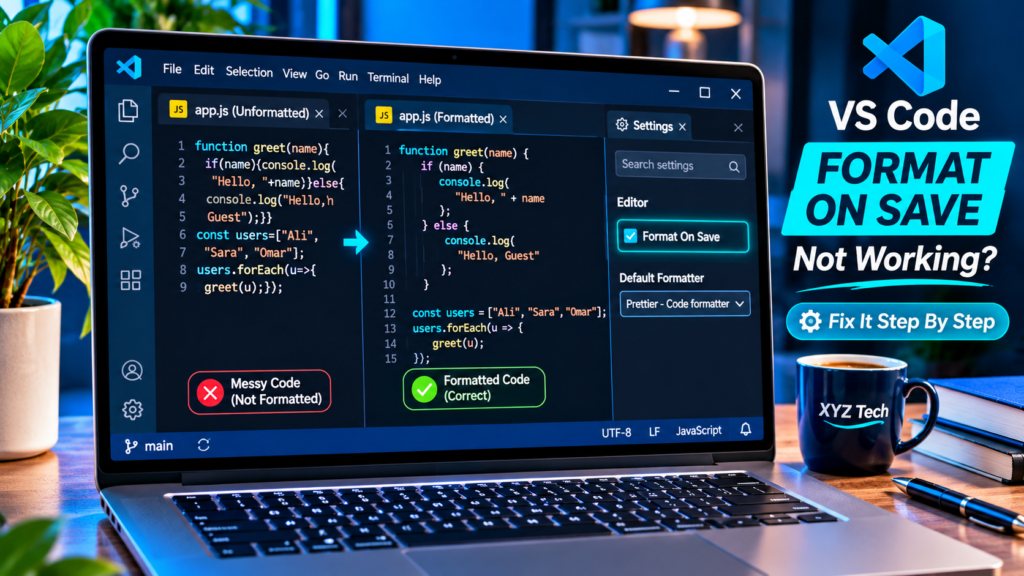

Visual Studio Code can save a file without changing its indentation or spacing, even when a formatting extension is installed. Common causes include a disabled save trigger, an incompatible provider, a workspace setting or a project formatter configuration. This article begins with reversible tests so you can preserve source code and identify the exact layer that fails.
Documentation Review: November 2026. This article uses official Visual Studio Code and Prettier documentation. The feature image is original editorial artwork and not an exact screenshot from a specific installation.
Run Format Document on a harmless file. If it fails, select a supported formatter and read its Output log. If it works, enable editor.formatOnSave, check the selected default formatter, and inspect user, workspace and language-specific overrides before changing extension installations.
Begin With A Controlled Format Document Test
Open a disposable source file and use Format Document from the context menu or Command Palette. On Windows, Shift+Alt+F is the documented default shortcut. This checks whether any installed formatter can handle the current file independently from the save event. Record the exact language shown in the status bar and whether the command offers a choice of formatting providers.
If Format Document works, the provider exists and you should focus on why saving does not invoke it. If the command reports no formatter, select a trusted compatible extension. If it returns a parser error, read that error rather than reinstalling the editor. Do not experiment on an uncommitted production file when a tiny synthetic example can answer the same question.
Turn On The Correct Save Trigger
Open VS Code Settings, search for Format On Save and ensure Editor: Format On Save is enabled. The underlying JSON setting is editor.formatOnSave set to true. This option is separate from format-on-type, format-on-paste and Auto Save, which control different behaviors. A correctly selected formatter still will not run on save when this setting is disabled.
Make a visible change to the sample file and press Ctrl+S. Confirm that the file actually saves, then inspect the formatted output. If the result is unchanged, do not immediately toggle every other editor preference. Continue by checking the default formatter, language mode and configuration scope in a controlled order.
Choose A Default Formatter For The Language
VS Code can offer several formatting providers for one source language. Run Format Document With, then Configure Default Formatter where available, and choose the extension that the project supports. For JavaScript, this may be the built-in formatter or an installed Prettier provider; for Python, it may be Black, autopep8 or another supported extension.
Set the default for the relevant language instead of forcing a JavaScript formatter to process Python files. The Prettier extension identifier esbenp.prettier-vscode is only appropriate when that extension is installed. Keep the chosen provider consistent with the repository’s coding conventions so automatic formatting does not introduce unexpected style differences.
Confirm That The File Is Detected Correctly
The status bar language indicator tells VS Code which language features to activate. A JavaScript file interpreted as Plain Text may not offer the expected formatter, even if the content appears to be valid JavaScript. This can happen with unusual extensions, untitled files or custom file associations.
Switch a disposable sample to the proper language mode and retry Format Document. If the command begins working, investigate the file association rather than removing extensions. Do not rename whole repositories just to expose a formatter, because build tools and imports may depend on existing filenames.
Understand User And Workspace Settings Precedence
User settings apply broadly, but workspace settings can override general preferences for a specific project. If Format On Save works in one folder but not another, inspect the Workspace tab and the project’s .vscode/settings.json. A team may intentionally disable automatic formatting to prevent large diffs or to use a different command.
Avoid deleting the .vscode directory or replacing all settings with a tutorial sample. It can contain important tasks, debugger options and extension recommendations. Inspect only the settings relevant to the failure and preserve shared configuration unless the project maintainer approves a change.
Inspect Language Specific Overrides
A configuration block such as [python] or [javascript] can assign an editor.defaultFormatter or editor.formatOnSave value that overrides a general setting. A global true value therefore does not guarantee that the same operation applies to every file. VS Code documents different scopes and language-level precedence.
Search both user and workspace JSON for the current language identifier. If a language-specific block disables formatting, correct only that scope when appropriate. Do not copy a large list of language settings from another person’s environment without verifying that the referenced formatter extensions are installed.
Use Prettier Only Where Supported
Prettier is a popular code-formatting tool with a VS Code extension and a separate project package. The VS Code extension must be enabled, recognized and capable of handling the current file type. A local package in node_modules and a globally installed CLI are distinct from the editor’s registered formatter.
If Prettier is absent, use the authentic VS Code Marketplace and review the publisher rather than downloading an unknown formatting executable. Our Fake Software Download Button guide explains how to avoid misleading download links when acquiring developer utilities.
Read The Project Prettier Configuration
Prettier supports .prettierrc, prettier.config.js and other documented configuration files. A repository can specify quote style, indentation, line width and plugins. A formatter may actually be working while producing output different from a generic tutorial’s preferred style, because the repository’s configuration is authoritative.
Inspect the relevant config in the project root and use a small example whose expected formatting is clear. Do not delete a committed configuration merely to force a personal preference. If a plugin is missing, read the formatter’s output message and follow the project’s approved dependency setup.
Check Ignore Patterns Before Reinstalling
A .prettierignore file can tell Prettier not to modify generated output, dependencies, vendor files or selected directories. A source file in an ignored path may remain unchanged even when format-on-save works perfectly elsewhere. Prettier documents these ignore rules as an intentional mechanism.
Use a comparable test file outside ignored paths to verify the formatter. Avoid removing the complete ignore file, because that can lead to mass changes in generated assets and third-party code. When the project truly needs one excluded file formatted, discuss the narrow rule change with its maintainer.
Distinguish Code Actions On Save From Formatting
Organizing imports and applying supported linter fixes are commonly configured with editor.codeActionsOnSave, not merely editor.formatOnSave. A developer may expect imports to rearrange and interpret their unchanged order as a formatter failure, even though indentation and spacing update correctly.
Check the precise transformation you want and its documentation. VS Code’s Python and JavaScript guidance describe separate formatting and code-action controls. Test one behavior at a time, because enabling several automatic transformations simultaneously can obscure which extension changed the file.
Check Python Formatter Extensions Independently
Python formatting in modern VS Code is provided through specific formatter extensions rather than the deprecated python.formatting configuration. Microsoft’s Python formatting documentation lists compatible providers and explains how to choose one through Format Document With. Some tools cannot format only a selection and require whole-file formatting.
If the Python file refuses to format, verify the active interpreter only when the formatter’s documentation requires it and inspect its Output channel for a concrete error. Do not change unrelated Python packages or execute random scripts. Our Python Module Not Found guide explains environment mismatches as a separate cause of development-tool confusion.
Check The Actual Save Operation
Format-on-save only has meaning when VS Code successfully writes the document. A read-only file, permission error, external-file conflict or unsaved buffer can stop the normal workflow before formatting is observable. Inspect the tab indicator and any save error message before concluding that the formatter is broken.
Test the same language in a writable folder you own. If the scratch file works and the original does not, investigate filesystem permissions or remote mounts through the project’s approved procedure. Avoid running VS Code as administrator simply to bypass an unauthorized file location.
Test In The Correct Terminal And Remote Context
A project opened through WSL, SSH or a development container can use remote extensions and dependencies that differ from the local Windows editor. The correct formatter may be installed locally but unavailable in the environment that owns the file. Inspect the remote status indicator and extension location.
Do not edit Windows environment variables to fix a formatter that executes within Linux without evidence. Check the legitimate package setup for the actual development environment. Our VS Code Terminal tutorial helps distinguish a local shell from a terminal attached to a remote project.
Respect Workspace Trust Restrictions
VS Code Workspace Trust can restrict extension behavior and execution in repositories that have not been approved as trusted. If a formatter needs to run local project tooling, Restricted Mode may prevent the workflow. This is a security choice rather than an ordinary configuration failure.
Review the source and safety of the project before granting trust. Do not bypass restrictions just to make formatting convenient, especially for a downloaded unfamiliar repository. If it is a work project, follow the organization’s approved process and ask the maintainer whether workspace execution is permitted.
When a missing command rather than formatting is the immediate problem, our Git Not Recognized Windows 11 guide explains why command search paths and shell environments should be diagnosed separately.
{
  "editor.formatOnSave": true,
  "[javascript]": {
    "editor.defaultFormatter": "esbenp.prettier-vscode"
  }
}
Use this configuration example only when the Prettier extension is installed and is the intended JavaScript formatter.
Check Active Extension And Profile
Open the Extensions view and verify that the intended formatter is enabled in the current profile and workspace. A provider may be installed globally but disabled for a particular project. VS Code profiles can also contain different extension selections, so a formatter visible in one window may not exist in another.
Check the extension publisher, supported languages and settings before reinstalling anything. Enable only the relevant trusted provider, then repeat Format Document with a harmless sample. Deleting all extensions would create unrelated problems and make it harder to identify which setting caused the failure.
Read The Formatter Output Log
Open View > Output and select the actual formatting extension from the channel dropdown. Formatter output can identify an unsupported parser, invalid configuration, missing executable or dependency error. This is usually stronger evidence than a file remaining visually unchanged after a save.
Reproduce the problem once while the channel is open. Record the exact error, provider version and language without exposing confidential source code. Avoid a generic editor reset when the diagnostic names one specific missing package or invalid option.
Handle Parsing And Syntax Errors
A formatter must understand the current source syntax. Incomplete or invalid code can cause a parser to reject the document, even if the editor itself can still display the file. The Problems panel may show related syntax errors, but ordinary lint warnings do not always block formatting.
Test a short, valid example in the same language. If that works, isolate the invalid statement in a copy rather than changing the entire toolchain. Do not delete meaningful logic or change program behavior solely to make a formatter accept one broken fragment.
Inspect Local Prettier Packages And Plugins
Some repositories rely on a local Prettier version or specialized parser plugins. A provider can work in a scratch file but fail in a project where those dependencies are missing or incompatible. The editor extension and project package are different parts of the toolchain.
Read package manifests and the formatter log. On a trusted project, install dependencies through the documented process and verify the environment. Do not execute unknown setup scripts from an untrusted repository just to make whitespace change during saving.
Check Ignore Rules For The Target File
Prettier supports a .prettierignore file that deliberately excludes generated assets, compiled output, vendor code or other paths. An ignored file may remain unchanged on save while the formatter operates normally on nearby source documents.
Compare with a test file outside the ignored directory. Do not delete the entire ignore file, as doing so could rewrite thousands of generated or third-party lines. If one exclusion is wrong, propose a narrow reviewed change that preserves the repository’s intended boundaries.
Compare Whole File And Modified Line Modes
The editor.formatOnSaveMode preference can affect which portions of a document are offered for formatting, depending on the registered provider. Some formatters cannot handle selected ranges and require whole-file operation. A mismatched mode can therefore make a save appear ineffective.
Use the standard whole-file mode in a disposable document to test capability. If it works, decide whether that scope suits the project. Formatting every line of a long existing file can create very large version-control diffs, so avoid enabling it globally without checking the team’s conventions.
Separate Formatters From Code Actions
Format On Save handles code formatting. Organizing imports and applying certain lint fixes are typically code actions on save, configured through separate options. If indentation changes but imports remain unsorted, the formatter may already be working correctly.
Identify the exact transformation you expect before changing settings. Test formatting and code actions independently, and ensure both tools follow compatible repository rules. Turning on every possible save action at once can obscure the cause of an unexpected source-code modification.
Resolve Competing Formatting Providers
More than one installed extension may offer formatting for a language. Without an appropriate default, VS Code may ask the user to choose or rely on a provider that does not match the project. A lint extension might also apply its own code changes afterward.
Choose the intended provider with Format Document With and verify the default formatter setting. If a conflict is suspected, temporarily disable one nonessential provider in the current workspace, not the entire editor. Restore important language services once the source of the conflict is known.
Understand Auto Save Timing
Auto Save determines when the editor writes a file, while Format On Save requests formatting during eligible saves. Automatic modes such as afterDelay and onFocusChange can confuse tests if the user expects a change at a different moment.
First use Ctrl+S on an explicitly modified and writable test file. After that succeeds, test the actual automatic save workflow. Avoid changing several timing settings simultaneously, because it becomes difficult to identify what caused the new behavior.
Verify Filesystem Write Access
A file may open normally but fail to save because it is read-only, on a protected share, or in a remote mount with insufficient permissions. If the save fails, it is premature to conclude that formatting is broken.
Read the exact permission or conflict warning and try the same language in a user-owned scratch folder. Do not elevate VS Code or change protected folder ownership as a universal workaround. Fix access through the appropriate file owner or administrator when necessary.
Check Remote Development Environments
A project opened with WSL, SSH or a development container may run formatter components remotely. An extension or package available on the Windows host may not be available in the environment that actually processes the source file.
Check the remote indicator and extension location. Follow the trusted project’s documented setup for that environment rather than changing unrelated Windows PATH entries. Keep local and remote configuration questions separate to avoid installing the wrong formatter in the wrong place.
Respect Workspace Trust And Policy Restrictions
Workspace Trust can restrict tools in untrusted repositories, and managed systems may enforce extension or settings policies. If the editor reports Restricted Mode, a formatter that executes local project code may not behave as it does in a trusted workspace.
Review the project’s provenance before granting trust. Do not disable security features or bypass a corporate extension policy just to run a convenient formatter. On managed devices, ask the administrator to approve the relevant workspace or extension.
Use A Trusted Scratch Project For Comparison
Create a small source file in a personal folder with the same language and formatter as the affected repository. If it formats correctly, you have evidence that the provider and general editor configuration work in at least one environment.
Compare user, workspace and language-specific settings, ignore rules and dependencies with the failing project. Do not conclude that a clean test proves every source file can be parsed. It narrows the investigation to differences you can inspect without rewriting an entire repository.
Review The Version Control Diff
Once formatting starts working, inspect the changes in VS Code Source Control or a Git diff. Automatic formatting may touch many lines, especially when a project has not applied its chosen style consistently. Large cosmetic diffs can hide functional edits.
Keep formatting changes separate from bug fixes where practical. Do not use destructive reset commands to undo an unwanted formatter run without checking for unrelated work. The desired configuration should produce predictable, reviewable modifications aligned with the repository’s agreed style.
Prepare A Minimal Support Report
For a persistent failure, record the VS Code version, language mode, formatter extension, active profile, settings scope, remote context and relevant Output log error. Note whether Format Document works and whether the problem follows the file into a scratch workspace.
Use synthetic code and remove private paths, credentials and project details from screenshots. A small reproduction helps a trusted extension maintainer distinguish a parser problem from a workspace setting without requiring access to the whole repository.
Verify The Fix After Restart
Save work and reopen VS Code, then repeat manual Format Document and a normal Ctrl+S on the same test file. Confirm that the intended provider remains selected and the output matches your project style.
Check that other extensions and source-control tools still function. Record which setting or package resolved the issue so it can be reproduced after future VS Code updates. Do not keep troubleshooting once the expected formatting and save behavior is stable.
Frequently Asked Questions
Why Does VS Code Save Without Formatting?
Format On Save may be disabled, the default formatter may be missing, or workspace and language overrides may prevent automatic formatting.
Where Is Format On Save?
Find Editor: Format On Save in Settings, or set editor.formatOnSave to true in the appropriate JSON settings scope.
What Is The Best First Test?
Run Format Document manually on a harmless supported file to separate formatter availability from the save trigger.
How Do I Set Prettier As Default?
Use Format Document With and Configure Default Formatter, then choose the authentic installed Prettier extension if it supports the file.
Why Does It Fail Only In Python?
Python may need a separate formatter extension and its own language-specific default; deprecated Python formatting settings are not recommended.
Why Does It Fail Only In One Workspace?
Project settings, ignore rules, formatter dependencies, remote configuration or trust restrictions can override the usual behavior.
Can Prettier Ignore A File?
Yes. A .prettierignore rule can intentionally exclude files from formatting.
Is Auto Save The Same As Format On Save?
No. Auto Save writes the file; Format On Save requests formatting when a supported save occurs.
Why Does It Fail In A WSL Project?
The remote workspace may lack the formatter extension or the project dependency in the environment that owns the file.
Should I Reinstall VS Code?
Not initially. Diagnose the manual formatter, settings, default provider, extension output and file access first.
Official Documentation
Primary references: VS Code Basic Editing; VS Code Settings; VS Code Python Formatting; VS Code JavaScript; VS Code Extensions; VS Code Profiles; VS Code Workspace Trust; VS Code Workspaces; Prettier Editor Integration; Prettier Configuration; Prettier Install And Ignore.