
Excel calculations can stop updating even though the formula bar contains a valid expression. A sheet that continues showing last week’s revenue or yesterday’s totals may be set to Manual calculation, waiting for a data refresh, or working through a complex dependency chain. This guide focuses on stale calculated results, not the separate problem of formulas displayed as literal text.
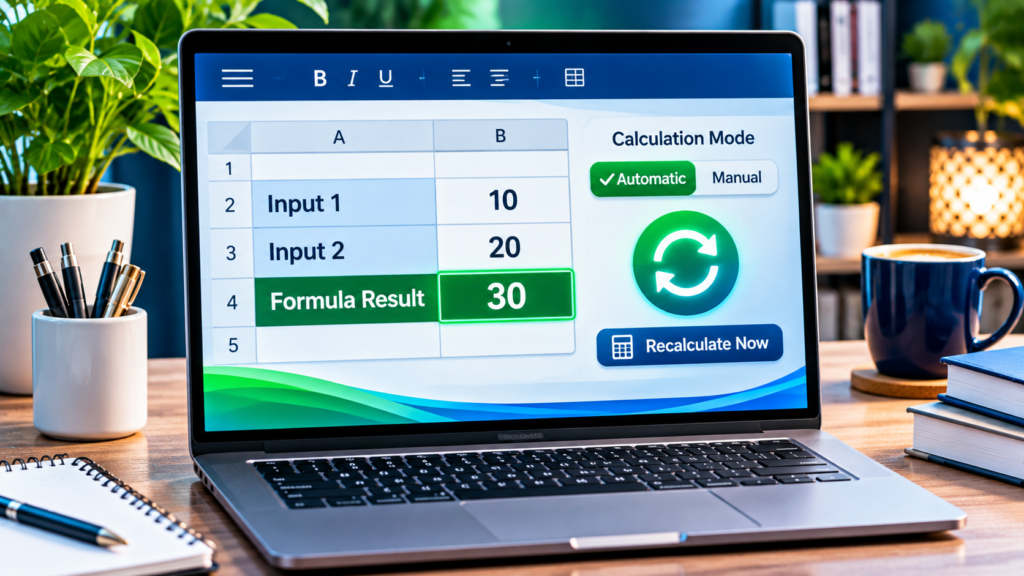
Documentation Review: November 21, 2026. The procedures follow Microsoft Support guidance for current desktop Excel editions. The featured image is a concept illustration, not a literal screenshot of Excel. Protect an original copy before altering a business workbook.
Open Formulas > Calculation Options and confirm Automatic is selected for a normal worksheet that should recalculate when inputs change. If Manual is intentionally enabled, use F9 or the supported Calculate Now command, then verify a known result. If external data or a PivotTable remains old, refresh its trusted source separately. Do not overwrite formulas with static numbers.
| Observed Symptom | Possible Cause | First Safe Check |
|---|---|---|
| Old Number After Editing Input | Manual Calculation | Formulas > Calculation Options |
| Strikethrough Value In Microsoft 365 | Stale Value Indicator | Calculate And Verify |
| Power Query Table Does Not Change | External Data Not Refreshed | Data > Queries & Connections |
| What-If Data Table Remains Old | Partial Data Table Calculation | Review Data Table Mode |
| Grid Shows =A1+B1 | Show Formulas Or Text Entry | Different Tutorial For Display Issue |
Confirm That The Problem Is A Stale Result
When Excel calculations do not update, an existing formula still appears in the formula bar but the number in the worksheet fails to change after you modify an input. That is different from a cell displaying the literal text =SUM(A1:A2) or an error such as #REF!. The distinction determines whether you need to inspect calculation mode, cell formatting, source data, or the formula itself.
Create a low-risk demonstration before changing a business workbook. Enter 10 in A1, 20 in A2, and =SUM(A1:A2) in B1. B1 should display 30. Change A1 to 15: if B1 remains 30, you have a reproducible stale-result symptom. Keep a written note of the original number and expected result instead of assuming every unchanged figure means a broken Excel installation.
Protect The Original Workbook
A financial model, school gradebook or inventory sheet can contain formulas linked across hundreds of cells, worksheets, tables and files. Switching a calculation mode is generally reversible, but bulk replacements, cache-clearing tools and manual edits can change values permanently. Make an independent copy of the document and confirm that the backup opens before experimenting.
When the original is stored in a synchronized folder, check its latest saved version and whether collaborators are editing simultaneously. Do not overwrite an authoritative report simply because a test formula began working. The purpose of diagnosis is to preserve the logic that makes the workbook useful; a cosmetic number change without accurate recalculation is not a successful repair.
Check Excel Calculation Options First
Microsoft’s current instructions identify Formulas > Calculation Options as the primary desktop control for Automatic, Manual, and supported partial calculation behavior. When Manual is selected, dependent formulas may continue showing previous results until a calculation is explicitly requested. This is an expected effect of that setting, not necessarily an internal program fault.
Open a copy of the affected workbook and inspect the actual selected mode before touching any other option. Some complex spreadsheets deliberately use Manual mode to control processing time. If you do not own the model, ask its author whether the setting was intentional. Never switch a large shared planning model blindly and assume a changed display means the business numbers have been independently validated.
Set Automatic Calculation When Appropriate
For ordinary worksheets that should recalculate immediately, select Formulas > Calculation Options > Automatic. Microsoft’s documentation says Excel then reevaluates dependent formulas when their inputs change. In the demonstration workbook, change A1 from 10 to 15 and confirm that B1 changes from 30 to 35 without pressing a separate calculation command.
If the output does not change, inspect the formula references and data types rather than repeatedly toggling the menu. On a very large model, Automatic may trigger substantial work. Save changes deliberately, avoid interrupting a long calculation, and restore the originally intended mode if the organization explicitly relies on a manual workflow.
Know What Manual Mode Actually Does
Manual calculation means Excel waits until instructed to recalculate, which can be useful when a workbook contains expensive formulas, many linked sheets or complex analysis. Existing values may remain visible even when their source cells have changed. That can be hazardous when users mistake them for the current results.
Microsoft describes Manual as a valid performance choice, not simply a broken setting. If a model must remain in Manual, establish a documented recalculation step before reporting or exporting numbers. Always verify the last calculated values after a meaningful input change. Do not tell colleagues that figures are current merely because they appear in a neatly formatted table.
Explain Partial Calculation And Data Tables
Some current Excel editions offer Partial calculation, or the historical Automatic Except for Data Tables behavior, to limit expensive What-If data-table recalculation. Ordinary formulas can update while certain data-table outputs remain stale until recalculated. This distinction matters for financial sensitivity models and scenario workbooks.
Do not assume the entire spreadsheet has failed because a What-If table retains older values. Identify whether the stale region belongs to a genuine Excel Data Table feature rather than an ordinary formatted table. Microsoft’s calculation and data-table instructions describe the supported modes. Preserve the model’s design and use a targeted recalculation before distributing scenario results.
Use F9 When A Workbook Is Intentionally Manual
Pressing F9 while not editing a formula requests recalculation using Excel’s supported shortcut behavior. This is useful when the workbook intentionally remains in Manual mode but you need an up-to-date result after completing a group of input changes. Check that your changes have been saved in the appropriate version first.
Avoid pressing F9 inside the formula bar while a portion of an expression is selected. In that context, Excel can evaluate and replace a selected expression with a value, which is an edit rather than a routine workbook recalculation. Exit editing mode, run the calculation command, and then inspect a known test formula for accuracy.
Distinguish Calculate Now And Calculate Sheet
The Formulas ribbon can offer Calculate Now and Calculate Sheet commands, with precise availability depending on Excel edition. Calculate Now broadly recalculates according to the workbook environment, while Calculate Sheet focuses the operation on the active worksheet. These controls help isolate whether the symptom concerns one sheet or more extensive calculations.
Use a small copied workbook when testing a complex file. If one worksheet updates through Calculate Sheet but linked reports elsewhere remain old, the workbook’s dependency structure or calculation mode may deserve further attention. Do not repeatedly click every available command without observing which specific outputs changed and whether the results are correct.
Use Ctrl Alt F9 For A Full Recalculation
Microsoft documents Ctrl+Alt+F9 as a shortcut for recalculating all worksheets in all open workbooks, regardless of whether Excel thinks they have changed. This can help when expected changes were not flagged for calculation. It is stronger than an ordinary F9 request and can take longer in a complex file.
Run it only after protecting work and when you have a concrete reason to suspect incomplete recalculation. Close unrelated large workbooks if appropriate and authorized, because the shortcut can affect more than the current sheet. If the cell actually contains text instead of a formula, no amount of full recalculation will turn that text into a valid calculation.
Use Dependency Rebuild Only When Needed
Ctrl+Alt+Shift+F9 asks Excel to recheck dependent formulas and calculate the relevant cells. Microsoft documents this shortcut for situations where the calculation dependency information itself needs to be refreshed. It is an advanced diagnostic, not a magic way to repair every spreadsheet problem.
A dependency rebuild can create a substantial processing load when many workbooks are open. Save copies first and allow calculation to finish; avoid terminating Excel simply because the process is not instantaneous. If the issue recurs, document the workbook version, formula dependencies and triggering edits rather than using the most expensive shortcut as a permanent daily workaround.
Understand Stale Value Formatting
In supported Excel for Microsoft 365 versions, stale-value formatting can display a strikethrough on cells whose displayed value has not yet been recalculated. Microsoft explains that this indicator is particularly relevant to Manual or Partial calculation. It warns users that a visible number may not reflect the latest source data.
Do not misinterpret strikethrough as proof that someone edited the cell’s font deliberately. Inspect the calculation state and relevant setting before modifying formatting. The indicator can be toggled through Formulas > Calculation Options > Format Stale Values where available, but hiding the warning does not update the underlying calculation. Recalculate and verify the actual figure instead.
Do Not Confuse Show Formulas With Stale Values
When an entire worksheet visibly displays =A1+B1 rather than numerical answers, the Show Formulas setting may be enabled. When only an individual formula is treated as text, cell formatting or an unwanted leading apostrophe can be responsible. Those cases are not fixed by switching from Manual to Automatic alone.
Our Excel Formulas Show Instead Of Results guide covers display and text-format problems in detail. The current guide focuses on recognized formulas whose existing results fail to refresh. Diagnosing that difference helps avoid duplicate troubleshooting and unnecessary bulk edits.
Verify That The Cell Still Contains A Formula
Select a stale-looking cell and inspect the formula bar. If it contains a valid expression such as =SUM(A1:A2), the cell should respond to the referenced inputs when calculation is correct. If it displays a hard-coded 30, no recalculation command will make it follow changes in A1 and A2.
Static numbers may have been intentionally pasted over formulas to create a published report. Do not overwrite them until you understand the workbook’s intended workflow. On a safe copy, compare the current cell with an earlier verified version or with a documented model specification. Rebuilding a lost formula requires its correct logic, not merely turning on Automatic mode.
Check References That Point To Other Worksheets
A formula can reference a cell in another sheet, such as =Data!B3*2. If you modify the visible worksheet but the actual input is on a different sheet, the output may remain unchanged for a legitimate reason. Hidden or renamed sheets can make this relationship less obvious.
Use the formula bar and Excel’s supported auditing tools to identify the true precedents. Avoid changing a large set of cell references simply because the number seems stale. Test a known authorized input and verify the resulting change. If a workbook is protected, ask the owner to review the dependencies rather than bypassing protection.
Check Numbers Stored As Text
A recognized formula such as =SUM(A1:A4) may ignore numbers that are stored as text, depending on the function and how the input values are supplied. A user may change a displayed numeric string and expect a result that is inconsistent with Excel’s treatment of the data type.
Confirm the actual type of source cells before reformatting anything. Postal codes, account identifiers and product IDs may deliberately be text and must not be bulk-converted into numbers. Microsoft’s formula-error guidance provides data-type troubleshooting. Use a harmless copy and verify sample calculations after any legitimate conversion.
Check For Formula Errors Rather Than Only Old Results
An output such as #VALUE!, #DIV/0! or #REF! indicates a recognized expression that cannot currently produce the desired result. It is different from a stale cached value. Recalculation may simply reproduce the same error until incorrect references or input types are corrected.
Read the exact error rather than replacing it with a fixed number. A workbook with invalid formulas should be repaired based on their intended calculation logic. Microsoft’s Detect Formula Errors guide provides an appropriate starting point. Do not delete error-reporting formulas solely to make a dashboard appear successful.
Compare A New Workbook With The Affected File
Create a fresh worksheet with simple numbers and a SUM formula to see whether Automatic mode works normally outside the problem document. If the new workbook recalculates correctly, focus on the affected file’s settings, data sources, dependencies and special features before reinstalling Excel.
If a fresh workbook also fails to update, check the Excel version and supported installation updates. Test only benign data, and preserve the original workbook. A controlled cross-file comparison narrows the problem and reduces the risk of changing a complicated model unnecessarily.
Understand Calculation Mode Across Open Workbooks
Excel’s calculation setting can influence other open workbooks in a desktop session, so the order in which files are opened and saved can matter to a troubleshooting investigation. A report that previously updated automatically may appear stale after a complex model using Manual calculation was opened in the same Excel process.
Do not infer that a file is corrupted solely because its mode changed during a session. Inspect calculation settings in the actual environment and test again after closing unrelated files safely. Document which workbook was opened first and whether a shared session is intentionally configured for Manual calculation. This comparison may reveal a reproducible workflow problem without needing application repairs.
Distinguish Power Query Refresh From Formula Calculation
Power Query and other external data connections have separate refresh operations. Even with Automatic formula calculation, an imported table can remain old until the connection retrieves fresh data. Formulas referencing the imported table may calculate correctly from stale input rows.
Inspect Data > Queries & Connections or the appropriate refresh controls for the connection in use. If a trusted source should update, perform the authorized refresh and confirm the expected row count or timestamp. Do not enable external connections from unknown workbooks to make a report look current. Microsoft documents source refresh separately from formula recalculation.
Use Refresh All Only For Trusted Connections
Excel’s Data > Refresh All can refresh multiple supported queries, linked data types and related connections. That can be useful when a dashboard appears stale because its source data has not been updated. But it may also contact remote services, request credentials or replace imported data, depending on the workbook design.
Verify the connection origins and refresh permissions first. If the workbook belongs to an employer, follow its data-access policy. A successful Refresh All does not prove every calculated value is correct; check a sample result, refresh completion status and calculation state after the data arrives. Our Excel Pivot Table Not Refreshing guide covers the distinct cache and report steps.
Check Workbook Links That May Be Stale
A formula may reference cells in another Excel workbook. When that source is moved, renamed, unavailable or intentionally not updated, the destination workbook may display the last cached value. Switching to Automatic calculation does not guarantee that an inaccessible linked file has supplied fresh information.
Review Data > Queries & Connections > Workbook Links where supported, and confirm the source identity before updating. Microsoft documents how to inspect and manage workbook links. Do not enable automatic external links from untrusted files or download an attachment from an unknown sender solely to satisfy a stale-link warning.
Inspect External Connection Properties
Some connections can be configured to refresh when a workbook opens or at specified intervals. If a dashboard once updated itself but no longer does, verify that its documented connection property matches the intended design and that authentication or network access has not changed.
Automatic refresh is not appropriate for every report. It can introduce network access, new external data and processing costs. A finance team may intentionally use a manually controlled data snapshot for reproducibility. Decide on the required data freshness, then update the connection through the authorized configuration rather than repeatedly forcing workbook recalculation.
Understand Data Tables In Scenario Models
Excel’s What-If analysis data tables may use a calculation mode that delays their updates for performance. A scenario matrix with changing loan rates or sales assumptions can therefore remain stale while ordinary formulas elsewhere show correct numbers.
Microsoft documents calculating multiple results through data tables and the option to avoid recalculating them automatically. If only the scenario grid is affected, check its specific mode and run the supported calculation step. Do not delete and recreate the data table before inspecting its input-cell structure and current settings.
Investigate Volatile Functions Carefully
Functions such as NOW, TODAY and RAND have behavior that depends on recalculation events rather than a continuous real-time clock. A timestamp may not change at the moment you expect if calculation has not been triggered. That does not necessarily mean the formula syntax is wrong.
Use a known manual recalculation to test the behavior and compare it with Microsoft’s supported calculation model. For operational audit timestamps, volatile functions may be inappropriate if the value must remain fixed after an event. Do not turn a volatile result into a static number without documenting why the business workflow requires a fixed value.
Avoid Dangerous Fixes In VBA And Macros
A workbook can use VBA code that intentionally changes Application.Calculation to Manual to speed up an operation. If a macro exits early, the Excel session may remain in an unexpected calculation state. This requires careful inspection by someone authorized to review the macro, not a random code snippet pasted into an important workbook.
Do not enable macros from an untrusted file or lower Microsoft security protections to test a theory. If the workbook is maintained internally, ask the developer to verify that the macro restores its intended calculation mode on all exit paths. A repeatable issue after running one trusted macro is useful evidence for a narrow repair.
Evaluate Add-Ins Only When Evidence Supports It
A specialized Excel add-in may provide custom formulas, data connections or calculation functions. If outputs depend on an add-in that is not installed or has stopped loading, basic Excel formulas can continue to work while particular calculated fields fail.
Look for recognizable function names or documented vendor requirements. Do not uninstall all add-ins as a first step. Compare with a fresh workbook containing only built-in formulas, then follow approved support for the specific add-in if needed. Avoid third-party formula-repair utilities that ask for access to confidential workbooks.
Check Large Workbook Performance Before Forcing More Work
A very large workbook may appear to stop updating because it is still processing a calculation. Complex formulas, numerous data tables, volatile functions and external connections can make the process slower than a simple two-cell example.
Observe any calculation status information and give Excel time to finish. Do not trigger repeated full recalculations on top of each other or force-stop Excel while changes are being saved. If the file frequently hangs, investigate performance separately; our Excel File Opens Blank guide is relevant only if the file itself is failing to open or render.
Verify The Repaired Result With A Known Input
After changing a setting, confirm that a predictable formula now produces the mathematically correct result. A1=10 and A2=20 should produce 30 through =SUM(A1:A2). When A1 becomes 15, the result should become 35 under Automatic mode. Restore the original test inputs after the check.
For important financial models, compare several representative outputs with independent arithmetic or reviewed records. A number changing is not proof it is the correct number if a reference points to the wrong cell. A reliable fix should preserve formulas, produce accurate results and remain repeatable after saving and reopening the file.
Document The Calculation Mode Used By Your Team
If the workbook intentionally uses Manual mode, add a clear note to the internal operating procedure explaining when calculations must be updated and who verifies the final figures. If Automatic is required, record the setting and confirm it after opening the file in a fresh Excel session.
Keep backups and version history for shared reports. Our Windows File History guide explains how earlier copies can sometimes be recovered when a suitable backup exists. Effective spreadsheet maintenance means knowing whether data, formulas and external connections have all been refreshed before publishing decisions.
Prevent Future Stale Reports
Use consistent data sources, documented calculation settings, tested refresh procedures and a visible verification step before distribution. For a monthly dashboard, an owner should know whether the source was refreshed, dependent formulas recalculated and representative totals reviewed.
Avoid a workflow that treats a green status label or an apparently polished chart as proof of freshness. Date stamps and refresh logs can help, but they must be meaningful and tied to completed operations. By separating input refresh, formula calculation and report validation, the team can prevent recurring stale-value surprises without installing unnecessary tools.
Frequently Asked Questions
Why Are Excel Formulas Not Updating Automatically?
The workbook may use Manual or Partial calculation, an external source may be stale, or the formula may reference data that did not actually change.
Where Do I Turn On Automatic Calculation?
In supported desktop Excel, choose Formulas > Calculation Options > Automatic, or inspect the Workbook Calculation setting in Excel Options.
What Does Manual Calculation Mean?
Excel can keep showing previously calculated values until you trigger recalculation. This may be an intentional performance setting for large models.
Does F9 Recalculate Excel?
Yes, outside formula editing it requests calculation. Avoid using F9 on a selected expression inside the formula bar without understanding its different effect.
What Does Ctrl Alt F9 Do?
Microsoft documents it as recalculating all worksheets in all open workbooks, even those not marked as needing calculation.
What Does A Strikethrough On An Excel Result Mean?
Supported Microsoft 365 versions can mark a stale value with a strikethrough under Manual or Partial calculation modes.
Will Automatic Calculation Refresh Power Query Data?
Not necessarily. External connections have separate refresh operations, so the imported data can remain old even while formulas calculate correctly.
Why Does Only An Excel What-If Data Table Stay Stale?
Some calculation modes update ordinary formulas while postponing data-table recalculation for performance.
Will Recalculation Fix A Formula Stored As Text?
No. Text-formatted formulas need their input or formatting corrected; a recalculation shortcut does not activate ordinary text.
How Can I Verify The Fix?
Check Automatic mode with a small known formula, change a referenced number, confirm the correct new result, and verify external inputs separately.
Official Microsoft Documentation
References reviewed: Microsoft: Change Formula Recalculation, Iteration, Or Precision; Microsoft: How To Avoid Broken Formulas; Microsoft: Stale Value Formatting; Microsoft: Keyboard Shortcuts In Excel; Microsoft: Refresh An External Data Connection; Microsoft: Data Table Calculation; Microsoft: Manage Workbook Links; Microsoft: Detect Formula Errors; Microsoft: Recalculate Formulas In Power Pivot; Microsoft: Workbook Connection Properties. Follow the interface supported by the actual Excel edition used.


