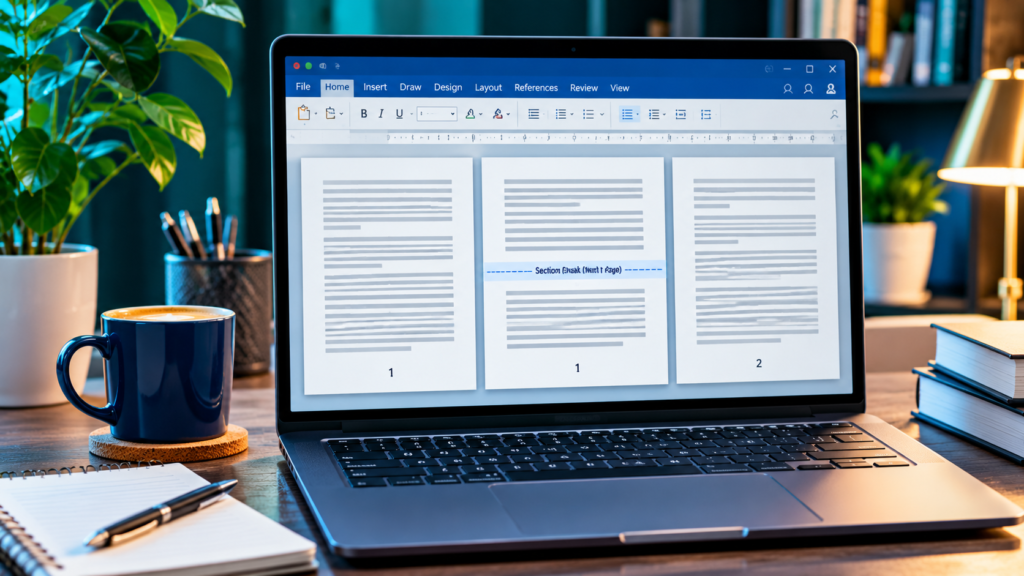

When a Microsoft Word report changes from page 3 back to page 1 after a section break, the section may be configured to restart numbering. A missing footer number, an intentionally Roman-numbered preface, and an odd-page chapter break require different corrections. This guide helps you fix the actual section setting without destroying the headers, landscape pages or chapter layout.
Editorial Review: November 21, 2026. Instructions are grounded in Microsoft’s Word section, header and page-number documentation. The featured image is an illustration, not a verified Microsoft Word interface screenshot. Preserve an original copy of important documents.
Place the cursor in the section where numbering becomes wrong, open Page Number > Format Page Numbers, and choose Continue from previous section for uninterrupted numbering. If the main body should start at 1 after front matter, choose Start at 1 there instead. For missing numbers, check Different First Page, Different Odd & Even Pages and the header or footer’s Link to Previous setting. Do not delete section breaks as a first fix.
Page 1, Page 2, Page 3
Page 1, Page 2
Page 4, Page 5
| Observed Problem | Inspect | Safer Fix |
|---|---|---|
| Page Number Restarts At 1 | Format Page Numbers | Continue From Previous Section |
| First Chapter Page Is Blank | Different First Page | Check The First-Page Footer |
| Odd And Even Pages Differ | Separate Footer Types | Add Correct Automatic Fields |
| Front Matter Uses Roman Numerals | Section Number Format | Preserve Intentional Format |
| Blank Page Before Chapter | Odd Or Even Page Break | Check Print Layout Requirement |
Identify The Exact Numbering Pattern
A document with page numbers 1, 2, 3, 1, 2 after a section break has a different problem from one that skips a number because an odd-page section begins on the next right-hand page. A page whose footer is blank may be affected by Different First Page, while a section numbered with Roman numerals can be intentionally formatted differently. Begin by noting the physical page order and the numbers displayed in each section.
Use a three-column observation: document page position, section number and displayed page number. Scroll across the boundary and record where the sequence changes. This avoids the common mistake of deleting a section break when the only incorrect setting is Start at 1. Do not replace automatic page fields with typed numerals because fixed text will not update when the document grows.
Save A Separate Working Copy
Section breaks can control headers, footers, margins, orientation, columns and page numbering at the same time. Removing one without a plan may change several unrelated parts of a dissertation, report or book. Save a separate copy and verify that it opens before changing a complex document. On a shared file, coordinate edits so that another collaborator does not overwrite your repair.
If Word has also been freezing or struggling to save, handle file preservation before structural changes. Our Word Not Responding When Saving guide explains data-first checks for that separate symptom. Version history or File History restoration may help only when a suitable older copy actually exists.
Turn On Formatting Marks
On Word for Windows, Home > Show/Hide (¶) reveals nonprinting marks, including section breaks. This is the easiest way to see whether a new section begins at an unexpected point. A page break and a section break can both create a new page, but they are not interchangeable: the latter also creates a new formatting section.
Inspect the exact break text, such as Section Break (Next Page) or Section Break (Continuous). Do not select and delete the break simply to make the mark disappear. The section may exist because a landscape table, title page or different header layout requires it. Keep formatting marks visible while diagnosing, and turn them off when the document behaves correctly.
Understand Section Break Types
Next Page begins a section on a new page, Continuous can begin a section without a new physical page, and Odd Page or Even Page can advance to a specific page parity. These choices affect page layout and may create blank pages in printed output. They do not necessarily mean the numbering needs to restart.
If a blank page appears before a new chapter, inspect whether an Odd Page or Even Page break was inserted for book layout. Changing it to Next Page can remove a blank but alter intended recto-verso positioning. Treat the break type and page numbering format as two independent decisions, and preserve layout conventions used by a publisher or academic institution.
Open The Footer Or Header Containing The Number
Double-click the footer or header on the first page where the numbering becomes wrong. Word’s Header & Footer controls show the current section and may display the Same as Previous indicator when its content is linked to the preceding section. Numbers placed in a footer are managed separately from those placed in a header.
If the number is in the footer, work in the footer rather than turning off a header link unnecessarily. On documents using different first-page or odd-and-even layouts, there can be multiple footer types. Confirm which one contains the misplaced number before making changes. Your goal is to adjust the current section without disturbing the title page or earlier chapters.
Check Page Number Format Before Changing Links
The command Page Number > Format Page Numbers opens Word’s numbering configuration for the current section. Under Page numbering, the choices include Continue from previous section and Start at. A section set to Start at 1 will begin again even if the document has many preceding pages.
For an ordinary continuously numbered report, choose Continue from previous section in the relevant section, then confirm the next pages. You do not need to disable Link to Previous merely to correct the numbering sequence. That link controls header or footer content; numbering format is a separate section property. Microsoft documents both controls in its page-number formatting instructions.
Choose Continue From Previous Section
If the goal is an uninterrupted run of Arabic numbers across chapters, place the cursor in the affected section and open Page Number > Format Page Numbers. Select Continue from previous section and accept the change. Check the first, second and final pages of the section rather than judging success from a single number.
Repeat for later sections that were individually set to restart. A multi-chapter document can have several breaks, and correcting the first problem does not automatically update unrelated later sections. Do not change a preface that intentionally uses Roman numerals unless the document’s style guide requires a continuous Arabic sequence.
Use Start At For Intentional Restarts
Some documents deliberately restart at 1 after front matter, at the beginning of a separate appendix or at a book chapter. In those cases, Start at is the correct option. The problem is not that Word allows restarts; it is that the selected value does not match the intended structure.
For a report whose main body should begin with page 1 after a cover and contents pages, choose Start at 1 for the body section. Confirm the cover section’s numbering separately and use Different First Page only when appropriate. Do not attempt to create a main-body page 1 by deleting preceding pages from the document.
Understand Link To Previous Separately
Link to Previous connects the selected header or footer to the corresponding header or footer in the preceding section. It is useful when multiple sections should share the same footer content. However, it can make an editor’s changes propagate unexpectedly across the boundary.
Microsoft’s guidance shows that a section’s header and footer can be unlinked independently. If you need a different title or page-number placement after a section break, select the correct header or footer type and turn off Link to Previous. If you only need the numbering to continue, check numbering format first; disconnecting the footer is not automatically necessary.
Unlink The Correct Header Or Footer
Place the cursor inside the specific header or footer that must differ. In Header & Footer controls, turn off Link to Previous for that area. Be aware that Different First Page and Different Odd & Even Pages can create separate link relationships for each header or footer type.
If the new section has a different first-page footer, unlinking only the ordinary footer may not affect the first-page footer where the number is missing. Verify every layout type that the document uses. Avoid globally unlinking all sections without an editorial reason because this makes future shared footer edits harder to maintain.
Fix A Missing Number On The First Page Of A Section
Different First Page can hide or replace the number on the first page of a section. This may be intentional for a title page but surprising when an ordinary chapter starts on a fresh section. Double-click the footer of the affected first page and check the Different First Page setting under Header & Footer.
If the chapter’s first page should display a number, disable the option when the design allows, or insert the appropriate PAGE field in that first-page footer. Do not type a fixed numeral. The first-page option can apply to a new section, not just the first page of the entire document, and may account for numbers disappearing at multiple chapter beginnings.
Check Different Odd And Even Pages
Books and duplex reports can use different headers and footers on left-hand and right-hand pages. When Different Odd & Even Pages is active, the even footer may have a number while the odd footer does not, or the two positions may not match.
Open an example of each page type in the affected section and confirm both contain correctly positioned automatic page-number fields. A footer linked to the previous section might be linked only to the corresponding odd or even footer type. Preserve the intended mirrored layout while correcting numbering. Microsoft documents separate odd and even footer controls.
Avoid Typing Numbers Into Footers
A footer that contains plain text “5” will keep displaying 5 when content is inserted before it. Automatic page numbering instead uses a field, so the displayed number reflects the document’s pagination. This distinction is easy to miss when a template contains decorative text and a manually typed page label.
Select the suspicious numeral and compare it with a page-number field from Word’s Insert > Page Number commands. If the text was typed manually, replace it with a supported automatic field in the intended position. Do this on a copy and confirm later pages change correctly. Manually changing each page number creates more maintenance problems than it solves.
Insert Automatic Numbers Into The Right Footer
When the footer is truly empty or contains no PAGE field, use Insert > Page Number or the corresponding Header & Footer commands to add automatic numbering. Choose a supported location and style, then format numbering for the current section if necessary.
In a custom designed footer, inserting a full preset may replace or reposition existing content. For that reason, review the footer’s existing tables, logos and text before choosing a gallery design. The current-position option can preserve more of the established layout when appropriate. Check the result in Print Layout rather than assuming insertion succeeded merely because the gallery closed.
Keep Roman Numerals In Front Matter
A thesis or report often uses lowercase Roman numerals for acknowledgments, contents and preface, followed by Arabic numbers starting at 1 for the main body. Word supports different numbering formats by section. The break between front matter and body is useful and should usually remain.
Select the front matter’s section and set its numbering format to i, ii, iii when required. In the main-body section, choose 1, 2, 3 and Start at 1. If footer content or placement also differs, unlink the relevant footer type. A well-structured document can have two deliberate numbering systems without any error.
Start Main Text After A Cover And Contents
When the cover and table of contents occupy several physical pages, the main body’s first printed number can be 1 even though it is not the first sheet of the file. Create or preserve the section boundary before the body, then format that section’s numbering.
For a simple document without complex layouts, Word’s page-numbering-later instructions also describe how Different First Page and Start at can hide numbers on an initial page. Do not blindly use those instructions for a multi-section dissertation; identify the actual section structure first. The goal is the visible page number specified by the institution, not an arbitrary total offset.
Understand Start At Zero In Simple Layouts
Some Microsoft instructions explain selecting Start at 0 to make the second physical page display page 1 in a specific setup where the first page’s number is hidden. That technique differs from starting a new body section at 1 after a longer title and contents area.
Use Start at 0 only when the document layout and requirement genuinely match that example. It is not a universal repair for repeated 1s after every section break. A carefully created body section with Start at 1 is clearer for longer documents with multiple front-matter pages and distinct headers.
Watch For Odd Page And Even Page Blank Pages
An Odd Page break can insert an apparently blank page to ensure the next section starts on an odd-numbered sheet. This is common in print books. The displayed page numbers may jump or the PDF may contain a blank page even though Word is following a designed chapter-start rule.
Inspect the break type before removing the blank. Publishers may require chapters on right-hand pages, so replacing the break can break the book layout. If the project is a digital-only report, a Next Page break may be appropriate instead, but that is an editorial decision. Print preview and the final PDF should both be checked before delivery.
Check Continuous Section Breaks Inside A Page
A Continuous break can divide one physical page into sections with different columns or formatting. If numbering options are changed in such a section, Word may behave in ways that surprise editors who expect one section per page.
Reveal formatting marks and inspect where the continuous break begins. Avoid removing it from a newsletter or table layout without understanding what it controls. If you are trying to change only page numbering, consider whether the continuous section actually needs independent numbering at all. Test the resulting output across the break and following page.
Review Orientation Changes And Landscape Pages
A section break is frequently used to rotate one wide table or chart to landscape while surrounding text remains portrait. That break may inadvertently start numbering at 1 when the template was modified. Removing the break would fix one visible problem while rotating or reflowing the landscape content incorrectly.
Keep the necessary orientation break and set its numbering to Continue from previous section. Then check the footer position on landscape pages because numbering may need visual placement adjustments. A rotated table page can be numbered correctly even when its page geometry is different from the preceding pages.
Check Page X Of Y Fields Carefully
A footer displaying Page 3 of 12 may use a PAGE field for the current page and a NUMPAGES field for total document pages. In a sectional document, an editor might expect totals for the current section instead of the whole file. Word supports different field types and gallery designs for these needs.
Decide whether the requirement is document total or section total before changing the field. Do not replace the field with a typed count because pages may shift during edits. Microsoft’s page-number and total-pages documentation helps distinguish standard Page X of Y formatting from an explicitly section-based total. Verify both the first and last pages before exporting.
Inspect Footer Fields Before Replacing Them
When the footer contains braces or field results that do not match expectations, inspect whether it is using an actual PAGE field, a section-page field, or manually typed text. Word can display field codes and results in different modes.
Avoid copying field-code snippets from an unverified website into a production document. Use Word’s supported page-number commands when possible. If your template uses advanced fields, preserve a copy and document which field changes. A single incorrect field can make every page in a section show an unexpected value even though the numbering format is otherwise correct.
Avoid Deleting Section Breaks As A First Fix
Deleting a section break merges the text around it into one section, potentially changing headers, footers, columns, orientation and paper settings. Microsoft’s official Delete a Section Break article warns about the formatting consequences. A wrong numbering restart can usually be corrected without removing the break.
If a break is genuinely unnecessary, compare the formatting on both sides before deleting it. Save a copy, remove only that known break and inspect the resulting pages. Do not select all formatting marks or use a broad Replace operation to remove section breaks throughout a book. Such changes can destroy carefully designed chapter and print layouts.
Check Word For The Web Limitations
Word for the web supports common page numbering, but Microsoft directs users to the desktop application for some advanced scenarios involving different numbering in multiple sections. A user may fail to find an option because of edition limits rather than a corrupted document.
If the necessary section-level controls are unavailable in the browser, open the file in an authorized desktop Word installation while preserving the document’s existing cloud version history. Do not download confidential organizational documents to an unapproved computer just to access additional controls. Confirm the version you edit is the latest shared copy.
Test Before Exporting To PDF
A document can look correct on a particular page while still containing a later restart or an empty footer on even pages. Check all section boundaries in Print Layout, then export a test PDF and scroll across those same points. PDF pages reflect the final layout and are useful for detecting skipped or blank pages introduced by section types.
If printing also stops after one page, that is a separate printer or driver issue from numbering. Our Printer Only Prints One Page guide covers that scenario. For choosing a trustworthy PDF reader or editor after export, see our PDF Editor Features checklist. Neither tool replaces checking Word’s actual numbering configuration.
Use A Section By Section Audit Table
For a long document, create a simple audit table listing the section number, starting physical page, numbering format, start-or-continue setting, and whether its footer links to the previous section. This turns an confusing pagination problem into a series of explicit settings that can be checked systematically.
For example, a report might have Section 1 Cover with no visible number, Section 2 Front Matter with Roman numbering, and Section 3 Main Body with Arabic numbering starting at 1. A fourth landscape section may need continuous Arabic numbering. Recording those decisions prevents another editor from unintentionally restarting numbering during a later layout change.
Verify Both Numbering And Layout After The Repair
Once the correction is made, inspect at least two pages before and after every section break. Check that the numbering sequence meets the editorial requirement, that the header and footer content is still correct, and that page margins and orientation have not changed.
A successful correction is more than changing one visible 1 into 4. The underlying PAGE fields should update when text is inserted, and the expected first-page or odd/even exceptions should remain intentional. Keep the backup until the final document and exported PDF have been reviewed, and note the setting that caused the original problem.
Frequently Asked Questions
Why Do Word Page Numbers Restart After A Section Break?
The new section may have Page Number > Format Page Numbers set to Start at 1 rather than Continue from previous section.
How Do I Continue Page Numbers In Word?
Place the cursor in the affected section, open Page Number > Format Page Numbers and select Continue from previous section.
Does Link To Previous Control Page Number Restarting?
It controls header or footer content links, not the entire page-number sequence. Check Format Page Numbers separately.
How Do I Start Page 1 After A Table Of Contents?
Use a section boundary before the main body and set its numbering format to Arabic numerals with Start at 1.
Why Is The First Page Number Missing After A Section Break?
Different First Page may use a separate header or footer without a PAGE field. Inspect that first-page footer.
Why Are Odd Or Even Pages Missing Numbers?
Different Odd & Even Pages may be enabled, and one footer type may lack an automatic PAGE field or be linked differently.
Should I Delete The Section Break To Fix Numbering?
Not initially. Deleting a break can change columns, orientation, headers and margins. Correct the numbering format first.
Why Is There A Blank Page Before My Chapter?
An Odd Page or Even Page section break may deliberately insert a page so the chapter begins on the required side.
Does Start At Zero Fix Numbering?
Only in particular simple layouts where a hidden first page causes the second page to display 1. It is not a universal section-number repair.
Can I Fix Every Section In Word For The Web?
Some advanced section numbering requires desktop Word. Microsoft advises opening the file in the desktop app when those web controls are not available.
Official Microsoft References
Primary official documentation: Customize Page Numbers Across Word Sections; Start Page Numbering Later In A Word Document; Configure Different Headers And Footers By Section; Understand Link To Previous; Use Section Breaks To Change Document Layout; Delete A Section Break; Add Page Numbers To Headers Or Footers; Include Page X Of Y In Word; Create Different Odd And Even Headers Or Footers. Word menu availability depends on version, platform and document formatting.


