
Windows 11 can show a list of neighboring Wi-Fi networks while hiding the one you want, or it can show no available wireless networks at all. Those are not equivalent faults. This guide walks through network discovery, wireless bands, adapter detection, router settings, and Windows services in an order that protects saved connections.
The recommended checks are based on Microsoft support documentation and common wireless networking behavior. No physical laptop or router has been tested for this article; feature availability and menu names depend on hardware, Windows build, and network policies.
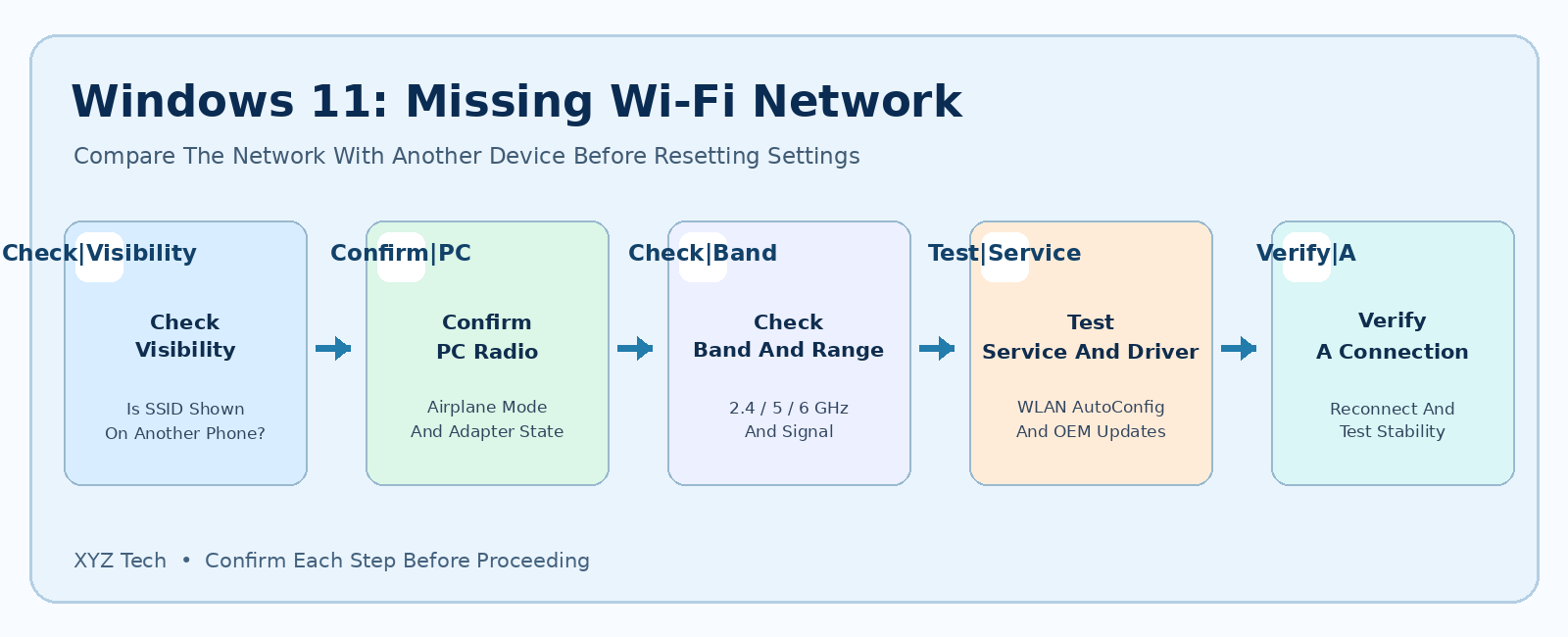
Check whether another device can see the missing Wi-Fi network. If it cannot, inspect the router’s radio, SSID broadcast, band, and range. If it can, confirm Windows Airplane mode is off, Wi-Fi is enabled, Device Manager detects the adapter, and WLAN AutoConfig is running. Test nearer the router and use Microsoft diagnostics before considering driver changes or Network reset.
| Observed Symptom | Most Useful Comparison | Low-Risk Next Step |
|---|---|---|
| Only Your SSID Is Absent | Does Another Device See It? | Check Router Broadcast, Band And Range |
| Every SSID Is Absent | Is Adapter Visible In Device Manager? | Check Radio, Service, Driver |
| SSID Appears Only Near Router | Compare Rooms | Review Signal And Placement |
| SSID Visible But Cannot Connect | Authentication Error | Check Password And Security |
| Connected But No Internet | Gateway And DNS Status | Follow Separate Connectivity Diagnosis |
Identify Whether One Network Or Every Network Is Missing
When a Wi-Fi network does not show up in Windows 11, the most important first step is to decide whether every wireless network is missing or only the particular name you want. If Quick Settings has no Wi-Fi control at all, Windows may not detect the wireless adapter or its service. If several neighboring networks appear but your own SSID does not, the cause may be the router’s broadcast, supported frequency band, distance, interference, or a network configuration. These cases should not be mixed. Record what you see before changing settings. Open the taskbar network panel and look for a list of available wireless networks. Then open Settings > Network & internet and check whether Wi-Fi exists as a controllable option. A computer that displays no adapter needs a different approach from one that can scan dozens of networks. Our Windows 11 Wi-Fi Adapter Disappeared guide covers the former problem in depth.
A missing SSID is not proof that your internet service is down. The router may be connected to the internet while its radio is disabled, or the computer might simply be outside the band it supports. Begin with the evidence available at both ends of the connection.
Check The Network On Another Trusted Device
Use a phone, tablet, or second computer near the affected PC to look for the same Wi-Fi network name. If no device can see it, focus on the router, its wireless settings, and whether the access point is transmitting. If another device sees it normally, investigate the Windows adapter, distance, band support, and local configuration. This A/B comparison avoids wasting time resetting a laptop when a shared access point is the likely source. Be sure the comparison device is looking for wireless networks, not merely showing a saved connection from the past. Disconnect from mobile data only if it is safe and necessary for clarity, and avoid exposing a private router password. Document the router or access-point model if the network is under your control. A university, hotel, or workplace access point should be investigated by its administrator rather than reset by an ordinary user.
The result can also distinguish a single-room coverage issue from a whole-building outage. If the SSID is visible next to the router but not at your desk, test signal and placement before modifying Windows services.
Confirm Airplane Mode Is Disabled
Open Quick Settings using Windows + A or the taskbar network icon and check Airplane mode. If enabled, turn it off and allow Windows time to restart its wireless radios. Some laptops have a separate wireless switch or function key, which may interact with a manufacturer utility. Check the keyboard markings and model manual rather than trying random key combinations. If Wi-Fi networks now appear, select the intended SSID and test normal connectivity. There is no reason to delete remembered networks merely because Airplane mode was active. If the Wi-Fi tile remains missing, inspect Device Manager and Windows services as described below. If the tile is present but the scan list is empty, continue with the next checks instead of assuming Airplane mode was the only problem.
A managed computer may have an organization-enforced radio state. Do not bypass IT restrictions or alter protected registry policies to enable wireless hardware against company requirements.
Check That Wi-Fi Is Enabled In Windows Settings
Go to Settings > Network & internet > Wi-Fi and confirm that the radio is on. Then return to the available-network list and allow a short scan. On some builds, Advanced network settings also shows adapter enablement status. Look for a physical wireless adapter rather than a VPN tunnel, Ethernet controller, or virtual network interface. If the expected adapter is explicitly disabled, enable it using the supported control and test again. Do not toggle unrelated adapters or virtual switches, because those may support work applications and remote access. Microsoft’s official Wi-Fi troubleshooting guide describes the basic Windows controls. If Wi-Fi is absent from Settings entirely, consult our missing-adapter troubleshooting guide rather than using router or DNS fixes as a substitute for adapter detection.
If an administrator has locked an option, treat that as a policy issue. Document the symptom and ask for authorization rather than running a third-party configuration script.
Test Near The Router Before Changing Drivers
Wireless network discovery depends on radio coverage. Move the laptop closer to the router or access point and rescan. If the SSID appears nearby but not at the usual location, the problem is more likely to involve coverage, building materials, interference, or antenna placement than a missing Windows driver. Different rooms and floors can experience substantially different signal conditions. Move only the computer if it is practical; do not casually relocate shared enterprise equipment. If you use an extender or mesh system, verify which access point is actually broadcasting the SSID. Our Wi-Fi Slow In One Room guide explains how placement affects coverage, and our Mesh Wi-Fi explainer describes multi-node networks.
A successful scan near the router is useful diagnostic evidence even if it does not solve the underlying coverage problem. Record the distance and location so later changes can be evaluated fairly.
Understand The 2.4 GHz 5 GHz And 6 GHz Bands
Wireless adapters and routers support different frequency bands and Wi-Fi generations. An older laptop that can detect a 2.4 GHz network may not be compatible with a network broadcasting only on 5 GHz or 6 GHz. Likewise, a router’s channel selection and country-specific radio rules can influence which devices see an SSID. Do not assume that every network name listed in a router dashboard is discoverable by every Windows PC. Compare the adapter specifications with the access point’s configured bands. On a personally managed router, you can create or enable a compatible network if the equipment supports it, while preserving strong security. Our 2.4 GHz Vs 5 GHz Wi-Fi guide details coverage and capacity differences.
Do not downgrade an enterprise wireless network or disable security features just to accommodate one device without the network owner’s approval. If your hardware does not support the required band, an appropriate compatible adapter or router configuration may be the long-term answer.
Check Whether The SSID Is Intentionally Hidden
Some routers can be configured not to broadcast the network name. That does not make a network more secure by itself, and it means the network may not appear in the normal scan list. Only if you are authorized to join that network should you attempt to add it manually using the correct SSID, authentication type, and password supplied by the owner. Avoid guessing SSIDs, scanning neighboring private networks for hidden names, or using tools designed to bypass access restrictions. Microsoft’s Windows network connection instructions describe supported connection procedures. If you manage the router, consider whether broadcasting the SSID is preferable for maintainability, while keeping WPA2-AES or WPA3 security as supported.
A hidden SSID is a deliberate configuration, not automatically a broken router. If the name used to appear and suddenly vanished, first confirm whether an administrator recently changed the wireless network settings.
Restart The Wi-Fi Scan And The PC
Close the network flyout, wait briefly, and reopen it. If Windows appears stuck, save your work and restart the computer normally. A temporary scan or service problem can sometimes clear without deleting any configuration. Use a normal restart rather than a forced shutdown during an update or file transfer. After booting, compare the network list with the original observation. Did the SSID return? Are other networks visible? Does the problem recur after waking from sleep? A repeatable pattern may help identify a driver or power-state issue. If restarting makes every wireless network appear again, do not assume a permanent fix until you test under normal use.
Repeated restarts without diagnosis are not useful. Keep a small log of the time, power state, and whether Windows detects the adapter after each occurrence.
Inspect Device Manager Without Removing Drivers
Right-click Start, choose Device Manager, and expand Network adapters. Find the wireless adapter by its manufacturer or a description including Wi-Fi, Wireless, or WLAN. Check that it is enabled and whether Device status reports an error. Be careful to distinguish the physical card from Ethernet adapters and VPN components. If the device is missing or shows a warning, the scan problem may originate below the network list. Use our Windows Device Driver Safety guide to identify a supported driver. Do not delete driver packages unless you have a compatible installer and recovery connection ready. If the adapter is recognized without an error, move to WLAN AutoConfig and band compatibility checks.
Viewing Device Manager is a low-risk diagnostic; uninstalling or mass-cleaning devices is not. Capture the exact adapter model and problem code if you need official support.
Check The WLAN AutoConfig Service
WLAN AutoConfig manages normal Wi-Fi discovery and connection functions on Windows. Press Windows + R, open services.msc, and find WLAN AutoConfig. Inspect whether it is running and whether the startup configuration has been altered. Microsoft’s wireless troubleshooting guide treats the service as a distinct diagnostic checkpoint. On a personal computer, if the service is stopped unexpectedly and the interface permits it, use the normal Start action, then test network discovery. Do not change unrelated Windows services or override a workplace policy. If the service repeatedly stops, check event logs and software changes rather than simply starting it every few minutes.
A running service cannot make unsupported radio bands compatible or create hardware that Windows does not detect. It is one piece of the diagnostic chain, not a universal cure.
Use The Built-In Network Troubleshooter
Windows 11 provides network diagnostics through the Get Help application and related Settings screens. Run the network troubleshooter and review its findings, especially anything about disabled hardware or an unavailable service. Note what the tool proposes to change before accepting a disruptive action. If it simply reports no problem, continue with the comparison between the Windows adapter and the router. Automated diagnosis can help identify common configuration faults, but it cannot guarantee recovery from hardware damage, incompatible frequency bands, or an SSID disabled by the access point. Verify the network list after any repair. Microsoft’s Windows Wi-Fi help describes this recommended entry point.
Do not interpret the absence of a diagnostic warning as proof that the router is functioning correctly. Another device’s scan result remains an important comparison.
Use Netsh Only For Read-Only Diagnostics
Microsoft Learn documents commands such as netsh wlan show interfaces and netsh wlan show networks mode=bssid for inspecting wireless capabilities and visible networks. Open a normal Command Prompt and use these read-only commands only when you understand their purpose. They can show whether Windows recognizes the interface and which SSIDs the adapter reports in the current location. Do not share unredacted outputs publicly because they may reveal private network names, interface identifiers, or location context. Avoid commands that delete profiles, reset network components, or change settings merely because they are listed beside diagnostic examples online. If the command says no wireless interface is available, return to adapter and driver checks. If it lists other SSIDs but not yours, look at the router, band, range, and hidden-network configuration.
A read-only command is helpful evidence, not a replacement for supported Settings controls. Record the result and use it to select the next branch of troubleshooting.
Check The Router Or Access Point Radio State
If no nearby device can see the SSID, confirm that the router is powered and that wireless broadcasting is enabled. On equipment you own, use its official administration interface and check the configured network name, band, wireless schedule, and guest network settings. Do not click Restore Factory Defaults unless you have a complete recovery plan for the router and every connected device. For ISP-managed or organization-managed equipment, ask the network owner or provider before changing anything. A wireless schedule may turn off an SSID at particular times. A separate guest SSID may have been disabled while the main network remains active. Our Home Router Protection guide covers secure administration and why changing security settings casually can affect other devices.
If the router shows normal wireless operation and another phone sees the network, refocus on the Windows computer rather than restarting the shared access point repeatedly.
Check Wireless Channel And Security Compatibility
A network can be visible on one client but not another because adapters vary in supported channels, bands, and security modes. An access point configured for a band or channel the computer does not support may not appear in scans. Similarly, modern security requirements can prevent an older adapter from joining even if the SSID is visible. Inspect the hardware specifications and router’s official documentation before changing channels or security modes. Avoid turning off encryption or adopting obsolete insecure modes as a quick fix. When you own the router, use a compatible, secure configuration and test other devices afterward. An authorized network administrator can determine the best setting for shared wireless access.
Distinguish discovery from authentication: an SSID that appears but refuses the password is not the same as one that never shows up. Troubleshoot the actual stage where the connection fails.
Confirm That The Laptop Supports The Access Point
Some laptops have multiple wireless card variants even within one product family. Read the actual network adapter model from Device Manager and compare it with the access point’s network requirements. Support for 6 GHz, particular Wi-Fi modes, or modern enterprise authentication may depend on both hardware and driver. A general statement such as ‘Windows 11 supports Wi-Fi 6’ does not prove that a particular PC has compatible radio hardware. Windows cannot add a missing frequency band to an incompatible physical card. An appropriate driver may improve operation of supported features, but it does not create entirely new radio capabilities. If the network requires a band the device lacks, use another allowed SSID, a compatible adapter, or consult the network owner.
Do not buy new hardware before confirming whether the problem can be resolved by a secure, supported access-point configuration.
Check VPN And Security Software Without Disabling Protection
VPN applications and endpoint-security products can influence network access after an adapter connects, but they do not normally cause one particular nearby SSID to stop transmitting. If a VPN was installed just before the symptom, note the timing and inspect documented settings; however, do not disable organization protections or remove virtual adapters without authorization. If the adapter sees networks but cannot access a site after joining, VPN or DNS troubleshooting becomes more relevant. Our DNS Server Not Responding guide covers hostname failures after a connection exists. A network not appearing at all is usually earlier in the process. Keep the distinction clear to avoid wasting effort on proxy settings when Windows has not discovered a wireless network.
A controlled diagnosis identifies whether the fault occurs during scanning, authentication, IP configuration, or internet access. These are separate stages and should be treated separately.
Update Wireless Drivers Through Trusted Channels
If Windows recognizes the wireless adapter but scanning behaves abnormally, check for legitimate updates through Windows Update and the exact PC manufacturer’s support page. Use the model and adapter identifiers to find a compatible package. Keep a backup or alternate connection available before changing a driver, particularly if the network is needed for work. Microsoft’s wireless guidance recommends manufacturer driver support in relevant scenarios. Avoid downloading a ‘driver booster’ from advertising results or installing a package intended for a different chipset. Update one component at a time and retest the same SSID afterward. If the problem began immediately after an update and a previous driver is available, manufacturer-approved rollback may be considered with care.
A successful installer message is not the verification target. The Wi-Fi scan must show the expected network and the connection must function normally.
Investigate Wi-Fi Disappearance After Sleep
If networks appear after a restart but vanish after the PC sleeps, record the pattern and review the wireless adapter’s supported power-management behavior. The relevant controls vary with hardware and driver versions; some Device Manager properties may not be present. Check the laptop manufacturer’s guidance before making changes. Do not disable every power-saving feature globally. A settings change that improves Wi-Fi but causes severe battery drain is not necessarily an appropriate long-term fix. Instead, use controlled wake-and-scan tests and document driver versions and Windows updates. If the adapter itself disappears after sleep, our missing Wi-Fi adapter guide covers that more fundamental detection issue.
If only your router’s SSID disappears while neighbors remain visible, look for access-point scheduling or channel behavior instead of attributing everything to the laptop’s sleep state.
Understand Guest Networks And Band Steering
Routers sometimes combine several bands under one network name or provide a separate guest network. Band steering can influence which frequency a client uses, while guest network schedules can determine whether a particular SSID is available at all. The exact behavior depends on the vendor and configuration. If you manage the router, check whether you recently renamed the main network, disabled a guest SSID, or changed band settings. A laptop might still show an old remembered name even though the router now broadcasts a new one. Verify the active SSID on another device instead of assuming the saved profile is current. If you use an extender, our Wi-Fi Extender Troubleshooting guide distinguishes association from internet availability.
Do not disable security or isolate guest users incorrectly merely to make a name appear. Router changes can affect far more devices than the single Windows PC being troubleshot.
Avoid Forgetting The Network When It Is Not Visible
Windows offers a Forget option for saved wireless profiles. That command removes the stored credentials and connection configuration, which can be useful for some authentication problems, but it is rarely the first step when a network is not detected at all. Forgetting the network cannot force a router to broadcast its SSID, nor can it make an incompatible radio detect 6 GHz signals. Before removing any profile, confirm you know the correct network name and password, and note enterprise certificate or sign-in requirements. A managed profile may need to be reprovisioned by IT. If the SSID appears but a connection fails, forgetting and reconnecting may be part of supported troubleshooting. If it never appears, continue checking range, band, router state, and adapter detection.
Preserve access to existing trusted networks while diagnosing the missing one. Avoid actions that unnecessarily leave the computer disconnected.
Reserve Network Reset For A Well-Defined Need
Windows 11 Network reset is a disruptive option that removes and reinstalls network adapters and resets their settings. It can affect VPN clients, virtual switches, saved network profiles, and enterprise configurations. Microsoft’s Wi-Fi troubleshooting documentation presents it as a later-stage measure, not the starting point for one missing SSID. Only consider it after determining that Windows recognizes the hardware and that the problem genuinely concerns local network configuration. Record necessary credentials and have supported drivers available. Do not use Network reset to compensate for a router that is not broadcasting or a frequency band the card does not support. When the issue is on a company device, seek administrator approval.
The safest repair changes only the part of the system shown to be failing. Broad resets introduce additional variables and may erase useful diagnostic evidence.
Use The Wireless Network Report When Needed
Windows can generate a wireless network report through documented netsh functionality. Microsoft’s wireless network report guide explains the report and its diagnostic information, including session details and discovered networks. The report can be helpful when the SSID intermittently appears or association attempts fail, although collecting it is not necessary for every simple case. Review the report locally and avoid sharing identifiers, network names, or session data publicly. Note whether Windows sees the radio at the relevant time and whether the network was detected. If the report confirms the adapter scanned normally but the target SSID was absent, provide that observation to the router administrator. If the adapter repeatedly disappears, investigate hardware, driver, and service state.
Use the report as supporting evidence. A single scan may miss a distant or temporarily unavailable network, so repeat under controlled conditions if the problem is intermittent.
Verify That The Network Is Really Restored
After a repair, do more than look for the SSID in the list. Select the correct trusted network, authenticate through its supported method, confirm Windows reports a connection, and open a secure website. Check that the connection persists for a normal working period. If this network previously vanished after sleep, retest that scenario. Do not claim success because a Wi-Fi icon briefly appeared. For a shared network, verify that other devices still connect after any router changes. Record the step that produced the improvement and keep any relevant driver version or configuration notes. If Wi-Fi is visible but internet access remains poor, our Wi-Fi Slow But Ethernet Fast guide covers a different diagnostic branch.
The outcome should match the original symptom: a previously missing network should be reliably discoverable and joinable, without causing new disruption to nearby clients.
Escalate When The Evidence Points To Hardware Or Policy
If the adapter cannot detect any networks despite correct settings, an active wireless service, compatible drivers, and supported diagnostics, the wireless hardware may require professional evaluation. If every device fails to see the SSID, the router or access point should be checked by its administrator or provider. If only a managed enterprise network is missing, a policy or security configuration may be responsible. Record the computer model, Windows build, adapter model, which SSIDs are visible, whether another device detects the target, and any relevant error message. Do not post private network credentials on public forums. Use the manufacturer or IT support channel for repairs and avoid undocumented registry changes.
A reliable diagnosis respects the difference between a Windows client, its radio hardware, and the wireless network it is trying to discover. That separation is what makes the repair both safer and faster.
Frequently Asked Questions
Why Is My Wi-Fi Network Not Showing In Windows 11?
The SSID may be out of range, hidden, disabled at the router, using an unsupported band or channel, or missing because Windows cannot scan through a working adapter. Compare with another device first.
Why Can My Phone See Wi-Fi But My Laptop Cannot?
The laptop may support different bands, have an adapter or driver problem, or receive a weaker signal. Check the laptop’s actual adapter model and scan near the router.
How Do I Turn On Wi-Fi In Windows 11?
Open Quick Settings or Settings > Network & internet > Wi-Fi and enable the wireless radio if the control exists. If it is missing entirely, inspect Device Manager and WLAN AutoConfig.
Will Restarting My Router Make The Wi-Fi Network Appear?
It may help when the access point has stopped broadcasting, but it will not restore a driver or radio that Windows cannot detect. Check another device first.
Can A Hidden SSID Be Added Manually?
Yes, where supported and when you have authorization and the correct name, authentication type, and password. Hiding an SSID is not a substitute for secure encryption.
Why Does Windows 11 Show Other Networks But Not Mine?
Look at the router’s active band, channel, SSID broadcast, distance, scheduling, and compatibility with the adapter. The Windows radio is at least detecting some networks.
Should I Run Network Reset When My SSID Is Missing?
Not as the first step. Network reset can remove adapters and alter VPN or virtual networking settings, and it does not fix an SSID that the router is not broadcasting.
Can WLAN AutoConfig Affect Wi-Fi Discovery?
Yes. Windows uses WLAN AutoConfig for normal wireless management. Inspect its status if scanning is unavailable, alongside the physical adapter and its driver.
Do 2.4 GHz And 5 GHz Networks Always Appear On Every Laptop?
No. Visibility depends on the wireless adapter’s capabilities and the router’s configuration. Older hardware may not support some bands or channels.
How Do I Confirm The Problem Is Fixed?
Verify the intended network appears consistently, joins with approved authentication, reaches a secure website, and remains stable under the conditions that previously caused it to disappear.
Official Sources
Relevant Microsoft documentation: Fix Wi-Fi Connection Issues In Windows; Advanced Wireless Network Troubleshooting; Connect To A Wi-Fi Network In Windows; Analyze A Windows Wireless Network Report; Set Up A Wireless Network; Get Connected During Windows Setup. Apply router changes only with authorization, and protect network keys and diagnostic identifiers when sharing support information.


