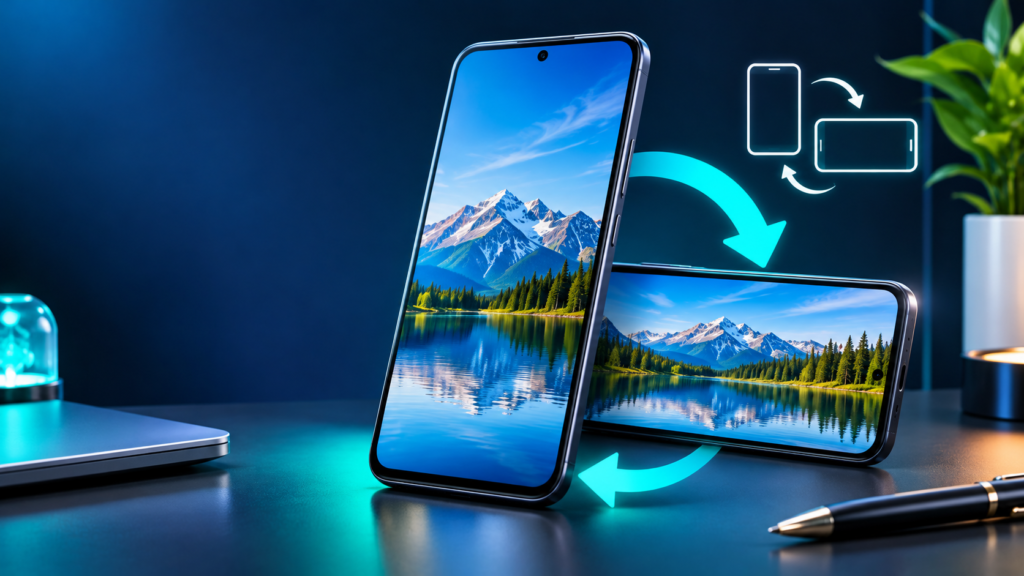

Android screen rotation problems can be caused by an intentionally locked display, an application that supports only portrait mode, a temporary software failure, or a motion-sensor fault. The right fix begins with a harmless comparison rather than a factory reset. This guide walks through the controls used by Google Pixel, Samsung Galaxy, and other Android phones, with attention to manufacturer differences.
The practical goal is to determine whether the device is refusing to rotate in one app or everywhere, then use the least disruptive solution. Menu names and features vary across Android versions, and the procedures are documented troubleshooting guidance rather than a claim to have tested every handset.
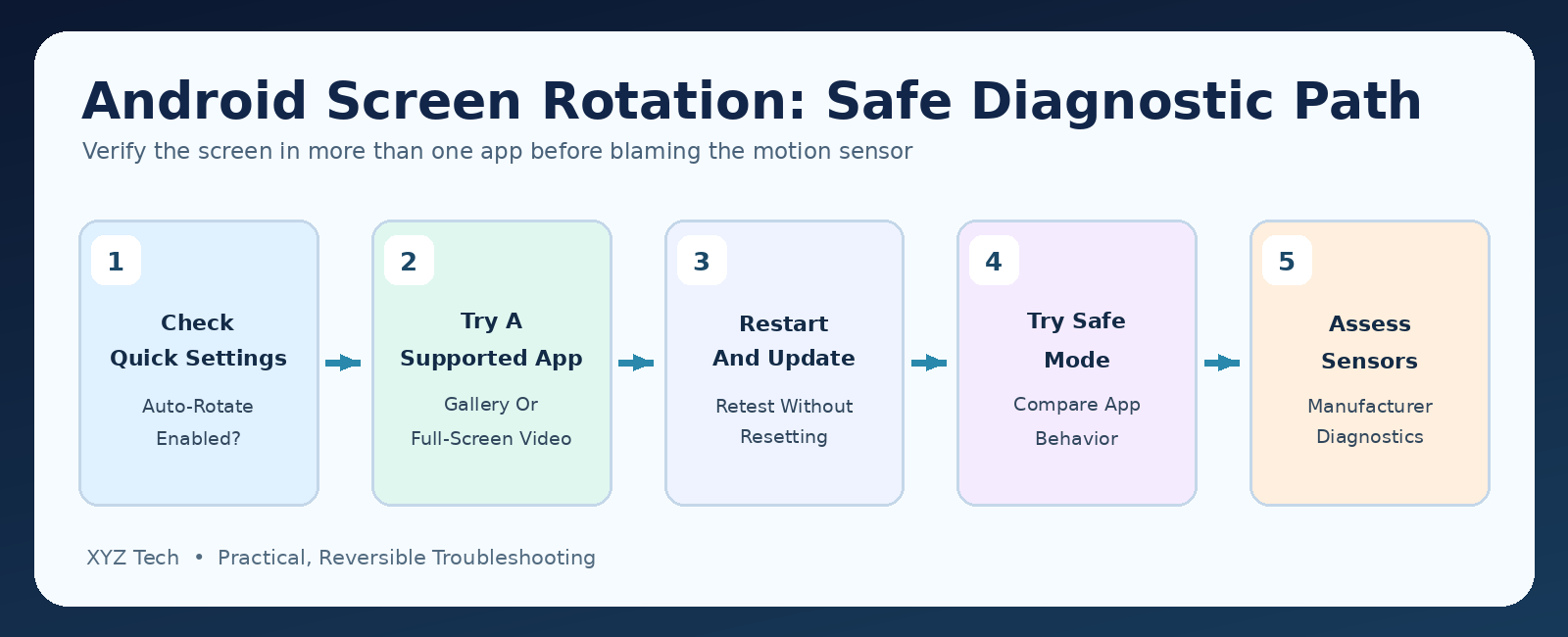
Swipe down to Quick Settings and enable Auto-rotate, then turn the phone sideways while using an app known to support landscape. If it still fails, restart the app and phone, check manufacturer-specific home-screen rotation options, update supported software, and test in Safe Mode if needed. Use official diagnostics before suspecting the accelerometer, and do not erase personal data to fix a rotation preference.
| Symptom | Likely Starting Point | First Safe Check |
|---|---|---|
| Video Rotates, Home Screen Does Not | Launcher Setting | Home Screen Rotation Preference |
| No Supported Apps Rotate | Global Setting Or Sensor | Auto-Rotate, Reboot, Diagnostics |
| Only One App Is Stuck | App-Level Restriction | Supported Orientation And Update |
| Rotation Works Only In Safe Mode | Third-Party Conflict | Recently Installed Apps |
| Failure After Physical Damage | Potential Hardware Fault | Manufacturer Service Assessment |
Identify What Is Not Rotating
When someone says an Android screen will not rotate, the first question is where it happens. A home screen that remains in portrait mode is different from a video player that ignores landscape orientation. An individual game might deliberately lock its interface, while Settings, a photo viewer, or a supported full-screen video may rotate normally. Identify at least two apps that should support both portrait and landscape before treating the behavior as a system fault. Try holding the device vertically and horizontally while keeping the screen unlocked. Avoid testing while it lies flat on a desk, because the phone may not have a clear physical orientation relative to gravity. Record whether rotation never occurs, works only sometimes, or stops after a particular app is opened. The pattern is more useful than immediately resetting the phone. If the screen also fails to recognize taps, that is a separate issue addressed in our Android Touch Screen Unresponsive guide.
The simplest distinction is between an orientation preference, an app limitation, and a motion-sensor problem. Settings may be correct even when a particular app was designed for one orientation. Conversely, a device can display portrait correctly while its accelerometer or orientation service is not responding. Each explanation implies a different repair. Begin with harmless observation, then settings checks, then supported diagnostics. Preserve personal files and account settings throughout.
Find The Auto-Rotate Control In Quick Settings
Swipe down from the top of the display to open Quick Settings. You may need to swipe a second time to see the full group of tiles. Depending on the model, the control can be labeled Auto-rotate, Portrait, Landscape, or Rotation lock. If the phone currently says Portrait, it may be locked rather than indicating that the sensor has failed. Tap the relevant control to allow automatic rotation. Some manufacturers move this tile to another Quick Settings page. Use the Edit button if the control is not visible, but do not change unrelated wireless or accessibility tiles simply to locate it. After enabling Auto-rotate, open a supported app and rotate the phone slowly. On Pixel phones, Google documents another path through Settings and Display & touch. Samsung documents a Quick panel tile that changes appearance according to the current mode. See the Google Pixel navigation instructions and Samsung rotation guide for device-specific examples.
Do not confuse the orientation of a camera photo with the orientation of the entire app. A photograph can appear sideways because its metadata is wrong even while system rotation works perfectly. Test a live interface whose layout visibly changes, not merely an image that can be manually rotated.
Test In An App That Supports Landscape
Choose a built-in gallery, supported full-screen video player, or another app that you know changes layout when the phone is held sideways. Move the handset into landscape with the display facing you and wait briefly. Repeat with a second suitable app. If one rotates and the other does not, the sensor can probably produce usable orientation data, and the nonrotating app deserves closer inspection. Many Android home screens, launchers, authentication prompts, banking apps, and games deliberately restrict orientation. Some screens support landscape only during video playback. Samsung explicitly notes that certain apps do not support both orientations. Do not uninstall or reset the entire operating system simply because a single view does not turn. Check the app’s own display preferences, full-screen mode, and current version. If an app appears incompatible after a system update, consult our Android App Compatibility guide before attempting untrusted APK installations.
A controlled two-app test reduces false alarms. A successful screen rotation in one supported app is evidence against a total sensor outage, but it does not rule out an intermittent sensor fault. The key is to note exactly which app, screen, and orientation was tested.
Understand Portrait Lock Versus Automatic Rotation
Portrait lock is a preference, not a failure. It keeps most supported interfaces upright until you change the setting or use a manual rotation suggestion where available. On some Galaxy devices the Quick panel displays a grey Portrait icon when auto-rotation is off; its label and color can differ by software theme. On a Pixel, the auto-rotate setting is typically located through Display & touch, though menu paths vary. If someone else uses the phone, confirm their preference before changing it permanently. Rotation lock can be useful while reading in bed or navigating a crowded screen. Once you verify that enabling Auto-rotate solves the symptom, restore the person’s intended setting rather than treating the locked state as a bug. If the control is repeatedly switching off, investigate scheduled routines, accessibility preferences, or a management profile. Avoid assuming that a software update turned it off without evidence.
Some applications also remember their last orientation. Closing and reopening the app after changing the system toggle can clarify whether it was holding a stale view. This is less risky than clearing data or forcing a reinstall.
Use The Manual Rotation Suggestion When Available
On some Android configurations, when auto-rotate is turned off, a small rotation suggestion appears near a corner of the navigation area after the device is tilted. Tapping it can rotate a supported app temporarily without enabling global automatic rotation. Availability and placement depend on the Android version, navigation method, and app design. If you see the suggestion, try it in a supported app to determine whether orientation data is reaching the interface. A successful manual rotation does not mean auto-rotate is globally active; it indicates that the system recognized the gesture and offered a controlled layout change. If the button never appears, do not assume a hardware defect, because many phones do not offer it in the same way. Use the standard Auto-rotate setting instead. Google’s Pixel display settings documentation describes related behavior on supported devices.
A manual rotation button is useful for people who prefer a stable portrait display but occasionally need landscape. Avoid third-party utilities that demand invasive accessibility permissions merely to force an orientation change. Those tools can alter app behavior and complicate the original diagnosis.
Check The Home Screen Rotation Preference
Some launchers offer a separate setting for rotating the home screen. The main Auto-rotate toggle may be enabled while the home screen remains portrait because the launcher itself does not permit landscape layout. Check the home screen settings or launcher’s preferences, not merely the global display menu. Samsung also provides options for some screens that are independent of app rotation. A home screen that does not rotate cannot, by itself, prove that auto-rotation is malfunctioning. Compare an app that supports rotation first. If you use a custom launcher, temporarily switch to the manufacturer’s standard launcher only if you understand how to restore the previous layout. Custom launchers may require a backup of home screen arrangement. Do not clear launcher storage merely to make the screen turn, because that can erase icons and widget placements.
If screen rotation succeeds everywhere except the launcher, the diagnosis is already much narrower. Keep the troubleshooting focused on launcher settings and compatibility rather than resetting accelerometer calibration or touching system files.
Check Samsung Rotation Options For Individual Screens
On compatible Samsung Galaxy phones, touch and hold the Auto rotate tile to open additional orientation preferences. Some devices provide separate options for the home screen, lock screen, and voice call screen. Available choices change across One UI versions and device classes, so follow the controls actually shown on your model. Samsung’s official screen rotation instructions cover how these options interact. If a call screen refuses landscape but gallery rotates, that may be expected behavior for the selected setting. If the lock screen stays upright while a video rotates correctly, the rotation sensor may be fine. Avoid using a tutorial for an unrelated Galaxy generation as a substitute for checking your own interface. Note any setting that was changed so you can restore your preferred layout afterward.
On a tablet or foldable, the same settings may produce different results on the cover display and main display. Check the screen on which the problem occurs and identify whether the app supports that configuration.
Restart The App Before Restarting The Device
If a particular app stopped rotating during use, close it normally and reopen it. Avoid a force stop while it is saving work or uploading files. A temporarily stalled user interface may fail to respond to orientation changes even though other apps work. After relaunching, try both portrait and landscape again, using the same device position as before. If only one app remains affected, inspect its current update status and supported orientation modes. A game or streaming application might restrict rotation on specific screens or during casting. Do not assume that reinstalling it is safe: local drafts, offline downloads, and account sessions may disappear. Compare the app with a second one before making a more disruptive change.
This short check also helps separate a stuck app from a stuck system orientation service. If several unrelated supported apps fail, move to a normal phone restart instead of deleting each application’s cache in succession.
Restart Android Without Erasing Anything
Save any open work and restart the phone using its normal power controls. This can clear a temporary service state after a software update, sleep transition, or app crash. Once the phone has restarted and unlocked, open the same supported app and test rotation. Do not perform a factory reset, use recovery-mode wiping, or force a restart during an active system upgrade. A normal reboot is a diagnostic step, not proof of a permanent fix. If rotation returns but fails again after an hour or after launching a particular app, write down the trigger. The pattern can point toward an application, power-management condition, or hardware issue. If the device becomes unresponsive as well as failing to rotate, see our Android touch-screen troubleshooting guide for precautions appropriate to input failures.
Do not repeat restarts indefinitely. If the same symptom returns, controlled comparisons in Safe Mode and manufacturer diagnostics will produce more useful evidence.
Check For Android And App Updates
Open the official app store and look for an update to the app that does not rotate. Then check the phone’s Settings for a manufacturer-supported system update. A bug may be corrected in a newer app or operating system release, but this is not a promise that every update repairs orientation behavior. Review available release notes when possible. Before a major update, ensure that important files and accounts are backed up and that the battery or charging connection is adequate. Avoid unofficial firmware downloads or an untrusted application promising to recalibrate the accelerometer. After updating, verify behavior in the same two apps as before. If the failure began immediately after an update, document the installed build and report the pattern through official support.
Some apps are intentionally fixed to portrait even on the latest version. An update is not a reason to bypass an application’s intended layout with invasive tools. Keep the comparison anchored to an app confirmed to support landscape.
Check Whether Auto-Rotate Is Disabled In Settings
On Pixel phones, Google documents Auto-rotate screen under Settings > Display & touch in supported versions. On other Android builds, it may appear under Display, Home screen, or Accessibility. Quick Settings and the main Settings screen should normally reflect the same orientation preference, but vendor software can provide additional per-screen choices. If the Quick Settings tile was missing, search Settings for ‘rotate’ rather than scrolling through unrelated menus. Enable the appropriate option and retest without changing accessibility, developer, or display scaling preferences. If an organization controls the device, a restriction may prevent the user from changing the setting; contact the administrator rather than trying to bypass the policy.
Keep a record of the original setting. A repair that leaves the phone rotating unexpectedly whenever it is tilted may be undesirable to its owner, even if it proves the system works.
Review Face-Based Rotation On Supported Pixel Phones
Some supported Pixel devices offer face-based orientation detection, allowing the phone to interpret how the user is holding or viewing the screen. This optional behavior differs from the basic gravity-based auto-rotate setting and is not available on every Android phone. If supported, inspect the associated settings only after confirming that normal rotation is enabled and the chosen app supports landscape. Avoid treating face-detection settings as a universal fix. Lighting, camera visibility, model support, and privacy preferences affect which features are available. If rotation is inconsistent when lying down but works normally upright, consider the interaction between device orientation and supported face-based detection. Google’s Pixel screen troubleshooting resources describe the relevant options for affected models.
Do not enable a camera-dependent convenience feature against the user’s privacy preference merely to troubleshoot rotation. Standard auto-rotate should be diagnosed on its own merits.
Avoid Testing While The Phone Lies Flat
A phone lying face-up on a level table may not provide a meaningful portrait-versus-landscape change to its orientation algorithms. The system relies on motion and gravity readings, and apps often avoid sudden layout changes when the orientation signal is ambiguous. Lift the phone and hold it in front of you, then turn it gently from vertical to horizontal. Avoid twisting, shaking, dropping, or striking the phone to ‘unstick’ a sensor. Those techniques are not supported diagnostics and can damage hardware. Test with normal movement and note whether the device responds after a short pause. If the problem happens only when it is nearly flat, it may reflect expected orientation logic rather than a defective sensor.
Use more than one normal app and two consistent positions for the comparison. Repeating the same controlled test after each change is far more informative than rotating randomly while several settings are changed at once.
Look For An App-Specific Orientation Lock
Video players, camera applications, document viewers, games, launchers, and accessibility tools may include their own rotation controls. Look for a full-screen icon, orientation-lock button, or display preference inside the app. If a video is playing in a small embedded window, entering full-screen mode may enable landscape where the surrounding page does not support it. Before installing another application, review what the affected software is designed to do. If it intentionally supports portrait only, no system repair is needed. If it formerly supported landscape and the feature stopped after an update, note the version and consult the app developer’s guidance. Our Android App Compatibility guide explains why downloading an old unofficial APK can create more problems than it solves.
Avoid third-party force-rotation utilities as a first step. Some request broad accessibility or overlay permissions and may distort login screens, payment interfaces, or accessibility tools. Use supported app settings instead.
Try A Normal Restart Before Clearing Cache
An Android app may cache layout or display state. A normal restart or app relaunch is safer than clearing application storage. If the affected app still behaves incorrectly and its official support recommends clearing cache, distinguish the cache control from Clear storage or Clear data, which can remove local preferences, offline files, and account information. Always confirm that unsynced drafts and downloads are protected before modifying any application data. Clearing the storage of a launcher or gallery app is especially risky when it manages local content. If the symptom exists across many unrelated apps, clearing one cache is unlikely to address the underlying orientation service. Focus on system settings and diagnostics instead.
A cache clear is not an accelerometer calibration. It should be justified by evidence of an app-specific problem. Record the result and avoid repeating it on every app without reason.
Use Safe Mode To Isolate Third-Party Conflicts
Safe Mode starts Android with most downloaded apps temporarily disabled. If automatic rotation works there but repeatedly fails in normal mode, a downloaded app, launcher, accessibility service, or device utility may be involved. Manufacturer-specific steps to enter Safe Mode vary, so use the model’s official guide rather than a generic button sequence. Save any open data first. Test the same built-in app in Safe Mode, then restart normally to leave it. Do not permanently delete applications simply because the phone behaves differently once. Consider recent installs and permission changes, then test one reversible action at a time. Google’s Pixel screen troubleshooting guide includes Safe Mode checks for supported devices, while Samsung provides comparable guidance.
Safe Mode cannot establish that the orientation sensor is perfect, and some app features are unavailable there. It is a method to compare environments, not a full laboratory hardware test.
Inspect Accessibility And Rotation-Utility Settings
Accessibility tools and third-party orientation apps can influence screen layout. If you recently installed a tool that forces landscape, locks rotation, adds an overlay, or automates screen orientation, review its settings. Such utilities can create a conflict that resembles a system fault. Disable the relevant custom behavior temporarily only when you understand its function and can restore it afterward. Do not turn off essential accessibility support for someone who depends on it. Ask permission before changing a shared device. A legitimate accessibility preference may keep the screen stable on purpose. If a managed app controls orientation for a kiosk or workplace workflow, follow the administrator’s instructions instead of circumventing the restriction.
Once the conflict is isolated, prefer the operating system’s built-in controls over a utility that requests excessive permissions. Avoid installing multiple rotation managers; overlapping controls make diagnosis harder.
Check For A Problem After Using A Foldable Or Dock
Foldable phones and tablets can have separate orientation behavior on their cover screens, unfolded displays, desktop modes, or connected monitors. Apps may rebuild their layout when the device’s physical configuration changes. A phone that rotates properly on its outer screen but not the main display should be tested separately in each state using a supported application. If the issue follows connection to a dock, external display, or casting session, disconnect the accessory using normal controls and retest. Avoid pulling cables during an update or transfer. Record the model and which screen was active. Manufacturer documentation is essential because there is no universal procedure across foldables.
A layout transition that works in one posture but not another can reflect an app compatibility issue, a device state rule, or a sensor problem. Do not jump to a hardware conclusion without documenting the difference.
Check Sensor Behavior With Official Diagnostics
Screen orientation ordinarily relies on motion sensors, including an accelerometer, with interpretation by the operating system. If several supported apps ignore rotation despite the correct settings, a manufacturer-supported diagnostic can help. Some Galaxy devices offer tests through Samsung Members or the manufacturer’s device diagnostics. Availability differs by model and region. Do not use random dialer codes, a third-party calibration APK, or violent shaking to test motion sensors. A failed supported test should be recorded with the exact result rather than immediately treated as proof of one component failure. If the device has recently been dropped, exposed to water, or repaired, provide that history to authorized support.
A diagnostic should narrow the possible causes. It should not replace controlled checks of the auto-rotate toggle, supported apps, reboot behavior, and Safe Mode.
Understand How Cases And Accessories May Affect Tests
A standard phone case normally does not disable auto-rotation, so removing a case should not be presented as a guaranteed fix. However, heavy accessories, docking arrangements, or a device held in a rigid mount can make a fair portrait-to-landscape test difficult. Remove a stand or mount if it is safe to do so, then hold the phone in the normal upright position. Do not pry open a case that is part of a damaged phone’s protection or disassemble the handset. If the display or body is bent, cracked, or swollen, stop experimenting and follow the manufacturer’s safety and service advice. Physical damage can affect multiple components, and repeated twisting is unsafe.
The purpose of an accessory check is to eliminate a misleading test position, not to imply that common cases interfere directly with all accelerometers.
Check Whether The Screen Content Itself Is Locked
Some apps display a static image, fixed video controls, or a canvas that does not reflow even when the surrounding app is rotated. A photo whose orientation metadata is incorrect can look sideways inside a perfectly functioning landscape viewer. Distinguish content orientation from interface orientation by checking buttons, menus, and navigation elements that clearly change position when the app rotates. If a photo alone appears wrong, correct its orientation using an image editor or gallery controls rather than resetting system sensors. If a game refuses to rotate, verify the developer’s supported screen orientations. If every supported interface stays portrait, return to the system diagnostic path.
A clear symptom description prevents unnecessary support visits. ‘One picture is sideways’ and ‘Android cannot rotate any supported app’ are not equivalent statements.
Review Battery Saver And Automation Carefully
Battery Saver primarily changes power use and background activity, but vendor-specific routines or automation apps can also modify display preferences. Check whether an automation changes settings when the phone connects to a car, reaches a battery threshold, or enters bedtime mode. Do not assume that battery saver disables rotation on all Android devices. Temporarily test with a documented routine disabled if you have permission, then restore it. Track whether the orientation setting actually changes when the issue appears. If the Auto-rotate toggle stays on but rotation fails, power routines may not be the underlying cause. Our Android Notifications Not Working guide discusses how background policies can influence other phone features, but those notification symptoms should not be confused with orientation sensing.
Use one controlled change at a time. Disabling every battery or automation feature introduces needless uncertainty and can reduce device reliability.
Know When A Factory Reset Is Not Appropriate
A factory reset deletes local settings and user data; it is disproportionate when the only problem is a portrait lock or one app that does not support landscape. Avoid following a checklist that suggests resetting the phone before verifying the auto-rotate control, supported apps, normal restart, updates, and official diagnostics. If authorized support eventually recommends a reset, confirm that photos, contacts, messages, app data, accounts, and recovery credentials are appropriately backed up. Understand which information cannot be recovered after wiping local storage. A reset cannot repair a physically failed sensor or a damaged display.
Preserving the user’s data is a greater priority than achieving an immediate screen turn. When a device is under warranty and diagnostics suggest physical failure, requesting service may be more sensible than erasing it.
Escalate Persistent Failure With Clear Evidence
If auto-rotation remains off in several supported apps after safe checks, compile the phone model, Android version, app names tested, orientation setting, recent updates, Safe Mode behavior, and any manufacturer diagnostic results. Note whether the issue began after a fall, water exposure, or repair. This record helps support distinguish a software setting from a possible hardware fault. Use manufacturer support or authorized service, and avoid sharing sensitive screenshots containing private messages or account information. Do not download an unofficial firmware package on the assumption that it must repair a sensor. If the screen also has dead touch areas, check the separate Android touch screen diagnosis first and describe both symptoms accurately.
If other motion-sensitive functions are affected, mention them, but do not claim that every sensor problem shares a single hardware cause. A technician should confirm the diagnosis.
Verify That Rotation Works Again
A repaired phone should rotate in at least two apps known to support portrait and landscape. Check both directions in normal use, and confirm the preferred quick-settings mode stays selected. If the issue originally followed sleep, a software update, or a particular app, repeat the test under those conditions after the initial repair. Observe whether the behavior persists for more than one brief attempt. Record exactly which action changed the result, such as enabling Auto-rotate, restarting an app, updating the operating system, or disabling a conflicting utility. A success claim based only on one rotating video can miss a recurring problem elsewhere. The best verification is repeatable and matched to the initial symptom.
Preserve any diagnostic notes until several normal sessions have passed. If an independent hardware test was not performed, do not describe the motor or accelerometer as certified healthy.
Prevent Future Rotation Confusion
Keep Android and important applications current through official sources, and avoid installing several utilities that override orientation. If you prefer portrait mode, remember where the Quick Settings Auto-rotate control lives and how the manual rotation suggestion works on supported devices. When changing launchers, note whether the home screen has a separate landscape option. For shared phones, tell other users when you intentionally lock orientation. A small setting change can easily be mistaken for a defect. Before considering an expensive repair, repeat the basic supported-app test and check for recent changes. Do not make sensor calibration or reset routines part of routine maintenance; supported Android devices normally manage orientation without those interventions.
A clear understanding of app-specific limits and system controls prevents unnecessary troubleshooting. Keep these principles separate from unrelated issues such as vibration, Bluetooth pairing, or Wi-Fi connection, which are covered in our Android Vibration guide and Android Wi-Fi guide.
Frequently Asked Questions
Why Won’t My Android Screen Rotate Even When Auto-Rotate Is On?
The app may not support landscape, a launcher may have its own rotation preference, the orientation service may be temporarily stalled, or a motion-sensor issue may exist. Test more than one supported app before considering hardware.
Where Is Auto-Rotate On An Android Phone?
It is commonly in Quick Settings. On supported Pixel models it is also under Settings > Display & touch > Auto-rotate screen; Samsung Galaxy labels and options differ by One UI version.
Why Does YouTube Rotate But The Home Screen Does Not?
The home screen or launcher may be locked to portrait even when a full-screen video supports landscape. This does not by itself indicate sensor failure.
Can I Rotate A Screen With Auto-Rotate Turned Off?
Some Android versions show a temporary rotate suggestion when the phone is tilted. It only appears for supported screens and configurations.
Why Does Rotation Work In Safe Mode?
A third-party launcher, accessibility service or orientation utility may be interfering during normal operation. Safe Mode is a comparison test, not a guarantee that hardware is perfect.
Should I Clear My Android App Data To Fix Rotation?
Not as an early step. Clearing storage may remove local files, logins and preferences. Restart the app and device, inspect orientation settings, and protect unsynced data first.
Can A Dropped Phone Lose Screen Rotation?
Yes, physical damage can affect motion sensing or related components, but a missing rotation response alone does not prove damage. Use supported diagnostics and authorized service.
Does Every Android App Support Landscape Mode?
No. Some apps and particular screens intentionally remain in portrait, even when Auto-rotate is enabled globally.
How Do I Rotate A Samsung Galaxy Home Screen?
On compatible models, review the additional preferences available by holding the Auto rotate control. Exact options depend on the device and One UI software.
When Should I Contact The Manufacturer?
Contact support when multiple supported apps still fail after reversible checks, especially if official diagnostics fail or the issue began after physical damage.
Official Documentation
The workflow draws on Google Pixel Screen Rotation Settings; Google Pixel Display And Touch Settings; Google Pixel Screen Troubleshooting; Samsung Galaxy Auto-Rotate Settings; Samsung Screen Rotation Troubleshooting; Samsung Mobile Auto-Rotate Guidance. Consult the latest instructions for the model in your hand and verify that the app you are testing actually supports both orientations.


