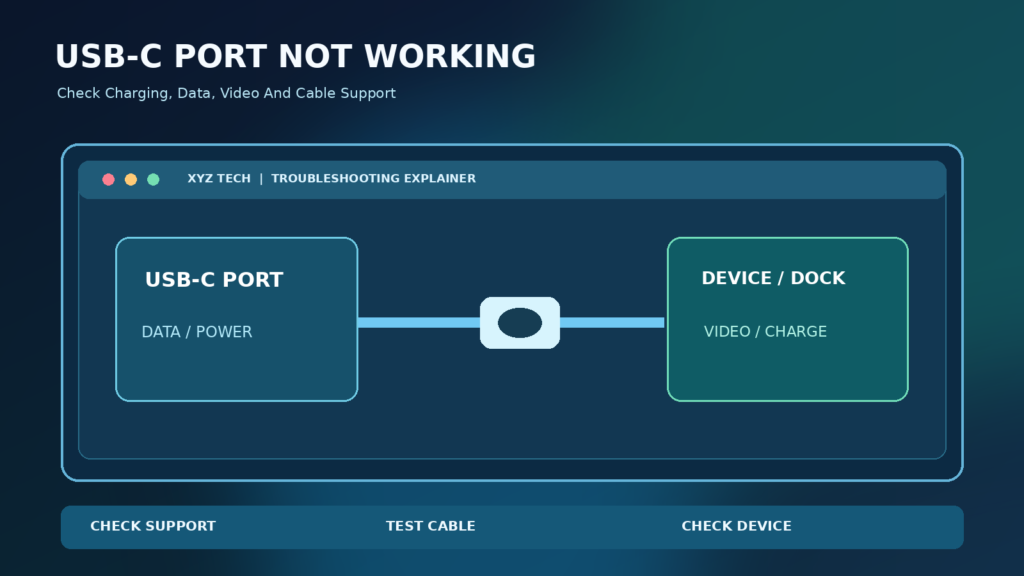

If a USB-C port is not working in Windows 11, identify whether charging, data, video or docking has failed. Verify that the exact port, cable and accessory support that function, then try known-good compatible equipment. Check Windows notifications and Device Manager before installing drivers. Do not format storage, force connectors or assume every USB-C socket supports Thunderbolt or video.
USB-C troubleshooting requires compatibility checks as well as software checks. The procedures below follow Microsoft guidance and distinguish an unsupported feature from a damaged socket or a driver problem.
Begin By Naming The Exact USB-C Failure
A USB-C connector can carry data, provide power and, when the relevant hardware supports it, connect an external display or a compatible dock. A port described as not working may actually charge a phone but fail to transfer files, recognize a storage drive but not display video, or connect a mouse yet refuse to charge the laptop. These are different functions that require different cables, adapters, power levels and controller capabilities. The first diagnostic step is to write down the one function that fails.
Check whether the problem occurs with all connected devices or only a particular accessory. If one phone does not transfer files but a USB drive works, investigate the phone’s USB mode and cable rather than assuming the laptop socket is broken. If nothing responds to any compatible device, focus on physical condition, the host controller, power and drivers. Microsoft’s USB-C Troubleshooting Guidance distinguishes unsupported features from device and connection failures.
Quick Answer: Four Safe Checks
Disconnect the accessory, inspect the port and cable for obvious damage without inserting metal objects, and reconnect a known-good compatible device. Test another cable known to support the function you need. Restart the PC, then check for a Windows notification or Device Manager error. Finally, consult the computer’s model-specific documentation to confirm whether that exact USB-C port supports data, charging, DisplayPort Alternate Mode or Thunderbolt.
Do not assume every USB-C port on the same laptop has identical features. A USB-C cable used for basic charging may not support the data rate or video mode required by a monitor or dock. Similarly, a high-power charger may not be suitable for every computer. Test one controlled change at a time and keep the original cable and adapter available as a comparison.
USB-C Is A Connector, Not A Promise Of Every Feature
USB-C describes a reversible physical connector. It is not a guarantee that a particular port supports USB4, Thunderbolt, charging the PC, high-speed data or an external display. Two laptops can have visually identical sockets with different internal controllers and specifications. A port that successfully recognizes a simple USB accessory may still lack the required video capability. Microsoft’s support page explains that the computer, cable and connected device must support the required feature.
Find the computer’s precise model number and consult its published technical specifications. Where available, look for port symbols and a diagram identifying which connector supports charging or video. Do not guess from the shape alone. The terminology is related to broader concepts explained in our Motherboard Guide and Chipset Explanation, but a manufacturer specification remains the decisive authority for a model’s actual port capabilities.
Identify Whether The Issue Is Data, Charging Or Video
Start with the simplest test that matches the symptom. For data, try a small compatible USB drive with a known-good data cable or a supported phone in file-transfer mode. For charging, use the charger and power cable specified for the device. For video, verify that the particular port and adapter support the appropriate alternate mode and that the display is set to the correct input.
Record successful functions as well as failed ones. If charging works but data does not, you have not proved the entire port is damaged. If a display works through one USB-C socket but not another, the two ports may have different specifications. If everything fails after a liquid spill or physical impact, stop testing and seek hardware assistance. An accurate symptom table saves money and avoids unnecessary Windows resets.
Check The Connector Without Forcing Anything
Shut down or disconnect peripherals when appropriate and examine the USB-C socket in good light. Look for visibly bent contacts, liquid, debris, cracks or a connector that does not seat normally. USB-C plugs are designed to be reversible, but the connector should never need force. A port with scorch marks, heat damage or obvious corrosion needs professional service rather than a series of improvised cleaning techniques.
Do not insert a paper clip, knife, pin or other conductive tool into a powered port. Do not pour cleaning liquid into the socket. If lint is suspected, follow the device manufacturer’s own cleaning guidance or ask an authorized technician. A damaged charging port can create safety risks, especially if it overheats. Back up important data if the computer still operates and arrange appropriate support.
Test A Cable That Supports The Required Function
USB-C cables can differ in supported data speeds, charging power and video features. Some are intended for basic charging, while others support specific transfer modes. Testing with another known-good cable compatible with the intended task is often more informative than buying a brand-new dock. Prefer the cable supplied with the device or one whose manufacturer documents the necessary capabilities.
A cable that charges a phone is not proof that it can connect an external monitor. Conversely, a video-capable cable may still be unsuitable for a laptop’s power requirements. Inspect the cable’s actual specifications and avoid vague listings promising every function on every PC. Microsoft’s USB-C Support Article repeatedly distinguishes device, cable and port support when diagnosing Windows notifications.
Remove The Hub Or Dock As A Diagnostic Test
A USB-C hub or docking station introduces its own controller, power supply, firmware and cable. If the original device works when connected directly to a supported port but fails through the dock, investigate the dock’s specifications and update path. An inexpensive hub may not provide the necessary display mode, power or bandwidth for multiple connected accessories. If the laptop offers more than one compatible port, a controlled comparison can narrow the cause.
Disconnect nonessential accessories during the test so they do not compete for the hub’s available power or bandwidth. Keep the hub connected to its recommended external power source where required. Do not attempt to power a dock with an arbitrary adapter whose electrical ratings are unknown. Work-managed docking stations may require IT-approved drivers or firmware updates.
Understand USB-C Charging And Power Delivery
A laptop with USB-C does not necessarily accept charging through every USB-C port. Even when it supports USB Power Delivery, the charging source and cable must meet the computer’s specifications. A charger may provide some power but fail to maintain the battery level under heavy use, or Windows may report slow charging. Microsoft addresses such situations in its Slow Charging Guidance.
Use the supplied charger or a manufacturer-approved compatible replacement and connect it to the designated charging port. Do not assume that a phone charger can run a workstation laptop. If the plug or port becomes unusually hot, smells of burning or appears physically damaged, stop using it and seek support. Our Laptop Not Charging Guide covers broader battery and power problems outside USB-C data transfer.
Why A USB-C Monitor May Show No Signal
A monitor using USB-C video needs compatible support along the entire chain: the host port, cable, adapter or dock and display. The presence of a USB-C connector alone does not provide DisplayPort Alternate Mode or Thunderbolt video. Microsoft’s USB-C Guide explicitly calls out missing alternate-mode support as a possible reason for display errors.
Check the display’s selected input and use a compatible cable or the manufacturer’s recommended adapter. Test the monitor with another supported computer where practical. If an HDMI or DisplayPort output on the laptop works but the USB-C path does not, investigate that specific path rather than treating the graphics card as universally broken. Our Second Monitor Not Detected guide covers Windows display detection and multiple-monitor settings.
USB4 And Thunderbolt Are Additional Requirements
USB4 and Thunderbolt features depend on certified or otherwise supported hardware, host controllers, cables, attached devices and firmware. A Thunderbolt docking station may not offer all functions when connected to a basic USB-C port. Some devices have backwards-compatible fallback features, but you should confirm the exact combination before buying or troubleshooting. Not every Windows laptop has a Thunderbolt controller or USB4 capability.
Use the manufacturer’s compatibility chart, dock documentation and Windows information rather than assuming a logo on the accessory makes it universal. If a required feature is unsupported, a driver update cannot create the necessary missing circuitry. If the same supported accessory previously worked and stopped after an update, that is a different situation and calls for software and firmware investigation.
Check Windows Notifications About USB Problems
Windows may display a notification about a connected USB-C device, charger, adapter or unsupported display mode. Read the message carefully and preserve its exact wording before dismissing it. Some notifications identify power limitations, unrecognized devices or unsupported alternate modes. The correct remedy depends on the message. A device asking for more power is not repaired by changing a network setting or clearing the browser cache.
Microsoft’s USB-C Error Reference describes common warnings. If a notification points to a specific issue, test a matching component first. Do not immediately uninstall every USB controller from Device Manager because that could disable the very ports you need for mouse, keyboard or external storage.
Inspect Device Manager For USB Errors
Right-click Start, open Device Manager and inspect Universal Serial Bus controllers and any relevant device category. An attached phone, storage drive, dock or display adapter may appear under a different category depending on its function. If a device reports an error, record the exact code and status. Microsoft’s Device Manager Error Codes can help interpret the report.
Do not identify a faulty physical port merely because an unknown entry appears under USB controllers. The problem could be the attached device or its driver. Disconnect the accessory and observe which entry changes, taking care with multiple similar devices. On a work-managed PC, ask IT before changing a controller’s driver or permissions. The device name, vendor and error code are more useful than a screenshot saying USB does not work.
Use Windows Update And Official Manufacturer Drivers
If the port previously functioned and a controller error is now visible, check Windows Update and the laptop manufacturer’s model-specific support page for drivers, BIOS or dock firmware. Microsoft documents normal driver updates through Device Manager in its driver update guidance. Only install packages intended for your exact hardware and Windows version.
Firmware updates can carry their own risk if power is interrupted or the wrong package is used. Follow the manufacturer’s instructions exactly, keep the required power connected and preserve important work before proceeding. Do not run unofficial driver packs or random scripts described as USB power fixes. If the issue began immediately after a supported update, check whether the official rollback procedure is appropriate before making multiple changes.
Be Careful With USB Controllers And Driver Reinstallation
Device Manager offers options to update, disable or uninstall devices, but each has a different consequence. Disabling the wrong USB controller can disconnect a wired keyboard, mouse, network adapter or storage device. Uninstalling a driver may require rebooting and automatic redetection, but redetection is not always guaranteed to restore a working driver. Obtain an alternative input method or support path before making changes.
If official troubleshooting specifically recommends reinstalling an affected driver, identify the correct controller and confirm that you can recover if the USB devices stop responding. Do not use global commands that indiscriminately remove drivers. Record what changed and test the original accessory afterward. A physically damaged port cannot be repaired by reinstalling a Windows driver.
Test The Connected Device On Another Computer
A USB-C storage device, phone or docking station can itself be faulty. Test it with another known-compatible host, using the same cable where safe, then substitute another cable to isolate the components. If the peripheral fails everywhere, the accessory becomes the stronger suspect. If multiple peripherals fail only on one laptop port, investigate that port or host controller.
A test should respect compatibility. For example, a monitor requiring USB-C video cannot be fairly tested on an unrelated USB-C socket that never supported video. Use the hardware manuals. Avoid connecting a device showing heat damage, exposed wiring or liquid contamination to a second computer. Controlled comparisons are helpful only when the tested configurations are intended to work.
Why Android Phones Sometimes Charge But Do Not Transfer Files
A phone may charge when connected to Windows yet not present storage for file transfer. Many Android devices require the screen to be unlocked and a USB connection mode such as File transfer to be selected before Windows can access supported content. A charge-only cable or phone-side permission can produce a data problem even though the laptop port supplies power.
Test the phone with a confirmed data-capable cable and the phone’s documented USB options. Keep the phone unlocked only while you are performing the transfer and use legitimate permissions. Do not install an untrusted phone driver advertised in a pop-up. Our Transfer Photos From Android To Windows tutorial covers the broader copy workflow and helps distinguish connection mode from actual port failure.
Do Not Format A USB Drive To Fix A Port Problem
If a USB drive connects but does not appear in File Explorer, that can involve disk management, drive letters, file systems or storage failure rather than the USB-C connector itself. Formatting erases data and is not an appropriate first test. If important files are present, preserve the drive and seek a safe read-only assessment before accepting any initialize or format prompt.
Use Disk Management only to inspect device detection at first, and be careful with prompts that could overwrite partition information. Our External Hard Drive Not Showing Up guide covers storage-specific diagnostics, while NTFS Vs exFAT Vs FAT32 explains file-system compatibility. A healthy USB-C port can be connected to a disk with a separate logical problem.
Check Whether The Failure Follows Sleep Or A Power State
Some peripherals behave differently after Windows sleeps, hibernates or resumes. If a USB-C dock stops responding only after waking the laptop, compare its behavior after a normal restart and investigate the device manufacturer’s supported firmware and power guidance. Avoid claiming that every USB connection should remain active during sleep because device and computer power states vary.
Where a controller exposes advanced power-management controls, change one setting at a time only with an appropriate recovery plan. Blanket instructions to disable every USB power-saving mechanism can increase energy use and do not establish root cause. If this is a business dock, follow workplace policies for sleep, security and device management.
When The Problem Started After A Windows Update
Record the approximate update date and the last time the accessory worked. Compare the hardware and firmware release notes with Windows Update history. Do not automatically blame an update when a cable also changed or the connector was physically damaged. If an official driver rollback is available and supported, it may be a reasonable controlled test, particularly when the symptom began immediately after installation.
Avoid uninstalling random Windows updates or using a system restore before completing simpler compatibility and hardware checks. Back up essential files and document any configuration change you make. Microsoft’s driver support guidance provides the appropriate starting point; manufacturer support may be needed when the failure involves Thunderbolt, USB4, BIOS or a docking-station controller.
Use A USB-C Diagnostic Decision Table
A useful decision table starts with the operation that fails, then asks whether it is supported, whether the cable is compatible and whether another device works. If data works but video does not, confirm alternate-mode and display requirements. If charging is slow, compare the rated charger and cable. If no accessories work and the port shows physical damage, stop and request service.
This method prevents a common error: treating one failed feature as proof the entire socket is dead. It also helps decide when a new cable is a reasonable purchase and when buying equipment would be wasteful. The table below lists practical observations rather than guarantees about a specific brand of computer.
| Observed Behavior | Important Check | Avoid |
|---|---|---|
| Phone Charges But Cannot Copy Files | Data Cable And USB Transfer Mode | Replacing Laptop Port First |
| Monitor Has No Video | Host Alternate Mode And Cable | Assuming Every USB-C Port Does Video |
| Laptop Charges Slowly | Power Requirements And Charger | Arbitrary High-Power Adapter |
| Storage Drive Is Not Visible | Device Manager And Disk Detection | Formatting Important Data |
| Only Dock Fails | Dock Firmware, Power, Cable | Uninstalling All USB Drivers |
When A USB-C Port Needs Professional Repair
Seek authorized service when the connector is loose, deformed, visibly damaged, unusually hot or contaminated by liquid. Also consider manufacturer support when several known-good compatible devices and cables fail on the same port after supported software checks. A faulty solder joint or damaged controller may require a repair beyond safe consumer troubleshooting.
Before handing over a laptop, back up important files where practical, sign out of sensitive sessions as appropriate, and follow the manufacturer’s service privacy instructions. Do not attempt to bend internal contacts back into position while the device is powered. For devices under warranty, unauthorized disassembly can have consequences. A verified physical fault is a different situation from a missing Windows driver.
A Practical Prevention And Buying Checklist
Label cables by the functions they actually support instead of relying solely on the USB-C connector shape. Keep a known-good cable for data transfers and a manufacturer-approved charging arrangement. Avoid forcing connectors, carrying a laptop by an attached cable or placing strain on a dock while its port is connected. Protect the equipment against liquid and overheating.
Before buying a new monitor, hub or dock, compare the exact laptop port specifications, required charging wattage, display mode and accessory compatibility. Prefer clear manufacturer documentation over claims that a cable is universally compatible. Once a working configuration is established, note the device and cable models so that future troubleshooting begins with reliable reference components.
Frequently Asked Questions
Why Does My USB-C Port Charge But Not Transfer Data?
The connected device may use a charge-only mode, the cable may lack data capability, or the required device driver or permission may be missing. Test a known-good data cable and compatible accessory.
Does Every USB-C Port Support An External Monitor?
No. USB-C is a connector shape. Video requires suitable host, cable and display or adapter support, such as the relevant alternate mode or compatible Thunderbolt implementation.
Can A USB-C Port Charge Every Laptop?
No. The laptop must support charging through that port, and the charger and cable must provide an appropriate compatible power profile.
What If My USB-C Dock Works On Another Computer?
Check whether the original laptop supports the dock’s required features, then inspect its cable, power supply, drivers and firmware. Identical connectors do not guarantee identical functionality.
Should I Disable USB Power Saving?
Not as a universal fix. Consider a controlled device-specific test only when power-state behavior supports that hypothesis, and preserve the original configuration.
Can A USB-C Cable Be For Charging Only?
Some cables or cables supplied for basic charging do not support all data and video capabilities. Check the manufacturer’s documented specifications.
Should I Format A USB Drive That Windows Does Not Recognize?
No. Formatting can erase data and does not repair a failed USB-C port. Investigate device detection and storage health first.
How Do I Check USB Errors In Windows 11?
Open Device Manager, locate the relevant USB controller or attached device, and review its device status and error code. Consult Microsoft’s official error-code guidance.
Can A Windows Update Break A Previously Working Port?
Driver or compatibility changes can affect connected hardware, but timing alone is not proof. Check official updates, driver versions and model-specific support.
When Should I Replace Or Repair A USB-C Port?
Seek service for visible damage, overheating or a repeatable failure with several known-good compatible devices and cables after appropriate software checks.


