
Missing Android icons can look alarming, especially when the app contains important information. This guide begins with reversible checks and separates shortcut layout, app visibility, profile restrictions and installation status. Menu names depend on your Android version and launcher.
Identify Exactly Where The Icon Disappeared
A missing app icon is not necessarily a missing application. Android separates the application installed on the device from the shortcut that starts it. A home screen can lose a shortcut even while the app, its account and its saved information remain intact. Before attempting a repair, identify whether the icon is missing from the home screen, the complete app list, a particular profile or every location you normally use. Also note whether the icon is simply faded rather than absent.
Try opening a familiar app that still appears normally, then compare the affected app. Record the app’s exact name and the last time it worked. If you recently changed phones, switched launchers, installed an update or rearranged the home screen, record that too. These observations help separate a normal layout change from a genuine installation or account problem. Avoid uninstalling anything at this stage; finding the app is less disruptive than replacing it.
Search The Complete App List First
On many Android phones, swiping upward from the home screen opens the complete list of applications. Some manufacturers provide an Apps button instead, while other home screen layouts combine shortcuts and installed applications on the same pages. Use your phone’s documented method to open its app list. Look for a search box and type the app’s name, or browse the alphabetical list manually.
If you find the app, tap it and confirm that it opens normally. That result tells you the application is available in the current profile even though its home screen shortcut is missing. If search finds nothing, try the app’s full name rather than an abbreviation, and check the app list again. Google documents the app-list and search behavior for Android and Pixel phones, but third-party launchers may present applications differently.
Restore An Ordinary Home Screen Shortcut
When the app is visible in All apps, press and hold its icon until the launcher presents a way to place it on the home screen. On many Android devices, you can drag the app toward the home screen, move it to an available position and release it. On some launchers, a menu offers an Add to Home option instead. Follow the controls shown on your own phone rather than trying to reproduce the exact gesture from another manufacturer’s interface.
If the home screen is full, move to another page or make space before dropping the shortcut. Open the restored shortcut once to check that it starts the intended application. This does not normally reinstall the application or change its stored information. If the app is not in the complete app list, repeatedly attempting to add a shortcut will not help. First establish why the launcher cannot find it.
Distinguish Remove From Uninstall
When you press and hold a home screen icon, Android launchers may display different actions. Remove generally means taking an item off the home screen, while Uninstall removes the application from the current user or profile when permitted. These are different operations. Some preinstalled apps cannot be uninstalled through ordinary controls, and the wording of the removal menu varies across devices.
Read the confirmation message before accepting any action. If you only want to reorganize the home screen, do not select Uninstall. If you accidentally removed a shortcut, search for the existing application and restore its shortcut instead. This distinction matters especially for an authenticator, a messaging application or a local notes app that may contain information not saved elsewhere. Reinstallation is unnecessary when the application itself has not been removed.
Look Inside Home Screen Folders And Other Pages
A shortcut can appear to disappear when it is moved into a folder or onto another home screen page. Swipe through the available pages and inspect folders that you use for similar applications. Search for the app by name if the launcher supports searching home screen items. When a folder contains several pages, inspect those pages as well. A newly installed application may be placed in a location different from the one you expected.
If the icon is inside a folder, use the launcher’s supported drag or move gesture to place it somewhere easier to find. Do not delete a whole folder to restore one icon. Some launchers change the way folders behave when they become empty or contain only one item, so inspect the result after moving the app. A simple layout mistake should not require an app reset, a new Google account or a factory reset.
Check The App’s Installation Status In Settings
Open Android Settings and navigate to Apps, then the full application list if needed. Search for the affected app. An application information page may reveal whether the app is installed, disabled or otherwise unavailable. The available buttons depend on the device, app and Android version. Some system services are installed but do not have a normal launchable icon, so their presence in Settings does not guarantee that they should appear in the launcher.
If the app is present and offers Open, try that control. If it opens successfully, focus on the launcher or shortcut layout rather than attempting a reinstall. If it is not listed, verify that you are checking the correct user and profile. A locked Private Space can intentionally conceal apps from ordinary Settings views. Avoid assuming that every app missing from one list has been permanently deleted.
Check Samsung Galaxy Hidden Apps Settings
Galaxy phones with supported One UI home screen controls can hide selected apps from both the Home and Apps screens. On compatible devices, open Settings and look for Home screen, then the option for hiding applications on the Home and Apps screens. You may also reach the home screen settings by pressing an empty area of the home screen. The exact labels and menu placement can differ with One UI versions.
Review the selected hidden applications and remove only the app that you want to make visible again. Save or apply the change using the controls on your device, then check the Apps screen. Do not unhide everything, particularly on a shared phone where the hidden layout may be intentional. Hiding an app is not the same as uninstalling it, and a hidden icon does not by itself establish a security issue. Samsung’s support documentation explains the relevant launcher controls.
Understand Android Private Space Before Unhiding Anything
Supported Android devices can offer Private Space, a separate protected area for applications. When that area is locked, its apps can be hidden from the main launcher and other system views. A missing icon may therefore be an intended privacy feature rather than a malfunction. If you configured Private Space, unlock it using its authorized lock and inspect the apps within that space. The ordinary profile and private profile can contain separate installations of the same app.
Do not delete Private Space or remove its lock to troubleshoot a missing shortcut. Deleting the space can remove its applications and local data. If you need guidance about the effect of locking on app availability, see the related Android Private Space notification guide. If the space belongs to another user, do not attempt to access it. Restore the intended lock state after checking your own authorized applications.
Check Work Profile And Managed Applications
A phone with an Android Work Profile may separate workplace applications from personal applications. Depending on the launcher, you might see a Work tab, a briefcase badge or another profile indicator. A paused work profile can make its apps unavailable, and organizations can manage which applications are installed or permitted. If a missing app belongs to work or school, check the Work section of the launcher and the profile’s authorized status before investigating the personal app list.
If the work profile was intentionally paused, resume it using the supported control only when you need to work and are allowed to do so. Do not remove the profile, uninstall device management or sideload a replacement application to avoid an organization restriction. Removing a profile can remove its work data. If the application was withdrawn by an administrator, contact the appropriate IT team with the app name and the relevant message. The goal is to restore authorized access, not override management policy.
Make Sure You Are In The Correct User Account
Some Android tablets and phones support multiple device users or guest sessions. Applications available to one user may not appear in another user’s launcher. Look for the current device user in Settings or Quick Settings if your device supports this feature. An unexpected guest session can make a familiar home screen appear to have lost many applications at once. Switch only to your own authorized user using the device’s normal controls.
Distinguish an Android device user from the Google account selected in the Play Store. Changing the store account does not automatically switch the operating system’s user profile. Similarly, restoring an app in the personal profile does not restore its separate work or private installation. Before downloading another copy, verify which profile originally contained the app and where its information was stored. Never delete a user profile simply to make a missing icon visible.
Restore An Archived App Instead Of Treating It As Deleted
Android app archiving can free storage while retaining the app’s icon and personal data on supported configurations. A faded icon can therefore indicate an archived app, not a broken launcher. Tap the icon or use the supported restoration option and allow the app to download again from its available store. Restoration requires sufficient space and a working connection, and availability depends on whether the original app can still be obtained.
If storage is limited, use the Android storage troubleshooting guide to review safe cleanup options. Do not delete an archived app or erase its local information just to make the icon look normal. The purpose of archiving is to recover space without requiring an ordinary uninstall. Although personal data is intended to be retained by the supported feature, do not assume that every third-party app can restore every session or offline file. Verify important information after restoration.
Re-Enable A Disabled App Where Supported
Some preinstalled applications can be disabled rather than removed entirely. A disabled app may be absent from the normal launcher. In Settings > Apps, inspect the affected application’s information page. Where the device offers an Enable control and you actually need the application, use that supported option. Google Play also provides supported re-enabling and reinstallation methods for eligible apps.
Do not enable every disabled component as a general troubleshooting experiment. Some devices ship optional components that users deliberately disabled, and a managed device may restrict access for a valid reason. If the app was disabled because it was unneeded or problematic, consider that history before restoring it. After enabling the selected app, return to All apps, check that it has a launchable interface and create a home screen shortcut if necessary. Leave unrelated app settings unchanged.
Confirm The App In Its Official Store
If the app is not available in the current profile’s app list, open the trusted store from which you originally obtained it. Search for the exact application, verify the publisher and inspect the available action. Depending on the installation state, the listing may offer Open, Install, Enable or another supported option. Google Play lets you review applications associated with your selected Google account. Galaxy Store applications may need to be checked through that store instead.
A similar name or familiar logo is not enough to verify an application’s identity. Check the publisher and the original installation source before downloading anything. If the store says the app is incompatible or unavailable, do not obtain an unofficial APK simply to restore the icon. See the Android app compatibility guide for separate compatibility issues. An app may no longer be offered for your device or account, even if you used it previously.
Protect Data Before Reinstalling A Removed App
If you confirm that the app was actually uninstalled, a supported reinstall may restore its launcher icon. But the icon is not the same as the app’s previous data. Some applications synchronize information through an account, while others retain local files or application-specific settings that are not automatically recovered. Before reinstalling or signing into a new account, consider what information you need to recover and whether the app’s developer provides a restoration method.
Check any available backup and confirm the correct account before proceeding. This is particularly important for authentication, encrypted messaging, password management and other applications whose recovery can require special steps. The Android backup guide provides general preparation guidance, but consult the app developer for application-specific restoration. A new installation should not be presented as a guarantee that deleted information will return.
Check Whether The Default Home App Changed
A launcher manages the presentation of the home screen and app list. Installing another launcher, changing the default home application or restoring a device can make the entire layout look different. If many icons disappear at once but installed apps remain available, inspect Settings > Apps > Default apps and look for the Home app option where your device provides it. Note which launcher is currently selected.
If you recently switched launchers, return to the previous trusted home app temporarily and compare the layout. Each launcher may maintain its own shortcuts, folders and widgets, so switching does not necessarily copy arrangements between them. Do not uninstall the previous launcher or erase its data before determining whether it still holds your preferred layout. Check the launcher’s official export or backup options if you want to preserve the arrangement during a planned transition.
Inspect Icon Packs And Launcher Appearance Settings
Third-party launchers and some manufacturer themes can change the appearance of icons. A blank icon, an unfamiliar symbol or a generic placeholder may still represent the correct app. Search for its name in the app list and verify whether it opens. If it does, inspect the current icon pack, theme or launcher appearance settings rather than treating the app as uninstalled. A theme that lacks an appropriate icon may fall back to another design.
Record the theme you are using and temporarily apply a supported default icon style if you need to compare appearances. If that restores the expected visual identity, the issue concerns presentation rather than installation. Restore your preferred theme afterward if it works correctly. Do not download an unknown icon pack or grant broad accessibility permissions to an app claiming to restore missing icons. Appearance changes generally do not justify access to your private information.
Check Whether A Suggested App Was Replaced
Some Pixel home screen arrangements provide suggested apps based on usage. An icon in a suggestions area can be replaced by another suggested application without uninstalling either app. If a familiar icon disappears from the favorites row but the app remains in the app list, check whether that position was a dynamic suggestion rather than a manually pinned shortcut. Google documents how suggestions work and how to organize Pixel favorites.
If you need a predictable position, use the supported home screen settings to manage app suggestions and place a permanent shortcut where the launcher allows it. Consider leaving useful suggestions enabled if you prefer automatic recommendations. A changed suggested-app row is not evidence of lost data. This also applies to other launchers that provide recommendations, although their behavior and controls may differ. Consult the manufacturer or launcher developer for the exact configuration.
Restart The Launcher Or Phone Without Erasing Its Layout
When app icons fail to refresh after an update or installation, a normal restart is a reasonable reversible test. Save any open work and restart the phone using its standard power menu. After it starts, unlock the correct profile and allow the launcher a short time to finish loading its items. Search for the affected app again before making further changes. A delayed icon refresh can be temporary.
If the launcher still behaves incorrectly, look for supported updates through the official app store or system update controls. Do not begin by clearing the launcher’s storage. That action can remove its layout, folders, widgets or preferences, depending on the launcher. If the official developer recommends a cache-specific operation, distinguish cache from storage and preserve the current arrangement first. Treat any layout-erasing action as a separate, deliberate decision.
Separate A Missing Icon From An App That Will Not Open
If the icon appears but tapping it immediately returns you to the home screen, the problem is no longer simply a missing shortcut. The app might be archived, disabled, affected by a paused profile or encountering an application crash. Read any displayed message and inspect the application status in Settings. Verify the store listing and correct profile before trying updates or ordinary restarts.
If the app is installed and repeatedly closes during startup, follow the related Android app crash troubleshooting guide. Do not assume a permission issue unless the app identifies a permission-related failure. A separate problem involving permissions removed from unused apps is covered in our Android permission reset guide. Keeping these symptoms separate helps prevent unnecessary data removal.
Handle A Phone Migration Or Restore In Progress
After transferring to a new phone or restoring from a backup, application downloads and home screen reconstruction may not finish simultaneously. Inspect the store’s pending downloads, confirm that the network is working and check available space. Verify that you selected the correct account and that the original applications are still supported by the new device. An icon may remain absent or unavailable until the relevant installation completes.
Do not erase the source phone merely because the new phone displays most of its icons. First open important applications and confirm that their information and account access are available. Some apps require their own migration procedure, and restored shortcuts do not prove that their local data transferred. If the device continues to omit one app, investigate that specific installation rather than starting the entire migration again. Keep a verified backup until you are satisfied that essential information is accessible.
Use The Diagnostic Matrix Before Resetting Anything
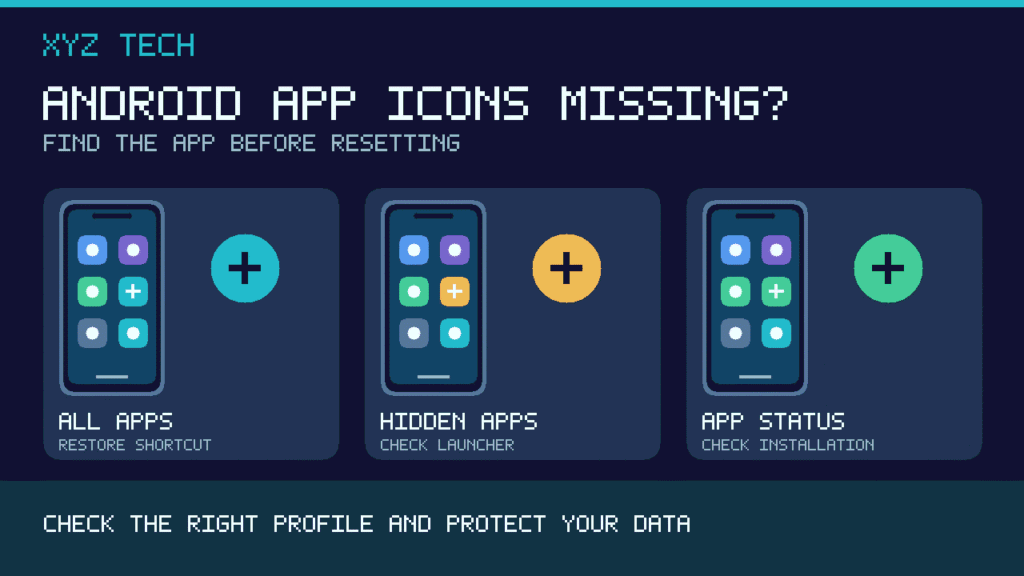
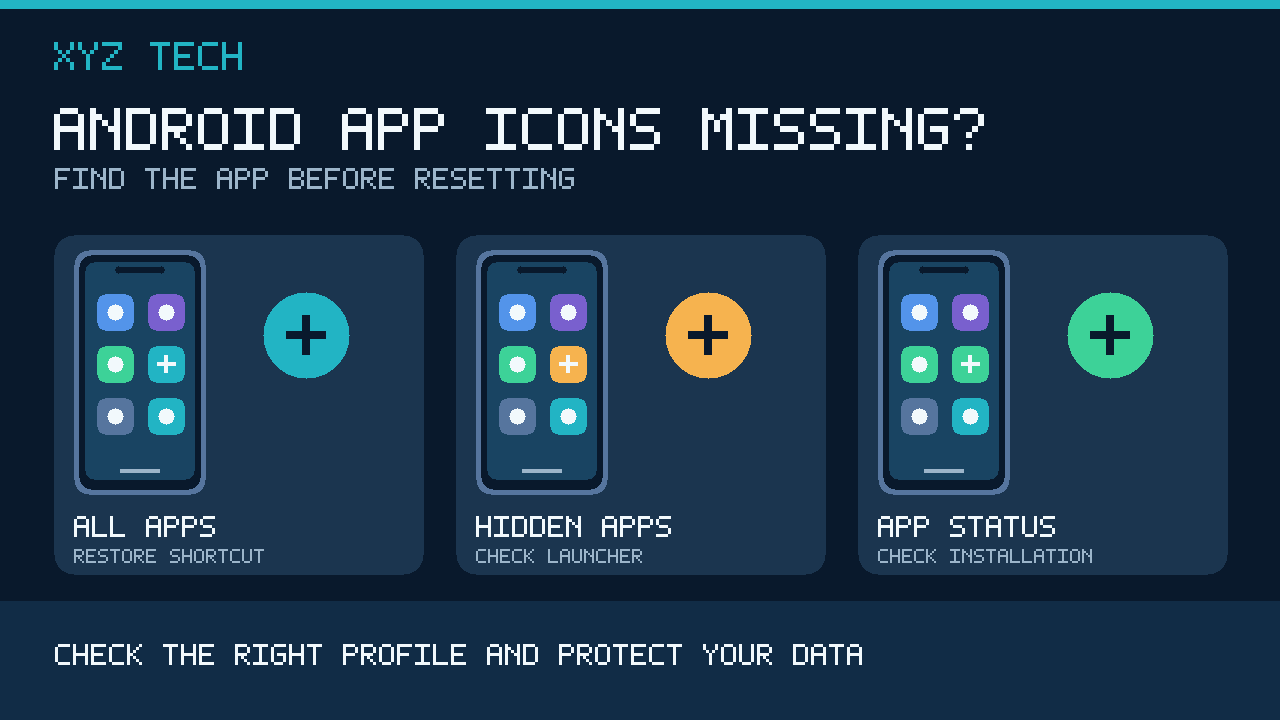
The quickest next step depends on the observed location and status. If an app opens from All apps, restore its shortcut. If it is installed but missing from the launcher, check visibility and the default home app. If it is available only in a protected or managed profile, use the authorized profile controls. If the icon is faded, check archiving. If the store indicates that the app is not installed, verify its identity and plan for data recovery before downloading it.
These distinctions prevent unnecessary changes. Use the matrix to choose one test and repeat the original observation after it. Do not make several layout, permission and account changes together, since you will not know which one resolved the symptom. For a persistent problem, record the phone model, Android version, launcher name, app name, profile and what Settings and the store report. Contact the manufacturer or launcher developer when the evidence indicates a presentation issue. The examples in this guide explain documented mechanisms rather than claim hands-on tests of every Android model.
| Observation | First Check | Safe Action |
|---|---|---|
| App opens from All apps | Home screen shortcut | Add existing app shortcut |
| App installed but absent from launcher | Hidden apps or launcher settings | Inspect visibility without clearing data |
| App belongs to work or private profile | Profile status | Use authorized unlock or resume controls |
| Faded app icon | Archive or unavailable state | Inspect and restore through supported controls |
| Store offers Install | Correct account and installation status | Verify identity and backup before reinstalling |
Frequently Asked Questions
Why Did My Android App Icon Disappear?
A shortcut may have been removed, moved into a folder, hidden by the launcher or affected by a separate profile. The app may also be disabled or uninstalled. Search All apps and check the installation status first.
How Do I Put An App Back On My Home Screen?
Find the app in All apps, press and hold its icon and use your launcher’s supported drag or Add to Home control. This restores a shortcut without reinstalling the existing app.
Does Removing A Home Screen Icon Delete The App?
No, removing a shortcut is normally different from uninstalling the application. Read the action label and confirmation message before selecting it.
How Do I Find Hidden Apps On A Samsung Galaxy?
On supported Galaxy models, check Home screen settings for the option to hide apps on the Home and Apps screens. Remove the intended app from the hidden selection and check the launcher again.
Why Is An App Missing When Private Space Is Locked?
Private Space can intentionally hide its apps when locked. Unlock your own space using its authorized credentials to inspect those apps. Do not delete the space to make icons visible.
What Does A Faded App Icon Mean?
A faded icon can indicate an archived app or another unavailable state. Check the app information and supported restoration controls before assuming the application has been deleted.
Can I Restore A Disabled Android App?
Yes, when the device permits re-enabling that particular application. Check its app information page or its official store listing for the supported Enable action.
Will Reinstalling An App Restore All My Old Data?
Not necessarily. Data recovery depends on the app’s backup, account synchronization and storage behavior. Confirm the recovery options before reinstalling an important app.
Should I Clear Launcher Storage To Restore Missing Icons?
No, not as a first step. Clearing launcher storage can erase the home screen arrangement and preferences. Check app availability, launcher visibility and the default home app first.
Why Are My Work Apps Missing From The Personal App List?
Work Profile apps can be separated from personal apps and may be unavailable when the profile is paused or managed restrictions apply. Use the authorized Work Profile controls or ask your IT administrator.
Official References
Consult the following official resources for the supported controls and applicable device differences.
- Google Android Help: Add Apps, Shortcuts And Widgets
- Google Pixel Help: Find And Open Apps
- Google Android Help: Private Space
- Samsung Support: Access And Organize Galaxy Apps
- Google Play Help: Reinstall And Re-Enable Apps
- Google Play Help: Archive Unused Apps
- Android Enterprise Help: Pause Or Turn On Your Work Profile
- Google Pixel Help: Organize Home Screens And Favorites