
If Bluetooth seems to turn off on Android, open the full Settings app and verify whether the master Bluetooth switch actually changes state. If it remains on, investigate the specific accessory instead. Restart normally, check airplane mode, manufacturer routines, software updates and any device-management policy. Avoid clearing Bluetooth service data or resetting all connectivity settings until you know what will be lost.
A headset dropping sound is not the same event as Android disabling its Bluetooth radio. This guide uses controlled tests to distinguish them, respects manufacturer-specific Settings layouts and keeps paired-device records and data safe.
Verify Whether Bluetooth Actually Turns Off
The statement Bluetooth keeps turning off can describe several different problems. The main Bluetooth toggle may switch itself off, the toggle may remain enabled while a headset disconnects, or an app may report that Bluetooth is unavailable. Open Android Settings, Connected devices or Bluetooth as labeled on your phone, and observe the master switch itself. Record whether it changes state without touching it.
Do not infer that Bluetooth was disabled simply because a speaker stopped playing. If the master switch stays on, investigate pairing, range and accessory power instead. If the switch really goes off on its own, note whether that follows a restart, screen lock, particular app or low-battery event. The difference determines whether you are diagnosing the phone radio, an accessory, or an application.
Compare Quick Settings With The Main Settings App
Swipe down to Quick Settings and inspect the Bluetooth tile, then open the full Settings app and compare their states. Some Android versions present a connectivity panel rather than a simple on-off tile. A tile that opens a device selector does not necessarily turn the radio off. The Settings app provides a more reliable view of the master control.
Change the setting once through the normal interface, then watch whether it remains enabled. Avoid assuming the icon color is identical across manufacturers, dark mode and Android versions. If the switch appears greyed out or vanishes entirely, document the wording and consider a device policy or software problem instead of repeatedly tapping Quick Settings.
Restart The Phone Before Resetting Anything
A normal restart can clear transient radio and system service problems without erasing saved Bluetooth pairings or applications. Save current work and restart the phone using its manufacturer-approved power menu. After it finishes booting, open Settings and enable Bluetooth. Observe whether the state remains stable while the phone is idle.
If the switch fails again at the same point, record that timing. A restart that briefly solves the issue provides useful diagnostic evidence but does not identify the root cause by itself. Do not jump from a temporary improvement to a factory reset. Android and manufacturer software updates or a newly installed application may still be responsible.
For the related but distinct symptom, see Fix Bluetooth Pairing Problems Android. Use that narrower guide only if its checks match what you observe.
Check Airplane Mode Without Making Assumptions
Airplane mode affects wireless connections, but some Android phones permit Bluetooth to be reenabled while airplane mode remains active. Do not assume airplane mode behavior is identical on every device. Inspect both settings and follow the labels on your phone. If the Bluetooth toggle changes when entering or leaving airplane mode, record the sequence.
For a normal connectivity test, turn airplane mode off and enable Bluetooth through Settings. Repeat under the same condition to see whether the radio stays on. Avoid bypassing airline instructions or organizational radio policies for testing. If a managed device deliberately restricts Bluetooth, follow the approved policy rather than trying hidden menus to force the connection.
Check Whether A Device Management Policy Is Applied
Phones managed by an employer, school or family administration may enforce restrictions on wireless features, connected devices or app permissions. A Bluetooth switch that is locked or immediately reverts might reflect such policy rather than a damaged radio. Look for managed-device notices and ask the authorized administrator what is allowed.
Do not remove a work profile, management app or account without understanding the consequences for authentication, documents and remote access. Personal troubleshooting should not defeat another party's legitimate device configuration. If the phone is personally owned and not managed, continue with ordinary software and hardware checks instead of assuming a policy exists.
Separate Accessory Disconnects From Radio Shutdown
A headset battery dying, a car switching audio sources or a wearable moving out of range can look like Bluetooth turning itself off. Keep the master switch visible while the accessory disconnects. If the switch stays enabled, the problem is probably in the connection path rather than the master radio state.
Use Google's Bluetooth troubleshooting guide for a genuine pairing failure. Check accessory charge, supported profiles, connection limits and whether another previously paired device is taking over. Do not forget all devices or reset networking if only one accessory fails. Narrow the symptom to that accessory before changing system-wide settings.
For the related but distinct symptom, see Android Auto Not Connecting Usb Wireless. Use that narrower guide only if its checks match what you observe.
Test One Known Good Bluetooth Accessory
Choose one trustworthy accessory with a charged battery and a known working connection history. Pair it through the standard Bluetooth screen, then observe it in a low-interference environment. Test a small action such as playing a short local audio sample or checking whether a wearable reports connected, depending on the accessory's supported function.
If several accessories fail while the master switch visibly turns off, focus on the phone. If only one device disconnects and the Bluetooth switch stays enabled, consult that accessory's documentation. Do not mix the results of a car head unit, headset and keyboard as if they have the same Bluetooth profiles. Their connection and battery behavior can differ.
Check For Battery Saver And Manufacturer Power Features
Some battery or power-management modes can limit background applications and scanning, but they should not automatically be blamed for a master Bluetooth switch turning off. Review Battery Saver, scheduled power modes and any manufacturer-approved automation settings. Note which controls are actually present on the model; generic Android directions may not match it.
For an authorized test, compare Bluetooth behavior with a temporary power-saving restriction disabled, then restore the original preference. Observe the master toggle separately from a third-party app's background reconnection. Do not disable core battery or thermal safety protections, and avoid claiming a battery optimization menu will repair defective hardware.
Inspect Routines And Automation Apps
Some Android manufacturers and third-party automation apps can change wireless states according to time, location, device events or user-created routines. If Bluetooth turns off at the same hour or after leaving a place, review the phone's official routines or modes interface. Verify an actual rule exists before assuming one is responsible.
If you find a rule that matches the symptom, pause only that rule for a controlled test and note its original settings. Do not delete unrelated automation profiles or grant new accessibility permissions to unknown utility apps. A simple reproducible schedule is stronger evidence than random resets. Restore the rule if it was not the cause.
For the related but distinct symptom, see Android Vibration Not Working. Use that narrower guide only if its checks match what you observe.
Review Recently Installed Applications
A newly installed device companion, battery manager or automation app may coincide with Bluetooth state changes. Check the installed-app list and update history, particularly when the problem began. An ordinary app cannot necessarily change every system Bluetooth setting directly, so do not accuse an app solely because it was installed recently.
Temporarily disable or uninstall a nonessential application only if you recognize it and can preserve its data. Avoid removing security, authenticator or workplace apps. If the symptom disappears after a specific approved change, reproduce the test before making a permanent decision. Correlation with an update is not proof of causation.
Check Supported Android System Updates
Open Settings and inspect the System update controls presented by the manufacturer. Install an appropriate supported update when available, with adequate battery and a verified backup of important files. Bluetooth services and chipset firmware are integrated with the device's operating system and may receive fixes through official updates.
Do not install firmware packages from unofficial sites or flash another model's image. Record your current Android build and security update status before changing anything. If the phone is already current or the update does not help, continue diagnosing rather than repeatedly attempting a reinstall. An update is a controlled maintenance step, not a guaranteed Bluetooth fix.
Update The Accessory Or Its Companion App When Relevant
When the phone Bluetooth switch stays enabled but a wearable or headset drops, check the manufacturer's official companion app for firmware and app updates. Make sure the device has enough charge and follow the vendor's instructions. Never interrupt an accessory firmware update by repeatedly toggling Bluetooth or resetting its pairing state.
If the problem is truly the phone's master switch going off, accessory firmware is less likely to help. Avoid changing multiple devices simultaneously, because then it becomes difficult to identify the effective fix. A useful test keeps the phone, accessory and environment stable while adjusting one supported variable at a time.
For the related but distinct symptom, see Android Battery Draining Fast. Use that narrower guide only if its checks match what you observe.
Review Nearby Device Permissions Carefully
Modern Android versions use Nearby devices and related permissions for apps that discover or communicate with Bluetooth accessories. A denied permission may make an app show disconnected even while the phone's Bluetooth radio stays on. Review permissions only for the affected app and decide whether its function justifies access.
Do not grant broad device-discovery permission to unrelated applications just to remove an error message. Check the system Bluetooth master switch first. If the app reconnects when its legitimate permission is restored but the radio state never changed, you have found an app-access issue rather than a system-wide hardware problem.
Understand Bluetooth Scanning And Location Settings
Bluetooth scanning used for certain nearby-device and location features is not the same as the main user-facing Bluetooth toggle. Android versions and manufacturers differ in where scanning settings appear. A background discovery setting can be enabled or disabled independently of a currently connected headset in some configurations.
Review the actual labels before changing privacy controls. Do not turn on location access or continuous scanning for every app merely to fix the master switch. If a nearby-device feature is affected, consult Google's current permission guidance and grant only the access required. Keep wireless discovery and privacy expectations clear in the article's diagnostic log.
Check For Phone Overheating Or Physical Problems
A phone that is excessively hot, has been dropped, has liquid damage or restarts unexpectedly may have a broader hardware or system problem. Wireless connectivity failures can be one symptom among several. If the device reports overheating, move it to a safer environment and allow it to cool according to the manufacturer's advice.
Do not put a hot phone in a refrigerator, open its battery enclosure or continue charging an apparently damaged battery. If Bluetooth cannot remain enabled even after a normal restart and updates, contact authorized service. A software toggle cannot reliably diagnose a physically damaged antenna or wireless chipset without manufacturer tests.
For the related but distinct symptom, see Android Apps Keep Crashing. Use that narrower guide only if its checks match what you observe.
Compare Behavior In Safe Mode When Supported
Safe mode can help isolate a problem related to downloaded applications on some Android models. Enter it only using the device manufacturer's instructions, since key combinations and availability vary. Observe the Bluetooth master switch during a controlled test with the same accessory. Some third-party companion apps will be unavailable in safe mode, so plan accordingly.
If the switch remains stable in safe mode but fails during normal operation, review recently added apps and automations. If it still fails, that does not automatically prove hardware damage; system software and the radio itself may also be involved. Leave safe mode normally and avoid using it as a permanent solution.
Avoid Clearing All Bluetooth Data As A First Step
Online advice may recommend clearing storage for Bluetooth system services, which can erase saved pairing information or alter device behavior depending on the manufacturer. That is not equivalent to restarting Bluetooth. The supported settings screen is safer for an early diagnosis, especially when several important accessories are paired.
Do not force-stop random system packages or delete files from protected folders. If authorized support recommends a service-data change, ask which connections and preferences will be lost, then document them first. A reliable recovery plan is more important than an untested shortcut. Keep work authentication devices and medical-related accessories in mind.
Consider A Network Settings Reset Only With Preparation
A network-settings reset can remove remembered Wi-Fi networks, Bluetooth pairings and other connectivity preferences depending on the Android version. It should be a later, deliberate option after safer checks fail. Google and the manufacturer may provide reset instructions, but the exact menu and consequences vary across phone models.
Before considering it, record Wi-Fi credentials, paired accessories and special enterprise configurations. Do not reset a shared or managed phone without permission. After the reset, you may need to pair accessories and reconnect accounts. If the symptom involves only one weak accessory link, a whole-network reset is disproportionate.
For the related but distinct symptom, see Android Phone Not Connecting To Wifi. Use that narrower guide only if its checks match what you observe.
Test Without Changing The Entire Environment
A good diagnostic test keeps conditions stable. Enable Bluetooth in Settings, leave the phone close to one trusted accessory, and observe whether the toggle stays on during screen lock, an ordinary call and a short idle period. Use only the scenarios that previously reproduced the problem. Record exact times and any on-screen notices.
Avoid adding multiple new apps, moving far away from the accessory and changing power policies within one test. Those changes obscure which factor matters. If the master switch remains on but the device disconnects, change the diagnosis to pairing or profile management. The troubleshooting path should follow the observed evidence, not the initial wording alone.
Check Whether Other Wireless Features Also Fail
Wi-Fi, mobile data and Bluetooth are not identical radios, but shared system, firmware and power problems can affect more than one feature. Check whether the phone also restarts, loses Wi-Fi repeatedly or reports unusual charging problems. Those symptoms can help distinguish an isolated Bluetooth pairing problem from a wider device issue.
Do not assume that a Wi-Fi fault necessarily proves a defective combined wireless chip. A temporary network outage can be unrelated. Report the sequence and device model to authorized support rather than relying on hardware guesses. Preserve important data before repair, and follow the manufacturer's handling guidance if physical damage is suspected.
Prepare Useful Evidence For Manufacturer Support
Record phone model, Android version, build number, exact Bluetooth toggle state, and the point at which it changed. Note whether the result repeats with no accessory, with one trusted accessory, after restart and in safe mode if tested. Photos of error messages may help, but remove personal device identifiers before sharing publicly.
Use the manufacturer's official support channel, especially for warranty or recurring hardware symptoms. Do not share Bluetooth pairing codes, work account passwords or full diagnostic archives with strangers. A concise log that isolates the master toggle from accessory disconnection gives support a better starting point than a broad claim that all connections randomly fail.
For the related but distinct symptom, see Android Mobile Data Not Working. Use that narrower guide only if its checks match what you observe.
Protect Security While Investigating
Bluetooth troubleshooting should not require disabling Android security scanning, installing unofficial radios drivers or granting accessibility permissions to unknown repair apps. If a guide recommends rooting the phone or altering protected services, consider the data-security and warranty implications. Normal Settings, manufacturer updates and verified accessory support are safer first choices.
Also avoid leaving the phone permanently discoverable in an untrusted place merely to test connections. Discovery and pairing settings should return to normal after the controlled test. Revoke unnecessary app permissions. Security and privacy are part of a successful fix, not optional extras that come after connectivity.
Know When A Repair Assessment Makes Sense
If Bluetooth will not remain on with no accessories connected, survives only briefly after restart and behaves the same across supported software checks, seek a manufacturer diagnostic. Report any water exposure, accidental impact, temperature warning or other unusual system behavior. Do not perform a factory reset as a substitute for investigating hardware warning signs.
A factory reset can erase personal data and may not repair a physically faulty radio. It belongs only in a manufacturer-supported recovery plan after verified backup and consent. On a company or school phone, authorized IT may need to handle the issue. The objective is to protect data while identifying whether a supported repair is necessary.
Verify The Final Bluetooth State
After the selected fix, leave Bluetooth enabled and repeat the original scenario that caused it to turn off. Observe the master Settings switch, accessory connection and app status separately. Confirm that the phone can connect to a trusted device and that normal Wi-Fi or mobile data settings have not been unintentionally changed.
Restore any temporary test changes to location, battery or app permissions unless they were specifically needed and authorized. Keep a note of the effective step, software build and accessory model. If the switch still turns itself off, the result is useful evidence for support even though it does not yet establish a permanent solution.
Symptom Decision Table
| What You Notice | Best First Action | What It May Mean |
|---|---|---|
| Master Bluetooth switch turns itself off | Inspect modes, routines and system state | Phone-side issue |
| Switch stays on, headset disconnects | Check accessory charge and profiles | Pairing or accessory issue |
| Only one companion app fails | Inspect Nearby devices permission | App access issue |
| Fails on all devices and safe mode | Contact authorized service | System or hardware issue |
| Work device has locked toggle | Ask administrator | Managed policy |
Five Step Checklist
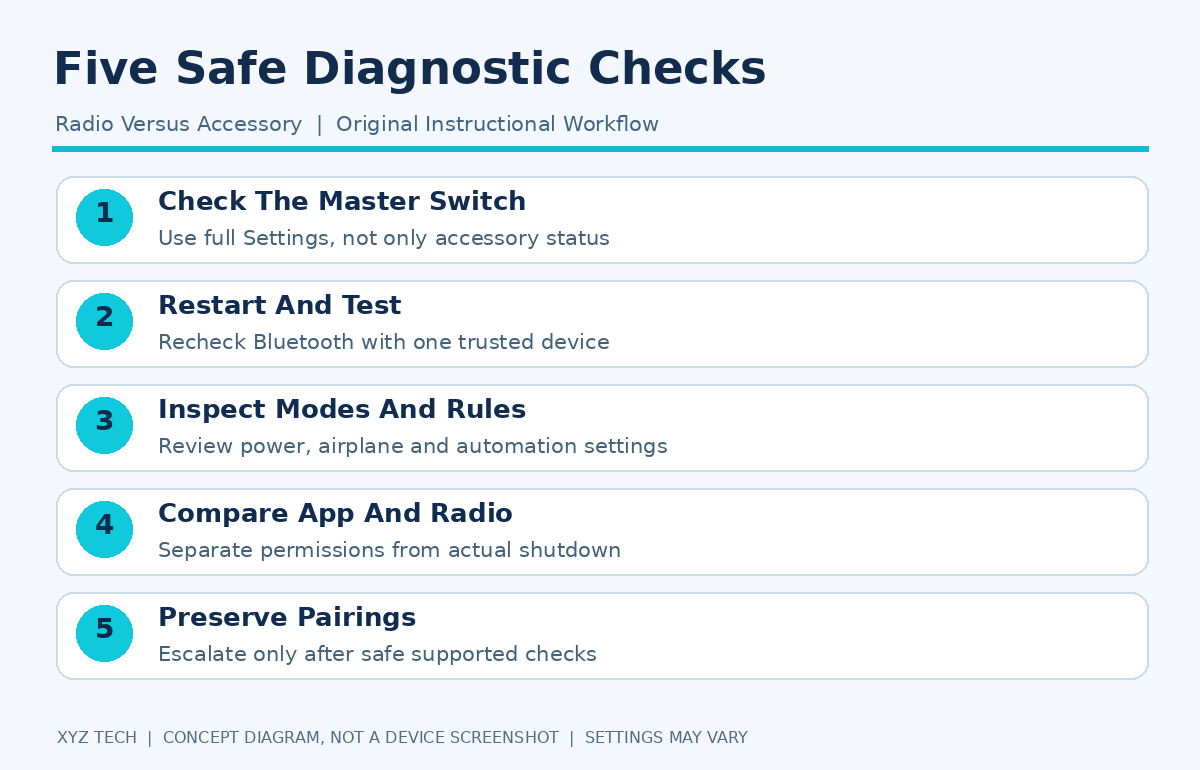
- Check The Master Switch: Use full Settings, not only accessory status.
- Restart And Test: Recheck Bluetooth with one trusted device.
- Inspect Modes And Rules: Review power, airplane and automation settings.
- Compare App And Radio: Separate permissions from actual shutdown.
- Preserve Pairings: Escalate only after safe supported checks.
Frequently Asked Questions
Why Does My Android Bluetooth Toggle Turn Off By Itself?
It could involve an automation, management rule, transient system problem or hardware issue. Confirm the actual Settings switch changes before deciding what failed.
Does A Disconnected Headset Mean Bluetooth Turned Off?
No, an accessory can disconnect while the Android Bluetooth master setting remains enabled. Check that distinction first.
Can Airplane Mode Affect Bluetooth?
Yes, but some devices let Bluetooth be enabled while airplane mode is active. Behavior differs by model and Android version.
Should I Clear Bluetooth System Storage?
Not as a first step. It may affect saved pairings. Follow the device maker instructions only after safer checks.
Will Resetting Bluetooth And Wi-Fi Remove Pairings?
It can remove saved connections and preferences. Review the reset screen and document what you will need to reconnect.
Can Battery Saver Cause This Problem?
Power modes can affect scanning or apps, but do not assume they turned off the master switch. Compare both states.
Can Safe Mode Help Identify The Cause?
Yes, on supported devices it can help isolate downloaded apps, but its results do not prove hardware damage by themselves.
How Do I Test A Bluetooth Radio Without Guessing?
Inspect the master toggle while connected to one charged trusted accessory, then repeat after an ordinary restart.
Should I Install A Bluetooth Repair App?
No, unknown repair apps can request unnecessary permissions. Prefer Android Settings and manufacturer support.
When Should I Contact Device Support?
If the switch repeatedly fails after approved software checks or physical damage is suspected, seek an authorized diagnostic.
Official Vendor References
These original instructions are informed by the publishers official support documentation. The menus and available capabilities depend on your software version, device model and any management policy.